Working Days and Hours in Angular Scheduler
The Scheduler supports many calendar-specific features, including:
- setting a custom visible time range
- defining working hours
- defining working days
- changing the first day of the week
- showing or hiding weekend days
- displaying week numbers
Set working days
By default, the Scheduler considers Monday through Friday as working days ([1, 2, 3, 4, 5]), where 1 represents Monday, 2 represents Tuesday, and so on. Days not included in this collection are treated as non-working days. When weekend days are hidden, these non-working days are also hidden from the layout.
The Work week and Timeline Work week views display only the defined working days, whereas other views display all days and visually differentiate non-working days with an inactive cell color.
The working or business hours depiction is valid only on the specified working days.
The following example shows how to configure the Scheduler to use Monday, Wednesday, and Friday as working days.
import { NgModule } from '@angular/core'
import { BrowserModule } from '@angular/platform-browser'
import { ScheduleModule } from '@syncfusion/ej2-angular-schedule'
import { ButtonModule } from '@syncfusion/ej2-angular-buttons'
import { DayService, WeekService, WorkWeekService, MonthService, AgendaService, MonthAgendaService} from '@syncfusion/ej2-angular-schedule'


import { Component } from '@angular/core';
import { EventSettingsModel,TimelineViewsService, View } from '@syncfusion/ej2-angular-schedule';
import { scheduleData } from './datasource';

@Component({
imports: [

        ScheduleModule,
        ButtonModule
    ],

providers: [DayService,
                WeekService,
                WorkWeekService,
                MonthService,
                AgendaService,
                MonthAgendaService,
                TimelineViewsService],
standalone: true,
  selector: 'app-root',
  // specifies the template string for the Schedule component
  template: `<ejs-schedule width='100%' height='550px' currentView='WorkWeek' [views]="scheduleViews" [workDays]='workWeekDays' [selectedDate]="selectedDate" [eventSettings]="eventSettings"></ejs-schedule>`
})
export class AppComponent {
  public selectedDate: Date = new Date(2018, 1, 15);
  public workWeekDays: number[] = [1, 3, 5];
  public scheduleViews: View[] = ['Week', 'WorkWeek', 'Month', 'TimelineWeek', 'TimelineWorkWeek'];
  public eventSettings: EventSettingsModel = { dataSource: scheduleData };
 }
import { bootstrapApplication } from '@angular/platform-browser';
import { AppComponent } from './app.component';
bootstrapApplication(AppComponent).catch((err) => console.error(err));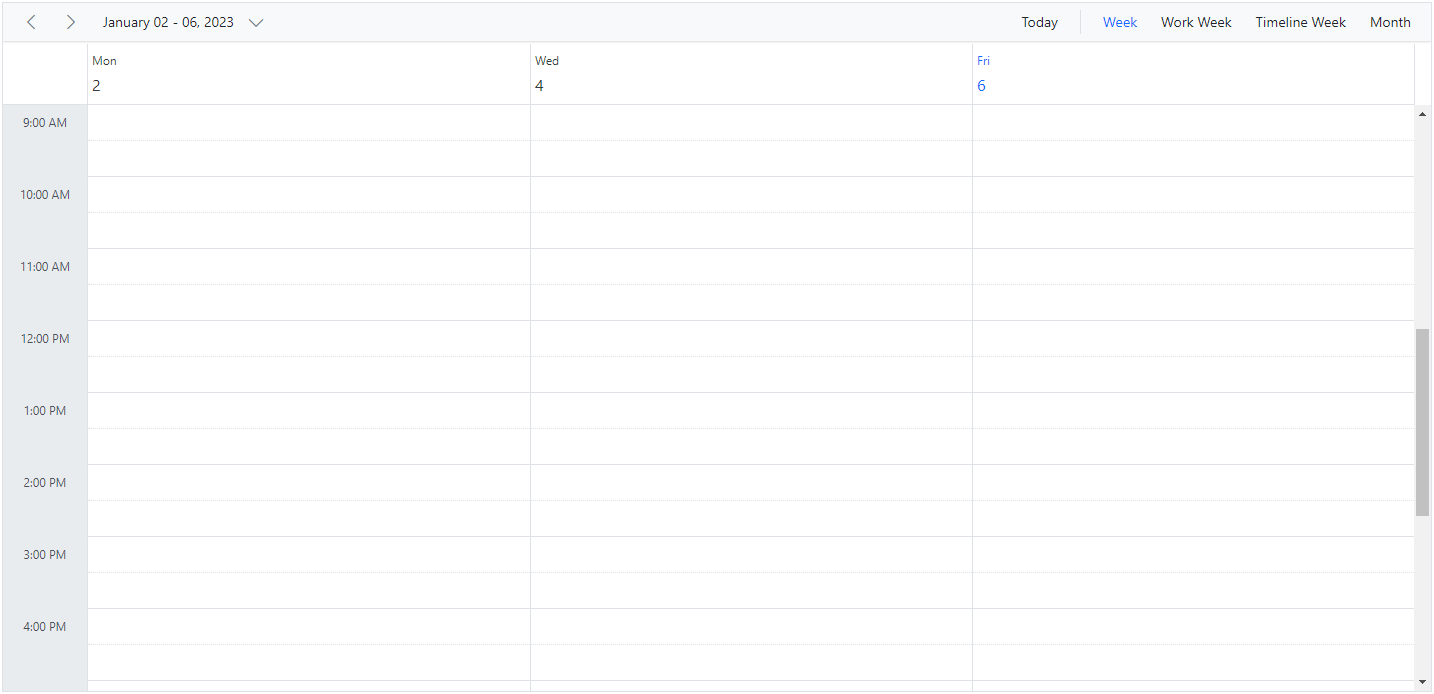
Hiding weekend days
Use the showWeekend property to show or hide weekend days. This property is not applicable for the Work week view because non-working days are already excluded from that view. By default, showWeekend is true.
Days not included in the Schedulers workDays collection are considered non-working days. In the example below, working days are defined as [1, 3, 4, 5], so Sunday, Tuesday, and Saturday (0, 2, 6) are treated as non-working days and are hidden from the views when showWeekend is false.
import { NgModule } from '@angular/core'
import { BrowserModule } from '@angular/platform-browser'
import { ScheduleModule } from '@syncfusion/ej2-angular-schedule'
import { ButtonModule } from '@syncfusion/ej2-angular-buttons'
import { DayService, WeekService, WorkWeekService, MonthService, AgendaService, MonthAgendaService} from '@syncfusion/ej2-angular-schedule'


import { Component } from '@angular/core';
import { EventSettingsModel, TimelineMonthService, View } from '@syncfusion/ej2-angular-schedule';
import { scheduleData } from './datasource';

@Component({
imports: [

        ScheduleModule,
        ButtonModule
    ],

providers: [DayService,
                WeekService,
                WorkWeekService,
                MonthService,
                AgendaService,
                MonthAgendaService,
                TimelineMonthService],
standalone: true,
  selector: 'app-root',
  // specifies the template string for the Schedule component
  template: `<ejs-schedule width='100%' height='550px' [views]="scheduleViews" [showWeekend]="showWeekend" [workDays]='workWeekDays' [selectedDate]="selectedDate" [eventSettings]="eventSettings"></ejs-schedule>`
})
export class AppComponent {
  public selectedDate: Date = new Date(2018, 1, 15);
  public workWeekDays: number[] = [1, 3, 4, 5];
  public showWeekend: boolean = false;
  public scheduleViews: View[] = ['Day', 'Week', 'TimelineMonth'];
  public eventSettings: EventSettingsModel = { dataSource: scheduleData };
 }
import { bootstrapApplication } from '@angular/platform-browser';
import { AppComponent } from './app.component';
bootstrapApplication(AppComponent).catch((err) => console.error(err));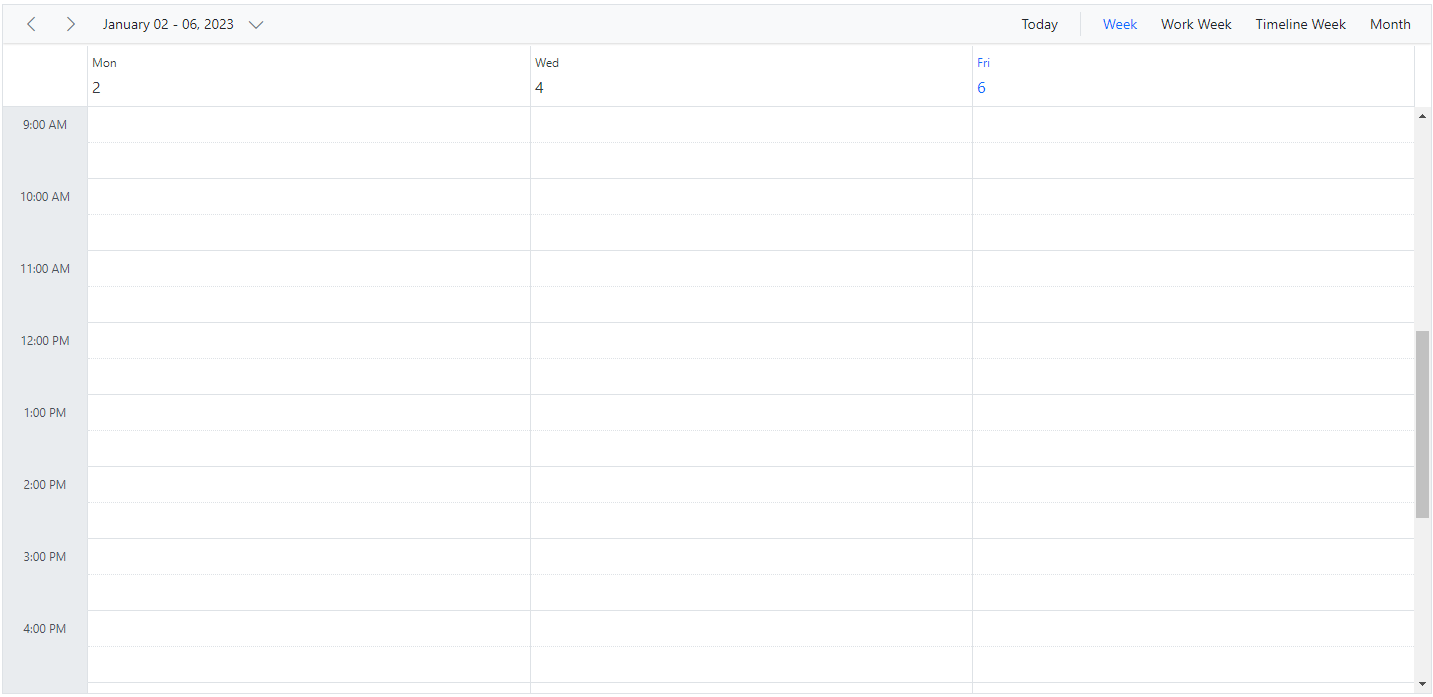
Show week numbers
Set the showWeekNumber property to true to display week numbers in the Scheduler header. By default, showWeekNumber is false. In Month view, week numbers appear in the first column.
The
showWeekNumberproperty is not applicable in Timeline views. Timeline views use the equivalentheaderRowscustomization instead.
import { NgModule } from '@angular/core'
import { BrowserModule } from '@angular/platform-browser'
import { ScheduleModule } from '@syncfusion/ej2-angular-schedule'
import { ButtonModule } from '@syncfusion/ej2-angular-buttons'
import { DayService, WeekService, WorkWeekService, MonthService, AgendaService, MonthAgendaService} from '@syncfusion/ej2-angular-schedule'


import { Component } from '@angular/core';
import { EventSettingsModel,View } from '@syncfusion/ej2-angular-schedule';
import { scheduleData } from './datasource';

@Component({
imports: [

        ScheduleModule,
        ButtonModule
    ],

providers: [DayService,
                WeekService,
                WorkWeekService,
                MonthService,
                AgendaService,
                MonthAgendaService],
standalone: true,
  selector: 'app-root',
  // specifies the template string for the Schedule component
  template: `<ejs-schedule width='100%' height='550px' currentView='Month' [views]="scheduleViews" [showWeekNumber]="showWeekNumber" [selectedDate]="selectedDate" [eventSettings]="eventSettings"></ejs-schedule>`
})
export class AppComponent {
  public selectedDate: Date = new Date(2018, 1, 15);
  public workWeekDays: number[] = [1, 3, 4, 5];
  public showWeekNumber: boolean = true;
  public scheduleViews: View[] = ['Day', 'Week', 'Month'];
  public eventSettings: EventSettingsModel = { dataSource: scheduleData };
 }
import { bootstrapApplication } from '@angular/platform-browser';
import { AppComponent } from './app.component';
bootstrapApplication(AppComponent).catch((err) => console.error(err));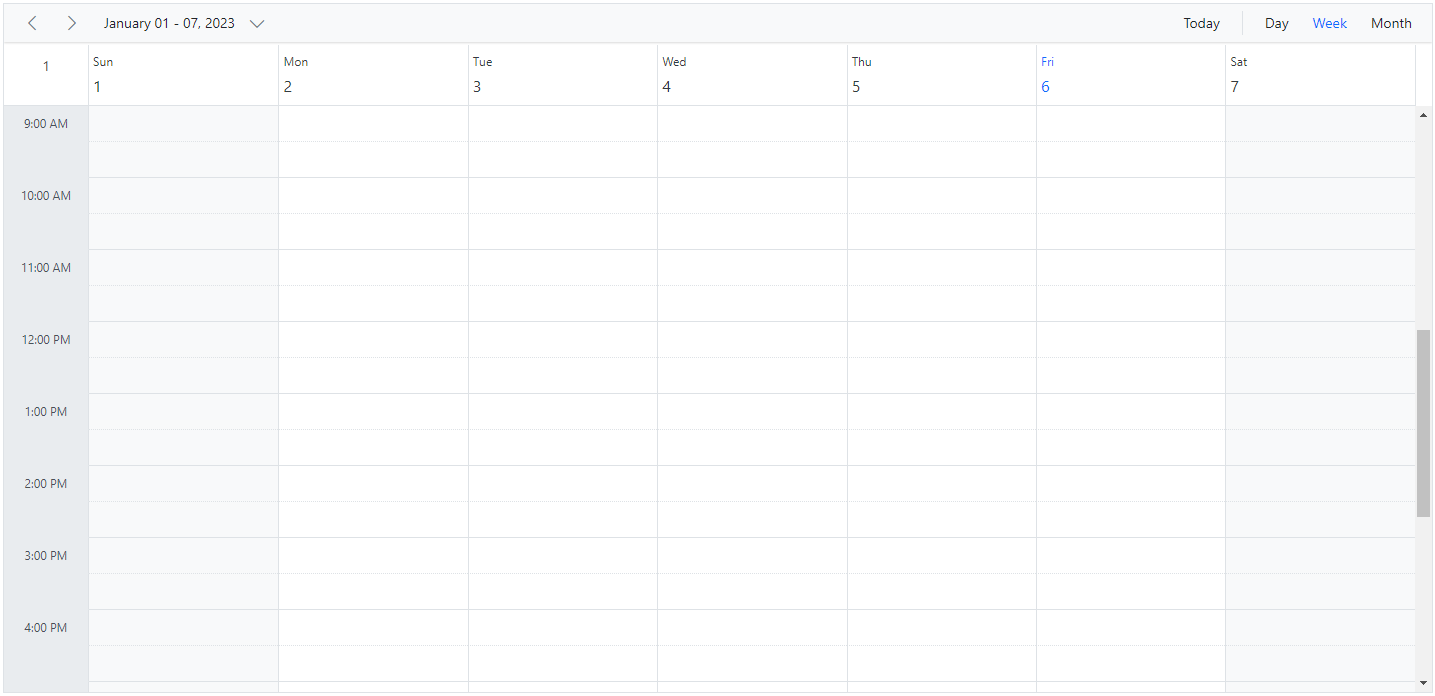
Different options for week numbers
By default, week numbers are shown in the Scheduler based on the first day of the year. However, the week numbers can be determined based on the following criteria.
FirstDay – The first week of the year is calculated based on the first day of the year.
FirstFourDayWeek – The first week of the year begins from the first week with four or more days.
FirstFullWeek – The first week of the year begins when meeting the first day of the week (firstDayOfWeek) and the first day of the year.
For more details refer to CalendarWeekRule remarks
import { NgModule } from '@angular/core'
import { BrowserModule } from '@angular/platform-browser'
import { ScheduleModule } from '@syncfusion/ej2-angular-schedule'
import { ButtonModule } from '@syncfusion/ej2-angular-buttons'
import { DayService, WeekService, WorkWeekService, MonthService, AgendaService, MonthAgendaService} from '@syncfusion/ej2-angular-schedule'


import { Component } from '@angular/core';
import { EventSettingsModel, View ,WeekRule} from '@syncfusion/ej2-angular-schedule';
import { scheduleData } from './datasource';

@Component({
imports: [

        ScheduleModule,
        ButtonModule
    ],

providers: [DayService,
                WeekService,
                WorkWeekService,
                MonthService,
                AgendaService,
                MonthAgendaService,
                MonthService],
standalone: true,
  selector: 'app-root',
  // specifies the template string for the Schedule component
  template: `<ejs-schedule width='100%' height='550px' currentView='Month' [views]="scheduleViews" [showWeekNumber]="showWeekNumber" [weekRule]="weekRule" [selectedDate]="selectedDate" [eventSettings]="eventSettings"></ejs-schedule>`
})
export class AppComponent {
  public selectedDate: Date = new Date(2020, 1, 15);
  public workWeekDays: number[] = [1, 3, 4, 5];
  public showWeekNumber: boolean = true;
  public weekRule: WeekRule = 'FirstFourDayWeek';
  public scheduleViews: View[] = ['Day', 'Week', 'Month'];
  public eventSettings: EventSettingsModel = {
    dataSource: [
      {
        Id: 1,
        Subject: "Explosion of Betelgeuse Star",
        StartTime: new Date(2020, 1, 15, 9, 30),
        EndTime: new Date(2020, 1, 15, 11, 0)
      },
      {
        Id: 2,
        Subject: "Thule Air Crash Report",
        StartTime: new Date(2020, 1, 12, 12, 0),
        EndTime: new Date(2020, 1, 12, 14, 0)
      },
      {
        Id: 3,
        Subject: "Blue Moon Eclipse",
        StartTime: new Date(2020, 1, 13, 9, 30),
        EndTime: new Date(2020, 1, 13, 11, 0)
      },
      {
        Id: 4,
        Subject: "Meteor Showers in 2018",
        StartTime: new Date(2020, 1, 14, 13, 0),
        EndTime: new Date(2020, 1, 14, 14, 30)
      }
    ]
  }
}
import { bootstrapApplication } from '@angular/platform-browser';
import { AppComponent } from './app.component';
bootstrapApplication(AppComponent).catch((err) => console.error(err));Note: Enable the showWeekNumber property to configure the weekRule property. Also, the weekRule property depends on the value of the firstDayOfWeek property.
Set working hours
Working hours define the daily work-hour range within the Scheduler and are highlighted on work cells. Use the workHours property to configure work hours. It supports the following sub-options:
-
highlight– enable or disable work-hour highlighting. -
start– set the start time for work hours. -
end– set the end time for work hours.
import { NgModule } from '@angular/core'
import { BrowserModule } from '@angular/platform-browser'
import { ScheduleModule } from '@syncfusion/ej2-angular-schedule'
import { ButtonModule } from '@syncfusion/ej2-angular-buttons'
import { MonthService, AgendaService, MonthAgendaService} from '@syncfusion/ej2-angular-schedule'


import { Component } from '@angular/core';
import { EventSettingsModel, DayService, WeekService, WorkWeekService, View, WorkHoursModel } from '@syncfusion/ej2-angular-schedule';
import { scheduleData } from './datasource';

@Component({
imports: [

        ScheduleModule,
        ButtonModule
    ],

providers: [DayService,
                WeekService,
                WorkWeekService,
                MonthService,
                AgendaService,
                MonthAgendaService],
standalone: true,
  selector: 'app-root',
  // specifies the template string for the Schedule component
  template: `<ejs-schedule width='100%' height='550px' [views]="scheduleViews" [workHours]="scheduleHours" [selectedDate]="selectedDate" [eventSettings]="eventSettings"></ejs-schedule>`
})
export class AppComponent {
  public selectedDate: Date = new Date(2018, 1, 15);
  public scheduleHours: WorkHoursModel  = { highlight: true, start: '11:00', end: '20:00' };
  public scheduleViews: View[] = ['Day', 'Week', 'WorkWeek'];
  public eventSettings: EventSettingsModel = { dataSource: scheduleData };
 }
import { bootstrapApplication } from '@angular/platform-browser';
import { AppComponent } from './app.component';
bootstrapApplication(AppComponent).catch((err) => console.error(err));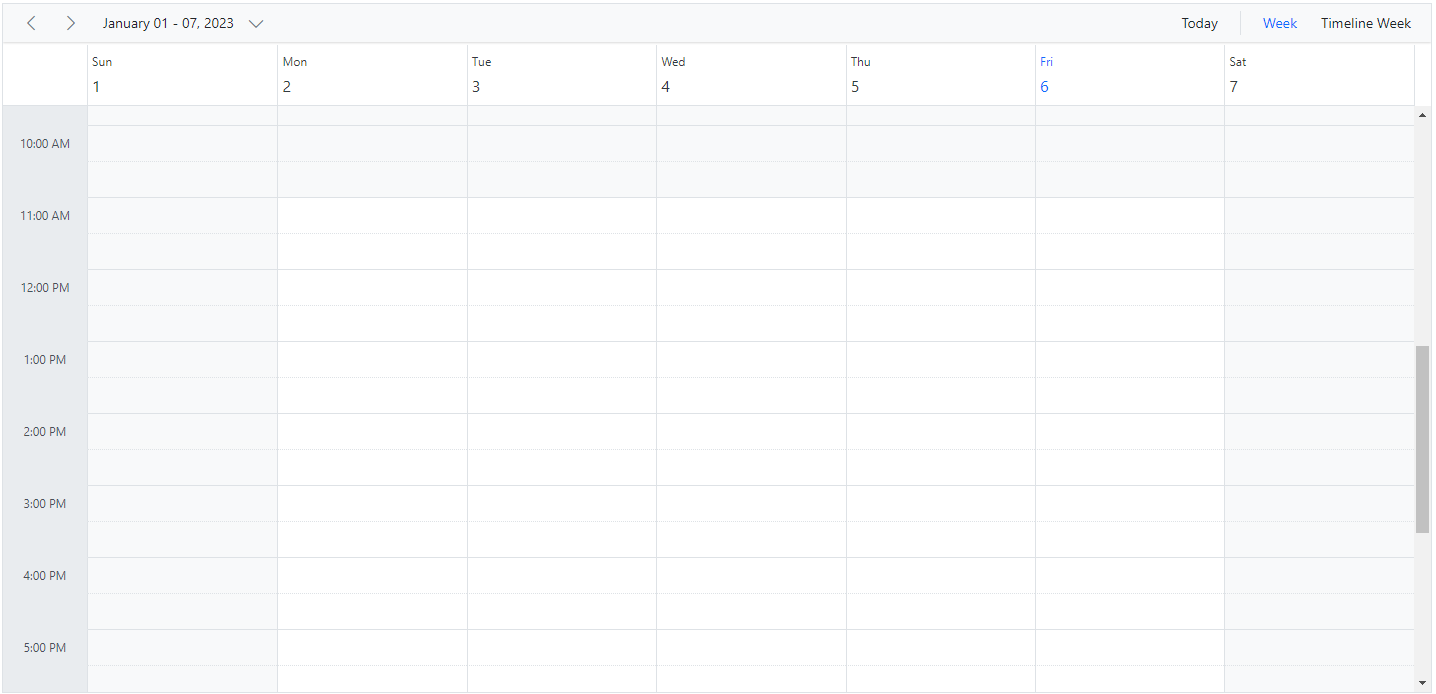
Scheduler displaying custom hours
You can display only a specific time range in the Scheduler by hiding hours outside that range. Set the startHour and endHour properties to define the visible time window.
The following example displays the Scheduler from 7:00 AM to 6:00 PM and hides the remaining hours.
import { NgModule } from '@angular/core'
import { BrowserModule } from '@angular/platform-browser'
import { ScheduleModule } from '@syncfusion/ej2-angular-schedule'
import { ButtonModule } from '@syncfusion/ej2-angular-buttons'
import { DayService, WeekService, WorkWeekService, MonthService, AgendaService, MonthAgendaService} from '@syncfusion/ej2-angular-schedule'


import { Component } from '@angular/core';
import { EventSettingsModel, View, WorkHoursModel } from '@syncfusion/ej2-angular-schedule';
import { scheduleData } from './datasource';

@Component({
imports: [

        ScheduleModule,
        ButtonModule
    ],

providers: [DayService,
                WeekService,
                WorkWeekService,
                MonthService,
                AgendaService,
                MonthAgendaService],
standalone: true,
  selector: 'app-root',
  // specifies the template string for the Schedule component
  template: `<ejs-schedule width='100%' height='550px' [views]="scheduleViews" startHour='07:00' endHour='18:00' [selectedDate]="selectedDate" [eventSettings]="eventSettings"></ejs-schedule>`
})
export class AppComponent {
  public selectedDate: Date = new Date(2018, 1, 15);
  public scheduleViews: View[] = ['Day', 'Week', 'WorkWeek'];
  public eventSettings: EventSettingsModel = { dataSource: scheduleData };
 }
import { bootstrapApplication } from '@angular/platform-browser';
import { AppComponent } from './app.component';
bootstrapApplication(AppComponent).catch((err) => console.error(err));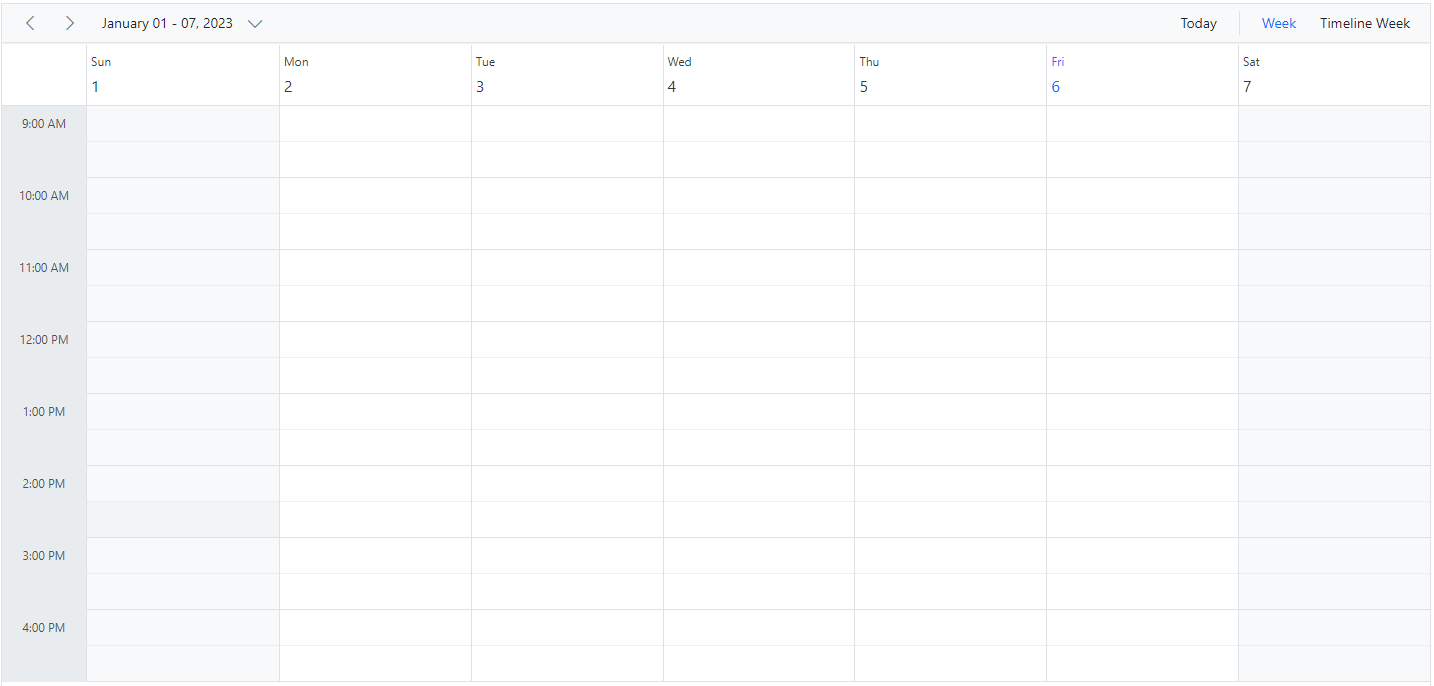
Setting start day of the week
By default, Scheduler uses Sunday as the first day of the week. To change it, set the firstDayOfWeek property to a value from 0 to 6.
Sunday is
0, Monday is1, and so on.
import { NgModule } from '@angular/core'
import { BrowserModule } from '@angular/platform-browser'
import { ScheduleModule } from '@syncfusion/ej2-angular-schedule'
import { ButtonModule } from '@syncfusion/ej2-angular-buttons'
import { DayService, WorkWeekService, MonthService, AgendaService, MonthAgendaService} from '@syncfusion/ej2-angular-schedule'


import { Component } from '@angular/core';
import { EventSettingsModel, WeekService, TimelineMonthService, View } from '@syncfusion/ej2-angular-schedule';
import { scheduleData } from './datasource';

@Component({
imports: [

        ScheduleModule,
        ButtonModule
    ],

providers: [DayService,
                WeekService,
                WorkWeekService,
                MonthService,
                AgendaService,
                MonthAgendaService,
                TimelineMonthService],
standalone: true,
  selector: 'app-root',
  // specifies the template string for the Schedule component
  template: `<ejs-schedule width='100%' height='550px' [views]="scheduleViews" [firstDayOfWeek]="weekFirstDay" [selectedDate]="selectedDate" [eventSettings]="eventSettings"></ejs-schedule>`
})
export class AppComponent {
  public selectedDate: Date = new Date(2018, 1, 15);
  public weekFirstDay: number = 3;
  public scheduleViews: View[] = ['Week', 'TimelineMonth'];
  public eventSettings: EventSettingsModel = { dataSource: scheduleData };
 }
import { bootstrapApplication } from '@angular/platform-browser';
import { AppComponent } from './app.component';
bootstrapApplication(AppComponent).catch((err) => console.error(err));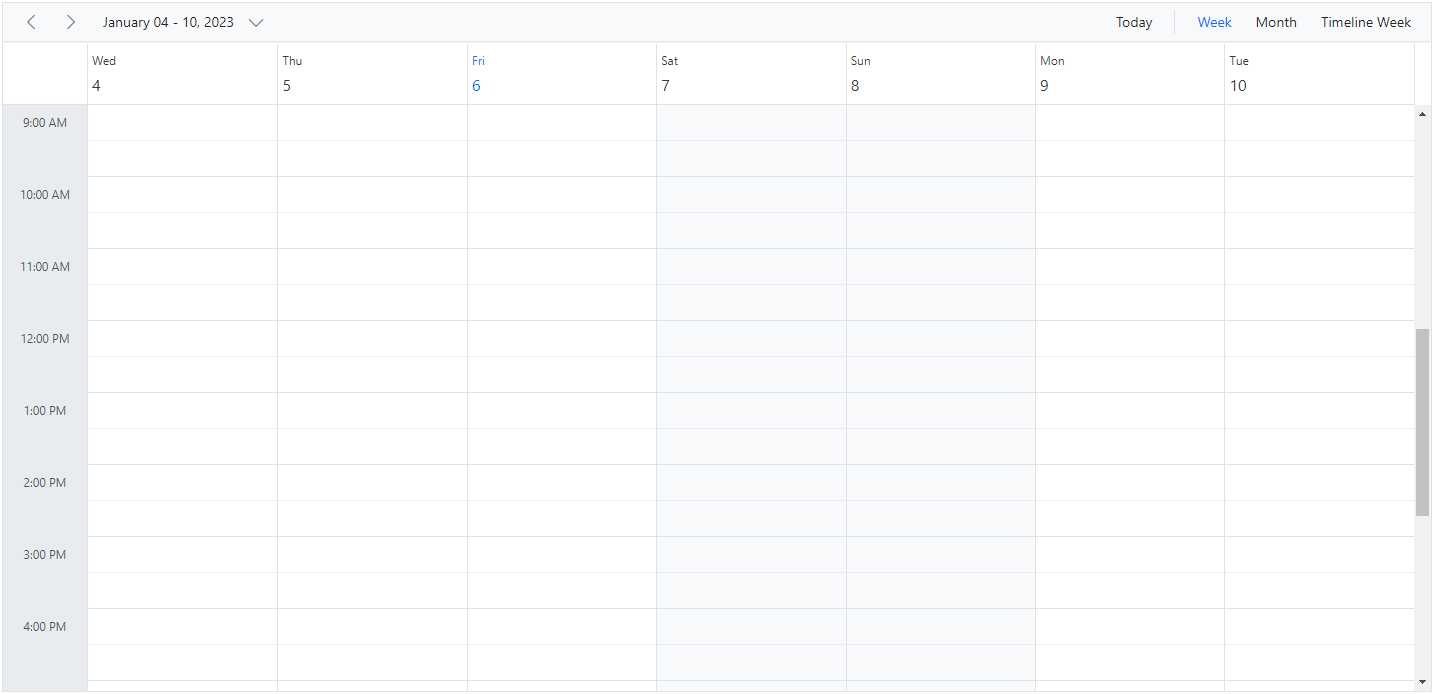
Scroll to specific time and date
You can manually scroll to a specific time on Scheduler by using the scrollTo method as shown in the following example.
<table id="property" title="Properties" style="width: 100%">
    <tbody>
        <tr style="height: 50px">
            <td>
                <div> Scroll To
                </div>
            </td>
            <td>
                <div>
                    <ejs-timepicker width='100px' [value]="scrollToHour" format='HH:mm' (change)="onChange($event)"> </ejs-timepicker>
                </div>
            </td>
        </tr>
    </tbody>
</table>
<ejs-schedule #scheduleObj width='100%' height='550px' [views]="scheduleViews" [selectedDate]="selectedDate" [eventSettings]="eventSettings"></ejs-schedule>
import { NgModule } from '@angular/core'
import { BrowserModule } from '@angular/platform-browser'
import { ScheduleModule } from '@syncfusion/ej2-angular-schedule'
import { TimePickerModule } from '@syncfusion/ej2-angular-calendars'
import { Component, ViewChild } from '@angular/core';
import { ChangeEventArgs } from '@syncfusion/ej2-angular-calendars';
import { ScheduleComponent, EventSettingsModel, DayService, WeekService, WorkWeekService, View , MonthService, AgendaService, MonthAgendaService} from '@syncfusion/ej2-angular-schedule';
import { scheduleData } from './datasource';
@Component({
imports: [
ScheduleModule,
TimePickerModule
],
standalone: true,
selector: 'app-root',
providers: [DayService, WeekService, WorkWeekService, MonthService,
AgendaService,
MonthAgendaService],
// specifies the template string for the Schedule component
templateUrl: './app.component.html'
})
export class AppComponent {
@ViewChild('scheduleObj')
public scheduleObj?: ScheduleComponent;
public selectedDate: Date = new Date(2018, 1, 15);
public scrollToHour: Date = new Date(2018, 1, 15, 9);
public scheduleViews: View[] = ['Day', 'Week', 'WorkWeek'];
public eventSettings: EventSettingsModel = { dataSource: scheduleData };
onChange(args: ChangeEventArgs): void {
this.scheduleObj!.scrollTo((args as any).text);
}
}import { bootstrapApplication } from '@angular/platform-browser';
import { AppComponent } from './app.component';
bootstrapApplication(AppComponent).catch((err) => console.error(err));How to scroll to current time on initial load
There are scenarios where you may need to load the Scheduler displaying the system’s current time on the currently visible view port area. In such cases, the Scheduler needs to be scrolled to a specific time based on the system’s current time which is depicted in the following code example.
import { NgModule } from '@angular/core'
import { BrowserModule } from '@angular/platform-browser'
import { ScheduleModule } from '@syncfusion/ej2-angular-schedule'
import { ButtonModule } from '@syncfusion/ej2-angular-buttons'
import { DayService, WeekService, WorkWeekService, MonthService, AgendaService, MonthAgendaService} from '@syncfusion/ej2-angular-schedule'


import { Component, ViewChild } from '@angular/core';
import { ScheduleComponent, EventSettingsModel, TimelineViewsService, View } from '@syncfusion/ej2-angular-schedule';
import { scheduleData } from './datasource';

@Component({
imports: [

        ScheduleModule,
        ButtonModule
    ],

providers: [DayService,
                WeekService,
                WorkWeekService,
                MonthService,
                AgendaService,
                MonthAgendaService,
                TimelineViewsService],
standalone: true,
  selector: 'app-root',
  // specifies the template string for the Schedule component
  template: `<ejs-schedule #scheduleObj width='100%' height='550px' [views]="scheduleViews" (created)="onCreated($event)" [selectedDate]="selectedDate" [eventSettings]="eventSettings"></ejs-schedule>`
})
export class AppComponent {
  @ViewChild('scheduleObj')
  public scheduleObj?: ScheduleComponent;
  public selectedDate: Date = new Date(2018, 1, 15);
  public scheduleViews: View[] = ['Day', 'Week', 'TimelineWorkWeek'];
  public eventSettings: EventSettingsModel = { dataSource: scheduleData };
  onCreated(eventData: any): void {
    let currTime: Date = new Date();
    let hours: string = currTime.getHours() < 10 ? '0' +currTime.getHours().toString() : currTime.getHours().toString();
    let minutes: string = currTime.getMinutes().toString();
    let time: string = hours + ':' + minutes;
    this.scheduleObj?.scrollTo(time);
  }
 }
import { bootstrapApplication } from '@angular/platform-browser';
import { AppComponent } from './app.component';
bootstrapApplication(AppComponent).catch((err) => console.error(err));Refer to our Angular Scheduler feature tour page for an overview of key capabilities. You can also explore the Angular Scheduler example to learn how to present and manipulate data.