Getting Started with SharePoint and Angular Scheduler
This article provides a step-by-step guide for setting up a SharePoint project and integrating the Angular Scheduler component.
SharePoint Framework (SPFx) is a development model and framework provided by Microsoft for building custom solutions and extensions for SharePoint and Microsoft Teams. It is a modern, client-side framework that allows developers to create web parts, extensions, and customizations that can be deployed and used within SharePoint sites and Teams applications.
Prerequisites
Set up the SharePoint project
Create a new SPFx project using the following command:
Step 1: To initiate the creation of a new SharePoint project, use the following command:
yo @microsoft/sharepointStep 2: Specify the name of the project as my-project and the name of the WebPart as App for this article. You will be prompted with a series of configuration questions as shown below:
Let's create a new Microsoft 365 solution.
? What is your solution name? my-project
? Which type of client-side component to create? WebPart
Add new Web part to solution my-project.
? What is your Web part name? App
? Which template would you like to use? No framework
Step 3: To establish trust for the certificate in the development environment, execute the following command:
heft trust-dev-certWith these steps complete, your my-project SharePoint Framework solution is ready for Angular component integration.
Add Angular Scheduler packages
Angular component packages are available at npmjs.com. To use the Angular Scheduler component in the project, install the required npm packages and Angular framework dependencies:
npm install @angular/core @angular/common @angular/platform-browser @angular/compiler rxjs zone.js --save
npm install @syncfusion/ej2-angular-schedule @syncfusion/ej2-angular-base --save
Add Angular Schedule component
Follow the steps below to add the component:
Step 1: Create Angular component files inside the src/webparts/app folder.
Create app/scheduler.component.ts:
import { Component } from '@angular/core';
import { ScheduleModule, EventSettingsModel, DayService, WeekService, WorkWeekService, MonthService, AgendaService } from '@syncfusion/ej2-angular-schedule';

require('@syncfusion/ej2-base/styles/bootstrap5.css');
require('@syncfusion/ej2-buttons/styles/bootstrap5.css');
require('@syncfusion/ej2-calendars/styles/bootstrap5.css');
require('@syncfusion/ej2-dropdowns/styles/bootstrap5.css');
require('@syncfusion/ej2-inputs/styles/bootstrap5.css');
require('@syncfusion/ej2-lists/styles/bootstrap5.css');
require('@syncfusion/ej2-navigations/styles/bootstrap5.css');
require('@syncfusion/ej2-popups/styles/bootstrap5.css');
require('@syncfusion/ej2-splitbuttons/styles/bootstrap5.css');
require('@syncfusion/ej2-schedule/styles/bootstrap5.css');

@Component({
selector: 'app-scheduler',
standalone: true,
template: `<ejs-schedule #scheduleObj width="100%" height="550px" [eventSettings]='eventSettings' [selectedDate]="selectedDate"></ejs-schedule>`,
imports: [ScheduleModule],
providers: [DayService, WeekService, WorkWeekService, MonthService, AgendaService],
})

export class SchedulerComponent{
    public selectedDate: Date = new Date(2026, 1, 2);
}
Create app/main.ts:
import 'zone.js';
import '@angular/compiler';
import { bootstrapApplication } from '@angular/platform-browser';
import { SchedulerComponent } from './scheduler.component';

export function bootstrapAngular(): void{
  bootstrapApplication(SchedulerComponent)
  .catch((err) => console.error(err));
}
Update the main web part file AppWebPart.ts inside the src/webparts/app folder to bootstrap Angular:
import { Version } from '@microsoft/sp-core-library';
import { BaseClientSideWebPart } from '@microsoft/sp-webpart-base';

// import function from angular
import { bootstrapAngular } from './main';

export default class AppWebPart extends BaseClientSideWebPart<{}> {
    public render(): void {
    // create the Angular component selector in the DOM
    this.domElement.innerHTML = `
      <div>
        <app-scheduler></app-scheduler>
      </div>
    `;

    // start the Angular application
    bootstrapAngular();
  }
}
Update the TypeScript configuration tsconfig.json to map Angular and Syncfusion package paths for proper module resolution in the SPFx project:
{
  "extends": "./node_modules/@microsoft/spfx-web-build-rig/profiles/default/tsconfig-base.json",
  "compilerOptions": {
    "experimentalDecorators": true,
    "emitDecoratorMetadata": true,
    "useDefineForClassFields": false,
    "skipLibCheck": true,
    "paths": {
      "@angular/*": ["./node_modules/@angular/*"],
      "@syncfusion/*": ["./node_modules/@syncfusion/*"]
    }
  }
}
Step 2: Populating events to the Syncfusion Angular Scheduler.
Update scheduler.component.ts:
export class SchedulerComponent{
    public selectedDate: Date = new Date(2026, 1, 2);
    public data: object[] = [
      {
        Id: '201',
        Subject: 'Weekly Planning | Team Leads',
        StartTime: new Date(2026, 1, 1, 10, 0),
        EndTime: new Date(2026, 1, 1, 11, 0),
      },
      {
        Id: '202',
        Subject: 'Daily Standup | Engineering',
        StartTime: new Date(2026, 1, 2, 9, 0),
        EndTime: new Date(2026, 1, 2, 9, 30),
      },
      {
        Id: '203',
        Subject: 'Client Call | Orion Traders',
        StartTime: new Date(2026, 1, 2, 14, 0),
        EndTime: new Date(2026, 1, 2, 15, 0),
      },
      {
        Id: '204',
        Subject: 'Design Review | Mobile App v3',
        StartTime: new Date(2026, 1, 3, 10, 0),
        EndTime: new Date(2026, 1, 3, 11, 30),
      },
      {
        Id: '205',
        Subject: 'Security Sync | Q1 Controls',
        StartTime: new Date(2026, 1, 3, 16, 0),
        EndTime: new Date(2026, 1, 3, 17, 0),
      },
      {
        Id: '206',
        Subject: 'Product Demo | Beta Cohort',
        StartTime: new Date(2026, 1, 4, 11, 0),
        EndTime: new Date(2026, 1, 4, 12, 0),
      },
      {
        Id: '207',
        Subject: 'Sprint Retrospective | S2',
        StartTime: new Date(2026, 1, 4, 15, 0),
        EndTime: new Date(2026, 1, 4, 16, 30),
      },
      {
        Id: '208',
        Subject: 'Training | Accessibility & WCAG',
        StartTime: new Date(2026, 1, 5, 9, 30),
        EndTime: new Date(2026, 1, 5, 10, 30),
      },
      {
        Id: '209',
        Subject: 'Release Go/No-Go | v2.4',
        StartTime: new Date(2026, 1, 6, 15, 0),
        EndTime: new Date(2026, 1, 6, 16, 0),
      },
      {
        Id: '210',
        Subject: 'Team Lunch | Monthly Social',
        StartTime: new Date(2026, 1, 7, 11, 0),
        EndTime: new Date(2026, 1, 7, 12, 0),
      },
    ];

    public eventSettings: EventSettingsModel = { dataSource: this.data };
}
Here is the summarized code for the above steps:
import { Component } from '@angular/core';
import { ScheduleModule, EventSettingsModel, DayService, WeekService, WorkWeekService, MonthService, AgendaService } from '@syncfusion/ej2-angular-schedule';

// import Syncfusion CSS
require('@syncfusion/ej2-base/styles/bootstrap5.css');
require('@syncfusion/ej2-buttons/styles/bootstrap5.css');
require('@syncfusion/ej2-calendars/styles/bootstrap5.css');
require('@syncfusion/ej2-dropdowns/styles/bootstrap5.css');
require('@syncfusion/ej2-inputs/styles/bootstrap5.css');
require('@syncfusion/ej2-lists/styles/bootstrap5.css');
require('@syncfusion/ej2-navigations/styles/bootstrap5.css');
require('@syncfusion/ej2-popups/styles/bootstrap5.css');
require('@syncfusion/ej2-splitbuttons/styles/bootstrap5.css');
require('@syncfusion/ej2-schedule/styles/bootstrap5.css');

@Component({
selector: 'app-scheduler',
standalone: true,
template: `<ejs-schedule #scheduleObj width="100%" height="550px" [eventSettings]='eventSettings' [selectedDate]="selectedDate"></ejs-schedule>`,
imports: [ScheduleModule],
providers: [DayService, WeekService, WorkWeekService, MonthService, AgendaService],
})

export class SchedulerComponent{
    public selectedDate: Date = new Date(2026, 1, 2);
    public data: object[] = [
      {
        Id: '201',
        Subject: 'Weekly Planning | Team Leads',
        StartTime: new Date(2026, 1, 1, 10, 0),
        EndTime: new Date(2026, 1, 1, 11, 0),
      },
      {
        Id: '202',
        Subject: 'Daily Standup | Engineering',
        StartTime: new Date(2026, 1, 2, 9, 0),
        EndTime: new Date(2026, 1, 2, 9, 30),
      },
      {
        Id: '203',
        Subject: 'Client Call | Orion Traders',
        StartTime: new Date(2026, 1, 2, 14, 0),
        EndTime: new Date(2026, 1, 2, 15, 0),
      },
      {
        Id: '204',
        Subject: 'Design Review | Mobile App v3',
        StartTime: new Date(2026, 1, 3, 10, 0),
        EndTime: new Date(2026, 1, 3, 11, 30),
      },
      {
        Id: '205',
        Subject: 'Security Sync | Q1 Controls',
        StartTime: new Date(2026, 1, 3, 16, 0),
        EndTime: new Date(2026, 1, 3, 17, 0),
      },
      {
        Id: '206',
        Subject: 'Product Demo | Beta Cohort',
        StartTime: new Date(2026, 1, 4, 11, 0),
        EndTime: new Date(2026, 1, 4, 12, 0),
      },
      {
        Id: '207',
        Subject: 'Sprint Retrospective | S2',
        StartTime: new Date(2026, 1, 4, 15, 0),
        EndTime: new Date(2026, 1, 4, 16, 30),
      },
      {
        Id: '208',
        Subject: 'Training | Accessibility & WCAG',
        StartTime: new Date(2026, 1, 5, 9, 30),
        EndTime: new Date(2026, 1, 5, 10, 30),
      },
      {
        Id: '209',
        Subject: 'Release Go/No-Go | v2.4',
        StartTime: new Date(2026, 1, 6, 15, 0),
        EndTime: new Date(2026, 1, 6, 16, 0),
      },
      {
        Id: '210',
        Subject: 'Team Lunch | Monthly Social',
        StartTime: new Date(2026, 1, 7, 11, 0),
        EndTime: new Date(2026, 1, 7, 12, 0),
      },
    ];

    public eventSettings: EventSettingsModel = { dataSource: this.data };
}
Set up Tenant Domain for SPFx
The following configuration ensures that your SPFx solution loads the SharePoint Workbench for your specific tenant. Replace {tenantDomain} with your actual SharePoint tenant domain.
config/serve.json
{
  "$schema": "https://developer.microsoft.com/json-schemas/spfx-build/spfx-serve.schema.json",
  "port": 4321,
  "https": true,
  "initialPage": "https://{tenantDomain}/_layouts/workbench.aspx"
}
Run the project
To run the project, use the following command:
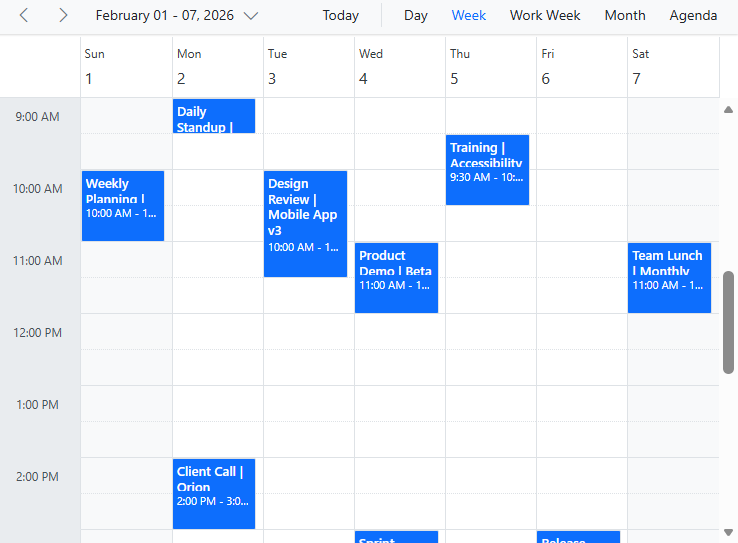
heft startThe output will appear as follows:
Find the sample in this GitHub location