Crosshair in .NET MAUI Cartesian Chart
10 Jul 20269 minutes to read
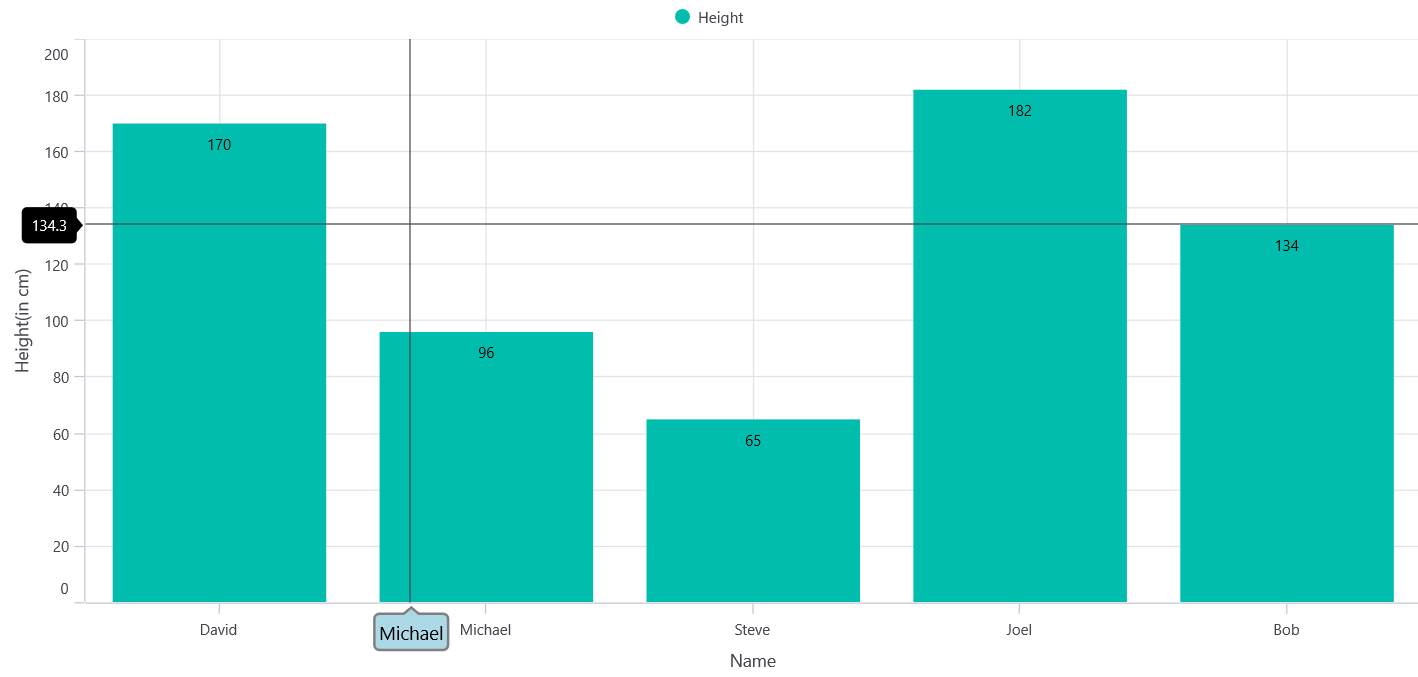
Crosshair allows you to view exact values on the chart by showing vertical and horizontal lines at the interaction point. These lines help you read the corresponding axis values clearly. On mobile, long‑press the chart to show the crosshair and drag to change its position. On desktop, move the cursor over the chart area to display the crosshair.
Enable Crosshair
To enable the crosshair in the chart, create an instance of the ChartCrosshairBehavior and set it to the CrosshairBehavior property of SfCartesianChart.
NOTE
Prerequisite: Ensure that the required NuGet package is installed, the necessary namespaces are imported, and the SfCartesianChart control is properly configured in your application. For detailed setup and configuration instructions, refer to the Getting Started guide.
<chart:SfCartesianChart>
    <!-- code omitted for brevity -->
    <chart:SfCartesianChart.CrosshairBehavior>
        <chart:ChartCrosshairBehavior/>
    </chart:SfCartesianChart.CrosshairBehavior>
</chart:SfCartesianChart>
SfCartesianChart chart = new SfCartesianChart();
ChartCrosshairBehavior crosshair = new ChartCrosshairBehavior();
chart.CrosshairBehavior = crosshair;
// code omitted for brevity
this.Content = chart;Show crosshair axis labels
To view the axis labels, set the ShowTrackballLabel property to true as shown in the following code snippet. The default value of the ChartAxis.ShowTrackballLabel is false.
<chart:SfCartesianChart>
    <!-- code omitted for brevity -->
    <chart:SfCartesianChart.CrosshairBehavior>
        <chart:ChartCrosshairBehavior/>
    </chart:SfCartesianChart.CrosshairBehavior>

    <chart:SfCartesianChart.XAxes>
        <chart:CategoryAxis ShowTrackballLabel="True"/>
    </chart:SfCartesianChart.XAxes>

    <chart:SfCartesianChart.YAxes>
        <chart:NumericalAxis ShowTrackballLabel="True"/>
    </chart:SfCartesianChart.YAxes>
    <!-- code omitted for brevity -->
</chart:SfCartesianChart>
SfCartesianChart chart = new SfCartesianChart();
ChartCrosshairBehavior crosshair = new ChartCrosshairBehavior();
chart.CrosshairBehavior = crosshair;
CategoryAxis chartXAxis = new CategoryAxis()
{
ShowTrackballLabel = true
};
NumericalAxis chartYAxis = new NumericalAxis()
{
ShowTrackballLabel = true
};
chart.XAxes.Add(chartXAxis);
chart.YAxes.Add(chartYAxis);
// code omitted for brevity
this.Content = chart;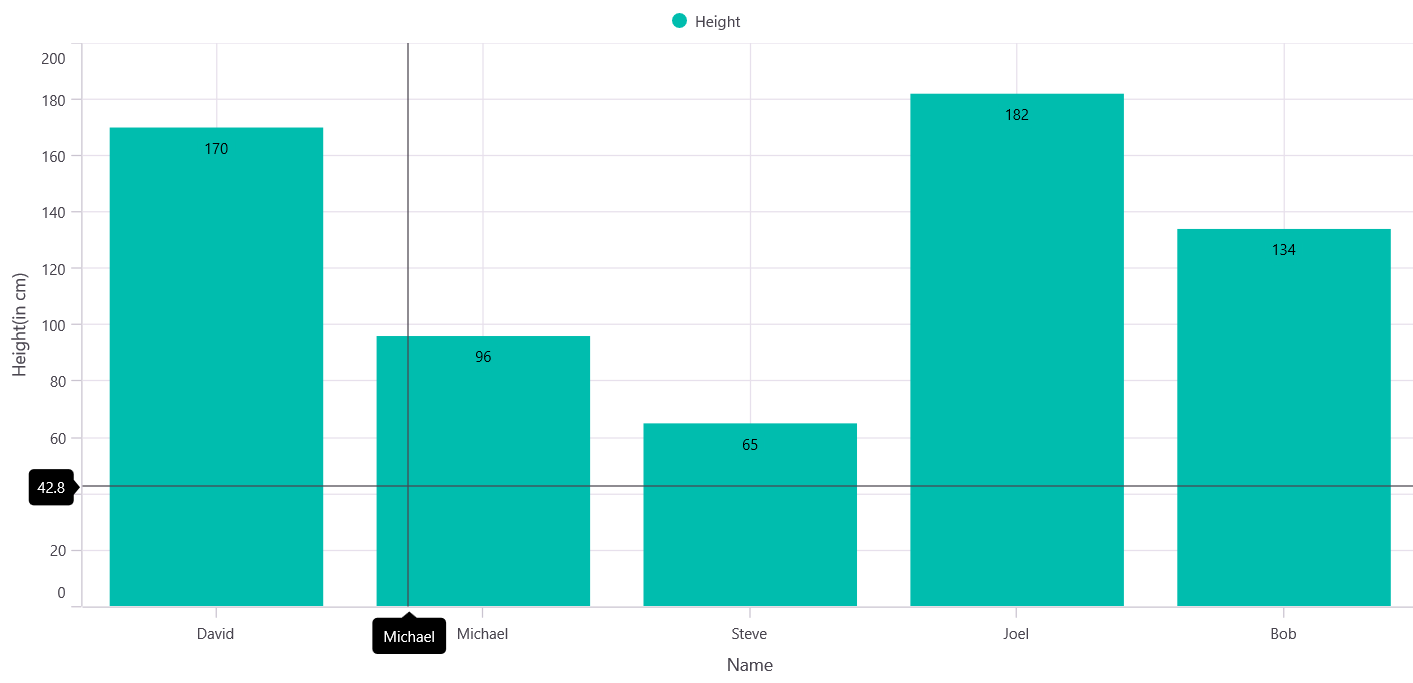
Horizontal and Vertical Line Customization
When you add the ChartCrosshairBehavior to a chart, horizontal and vertical lines appear. These lines can be customized individually using the HorizontalLineStyle and VerticalLineStyle properties.
The appearance of the crosshair lines can be customized using the following properties. These properties apply to both the horizontal and vertical line styles.
-
StrokeWidth, of type
double, used to change the stroke width of the line. -
Stroke, of type
Brush, used to change the stroke color of the line. -
StrokeDashArray, of type
DoubleCollection, specifies the dashes to be applied on the line.
HorizontalLineStyle
The following code snippet demonstrates how to configure the line style for the horizontal line in the crosshair.
<chart:SfCartesianChart>
    <!-- code omitted for brevity -->
    <chart:SfCartesianChart.CrosshairBehavior>
        <chart:ChartCrosshairBehavior>
            <chart:ChartCrosshairBehavior.HorizontalLineStyle>
                 <chart:ChartLineStyle
                    Stroke="Red"
                    StrokeWidth="1.5"
                    StrokeDashArray="2,2"/>
            </chart:ChartCrosshairBehavior.HorizontalLineStyle>
        </chart:ChartCrosshairBehavior>
    </chart:SfCartesianChart.CrosshairBehavior>
    <!-- code omitted for brevity -->
</chart:SfCartesianChart>
SfCartesianChart chart = new SfCartesianChart();
ChartCrosshairBehavior crosshair = new ChartCrosshairBehavior();
chart.CrosshairBehavior = crosshair;
DoubleCollection doubleCollection = new DoubleCollection();
doubleCollection.Add(2);
doubleCollection.Add(2);
ChartLineStyle horizontalLineStyle = new ChartLineStyle()
{
Stroke = Colors.Red,
StrokeWidth = 1.5,
StrokeDashArray = doubleCollection
};
crosshair.HorizontalLineStyle = horizontalLineStyle;
// code omitted for brevity
this.Content = chart;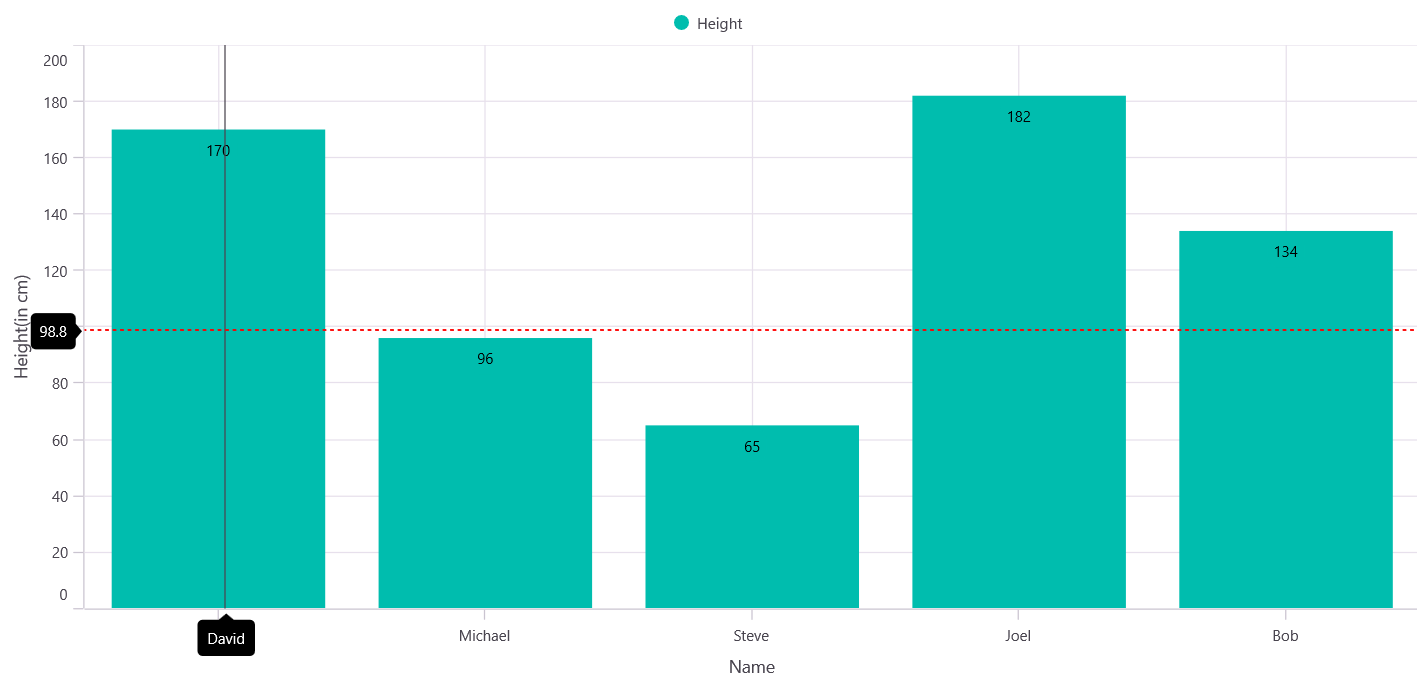
VerticalLineStyle
The following code snippet demonstrates how to configure the line style for the vertical line in the crosshair.
<chart:SfCartesianChart>
    <!-- code omitted for brevity -->
    <chart:SfCartesianChart.CrosshairBehavior>
        <chart:ChartCrosshairBehavior>
            <chart:ChartCrosshairBehavior.VerticalLineStyle>
                 <chart:ChartLineStyle
                    Stroke="Blue"
                    StrokeWidth="2"
                    StrokeDashArray="5,3"/>
            </chart:ChartCrosshairBehavior.VerticalLineStyle>
        </chart:ChartCrosshairBehavior>
    </chart:SfCartesianChart.CrosshairBehavior>
    <!-- code omitted for brevity -->
</chart:SfCartesianChart>
SfCartesianChart chart = new SfCartesianChart();
ChartCrosshairBehavior crosshair = new ChartCrosshairBehavior();
chart.CrosshairBehavior = crosshair;
DoubleCollection doubleCollection = new DoubleCollection();
doubleCollection.Add(5);
doubleCollection.Add(3);
ChartLineStyle verticalLineStyle = new ChartLineStyle()
{
Stroke = Colors.Blue,
StrokeWidth = 2,
StrokeDashArray = doubleCollection
};
crosshair.VerticalLineStyle = verticalLineStyle;
// code omitted for brevity
this.Content = chart;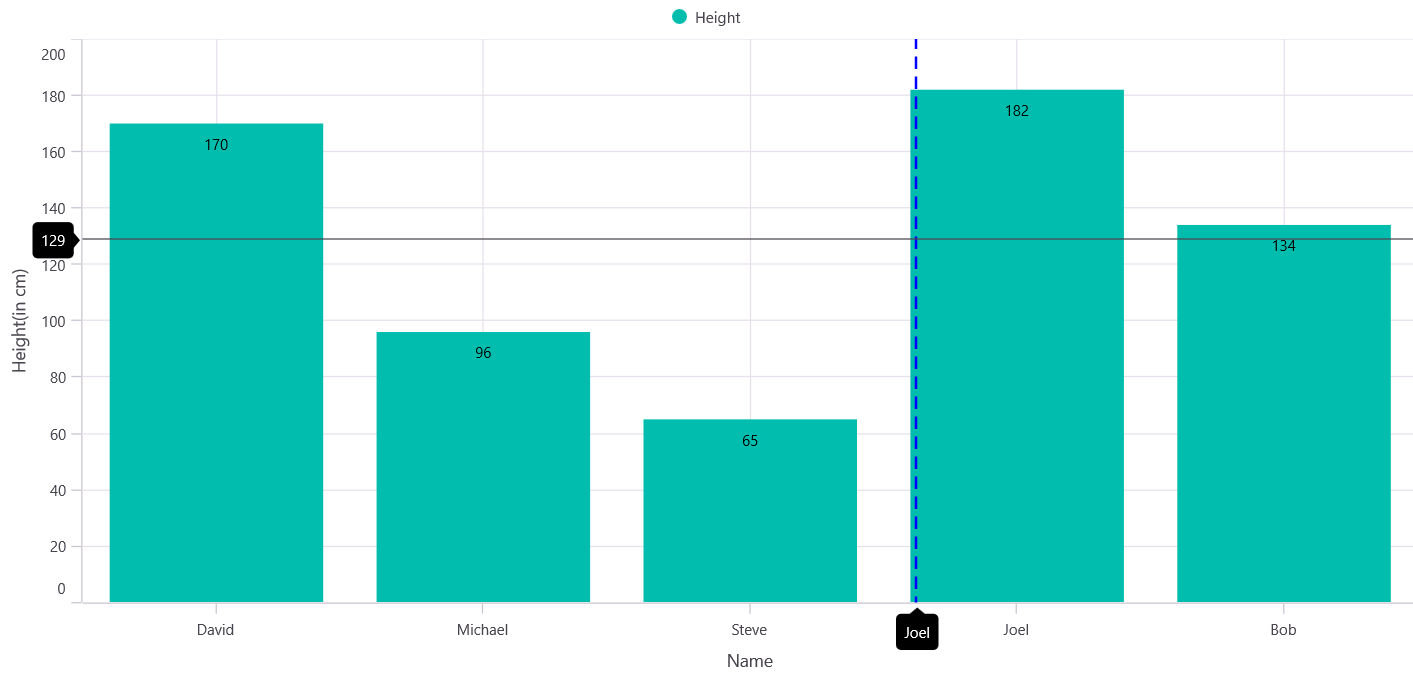
Crosshair axis labels customization
The LabelStyle property allows you to customize the appearance of crosshair axis labels. These options are:
-
Background, of type
Brush, used to change the label background color. -
Margin, of type
Thickness, used to change the margin of the label. -
TextColor, of type
Color, used to change the text color. -
StrokeWidth, of type
double, used to change the stroke thickness of the label. -
Stroke, of type
Brush, used to customize the border of the label. -
LabelFormat, of type
string, used to change the format of the label. -
FontFamily, of type
string, used to change the font family for the crosshair label. -
FontAttributes, of type
FontAttributes, used to change the font style for the crosshair label. -
FontSize, of type
double, used to change the font size for the crosshair label. -
CornerRadius, of type
CornerRadius, used to set the rounded corners for labels.
<chart:SfCartesianChart>
    <!-- code omitted for brevity -->
    <chart:CategoryAxis>
        <chart:CategoryAxis.TrackballLabelStyle>
            <chart:ChartAxisLabelStyle Background="LightBlue"
                                       FontSize="15"
                                       CornerRadius="5"
                                       StrokeWidth="2"
                                       Stroke="Gray"/>
        </chart:CategoryAxis.TrackballLabelStyle>
    </chart:CategoryAxis>
    <!-- code omitted for brevity -->
</chart:SfCartesianChart>
SfCartesianChart chart = new SfCartesianChart();
ChartCrosshairBehavior crosshair = new ChartCrosshairBehavior();
chart.CrosshairBehavior = crosshair;
CategoryAxis categoryAxis = new CategoryAxis();
ChartAxisLabelStyle axisLabelStyle = new ChartAxisLabelStyle()
{
Background = Colors.LightBlue,
FontSize = 15,
CornerRadius = 5,
StrokeWidth = 2,
Stroke = Colors.Gray
};
categoryAxis.TrackballLabelStyle = axisLabelStyle;
// code omitted for brevity
this.Content = chart;