Connecting MongoDB to Blazor Data Grid Using MongoDB.Driver
The Blazor DataGrid supports binding data from a MongoDB database using the MongoDB.Driver library. This approach provides a flexible and scalable solution for working with NoSQL document databases.
What is MongoDB?
MongoDB is a NoSQL document database that stores data in flexible, JSON-like documents. Unlike traditional relational databases that use tables and rows, MongoDB uses collections and documents, making it ideal for applications that require flexible schemas and horizontal scalability.
Key Benefits of MongoDB
- Flexible Schema: Store documents with different structures in the same collection without predefined schemas.
- Scalability: Designed for horizontal scaling across multiple servers.
- Rich Query Language: Supports complex queries, aggregation, and indexing.
- Document-Oriented: Store data in JSON-like BSON format, making it natural for modern applications.
- High Performance: Optimized for read and write operations with built-in caching.
What is MongoDB.Driver?
MongoDB.Driver is the official .NET driver for MongoDB. It provides a comprehensive API for interacting with MongoDB databases, allowing applications to perform CRUD operations, execute queries, and manage database connections efficiently.
Prerequisites
Ensure the following software and packages are installed before proceeding:
| Software/Package | Version | Purpose |
|---|---|---|
| Visual Studio 2026 | 18.0 or later | Development IDE with Blazor workload |
| .NET SDK | net9.0 or compatible | Runtime and build tools |
| MongoDB Server | 6.0 or later | NoSQL database server |
| MongoDB Compass | Latest | GUI for MongoDB database management |
| Syncfusion.Blazor.Grid | 34.2.2 | DataGrid and UI components |
| Syncfusion.Blazor.Themes | 34.2.2 | Styling for DataGrid components |
| MongoDB.Driver | 2.23.0 or later | Official .NET driver for MongoDB |
Setting Up the MongoDB Environment
Step 1: Create the Database and Collection in MongoDB
First, the MongoDB database structure must be created to store project records.
Instructions:
- Open MongoDB Compass and connect to MongoDB server (default:
mongodb://localhost:27017). - Create a new database named
ProjectManagementDB. - Create a collection named
Projects. - Insert sample data for testing.
Using MongoDB Compass:
- Click “Create Database” button
- Database Name:
ProjectManagementDB - Collection Name:
Projects
Insert Sample Data:
After creating the collection, click on the Projects collection and select “Add Data” → “Insert Document”. Insert the following sample documents:
Document:
[
  {
    "projectId": "PROJ001",
    "projectName": "E-Commerce Platform Redesign",
    "client": "RetailCorp Inc",
    "projectManager": "John Smith",
    "department": "Product Development",
    "startDate": {"$date": "2024-01-15T00:00:00.000Z"},
    "endDate": {"$date": "2024-06-30T00:00:00.000Z"},
    "budget": 150000.00,
    "status": "In Progress",
    "priority": "High",
    "progress": 65,
    "teamSize": 8,
    "category": "Web Development"
  },
  {
    "projectId": "PROJ002",
    "projectName": "Mobile App Development",
    "client": "TechStartup LLC",
    "projectManager": "Sarah Johnson",
    "department": "Mobile Team",
    "startDate": {"$date": "2024-02-01T00:00:00.000Z"},
    "endDate": {"$date": "2024-08-31T00:00:00.000Z"},
    "budget": 200000.00,
    "status": "In Progress",
    "priority": "Critical",
    "progress": 55,
    "teamSize": 6,
    "category": "Mobile Development"
  }
]
After inserting these documents, the project records are stored in the Projects collection within the ProjectManagementDB database. The database is now ready for integration with the Blazor application.
Step 2: Install Required NuGet Packages
Before installing the necessary NuGet packages, a new Blazor Web Application must be created using the default template.
This template automatically generates essential starter files—such as Program.cs, appsettings.json, the wwwroot folder, and the Components folder.
For this guide, a Blazor application named Grid_MongoDB has been created. Once the project is set up, the next step involves installing the required NuGet packages. NuGet packages are software libraries that add functionality to the application. These packages enable MongoDB integration and DataGrid components.
Method 1: Using Package Manager Console
- Open Visual Studio 2026.
- Navigate to Tools → NuGet Package Manager → Package Manager Console.
- Run the following commands:
Install-Package MongoDB.Driver -Version 2.23.0
Install-Package Syncfusion.Blazor.Grid -Version 34.2.2
Install-Package Syncfusion.Blazor.Themes -Version 34.2.2
Method 2: Using NuGet Package Manager UI
- Open Visual Studio 2026 → Tools → NuGet Package Manager → Manage NuGet Packages for Solution.
- Search for and install each package individually:
- MongoDB.Driver (version 2.23.0 or later)
- Syncfusion.Blazor.Grid (version 34.2.2)
- Syncfusion.Blazor.Themes (version 34.2.2)
All required packages are now installed.
Step 3: Create the Data Model
A data model is a C# class that represents the structure of a MongoDB document. This model defines the properties that correspond to the fields in the Projects collection.
Instructions:
- Create a new folder named
Modelsin the Blazor application project. - Inside the
Modelsfolder, create a new file named Project.cs. - Define the Project class with the following code:
using MongoDB.Bson;
using MongoDB.Bson.Serialization.Attributes;
using System;

namespace Grid_MongoDB.Models
{
    /// <summary>
    /// Represents a project record mapped to the 'Projects' collection in MongoDB.
    /// This model defines the structure of project-related data used throughout the application.
    /// </summary>
    public class Project
    {
        /// <summary>
        /// Gets or sets the unique MongoDB identifier (ObjectId).
        /// This is automatically generated by MongoDB.
        /// </summary>
        [BsonId]
        public ObjectId Id { get; set; }

        /// <summary>
        /// Gets or sets the unique project identifier (e.g., PROJ001, PROJ002).
        /// </summary>
        [BsonElement("projectId")]
        public string ProjectId { get; set; } = string.Empty;

        /// <summary>
        /// Gets or sets the name of the project.
        /// </summary>
        [BsonElement("projectName")]
        public string ProjectName { get; set; } = string.Empty;

        /// <summary>
        /// Gets or sets the client or company associated with the project.
        /// </summary>
        [BsonElement("client")]
        public string Client { get; set; } = string.Empty;

        /// <summary>
        /// Gets or sets the name of the project manager.
        /// </summary>
        [BsonElement("projectManager")]
        public string? ProjectManager { get; set; }

        /// <summary>
        /// Gets or sets the department responsible for the project.
        /// </summary>
        [BsonElement("department")]
        public string? Department { get; set; }

        /// <summary>
        /// Gets or sets the project start date.
        /// </summary>
        [BsonElement("startDate")]
        public DateTime? StartDate { get; set; }

        /// <summary>
        /// Gets or sets the project end date.
        /// </summary>
        [BsonElement("endDate")]
        public DateTime? EndDate { get; set; }

        /// <summary>
        /// Gets or sets the project budget.
        /// </summary>
        [BsonElement("budget")]
        public decimal Budget { get; set; }

        /// <summary>
        /// Gets or sets the current status of the project.
        /// Valid values: Planning, In Progress, Completed, On Hold, Cancelled
        /// </summary>
        [BsonElement("status")]
        public string Status { get; set; } = "Planning";

        /// <summary>
        /// Gets or sets the project priority level.
        /// Valid values: Low, Medium, High, Critical
        /// </summary>
        [BsonElement("priority")]
        public string Priority { get; set; } = "Medium";

        /// <summary>
        /// Gets or sets the project completion progress percentage (0-100).
        /// </summary>
        [BsonElement("progress")]
        public int Progress { get; set; }

        /// <summary>
        /// Gets or sets the number of team members assigned to the project.
        /// </summary>
        [BsonElement("teamSize")]
        public int TeamSize { get; set; }

        /// <summary>
        /// Gets or sets the project category or type.
        /// </summary>
        [BsonElement("category")]
        public string? Category { get; set; }
    }
}
Explanation:
- The
[BsonId]attribute marks theIdproperty as the MongoDB document identifier (similar to a primary key in relational databases). - The
[BsonElement]attributes map C# properties to MongoDB document fields. - Each property represents a field in the MongoDB document.
- The
?symbol indicates that a property is nullable (can be empty).
The data model has been successfully created.
Step 4: Create the MongoDB Service Class
MongoDB.Driver uses a service class to manage database connections and operations. This service class handles all interactions with the MongoDB database.
Instructions:
- Create a new folder named
Servicesin the Blazor application project. - Inside the
Servicesfolder, create a new file named MongoDbService.cs. - Define the MongoDbService class with the following code:
using MongoDB.Bson;
using MongoDB.Driver;
using Grid_MongoDB.Models;

namespace Grid_MongoDB.Services
{
    /// <summary>
    /// Service class for MongoDB database operations
    /// Handles all CRUD operations and business logic for projects
    /// </summary>
    public class MongoDbService
    {
        private readonly IMongoClient _mongoClient;
        private readonly IMongoDatabase _database;
        private readonly IMongoCollection<Project> _collection;
        private const string ProjectIdPrefix = "PROJ";
        private const int ProjectIdStartNumber = 1;

        public MongoDbService(IConfiguration configuration)
        {
            // Get connection string from appsettings.json
            var connectionString = configuration.GetConnectionString("MongoDB");

            // Initialize MongoDB client
            _mongoClient = new MongoClient(connectionString);

            // Get database reference
            _database = _mongoClient.GetDatabase("ProjectManagementDB");

            // Get collection reference
            _collection = _database.GetCollection<Project>("Projects");
        }

        /// <summary>
        /// Retrieves all projects from the database
        /// </summary>
        /// <returns>List of all projects</returns>
        public async Task<List<Project>> GetProjectsAsync()
        {
            try
            {
                return await _collection.Find(new BsonDocument()).ToListAsync();
            }
            catch (Exception ex)
            {
                throw new Exception($"Error fetching projects: {ex.Message}");
            }
        }

        /// <summary>
        /// Inserts a new project into the database
        /// </summary>
        public async Task<Project> InsertProjectAsync(Project project)
        {
             // Handle logic to add a new project to the database
        }

        /// <summary>
        /// Updates an existing project in the database
        /// </summary>
        public async Task<bool> UpdateProjectAsync(string projectId, Project project)
        {
            // Handle logic to update an existing project to the database
        }

        /// <summary>
        /// Deletes a project from the database
        /// </summary>
        public async Task<bool> DeleteProjectAsync(string? projectId)
        {
            // Handle logic to delete an existing project from the database
        }
    }
}
Explanation:
- The
MongoDbServiceclass manages all MongoDB operations without requiring a DbContext (unlike Entity Framework Core). - The
IMongoClientrepresents the connection to MongoDB server. - The
IMongoDatabaserepresents a specific database (ProjectManagementDB). - The
IMongoCollection<Project>represents theProjectscollection. - MongoDB uses filter builders to construct queries instead of LINQ expressions.
- The
ReplaceOneAsyncmethod replaces an entire document (similar to UPDATE in SQL). - The
InsertOneAsyncmethod adds a new document (similar to INSERT in SQL). - The
DeleteOneAsyncmethod removes a document (similar to DELETE in SQL).
The MongoDB service class has been successfully created.
Step 5: Configure the Connection String
A connection string contains the information needed to connect the application to the MongoDB database, including the server address, port, and authentication details.
Instructions:
- Open the
appsettings.jsonfile in the project root. - Add or update the
ConnectionStringssection with the MongoDB connection details:
{
  "ConnectionStrings": {
    "MongoDB": "mongodb://localhost:27017"
  },
  "Logging": {
    "LogLevel": {
      "Default": "Information",
      "Microsoft.AspNetCore": "Warning"
    }
  },
  "AllowedHosts": "*"
}
Connection String Components:
| Component | Description |
|---|---|
| mongodb:// | The MongoDB protocol prefix |
| localhost | The address of the MongoDB server (use localhost for local development) |
| 27017 | The MongoDB port number (default is 27017) |
Additional Connection String Options (if needed):
For production environments with authentication:
mongodb://username:password@localhost:27017/ProjectManagementDB?authSource=admin
| Component | Description |
|---|---|
| username:password | MongoDB authentication credentials |
| /ProjectManagementDB | Specifies the default database |
| authSource=admin | Specifies the authentication database |
The database connection string has been configured successfully.
Step 6: Register Services in Program.cs
The Program.cs file is where application services are registered and configured. This file must be updated to enable MongoDB service and Blazor components.
Instructions:
- Open the
Program.csfile at the project root. - Add the following code after the line
var builder = WebApplication.CreateBuilder(args);:
using Grid_MongoDB.Components;
using Grid_MongoDB.Services;
using Syncfusion.Blazor;

var builder = WebApplication.CreateBuilder(args);

// Add services to the container.
builder.Services.AddRazorComponents()
    .AddInteractiveServerComponents();

// Register Blazor services
builder.Services.AddSyncfusionBlazor();

// Register MongoDB service for dependency injection
builder.Services.AddScoped<MongoDbService>();

var app = builder.Build();

// Configure the HTTP request pipeline.
if (!app.Environment.IsDevelopment())
{
    app.UseExceptionHandler("/Error", createScopeForErrors: true);
    app.UseHsts();
}

app.UseHttpsRedirection();

app.UseAntiforgery();

app.MapStaticAssets();
app.MapRazorComponents<App>()
    .AddInteractiveServerRenderMode();

app.Run();
The service registration has been completed successfully.
Integrating Blazor DataGrid
Step 1: Install and Configure Blazor DataGrid Components
Syncfusion is a library that provides pre-built UI components like DataGrid, which is used to display data in a table format.
Instructions:
- The Syncfusion.Blazor.Grid package was installed in Step 2 of the previous section.
- Import the required namespaces in the
Components/_Imports.razorfile:
@using Grid_MongoDB.Models
@using Grid_MongoDB.Services
@using Syncfusion.Blazor.Grids
@using Syncfusion.Blazor.Data
@using Syncfusion.Blazor.DropDowns- Add the stylesheet and scripts in the
Components/App.razorfile. Find the<head>section and add:
<!-- Blazor Stylesheet -->
<link href="_content/Syncfusion.Blazor.Themes/tailwind3.css" rel="stylesheet" />

<!-- Blazor Scripts -->
<script src="_content/Syncfusion.Blazor.Core/scripts/syncfusion-blazor.min.js" type="text/javascript"></script>
For this project, the tailwind3 theme is used. A different theme can be selected or the existing theme can be customized based on project requirements. Refer to the Blazor Components Appearance documentation to learn more about theming and customization options.
Blazor components are now configured and ready to use. For additional guidance, refer to the Grid component’s getting‑started documentation.
Step 2: Update the Blazor DataGrid
The Home.razor component will display the project data in a Blazor DataGrid with search, filter, sort, and pagination capabilities.
Instructions:
- Open the file named
Home.razorin theComponents/Pagesfolder. - Add the following code to create a basic DataGrid:
@page "/"
@using System.Collections
@rendermode InteractiveServer
@inject MongoDbService MongoDbService

<PageTitle>Project Management</PageTitle>

<div class="container-fluid mt-4">
    <div class="row mb-4">
        <div class="col-md-12">
            <h1 class="text-primary">
                <i class="bi bi-graph-up"></i> Project Management Dashboard
            </h1>
        </div>
    </div>

    <div class="row">
        <div class="col-md-12">
            <div class="card shadow-sm">
                <div class="card-body p-0">
                    <!-- Blazor DataGrid Component -->
                    <SfGrid TValue="Project" AllowPaging="true" AllowSorting="true" AllowFiltering="true" AllowGrouping="true">
                        <SfDataManager AdaptorInstance="@typeof(CustomAdaptor)" Adaptor="Adaptors.CustomAdaptor"></SfDataManager>

                        <GridColumns>
                           //columns configuration
                        </GridColumns>

                        <GridPageSettings PageSize="10"></GridPageSettings>
                    </SfGrid>
                </div>
            </div>
        </div>
    </div>
</div>

@code {
    // CustomAdaptor class will be added in the next step
}
Component Explanation:
-
@rendermode InteractiveServer: Enables interactive server-side rendering for the component. -
@inject MongoDbService: Injects the MongoDB service to access database methods. -
<SfGrid>: The DataGrid component that displays data in rows and columns. -
<GridColumns>: Defines individual columns in the DataGrid. -
<GridPageSettings>: Configures pagination with 10 records per page.
The Home component has been updated successfully with DataGrid.
Step 3: Implement the CustomAdaptor
The Blazor DataGrid can bind data from a MongoDB database using DataManager and set the Adaptor property to CustomAdaptor for scenarios that require full control over data operations.
The CustomAdaptor is a bridge between the DataGrid and the database. It handles all data operations including reading, searching, filtering, sorting, paging, and CRUD operations. Each operation in the CustomAdaptor’s ReadAsync method handles specific grid functionality. The Blazor DataGrid sends operation details to the API through a DataManagerRequest object. These details can be applied to the data source using methods from the DataOperations class.
Instructions:
- Open the
Components/Pages/Home.razorfile. - Add the following
CustomAdaptorclass code inside the@codeblock:
@code {

    private static MongoDbService? _mongoDbService;

    /// <summary>
    /// CustomAdaptor class bridges DataGrid interactions with database operations.
    /// This adaptor handles all data retrieval and manipulation for the DataGrid.
    /// </summary>
    public class CustomAdaptor : DataAdaptor
    {
        public MongoDbService? MongoDbService
        {
            get => _mongoDbService;
            set => _mongoDbService = value;
        }

        /// <summary>
        /// ReadAsync retrieves records from the database and applies data operations.
        /// This method executes when the grid initializes and when filtering, searching, sorting, or paging occurs.
        /// </summary>
        public override async Task<object> ReadAsync(DataManagerRequest dataManagerRequest, string? key = null)
        {
            try
            {
                // Fetch all projects from the MongoDB database
                IEnumerable dataSource = await _mongoDbService!.GetProjectsAsync();

                // Apply search operation if search criteria exists
                if (dataManagerRequest.Search != null && dataManagerRequest.Search.Count > 0)
                {
                    dataSource = DataOperations.PerformSearching(dataSource, dataManagerRequest.Search);
                }

                // Apply filter operation if filter criteria exists
                if (dataManagerRequest.Where != null && dataManagerRequest.Where.Count > 0)
                {
                    dataSource = DataOperations.PerformFiltering(dataSource, dataManagerRequest.Where, dataManagerRequest.Where[0].Operator);
                }

                // Apply sort operation if sort criteria exists
                if (dataManagerRequest.Sorted != null && dataManagerRequest.Sorted.Count > 0)
                {
                    dataSource = DataOperations.PerformSorting(dataSource, dataManagerRequest.Sorted);
                }

                // Calculate total record count before paging for accurate pagination
                int totalRecordsCount = dataSource.Cast<Project>().Count();

                // Apply paging skip operation
                if (dataManagerRequest.Skip != 0)
                {
                    dataSource = DataOperations.PerformSkip(dataSource, dataManagerRequest.Skip);
                }

                // Apply paging take operation to retrieve only the requested page size
                if (dataManagerRequest.Take != 0)
                {
                    dataSource = DataOperations.PerformTake(dataSource, dataManagerRequest.Take);
                }

                // Handling Group operation in CustomAdaptor.
                if (dataManagerRequest.Group != null)
                {
                    foreach (var group in dataManagerRequest.Group)
                    {
                        dataSource = DataUtil.Group<Project>(dataSource, group, dataManagerRequest.Aggregates, 0, dataManagerRequest.GroupByFormatter);
                        //Add custom logic here if needed and remove above method
                    }
                }

                // Return the result with total count for pagination metadata
                return dataManagerRequest.RequiresCounts
                    ? new DataResult() { Result = dataSource, Count = totalRecordsCount }
                    : (object)dataSource;
            }
            catch (Exception ex)
            {
                throw new Exception($"An error occurred while retrieving data: {ex.Message}");
            }
        }
    }
}
The CustomAdaptor class has been successfully implemented with all data operations.
Common methods in data operations
-
ReadAsync(DataManagerRequest) - Retrieve and process records (search, filter, sort, page, group)
- PerformSearching - Applies search criteria to the collection.
- PerformFiltering - Filters data based on conditions.
- PerformSorting - Sorts data by one or more fields.
- PerformSkip - Skips a defined number of records for paging.
- PerformTake - Retrieves a specified number of records for paging.
- PerformAggregation – Calculates aggregate values such as Sum, Average, Min, and Max.
Step 4: Add Toolbar with CRUD and Search Options
The toolbar provides buttons for adding, editing, deleting records, and searching the data.
Instructions:
- Open the
Components/Pages/Home.razorfile. - Update the
<SfGrid>component to include the Toolbar property with CRUD and search options:
<SfGrid TValue="Project"
        AllowPaging="true"
        AllowSorting="true"
        AllowFiltering="true"
        Toolbar="@ToolbarItems">
    <SfDataManager AdaptorInstance="@typeof(CustomAdaptor)" Adaptor="Adaptors.CustomAdaptor"></SfDataManager>

    <!-- Grid columns configuration -->
</SfGrid>- Add the toolbar items list in the
@codeblock:
@code {
    private List<string> ToolbarItems = new List<string> { "Add", "Edit", "Delete", "Update", "Cancel", "Search"};

    // CustomAdaptor class code...
}
Toolbar Items Explanation:
| Item | Function |
|---|---|
Add |
Opens a form to add a new project record. |
Edit |
Enables editing of the selected record. |
Delete |
Deletes the selected record from the database. |
Update |
Saves changes made to the selected record. |
Cancel |
Cancels the current edit or add operation. |
Search |
Displays a search box to find records. |
The toolbar has been successfully added.
Step 5: Running the Application
Build the Application
- Open the terminal or Package Manager Console.
- Navigate to the project directory.
- Run the following command:
dotnet buildRun the Application
Execute the following command:
dotnet runAccess the Application
- Open a web browser.
- Navigate to
https://localhost:5001(or the port shown in the terminal). - The project management application is now running and ready to use.
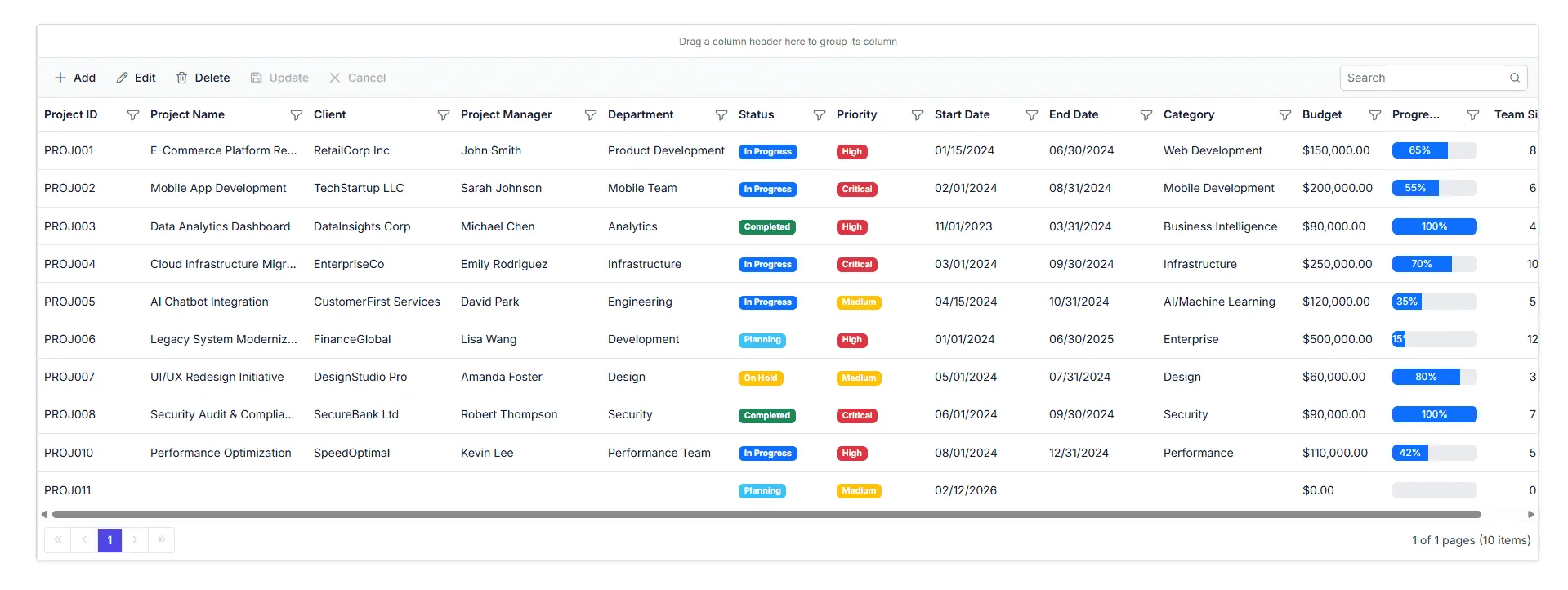
Step 6: Implement Paging Feature
Paging divides large datasets into smaller pages to improve performance and usability.
Instructions:
- The paging feature is already partially enabled in the
<SfGrid>component with AllowPaging=”true”. - The page size is configured with GridPageSettings.
- No additional code changes are required from the previous steps.
<SfGrid TValue="Project"
        AllowPaging="true">
    <SfDataManager AdaptorInstance="@typeof(CustomAdaptor)" Adaptor="Adaptors.CustomAdaptor"></SfDataManager>
    <GridPageSettings PageSize="10"></GridPageSettings>

    <!-- Grid columns configuration -->
</SfGrid>- Update the
ReadAsyncmethod in theCustomAdaptorclass to handle paging:
@code {

    /// <summary>
    /// CustomAdaptor class to handle grid data operations with MongoDB
    /// </summary>
    public class CustomAdaptor : DataAdaptor
    {
        public static MongoDbService? _mongoDbService { get; set; }
        public MongoDbService? MongoDbService
        {
            get => _mongoDbService;
            set => _mongoDbService = value;
        }

        public override async Task<object> ReadAsync(DataManagerRequest dataManagerRequest, string? key = null)
        {
            IEnumerable dataSource = await _mongoDbService!.GetProjectsAsync();

            int totalRecordsCount = dataSource.Cast<Project>().Count();

            // Handling Paging
            if (dataManagerRequest.Skip != 0)
            {
                dataSource = DataOperations.PerformSkip(dataSource, dataManagerRequest.Skip);
            }

            if (dataManagerRequest.Take != 0)
            {
                dataSource = DataOperations.PerformTake(dataSource, dataManagerRequest.Take);
            }

            return dataManagerRequest.RequiresCounts
                ? new DataResult() { Result = dataSource, Count = totalRecordsCount }
                : (object)dataSource;
        }
    }
}
Fetches project data by calling the GetProjectsAsync method, which is implemented in the MongoDbService.cs file.
/// <summary>
/// Retrieves all projects from the database
/// </summary>
/// <returns>List of all projects</returns>
public async Task<List<Project>> GetProjectsAsync()
{
    try
    {
        return await _collection.Find(new BsonDocument()).ToListAsync();
    }
    catch (Exception ex)
    {
        throw new Exception($"Error fetching projects: {ex.Message}");
    }
}
How Paging Works:
- The DataGrid displays 10 records per page (as set in
GridPageSettings). - Navigation buttons allow the user to move between pages.
- When a page is requested, the
ReadAsyncmethod receives skip and take values. - The
DataOperations.PerformSkip()andDataOperations.PerformTake()methods handle pagination. - Only the requested page of records is transmitted from the server.
Paging feature is now active with 10 records per page.
Step 7: Implement Searching Feature
Searching allows the user to find records by entering keywords in the search box.
Instructions:
- Ensure the toolbar includes the “Search” item.
- No additional code changes are required.
<SfGrid TValue="Project"
        AllowPaging="true"
        Toolbar="@ToolbarItems">
    <SfDataManager AdaptorInstance="@typeof(CustomAdaptor)" Adaptor="Adaptors.CustomAdaptor"></SfDataManager>
    <GridPageSettings PageSize="10"></GridPageSettings>
    <!-- Grid columns configuration -->
</SfGrid>- Update the
ReadAsyncmethod in theCustomAdaptorclass to handle searching:
@code {
    private List<string> ToolbarItems = new List<string> { "Search"};

    /// <summary>
    /// CustomAdaptor class to handle grid data operations with MongoDB
    /// </summary>
    public class CustomAdaptor : DataAdaptor
    {
        public static MongoDbService? _mongoDbService { get; set; }
        public MongoDbService? MongoDbService
        {
            get => _mongoDbService;
            set => _mongoDbService = value;
        }

        public override async Task<object> ReadAsync(DataManagerRequest dataManagerRequest, string? key = null)
        {
            IEnumerable dataSource = await _mongoDbService!.GetProjectsAsync();

            // Handling Search
            if (dataManagerRequest.Search != null && dataManagerRequest.Search.Count > 0)
            {
                dataSource = DataOperations.PerformSearching(dataSource, dataManagerRequest.Search);
            }

            int totalRecordsCount = dataSource.Cast<Project>().Count();
            // Handling Paging
            if (dataManagerRequest.Skip != 0)
            {
                dataSource = DataOperations.PerformSkip(dataSource, dataManagerRequest.Skip);
                //Add custom logic here if needed and remove above method
            }

            if (dataManagerRequest.Take != 0)
            {
                dataSource = DataOperations.PerformTake(dataSource, dataManagerRequest.Take);
                //Add custom logic here if needed and remove above method
            }

            return dataManagerRequest.RequiresCounts
                ? new DataResult() { Result = dataSource, Count = totalRecordsCount }
                : (object)dataSource;
        }
    }
}
How Searching Works:
- When the user enters text in the search box and presses Enter, the DataGrid sends a search request to the CustomAdaptor.
- The
ReadAsyncmethod receives the search criteria indataManagerRequest.Search. - The
DataOperations.PerformSearching()method filters the data based on the search term. - Results are returned and displayed in the DataGrid.
Searching feature is now active.
Step 8: Implement Filtering Feature
Filtering allows the user to restrict data based on column values using a menu interface.
Instructions:
- Open the
Components/Pages/Home.razorfile. - Add the AllowFiltering property and GridFilterSettings to the
<SfGrid>component:
<SfGrid TValue="Project"
        AllowPaging="true"
        AllowFiltering="true"
        Toolbar="@ToolbarItems">
    <SfDataManager AdaptorInstance="@typeof(CustomAdaptor)" Adaptor="Adaptors.CustomAdaptor"></SfDataManager>

    <GridFilterSettings Type="Syncfusion.Blazor.Grids.FilterType.Menu"></GridFilterSettings>

    <!-- Grid columns configuration -->
</SfGrid>- Update the
ReadAsyncmethod in theCustomAdaptorclass to handle filtering:
/// <summary>
/// CustomAdaptor class to handle grid data operations with MongoDB
/// </summary>
public class CustomAdaptor : DataAdaptor
{
    public static MongoDbService? _mongoDbService { get; set; }
    public MongoDbService? MongoDbService
    {
        get => _mongoDbService;
        set => _mongoDbService = value;
    }

    public override async Task<object> ReadAsync(DataManagerRequest dataManagerRequest, string? key = null)
    {
        IEnumerable dataSource = await _mongoDbService!.GetProjectsAsync();

        // Handling Search
        if (dataManagerRequest.Search != null && dataManagerRequest.Search.Count > 0)
        {
            dataSource = DataOperations.PerformSearching(dataSource, dataManagerRequest.Search);
        }

        // Handling Filtering
        if (dataManagerRequest.Where != null && dataManagerRequest.Where.Count > 0)
        {
            dataSource = DataOperations.PerformFiltering(dataSource, dataManagerRequest.Where, dataManagerRequest.Where[0].Operator);
        }

        int totalRecordsCount = dataSource.Cast<Project>().Count();
        // Handling Paging
        if (dataManagerRequest.Skip != 0)
        {
            dataSource = DataOperations.PerformSkip(dataSource, dataManagerRequest.Skip);
            //Add custom logic here if needed and remove above method
        }

        if (dataManagerRequest.Take != 0)
        {
            dataSource = DataOperations.PerformTake(dataSource, dataManagerRequest.Take);
            //Add custom logic here if needed and remove above method
        }

        return dataManagerRequest.RequiresCounts
            ? new DataResult() { Result = dataSource, Count = totalRecordsCount }
            : (object)dataSource;
    }

}
How Filtering Works:
- Click on the dropdown arrow in any column header to open the filter menu.
- Select filtering criteria (equals, contains, greater than, less than, etc.).
- Click the “Filter” button to apply the filter.
- The
ReadAsyncmethod receives the filter criteria indataManagerRequest.Where. - Results are filtered accordingly and displayed in the DataGrid.
Filtering feature is now active.
Step 9: Implement Sorting Feature
Sorting enables the user to arrange records in ascending or descending order based on column values.
Instructions:
- Open the
Components/Pages/Home.razorfile. - Add the AllowSorting property to the
<SfGrid>component:
<SfGrid TValue="Project"
        AllowPaging="true"
        AllowSorting="true"
        AllowFiltering="true"
        Toolbar="@ToolbarItems">
    <SfDataManager AdaptorInstance="@typeof(CustomAdaptor)" Adaptor="Adaptors.CustomAdaptor"></SfDataManager>

     <GridPageSettings PageSize="10"></GridPageSettings>
     <GridFilterSettings Type="Syncfusion.Blazor.Grids.FilterType.Menu"></GridFilterSettings>

    <!-- Grid columns configuration -->
</SfGrid>- Update the
ReadAsyncmethod in theCustomAdaptorclass to handle sorting:
/// <summary>
/// CustomAdaptor class to handle grid data operations with MongoDB
/// </summary>
public class CustomAdaptor : DataAdaptor
{
    public static MongoDbService? _mongoDbService { get; set; }
    public MongoDbService? MongoDbService
    {
        get => _mongoDbService;
        set => _mongoDbService = value;
    }

    public override async Task<object> ReadAsync(DataManagerRequest dataManagerRequest, string? key = null)
    {
        IEnumerable dataSource = await _mongoDbService!.GetProjectsAsync();

        // Handling Search
        if (dataManagerRequest.Search != null && dataManagerRequest.Search.Count > 0)
        {
            dataSource = DataOperations.PerformSearching(dataSource, dataManagerRequest.Search);
        }

        // Handling Filtering
        if (dataManagerRequest.Where != null && dataManagerRequest.Where.Count > 0)
        {
            dataSource = DataOperations.PerformFiltering(dataSource, dataManagerRequest.Where, dataManagerRequest.Where[0].Operator);
        }

         // Handling Sorting
        if (dataManagerRequest.Sorted != null && dataManagerRequest.Sorted.Count > 0)
        {
            dataSource = DataOperations.PerformSorting(dataSource, dataManagerRequest.Sorted);
        }

        int totalRecordsCount = dataSource.Cast<Project>().Count();
        // Handling Paging
        if (dataManagerRequest.Skip != 0)
        {
            dataSource = DataOperations.PerformSkip(dataSource, dataManagerRequest.Skip);
            //Add custom logic here if needed and remove above method
        }

        if (dataManagerRequest.Take != 0)
        {
            dataSource = DataOperations.PerformTake(dataSource, dataManagerRequest.Take);
            //Add custom logic here if needed and remove above method
        }

        return dataManagerRequest.RequiresCounts
            ? new DataResult() { Result = dataSource, Count = totalRecordsCount }
            : (object)dataSource;
    }

}
How Sorting Works:
- Click on the column header to sort in ascending order.
- Click again to sort in descending order.
- The
ReadAsyncmethod receives the sort criteria indataManagerRequest.Sorted. - Records are sorted accordingly and displayed in the DataGrid.
Sorting feature is now active.
Step 10: Implement Grouping Feature
Grouping organizes records into hierarchical groups based on column values.
Instructions:
- Open the
Components/Pages/Home.razorfile. - Add the AllowGrouping property to the
<SfGrid>component:
<SfGrid TValue="Project"
        AllowPaging="true"
        AllowSorting="true"
        AllowFiltering="true"
        AllowGrouping="true"
        Toolbar="@ToolbarItems">
    <SfDataManager AdaptorInstance="@typeof(CustomAdaptor)" Adaptor="Adaptors.CustomAdaptor"></SfDataManager>
     <GridPageSettings PageSize="10"></GridPageSettings>
     <GridFilterSettings Type="Syncfusion.Blazor.Grids.FilterType.Menu"></GridFilterSettings>
    <!-- Grid columns  -->
</SfGrid>- Update the
ReadAsyncmethod in theCustomAdaptorclass to handle grouping:
/// <summary>
/// CustomAdaptor class to handle grid data operations with MongoDB
/// </summary>
public class CustomAdaptor : DataAdaptor
{
    public static MongoDbService? _mongoDbService { get; set; }
    public MongoDbService? MongoDbService
    {
        get => _mongoDbService;
        set => _mongoDbService = value;
    }

    public override async Task<object> ReadAsync(DataManagerRequest dataManagerRequest, string? key = null)
    {
        IEnumerable dataSource = await _mongoDbService!.GetProjectsAsync();

        // Handling Search
        if (dataManagerRequest.Search != null && dataManagerRequest.Search.Count > 0)
        {
            dataSource = DataOperations.PerformSearching(dataSource, dataManagerRequest.Search);
        }

        // Handling Filtering
        if (dataManagerRequest.Where != null && dataManagerRequest.Where.Count > 0)
        {
            dataSource = DataOperations.PerformFiltering(dataSource, dataManagerRequest.Where, dataManagerRequest.Where[0].Operator);
        }

         // Handling Sorting
        if (dataManagerRequest.Sorted != null && dataManagerRequest.Sorted.Count > 0)
        {
            dataSource = DataOperations.PerformSorting(dataSource, dataManagerRequest.Sorted);
        }

        int totalRecordsCount = dataSource.Cast<Project>().Count();

        // Handling Paging
        if (dataManagerRequest.Skip != 0)
        {
            dataSource = DataOperations.PerformSkip(dataSource, dataManagerRequest.Skip);
            //Add custom logic here if needed and remove above method
        }

        if (dataManagerRequest.Take != 0)
        {
            dataSource = DataOperations.PerformTake(dataSource, dataManagerRequest.Take);
            //Add custom logic here if needed and remove above method
        }

        // Handling Group operation in CustomAdaptor.
        if (dataManagerRequest.Group != null)
        {
            foreach (var group in dataManagerRequest.Group)
            {
                dataSource = DataUtil.Group<Project>(dataSource, group, dataManagerRequest.Aggregates, 0, dataManagerRequest.GroupByFormatter);
            }
        }

        return dataManagerRequest.RequiresCounts
            ? new DataResult() { Result = dataSource, Count = totalRecordsCount }
            : (object)dataSource;
    }
}
How Grouping Works:
- Columns can be grouped by dragging the column header into the group drop area.
- Each group can be expanded or collapsed by clicking on the group header.
- The
ReadAsyncmethod receives the grouping instructions throughdataManagerRequest.Group. - The grouping operation is processed using DataUtil.Group, which organizes the records into hierarchical groups based on the selected column.
- Grouping is performed after search, filter, and sort operations, ensuring the grouped data reflects all applied conditions.
- The processed grouped result is then returned to the Grid and displayed in a structured, hierarchical format.
Grouping feature is now active.
Step 11: Perform CRUD Operations
CustomAdaptor methods enable users to create, read, update, and delete records directly from the DataGrid. Each operation calls corresponding data layer methods in MongoDbService.cs to execute MongoDB commands.
Add the Grid EditSettings and Toolbar configuration to enable create, read, update, and delete (CRUD) operations.
<SfGrid TValue="Project"
        AllowPaging="true"
        AllowSorting="true"
        AllowFiltering="true"
        AllowGrouping="true"
        Toolbar="@ToolbarItems">
    <SfDataManager AdaptorInstance="@typeof(CustomAdaptor)" Adaptor="Adaptors.CustomAdaptor"></SfDataManager>
     <GridPageSettings PageSize="10"></GridPageSettings>
     <GridFilterSettings Type="Syncfusion.Blazor.Grids.FilterType.Menu"></GridFilterSettings>
     <GridEditSettings AllowEditing="true" AllowAdding="true" AllowDeleting="true" Mode="EditMode.Normal"></GridEditSettings>
    <!-- Grid columns  -->
</SfGrid>
Add the toolbar items list in the @code block:
@code {
    private List<string> ToolbarItems = new List<string> { "Add", "Edit", "Delete", "Update", "Cancel", "Search"};

    // CustomAdaptor class code...
}
Insert
Record insertion allows new projects to be added directly through the DataGrid component. The adaptor processes the insertion request, performs any required business‑logic validation, and saves the newly created record to the MongoDB database.
In Home.razor, implement the InsertAsync method to handle record insertion within the CustomAdaptor class:
public class CustomAdaptor : DataAdaptor
{
    public override async Task<object?> InsertAsync(DataManager dataManager, object value, string? key = null)
    {
        try
        {
            if (value is Project newProject)
            {
                var result = await _mongoDbService!.InsertProjectAsync(newProject);
                return result;
            }
            return default;
        }
        catch (Exception ex)
        {
            Console.WriteLine($"Error in Insert operation: {ex.Message}");
            throw;
        }
    }
}
In Services/MongoDbService.cs, implement the insert method:
public async Task<Project> InsertProjectAsync(Project project)
{
    if (string.IsNullOrEmpty(project.ProjectId))
    {
        project.ProjectId = await GenerateProjectIdAsync();
    }

    if (project.StartDate == null)
    {
        project.StartDate = DateTime.Now;
    }

    await _collection.InsertOneAsync(project);
    return project;
}

private async Task<string> GenerateProjectIdAsync()
{
    var existingProjects = await GetProjectsAsync();
    int maxNumber = existingProjects
        .Where(project => !string.IsNullOrEmpty(project.ProjectId) && project.ProjectId.StartsWith(ProjectIdPrefix))
        .Select(project =>
        {
            string numberPart = project.ProjectId.Substring(ProjectIdPrefix.Length);
            if (int.TryParse(numberPart, out int number))
                return number;
            return 0;
        })
        .DefaultIfEmpty(ProjectIdStartNumber - 1)
        .Max();

    int nextNumber = maxNumber + 1;
    string newProjectId = $"{ProjectIdPrefix}{nextNumber:D3}";
    return newProjectId;
}
Helper methods explanation:
-
GenerateProjectIdAsync(): A new ProjectId is generated in the format PROJ001, PROJ002, etc.
What happens behind the scenes:
- The form data is collected and validated in the CustomAdaptor’s
InsertAsync()method. - The
MongoDbService.InsertProjectAsync()method is called. - A unique ProjectId is auto-generated if not provided.
- The StartDate is set to the current date if not provided.
-
InsertOneAsync()adds the document to the MongoDB collection. - The DataGrid automatically refreshes to display the new record.
Now the new project is persisted to the database and reflected in the grid.
Update
Record modification allows project details to be updated directly within the DataGrid. The adaptor processes the edited row, validates the updated values, and applies the changes to the MongoDB database while ensuring data integrity is preserved.
In Home.razor, implement the UpdateAsync method to handle record updates within the CustomAdaptor class:
public class CustomAdaptor : DataAdaptor
{
    public override async Task<object?> UpdateAsync(DataManager dataManager, object value, string? keyField, string key)
    {
        try
        {
            if (value is Project project)
            {
                var result = await _mongoDbService!.UpdateProjectAsync(project.ProjectId, project);
                return result ? value : default;
            }
            return default;
        }
        catch (Exception ex)
        {
            Console.WriteLine($"Error in Update operation: {ex.Message}");
            throw;
        }
    }
}
In Services/MongoDbService.cs, implement the update method:
public async Task<bool> UpdateProjectAsync(string projectId, Project project)
{
    var filter = Builders<Project>.Filter.Eq(p => p.ProjectId, projectId);
    var result = await _collection.ReplaceOneAsync(filter, project);
    return result.ModifiedCount > 0;
}
What happens behind the scenes:
- The modified data is collected from the form.
- The CustomAdaptor’s
UpdateAsync()method is called. - The
MongoDbService.UpdateProjectAsync()method is called. - A filter is created using
Builders<Project>.Filter.Eq()to find the document by ProjectId. -
ReplaceOneAsync()replaces the entire document with the updated version. - The method returns true if the document was modified successfully.
- The DataGrid refreshes to display the updated record.
Now modifications are synchronized to the database and reflected in the grid UI.
Delete
Record deletion allows projects to be removed directly from the DataGrid. The adaptor captures the delete request, executes the corresponding MongoDB DELETE operation, and updates both the database and the grid to reflect the removal.
In Home.razor, implement the RemoveAsync method to handle record deletion within the CustomAdaptor class:
public class CustomAdaptor : DataAdaptor
{
    public override async Task<object?> RemoveAsync(DataManager dataManager, object value, string? keyField, string key)
    {
        try
        {
            await _mongoDbService!.DeleteProjectAsync(value as string);
            return value;
        }
        catch (Exception ex)
        {
            Console.WriteLine($"Error in Delete operation: {ex.Message}");
            throw;
        }
    }
}
In Services/MongoDbService.cs, implement the delete method:
public async Task<bool> DeleteProjectAsync(string? projectId)
{
    var filter = Builders<Project>.Filter.Eq(p => p.ProjectId, projectId);
    var result = await _collection.DeleteOneAsync(filter);
    return result.DeletedCount > 0;
}
What happens behind the scenes:
- The user selects a record and clicks “Delete”.
- A confirmation dialog appears (built into the DataGrid).
- If confirmed, the CustomAdaptor’s
RemoveAsync()method is called. - The
MongoDbService.DeleteProjectAsync()method is called. - A filter is created to find the document by ProjectId.
-
DeleteOneAsync()removes the document from the MongoDB collection. - The method returns true if the document was deleted successfully.
- The DataGrid refreshes to remove the deleted record from the UI.
Now projects are removed from the database and the grid UI reflects the changes immediately.
Batch Update
Batch operations combine multiple insert, update, and delete actions into a single request, minimizing network overhead and ensuring transactional consistency by applying all changes atomically to the MongoDB database.
In Home.razor, implement the BatchUpdateAsync method to handle multiple record updates in a single request within the CustomAdaptor class:
public class CustomAdaptor : DataAdaptor
{
    public override async Task<object> BatchUpdateAsync(DataManager dataManager, object changedRecords, object addedRecords, object deletedRecords, string? keyField, string key, int? dropIndex)
    {
        // Process updated records
        if (changedRecords != null)
        {
            foreach (var record in (IEnumerable<Project>)changedRecords)
            {
                var project = record as Project;
                if (project != null)
                {
                    await _mongoDbService!.UpdateProjectAsync(project.ProjectId, project);
                }
            }
        }

        // Process newly added records
        if (addedRecords != null)
        {
            foreach (var record in (IEnumerable<Project>)addedRecords)
            {
                await _mongoDbService!.InsertProjectAsync(record as Project);
            }
        }

        // Process deleted records
        if (deletedRecords != null)
        {
            foreach (var record in (IEnumerable<Project>)deletedRecords)
            {
                await _mongoDbService!.DeleteProjectAsync((record as Project)?.ProjectId);
            }
        }
        return key;
    }
}
This method is triggered when the DataGrid is operating in Batch Edit mode.
What happens behind the scenes:
- The DataGrid collects all added, edited, and deleted records in Batch Edit mode.
- The combined batch request is passed to the CustomAdaptor’s
BatchUpdateAsync()method. - Each modified record is processed using
MongoDbService.UpdateProjectAsync(). - Each newly added record is saved using
MongoDbService.InsertProjectAsync(). - Each deleted record is removed using
MongoDbService.DeleteProjectAsync(). - All service operations persist changes to the MongoDB database.
- The DataGrid refreshes to display the updated, added, and removed records in a single response.
Now the adaptor supports bulk modifications with atomic database synchronization. All CRUD operations are now fully implemented, enabling comprehensive data management capabilities within the Blazor DataGrid.
Reference links
- InsertAsync(DataManager, object) - Create new records in MongoDB
- UpdateAsync(DataManager, object, string, string) - Edit existing records in MongoDB
- RemoveAsync(DataManager, object, string, string) - Delete records from MongoDB
- BatchUpdateAsync(DataManager, object, object, object, string, string, int?) - Handle bulk operations
Step 12: Complete Code
Here is the complete and final Home.razor component with all features integrated:
@page "/"
@using System.Collections
@rendermode InteractiveServer
@inject MongoDbService MongoDbService

<PageTitle>Project Management</PageTitle>

<div class="container-fluid mt-4">
    <div class="row mb-4">
        <div class="col-md-12">
            <h1 class="text-primary">
                <i class="bi bi-graph-up"></i> Project Management Dashboard
            </h1>
        </div>
    </div>

    <div class="row">
        <div class="col-md-12">
            <div class="card shadow-sm">
                <div class="card-body p-0">
                    <SfGrid TValue="Project" AllowSorting="true" AllowFiltering="true" AllowGrouping="true" AllowPaging="true"
                        Height="500px" Width="100%" Toolbar="@(new List<string>() { "Add", "Edit", "Delete", "Update", "Cancel", "Search" })">
                        <SfDataManager AdaptorInstance="@typeof(CustomAdaptor)" Adaptor="Adaptors.CustomAdaptor"></SfDataManager>
                        <GridFilterSettings Type="Syncfusion.Blazor.Grids.FilterType.Menu"></GridFilterSettings>
                        <GridEditSettings AllowEditing="true" AllowAdding="true" AllowDeleting="true" Mode="EditMode.Normal"></GridEditSettings>
                        <GridPageSettings PageSize="10"></GridPageSettings>
                        <GridColumns>
                            <GridColumn Field=@nameof(Project.ProjectId) HeaderText="Project ID" IsPrimaryKey="true" Width="130" AllowAdding="false" AllowEditing="false"></GridColumn>
                            <GridColumn Field=@nameof(Project.ProjectName) HeaderText="Project Name" Width="200"></GridColumn>
                            <GridColumn Field=@nameof(Project.Client) HeaderText="Client" Width="180"></GridColumn>
                            <GridColumn Field=@nameof(Project.ProjectManager) HeaderText="Project Manager" Width="180"></GridColumn>
                            <GridColumn Field=@nameof(Project.Department) HeaderText="Department" Width="160"></GridColumn>
                            <GridColumn Field=@nameof(Project.Status) HeaderText="Status" Width="120" EditType="EditType.DropDownEdit" EditorSettings="@StatusDropDownParams">
                                <Template>
                                    @{
                                        var project = context as Project;
                                        var badgeClass = project?.Status switch
                                        {
                                            "Planning" => "badge bg-info",
                                            "In Progress" => "badge bg-primary",
                                            "Completed" => "badge bg-success",
                                            "On Hold" => "badge bg-warning",
                                            "Cancelled" => "badge bg-danger",
                                            _ => "badge bg-secondary"
                                        };
                                    }
                                    <span class="@badgeClass">@project?.Status</span>
                                </Template>
                            </GridColumn>
                            <GridColumn Field=@nameof(Project.Priority) HeaderText="Priority" Width="120" EditType="EditType.DropDownEdit" EditorSettings="@PriorityDropDownParams">
                                <Template>
                                    @{
                                        var project = context as Project;
                                        var badgeClass = project?.Priority switch
                                        {
                                            "Low" => "badge bg-success",
                                            "Medium" => "badge bg-warning",
                                            "High" => "badge bg-danger",
                                            "Critical" => "badge bg-danger",
                                            _ => "badge bg-secondary"
                                        };
                                    }
                                    <span class="@badgeClass">@project?.Priority</span>
                                </Template>
                            </GridColumn>
                            <GridColumn Field=@nameof(Project.StartDate) HeaderText="Start Date" Type="ColumnType.DateTime" Format="MM/dd/yyyy" Width="140"></GridColumn>
                            <GridColumn Field=@nameof(Project.EndDate) HeaderText="End Date" Type="ColumnType.DateTime" Format="MM/dd/yyyy" Width="140"></GridColumn>
                            <GridColumn Field=@nameof(Project.Category) HeaderText="Category" Width="170"></GridColumn>
                            <GridColumn Field=@nameof(Project.Budget) HeaderText="Budget" Type="ColumnType.Decimal" Format="C2" Width="110"></GridColumn>
                            <GridColumn Field=@nameof(Project.Progress) HeaderText="Progress %" Type="ColumnType.Integer" Width="120">
                                <Template>
                                    @{
                                        var project = context as Project;
                                        var progressValue = project?.Progress ?? 0;
                                    }
                                    <div class="progress" style="height: 20px;">
                                        <div class="progress-bar" role="progressbar" style="width: @(progressValue)%" aria-valuenow="@progressValue" aria-valuemin="0" aria-valuemax="100">
                                            @progressValue%
                                        </div>
                                    </div>
                                </Template>
                            </GridColumn>
                            <GridColumn Field=@nameof(Project.TeamSize) HeaderText="Team Size" Type="ColumnType.Integer" Width="120" TextAlign="TextAlign.Center"></GridColumn>
                        </GridColumns>
                    </SfGrid>
                </div>
            </div>
        </div>
    </div>
</div>
- Set IsPrimaryKey to true for a column that contains unique values.
- If the database includes an auto-generated column, set IsIdentity for that column to disable editing during add or update operations.
- The EditType property can be used to specify the desired editor for each column. 🔗
- The behavior of default editors can be customized using the EditorSettings property of the
GridColumncomponent. 🔗- Type property of the
GridColumncomponent specifies the data type of a grid column.- The Template property that allows rendering custom elements in a column instead of the default field value. 🔗
@code {
    private CustomAdaptor? _customAdaptor;

    protected override void OnInitialized()
    {
        // Initialize the CustomAdaptor with the injected MongoDbService
        _customAdaptor = new CustomAdaptor { MongoDbService = MongoDbService };
    }

    /// <summary>
    /// CustomAdaptor class to handle grid data operations with MongoDB
    /// </summary>
    public class CustomAdaptor : DataAdaptor
    {
        public static MongoDbService? _mongoDbService { get; set; }
        public MongoDbService? MongoDbService
        {
            get => _mongoDbService;
            set => _mongoDbService = value;
        }

        public override async Task<object> ReadAsync(DataManagerRequest dataManagerRequest, string? key = null)
        {
            IEnumerable dataSource = await _mongoDbService!.GetProjectsAsync();

            // Handling Search
            if (dataManagerRequest.Search != null && dataManagerRequest.Search.Count > 0)
            {
                dataSource = DataOperations.PerformSearching(dataSource, dataManagerRequest.Search);
            }

            // Handling Filtering
            if (dataManagerRequest.Where != null && dataManagerRequest.Where.Count > 0)
            {
                dataSource = DataOperations.PerformFiltering(dataSource, dataManagerRequest.Where, dataManagerRequest.Where[0].Operator);
            }

            // Handling Sorting
            if (dataManagerRequest.Sorted != null && dataManagerRequest.Sorted.Count > 0)
            {
                dataSource = DataOperations.PerformSorting(dataSource, dataManagerRequest.Sorted);
            }

            int totalRecordsCount = dataSource.Cast<Project>().Count();

            // Handling Paging
            if (dataManagerRequest.Skip != 0)
            {
                dataSource = DataOperations.PerformSkip(dataSource, dataManagerRequest.Skip);
                //Add custom logic here if needed and remove above method
            }

            if (dataManagerRequest.Take != 0)
            {
                dataSource = DataOperations.PerformTake(dataSource, dataManagerRequest.Take);
                //Add custom logic here if needed and remove above method
            }

            // Handling Grouping
            if (dataManagerRequest.Group != null)
            {
                foreach (var group in dataManagerRequest.Group)
                {
                    dataSource = DataUtil.Group<Project>(dataSource, group, dataManagerRequest.Aggregates, 0, dataManagerRequest.GroupByFormatter);
                    //Add custom logic here if needed and remove above method
                }
            }

            return dataManagerRequest.RequiresCounts
                ? new DataResult() { Result = dataSource, Count = totalRecordsCount }
                : (object)dataSource;
        }

        public override async Task<object?> InsertAsync(DataManager dataManager, object value, string? key = null)
        {
            try
            {
                if (value is Project newProject)
                {
                    var result = await _mongoDbService!.InsertProjectAsync(newProject);
                    return result;
                }
                return default;
            }
            catch (Exception ex)
            {
                Console.WriteLine($"Error in Insert operation: {ex.Message}");
                throw;
            }
        }

        public override async Task<object?> UpdateAsync(DataManager dataManager, object value, string? keyField, string key)
        {
            try
            {
                if (value is Project project)
                {
                    var result = await _mongoDbService!.UpdateProjectAsync(project.ProjectId, project);
                    return result ? value : default;
                }
                return default;
            }
            catch (Exception ex)
            {
                Console.WriteLine($"Error in Update operation: {ex.Message}");
                throw;
            }
        }

        public override async Task<object?> RemoveAsync(DataManager dataManager, object value, string? keyField, string key)
        {
            try
            {
                await _mongoDbService!.DeleteProjectAsync(value as string);
                return value;
            }
            catch (Exception ex)
            {
                Console.WriteLine($"Error in Delete operation: {ex.Message}");
                throw;
            }
        }

        public override async Task<object> BatchUpdateAsync(DataManager dataManager, object changedRecords, object addedRecords, object deletedRecords, string? keyField, string key, int? dropIndex)
        {
            if (changedRecords != null)
            {
                foreach (var record in (IEnumerable<Project>)changedRecords)
                {
                    var project = record as Project;
                    if (project != null)
                    {
                        await _mongoDbService!.UpdateProjectAsync(project.ProjectId, project);
                    }
                }
            }
            if (addedRecords != null)
            {
                foreach (var record in (IEnumerable<Project>)addedRecords)
                {
                    await _mongoDbService!.InsertProjectAsync(record as Project);
                }
            }
            if (deletedRecords != null)
            {
                foreach (var record in (IEnumerable<Project>)deletedRecords)
                {
                    await _mongoDbService!.DeleteProjectAsync((record as Project)?.ProjectId);
                }
            }
            return key;
        }
    }

    /// <summary>
    /// Provides a list of status options used as a data source for the Status dropdown editor in the grid.
    /// </summary>
    private static List<Project> CustomStatus = new List<Project> {
        new Project() { Status = "Planning" },
        new Project() { Status = "In Progress" },
        new Project() { Status = "Completed" },
        new Project() { Status = "On Hold" },
        new Project() { Status = "Cancelled" },
    };

    /// <summary>
    /// Provides a list of priority options used as a data source for the Priority dropdown editor in the grid.
    /// </summary>
    private static List<Project> CustomPriority = new List<Project> {
        new Project() { Priority = "Low" },
        new Project() { Priority = "Medium" },
        new Project() { Priority = "High" },
        new Project() { Priority = "Critical" },
    };

    /// <summary>
    /// Dropdown editor settings configured with status options for the Status column in grid edit mode.
    /// </summary>
    private IEditorSettings StatusDropDownParams = new DropDownEditCellParams
    {
        Params = new DropDownListModel<object, object>() { DataSource = CustomStatus, Query = new Syncfusion.Blazor.Data.Query() },
    };

    /// <summary>
    /// Dropdown editor settings configured with priority options for the Priority column in grid edit mode.
    /// </summary>
    private IEditorSettings PriorityDropDownParams = new DropDownEditCellParams
    {
        Params = new DropDownListModel<object, object>() { DataSource = CustomPriority, Query = new Syncfusion.Blazor.Data.Query() },
    };
}
Complete Sample Repository
A complete, working sample implementation is available in the GitHub repository.
Summary
This guide demonstrates how to:
- Create a MongoDB database with project records. 🔗
- Install necessary NuGet packages for MongoDB.Driver and Syncfusion. 🔗
- Create data models with MongoDB attributes for document mapping. 🔗
- Implement the MongoDB service class for data access. 🔗
- Configure connection strings and register services. 🔗
- Create a Blazor component with a DataGrid that supports searching, filtering, sorting, paging, grouping, and CRUD operations. 🔗
- Handle bulk operations and batch updates. 🔗
The application now provides a complete solution for managing project data with a modern, user-friendly interface powered by MongoDB’s flexible document database.