Add Reference for WPF
16 Jul 20264 minutes to read
Syncfusion® Reference Manager is a Visual Studio add-in for the WPF platform. It adds the Syncfusion® assembly reference to the project from the GAC location, the Essential Studio® installed location, or NuGet packages. It can also migrate projects that contain older Syncfusion® assembly references to a newer or specific version. It supports Microsoft Visual Studio 2013 or higher. This Visual Studio extension is included from the Essential Studio® 2013 Volume 3 release.
NOTE
This Reference Manager can be applied to a project for Syncfusion® assembly versions 10.4.0.71 and later.
To add the Syncfusion® assembly references in Visual Studio, follow the steps below:
Check whether the WPF Extensions - Syncfusion® are installed in the Visual Studio Extension Manager. In Visual Studio 2017 or lower, go to Tools -> Extensions and Updates -> Installed. In Visual Studio 2019 and later, go to Extensions -> Manage Extensions -> Installed. If this extension is not installed, follow the steps from the download and installation help topic to install it.
-
Open a new or existing WPF application.
-
To open Syncfusion® Reference Manager Wizard, follow either one of the options below:
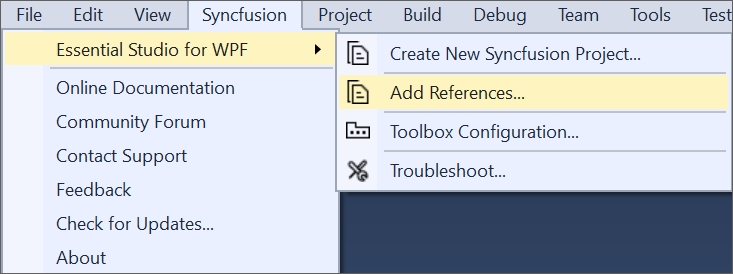
Option 1: From the Syncfusion® Menu, choose Essential Studio® for WPF > Add References….
NOTE
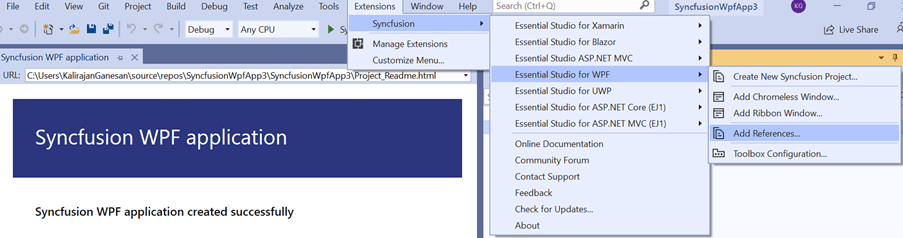
From Visual Studio 2019, the Syncfusion® menu is available under Extensions in the Visual Studio menu.
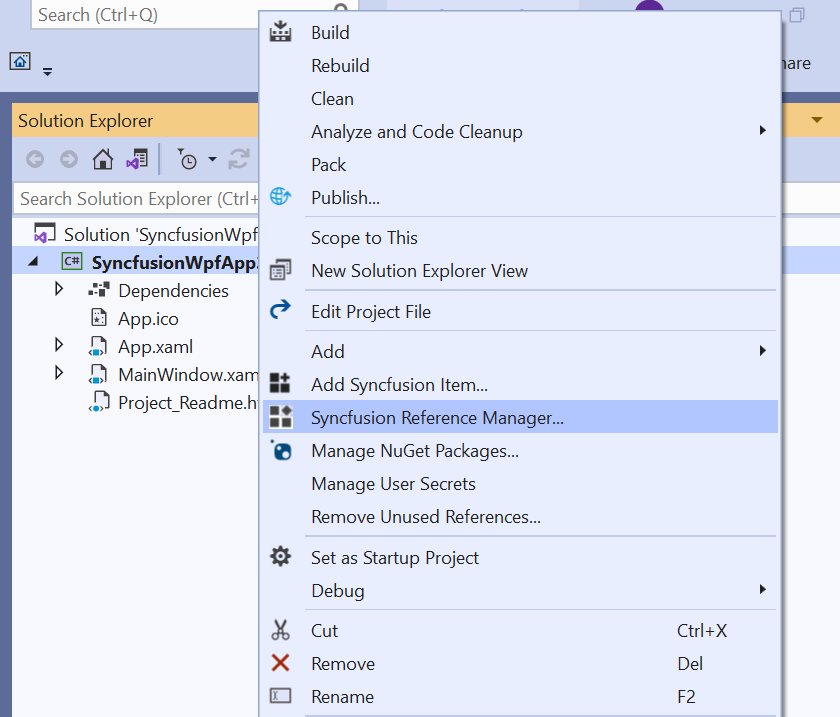
Option 2: Right-click the project in Solution Explorer and select Syncfusion® Reference Manager… from the context menu. The following screenshot shows this option in Visual Studio.
-
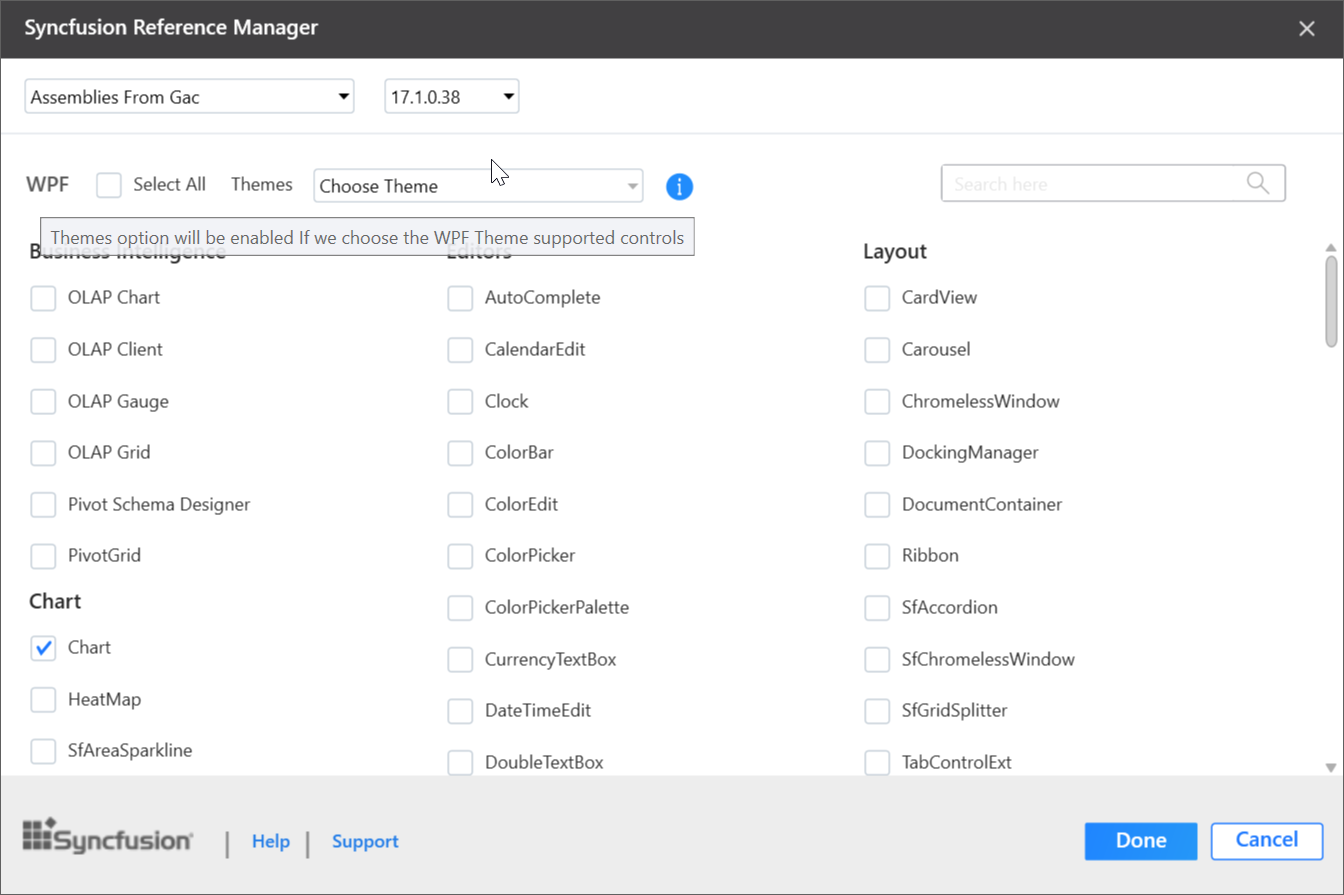
The Syncfusion® Reference Manager Wizard displays a list of loaded Syncfusion® WPF controls.
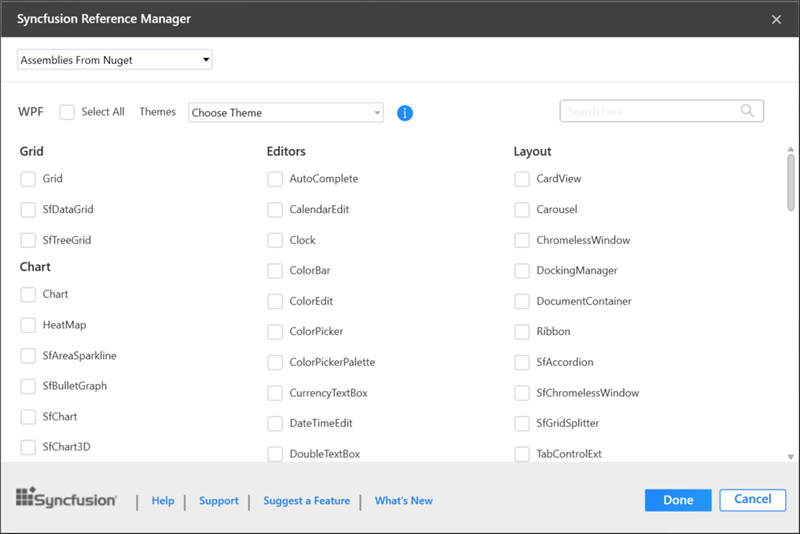
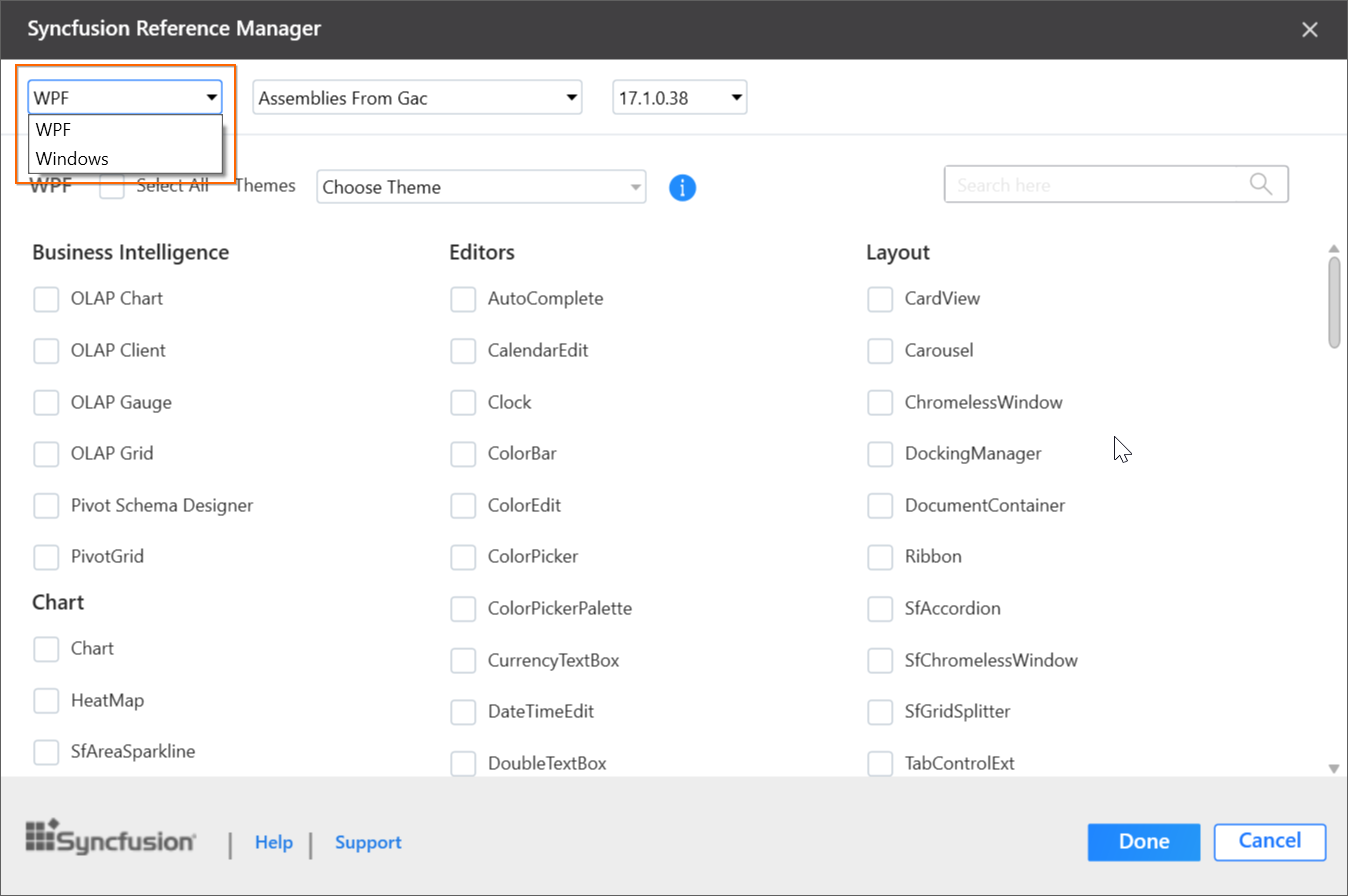
Platform Selection: The Platform Selection option appears when the Syncfusion® Reference Manager is opened from a Console or Class Library project. Select the appropriate platform.
NOTE
The Platform Selection option appears only if Essential Studio® for Enterprise Edition with the platforms WPF and Windows Forms has been installed, or if both Essential Studio® for WPF and WinForms have been installed.
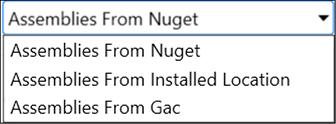
Assembly From: Choose the assembly location: NuGet packages, installed location, or GAC location.
NOTE
The Installed location and GAC options are available only when the Syncfusion® Essential Studio® WPF setup has been installed.
NOTE
The GAC option is not available when you select a WPF (.NET 10.0, .NET 9.0, .NET 8.0, .NET 7.0, and .NET 6.0) application in Visual Studio 2022 and later.
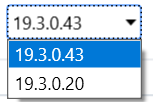
Version: To add the corresponding version assemblies to the project, select the build version.
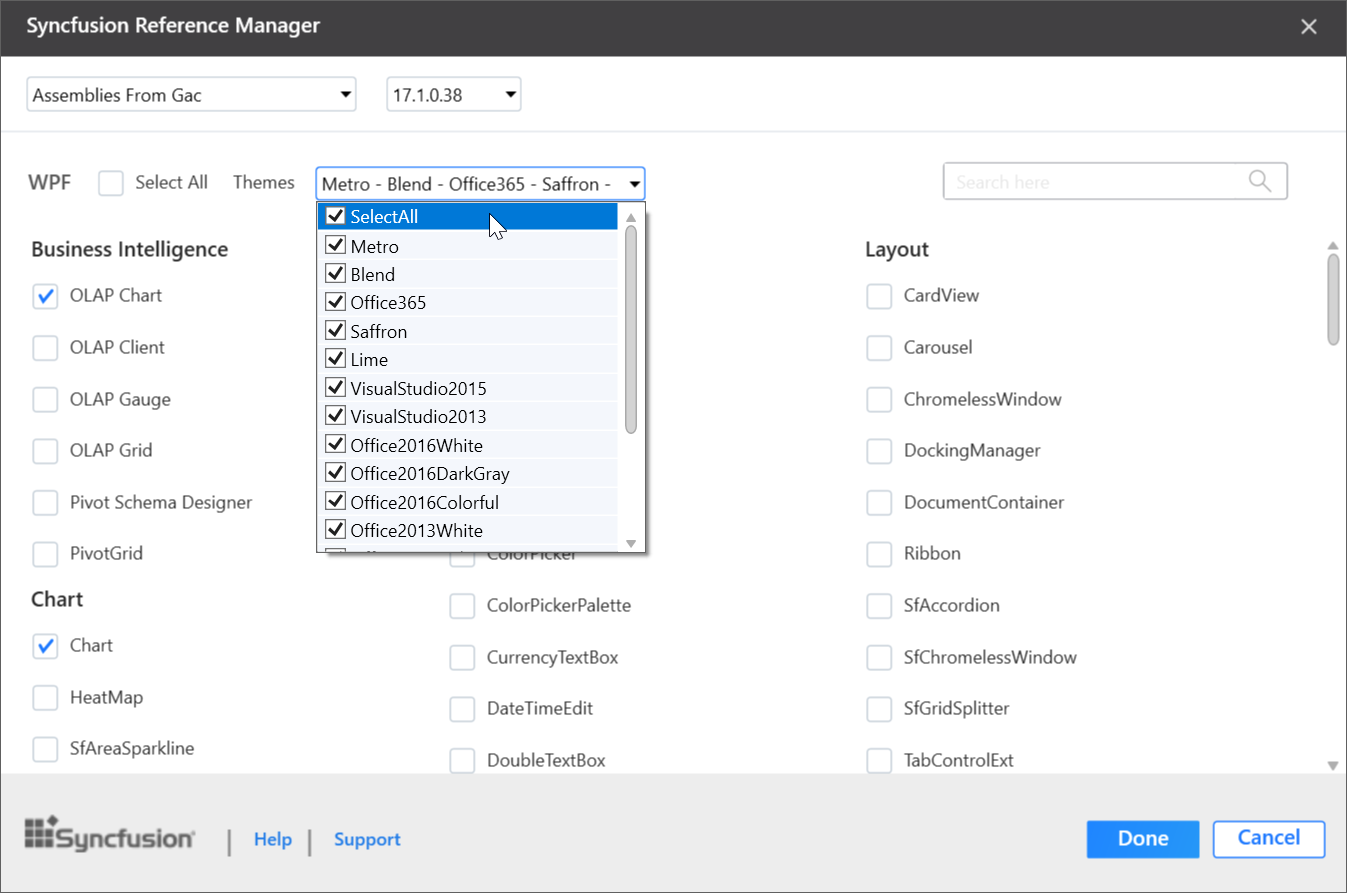
Themes Option: Choose the necessary themes based on your requirements. To learn more about built-in themes and their available assemblies, click the link below.
https://help.Syncfusion.com/wpf/themes/
NOTE
The Themes option is enabled only if you select theme-supported controls.
-
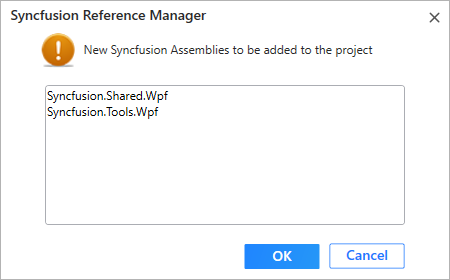
Select the required controls to add to your project, then click Done to add the required assemblies for the specified controls. The list of required assemblies for the selected controls to be added is shown in the screenshot below.
-
Click OK. The listed Syncfusion® assemblies are added to the project. A status bar message in Visual Studio confirms: “Syncfusion® assemblies have been added successfully”.

-
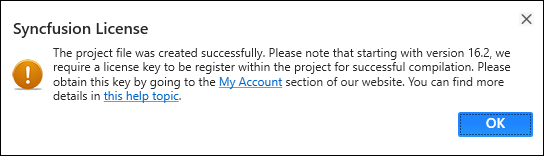
If you installed the trial setup or NuGet packages, the Syncfusion® license registration message box is displayed, since Syncfusion® introduced the licensing system in 2018 Volume 2 (v16.2.0.41) of the Essential Studio® release. Navigate to the help topic shown in the licensing message box to generate and register the Syncfusion® license key for your project. Refer to this blog post to understand the licensing changes introduced in Essential Studio®.
NOTE
Reference Manager support is provided by Syncfusion® for select versions of the .NET Framework that are included (as assemblies) in the Syncfusion® Essential Studio® installation. If you add Syncfusion® assemblies to a project and the project framework is not compatible with the specified Syncfusion® version assemblies, a dialog box appears with the message: Current build v{version} isn’t compatible with this framework v{Framework} Version.