Fill PDF Form Fields in React PDF Viewer
14 Aug 202616 minutes to read
This guide shows how to update, import, and validate PDF form fields in the React PDF Viewer so you can pre-fill forms or accept user input.
Outcome Programmatically set field values, allow UI-driven filling, import form data, and validate fields on submit.
Steps to fill forms
1. Fill form fields programmatically
Update form field values programmatically with updateFormFieldsValue.
Use the example below as a complete, runnable example for a small React app. It retrieves form fields and updates a named field or the first available field.
import { RefObject, useRef } from 'react';
import {
    PdfViewerComponent, Toolbar, Magnification, Navigation, LinkAnnotation, BookmarkView,
    ThumbnailView, Print, TextSelection, TextSearch, Annotation, FormFields, Inject,
    FormDesigner, PageOrganizer
} from '@syncfusion/ej2-react-pdfviewer';

export default function App() {
    const viewerRef: RefObject<PdfViewerComponent> = useRef(null);

    const handleFillForm = () => {
        const viewer = viewerRef.current;
        if (!viewer) return;

        // Retrieve form fields from the viewer
        const fields =
            (viewer.retrieveFormFields && viewer.retrieveFormFields()) ||
            viewer.formFieldCollections ||
            [];
        // Find by name or fallback to the first field
        const field = fields.find((f) => f && f.name === 'name') || fields[0];

        if (field) {
            field.value = 'John Doe';
            field.tooltip = 'First';
            // Push changes to viewer
            viewer.updateFormFieldsValue(field);
        } else {
            console.warn('No form fields available to update.');
        }
    };

    return (
        <div>
            <div className="control-section" style={{ marginBottom: 12 }}>
                <button id="updateBtn" onClick={handleFillForm}>
                    Fill Form Fields
                </button>
            </div>

            <div className="control-section">
                <PdfViewerComponent
                    ref={viewerRef}
                    id="container"
                    // Use a PDF that contains form fields
                    documentPath="https://cdn.syncfusion.com/content/pdf/form-filling-document.pdf"
                    resourceUrl="https://cdn.syncfusion.com/ej2/31.2.2/dist/ej2-pdfviewer-lib"
                    style={{ height: '680px', width: '100%' }}
                >
                    <Inject
                        services={[
                            Toolbar, Magnification, Navigation, Annotation, LinkAnnotation, BookmarkView, ThumbnailView, Print, TextSelection, TextSearch, FormFields, FormDesigner, PageOrganizer ]}
                    />
                </PdfViewerComponent>
            </div>
        </div>
    );
}
Expected result: Clicking the Fill Form Fields button sets the first or named field’s value to John Doe in the viewer.
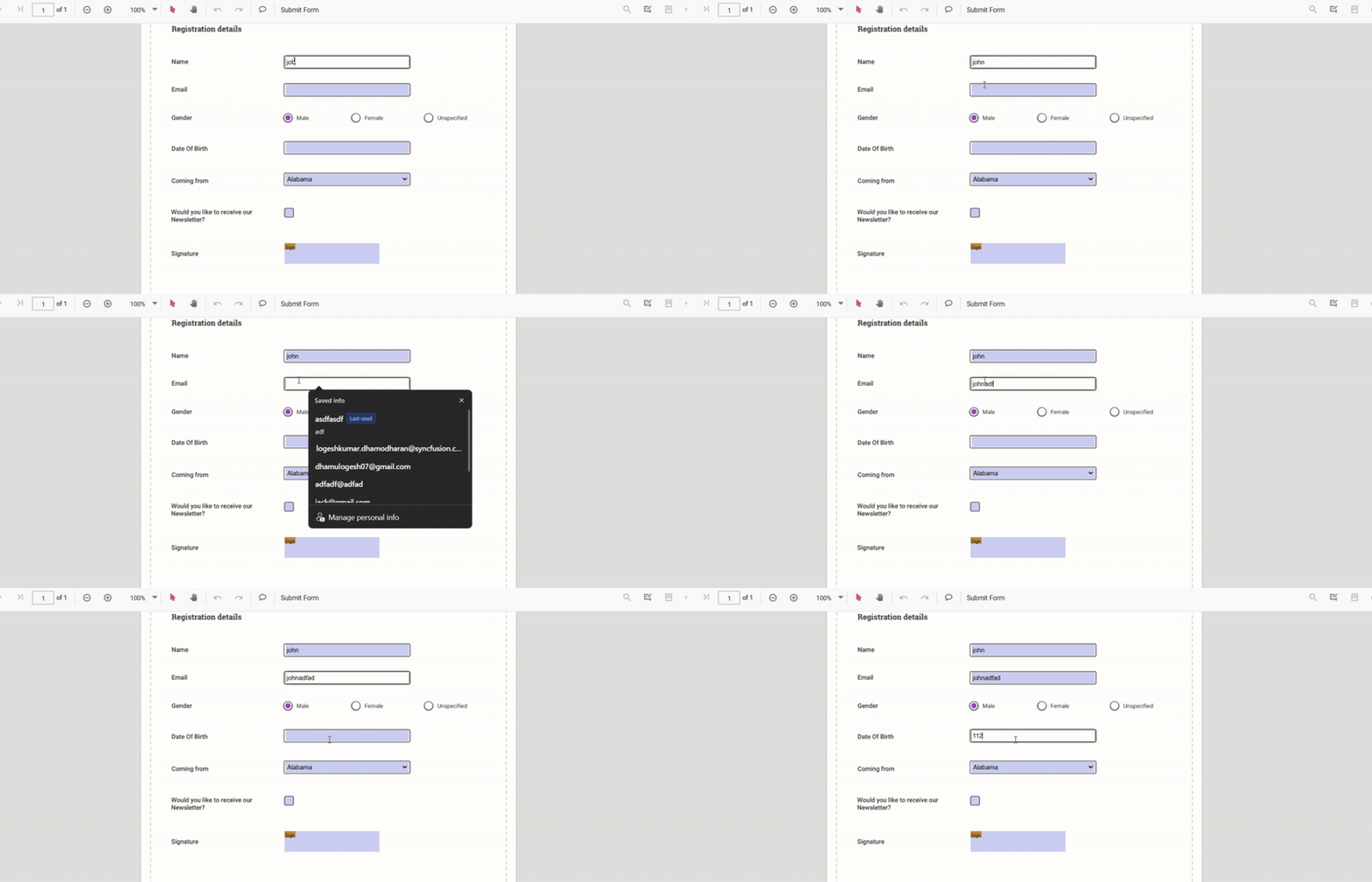
2. Fill form fields via UI
Users can click form controls and enter/select values. Supported field types include textboxes, checkboxes, radio buttons, dropdowns, list boxes, and signature fields. Edits are retained during the viewing session.
3. Fill form fields through imported data
Use importFormFields to map external data into PDF fields by name. The example below shows how to trigger import from a button handler.
import { RefObject, useRef } from 'react';
import {
    PdfViewerComponent, Toolbar, Magnification, Navigation, LinkAnnotation, BookmarkView,
    ThumbnailView, Print, TextSelection, TextSearch, Annotation, FormFields, Inject,
    FormDesigner, PageOrganizer, FormFieldDataFormat
} from '@syncfusion/ej2-react-pdfviewer';

export default function App() {
    const viewerRef: RefObject<PdfViewerComponent> = useRef(null);

    const handleImportJson = () => {
        const viewer = viewerRef.current;
        if (!viewer) return;
        // NOTE:
        // The first parameter can be:
        //  - a file path/url (in server mode),
        //  - or a base64 encoded File/Blob stream from an <input type="file"> in real apps.
        // Replace 'File' with your actual file or path as per your integration.
        viewer.importFormFields('File', FormFieldDataFormat.Json);
    };

    return (
        <div>
            <div className="control-section" style={{ marginBottom: 12 }}>
                <button id="importJson" onClick={handleImportJson}>
                    Import JSON
                </button>
            </div>

            <div className="control-section">
                <PdfViewerComponent
                    ref={viewerRef}
                    id="container"
                    // Use a PDF that contains form fields
                    documentPath="https://cdn.syncfusion.com/content/pdf/form-filling-document.pdf"
                    resourceUrl="https://cdn.syncfusion.com/ej2/31.2.2/dist/ej2-pdfviewer-lib"
                    style={{ height: '680px', width: '100%' }}
                >
                    <Inject
                        services={[
                            Toolbar, Magnification, Navigation, Annotation, LinkAnnotation, BookmarkView, ThumbnailView, Print, TextSelection, TextSearch, FormFields, FormDesigner, PageOrganizer]}
                    />
                </PdfViewerComponent>
            </div>
        </div>
    );
}
For more details, see Import Form Data.
4. Validate form fields on submit
Enable enableFormFieldsValidation and handle validateFormFields to check required fields and cancel submission when necessary. Example below shows adding required fields via formDesignerModule and validating them.
import { RefObject, useRef } from 'react';
import {
    PdfViewerComponent, Toolbar, Magnification, Navigation, LinkAnnotation,
    ThumbnailView, BookmarkView, TextSelection, Annotation, FormDesigner, FormFields,
    Inject, TextFieldSettings
} from '@syncfusion/ej2-react-pdfviewer';

export default function App() {
    const viewerRef: RefObject<PdfViewerComponent> = useRef(null);

    // Runs after the document is loaded into the viewer
    const handleDocumentLoad = () => {
        const viewer = viewerRef.current;
        if (!viewer) return;

        // Add a required Email field
        viewer.formDesignerModule.addFormField('Textbox', {
            name: 'Email',
            bounds: { X: 146, Y: 260, Width: 220, Height: 24 },
            isRequired: true,
            tooltip: 'Email is required',
        } as TextFieldSettings);

        // Add a required Phone field
        viewer.formDesignerModule.addFormField('Textbox', {
            name: 'Phone',
            bounds: { X: 146, Y: 300, Width: 220, Height: 24 },
            isRequired: true,
            tooltip: 'Phone number is required',
        } as TextFieldSettings);
    };

    // Validates only the added fields on form submit/validate trigger
    const handleValidateFormFields = () => {
        const viewer = viewerRef.current;
        if (!viewer) return;

        const fields = viewer.retrieveFormFields ? viewer.retrieveFormFields() : [];

        fields.forEach((field) => {
            if ((field.name === 'Email' || field.name === 'Phone') && !field.value) {
                alert(field.name + ' field cannot be empty.');
            }
        });
    };

    return (
        <div className="control-section">
            <PdfViewerComponent
                ref={viewerRef}
                id="pdfViewer"
                documentPath="https://cdn.syncfusion.com/content/pdf/pdf-succinctly.pdf"
                resourceUrl="https://cdn.syncfusion.com/ej2/31.1.23/dist/ej2-pdfviewer-lib"
                // Enable built-in validation flow
                enableFormFieldsValidation={true}
                // Hook events
                documentLoad={handleDocumentLoad}
                validateFormFields={handleValidateFormFields}
                style={{ height: '680px', width: '100%' }}
            >
                <Inject
                    services={[
                        Toolbar, Magnification, Navigation, LinkAnnotation, ThumbnailView, BookmarkView,
                        TextSelection, Annotation, FormDesigner, FormFields
                    ]}
                />
            </PdfViewerComponent>
        </div>
    );
}
Troubleshooting
- If fields are not editable, confirm
FormFieldsmodule is injected into PDF Viewer. - If examples fail to load, verify your
resourceUrlmatches the installed PDF Viewer version. - For import issues, ensure JSON keys match the PDF field
namevalues.