Group Form Fields in React PDF Viewer
14 Aug 20266 minutes to read
The React PDF Viewer allows grouping multiple form fields into a single logical field by assigning the same Name to them. Grouped form fields share their values and states automatically based on the field type. Use the Form Designer UI for manual grouping or the Form Designer APIs for programmatic grouping to keep related fields synchronized across the document.
- How form field grouping works
- Field behavior based on type
- How to group form fields using the UI
- How to group form fields programmatically
- Related references and samples
How grouping works
In a PDF form, multiple widgets can represent the same logical form field. When widgets share the same Name, they are treated as a group and remain synchronized.
Field behavior by type
- Textbox and Password — Text entered in one widget appears in all widgets with the same name.
- CheckBox — Checking one widget sets the checked state for all checkboxes with the same name.
- RadioButton — Widgets with the same name form a radio group; only one option can be selected.
- ListBox and DropDown — The selected value is shared across widgets with the same name.
- Signature and Initial fields — Applied signature/initial is mirrored across grouped widgets.
form field grouping is controlled by the
Nameproperty. The position of each widget is determined by its bounds; grouping is independent of location.
Group using the Form Designer UI
Steps
- Enable the Form Designer toolbar.
- Add the form fields you want to group.
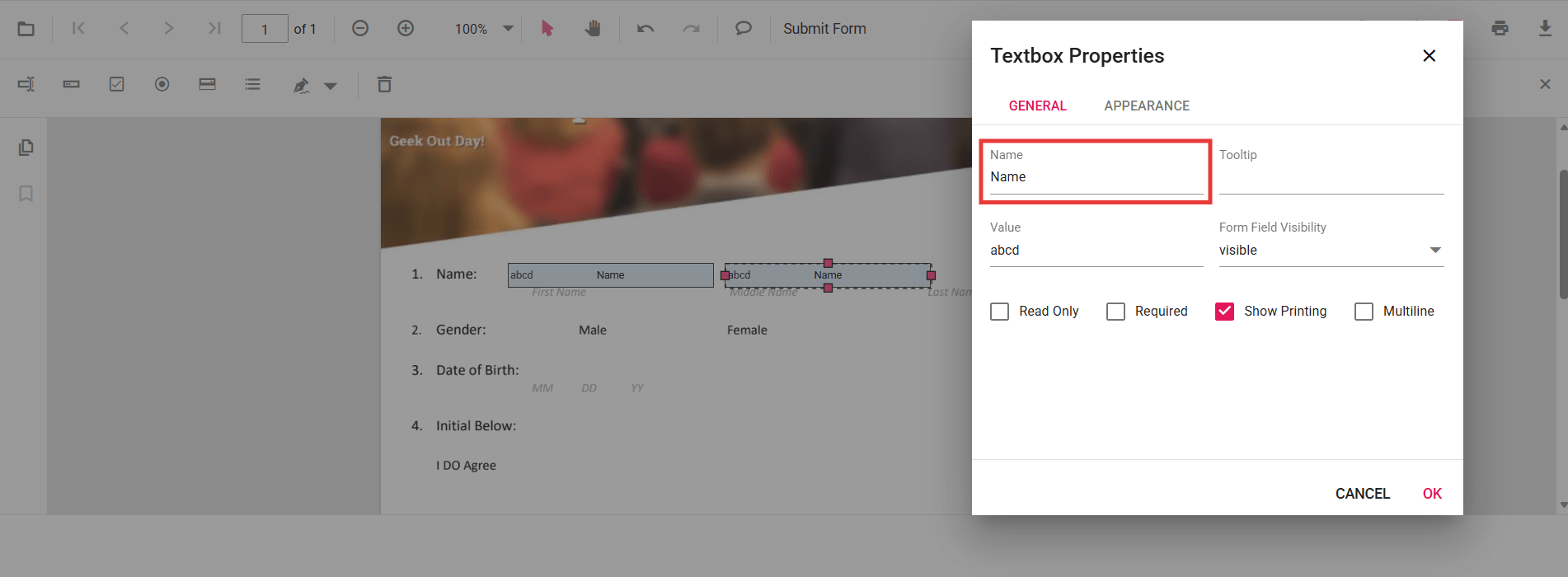
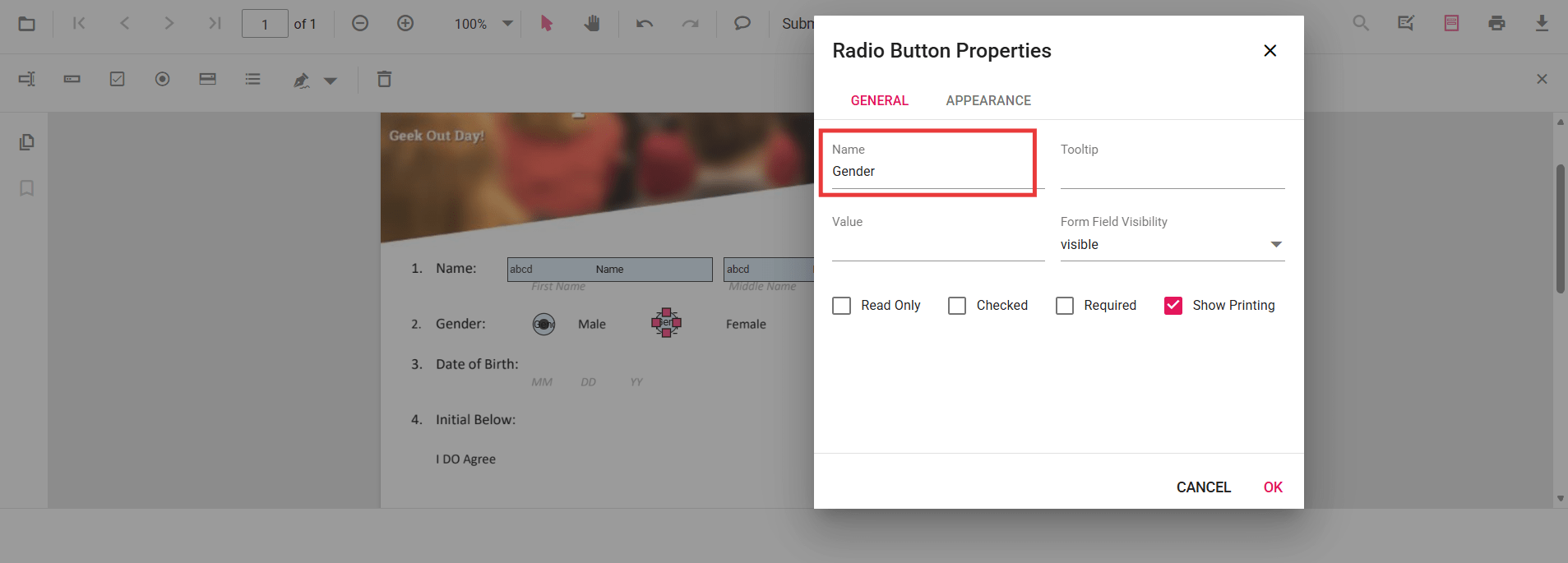
- Select a form field, open Properties, and set the Name value.
- Assign the same Name to all PDF form fields that belong to the group.
- Apply the changes and verify that updates in one widget reflect in the others.
Group PDF Form Fields Programmatically
You can also group form fields during creation by assigning the same Name through code.
Example Scenarios
- Two textboxes named EmployeeId share the same value.
- A radio button group named Gender allows single selection.
- Two checkboxes named Subscribe share the checked state.
import * as ReactDOM from 'react-dom/client';
import React, { useRef, useCallback } from 'react';
import './index.css';
import { PdfViewerComponent, Toolbar, Magnification, Navigation, LinkAnnotation, BookmarkView, ThumbnailView, Print, TextSelection, Annotation, TextSearch, FormFields, FormDesigner, Inject } from '@syncfusion/ej2-react-pdfviewer';

export function App() {
  const viewerRef = useRef(null);

  const onDocumentLoaded = useCallback(() => {
    const viewer = viewerRef.current;
    if (!viewer || !viewer.formDesignerModule) return;

    // Textbox group: same name => mirrored value
    viewer.formDesignerModule.addFormField('Textbox', {
      name: 'EmployeeId',
      bounds: { X: 146, Y: 229, Width: 150, Height: 24 }
    });

    viewer.formDesignerModule.addFormField('Textbox', {
      name: 'EmployeeId', // same name groups the two widgets
      bounds: { X: 338, Y: 229, Width: 150, Height: 24 }
    });

    // Radio button group: same name => exclusive selection across the group
    viewer.formDesignerModule.addFormField('RadioButton', {
      name: 'Gender',
      bounds: { X: 148, Y: 289, Width: 18, Height: 18 },
      isSelected: false
    });

    viewer.formDesignerModule.addFormField('RadioButton', {
      name: 'Gender', // grouped with the first
      bounds: { X: 292, Y: 289, Width: 18, Height: 18 },
      isSelected: false
    });

    // CheckBox group: same name => mirrored checked state
    viewer.formDesignerModule.addFormField('CheckBox', {
      name: 'Subscribe',
      bounds: { X: 56, Y: 664, Width: 20, Height: 20 },
      isChecked: false
    });

    viewer.formDesignerModule.addFormField('CheckBox', {
      name: 'Subscribe', // grouped with the first
      bounds: { X: 242, Y: 664, Width: 20, Height: 20 },
      isChecked: false
    });
  }, []);

  return (
    <div className='control-section'>
      <PdfViewerComponent
        ref={viewerRef}
        id="container"
        documentPath="https://cdn.syncfusion.com/content/pdf/form-designer.pdf"
        resourceUrl="https://cdn.syncfusion.com/ej2/31.2.2/dist/ej2-pdfviewer-lib"
        style=
        documentLoad={onDocumentLoaded}
      >
        <Inject services={[Toolbar, Magnification, Navigation, Annotation, LinkAnnotation, BookmarkView, ThumbnailView, Print, TextSelection, TextSearch, FormFields, FormDesigner]} />
      </PdfViewerComponent>
    </div>
  );
}

const root = ReactDOM.createRoot(document.getElementById('sample'));
root.render(<App />);