Volume Annotation in JavaScript (ES6) PDF Viewer
14 Aug 202617 minutes to read
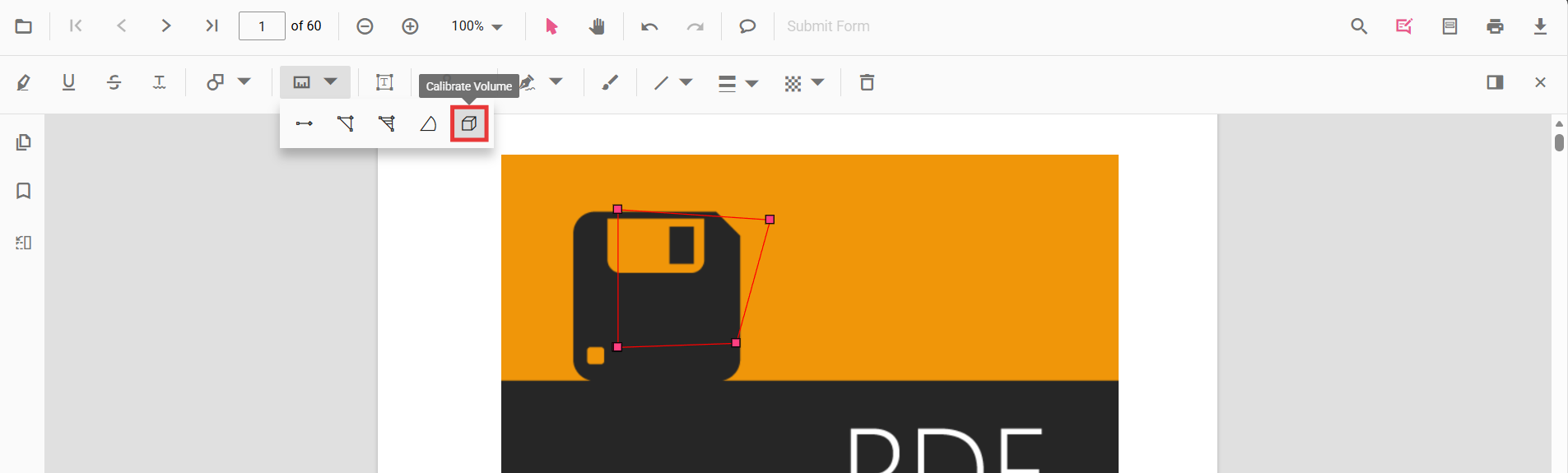
Volume is a measurement annotation used to calculate the volume of a rectangular prism area in the PDF.
Add Volume Annotation
Add volume annotation via UI
Use the annotation toolbar to:
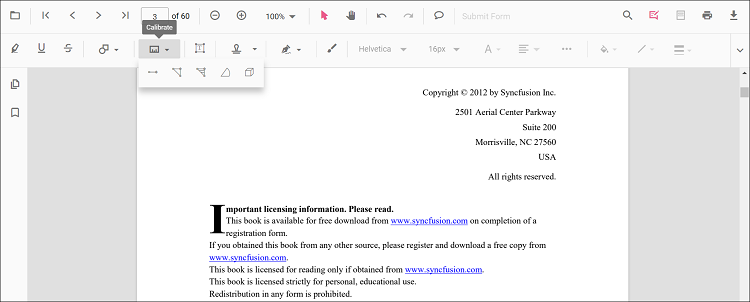
- Click the Edit Annotation button in the PDF Viewer toolbar.
- Open the Measurement Annotation dropdown.
- Choose Volume, then draw on the page.
When in pan mode, selecting measurement annotations switches the viewer to text select mode
Enable volume mode
The PDF Viewer component allows drawing volume annotations programmatically after enabling volume mode via button clicks.
<button id="volumeMode">Volume</button>import { PdfViewer, Toolbar, Magnification, Navigation, Annotation, LinkAnnotation, ThumbnailView, BookmarkView, TextSelection, TextSearch, FormFields, FormDesigner, PageOrganizer } from '@syncfusion/ej2-pdfviewer';
PdfViewer.Inject(Toolbar, Magnification, Navigation, Annotation, LinkAnnotation, ThumbnailView, BookmarkView, TextSelection, TextSearch, FormFields, FormDesigner, PageOrganizer);
let pdfviewer: PdfViewer = new PdfViewer();
pdfviewer.documentPath = "https://cdn.syncfusion.com/content/pdf/pdf-succinctly.pdf";
pdfviewer.resourceUrl = "https://cdn.syncfusion.com/ej2/31.1.23/dist/ej2-pdfviewer-lib";
pdfviewer.appendTo('#PdfViewer');
document.getElementById('volumeMode')?.addEventListener('click', () => {
pdfviewer.annotationModule.setAnnotationMode('Volume');
});import { PdfViewer, Toolbar, Magnification, Navigation, Annotation, LinkAnnotation, ThumbnailView, BookmarkView, TextSelection, TextSearch, FormFields, FormDesigner, PageOrganizer } from '@syncfusion/ej2-pdfviewer';
PdfViewer.Inject(Toolbar, Magnification, Navigation, Annotation, LinkAnnotation, ThumbnailView, BookmarkView, TextSelection, TextSearch, FormFields, FormDesigner, PageOrganizer);
let pdfviewer: PdfViewer = new PdfViewer();
pdfviewer.serviceUrl = 'https://document.syncfusion.com/web-services/pdf-viewer/api/pdfviewer/';
pdfviewer.documentPath = "https://cdn.syncfusion.com/content/pdf/pdf-succinctly.pdf";
pdfviewer.appendTo('#PdfViewer');
document.getElementById('volumeMode')?.addEventListener('click', () => {
pdfviewer.annotationModule.setAnnotationMode('Volume');
});Exit volume mode
<button id="setNone">Normal Mode</button>document.getElementById('setNone')?.addEventListener('click', () => {
pdfviewer.annotationModule.setAnnotationMode('None');
});Add volume annotations programmatically
Add volume annotations programmatically using the addAnnotation() method.
<button id="addVolumeAnnotation">Add Volume annotation programmatically</button>import { PdfViewer, Toolbar, Magnification, Navigation, Annotation, LinkAnnotation, ThumbnailView, BookmarkView, TextSelection, TextSearch, FormFields, FormDesigner, PageOrganizer, VolumeSettings } from '@syncfusion/ej2-pdfviewer';
PdfViewer.Inject(Toolbar, Magnification, Navigation, Annotation, LinkAnnotation, ThumbnailView, BookmarkView, TextSelection, TextSearch, FormFields, FormDesigner, PageOrganizer);
let pdfviewer: PdfViewer = new PdfViewer();
pdfviewer.documentPath = "https://cdn.syncfusion.com/content/pdf/pdf-succinctly.pdf";
pdfviewer.resourceUrl = "https://cdn.syncfusion.com/ej2/31.1.23/dist/ej2-pdfviewer-lib";
pdfviewer.appendTo('#PdfViewer');
document.getElementById('addVolumeAnnotation')?.addEventListener('click', () => {
pdfviewer.annotation.addAnnotation('Volume', {
offset: { x: 200, y: 810 },
pageNumber: 1,
vertexPoints: [
{ x: 200, y: 810 }, { x: 200, y: 919 }, { x: 320, y: 919 }, { x: 320, y: 809 }, { x: 200, y: 810 }
]
} as VolumeSettings);
});import { PdfViewer, Toolbar, Magnification, Navigation, Annotation, LinkAnnotation, ThumbnailView, BookmarkView, TextSelection, TextSearch, FormFields, FormDesigner, PageOrganizer, VolumeSettings } from '@syncfusion/ej2-pdfviewer';
PdfViewer.Inject(Toolbar, Magnification, Navigation, Annotation, LinkAnnotation, ThumbnailView, BookmarkView, TextSelection, TextSearch, FormFields, FormDesigner, PageOrganizer);
let pdfviewer: PdfViewer = new PdfViewer();
pdfviewer.serviceUrl = 'https://document.syncfusion.com/web-services/pdf-viewer/api/pdfviewer/';
pdfviewer.documentPath = "https://cdn.syncfusion.com/content/pdf/pdf-succinctly.pdf";
pdfviewer.appendTo('#PdfViewer');
document.getElementById('addVolumeAnnotation')?.addEventListener('click', () => {
pdfviewer.annotation.addAnnotation('Volume', {
offset: { x: 200, y: 810 },
pageNumber: 1,
vertexPoints: [
{ x: 200, y: 810 }, { x: 200, y: 919 }, { x: 320, y: 919 }, { x: 320, y: 809 }, { x: 200, y: 810 }
]
} as VolumeSettings);
});Edit Volume Annotation
Edit volume annotation in UI
Use the viewer to select, move, and resize Volume annotations:
- Select a Volume measurement to show its handles.
- Move: drag the shape to reposition it on the page.
- Resize: drag the handles to adjust its size.
- Delete or access more options from the context menu.
Edit the properties of volume annotations
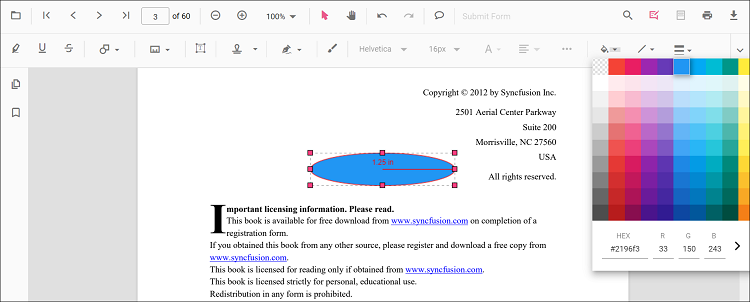
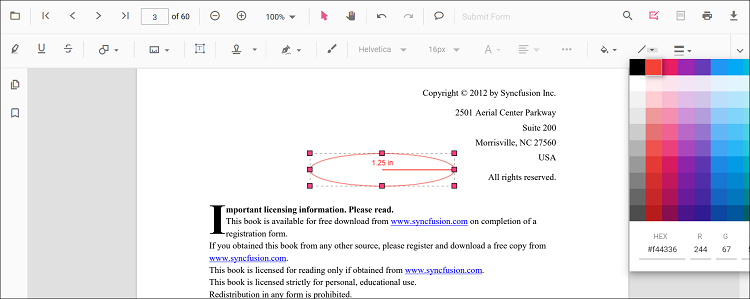
The fill color, stroke color, thickness, and opacity can be edited using the Edit Color, Edit Stroke Color, Edit Thickness, and Edit Opacity tools in the annotation toolbar.
Edit fill color
The fill color of the annotation can be edited using the color palette provided in the Edit Color tool.
Edit stroke color
The stroke color of the annotation can be edited using the color palette provided in the Edit Stroke Color tool.
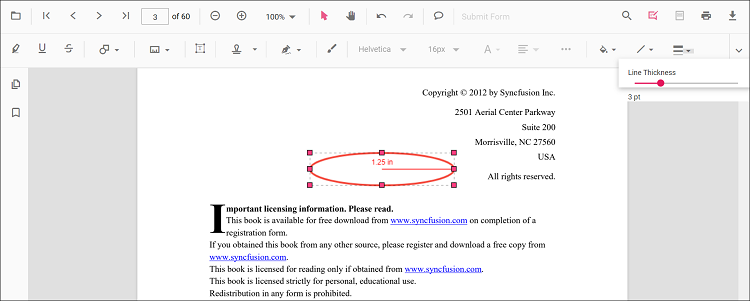
Edit thickness
Edit border thickness using the range slider provided in the Edit Thickness tool.
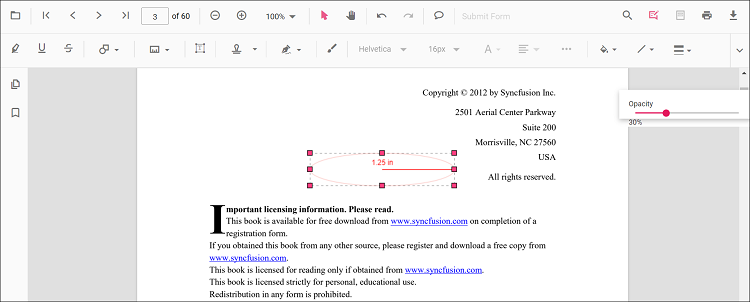
Edit opacity
The opacity of the annotation can be edited using the range slider provided in the Edit Opacity tool.
Edit an existing volume annotation programmatically
Use editAnnotation on items from annotationCollection.
<button id="editVolumeAnnotation">Edit Volume annotation programmatically</button>import { PdfViewer, Toolbar, Magnification, Navigation, Annotation, LinkAnnotation, ThumbnailView, BookmarkView, TextSelection, TextSearch, FormFields, FormDesigner, PageOrganizer } from '@syncfusion/ej2-pdfviewer';
PdfViewer.Inject(Toolbar, Magnification, Navigation, Annotation, LinkAnnotation, ThumbnailView, BookmarkView, TextSelection, TextSearch, FormFields, FormDesigner, PageOrganizer);
let pdfviewer: PdfViewer = new PdfViewer();
pdfviewer.documentPath = "https://cdn.syncfusion.com/content/pdf/pdf-succinctly.pdf";
pdfviewer.resourceUrl = "https://cdn.syncfusion.com/ej2/31.1.23/dist/ej2-pdfviewer-lib";
pdfviewer.appendTo('#PdfViewer');
document.getElementById('editVolumeAnnotation')?.addEventListener('click', () => {
for (let i = 0; i < pdfviewer.annotationCollection.length; i++) {
if (pdfviewer.annotationCollection[i].subject === 'Volume calculation') {
pdfviewer.annotationCollection[i].strokeColor = '#0000FF';
pdfviewer.annotationCollection[i].thickness = 2;
pdfviewer.annotationCollection[i].opacity = 0.8;
pdfviewer.annotation.editAnnotation(pdfviewer.annotationCollection[i]);
}
}
});import { PdfViewer, Toolbar, Magnification, Navigation, Annotation, LinkAnnotation, ThumbnailView, BookmarkView, TextSelection, TextSearch, FormFields, FormDesigner, PageOrganizer } from '@syncfusion/ej2-pdfviewer';
PdfViewer.Inject(Toolbar, Magnification, Navigation, Annotation, LinkAnnotation, ThumbnailView, BookmarkView, TextSelection, TextSearch, FormFields, FormDesigner, PageOrganizer);
let pdfviewer: PdfViewer = new PdfViewer();
pdfviewer.serviceUrl = 'https://document.syncfusion.com/web-services/pdf-viewer/api/pdfviewer/';
pdfviewer.documentPath = "https://cdn.syncfusion.com/content/pdf/pdf-succinctly.pdf";
pdfviewer.appendTo('#PdfViewer');
document.getElementById('editVolumeAnnotation')?.addEventListener('click', () => {
for (let i = 0; i < pdfviewer.annotationCollection.length; i++) {
if (pdfviewer.annotationCollection[i].subject === 'Volume calculation') {
pdfviewer.annotationCollection[i].strokeColor = '#0000FF';
pdfviewer.annotationCollection[i].thickness = 2;
pdfviewer.annotationCollection[i].opacity = 0.8;
pdfviewer.annotation.editAnnotation(pdfviewer.annotationCollection[i]);
}
}
});Default volume settings during initialization
Set default volumeSettings before creating the control.
import { PdfViewer, Toolbar, Magnification, Navigation, Annotation, LinkAnnotation, ThumbnailView, BookmarkView, TextSelection, TextSearch, FormFields, FormDesigner, PageOrganizer } from '@syncfusion/ej2-pdfviewer';

PdfViewer.Inject(Toolbar, Magnification, Navigation, Annotation, LinkAnnotation, ThumbnailView, BookmarkView, TextSelection, TextSearch, FormFields, FormDesigner, PageOrganizer);

let pdfviewer: PdfViewer = new PdfViewer();
pdfviewer.documentPath = "https://cdn.syncfusion.com/content/pdf/pdf-succinctly.pdf";
pdfviewer.resourceUrl = "https://cdn.syncfusion.com/ej2/31.1.23/dist/ej2-pdfviewer-lib";
pdfviewer.volumeSettings = { fillColor: 'pink', opacity: 0.6, strokeColor: 'yellow' };
pdfviewer.appendTo('#PdfViewer');
import { PdfViewer, Toolbar, Magnification, Navigation, Annotation, LinkAnnotation, ThumbnailView, BookmarkView, TextSelection, TextSearch, FormFields, FormDesigner, PageOrganizer } from '@syncfusion/ej2-pdfviewer';
PdfViewer.Inject(Toolbar, Magnification, Navigation, Annotation, LinkAnnotation, ThumbnailView, BookmarkView, TextSelection, TextSearch, FormFields, FormDesigner, PageOrganizer);
let pdfviewer: PdfViewer = new PdfViewer();
pdfviewer.serviceUrl = 'https://document.syncfusion.com/web-services/pdf-viewer/api/pdfviewer/';
pdfviewer.documentPath = "https://cdn.syncfusion.com/content/pdf/pdf-succinctly.pdf";
pdfviewer.volumeSettings = { fillColor: 'pink', opacity: 0.6, strokeColor: 'yellow' };
pdfviewer.appendTo('#PdfViewer');Set properties while adding Individual Annotation
Set properties for individual annotation before creating the control using VolumeSettings.
After editing default color and opacity using the Edit Color and Edit Opacity tools, the values update to the selected settings.
Refer to the following code snippet to set the default Volume settings.
<button id="Volume">Add Volume</button>import { PdfViewer, Toolbar, Magnification, Navigation, Annotation, LinkAnnotation, ThumbnailView, BookmarkView, TextSelection, TextSearch, FormFields, FormDesigner, VolumeSettings} from '@syncfusion/ej2-pdfviewer';
PdfViewer.Inject(Toolbar, Magnification, Navigation, Annotation, LinkAnnotation, ThumbnailView, BookmarkView, TextSelection, TextSearch, FormFields, FormDesigner, PageOrganizer);
const pdfviewer: PdfViewer = new PdfViewer();
pdfviewer.documentPath = 'https://cdn.syncfusion.com/content/pdf/form-designer.pdf';
pdfviewer.resourceUrl = 'https://cdn.syncfusion.com/ej2/31.1.23/dist/ej2-pdfviewer-lib';
pdfviewer.appendTo('#PdfViewer');
//Apply Volume Settings while adding individual Annotation
document.getElementById('Volume')?.addEventListener('click', function () {
pdfviewer.annotation.addAnnotation('Volume', {
offset: { x: 200, y: 810 },
pageNumber: 1,
vertexPoints: [
{ x: 200, y: 810 }, { x: 200, y: 919 }, { x: 320, y: 919 }, { x: 320, y: 809 }, { x: 200, y: 810 }
],
fillColor: 'pink', opacity: 0.6, strokeColor: 'yellow'
} as VolumeSettings);
});import { PdfViewer, Toolbar, Magnification, Navigation, Annotation, LinkAnnotation, ThumbnailView, BookmarkView, TextSelection, TextSearch, FormFields, FormDesigner, VolumeSettings} from '@syncfusion/ej2-pdfviewer';
PdfViewer.Inject(Toolbar, Magnification, Navigation, Annotation, LinkAnnotation, ThumbnailView, BookmarkView, TextSelection, TextSearch, FormFields, FormDesigner, PageOrganizer);
const pdfviewer: PdfViewer = new PdfViewer();
pdfviewer.documentPath = 'https://cdn.syncfusion.com/content/pdf/form-designer.pdf';
pdfviewer.serviceUrl = 'https://document.syncfusion.com/web-services/pdf-viewer/api/pdfviewer/';
pdfviewer.appendTo('#PdfViewer');
//Apply Volume Settings while adding individual Annotation
document.getElementById('Volume')?.addEventListener('click', function () {
pdfviewer.annotation.addAnnotation('Volume', {
offset: { x: 200, y: 810 },
pageNumber: 1,
vertexPoints: [
{ x: 200, y: 810 }, { x: 200, y: 919 }, { x: 320, y: 919 }, { x: 320, y: 809 }, { x: 200, y: 810 }
],
fillColor: 'pink', opacity: 0.6, strokeColor: 'yellow'
} as VolumeSettings);
});Scale ratio and units
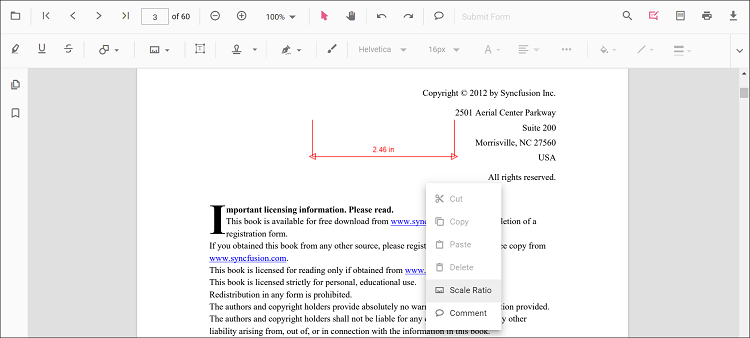
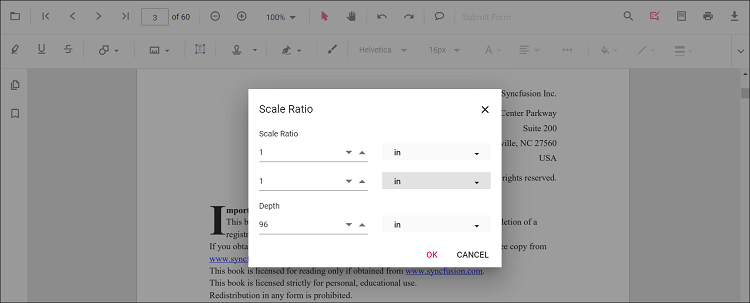
You can modify scale ratio and units using the Scale Ratio option in the context menu.
Supported units:
- Inch, Millimeter, Centimeter, Point, Pica, Feet
Set defaults via measurementSettings:
import { PdfViewer, Toolbar, Magnification, Navigation, Annotation, LinkAnnotation, ThumbnailView, BookmarkView, TextSelection, TextSearch, FormFields, FormDesigner, PageOrganizer } from '@syncfusion/ej2-pdfviewer';

PdfViewer.Inject(Toolbar, Magnification, Navigation, Annotation, LinkAnnotation, ThumbnailView, BookmarkView, TextSelection, TextSearch, FormFields, FormDesigner, PageOrganizer);

let pdfviewer: PdfViewer = new PdfViewer();
pdfviewer.documentPath = "https://cdn.syncfusion.com/content/pdf/pdf-succinctly.pdf";
pdfviewer.resourceUrl = "https://cdn.syncfusion.com/ej2/31.1.23/dist/ej2-pdfviewer-lib";
pdfviewer.measurementSettings = { scaleRatio: 2, conversionUnit: 'cm', displayUnit: 'cm' };
pdfviewer.appendTo('#PdfViewer');
import { PdfViewer, Toolbar, Magnification, Navigation, Annotation, LinkAnnotation, ThumbnailView, BookmarkView, TextSelection, TextSearch, FormFields, FormDesigner, PageOrganizer } from '@syncfusion/ej2-pdfviewer';
PdfViewer.Inject(Toolbar, Magnification, Navigation, Annotation, LinkAnnotation, ThumbnailView, BookmarkView, TextSelection, TextSearch, FormFields, FormDesigner, PageOrganizer);
let pdfviewer: PdfViewer = new PdfViewer();
pdfviewer.serviceUrl = 'https://document.syncfusion.com/web-services/pdf-viewer/api/pdfviewer/';
pdfviewer.documentPath = "https://cdn.syncfusion.com/content/pdf/pdf-succinctly.pdf";
pdfviewer.measurementSettings = { scaleRatio: 2, conversionUnit: 'cm', displayUnit: 'cm' };
pdfviewer.appendTo('#PdfViewer');