Annotations in Mobile View in JavaScript (ES6) PDF Viewer
14 Aug 20262 minutes to read
This article describes how to use annotation tools in the Syncfusion JavaScript (Essential JS 2) PDF Viewer on touch-enabled devices. It covers enabling the annotation toolbar; adding sticky notes, text markups, shapes, measurements, stamps, signatures, and ink; adjusting annotation properties before and after placement; using comments; and removing annotations.
Open the annotation toolbar
Step 1: Select the Edit Annotation icon on the main toolbar to enable the annotation toolbar.
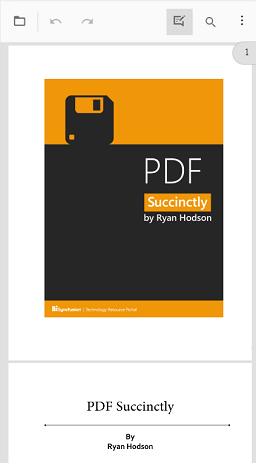
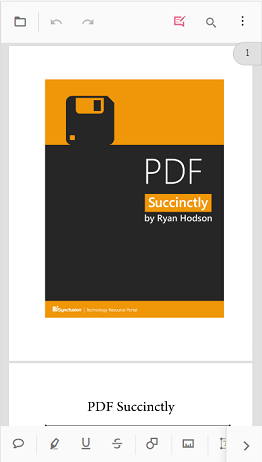
Step 2: The annotation toolbar appears below the main toolbar and displays tools optimized for touch interaction.
Add sticky note annotations
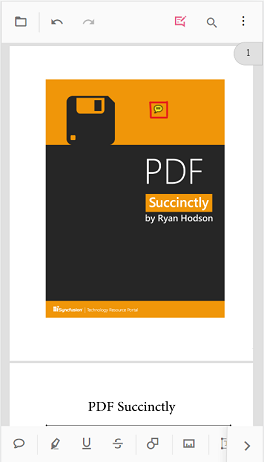
Step 1: Select the Sticky Notes icon to activate the sticky note tool, then tap the desired location on the page to place a note.
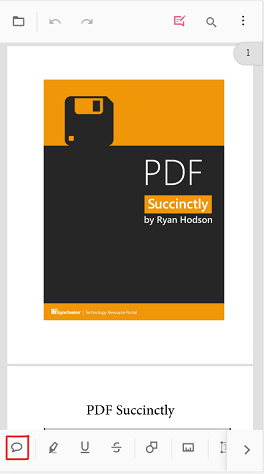
Step 2: A sticky note annotation is added at the selected location; opening the note allows viewing or editing its content.
Add text markup annotations
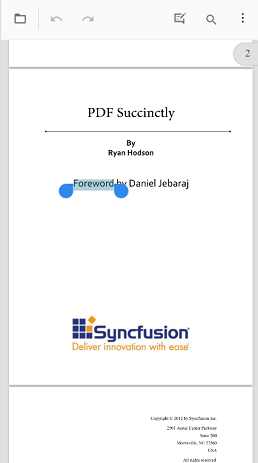
Step 1: Select a text markup icon, highlight the desired text, then confirm the selection to apply the markup.
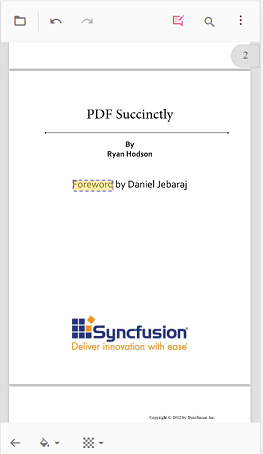
Step 2: The text markup annotation is applied to the highlighted text.
Add shape and measurement annotations
Step 1: Select the Shape or Measure icon to open the corresponding toolbar.
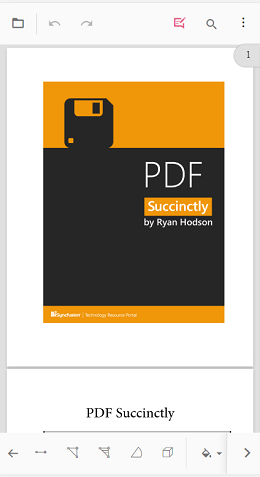
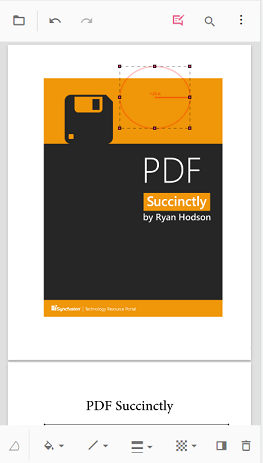
Step 2: Choose a shape or measurement type and draw it on the page.
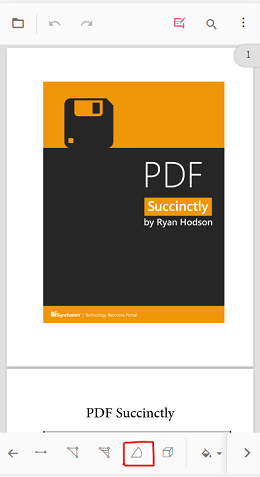
Step 3: The annotation is rendered on the PDF page.
Add stamp annotations
Step 1: Select the Stamp icon and choose a stamp type from the menu.
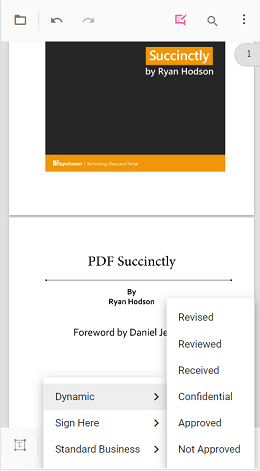
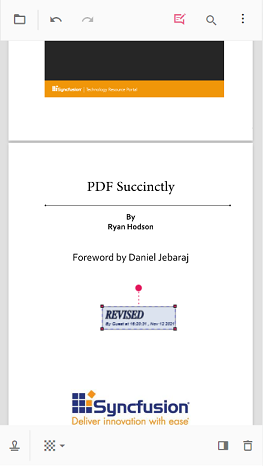
Step 2: Tap the page to place the chosen stamp annotation.
Add signature annotations
Step 1: Select the Signature icon to open the signature canvas. Draw the signature, choose Create, then tap the viewer to place it.
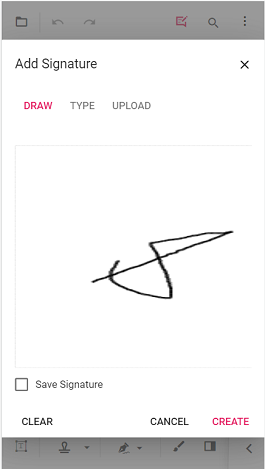
Step 2: The signature annotation is added to the page.
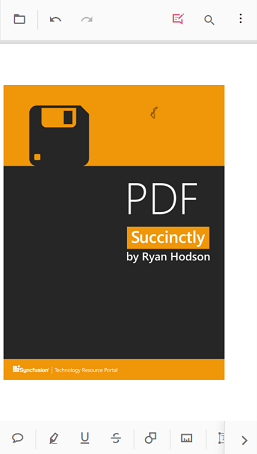
Add ink annotations
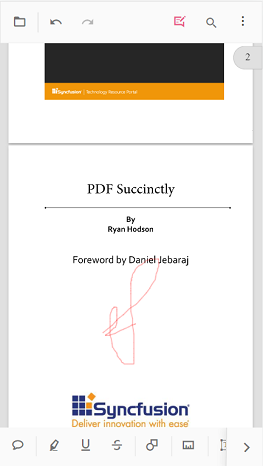
Step 1: Select the Ink tool and draw directly on the page.
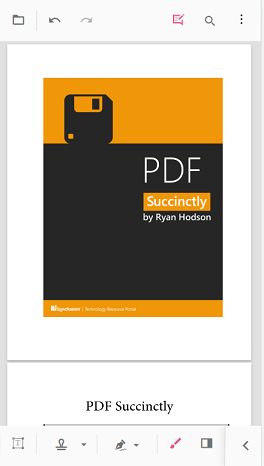
Step 2: The ink annotation is rendered on the page.
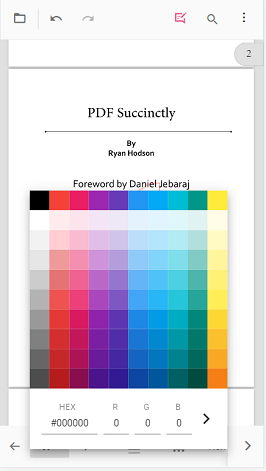
Change annotation properties (before adding)
Step 1: Adjust annotation properties before placement as required.
Step 2: Open the property toolbar for the annotation icon, set the desired properties, and then place the annotation on the page.
Change annotation properties (after adding)
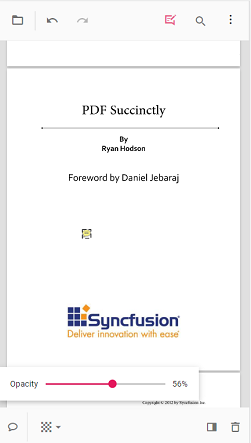
Step 1: Modify annotation properties after placement when necessary.
Step 2: Select the annotation to display the property toolbar, then update the properties as needed.
Delete annotations
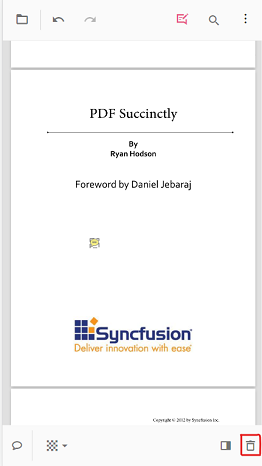
Step 1: Select the annotation to display the property toolbar, then choose the Delete icon to remove the annotation.
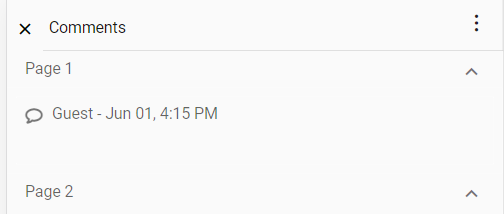
Open the comment panel
Step 1: Open the comment panel from the property toolbar or the annotation toolbar.
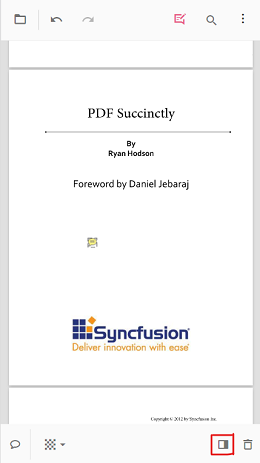
Step 2: The comment panel is displayed.
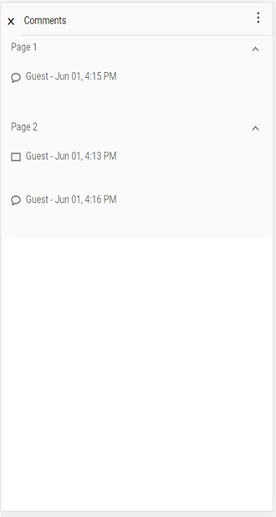
Close the comment panel
Step 1: Use the Close button to dismiss the comment panel.