Modify Form Fields in JavaScript (ES5) PDF Viewer
14 Aug 202611 minutes to read
Form fields can be modified using the UI or API.
Modify PDF form field properties using the UI
- Right-click a field → Properties to update settings.
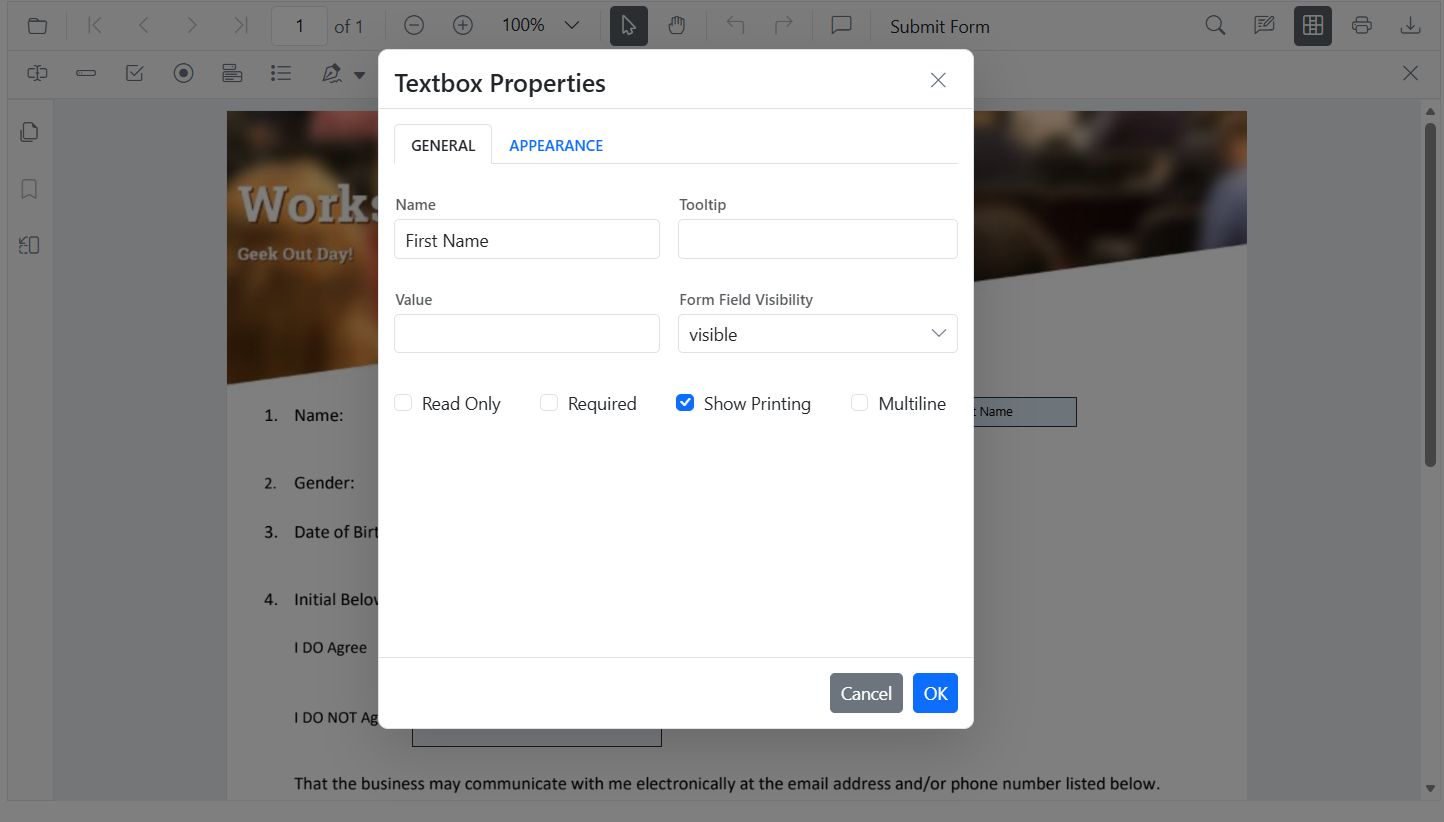
- Drag to move; use handles to resize.
- Use the toolbar to toggle field mode or add new fields.
Modify PDF form field properties programmatically
Use updateFormField() to change behavior or data (including position and size):
<button id="modifyTextbox">Apply Textbox Changes</button>document.getElementById('modifyTextbox').addEventListener('click', function () {
// Retrieve form fields collection
var fields = pdfviewer.retrieveFormFields();
// Find the textbox field by name (Here field name is First Name)
var field = (fields || []).find(function (f) { return f && f.name === 'First Name'; }) || (fields || [])[0]; // Update Name accordingly
if (field) {
// Update textbox field styling and value
pdfviewer.formDesignerModule.updateFormField(field, {
value: 'John',
fontFamily: 'Courier',
fontSize: 12,
fontStyle: null,
color: 'black',
backgroundColor: 'white',
borderColor: 'black',
thickness: 2,
alignment: 'Left',
maxLength: 50
});
}
});Modify PDF form field properties by field type
Textbox
- UI: Update value, font, size, colors, border thickness, alignment, max length, multiline.
- API:
updateFormField()for value, typography, alignment, colors, borders.
<button id="modifyTextbox">Apply Textbox Changes</button>document.getElementById('modifyTextbox').addEventListener('click', function () {
// Retrieve form fields collection
var fields = pdfviewer.retrieveFormFields();
// Find the textbox field by name (Here field name is First Name)
var field = (fields || []).find(function (f) { return f && f.name === 'First Name'; }) || (fields || [])[0]; //Update Name accordingly
if (field) {
// Update textbox field styling and value
pdfviewer.formDesignerModule.updateFormField(field, {
value: 'John',
fontFamily: 'Courier',
fontSize: 12,
fontStyle: null,
color: 'black',
backgroundColor: 'white',
borderColor: 'black',
thickness: 2,
alignment: 'Left',
maxLength: 50
});
}
});Password
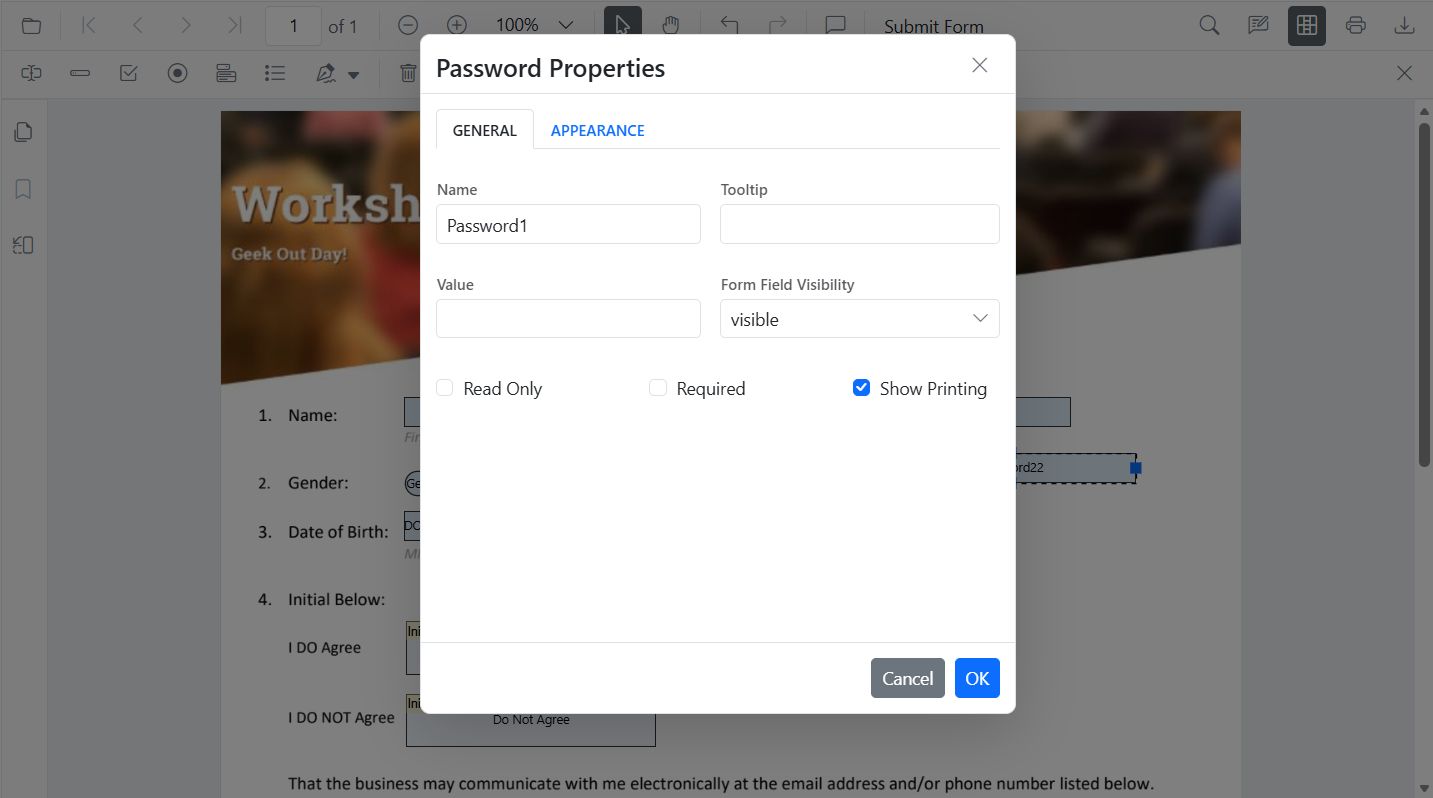
- UI: Tooltip, required, max length, font, appearance.
- API:
updateFormField()for tooltip, validation flags, typography, colors, alignment, borders.<button id="modifyPasswordBox">Edit PasswordBox</button>document.getElementById('modifyPasswordBox').addEventListener('click', function () { // Retrieve form fields collection var fields = pdfviewer.retrieveFormFields(); // Find the password field by name (Here field name is Password) var field = (fields || []).find(function (f) { return f && f.name === 'Password'; }); if (field) { // Update password field properties pdfviewer.formDesignerModule.updateFormField(field, { tooltip: 'Enter your password', isReadOnly: false, isRequired: true, isPrint: true, fontFamily: 'Courier', fontSize: 10, color: 'black', borderColor: 'black', backgroundColor: 'white', alignment: 'Left', maxLength: 20, thickness: 1 }); } });
CheckBox
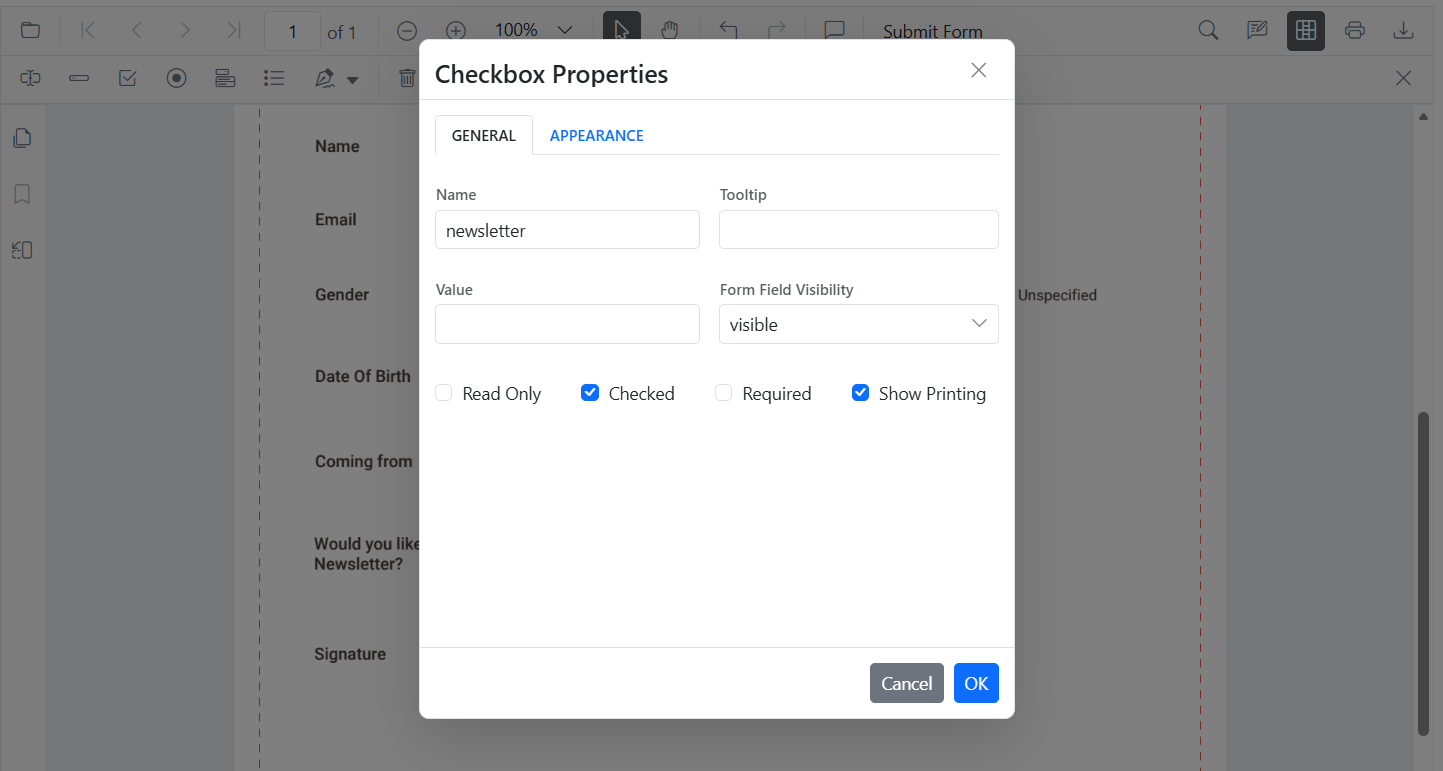
- UI: Toggle checked state.
- API:
updateFormField()for isChecked, tooltip, colors, borders.<button id="modifyCheckbox">Modify CheckBox</button>document.getElementById('modifyCheckbox').addEventListener('click', function () { // Retrieve form fields collection var fields = pdfviewer.retrieveFormFields(); // Find the checkbox field by name (Here field name is Subscribe) var cb = (fields || []).find(function (f) { return f && f.name === 'Subscribe'; }); if (cb) { // Update checkbox field properties and state pdfviewer.formDesignerModule.updateFormField(cb, { isChecked: true, backgroundColor: 'white', borderColor: 'black', thickness: 2, tooltip: 'Subscribe to newsletter' }); } });
RadioButton
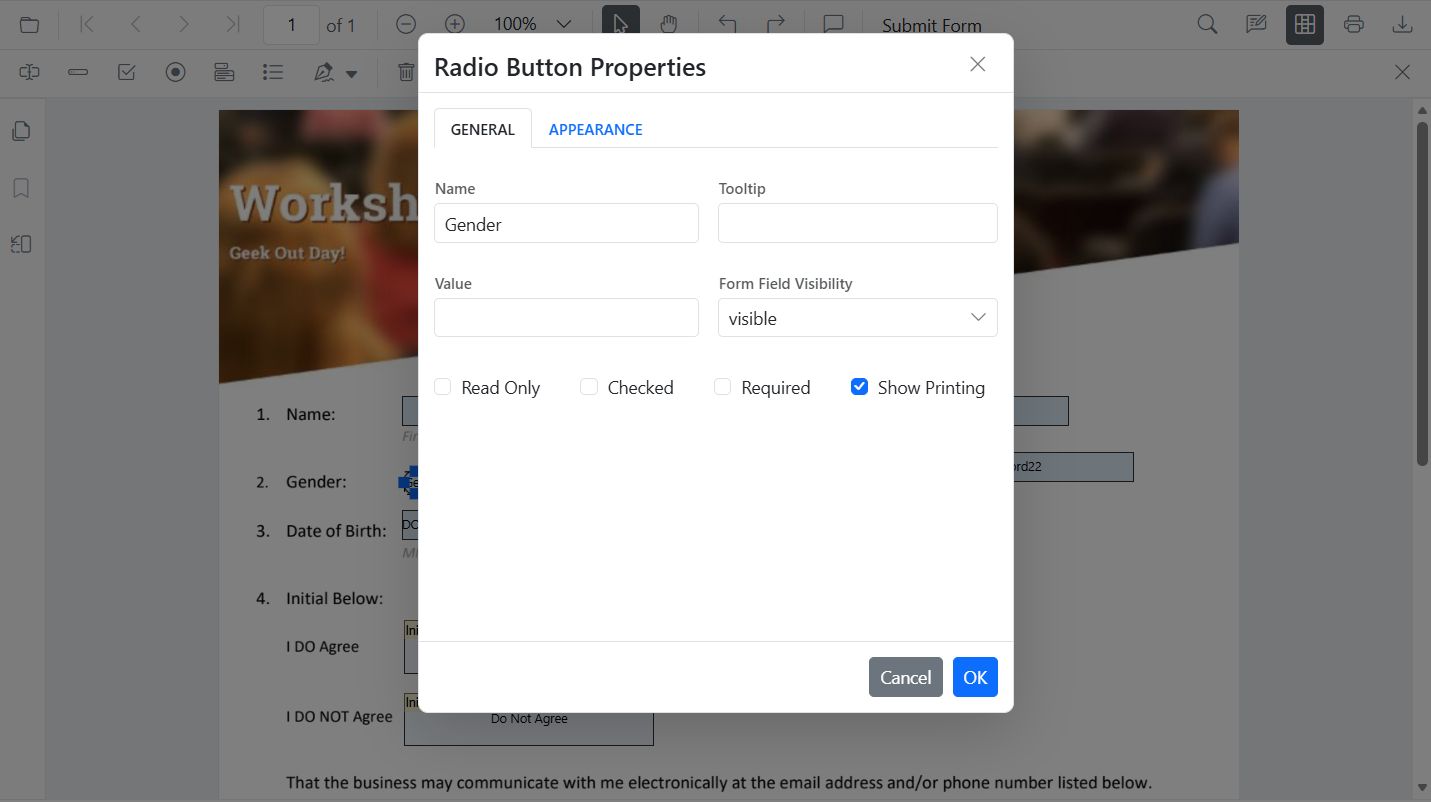
- UI: Set selected item in a group (same Name).
- API:
updateFormField()to set selected value and border appearance.<button id="editRadio">Modify RadioButton</button>document.getElementById('editRadio').addEventListener('click', function () { // Retrieve form fields collection var fields = pdfviewer.retrieveFormFields(); // Filter the radio button group by name (Here group name is Gender) var genderRadios = (fields || []).filter(function (f) { return f && f.name === 'Gender'; }); if (genderRadios[1]) { // Update radio button selection and appearance pdfviewer.formDesignerModule.updateFormField(genderRadios[0], { isSelected: false }); pdfviewer.formDesignerModule.updateFormField(genderRadios[1], { isSelected: true, thickness: 2, borderColor: 'black' }); } });
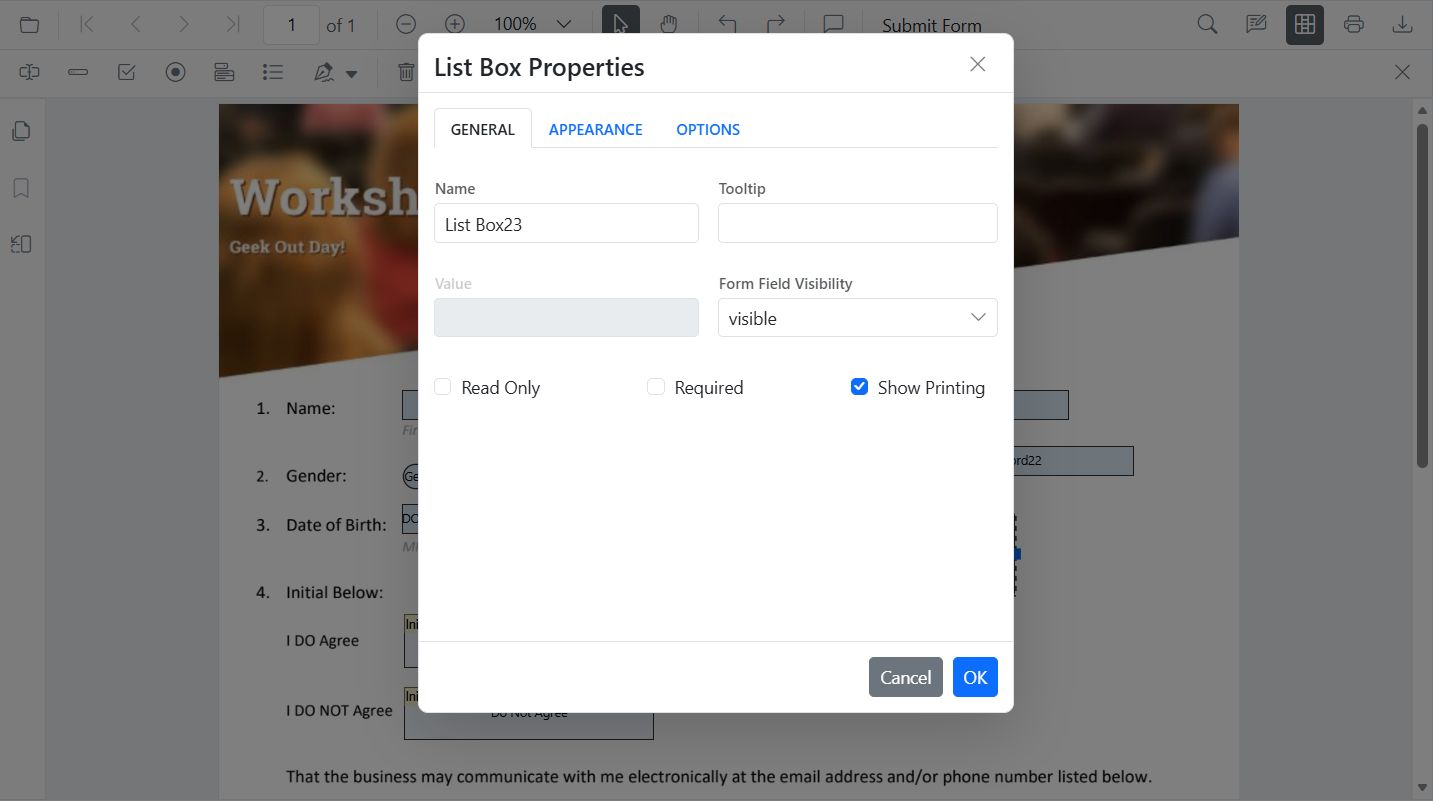
ListBox
- UI: Add/remove items, set selection, adjust fonts/colors.
- API:
updateFormField()for items, selection, borders.<button id="editListBox">Edit ListBox</button>```js
document.getElementById(‘editListBox’).addEventListener(‘click’, function () {
// Retrieve form fields collection
var fields = pdfviewer.retrieveFormFields();
// Find the listbox field by name (Here field name is States)
var lb = (fields || []).find(function (f) { return f && f.name === ‘States’; });
if (lb) {
// Update listbox options, selection, and appearance
var option = [
{ itemName: ‘Alabama’, itemValue: ‘AL’ },
{ itemName: ‘Alaska’, itemValue: ‘AK’ },
{ itemName: ‘Arizona’, itemValue: ‘AZ’ }
];
pdfviewer.formDesignerModule.updateFormField(lb, {
fontFamily: ‘Courier’,
fontSize: 5,
color: ‘black’,
backgroundColor: ‘white’,
tooltip: ‘listbox’,
options: option
});
}
});
### DropDown
- UI: Add/remove items, default value, appearance.
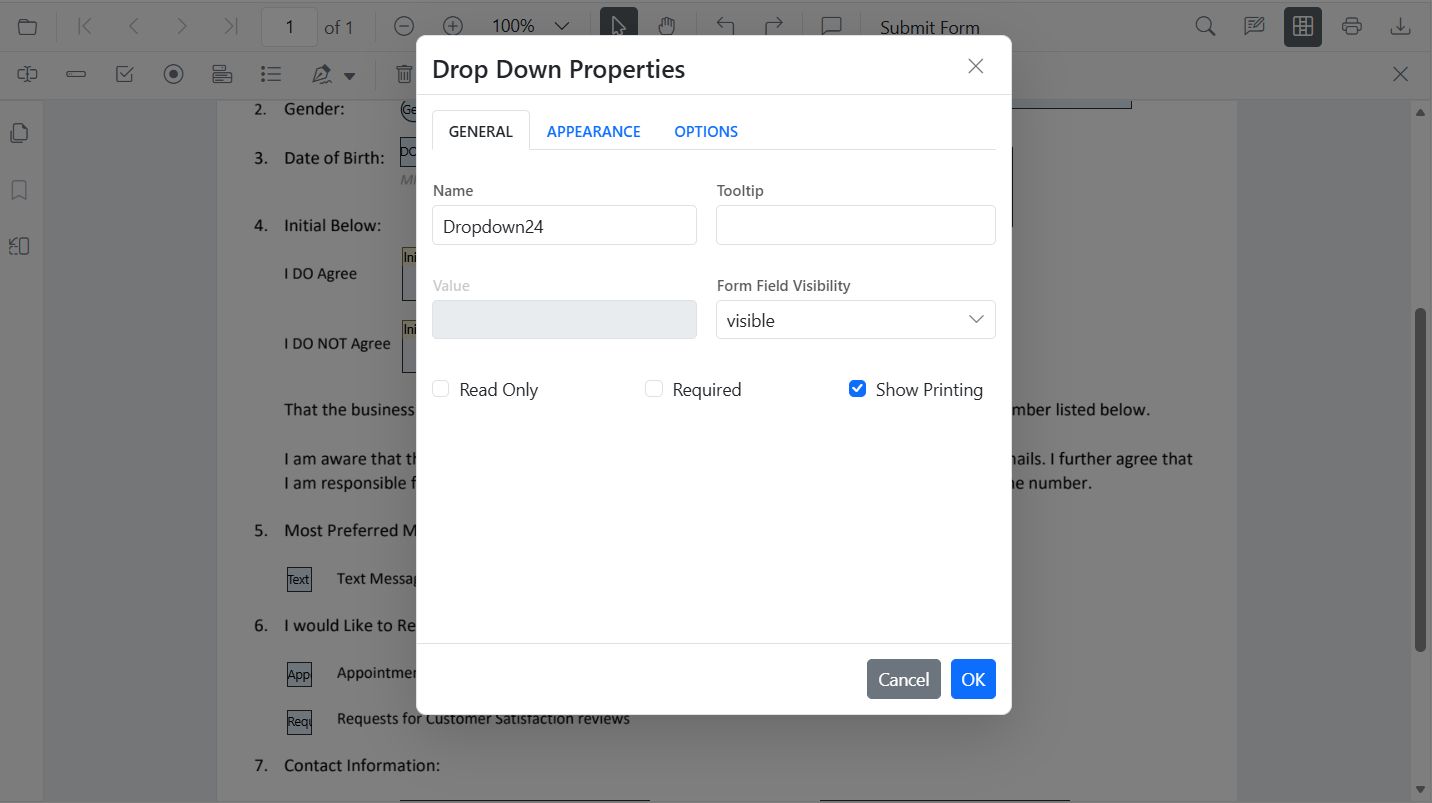
- API: [`updateFormField()`](https://ej2.syncfusion.com/documentation/api/pdfviewer/index-default#updateformfields) for items, value, borders.
```html
<button id="editDropDown">Edit DropDown</button>
document.getElementById('editDropDown').addEventListener('click', function () {
  // Retrieve form fields collection
  var fields = pdfviewer.retrieveFormFields();
  // Find the dropdown field by name (Here field name is Country)
  var dd = (fields || []).find(function (f) { return f && f.name === 'Country'; });
  if (dd) {
    // Update dropdown items, value, and appearance
    pdfviewer.formDesignerModule.updateFormField(dd, {
      options: [
        { itemName: 'USA', itemValue: 'US' },
        { itemName: 'Canada', itemValue: 'CA' },
        { itemName: 'Mexico', itemValue: 'MX' }
      ],
      value: 'US',
      fontFamily: 'Courier',
      fontSize: 10,
      color: 'black',
      borderColor: 'black',
      backgroundColor: 'white'
    });
  }
});
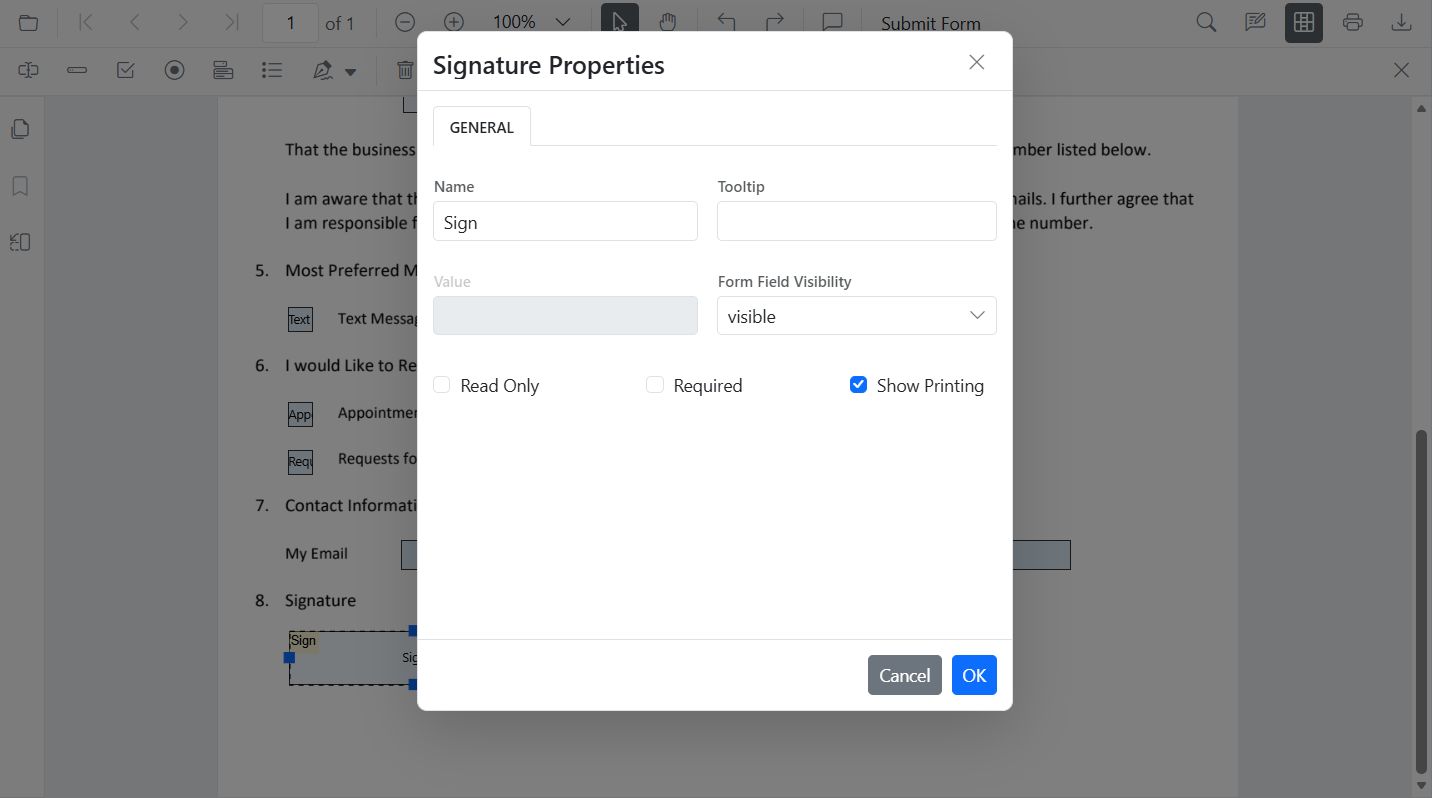
Signature Field
- UI: Tooltip, thickness, indicator text, required/visibility.
- API:
updateFormField()for tooltip, required, colors, borders.<button id="editSignature">Edit Signature</button>document.getElementById('editSignature').addEventListener('click', function () { // Retrieve form fields collection var fields = pdfviewer.retrieveFormFields(); // Find the signature field by name (Here field name is Sign) var sig = (fields || []).find(function (f) { return f && f.name === 'Sign'; }); if (sig) { // Update signature field properties pdfviewer.formDesignerModule.updateFormField(sig, { tooltip: 'Please sign here', thickness: 3, isRequired: true, isPrint: true, backgroundColor: 'white', borderColor: 'black' }); } });
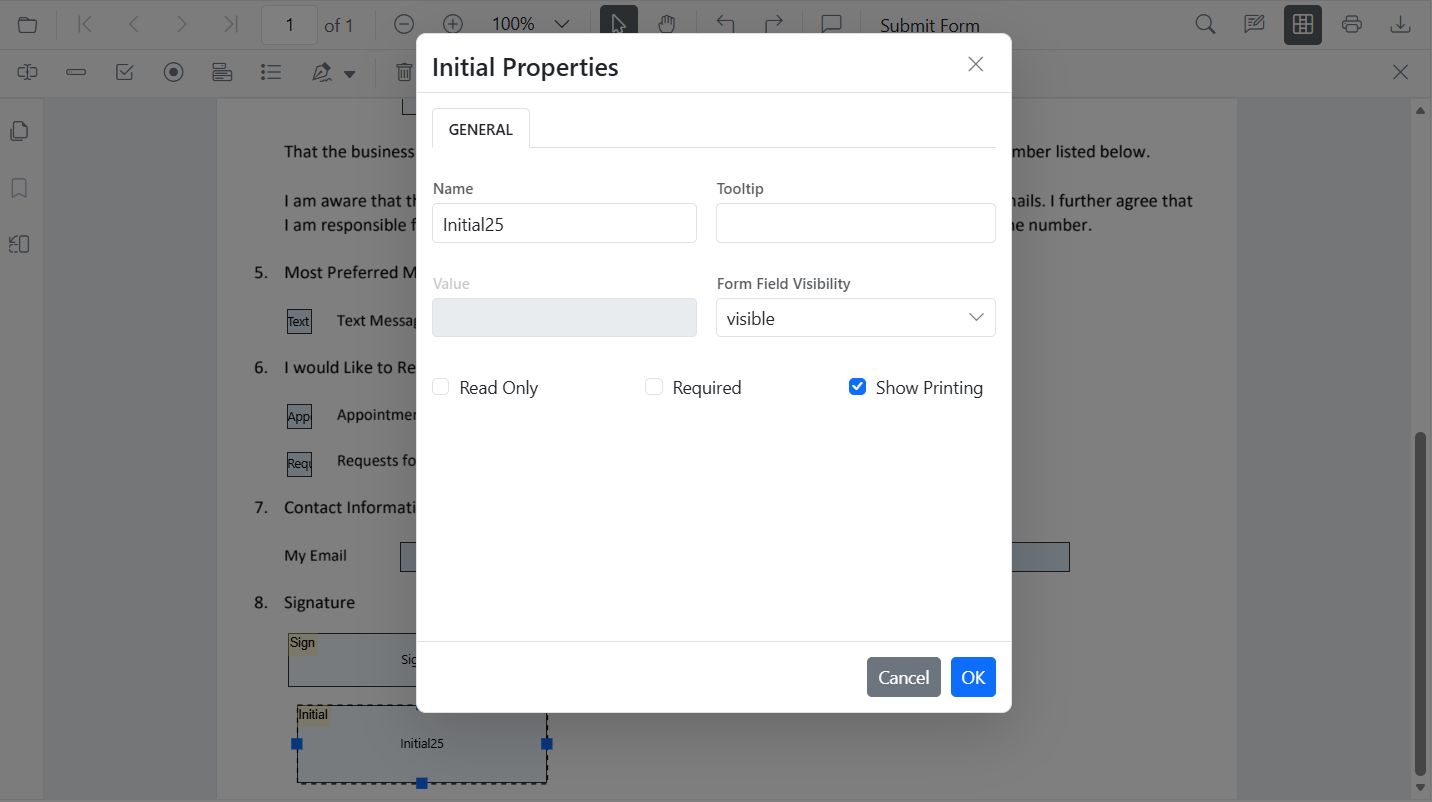
Initial Field
- UI: Tooltip, indicator text, thickness, required/visibility.
- API:
updateFormField()for tooltip, required, colors, borders.<button id="editInitial">Edit Initial</button>document.getElementById('editInitial').addEventListener('click', function () { // Retrieve form fields collection var fields = pdfviewer.retrieveFormFields(); // Find the initial field by name (Here field name is Initial) var init = (fields || []).find(function (f) { return f && f.name === 'Initial'; }); if (init) { // Update initial field properties pdfviewer.formDesignerModule.updateFormField(init, { tooltip: 'Add your initials', thickness: 2, isRequired: true, isPrint: true, backgroundColor: 'white', borderColor: 'black' }); } });