Create Form Fields in JavaScript (ES5) PDF Viewer
15 Aug 20268 minutes to read
Form fields can be created visually using the Form Designer UI or dynamically using APIs.
Create form fields using the Form Designer UI
Use this approach when designing forms manually without writing code.
Steps:
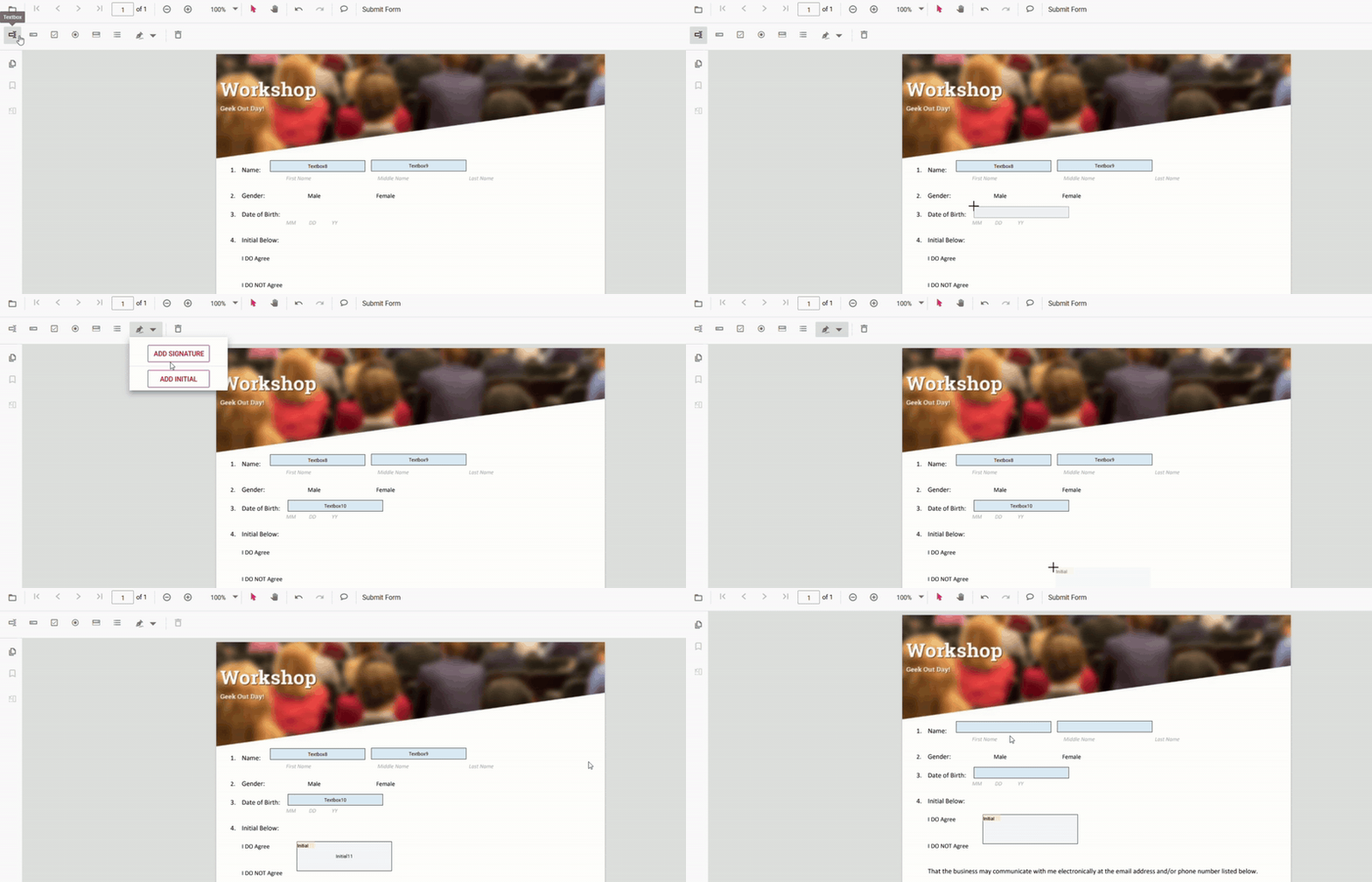
- Enable Form Designer mode in the PDF Viewer.
- Click a form field type (Textbox, Checkbox, Dropdown, etc.) from the toolbar.
- Click on the PDF page to place the form field.
- Move or resize the field as required.
- Configure field properties using the Properties panel.
Add form fields programmatically (API)
Use this approach to generate form fields dynamically based on data or application logic.
// Add Text Box using addFormField Method
pdfviewer.formDesignerModule.addFormField('Textbox', {
  name: 'First Name',
  bounds: { X: 146, Y: 229, Width: 150, Height: 24 },
  pageNumber: 1,
  isRequired: true,
  tooltip: 'Enter your first name'
});
Use programmatic creation when:
- Building dynamic forms
- Pre-filling forms from databases
- Automating form creation workflows
PDF Form Field Types and How to Add Them
Each field can be added via the Form Designer or programmatically.
Textbox
Add via Toolbar (UI)
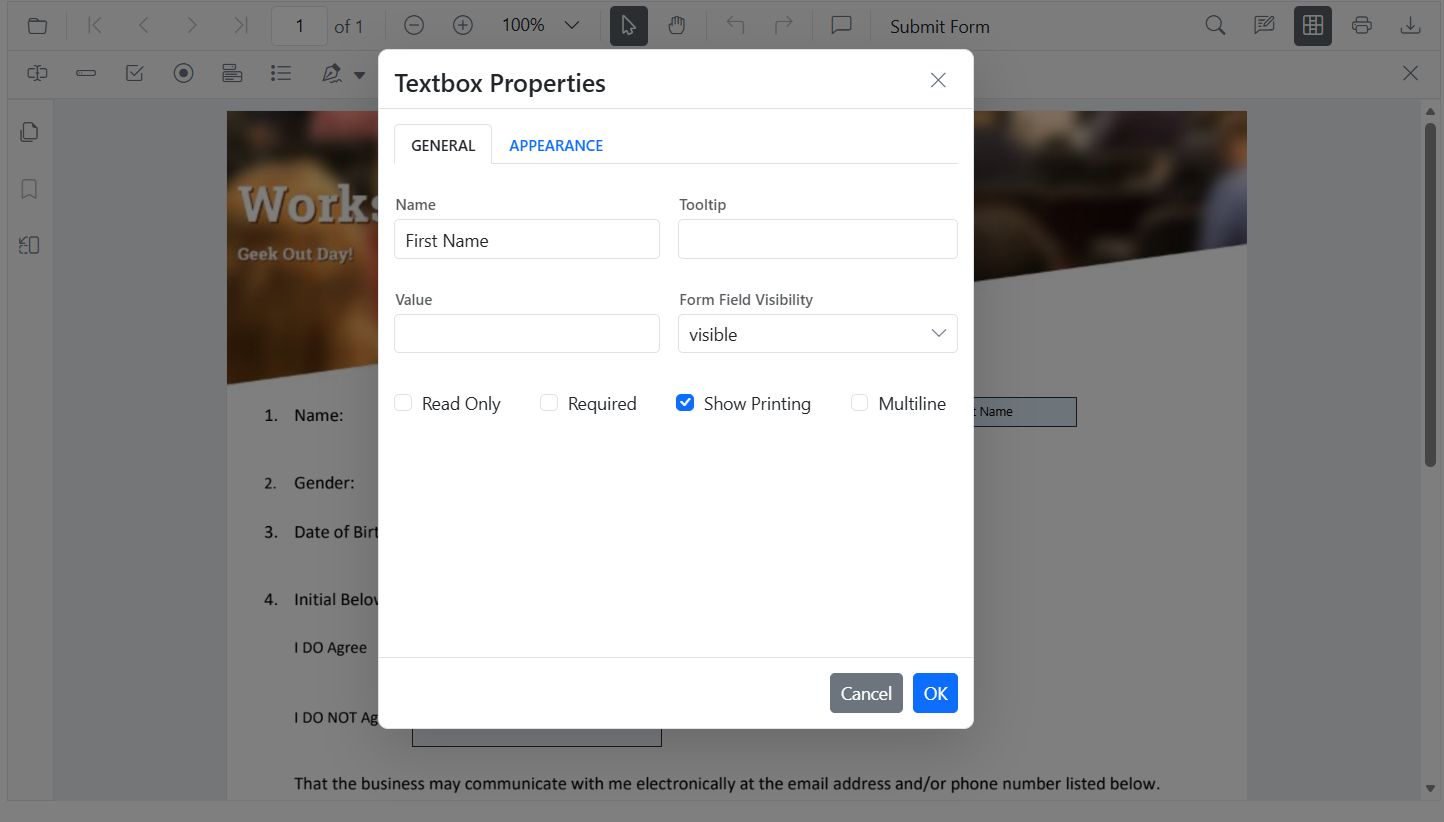
- Open Form Designer → select Textbox → click on the page → configure in Properties.
Add Programmatically (API)
// Add Text Box using addFormField Method
pdfviewer.formDesignerModule.addFormField('Textbox', {
  name: 'FirstName',
  pageNumber: 1,
  bounds: { X: 100, Y: 150, Width: 200, Height: 24 },
  isRequired: true,
  tooltip: 'Enter your first name',
  maxLength: 40
});
Password
Add via Toolbar (UI)
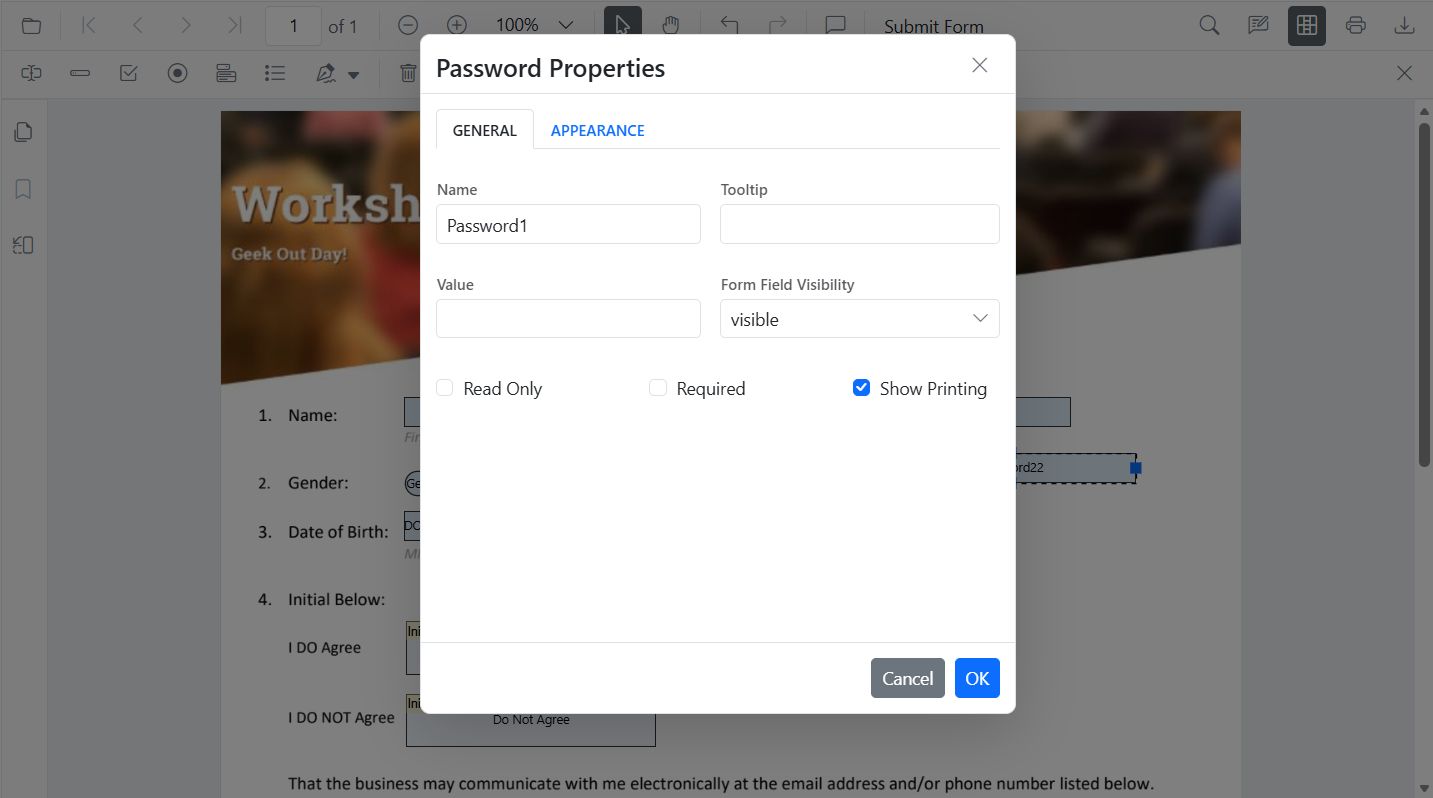
- Select Password → place it → configure tooltip, required, max length.
Add Programmatically (API)
// Add Password Field using addFormField Method
pdfviewer.formDesignerModule.addFormField('Password', {
  name: 'AccountPassword',
  pageNumber: 1,
  bounds: { X: 100, Y: 190, Width: 200, Height: 24 },
  isRequired: true,
  maxLength: 32,
  tooltip: 'Enter a secure password'
});
CheckBox
Add via Toolbar (UI)
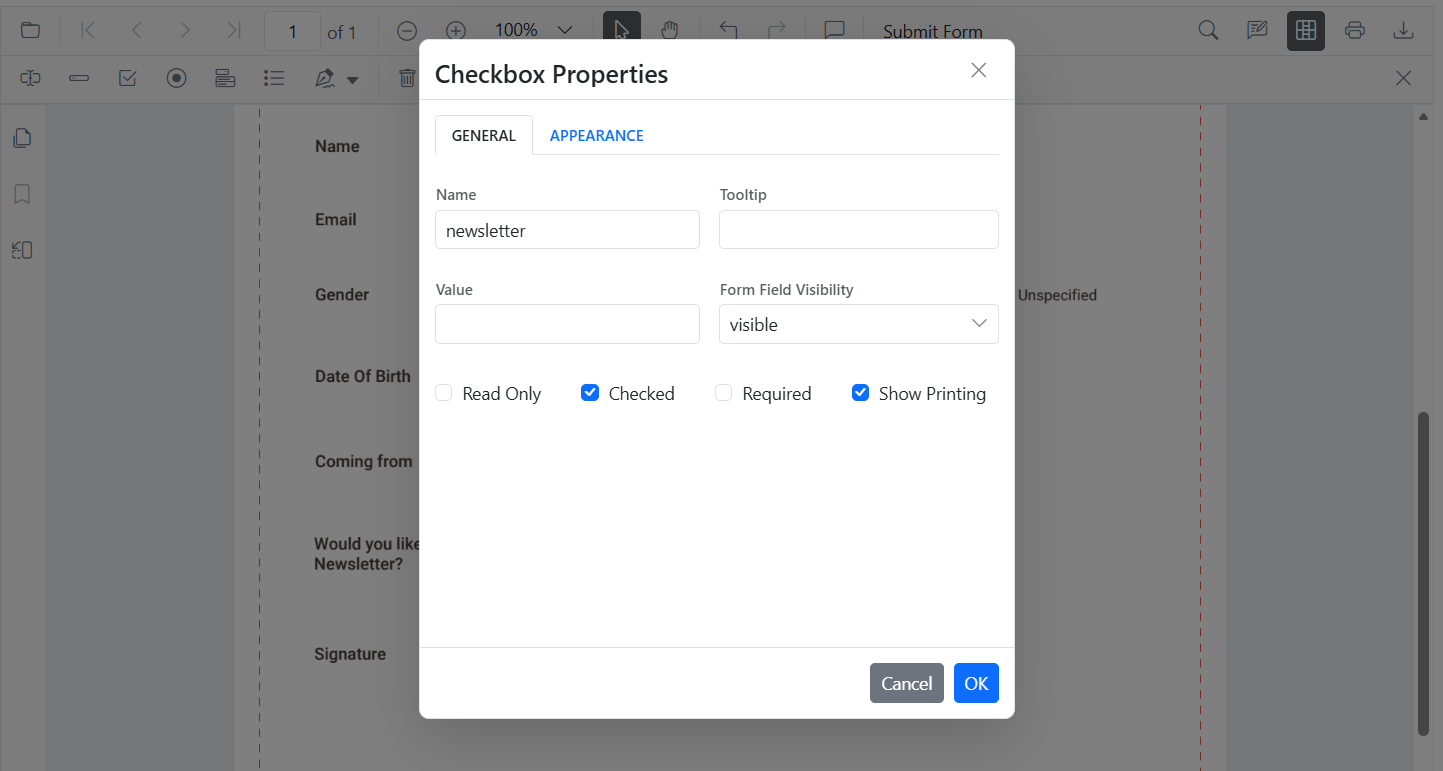
- Select CheckBox → click to place → duplicate for options → set isChecked, tooltip, appearance.
Add Programmatically (API)
// Add CheckBox Field using addFormField Method
pdfviewer.formDesignerModule.addFormField('CheckBox', {
  name: 'AgreeTerms',
  pageNumber: 1,
  bounds: { X: 100, Y: 230, Width: 18, Height: 18 },
  isChecked: false,
  tooltip: 'I agree to the terms'
});
RadioButton
Add via Toolbar (UI)
- Select RadioButton → place buttons with the same Name to group → configure selection/colors.
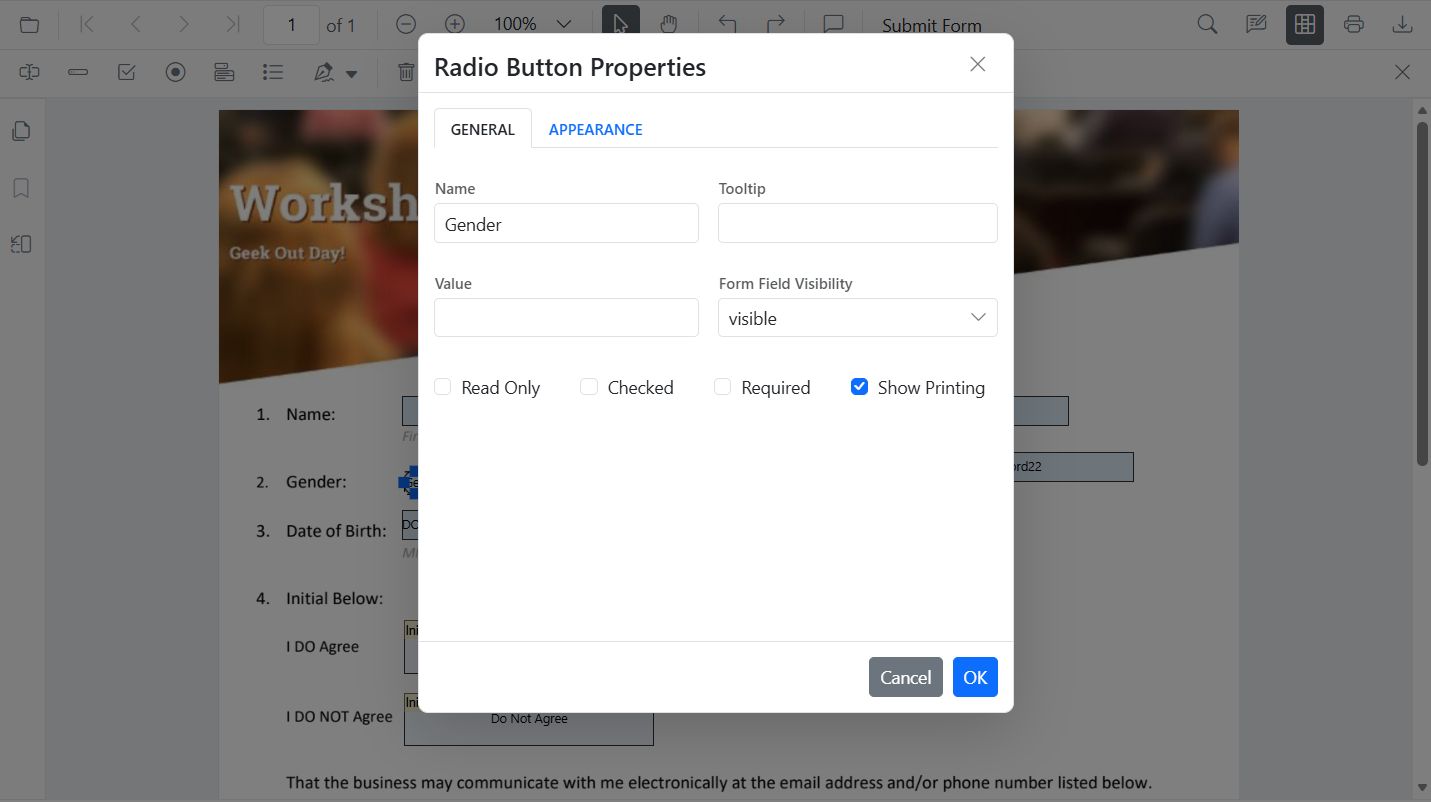
Add Programmatically (API)
// Add RadioButtons using addFormField Method
pdfviewer.formDesignerModule.addFormField('RadioButton', {
  name: 'Gender',
  value: 'Male',
  pageNumber: 0,
  bounds: { X: 100, Y: 270, Width: 16, Height: 16 }
});
pdfviewer.formDesignerModule.addFormField('RadioButton', {
  name: 'Gender',
  value: 'Female',
  pageNumber: 0,
  bounds: { X: 160, Y: 270, Width: 16, Height: 16 }
});
ListBox
Add via Toolbar (UI)
- Select ListBox → place → add items in Properties.
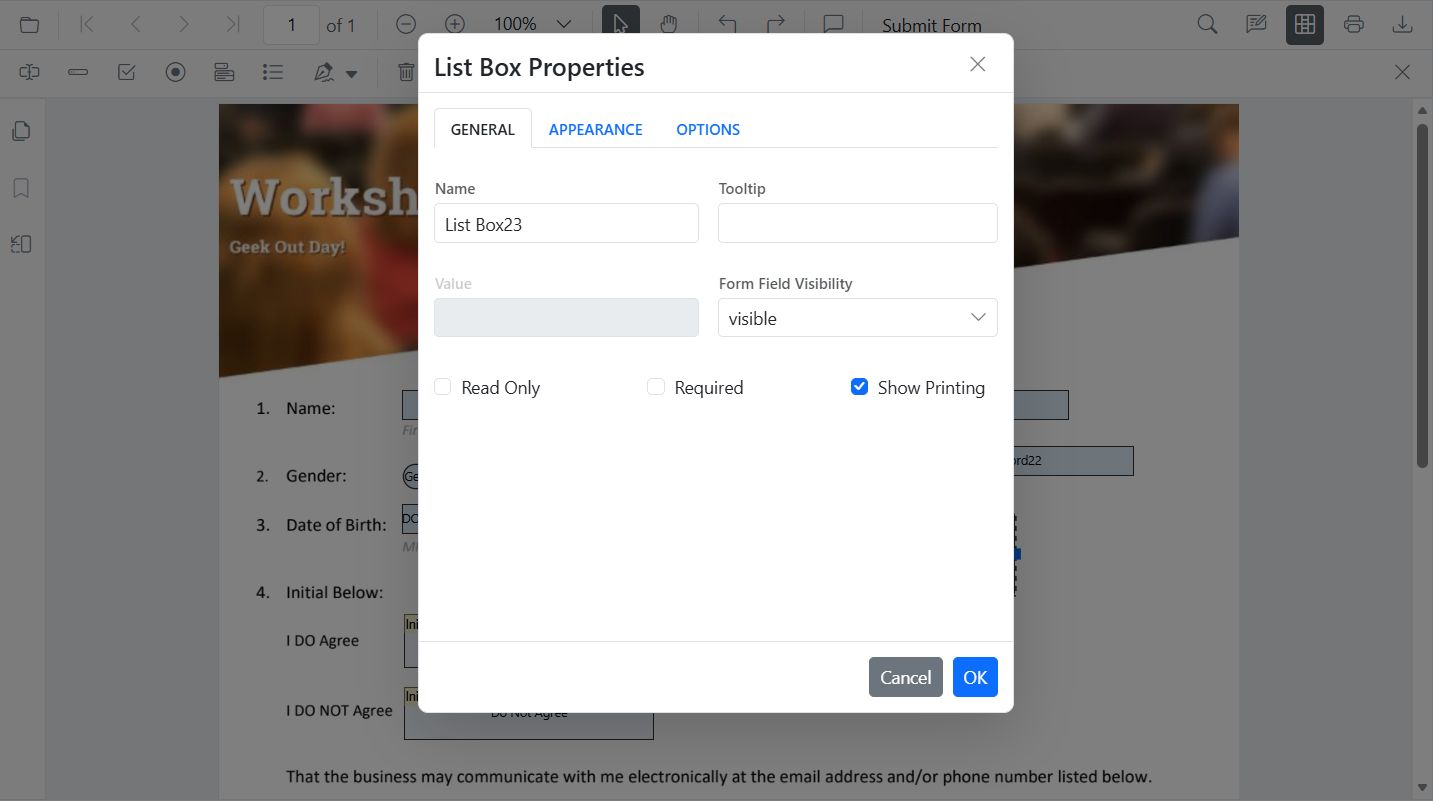
Add Programmatically (API)
// Add ListBox using addFormField Method
var option = [
  { itemName: 'Item 1', itemValue: 'item1' },
  { itemName: 'Item 2', itemValue: 'item2' },
  { itemName: 'Item 3', itemValue: 'item3' }
];
pdfviewer.formDesignerModule.addFormField('ListBox', {
  name: 'States',
  pageNumber: 1,
  bounds: { X: 100, Y: 310, Width: 220, Height: 70 },
  options: option
});
DropDown
Add via Toolbar (UI)
- Select DropDown → place → add items → set default value.
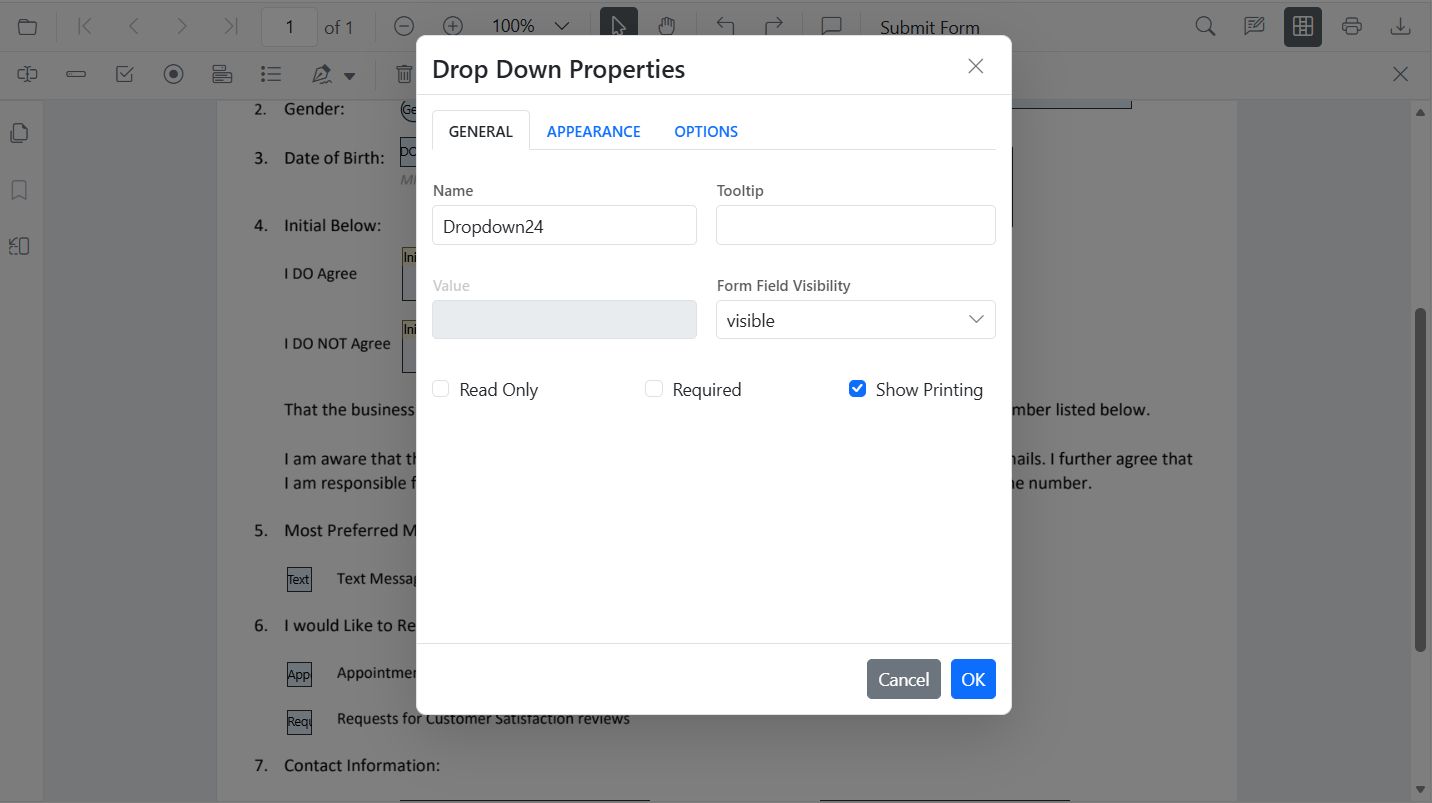
Add Programmatically (API)
// Add DropDown using addFormField Method
var options = [
  { itemName: 'Item 1', itemValue: 'item1' },
  { itemName: 'Item 2', itemValue: 'item2' },
  { itemName: 'Item 3', itemValue: 'item3' }
];

pdfviewer.formDesignerModule.addFormField('DropDown', {
  name: 'Country',
  options: options,
  bounds: { X: 560, Y: 320, Width: 150, Height: 24 }
});
Signature Field
Add via Toolbar (UI)
- Select Signature Field → place where signing is required → configure indicator text, thickness, tooltip, required.
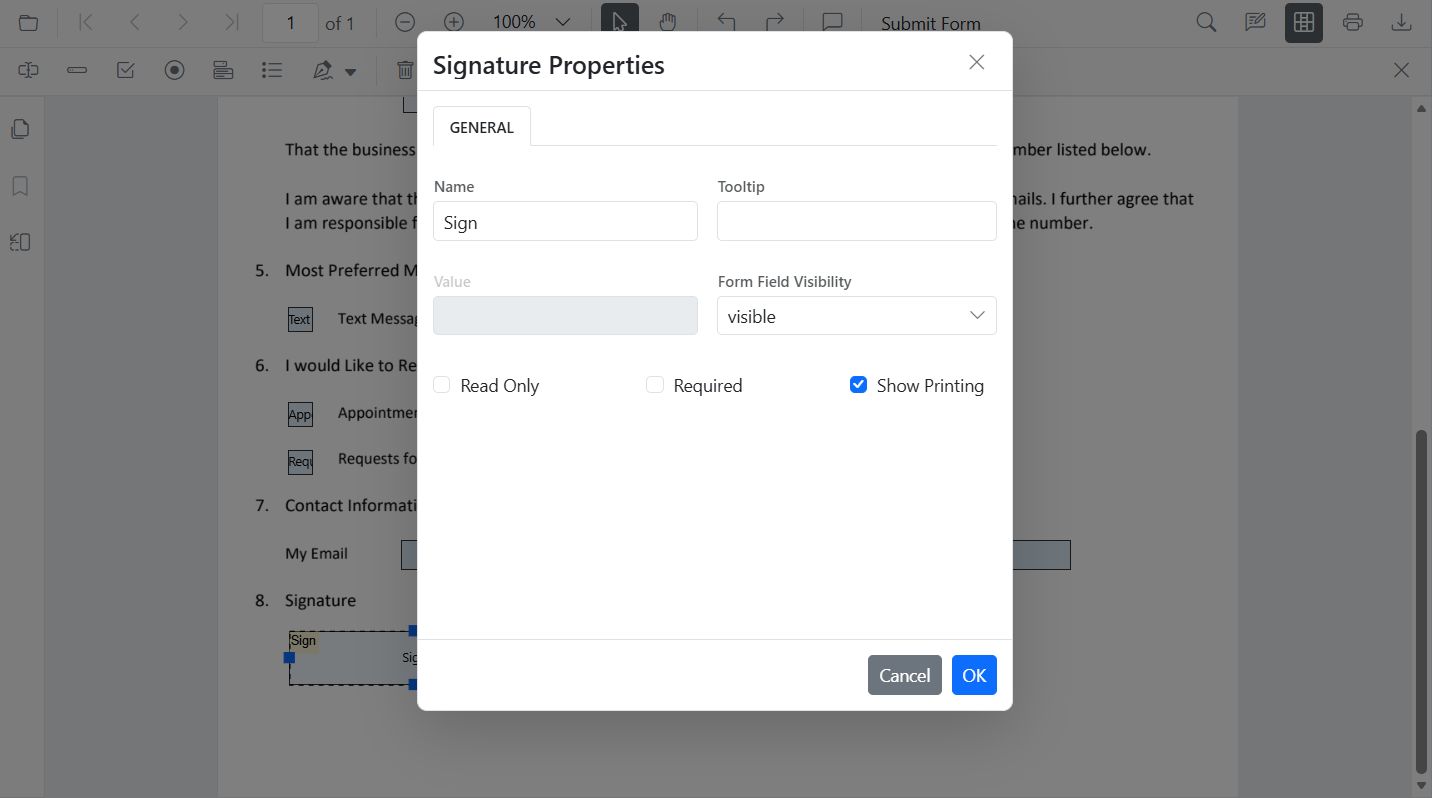
Add Programmatically (API)
// Add Signature Field using addFormField Method
pdfviewer.formDesignerModule.addFormField('SignatureField', {
  name: 'Sign',
  bounds: { X: 57, Y: 923, Width: 200, Height: 43 },
  tooltip: 'sign Here',
  isRequired: true
});
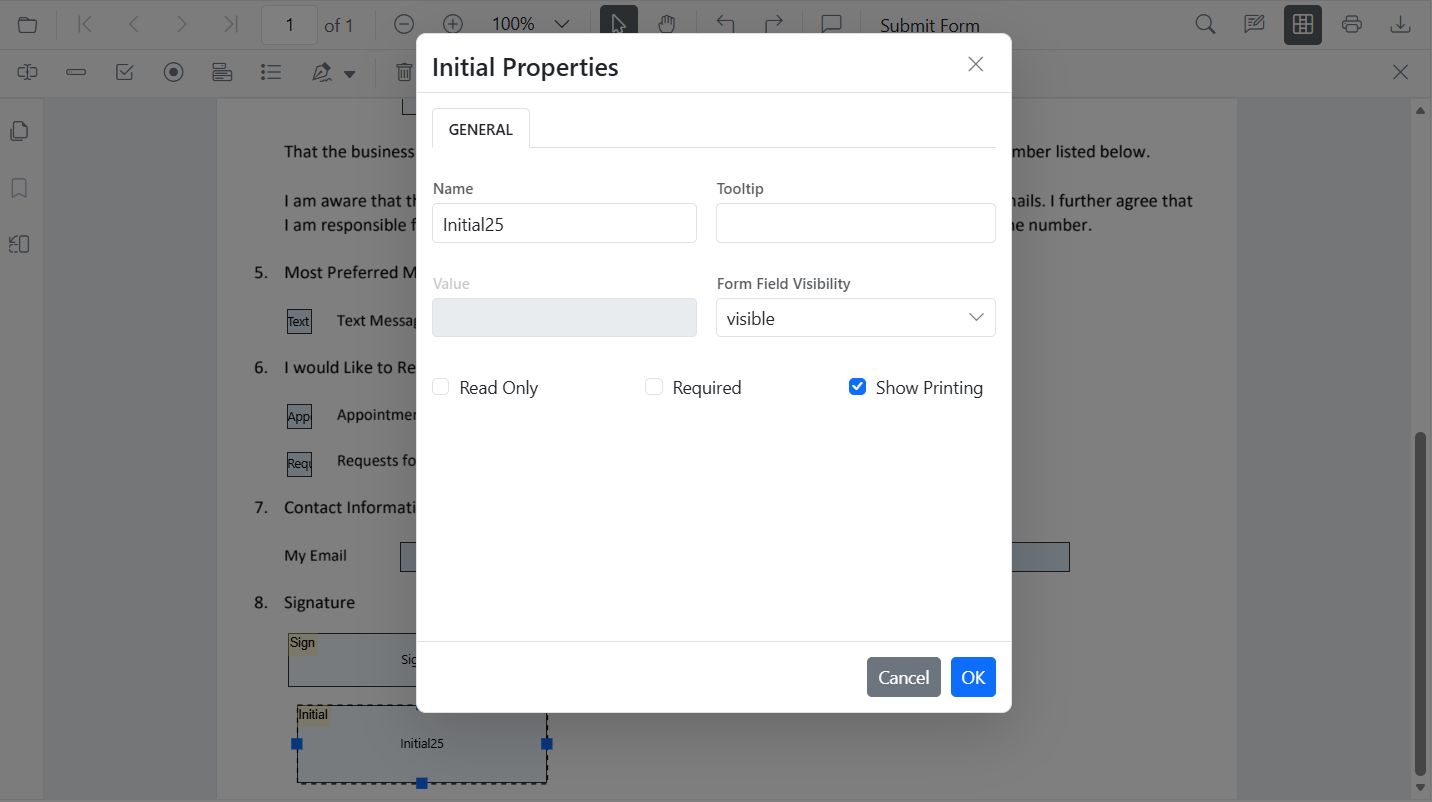
Initial Field
Add via Toolbar (UI)
- Select Initial Field → place where initials are needed → configure text and required state.
Add Programmatically (API)
// Add Initial Field using addFormField Method
pdfviewer.formDesignerModule.addFormField('InitialField', {
  name: 'Sign',
  bounds: { X: 57, Y: 923, Width: 200, Height: 43 },
  tooltip: 'sign Here',
  isRequired: true
});
Add fields dynamically with setFormFieldMode
Use setFormFieldMode() to add fields on the fly based on user actions.
Edit form fields in JavaScript PDF Viewer
Form fields can be edited using the UI or API.
Edit Using the UI
- Right-click a field → Properties to update settings.
- Drag to move; use handles to resize.
- Use the toolbar to toggle field mode or add new fields.
Edit Programmatically
<button id='editTextbox'>EditTextBox</button>
<button id='addPasswordField'>Add Form Field</button>
// Edit FormField on Button Click
document.getElementById('editTextbox').addEventListener('click', function () {
// Retrieve form fields collection
var fields = pdfviewer.retrieveFormFields();
// Find the textbox field by name (Here field name is First Name)
var field = (fields || []).find(function (f) { return f && f.name === 'First Name'; }) || (fields || [])[0]; // Update Name accordingly
if (field) {
// Update textbox field styling and value
pdfviewer.formDesignerModule.updateFormField(field, {
value: 'John',
fontFamily: 'Courier',
fontSize: 12,
fontStyle: null,
color: 'black',
backgroundColor: 'white',
borderColor: 'black',
thickness: 2,
alignment: 'Left',
maxLength: 50
});
}
});
// Add Form Fields using setFormFieldmode
document.getElementById('addPasswordField').addEventListener('click', function () {
pdfviewer.formDesignerModule.setFormFieldMode('Password');
// In setFormFieldModule - pass the required field to be added like Textbox, Checkbox etc.
});