Line Angle Constraints in JavaScript (ES5) PDF Viewer
15 Aug 20262 minutes to read
The PDF Viewer provides line angle constraints functionality that allows drawing line-type annotations with controlled angle snapping. This improves precision for technical drawings and measurements in PDF documents.
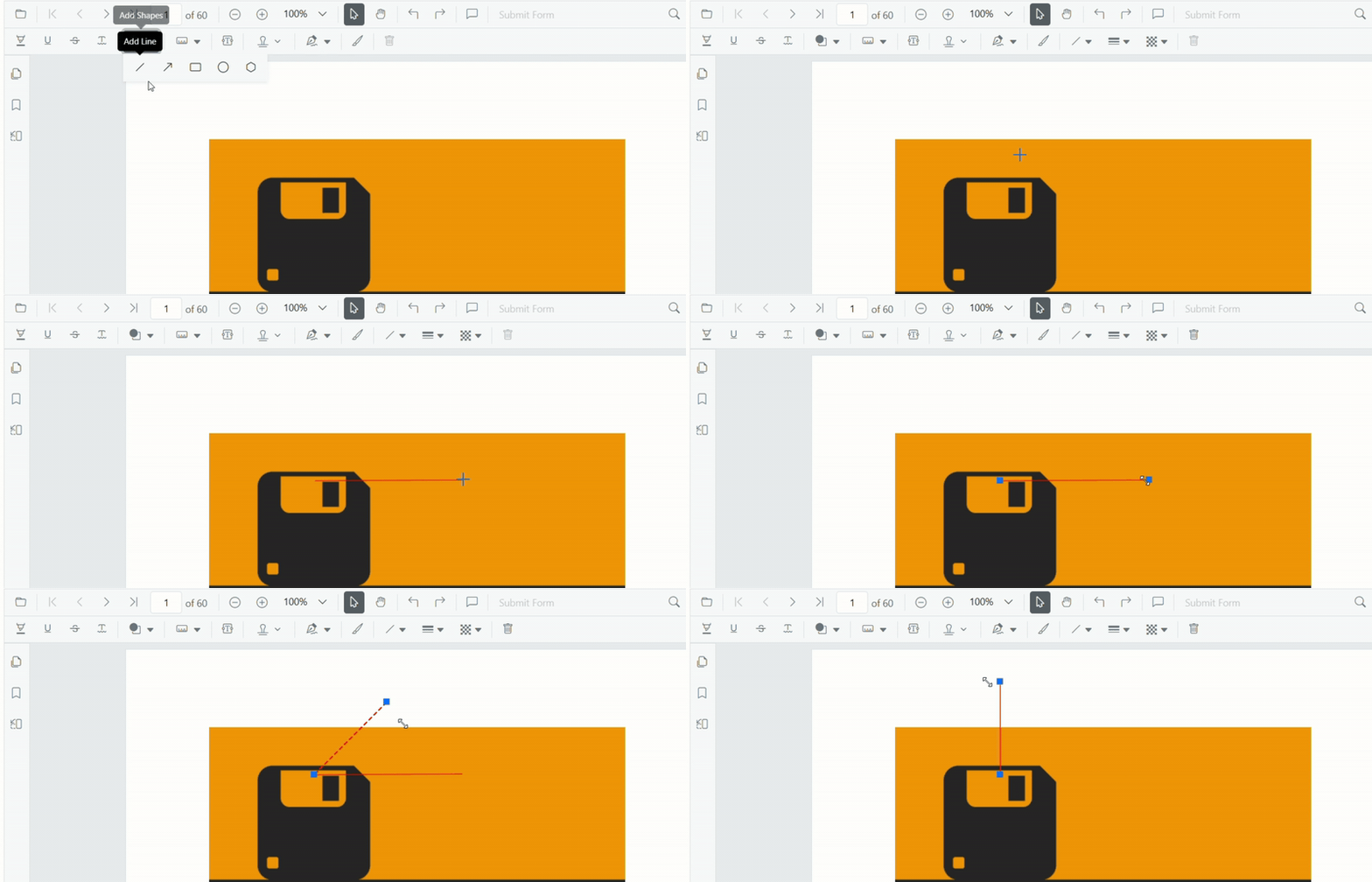
Enable line angle constraints
Set the enableLineAngleConstraints property within annotationDrawingOptions to enable angle snapping for supported line-type annotations.
The following code demonstrates enabling line angle constraints:
var pdfviewer = new ej.pdfviewer.PdfViewer({
  documentPath: 'https://cdn.syncfusion.com/content/pdf/pdf-succinctly.pdf',
  resourceUrl: "https://cdn.syncfusion.com/ej2/31.2.2/dist/ej2-pdfviewer-lib",
  annotationDrawingOptions : {enableLineAngleConstraints : true, restrictLineAngleTo: 90}
});

ej.pdfviewer.PdfViewer.Inject(ej.pdfviewer.TextSelection, ej.pdfviewer.TextSearch, ej.pdfviewer.Print, ej.pdfviewer.Navigation, ej.pdfviewer.Toolbar,ej.pdfviewer.Magnification, ej.pdfviewer.Annotation, ej.pdfviewer.FormDesigner, ej.pdfviewer.FormFields, ej.pdfviewer.PageOrganizer);
pdfviewer.appendTo('#PdfViewer');
Work with constrained annotations
Drawing behavior
When line angle constraints are enabled:
- Start drawing a supported annotation (Line, Arrow, Polyline, Distance, or Perimeter).
- The segment snaps to the nearest allowed angle.
- A visual indicator reflects snapping in real time.
- Release to complete the annotation.
Keyboard shortcuts
Desktop platforms:
-
Shift+ drag: toggles snapping. If constraints are disabled,Shifttemporarily enables them; if enabled,Shiftenforces snapping.
Selector-based modifications
When modifying existing line annotations using selectors:
- Constraints apply based on the original line direction.
- The reference angle (0°) is determined by the line’s current orientation.
- Constraint snapping during modification is supported for Line and Arrow.
- Adjustments snap to the configured angle increment.
Configuration properties
enableLineAngleConstraints
The enableLineAngleConstraints property activates angle snapping for line-based annotations. When set to true, the following annotation types will snap to fixed angles as defined by the restrictLineAngleTo property:
- Lines
- Arrows
- Polygon
- Distance measurements
- Perimeter measurements
- Area measurements
- Volume measurements
Key benefits:
- Automatic angle snapping during drawing
- Enhanced precision for technical drawings and measurements
- Desktop behavior: hold
Shiftwhile drawing to toggle constraints (when disabled,Shifttemporarily enables; when enabled,Shiftenforces snapping) - Real-time visual feedback showing angle snapping behavior
restrictLineAngleTo
Defines the angle increment (in degrees) used to constrain supported annotations. The default is 45.
Angle snapping rules:
- The initial drawing direction is treated as the 0° reference point.
- Snapped angles are calculated based on the increment.
- If the increment does not divide 360 evenly, angles reset after 360°.
Examples:
-
restrictLineAngleTo: 45→ Snapped angles: 0°, 45°, 90°, 135°, 180°, 225°, 270°, 315°, 360° -
restrictLineAngleTo: 100→ Snapped angles: 0°, 100°, 200°, 300°, 360°
Refer to the JavaScript PDF Viewer feature tour for feature highlights, and to the JavaScript PDF Viewer examples for rendering and configuration examples.