Getting Started with Blazor Hybrid WPF App PDF Viewer
14 Aug 20268 minutes to read
This section explains how to add the Blazor PDF Viewer to a WPF Blazor Hybrid app using Visual Studio or Visual Studio Code. The result is a desktop (WPF) application that hosts Blazor UI inside a BlazorWebView control.
Prerequisites
- System requirements for Blazor components
- Install the .NET 8 SDK (or later) and the .NET desktop development workload in Visual Studio 2022 (includes the WPF template and the
Microsoft.WindowsDesktop.Appruntime). - If you are not using the Syncfusion® Blazor Extension, make sure the Syncfusion NuGet feed is reachable.
- A valid Syncfusion license key. Register it as described in How to register a license in an application.
Create a new WPF app in Visual Studio
- In Visual Studio 2022, choose Create a new project.
- Select the WPF Application (or WPF App (.NET)) template for C#, then choose Next.
- Set the project name (for example,
WPFBlazorHybridApp) and the solution name, then choose Next. - Set the Target framework to .NET 8.0 (Long-term support) and choose Create. The WPF project will host Blazor components through
BlazorWebView.
For more details, see Microsoft Blazor tooling or the Syncfusion® Blazor Extension.
Install Blazor PDF Viewer NuGet packages
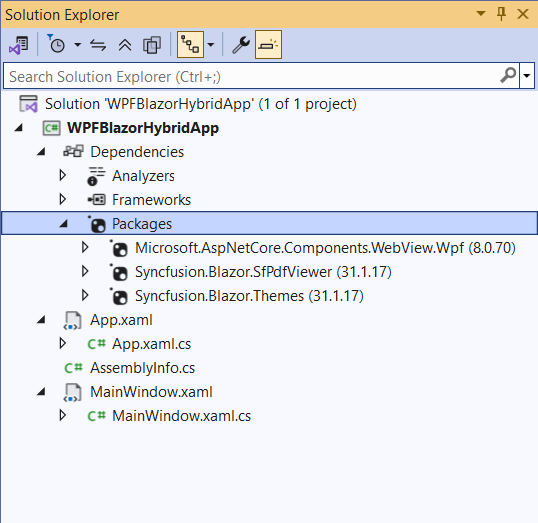
To add the Blazor PDF Viewer component, open the NuGet package manager in Visual Studio (Tools → NuGet Package Manager → Manage NuGet Packages for Solution), then install:
-
Syncfusion.Blazor.SfPdfViewer — version
35.1.37 -
Syncfusion.Blazor.Themes — version
35.1.37 -
Microsoft.AspNetCore.Components.WebView.Wpf — version
8.0.16or later -
Microsoft.Extensions.Caching.Memory — required by
AddMemoryCache()
Ensure the package
Microsoft.AspNetCore.Components.WebView.Wpfis at least version8.0.16.
Prerequisites
- System requirements for Blazor components
- Install the .NET 8 SDK (or later). On Windows, also install the .NET 8 Desktop Runtime (provides the WPF/AppContext runtime).
- A valid Syncfusion license key. Register it as described in How to register a license in an application.
- The Syncfusion® Blazor Extension (optional, but recommended for scaffolding).
Create a new WPF app in Visual Studio Code
Create a WPF desktop project using the .NET CLI. This WPF project will host the Blazor UI through BlazorWebView.
dotnet new wpf -n WPFBlazorHybridApp -f net8.0-windowsFor guidance, see Microsoft templates or the Syncfusion® Blazor Extension.
Install Blazor PDF Viewer NuGet packages
Install the required NuGet packages in the WPF project that will host the Blazor UI.
- Press Ctrl+` to open the integrated terminal in Visual Studio Code.
- Ensure the current directory contains the WPF project
.csprojfile. - Run the following commands to install the required packages:
dotnet add package Syncfusion.Blazor.SfPdfViewer -v 35.1.37
dotnet add package Syncfusion.Blazor.Themes -v 35.1.37
dotnet add package Microsoft.AspNetCore.Components.WebView.Wpf -v 8.0.16
dotnet add package Microsoft.Extensions.Caching.Memory
dotnet restore
- Syncfusion® Blazor components are available on nuget.org. See NuGet packages for package details.
- Ensure the package
Microsoft.AspNetCore.Components.WebView.Wpfis at least version8.0.16.
Configure the project file
The WPF project must target Windows, enable WPF, and use the Razor SDK. Open WPFBlazorHybridApp.csproj and make sure the project file contains the following:
<Project Sdk="Microsoft.NET.Sdk.Razor">

    ....

</Project>
Add the Razor imports file
Create an _Imports.razor file at the project root (next to the .csproj) with the following content. This makes the namespaces available to all .razor files in the project without re-declaring them.
@using Microsoft.AspNetCore.Components.Web
@using Syncfusion.Blazor
@using Syncfusion.Blazor.SfPdfViewer
Add the Syncfusion.Blazor namespace to the ~/MainWindow.xaml.cs file.
using Microsoft.Extensions.DependencyInjection;
using Syncfusion.Blazor;
Register Syncfusion Blazor services and BlazorWebView in ~/MainWindow.xaml.cs so that the WPF window can host Blazor components.
InitializeComponent();
ServiceCollection services = new ServiceCollection();
services.AddWpfBlazorWebView();
services.AddMemoryCache();
services.AddSyncfusionBlazor();
Resources.Add("services", services.BuildServiceProvider());
Create wwwroot folder and index.html file
-
Create a new folder named
wwwrootin the WPF project root. -
Inside
wwwroot, create anindex.htmlhost page for the Blazor UI. This host page initializes the Blazor runtime and loads static assets (themes and scripts). A basicindex.htmlmight look like the following:
<!DOCTYPE html>
<html>
<head>
    <meta charset="utf-8" />
    <meta name="viewport" content="width=device-width, initial-scale=1.0, maximum-scale=1.0, user-scalable=no" />
    <title>WPF Blazor Hybrid App</title>
    <base href="/" />
    <link href="_content/Syncfusion.Blazor.Themes/bootstrap5.css" rel="stylesheet" />
</head>
<body>
    <div id="app">Loading...</div>
    <script src="_framework/blazor.webview.js"></script>
    <script src="_content/Syncfusion.Blazor.SfPdfViewer/scripts/syncfusion-blazor-sfpdfviewer.min.js" type="text/javascript"></script>
</body>
</html>
Ensure that the PDF Viewer static assets (themes and scripts) are loaded properly.
Add the Syncfusion PDF Viewer Razor component
Create a Razor component (for example, Main.razor) at the project root and add the Syncfusion PDF Viewer component. The _Imports.razor file you created earlier already provides the Syncfusion.Blazor.SfPdfViewer namespace, so an additional @using is not required.
<SfPdfViewer2 DocumentPath="https://cdn.syncfusion.com/content/pdf/pdf-succinctly.pdf"
              Height="100%"
              Width="100%">
</SfPdfViewer2>
If the DocumentPath property is not set, the PDF Viewer renders without loading a document. Users can use the Open toolbar option to browse and open a PDF.
Integrate Blazor into MainWindow.xaml
- Open
MainWindow.xaml. - Add the
Microsoft.AspNetCore.Components.WebView.Wpfnamespace and alocal:namespace that points to your project’s root (this is used by theRootComponentmapping). - Embed the
BlazorWebViewcontrol, setHostPagetowwwroot/index.html, and map aRootComponentwhoseSelectormatches the<div id="app">element inindex.htmland whoseComponentTypematches the Razor component class you created (for example,Main).
<Window x:Class="WPFBlazorHybridApp.MainWindow"
        ....
        xmlns:blazor="clr-namespace:Microsoft.AspNetCore.Components.WebView.Wpf;assembly=Microsoft.AspNetCore.Components.WebView.Wpf"
        ....
        Title="MainWindow" Height="450" Width="800">
    <Grid>
        <blazor:BlazorWebView HostPage="wwwroot\index.html" Services="{DynamicResource services}">
            <blazor:BlazorWebView.RootComponents>
                <blazor:RootComponent Selector="#app" ComponentType="{x:Type local:YourRazorFileName}" />
                <!-- Replace 'YourRazorFileName' with the actual Razor component class (e.g., Main) in your project's namespace -->
            </blazor:BlazorWebView.RootComponents>
        </blazor:BlazorWebView>
    </Grid>
</Window>
Run the app
Visual Studio: Press F5 (Debug) or Ctrl+F5 (Run without debugging).
Visual Studio Code: Run dotnet run from the project folder, or press F5 if you have the C# extension’s debugger configured.
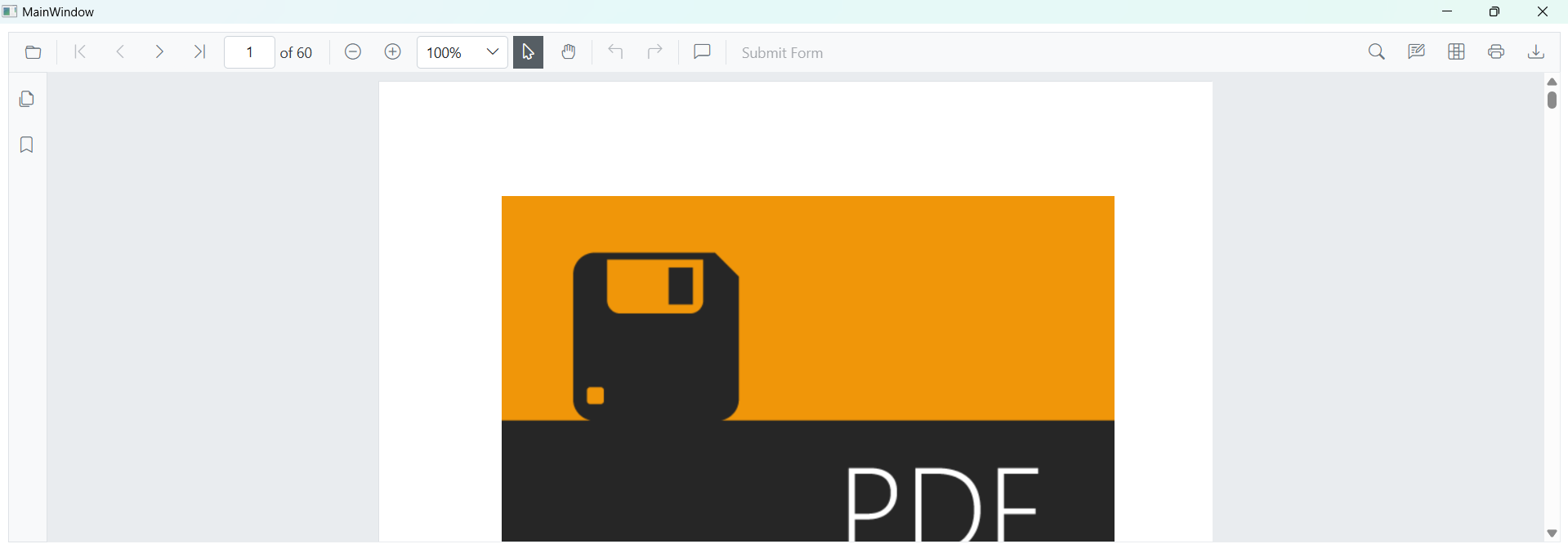
The WPF window opens and the Blazor PDF Viewer renders inside the BlazorWebView.
Next steps
- Looking for the full Blazor PDF Viewer component overview, features, and pricing? Visit the Blazor PDF Viewer page.
View the sample on GitHub. Looking for the full Blazor PDF Viewer component overview, features, pricing, and documentation? Visit the Blazor PDF Viewer page.
See also
- Getting Started with Blazor PDF Viewer Component in Blazor WASM App
- Getting Started with Blazor PDF Viewer Component in Blazor Web App
- Getting Started with Blazor PDF Viewer Component in WinForms Blazor Hybrid App
- Getting Started with Blazor PDF Viewer Component in MAUI Blazor App
- Processing Large Files Without Increasing Maximum Message Size in SfPdfViewer Component