Move and Resize Form Fields in the Blazor PDF Viewer
14 Aug 20264 minutes to read
The PDF Viewer supports moving and resizing form fields.
-
Move: drag the form field to reposition it.
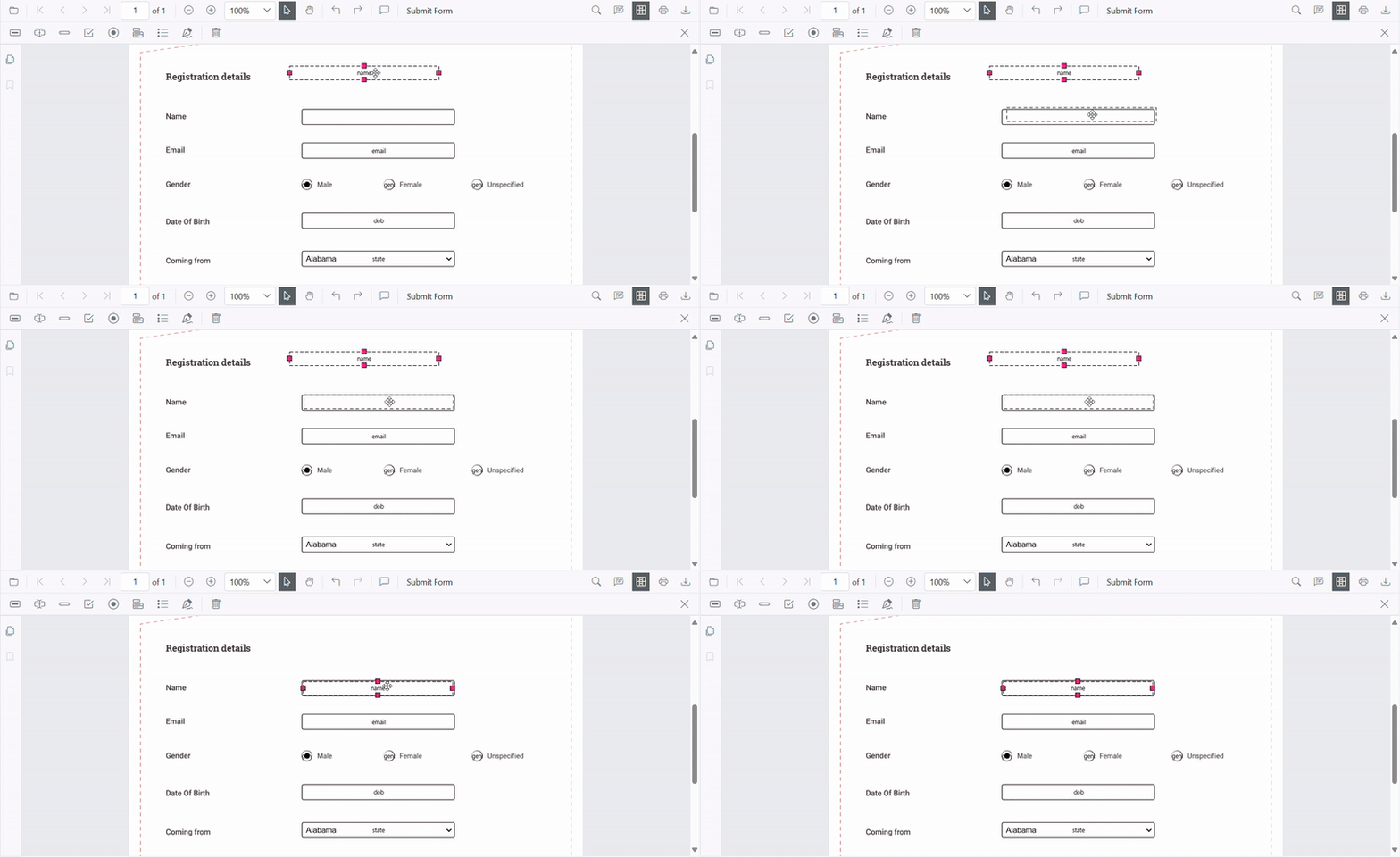
-
Resize: use the resize handles to change width and height.
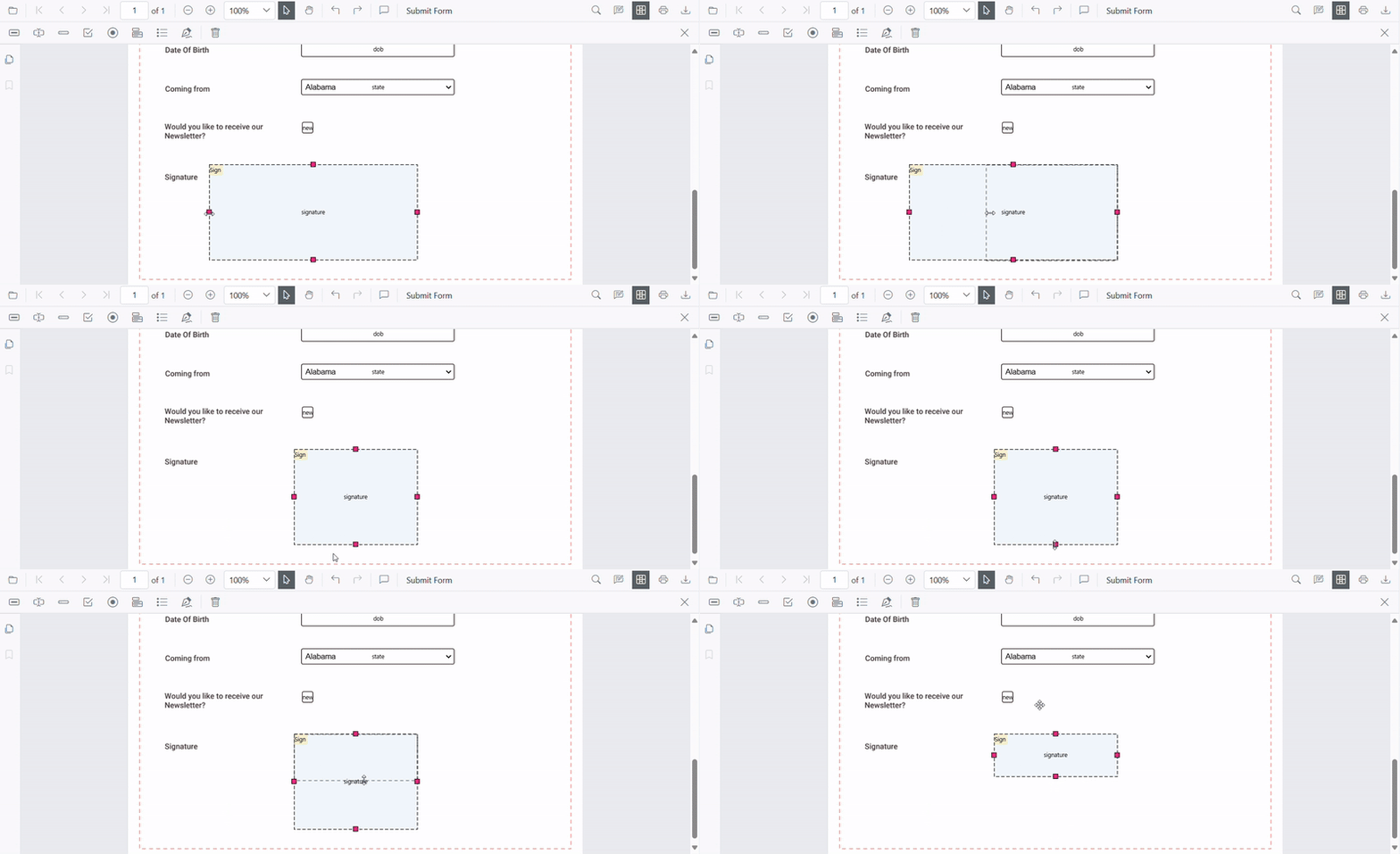
Move and Resize Form Fields Programmatically
The API supports setting absolute bounds on a form field.
Set absolute bounds
@using Syncfusion.Blazor.SfPdfViewer
@using Syncfusion.Blazor.Buttons

<SfButton @onclick="OnAddFormFields">Add Form Fields</SfButton>
<SfButton @onclick="OnResizeAndMove">Resize and Move FirstName</SfButton>

<SfPdfViewer2 @ref="@viewer" Height="100%" Width="100%" DocumentPath="@DocumentPath">
</SfPdfViewer2>

@code {
    private SfPdfViewer2? viewer;
    private string DocumentPath = "wwwroot/data/form-designer.pdf";

    private async Task OnAddFormFields()
    {
        if (viewer == null) return;

        // Create form fields with initial bounds
        List<FormFieldInfo> formFields = new List<FormFieldInfo>
        {
            new TextBoxField
            {
                Name = "FirstName",
                Bounds = new Bound { X = 146, Y = 229, Width = 150, Height = 24 }
            },
            new PasswordField
            {
                Name = "Password",
                Bounds = new Bound { X = 338, Y = 229, Width = 150, Height = 24 }
            },
            new SignatureField
            {
                Name = "SignHere",
                Bounds = new Bound { X = 146, Y = 280, Width = 200, Height = 43 }
            }
        };

        // Add the form fields to the PDF document
        await viewer.AddFormFieldsAsync(formFields);
    }

    private async Task OnResizeAndMove()
    {
        if (viewer == null) return;

        // Retrieve all form fields from the PDF
        List<FormFieldInfo> fields = await viewer.GetFormFieldsAsync();

        // Find the "First Name" field
        FormFieldInfo? field = fields?.FirstOrDefault(f => f.Name == "FirstName");

        if (field != null)
        {
            // Update the bounds (move and resize)
            field.Bounds = new Bound { X = 140, Y = 210, Width = 220, Height = 24 };

            // Apply the changes
            await viewer.UpdateFormFieldsAsync(new List<FormFieldInfo> { field });
        }
    }

}
For a hands-on reference with working code examples, explore the sample projects available on GitHub.