Customize the appearance of PDF Form Fields in Blazor PDF Viewer
14 Aug 20263 minutes to read
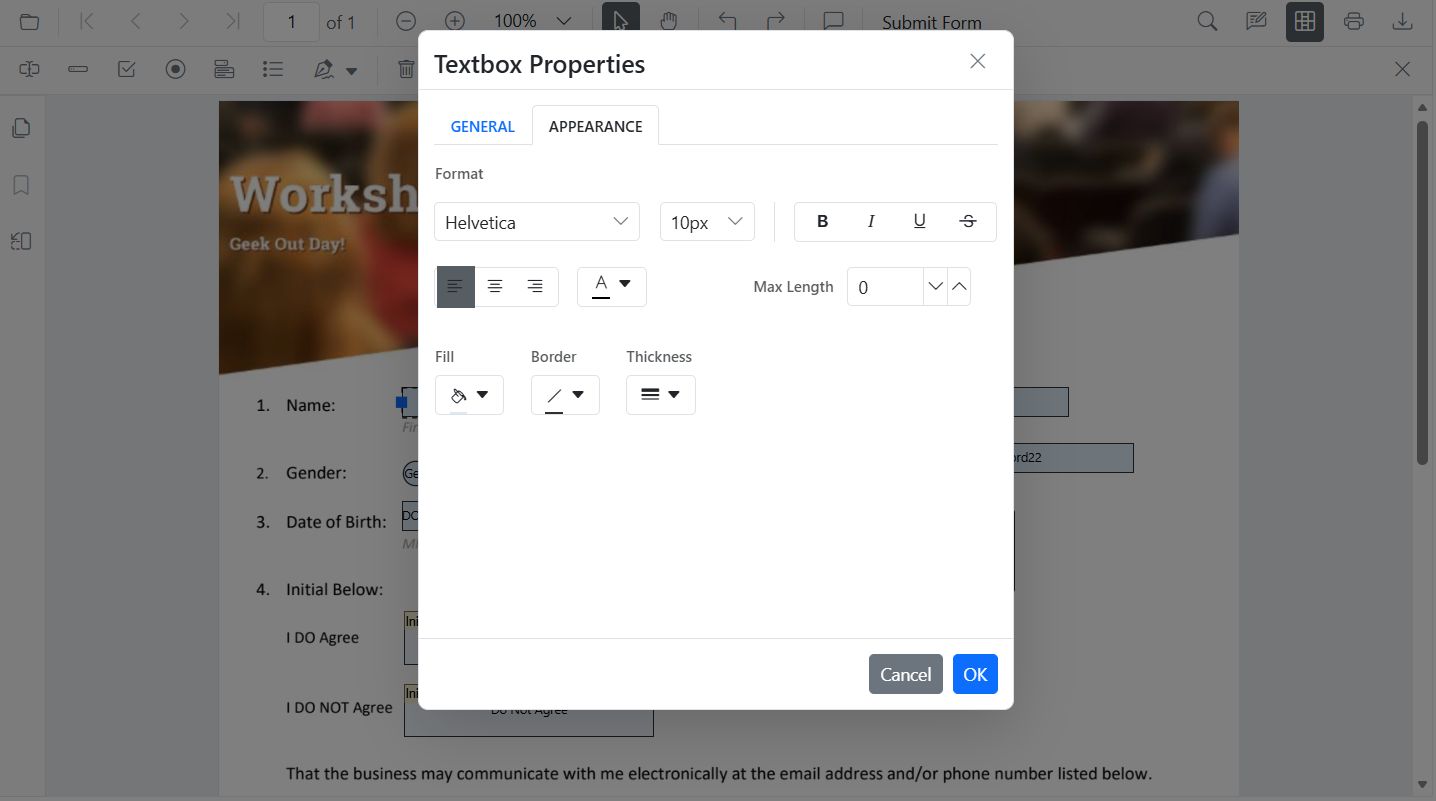
Styling customizes the appearance of form fields: font, color, alignment, border, and background. For check box and radio button fields, you can also set indicator text.
Customize appearance of form fields using the UI
Use the Properties panel to adjust:
- Font family and size, text color, and alignment
- Border color and thickness
- Background color
Customize appearance of form fields programmatically
Use UpdateFormFieldsAsync() to apply styles:
@using Syncfusion.Blazor.SfPdfViewer
@using Syncfusion.Blazor.Buttons

<SfButton @onclick="OnEditTextbox">Apply Textbox Changes</SfButton>

<SfPdfViewer2 @ref="@viewer" Height="100%" Width="100%" DocumentPath="@DocumentPath">
</SfPdfViewer2>

@code {
    private SfPdfViewer2? viewer;
    private string DocumentPath = "wwwroot/data/form-designer.pdf";

    private async Task OnEditTextbox()
    {
        if (viewer == null) return;

        List<FormFieldInfo> fields = await viewer.GetFormFieldsAsync();

        FormFieldInfo? field = fields?.FirstOrDefault(f => f.Name == "FirstName");

        if (field != null)
        {
            (field as TextBoxField).Value = "John";
            field.FontFamily = "Courier";
            field.FontSize = 12;
            field.Color = "black";
            field.BackgroundColor = "white";
            field.BorderColor = "black";
            field.Thickness = 2;
            field.TextAlignment = TextAlignment.Left;

            await viewer.UpdateFormFieldsAsync(new List<FormFieldInfo> { field });
        }
    }
}
Set Default Styles for New Form Fields
Define defaults so fields added from the toolbar inherit styles:
@using Syncfusion.Blazor.SfPdfViewer

<SfPdfViewer2 @ref="@viewer" Height="100%" Width="100%" DocumentPath="@DocumentPath">
    <FormFieldSettings FontFamily="Courier"
                       FontSize="10"
                       Color="black"
                       BackgroundColor="White"
                       BorderColor="black"
                       Thickness="4">
    </FormFieldSettings>
</SfPdfViewer2>

@code {
    private SfPdfViewer2? viewer;
    private string DocumentPath = "wwwroot/data/form-designer.pdf";
}
For a hands-on reference with working code examples, explore the sample projects available on GitHub.