PDF Form Handling Best Practices in Blazor PDF Viewer
17 Jul 20262 minutes to read
This guide provides a comprehensive overview of recommended practices for creating, organizing, validating, and automating PDF forms in the Blazor PDF Viewer.
It explains how to structure field names, ensure consistency, apply validation rules, group related fields, and streamline workflows through pre-filling and data import/export. By following these guidelines, you can build clean, reliable, and efficient form experiences that are easier to maintain and work seamlessly across different use cases.
1. Use Clear and Unique Field Names
Field names are critical for automation, data mapping, and debugging. Always:
- Use descriptive, unique names for each field (e.g.,
FirstName,InvoiceNumber). - Avoid generic names like
Textbox1orField2. - Ensure names are consistent across import/export workflows.
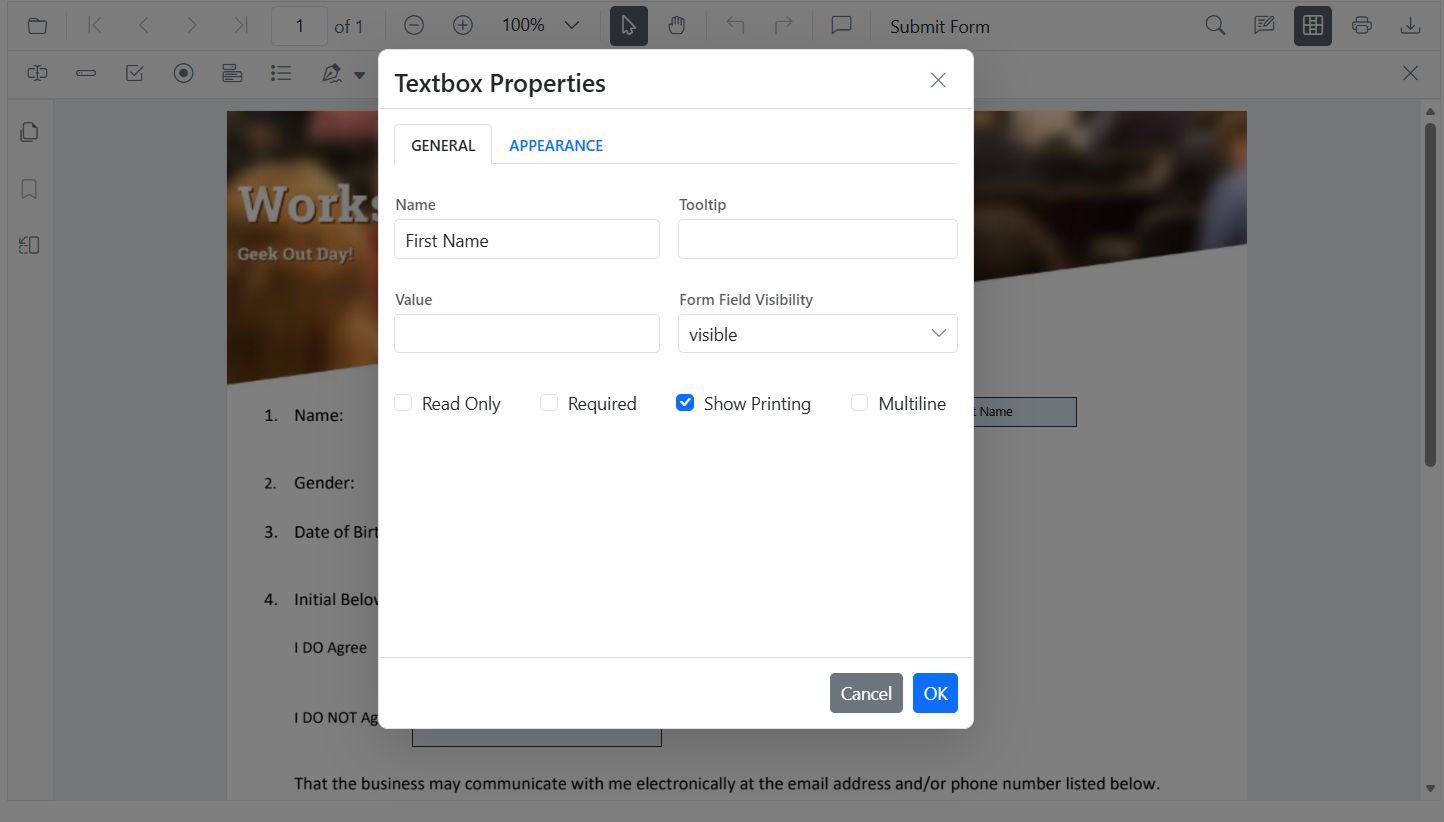
You can refer to Create Form Fields in Blazor PDF Viewer to know more about creating form fields.
2. Maintain Consistent Field Types
Changing a field’s type (e.g., from textbox to dropdown) can break data mapping and validation. Best practices:
- Do not change a field’s type after creation.
- Fields with the same name must always have the same type.
- Use the correct field type for the intended data (e.g., checkbox for boolean, textbox for free text).
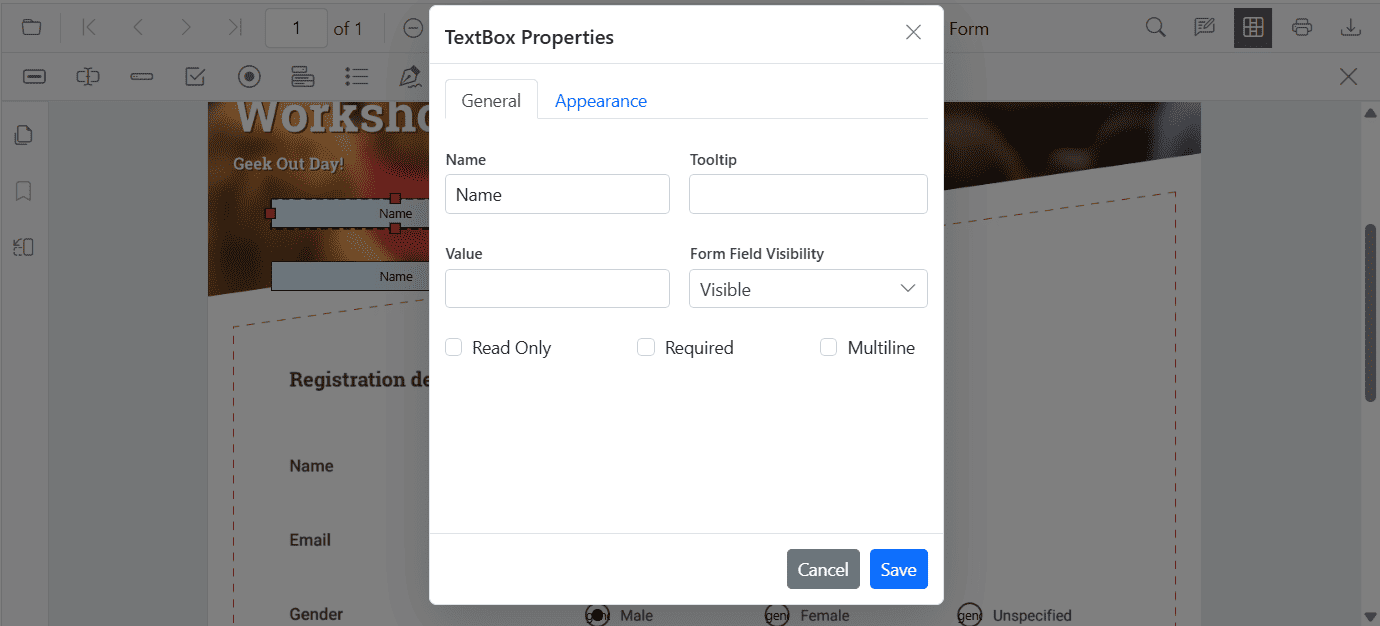
You can refer to Group Form Fields in Blazor PDF Viewer to know more about grouping form fields.
3. Validate Data Before Submission
Validation ensures data quality and prevents errors downstream. Always:
- Mark required fields and check for empty values.
- Validate formats (email, phone, numbers, etc.).
- Use custom validation logic for business rules.
- Prevent submission or export if validation fails.
4. Pre-Fill Known Values
Pre-filling fields improves user experience and reduces errors. For example:
- Populate user profile data (name, email, address) automatically.
- Use default values for common fields.
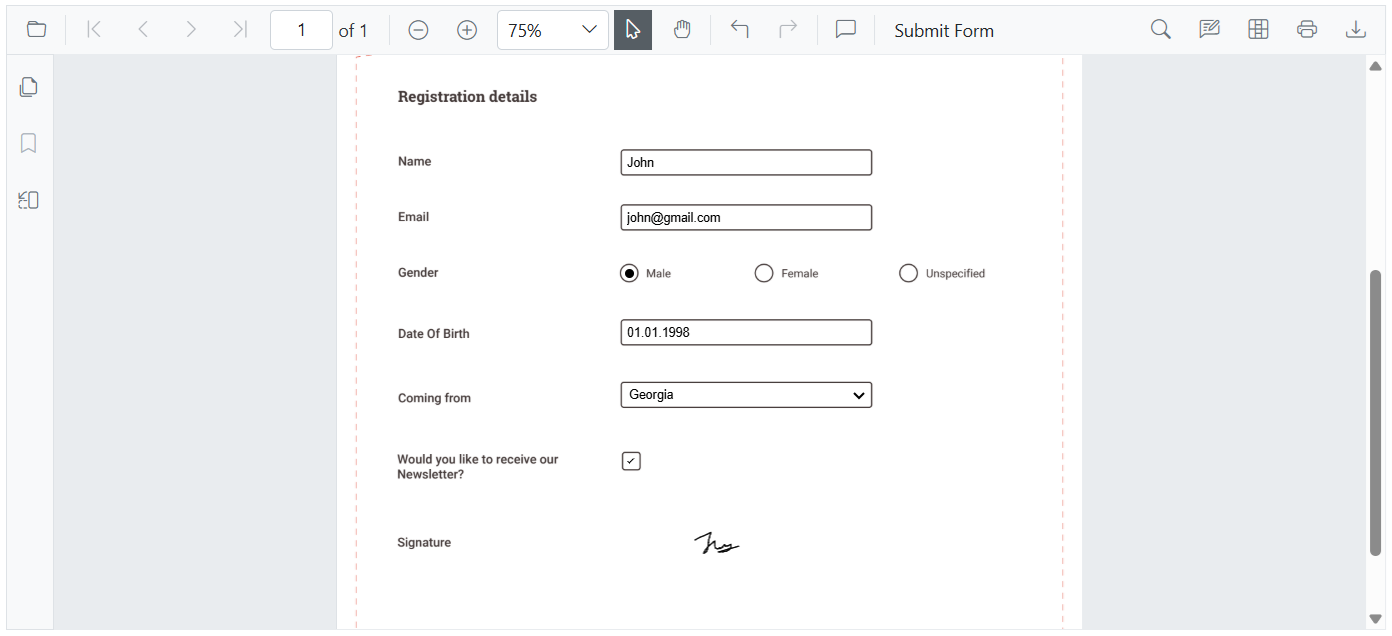
You can refer to Form Filling in Blazor PDF Viewer to know more about form filling.
5. Automate with Import/Export
Automate workflows by importing/exporting form data. Recommendations:
- Use JSON for web apps and REST APIs.
- Use XFDF/FDF for Adobe workflows.
- Use XML for legacy systems.
- Ensure field names match exactly for successful mapping.
You can refer to Export/Import Form fields in Blazor PDF Viewer to know more about Export and Import form fields.
6. Group Related Fields for Complex Forms
Group fields logically for better structure and easier validation. Examples:
- Address sections (Street, City, State, ZIP)
- Invoice line items
- Repeated form subsections
Benefits:
- Structured exported data
- Easier validation
- Improved user experience
You can refer to Group Form Fields in Blazor PDF Viewer to know more about grouping form fields.
7. Keep Form Design Clean and Accessible
Good design improves usability and accessibility. Tips:
- Maintain consistent spacing and alignment (use grid layouts).
- Use uniform field widths and clear labels.
- Avoid clutter—don’t crowd too many fields in one area.
- Use section headers to guide users.
You can refer to Group Form Fields in Blazor PDF Viewer to know more about grouping form fields.