Fill PDF form fields in Blazor SfPdfViewer
14 Aug 20267 minutes to read
This guide shows how to update, import, and validate PDF form fields in the Blazor SfPdfViewer so you can pre-fill forms or accept user input.
Outcome Programmatically set field values, accept UI-driven filling, import form data, and validate fields on submit.
Steps to fill forms
1. Fill form fields programmatically
Update form field values programmatically with UpdateFormFieldsAsync.
The following example shows a complete, runnable Blazor sample. It retrieves form fields and updates a named field or the first available field.
@using Syncfusion.Blazor.SfPdfViewer

<SfPdfViewer2 @ref="pdfViewer"
              DocumentPath="https://cdn.syncfusion.com/content/pdf/form-filling-document.pdf"
              Height="600px">
</SfPdfViewer2>

<button @onclick="UpdateFormFields">Update Form Fields</button>

@code {
    private SfPdfViewer2? pdfViewer;

    async Task UpdateFormFields()
    {
        if (pdfViewer == null)
            return;

        // Get fields
        List<FormFieldInfo> formFields = await pdfViewer.GetFormFieldsAsync();

        if (formFields == null || formFields.Count == 0)
            return;

        // Find the first text box field
        TextBoxField? textField = formFields
            .OfType<TextBoxField>()
            .FirstOrDefault(f => f.Name == "name")
            ?? formFields.OfType<TextBoxField>().FirstOrDefault();

        if (textField != null)
        {
            textField.Value = "John Doe";
            textField.TooltipText = "First Name";

            // Update with the same type (FormFieldInfo)
            await pdfViewer.UpdateFormFieldsAsync(new List<FormFieldInfo>()
            {
                textField
            });
        }
    }
}
Expected result: Clicking the Update Form Fields button sets the first or named field’s value to John Doe in the viewer.
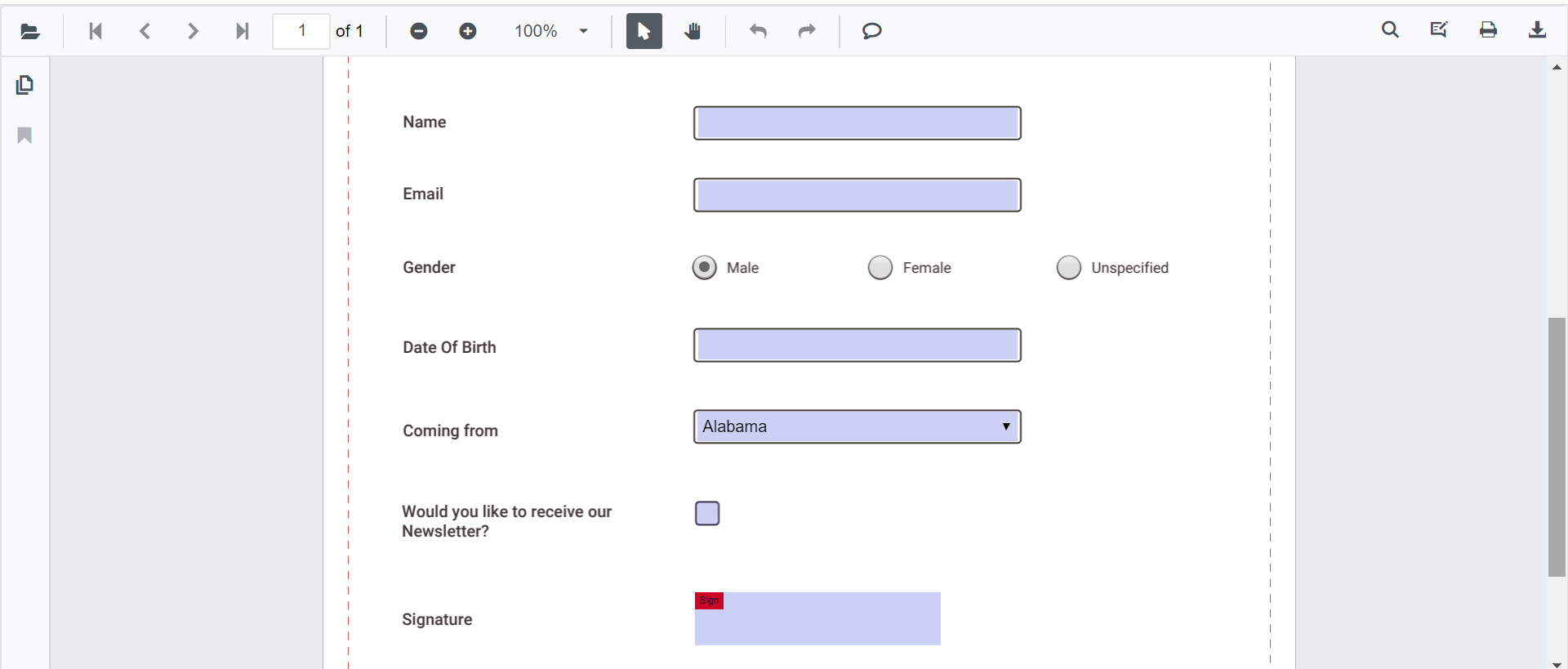
2. Fill form fields via UI
Users can click form controls and enter/select values. Supported field types include textboxes, checkboxes, radio buttons, dropdowns, list boxes, and signature fields. Form fields are interactive only when designer mode is off, and edits are retained for the current viewing session.
3. Fill form fields through imported data
Use ImportFormFieldsAsync to map external data into PDF fields by name. The example below shows how to trigger import from a button handler. Supported FormFieldDataFormat values include Fdf, Json, and Xfdf.
@using Syncfusion.Blazor.SfPdfViewer;
@using Syncfusion.Blazor.Buttons;

<SfButton OnClick="ExportFormFieldData">Export Data</SfButton>
<SfButton OnClick="ImportFormFieldData">Import Data</SfButton>

<SfPdfViewer2 @ref="pdfViewer" DocumentPath="wwwroot/data/FormFillingDocument.pdf"
              Height="650px"
              Width="100%">
</SfPdfViewer2>

@code {
    // Reference to the SfPdfViewer2 instance
    private SfPdfViewer2 PdfViewerInstance { get; set; }

    // Stream to store exported form field data in FDF format
    Stream FDFStream = new MemoryStream();

    // List to store form field information
    List<FormFieldInfo> FormFields = new List<FormFieldInfo>();

    // Exports form field data from the PDF viewer in FDF format
    private async void ExportFormFieldData()
    {
        // Retrieve form field information from the PDF viewer
        FormFields = await PdfViewerInstance.GetFormFieldsAsync();
        if (FormFields != null && FormFields.Count > 0)
        {
            // Export form fields as FDF data
            FDFStream = await PdfViewerInstance.ExportFormFieldsAsync(FormFieldDataFormat.Fdf);
        }
    }

    // Imports form field data from FDF format into the PDF viewer
    private async void ImportFormFieldData()
    {
        if (FDFStream != null && pdfViewer != null)
        {
            // Import FDF data into the viewer
            await PdfViewerInstance.ImportFormFieldsAsync(FDFStream, FormFieldDataFormat.Fdf);
        }
    }
}
For more details, see the Blazor PDF Viewer - Export and Import form data topic.
4. Validate form fields on submit
Enable form field validation and handle the validation event to check required fields and cancel submission when necessary. The example below shows adding required fields programmatically and validating them. Validation is triggered on save, download, print, and form submission actions.
@using Syncfusion.Blazor.SfPdfViewer;
@using Syncfusion.Blazor.Buttons;

<SfPdfViewer2 @ref="Viewer"
              DocumentPath="wwwroot/data/PDF_Succinctly.pdf"
              Height="650px"
              Width="100%"
              EnableFormFieldsValidation="true">
    <PdfViewerEvents DocumentLoaded="@AddFormFields" ValidateFormFields="@OnValidateFormFields"></PdfViewerEvents>
</SfPdfViewer2>

@code {
    private SfPdfViewer2? Viewer;

    private async Task AddFormFields()
    {
        if (Viewer == null)
            return;

        List<FormFieldInfo> formFields = new List<FormFieldInfo>
        {
            new TextBoxField { Name = "TextBox Field", Bounds = new Bound { X = 278, Y = 247, Width = 200, Height = 24 }, IsRequired=true},
            new PasswordField { Name = "Password Field", Bounds = new Bound { X = 278, Y = 323, Width = 200, Height = 24 }, IsRequired=true},
            new SignatureField { Name = "Signature Field", Bounds = new Bound { X = 278, Y = 686, Width = 200, Height = 63 }, IsRequired=true }
        };

        await Viewer.AddFormFieldsAsync(formFields);
    }

    void OnValidateFormFields(ValidateFormFieldsArgs args)
    {
        Dictionary<string, object> unfilledFields = args.UnfilledFields;
        foreach (KeyValuePair<string, object> field in unfilledFields)
        {
            Console.WriteLine($"Field Name: {field.Key}, Field Value: {field.Value}");
            // Further processing of unfilled fields
        }
    }
}
Troubleshooting
- If fields are not editable, confirm that the
SfPdfViewercomponent is properly configured. - If form fields don’t display, verify your
DocumentPathpoints to a PDF with form fields. - For import issues, ensure the imported data keys match the PDF field
Nameproperty values (for JSON imports, JSON keys must match field names; for FDF/XFDF imports, ensure the source file targets the same field names).
For a hands-on reference with working code examples, explore the sample projects available on GitHub.