How can I help you?
Overview of the Form Designer in Blazor SfPdfViewer Component
12 Feb 202618 minutes to read
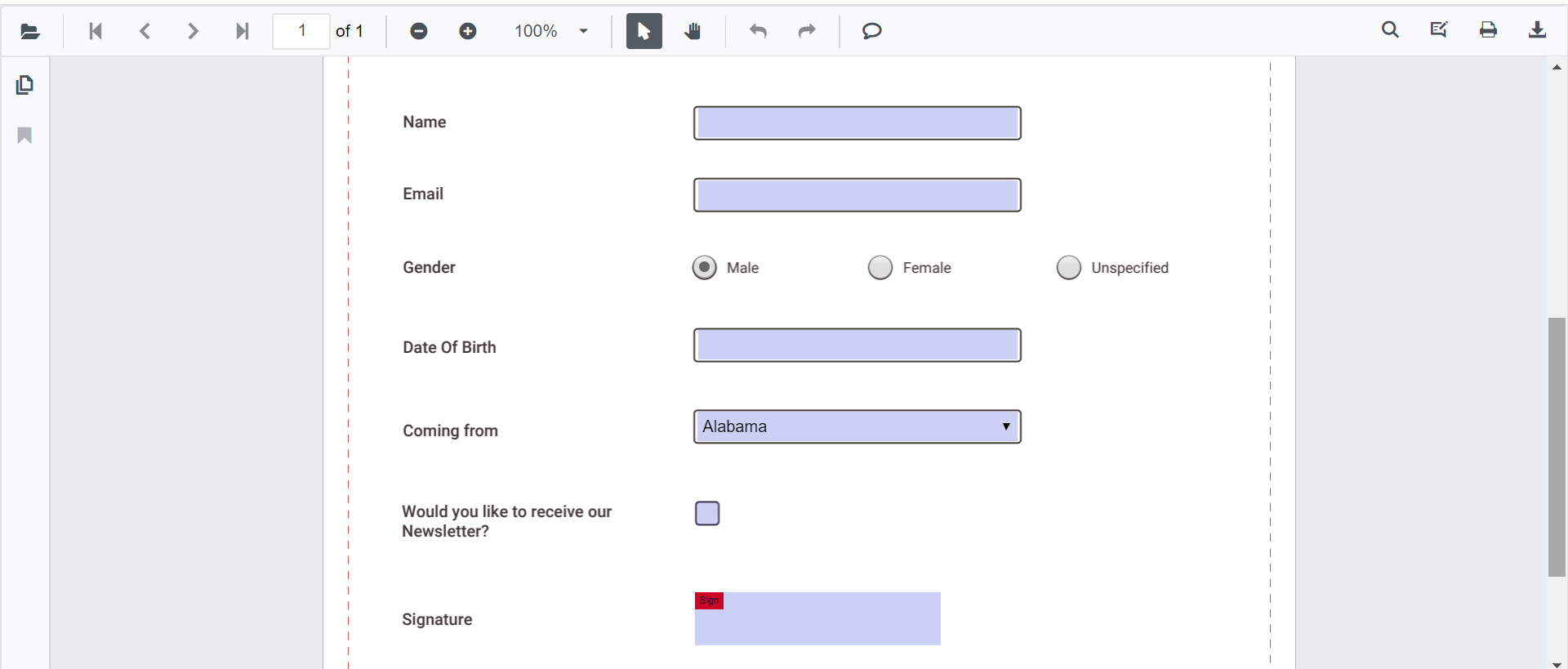
The Form Designer in SfPdfViewer enables creation, editing, and management of interactive form fields. The designer can be shown or hidden dynamically and updates related toolbar elements. Supported form fields include TextBox, Password, Radio Button, Check Box, DropDown, List Box, Signature Field, and Button. These fields support custom names, grouping, and consistent data across document pages.

Fields retain their properties and data when a document is downloaded or reloaded, including large documents. Core editing operations such as cut, copy, paste, zoom, and resize preserve field state. Additional capabilities include read-only and required field modes, validation, appearance customization, undo/redo, and form submission controls.
Supported form fields
SfPdfViewer supports the following interactive form fields used for structured data collection:
These fields support customization and consistent data across documents, enabling well-structured, user-friendly PDF forms.
Form field management
The SfPdfViewer supports opening, saving, and printing PDFs while preserving form field data and properties.
Open PDF documents with interactive form fields
SfPdfViewer preserves interactive form fields and their properties when loading a PDF. This enables in-viewer modifications, validation, and data retention even in large documents. Use the Open icon in the toolbar to load a saved PDF containing form fields.

See Open PDF files in SfPdfViewer for additional details.
Saving form fields
SfPdfViewer preserves form fields and their properties when exporting or downloading a document. Use the Download icon to save a PDF that retains field data and appearance for future use.

See Saving PDF file in Blazor SfPdfViewer component for more details.
Printing form fields
SfPdfViewer supports multiple visibility modes to control whether form fields appear in the viewer and in printed output.
To control the Visibility of form fields in print mode, the VisibilityMode enum provides the following options:
Available visibility modes
| Mode | Behavior |
|---|---|
| Visible | Always visible in both viewer and print. |
| Hidden | Completely hidden in both viewer and print. |
| VisibleNotPrintable | Visible in viewer but excluded from printing. |
| HiddenPrintable | Hidden in viewer but appears in print. |
NOTE
The Visible mode is the default for form fields in
SfPdfViewer.
This flexibility enables precise control over which form fields are visible in the viewer and in print output.
The following code snippet shows how to add a form field that is visible in the viewer but excluded from printing in the SfPdfViewer component.
@using Syncfusion.Blazor.SfPdfViewer;
@using Syncfusion.Blazor.Buttons;
<SfButton OnClick="AddVisibleNotPrintField">Add Visible Not Printable Textbox</SfButton>
<SfPdfViewer2 @ref="PdfViewerInstance" DocumentPath="wwwroot/data/Form_Fields_with_Visibility_Property.pdf"
Height="650px"
Width="100%">
</SfPdfViewer2>
@code {
// Reference to the SfPdfViewer2 instance
SfPdfViewer2 PdfViewerInstance { get; set; }
// Adds a form field that appears in the viewer but is excluded from printing.
private async void AddVisibleNotPrintField()
{
await PdfViewerInstance.AddFormFieldsAsync(
[new TextBoxField {
Name = "VisibleNotPrintable",
Value = "VisibleNotPrintable",
Bounds = new Bound { X = 270, Y = 620, Height = 30, Width = 200 },
PageNumber = 1,
Visibility = VisibilityMode.VisibleNotPrintable
}]
);
}
}The following image shows the viewer.

The following image shows the print preview.

Enable or disable Form Designer
The Form Designer module allows users to add and modify form fields inside a PDF document.
To show the Form Designer icon on the toolbar in SfPdfViewer2, set the EnableFormDesigner property to true. No manual module injection is required for SfPdfViewer2.
If EnableFormDesigner is false, the viewer operates in form-filling mode only and the Form Designer UI is not available.
NOTE
By default,
EnableFormDesigneristrue.
Example: enable the Form Designer toolbar
@using Syncfusion.Blazor.SfPdfViewer;
<!-- SfPdfViewer component with Form Designer enabled -->
<SfPdfViewer2 EnableFormDesigner = "true" DocumentPath="wwwroot/data/Form_Designer.pdf"
Height="650px"
Width="100%">
</SfPdfViewer2>
Enable or disable Designer Mode
Designer Mode allows direct interaction with form field design elements.
When Designer Mode is enabled, users can edit, move, and manipulate form fields. When disabled, fields remain editable only for form filling.
NOTE
By default, IsDesignerMode is
false(fields can be filled but not modified).
The following example demonstrates how to enable Designer Mode using SfPdfViewer2.
@using Syncfusion.Blazor.SfPdfViewer;
@using Syncfusion.Blazor.Buttons;
<!-- SfPdfViewer component with Designer Mode enabled -->
<SfPdfViewer2 IsDesignerMode="true"
DocumentPath="wwwroot/data/Form_Designer.pdf"
Height="650px"
Width="100%">
</SfPdfViewer2>
Export and import form field data
The SfPdfViewer control supports exporting and importing form field data in multiple formats. This enables saving, transferring, or restoring form field values using the following formats:
- XML
- FDF
- XFDF
- JSON
- Object-based
The ExportFormFieldsAsync and ImportFormFieldsAsync methods export or import form field data as a stream, which can be applied to another PDF document.
Types of Form Fields Export and Import
Export and import as XML
Exports form field data in XML format and allows importing the same data back into a PDF document.
NOTE
Setting FormFieldDataFormat to Xml exports or imports form field data in XML format.
The following code shows how to export the form fields as an XML data stream and import that data from the stream into the current PDF document via a button click.
@using Syncfusion.Blazor.SfPdfViewer;
@using Syncfusion.Blazor.Buttons;
<SfButton OnClick="ExportFormFieldData">Export Data</SfButton>
<SfButton OnClick="ImportFormFieldData">Import Data</SfButton>
<SfPdfViewer2 @ref="PdfViewerInstance" DocumentPath="wwwroot/data/Form_Filling_Document_With_Data.pdf"
Height="650px"
Width="100%">
</SfPdfViewer2>
@code {
// Reference to the SfPdfViewer2 instance
SfPdfViewer2 PdfViewerInstance { get; set; }
// Stream to store exported XML form field data
Stream XMLStream = new MemoryStream();
// List to store form field information
List<FormFieldInfo> FormFields = new List<FormFieldInfo>();
// Exports form field data from the PDF viewer to an XML stream
private async Task ExportFormFieldData()
{
if (PdfViewerInstance != null)
{
// Retrieve form field information from the PDF viewer
FormFields = await PdfViewerInstance.GetFormFieldsAsync();
if (FormFields != null && FormFields.Count > 0)
{
// Export data to XML format
XMLStream = await PdfViewerInstance.ExportFormFieldsAsync(FormFieldDataFormat.Xml);
}
}
}
// Imports form field data from the XML stream into the PDF viewer
private async Task ImportFormFieldData()
{
if (PdfViewerInstance != null && XMLStream != null)
{
// Import XML data into the viewer
await PdfViewerInstance.ImportFormFieldsAsync(XMLStream, FormFieldDataFormat.Xml);
}
}
}
Export and import as FDF
Exports form field data in Forms Data Format (FDF) and allows importing the same data back into a PDF document.
NOTE
Setting FormFieldDataFormat to Fdf exports or imports form field data in FDF format.
The following code demonstrates exporting form fields as FDF to a stream and importing the data back into the current PDF document through a button click.
@using Syncfusion.Blazor.SfPdfViewer;
@using Syncfusion.Blazor.Buttons;
<SfButton OnClick="ExportFormFieldData">Export Data</SfButton>
<SfButton OnClick="ImportFormFieldData">Import Data</SfButton>
<SfPdfViewer2 @ref="PdfViewerInstance" DocumentPath="wwwroot/data/Form_Filling_Document_With_Data.pdf"
Height="650px"
Width="100%">
</SfPdfViewer2>
@code {
// Reference to the SfPdfViewer2 instance
SfPdfViewer2 PdfViewerInstance { get; set; }
// Stream to store exported form field data in FDF format
Stream FDFStream = new MemoryStream();
// List to store form field information
List<FormFieldInfo> FormFields = new List<FormFieldInfo>();
// Exports form field data from the PDF viewer in FDF format
private async void ExportFormFieldData()
{
// Retrieve form field information from the PDF viewer
FormFields = await PdfViewerInstance.GetFormFieldsAsync();
if (FormFields != null && FormFields.Count > 0)
{
// Export form fields as FDF data
FDFStream = await PdfViewerInstance.ExportFormFieldsAsync(FormFieldDataFormat.Fdf);
}
}
// Imports form field data from FDF format into the PDF viewer
private async void ImportFormFieldData()
{
if (FDFStream != null)
{
// Import FDF data into the viewer
await PdfViewerInstance.ImportFormFieldsAsync(FDFStream, FormFieldDataFormat.Fdf);
}
}
}
Export and import as XFDF
Similar to FDF, but in XML-based format, XFDF ensures structured data handling for form fields.
NOTE
Setting FormFieldDataFormat to Xfdf exports or imports form field data in XFDF format.
The following code shows how to export the form fields as an XFDF data stream and import that data from the stream into the current PDF document via a button click.
@using Syncfusion.Blazor.SfPdfViewer;
@using Syncfusion.Blazor.Buttons;
<SfButton OnClick="ExportFormFieldData">Export Data</SfButton>
<SfButton OnClick="ImportFormFieldData">Import Data</SfButton>
<SfPdfViewer2 @ref="PdfViewerInstance" DocumentPath="wwwroot/data/Form_Filling_Document_With_Data.pdf"
Height="650px"
Width="100%">
</SfPdfViewer2>
@code {
// Reference to the SfPdfViewer2 instance
SfPdfViewer2 PdfViewerInstance { get; set; }
// Stream to store exported XFDF form field data
Stream XFDFStream = new MemoryStream();
// List to store form field information
List<FormFieldInfo> FormFields = new List<FormFieldInfo>();
// Exports form field data from the PDF viewer to an XFDF stream
private async void ExportFormFieldData()
{
// Retrieve form field information from the PDF viewer
FormFields = await PdfViewerInstance.GetFormFieldsAsync();
if (FormFields != null && FormFields.Count > 0)
{
// Export data to XFDF format
XFDFStream = await PdfViewerInstance.ExportFormFieldsAsync(FormFieldDataFormat.Xfdf);
}
}
// Imports form field data from the XFDF stream into the PDF viewer
private async void ImportFormFieldData()
{
if (XFDFStream != null)
{
// Import XFDF data into the viewer
await PdfViewerInstance.ImportFormFieldsAsync(XFDFStream, FormFieldDataFormat.Xfdf);
}
}
}
Export and import as JSON
Exports form field data in JSON format, which can be easily read and imported back into the PDF Viewer.
NOTE
Setting FormFieldDataFormat to Json exports or imports form field data in JSON format.
The following code demonstrates exporting form fields as JSON to a stream and importing the data back into the current PDF document through a button click.
@using Syncfusion.Blazor.SfPdfViewer;
@using Syncfusion.Blazor.Buttons;
<SfButton OnClick="ExportFormFieldData">Export Data</SfButton>
<SfButton OnClick="ImportFormFieldData">Import Data</SfButton>
<SfPdfViewer2 @ref="PdfViewerInstance" DocumentPath="wwwroot/data/Form_Filling_Document_With_Data.pdf"
Height="650px"
Width="100%">
</SfPdfViewer2>
@code {
// Reference to the SfPdfViewer2 instance
SfPdfViewer2 PdfViewerInstance { get; set; }
// Stream to store exported form field data in JSON format
Stream JSONStream = new MemoryStream();
// List to store form field information
List<FormFieldInfo> FormFields = new List<FormFieldInfo>();
// Exports form field data from the PDF viewer in JSON format
private async void ExportFormFieldData()
{
// Retrieve form field information from the PDF viewer
FormFields = await PdfViewerInstance.GetFormFieldsAsync();
if (FormFields != null && FormFields.Count > 0)
{
// Export form fields as JSON data
JSONStream = await PdfViewerInstance.ExportFormFieldsAsync(FormFieldDataFormat.Json);
}
}
// Imports form field data from JSON format into the PDF viewer
private async void ImportFormFieldData()
{
if (JSONStream != null)
{
// Import JSON data into the viewer
await PdfViewerInstance.ImportFormFieldsAsync(JSONStream, FormFieldDataFormat.Json);
}
}
}
Export and import as an object
The Form fields can be exported and imported as an object, which is useful for in-memory processing and quick data manipulation.
The ExportFormFieldsAsObjectAsync and ImportFormFieldsAsync methods allow you to export the form field data as an Object, which can later be used to import the saved data into another PDF document.
The following code shows how to export form fields as an object and import that data into the current PDF document via a button click.
@using Syncfusion.Blazor.SfPdfViewer;
@using Syncfusion.Blazor.Buttons;
<SfButton OnClick="ExportFormFieldData">Export Data</SfButton>
<SfButton OnClick="ImportFormFieldData">Import Data</SfButton>
<SfPdfViewer2 @ref="PdfViewerInstance" DocumentPath="wwwroot/data/Form_Filling_Document_With_Data.pdf"
Height="650px"
Width="100%">
</SfPdfViewer2>
@code {
// Reference to the SfPdfViewer2 instance
SfPdfViewer2 PdfViewerInstance { get; set; }
// Dictionary to store exported form field data as key-value pairs
Dictionary<string, string> FormFieldsObject = new Dictionary<string, string>();
// List to store form field information
List<FormFieldInfo> FormFields = new List<FormFieldInfo>();
// Exports form field data from the PDF viewer as an object (key-value pairs)
private async void ExportFormFieldData()
{
// Retrieve form field information
FormFields = await PdfViewerInstance.GetFormFieldsAsync();
if (FormFields != null && FormFields.Count > 0)
{
// Export form fields as an object
FormFieldsObject = await PdfViewerInstance.ExportFormFieldsAsObjectAsync();
}
}
// Imports form field data from an object into the PDF viewer
private async void ImportFormFieldData()
{
if (FormFieldsObject != null)
{
// Import object data into the viewer
await PdfViewerInstance.ImportFormFieldsAsync(FormFieldsObject);
}
}
}
Export Form Fields as a JSON File
This method allows exporting the form field data and saving it as a JSON file, which can be stored or shared for future use.
NOTE
If ExportFormFieldsAsync is called with a string path (file name or path), the form field data is exported in JSON file format.
@using Syncfusion.Blazor.SfPdfViewer;
@using Syncfusion.Blazor.Buttons;
<SfButton OnClick="ExportFormFieldData">Export Data</SfButton>
<SfPdfViewer2 @ref="PdfViewerInstance" DocumentPath="wwwroot/data/Form_Filling_Document_With_Data.pdf"
Height="650px"
Width="100%">
</SfPdfViewer2>
@code {
// Reference to the SfPdfViewer2 instance
SfPdfViewer2 PdfViewerInstance { get; set; }
// Exports form field data from the PDF viewer into a JSON file
private async void ExportFormFieldData()
{
// Exports form fields and saves them as a JSON file
await PdfViewerInstance.ExportFormFieldsAsync("");
}
}
Additionally, the component provides a built-in Submit button that exports form field data as a JSON file directly from the PDF document. The following sections demonstrate multiple ways to export and import form field data.
See the image below.