Time Selector in WPF TimePicker
The SfTimeSelector is a sub-control of SfTimePicker which opens inside the drop-down popup and used to select the time for the SfTimePicker. It contains the hour, minutes and meridiem selection cells for selecting the time. The selected time of the SfTimeSelector is assigned to the SfTimePicker.Value property.
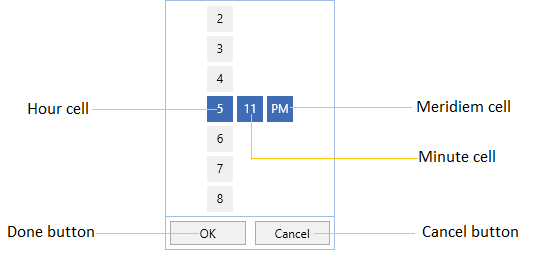
The visual elements of the time selector can be customized using the SelectorStyle property.
Change the Cell templates
We can change the template for each hour, minute, or meridiem selector by using the HourCellTemplate, MinuteCellTemplate or MeridiemCellTemplate which are available in the SfTimeSelector.
NOTE
The DataContext of Hour, Minute, Meridiem Selection cell is DateTimeWrapper.
Change the HourCell Template
We can change the hour selector template by using the HourCellTemplate property. In it, we can add an image, icon, or text along with the hour values.
<Window
. . .
xmlns:syncfusion="http://schemas.syncfusion.com/wpf">
<syncfusion:SfTimePicker DropDownHeight="380"
SelectorItemHeight="70"
SelectorItemWidth="70"
Width="200"
Name="sfTimePicker">
<syncfusion:SfTimePicker.SelectorStyle>
<Style TargetType="syncfusion:SfTimeSelector">
<Setter Property="HourCellTemplate">
<Setter.Value>
<DataTemplate>
<Grid>
<TextBlock VerticalAlignment="Top"
HorizontalAlignment="Right"
Margin="5"
FontSize="22"
FontFamily="Segoe UI Symbol"
Text=""/>
<TextBlock Text="{Binding HourNumber}"
VerticalAlignment="Bottom"
Margin="5"
FontSize="22"/>
</Grid>
</DataTemplate>
</Setter.Value>
</Setter>
</Style>
</syncfusion:SfTimePicker.SelectorStyle>
</syncfusion:SfTimePicker>
</Window>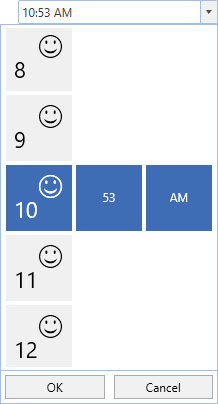
Change the MinuteCell Template
We can change the minute selector template by using the MinuteCellTemplate property. In it, we can add an image, icon, or text along with the minute values.
<Window
. . .
xmlns:syncfusion="http://schemas.syncfusion.com/wpf">
<syncfusion:SfTimePicker DropDownHeight="380"
SelectorItemHeight="70"
SelectorItemWidth="70"
Width="200"
Name="sfTimePicker">
<syncfusion:SfTimePicker.SelectorStyle>
<Style TargetType="syncfusion:SfTimeSelector">
<Setter Property="MinuteCellTemplate">
<Setter.Value>
<DataTemplate>
<Grid>
<TextBlock VerticalAlignment="Top"
HorizontalAlignment="Right"
Margin="5"
FontSize="22"
FontFamily="Segoe UI Symbol"
Text=""/>
<TextBlock Text="{Binding MinuteNumber}"
VerticalAlignment="Bottom"
Margin="5"
FontSize="22"/>
</Grid>
</DataTemplate>
</Setter.Value>
</Setter>
</Style>
</syncfusion:SfTimePicker.SelectorStyle>
</syncfusion:SfTimePicker>
</Window>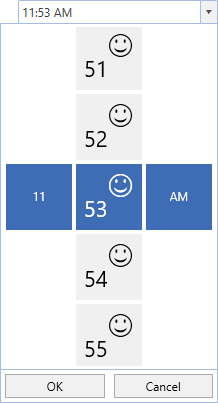
Change the MeridiemCell Template
We can change the meridiem selector template by using the MeridiemCellTemplate property. In it, we can add an image, icon, or text along with the meridiem values.
<Window
. . .
xmlns:syncfusion="http://schemas.syncfusion.com/wpf">
<syncfusion:SfTimePicker DropDownHeight="380"
SelectorItemHeight="70"
SelectorItemWidth="70"
Width="200"
Name="sfTimePicker">
<syncfusion:SfTimePicker.SelectorStyle>
<Style TargetType="syncfusion:SfTimeSelector">
<Setter Property="MeridiemCellTemplate">
<Setter.Value>
<DataTemplate>
<Grid>
<TextBlock VerticalAlignment="Top"
HorizontalAlignment="Right"
Margin="5"
FontSize="22"
FontFamily="Segoe UI Symbol"
Text=""/>
<TextBlock Text="{Binding AmPmString}"
VerticalAlignment="Bottom"
Margin="5"
FontSize="22"/>
</Grid>
</DataTemplate>
</Setter.Value>
</Setter>
</Style>
</syncfusion:SfTimePicker.SelectorStyle>
</syncfusion:SfTimePicker>
</Window>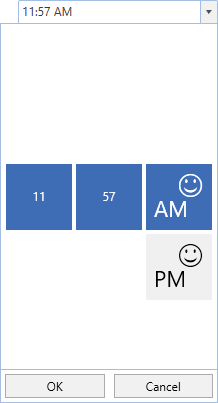
Change size of cells
We can change the cell size in the SfTimeSelector control by setting the SelectorItemWidth and SelectorItemHeight properties. The default value of the SelectorItemWidth and SelectorItemHeight properties is 30 and 30.
<Window
    . . .
    xmlns:syncfusion="http://schemas.syncfusion.com/wpf">
    <syncfusion:SfTimePicker SelectorItemWidth="60"
                         SelectorItemHeight="60"
	                     x:Name="sfTimePicker"/>
</Window>
using Syncfusion.Windows.Controls.Input;
SfTimePicker sfTimePicker = new SfTimePicker();
sfTimePicker.SelectorItemWidth = 60;
sfTimePicker.SelectorItemHeight = 60;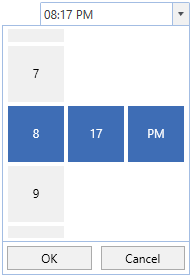
TimeSelector item spacing
We can change the space between SfTimeSelector hour, minutes and meridiem items by using the SelectorItemSpacing property. The default value of the SelectorItemSpacing property is 4.
<Window
    . . .
    xmlns:syncfusion="http://schemas.syncfusion.com/wpf">
    <syncfusion:SfTimePicker SelectorItemSpacing="50"
	                     x:Name="sfTimePicker"/>
</Window>
using Syncfusion.Windows.Controls.Input;
SfTimePicker sfTimePicker = new SfTimePicker();
sfTimePicker.SelectorItemSpacing = 50;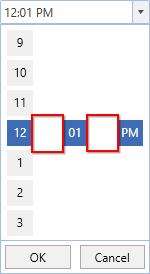
Click here to download the sample that showcases the SfTimeSelector template customization.