Setting Time in WPF TimePicker
We can change the value of SfTimePicker by using the SfTimeSelector and keyboard interaction.
Setting Time using property
We can set or change the selected time by using Value property. If we do not assign any value for the Value property, it will automatically assign the current system time as Value property value.
<Window
    . . .
    xmlns:syncfusion="http://schemas.syncfusion.com/wpf">
    <syncfusion:SfTimePicker  Value="04:45:00"
                          Name="sfTimePicker" />
</Window>
using Syncfusion.Windows.Controls.Input;
SfTimePicker sfTimePicker= new SfTimePicker();
sfTimePicker.Value = new TimeSpan(04, 45, 00);
Setting Null Value
If we want to set null value for the SfTimePicker, set the AllowNull property as true and Value property as null. If AllowNull property is false, then the current system time is updated in Value property and displayed instead of null.
<Window
    . . .
    xmlns:syncfusion="http://schemas.syncfusion.com/wpf">
    <syncfusion:SfTimePicker  AllowNull="True"
                          Value="{x:Null}"
                          Name="sfTimePicker" />
</Window>
using Syncfusion.Windows.Controls.Input;
SfTimePicker sfTimePicker= new SfTimePicker();
sfTimePicker.AllowNull = true;
sfTimePicker.Value = null;
Setting WaterMark text
We can prompt the user with some information by using the Watermark property. This will be applied when the SfTimePicker contains the Value property as null and AllowNull property as true. If AllowNull property is false, then the current system time is updated in Value property and displayed instead of Watermark text.
<Window
    . . .
    xmlns:syncfusion="http://schemas.syncfusion.com/wpf">
    <syncfusion:SfTimePicker Watermark="Select the Time"
                         AllowNull="True"
                         Value="{x:Null}"
                         Name="sfTimePicker" >
    </syncfusion:SfTimePicker>
</Window>
using Syncfusion.Windows.Controls.Input;
SfTimePicker sfTimePicker = new SfTimePicker();
sfTimePicker.Watermark = "Select the Time";
sfTimePicker.AllowNull = true;
sfTimePicker.Value = null;
Setting WaterMark Template
We can change the template of the Watermark by using the WatermarkTemplate property.
<Window
    . . .
    xmlns:syncfusion="http://schemas.syncfusion.com/wpf">
    <syncfusion:SfTimePicker Name="sfTimePicker"
                         AllowNull="True"
                         Value="{x:Null}"
                         Watermark="Select the Time" >
        <syncfusion:SfTimePicker.WatermarkTemplate >
            <DataTemplate>
                <Border Background="Yellow">
                    <TextBlock Foreground="Blue"
                            FontWeight="Bold"
                            Text="{Binding}"
                            TextAlignment="Center"/>
                </Border>
            </DataTemplate>
        </syncfusion:SfTimePicker.WatermarkTemplate>
    </syncfusion:SfTimePicker>
</Window>
Set selected value on lost focus
If we want to update the selected time of SfTimeSelector to the SfTimePicker.Value property by moving the focus from SfTimeSelector to anywhere, use the SetValueOnLostFocus property value as true. By default, the selected time of SfTimeSelector can be set to the SfTimePicker.Value property only by clicking the OK button, otherwise the selected value is not updated on moving focus.
<Window
    . . .
    xmlns:syncfusion="http://schemas.syncfusion.com/wpf">
    <syncfusion:SfTimePicker  SetValueOnLostFocus="True"
                          Name="sfTimePicker" />
</Window>
using Syncfusion.Windows.Controls.Input;
SfTimePicker sfTimePicker= new SfTimePicker();
sfTimePicker.SetValueOnLostFocus = true;
Setting the time using editing
If we want to perform the validation after the user completely entering their time inputs, use the AllowInlineEditing property value as true. Then the entered time value is validated with the FormatString property value by pressing the Enter key or lost focus. If the entered value does not suit the FormatString property, the selected time will be set as default format value.
By default, each input number the user enters is automatically validated with the FormatString formats and assigned the proper value for it, then it will move to next input part of the time format.
<Window
    . . .
    xmlns:syncfusion="http://schemas.syncfusion.com/wpf">
    <syncfusion:SfTimePicker Name="sfTimePicker"
                         AllowInlineEditing="True" />
</Window>
using Syncfusion.Windows.Controls.Input;
SfTimePicker sfTimePicker= new SfTimePicker();
sfTimePicker.AllowInlineEditing = true;
Setting the Input Scope for the On-Screen Keyboard
We can change the input type of the on-screen keyboard by using the InputScope property. When the InputScope property set to Number, only the numeric keypad will be visible in the on-screen keyboard.
NOTE
The AllowInlineEditing property must be set to
Truefor this property to take effect.
<Window
    . . .
    xmlns:syncfusion="http://schemas.syncfusion.com/wpf">
    <syncfusion:SfTimePicker Name="sfTimePicker"
                         AllowInlineEditing="True"
                         InputScope="Time"/>
</Window>
using Syncfusion.Windows.Controls.Input;
SfTimePicker sfTimePicker= new SfTimePicker();
sfTimePicker.AllowInlineEditing = true;
sfTimePicker.InputScope = InputScopeNameValue.Time;
Restrict selecting time limit
We can restrict the user from selecting a time in the specific time limit by setting the value for the MinTime and MaxTime properties. If we assign the value for the Value property lower than MinTime, then MinTime will be the selected time. If we assign the value for the Value property higher than MaxTime, then MaxTime will be the selected time.
<Window
    . . .
    xmlns:syncfusion="http://schemas.syncfusion.com/wpf">
    <syncfusion:SfTimePicker MinTime="07:00:00"
                         MaxTime="09:00:00"
                         Name="sfTimePicker"/>
</Window>
using Syncfusion.Windows.Controls.Input;
SfTimePicker sfTimePicker = new SfTimePicker();
sfTimePicker.MinTime = new TimeSpan(07,00,00);
sfTimePicker.MaxTime = new TimeSpan(09,00,00);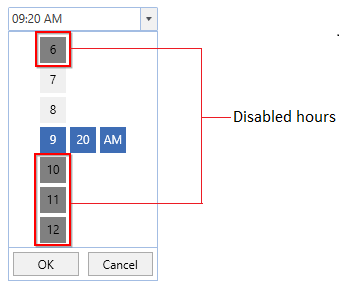
Here, the users can select the hour from 7 to 9 only.
Time changed notification
When the selected time of SfTimePicker is changed, it will be notified by using the ValueChanged event. You can get the details about the checked item in ItemCheckedEventArgs.
-
OldValue : Gets a time which is previously selected.
-
NewValue : Gets a time which is currently selected.
<Window
    . . .
    xmlns:syncfusion="http://schemas.syncfusion.com/wpf">
    <syncfusion:SfTimePicker ValueChanged="SftimePicker_ValueChanged"
                         Name="sfTimePicker"/>
</Window>
using Syncfusion.Windows.Controls.Input;
SfTimePicker sfTimePicker = new SfTimePicker();
sfTimePicker.ValueChanged += SftimePicker_ValueChanged;You can handle the event as follows:
private void SftimePicker_ValueChanged(DependencyObject d, DependencyPropertyChangedEventArgs e) {
    Console.WriteLine("The Old selected time: " + e.OldValue.ToString());
    Console.WriteLine("The Newly selected time: " + e.NewValue.ToString());
}
Click here to download the sample that showcases the input types and selected time with its notification supports.