Customizing DropDown in WPF DatePicker
We can customize the SfDateSelector visibility, drop-down button visibility and height of the SfDateSelector.
Change DropDown height
The height of drop-down can be changed using DropDownHeight property.
<Window
    . . .
    xmlns:syncfusion="http://schemas.syncfusion.com/wpf">
    <syncfusion:SfDatePicker DropDownHeight="300"
	                     x:Name="sfDatePicker"/>
</Window>
using Syncfusion.Windows.Controls.Input;
SfDatePicker sfDatePicker = new SfDatePicker();
sfDatePicker.DropDownHeight = 300;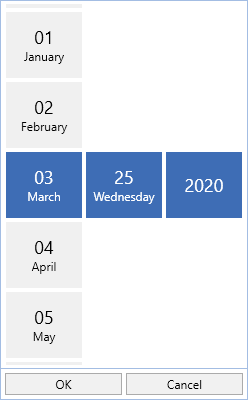
Show or hide DropDown button
If we want to restrict the user from selecting a date from a drop-down date selector, we can hide the drop-down button by using the ShowDropDownButton property value as false. The default value of ShowDropDownButton property is true.
<Window
    . . .
    xmlns:syncfusion="http://schemas.syncfusion.com/wpf">
    <syncfusion:SfDatePicker ShowDropDownButton="False"
	                     x:Name="sfDatePicker"/>
</Window>
using Syncfusion.Windows.Controls.Input;
SfDatePicker sfDatePicker = new SfDatePicker();
sfDatePicker.ShowDropDownButton = false;
Click here to download the sample that showcases the DropDown customization support.