Time Interval in Windows Forms Scheduler
The WinForms Scheduler provides flexible time interval options that let you schedule appointments with minute-level or second-level precision. Beyond a one-time appointment, you can also define recurring schedules that repeat at daily, weekly, monthly, quarterly, or yearly intervals, including finer patterns based on seconds, minutes, or hours. This topic explains the supported time interval formats and how recurring appointments can be created.
Recurrence rule
A recurrence rule is a text-based description that captures how an appointment should repeat. It defines the rule type (such as daily, weekly, monthly, quarterly, or yearly), the interval between occurrences, and the start and end dates of the series. Using the recurrence rule, the scheduler renders the appropriate recurring instances in its views.
The following table summarizes the supported rule types and their purpose.
| S.No | Rule name | Purpose |
|---|---|---|
| 1. | Every DAY | Repeats the appointment every specified number of days. Syntax:{StartDate};{EndDate};Every DAY {NumberOfDay} Example:10/08/2015;10/15/2015;Every DAY 1 |
| 2. | Every WEEKDAY | Repeats the appointment on weekdays. Syntax:{StartDate};{EndDate};Every WEEKDAY Example:10/08/2015;11/08/2015;Every WEEKDAY |
| 3. | Every WEEKEND | Repeats the appointment on weekends. Syntax:{StartDate};{EndDate};Every WEEKEND Example:10/08/2009;11/08/2009;Every WEEKEND |
| 4. | Every WEEK | Repeats the appointment on the selected day or days of every week. Syntax:{StartDate};{EndDate};Every WEEK on {DAY};Every WEEK on {DAY} Example:10/08/2015;11/08/2015;Every WEEK on SUN;Every WEEK on MON; |
| 5. | Every SEC | Repeats the appointment every specified number of seconds.. Syntax:{StartDate};{EndDate};Every DAY {NumberOfDay};Every SEC {Interval} Example:10/08/2015;10/15/2015;Every DAY 1;Every SEC 120;10/08/2015;11/08/2015;Every WEEKDAY;Every SEC 120; |
| 6. | Every MIN | Repeats the appointment every specified number of minutes. Syntax:{StartDate};{EndDate};Every DAY {NumberOfDay};Every MIN {Interval} Example:10/08/2015;10/15/2015;Every DAY 1;Every MIN 10;10/08/2015;11/08/2015;Every WEEKDAY;Every MIN 10; |
| 7. | Every HR | Repeats the appointment every specified number of hours. Syntax:{StartDate};{EndDate};Every DAY {NumberOfDay};Every HR {Interval} Example:10/08/2015;10/15/2015;Every DAY 1;Every HR 10;10/08/2015;11/08/2015;Every WEEKDAY;Every HR 10; |
| 8. | Every MONTH | Repeats the appointment every month on a specific date or on a specific week and day. Syntax:{StartDate};{EndDate};Every MONTH on {Date}{StartDate};{EndDate};Every MONTH on {Day}:{WhichWeek} Example:05/08/2009;10/08/2009;Every MONTH on 05/08/2009;10/08/2009;Every MONTH on WED:2 |
| 9. | Every QUARTER | Repeats the appointment every quarter based on a specific date or week, with a configurable month offset. Syntax:{StartDate};{EndDate};Every QUARTER on {Date} after MONTH:{MonthDifference}{StartDate};{EndDate};Every QUARTER on {Day}:{Date} after MONTH:{MonthDifference} Example:10/13/2015;10/13/2016;Every QUARTER on 20 after MONTH:10/13/2015;10/13/2016;Every QUARTER on MON:1 after MONTH:1 |
| 10. | Every YEAR | Repeats the appointment every year on a specific month and date, or on a specific week and day of the month. Syntax:{StartDate};{EndDate};Every YEAR on {Month}{Date}{StartDate};{EndDate};Every YEAR on {DAY}:{whichWeek} after {Month} Example:10/13/2015;10/13/2017;Every YEAR on JAN 10/15/2015;10/15/2017;Every YEAR on MON:1 after JAN |
Setting the time interval in seconds format
By default, the scheduler lets you set the time interval for scheduling appointments in hours and minutes formats. You can extend this to include seconds in the time interval by enabling the AllowSecondsInAppointment property. Second-level precision also enables the per-second recurrence options described in the next section.
using Syncfusion.Windows.Forms.Schedule;

this.scheduleControl1.AllowSecondsInAppointment = true;
Imports Syncfusion.Windows.Forms.Schedule
Me.scheduleControl1.AllowSecondsInAppointment = True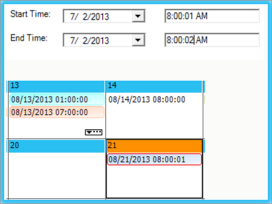
Setting the recurrence appointments in seconds
By default, the Scheduler control allows you to create recurring appointments on a daily, monthly, or yearly basis. In addition to these recurrence patterns, recurring appointments can also be scheduled at intervals of seconds, minutes, or hours.
To create recurring appointments at intervals measured in seconds, enable the AllowSecondsInAppointment property. If the specified interval is less than 60 seconds, the Scheduler automatically uses a minimum recurrence interval of 60 seconds.
Recurring appointments can be created using either of the following methods:
Adding recurring appointments using the Appointment Recurrence dialog
The Appointment Recurrence dialog enables you to define recurrence patterns for an appointment through the Appointment Form.
To create a recurring appointment:
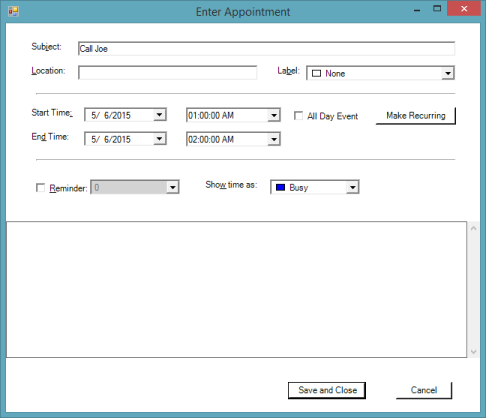
- Double-click a time slot in the Scheduler control to open the Appointment Form and create an appointment.
- Specify the appointment details, such as the subject, start time, and end time.
-
Clear the All Day Event option, if applicable.
-
Click Make Recurring to open the Appointment Recurrence dialog.
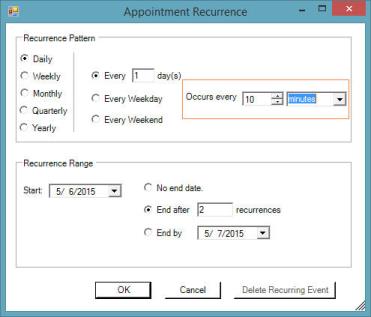
- Specify the recurrence interval and the frequency at which the appointment should repeat.
- Click OK to apply the recurrence pattern.
- Click Save and Close to save the appointment.
Adding recurring appointments using the RecurrenceRule property
Recurring appointments can also be created programmatically by using the RecurrenceRule property.
The RecurrenceRule property specifies the recurrence pattern for an appointment as a string value. The rule can be used to define the recurrence frequency, interval, duration, and occurrence period. Supported recurrence types include daily, monthly, yearly, and recurring intervals based on seconds, minutes, or hours.
For detailed information about the supported recurrence rule formats, see RecurrenceRule.
To create recurring appointments programmatically, implement the IRecurringScheduleAppointment interface and use the recurring appointment data provider supported by the Scheduler control.
IRecurringScheduleDataProvider dataProvider = scheduleProvider as IRecurringScheduleDataProvider;
IScheduleAppointment app = scheduleProvider.NewScheduleAppointment();
IRecurringScheduleAppointment item = app as IRecurringScheduleAppointment;

if (item != null)
{
    item.StartTime = new DateTime(2015, 05, 06, 1, 0, 0);
    item.EndTime = new DateTime(2015, 05, 06, 2, 0, 0);
    item.Subject = "Call Joe";
    item.RecurrenceRule = "05/06/2015 ;05/07/2015 ;Every DAY;EVERY MIN 10";
    dataProvider.AddNewRecurringAppointments(item, new DateTime(2015, 09, 09));
}
Dim dataProvider As IRecurringScheduleDataProvider = TryCast(scheduleProvider, IRecurringScheduleDataProvider)
Dim app As IScheduleAppointment = scheduleProvider.NewScheduleAppointment()
Dim item As IRecurringScheduleAppointment = TryCast(app, IRecurringScheduleAppointment)
If item IsNot Nothing Then
item.StartTime = New DateTime(2015, 05, 06, 1, 0, 0)
item.EndTime = New DateTime(2015, 05, 06, 2, 0, 0)
item.Subject = "Call Joe"
item.RecurrenceRule = "05/06/2015 ;05/07/2015 ;Every DAY;EVERY MIN 10"
dataProvider.AddNewRecurringAppointments(item, New DateTime(2015, 09, 09))
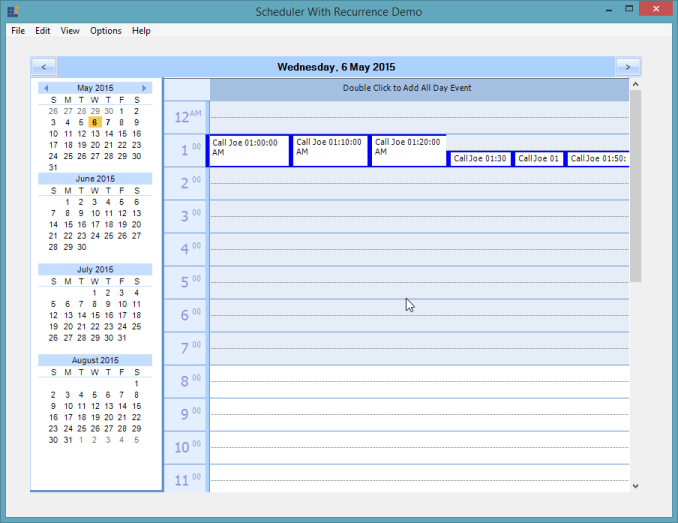
End IfThe following image illustrates recurring appointments displayed at 10-minute intervals between 1:00 AM and 2:00 AM in the Day view.