Navigation in Windows Forms Calendar
By default, the calendar displays the month view. You can move from current month to previous or next month in the calendar control by clicking navigation buttons in the header, and also you can move from month view to other views (year, decade, century) to select the dates from other year or decade by clicking the header text of the calendar.
Different views
Calendar supports month, year, decade, and century views and provides an intuitive interface through which you can navigate and quickly select dates.
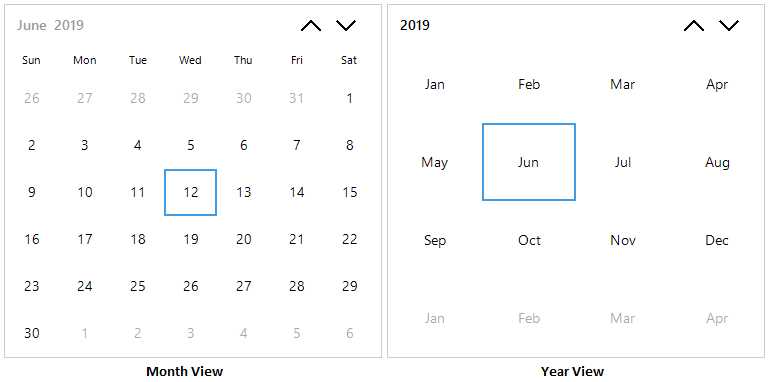
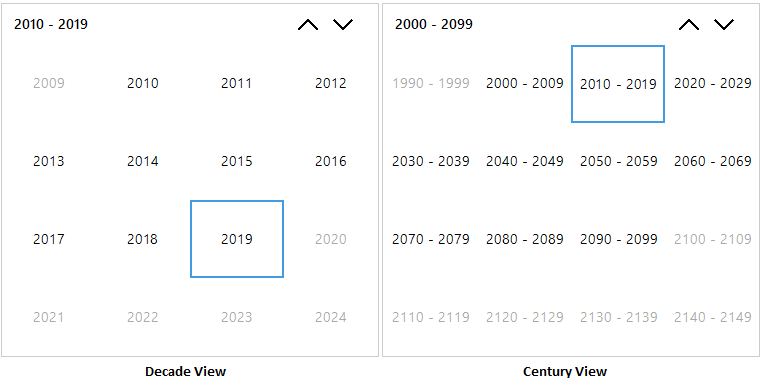
You can choose the required view options in the calendar by the ViewMode property. The following code illustrates how to show year and decade views in the calendar.
using Syncfusion.WinForms.Input;

// setting Year and decade mode to display year and decade view

calendar.ViewMode = Syncfusion.WinForms.Input.Enums.CalendarViewType.Year | Syncfusion.WinForms.Input.Enums.CalendarViewType.Decade;
Imports Syncfusion.WinForms.Input
' setting Year and decade mode to display year and decade view
calendar.ViewMode = Syncfusion.WinForms.Input.Enums.CalendarViewType.Year Or Syncfusion.WinForms.Input.Enums.CalendarViewType.DecadeNavigation through mouse
The navigation between the next and previous ranges of dates for the current view in the calendar can be done by clicking up and down navigation buttons in the calendar header. The SfCalendar control allows you to navigate from one view to other view by clicking the header text of the calendar and selecting the cell from the view to navigate back to the next available view in the ViewMode.
Navigation through keyboard
The SfCalendar control allows you to navigate from one view to other view by pressing the CTRL + UP keys in backward direction or CTRL + DOWN keys in forward direction. The SfCalendar allows you to navigate between different cells in the same view by pressing navigation arrows. CTRL + LEFT and CTRL + RIGHT arrow keys are pressed to navigate to previous or next month of the calendar respectively.
Navigation through touch
The navigation between the next and previous ranges of dates for the current view in the calendar can be done by panning on the calendar view. The SfCalendar control allows you to navigate from one view to other view by tapping the header of the calendar. Tapping the cell in view navigates back to the next available view in the ViewMode.
Handle view change
The ViewChanging event occurs when the calendar header text is clicked to change the calendar from one view to another. The change of view can be restricted on-demand by handling the ViewChanging event. The ViewChangingEventArgs provides information about the old and new ViewType. This helps to restrict the view change in specific scenarios only. The following code example illustrates the same:
using Syncfusion.WinForms.Input;

// Invoked when the view changed.

 calendar.ViewChanging += SfCalendar_ViewChanging;

  private void SfCalendar_ViewChanging(Syncfusion.WinForms.Input.SfCalendar sender, Syncfusion.WinForms.Input.Events.ViewChangingEventArgs args)

  {

      if(args.NewViewType == Syncfusion.WinForms.Input.Enums.CalendarViewType.Year)

      {

         args.Cancel = true;

      }

  }
Imports Syncfusion.WinForms.Input
' Invoked when the view changed.
AddHandler calendar.ViewChanging, AddressOf SfCalendar_ViewChanging
Private Sub SfCalendar_ViewChanging(ByVal sender As
Syncfusion.WinForms.Input.SfCalendar, ByVal args As Syncfusion.WinForms.Input.Events.ViewChangingEventArgs)
If (args.NewViewType = Syncfusion.WinForms.Input.Enums.CalendarViewType.Year) Then
args.Cancel = true
End If
End SubHandle navigation
The Navigating event occurs when navigating between current range of dates to next or previous range of dates in the calendar. The navigation between the same views can be restricted by handling the Navigating event. The NavigatingEventArgs provides information about the old and new ranges of dates. This helps to restrict navigation in specific scenarios only. The following code example illustrates the same:
using Syncfusion.WinForms.Input;

// Invoked the Navigating event.

this.sfCalendar.Navigating += SfCalendar_Navigating;

private void SfCalendar_Navigating(SfCalendar sender, Syncfusion.WinForms.Input.Events.NavigatingEventArgs args)

{

    if (args.NewValue.Start <= new DateTime(2018, 04, 01) && args.NewValue.End >= new DateTime(2018, 04, 30))

    {

        args.Cancel = true;

    }

}
Imports Syncfusion.WinForms.Input
' Invoked the Navigating event.
AddHandler Me.sfCalendar.Navigating, AddressOf SfCalendar_Navigating
Private Sub SfCalendar_Navigating(ByVal sender As SfCalendar, ByVal args As Syncfusion.WinForms.Input.Events.NavigatingEventArgs)
If ((args.NewValue.Start <= New DateTime(2018, 4, 1)) _
AndAlso (args.NewValue.End >= New DateTime(2018, 4, 30))) Then
args.Cancel = true
End If
End SubDisable animation on navigation
The SfCalendar animates the content while navigating between different sets of date ranges or moving from one view to another view. This animation can be disabled by setting the EnableAnimation to false. The following code example illustrates the same:
using Syncfusion.WinForms.Input;

// Disabling the animation

calendar.EnableAnimation = false;
Imports Syncfusion.WinForms.Input
' Disabling the animation
calendar.EnableAnimation = False