Frequently Asked Questions in TypeScript Scheduler
This article answers common questions and provides solutions for issues encountered when using the Scheduler control in TypeScript.
Maximum call stack size exceeded
Error image:
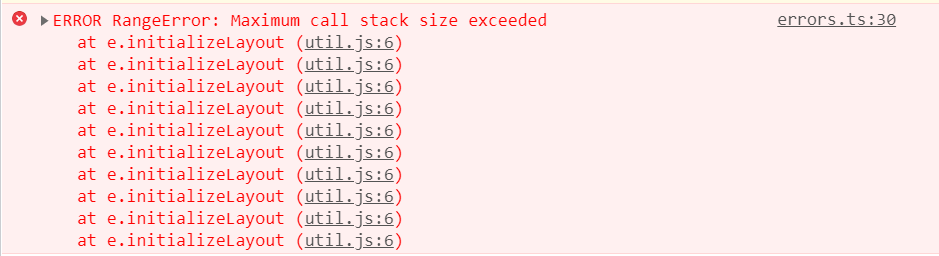
Problem: This error occurs when using Scheduler views that have not been imported and injected into the project.
Solution: Import and inject the required view modules. In the example below, the Day option is used without injecting the Day module, which causes the error. Resolve it by injecting the Day module:
import { Schedule, Day, TimelineViews, TimelineMonth, Agenda, Resize, DragAndDrop } from '@syncfusion/ej2-schedule';
Schedule.Inject(Day, TimelineViews, TimelineMonth, Agenda, Resize, DragAndDrop);

let scheduleObj: Schedule = new Schedule({
  height: '650px',
  selectedDate: new Date(2021, 7, 4),
  currentView: 'TimelineWeek',
  views: [
    { option: 'Day' },
    { option: 'TimelineDay' },
    { option: 'TimelineWeek' },
    { option: 'TimelineWorkWeek' },
    { option: 'TimelineMonth' },
    { option: 'Agenda' }
  ]
});
scheduleObj.appendTo('#Schedule');
Grouping with empty resources
Enabling grouping without providing resource data causes the following issues:
- Normal (vertical) views render but CRUD operations do not function.
- Timeline views fail to render and display an empty scheduler table.
Recommendation: Avoid enabling grouping when no resource data is available.
Missing e-field attribute in editor template
Error: When using a custom editor template, input field values may not bind correctly if the e-field attribute is missing.
Solution: The e-field attribute is mandatory for binding input values to event fields. Add it to each editor input element. For more information, refer to the editor template documentation.
Missing CSS reference
Error Image:
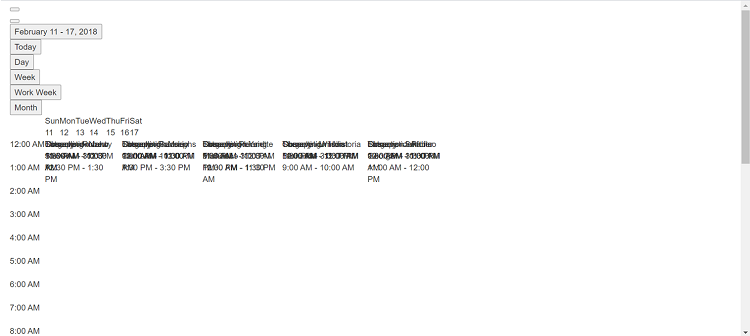
Problem: Scheduler layout or styles are broken when the required CSS files are not included.
Solution: Add the Scheduler theme CSS to your page. Example:
<html>
<head>
    <title>Syncfusion TypeScript Sample</title>
    <meta charset="utf-8" />
    <meta name="viewport" content="width=device-width, initial-scale=1.0, user-scalable=no" />
    <meta http-equiv="x-ua-compatible" content="ie=edge">
    <meta name="author" content="Syncfusion" />

    <!-- Scheduler CSS is referred from this link -->
    <link href="https://cdn.syncfusion.com/ej2/material.css" rel="stylesheet">
</head>

<body class="material">
    <div id='sample'>
        <!-- Scheduler component -->
    </div>
</body>
</html>
QuickInfoTemplate appears clipped at bottom
When using a quickInfoTemplate, the quick info popup may appear clipped at the bottom of the Scheduler. Resolve this by refreshing the popup position when it opens using the cellClick and eventClick events.
let eventAdded: boolean = false;

let scheduleObj: Schedule = new Schedule({
  // ... other options
  cellClick: onClick,
  eventClick: onClick
});

scheduleObj.appendTo('#Schedule');

function onClick(args) {
  if (!eventAdded) {
    let popupInstance = (document.querySelector('.e-quick-popup-wrapper') as any).ej2_instances[0];
    popupInstance.open = () => {
      popupInstance.refreshPosition();
    };
    eventAdded = true;
  }
}
Optionally, add CSS to ensure a minimum height:
.e-schedule .e-quick-popup-wrapper {
  min-height: 232px;
}
Culture files not imported for localization
Error image:
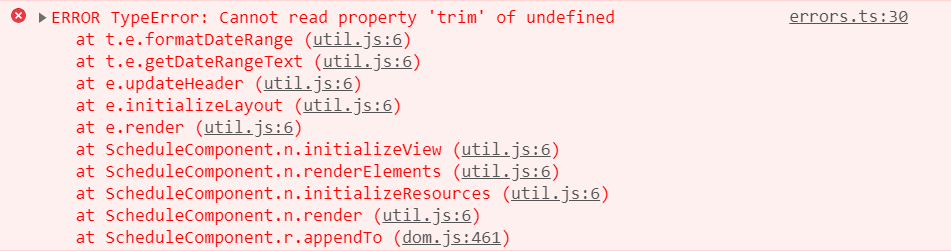
Problem: When using the locale property, localization may fail if required CLDR culture files are not imported and loaded correctly.
Solution: Import all required CLDR culture files and load them using loadCldr, then load locale strings using L10n.load:
import { loadCldr, L10n } from '@syncfusion/ej2-base';
import enNumberData from '@syncfusion/ej2-cldr-data/main/en-GB/numbers.json';
import entimeZoneData from '@syncfusion/ej2-cldr-data/main/en-GB/timeZoneNames.json';
import enGregorian from '@syncfusion/ej2-cldr-data/main/en-GB/ca-gregorian.json';
import enNumberingSystem from '@syncfusion/ej2-cldr-data/supplemental/numberingSystems.json';

loadCldr(enNumberData, entimeZoneData, enGregorian, enNumberingSystem);

L10n.load({
  'en-GB': {
    schedule: {
      day: 'Day',
      week: 'Week',
      workWeek: 'Work Week',
      month: 'Month'
    }
  }
});
Getting the Scheduler component instance
You can access the Scheduler component instance either from the variable used during initialization or by querying the DOM element and accessing the ej2_instances property.
let scheduleObj: Schedule = new Schedule({
  // ... other options
  cellClick: onClick
});

scheduleObj.appendTo('#Schedule');

function onClick(args) {
  // Method 1: Use the initialization variable
  let instance1 = scheduleObj;

  // Method 2: Query from the DOM element
  let instance2 = (document.querySelector('.e-schedule') as any).ej2_instances[0];
}