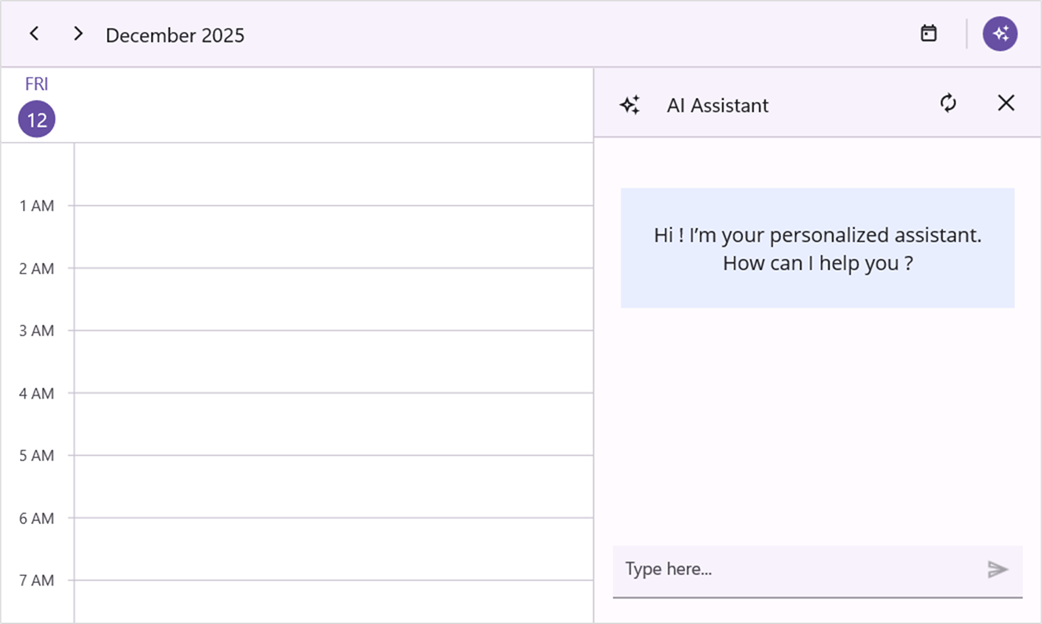
How can I help you?
Working with .NET MAUI AI-Powered Scheduler (SfSmartScheduler)
Assist Button
The assist button interaction and the default appearance of assist button can be customized by setting the EnableAssistButton and AssistButtonTemplate properties of SfSmartScheduler control.
Enable assist button
The assist button interaction can be enabled or disabled by setting the EnableAssistButton property of the SfSmartScheduler control. By default, the EnableAssistButton property is set to true.
<smartScheduler:SfSmartScheduler x:Name="Scheduler" EnableAssistButton="False"/>
SfSmartScheduler scheduler = new SfSmartScheduler();
smartScheduler.EnableAssistButton = false;
this.Content = scheduler;
Customize assist button appearance using DataTemplate
The assist button appearance can be customized by using the AssistButtonTemplate property of SfSmartScheduler control.
<smartScheduler:SfSmartScheduler x:Name="Scheduler">
    <smartScheduler:SfSmartScheduler.AssistButtonTemplate>
     <DataTemplate>
         <Grid BackgroundColor="#6750A4">
             <Label Text="AI"
                FontAttributes="Bold"
                TextColor="#FFFFFF"
                VerticalOptions="Center"
                HorizontalOptions="Center" />
         </Grid>
     </DataTemplate>
 </smartScheduler:SfSmartScheduler.AssistButtonTemplate>
 </scheduler:SfSmartScheduler>
SfSmartScheduler smartScheduler = new SfSmartScheduler();
smartScheduler.AssistButtonTemplate = new DataTemplate(() =>
{
var grid = new Grid
{
BackgroundColor = Color.FromArgb("#6750A4")
};
var label = new Label
{
Text = "AI",
FontAttributes = FontAttributes.Bold,
TextColor = Color.FromArgb("#FFFFFF"),
HorizontalOptions = LayoutOptions.Center,
VerticalOptions = LayoutOptions.Center
};
grid.Add(label);
return grid;
});
this.Content = smartScheduler;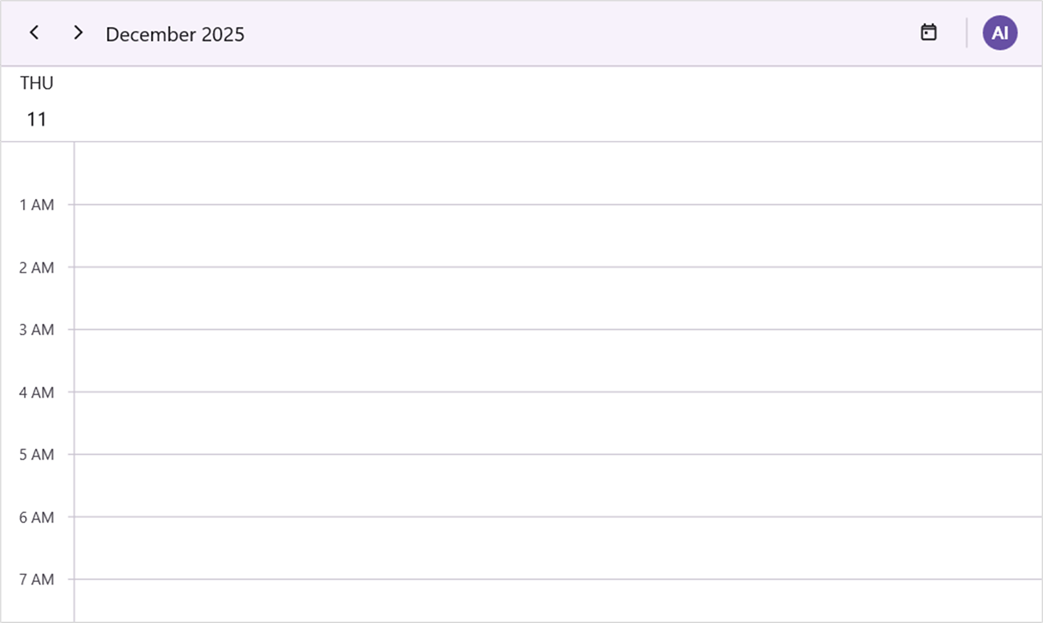
Assist View
The default appearance of the assist view can be customized by setting the AssistViewHeight, AssistViewWidth, AssistViewHeaderText, Placeholder, Prompt, SuggestedPrompts and ShowAssistViewBanner properties of SfSmartScheduler control.
Assist view height
The assist view height can be customized by using the AssistViewHeight property of the AssistViewSettings.
<smartScheduler:SfSmartScheduler  x:Name="smartScheduler">
    <smartScheduler:SfSmartScheduler.AssistViewSettings>
        <smartScheduler:SchedulerAssistViewSettings AssistViewHeight="420"/>
    </smartScheduler:SfSmartScheduler.AssistViewSettings>
</smartScheduler:SfSmartScheduler>
SfSmartScheduler scheduler = new SfSmartScheduler();
smartScheduler.AssistViewSettings.AssistViewHeight = 420;
this.Content = scheduler;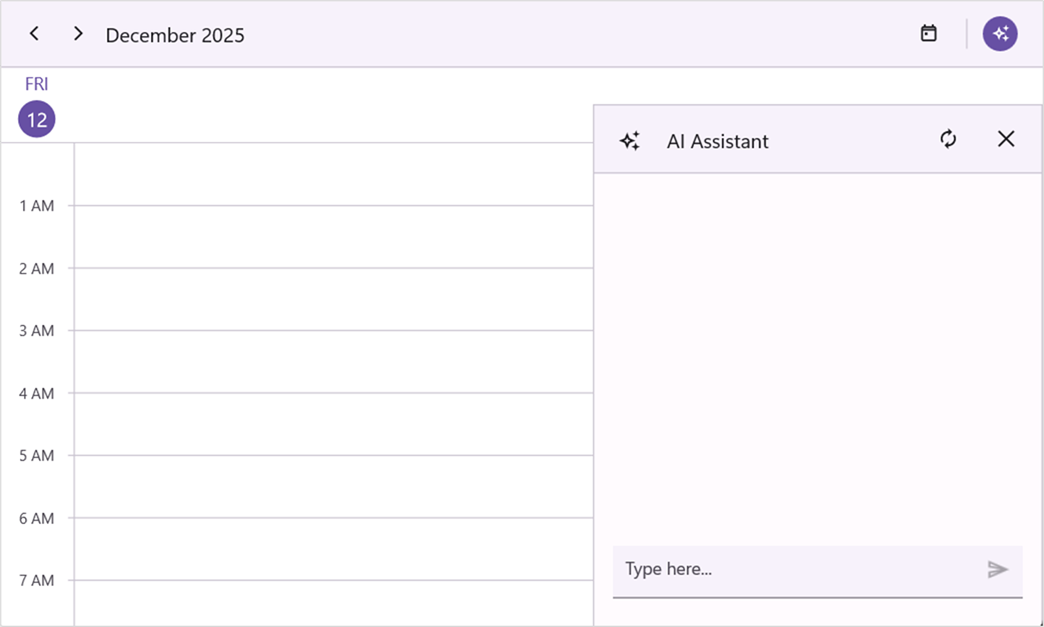
Assist view width
The assist view width can be customized by using the AssistViewWidth property of the AssistViewSettings.
<smartScheduler:SfSmartScheduler  x:Name="smartScheduler">
    <smartScheduler:SfSmartScheduler.AssistViewSettings>
        <smartScheduler:SchedulerAssistViewSettings AssistViewWidth="500"/>
    </smartScheduler:SfSmartScheduler.AssistViewSettings>
</smartScheduler:SfSmartScheduler>
SfSmartScheduler scheduler = new SfSmartScheduler();
smartScheduler.AssistViewSettings.AssistViewWidth = 500;
this.Content = scheduler;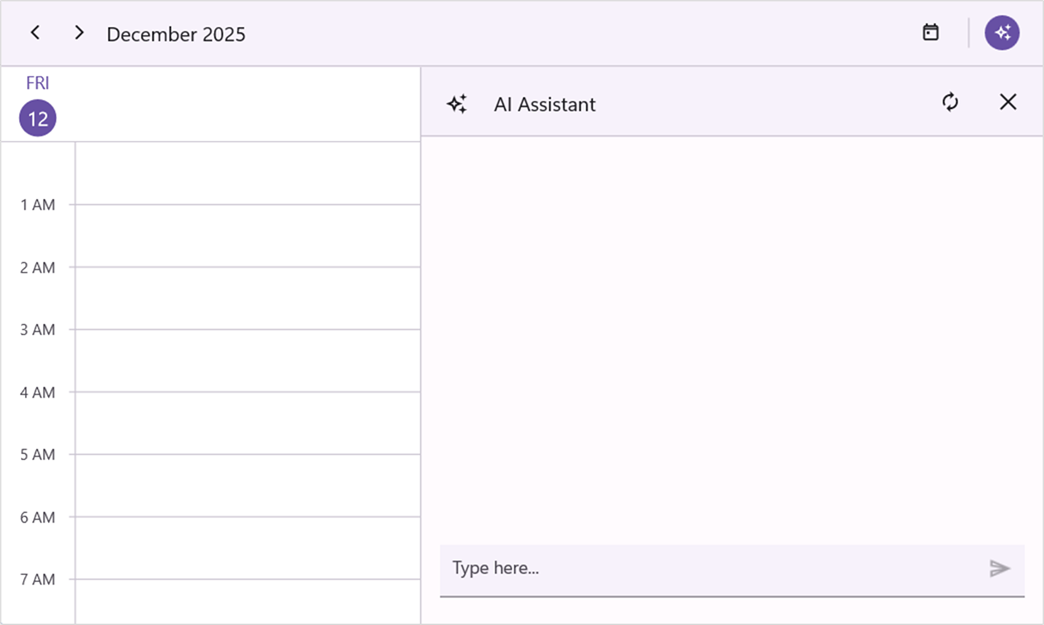
Assist view header text
The assist view header text can be customized by using the AssistViewHeaderText property of the AssistViewSettings.
<smartScheduler:SfSmartScheduler  x:Name="smartScheduler">
    <smartScheduler:SfSmartScheduler.AssistViewSettings>
        <smartScheduler:SchedulerAssistViewSettings AssistViewHeaderText="Smart Scheduler"/>
    </smartScheduler:SfSmartScheduler.AssistViewSettings>
</smartScheduler:SfSmartScheduler>
SfSmartScheduler smartScheduler = new SfSmartScheduler();
smartScheduler.AssistViewSettings.AssistViewHeaderText = "Smart Scheduler";
this.Content = smartScheduler;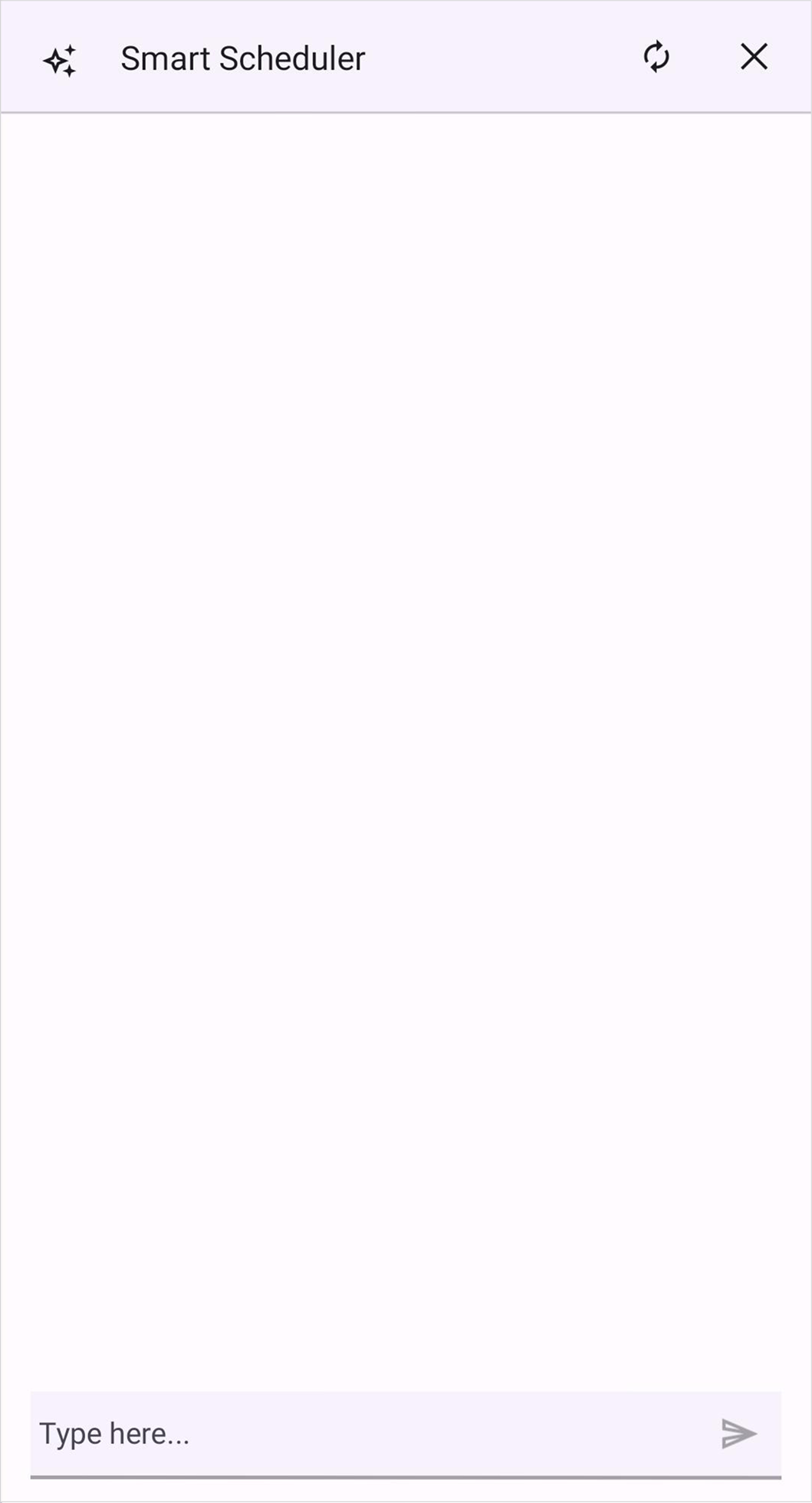
Placeholder
The assist view placeholder text can be customized by using the Placeholder property of the AssistViewSettings.
<smartScheduler:SfSmartScheduler  x:Name="smartScheduler">
    <smartScheduler:SfSmartScheduler.AssistViewSettings>
        <smartScheduler:SchedulerAssistViewSettings Placeholder="Enter your message..."/>
    </smartScheduler:SfSmartScheduler.AssistViewSettings>
</smartScheduler:SfSmartScheduler>
SfSmartScheduler smartScheduler = new SfSmartScheduler();
smartScheduler.AssistViewSettings.Placeholder = "Enter your message...";
this.Content = smartScheduler;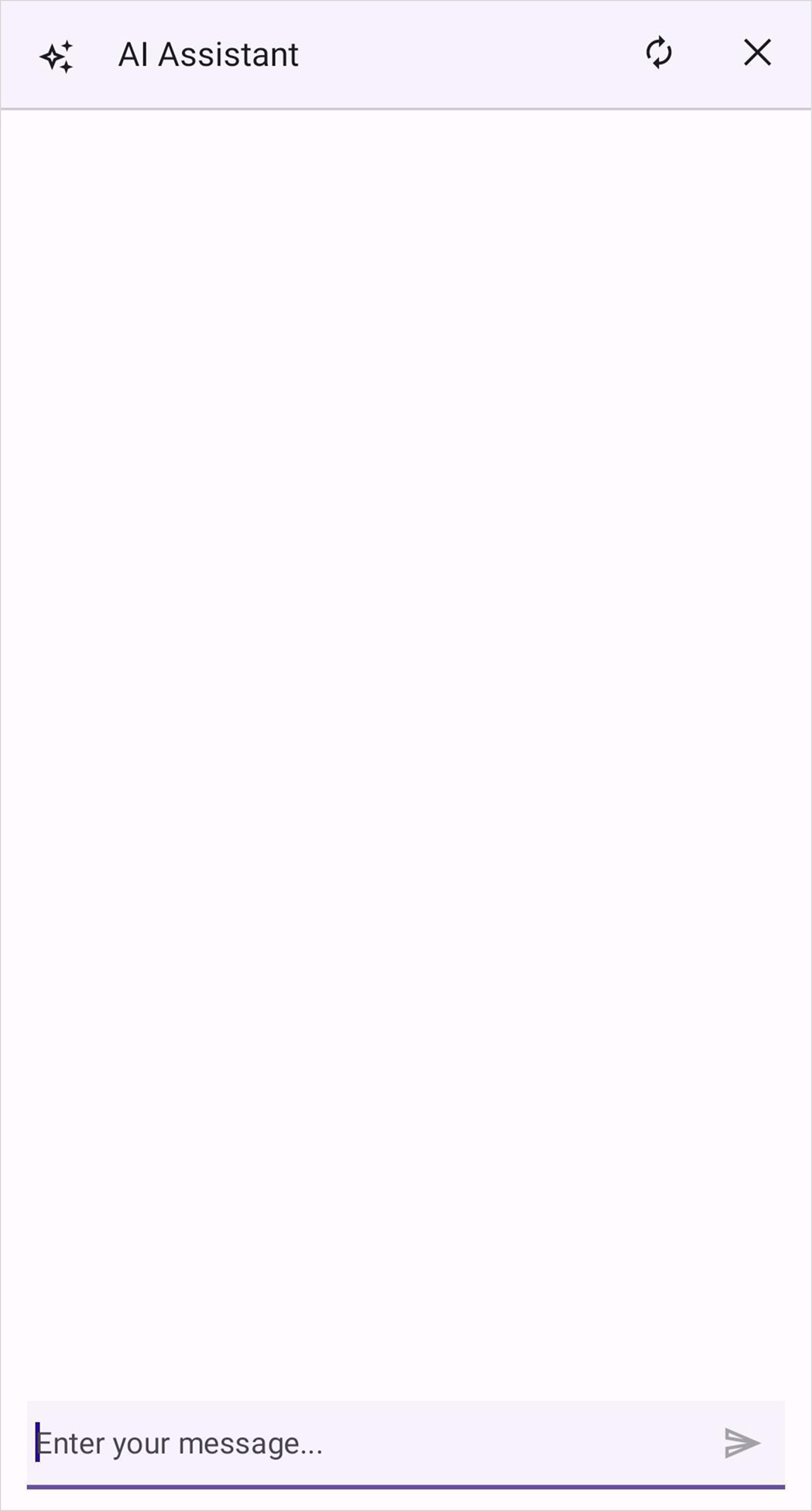
Prompt
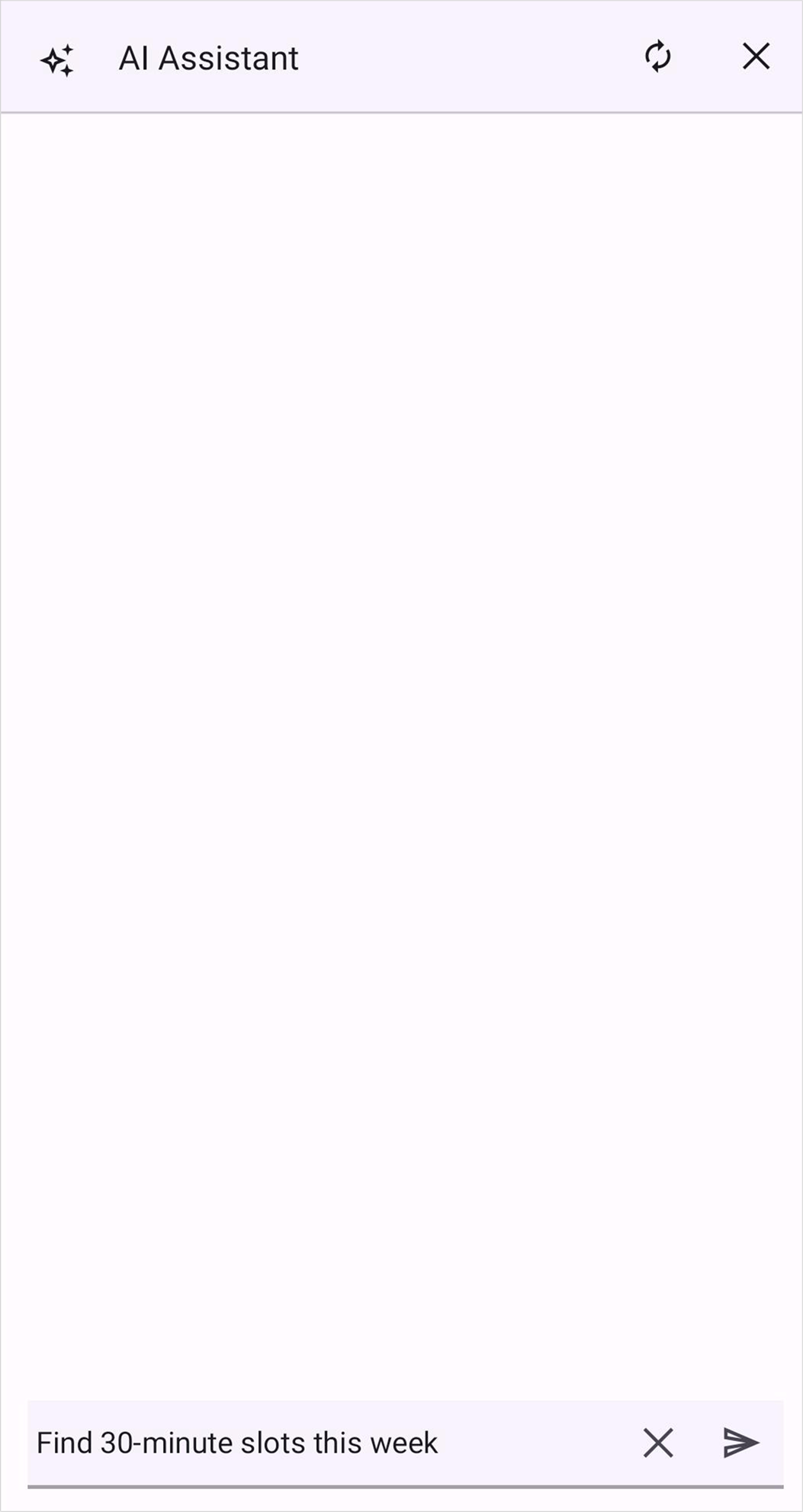
The assist view prompt text can be customized by using the Prompt property of the AssistViewSettings. By default, the Prompt property is set to empty.
<smartScheduler:SfSmartScheduler  x:Name="smartScheduler">
    <smartScheduler:SfSmartScheduler.AssistViewSettings>
        <smartScheduler:SchedulerAssistViewSettings Prompt="Find 30-minute slots this week"/>
    </smartScheduler:SfSmartScheduler.AssistViewSettings>
</smartScheduler:SfSmartScheduler>
SfSmartScheduler smartScheduler = new SfSmartScheduler();
smartScheduler.AssistViewSettings.Prompt = "Find 30-minute slots this week";
this.Content = smartScheduler;
Suggested Prompts
The assist view suggested prompts can be customized by using the SuggestedPrompts property of the AssistViewSettings. By default, the SuggestedPrompts property is set to null.
<ContentPage.BindingContext>
    <local:ViewModel/>
</ContentPage.BindingContext>

<smartScheduler:SfSmartScheduler x:Name="smartScheduler">
    <smartScheduler:SfSmartScheduler.AssistViewSettings >
        <smartScheduler:SchedulerAssistViewSettings ShowAssistViewBanner="True" SuggestedPrompts="{Binding SuggestedPrompts}"/>
    </smartScheduler:SfSmartScheduler.AssistViewSettings>
</smartScheduler:SfSmartScheduler>
public class ViewModel
{
private List<string> suggestedPrompts;
public List<string> SuggestedPrompts
{
get { return suggestedPrompts; }
set { suggestedPrompts = value; }
}
public ViewModel()
{
this.suggestedPrompts = new List<string>()
{
"Summarize today's appointments",
"Find today's free timeslots",
"Conflict detection"
};
}
}SfSmartScheduler smartScheduler = new SfSmartScheduler();
smartScheduler.AssistViewSettings.ShowAssistViewBanner = true;
smartScheduler.AssistViewSettings.SuggestedPrompts = new List<string>
{
"Summarize today's appointments",
"Find today's free timeslots",
"Conflict detection"
};
this.Content = smartScheduler;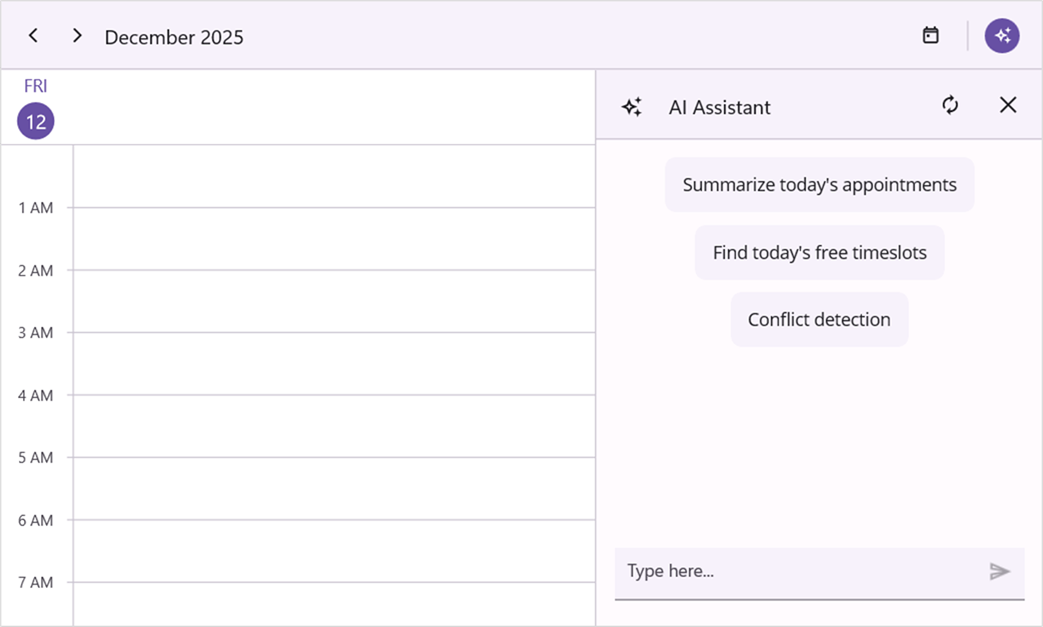
Show assist view banner
The assist view banner visibility can be customized by using the ShowAssistViewBanner property of the AssistViewSettings. By default, the ShowAssistViewBanner property is set to false.
<smartScheduler:SfSmartScheduler  x:Name="smartScheduler">
    <smartScheduler:SfSmartScheduler.AssistViewSettings>
        <smartScheduler:SchedulerAssistViewSettings ShowAssistViewBanner="True"/>
    </smartScheduler:SfSmartScheduler.AssistViewSettings>
</smartScheduler:SfSmartScheduler>this.smartScheduler.AssistViewSettings.AssistViewBannerTemplate = new DataTemplate(() =>
{
var grid = new Grid
{
Padding = new Thickness(16),
Margin = new Thickness(0, 40, 0, 0),
BackgroundColor = Color.FromArgb("#E9EEFF"),
HorizontalOptions = LayoutOptions.Center,
VerticalOptions = LayoutOptions.Start
};
var label = new Label
{
Text = "Hi! I’m your personalized assistant.\nHow can I help you?",
HorizontalTextAlignment = TextAlignment.Center,
VerticalTextAlignment = TextAlignment.Center,
TextColor = Color.FromArgb("#1C1B1F"),
FontSize = 16,
Padding = new Thickness(10),
FontAttributes = FontAttributes.None
};
grid.Children.Add(label);
return grid;
});Template Customization
The SfSmartScheduler facilitates the customization of both header and banner templates according to specific requirements. This feature enhances flexibility and provides a higher degree of control over the display of assist view.
Customize assist view header appearance using DataTemplate
The assist view header appearance can be customized by using the AssistViewHeaderTemplate property of the AssistViewSettings.
<smartScheduler:SfSmartScheduler x:Name="smartScheduler">
    <smartScheduler:SfSmartScheduler.AssistViewSettings>
        <smartScheduler:SchedulerAssistViewSettings>
            <smartScheduler:SchedulerAssistViewSettings.AssistViewHeaderTemplate>
                <DataTemplate>
                    <Grid BackgroundColor="LightYellow"
                        ColumnDefinitions="40,*,40,40">
                        <Label Text="✦"
                            FontSize="20"
                            VerticalTextAlignment="Center"
                            HorizontalTextAlignment="Center"
                            Grid.Column="0" />
                        <Label Text="Smart Scheduler"
                            FontAttributes="Bold"
                            FontSize="16"
                            VerticalTextAlignment="Center"
                            HorizontalTextAlignment="Start"
                            Grid.Column="1" />
                        <Label Text="⟳"
                            FontSize="20"
                            VerticalTextAlignment="Center"
                            HorizontalTextAlignment="Center"
                            Grid.Column="2" />
                        <Label Text="✕"
                            FontSize="20"
                            VerticalTextAlignment="Center"
                            HorizontalTextAlignment="Center"
                            Grid.Column="3" />
                    </Grid>
                </DataTemplate>
            </smartScheduler:SchedulerAssistViewSettings.AssistViewHeaderTemplate>
        </smartScheduler:SchedulerAssistViewSettings>
    </smartScheduler:SfSmartScheduler.AssistViewSettings>
</smartScheduler:SfSmartScheduler>
SfSmartScheduler smartScheduler = new SfSmartScheduler();
smartScheduler.AssistViewSettings = new SchedulerAssistViewSettings();
smartScheduler.AssistViewSettings.AssistViewHeaderTemplate = new DataTemplate(() =>
{
var grid = new Grid
{
BackgroundColor = Colors.LightYellow,
ColumnDefinitions =
{
new ColumnDefinition { Width = 40 },
new ColumnDefinition { Width = GridLength.Star },
new ColumnDefinition { Width = 40 },
new ColumnDefinition { Width = 40 }
}
};
var symbol = new Label
{
Text = "✦",
FontSize = 20,
VerticalTextAlignment = TextAlignment.Center,
HorizontalTextAlignment = TextAlignment.Center
};
grid.Children.Add(symbol);
Grid.SetColumn(symbol, 0);
var title = new Label
{
Text = "Smart Scheduler",
FontAttributes = FontAttributes.Bold,
FontSize = 16,
VerticalTextAlignment = TextAlignment.Center,
HorizontalTextAlignment = TextAlignment.Start
};
grid.Children.Add(title);
Grid.SetColumn(title, 1);
var reset = new Label
{
Text = "⟳",
FontSize = 20,
VerticalTextAlignment = TextAlignment.Center,
HorizontalTextAlignment = TextAlignment.Center
};
grid.Children.Add(reset);
Grid.SetColumn(reset, 2);
var close = new Label
{
Text = "✕",
FontSize = 20,
VerticalTextAlignment = TextAlignment.Center,
HorizontalTextAlignment = TextAlignment.Center
};
grid.Children.Add(close);
Grid.SetColumn(close, 3);
return grid;
});
this.Content = smartScheduler;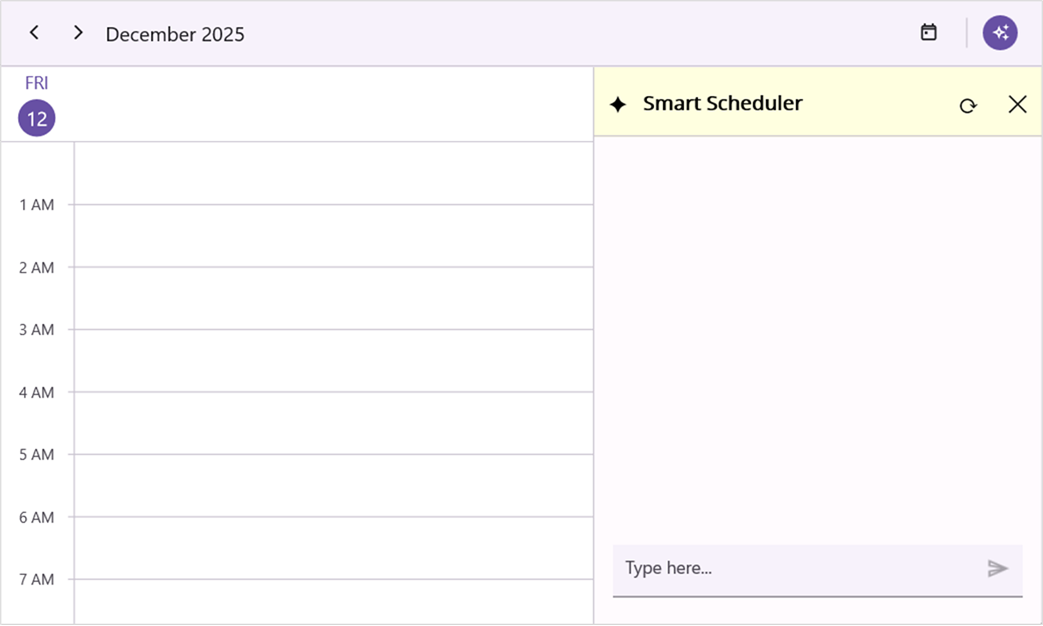
Customize assist view banner appearance using DataTemplate
The assist view banner appearance can be customized by using the AssistViewBannerTemplate property of the AssistViewSettings.
<smartScheduler:SfSmartScheduler x:Name="smartScheduler">
<smartScheduler:SfSmartScheduler.AssistViewSettings>
<smartScheduler:SchedulerAssistViewSettings ShowAssistViewBanner="True">
<smartScheduler:SchedulerAssistViewSettings.AssistViewBannerTemplate>
<DataTemplate>
<Grid Padding="16"
Margin="0,40,0,0"
BackgroundColor="#E9EEFF"
HorizontalOptions="Center"
VerticalOptions="Start">
<Label Text="Hi ! I’m your personalized assistant. How can I help you ?"
HorizontalTextAlignment="Center"
VerticalTextAlignment="Center"
TextColor="#1C1B1F"
FontSize="16"
Padding="10" />
</Grid>
</DataTemplate>
</smartScheduler:SchedulerAssistViewSettings.AssistViewBannerTemplate>
</smartScheduler:SchedulerAssistViewSettings>
</smartScheduler:SfSmartScheduler.AssistViewSettings>
</smartScheduler:SfSmartScheduler>SfSmartScheduler smartScheduler = new SfSmartScheduler();
smartScheduler.AssistViewSettings = new SchedulerAssistViewSettings();
smartScheduler.AssistViewSettings.ShowAssistViewBanner = true;
smartScheduler.AssistViewSettings.AssistViewBannerTemplate = new DataTemplate(() =>
{
var grid = new Grid
{
Padding = new Thickness(16),
Margin = new Thickness(0, 40, 0, 0),
BackgroundColor = Color.FromArgb("#E9EEFF"),
HorizontalOptions = LayoutOptions.Center,
VerticalOptions = LayoutOptions.Start
};
var label = new Label
{
Text = "Hi! I’m your personalized assistant.\nHow can I help you?",
HorizontalTextAlignment = TextAlignment.Center,
VerticalTextAlignment = TextAlignment.Center,
TextColor = Color.FromArgb("#1C1B1F"),
FontSize = 16,
Padding = new Thickness(10),
FontAttributes = FontAttributes.None
};
grid.Children.Add(label);
return grid;
});
this.Content = smartScheduler;