Exporting in Blazor Scheduler
Scheduler supports exporting all appointments to either Excel or ICS files. It also provides different methods for exporting appointments in Excel or iCal formats. Let’s look at the ways to implement exporting in Scheduler.
Excel Exporting
Scheduler allows you to export all events to an Excel file by using the ExportToExcelAsync method. By default, it exports all default Blazor Scheduler fields mapped through the <ScheduleEventSettings> property.
@using Syncfusion.Blazor.Schedule
@using Syncfusion.Blazor.Buttons

<SfButton Content="Excel Export" OnClick="OnExportToExcel"></SfButton>
<SfSchedule @ref="ScheduleRef" TValue="AppointmentData" Height="650px" @bind-SelectedDate="@CurrentDate">
    <ScheduleEventSettings DataSource="@DataSource"></ScheduleEventSettings>
    <ScheduleViews>
        <ScheduleView Option="View.Week"></ScheduleView>
    </ScheduleViews>
</SfSchedule>

@code{
    DateTime CurrentDate = new DateTime(2020, 1, 10);
    SfSchedule<AppointmentData> ScheduleRef;
    List<AppointmentData> DataSource = new List<AppointmentData>
    {
        new AppointmentData { Id = 1, Subject = "Explosion of Betelgeuse Star", Location = "Dallas",  StartTime = new DateTime(2020, 1, 8, 9, 30, 0), EndTime = new DateTime(2020, 1, 8, 11, 0, 0)  },
        new AppointmentData { Id = 2, Subject = "Thule Air Crash Report", Location = "Texas", StartTime = new DateTime(2020, 1, 9, 12, 0, 0), EndTime = new DateTime(2020, 1, 9, 14, 0, 0)  },
        new AppointmentData { Id = 3, Subject = "Blue Moon Eclipse", Location = "Australia", StartTime = new DateTime(2020, 1, 10, 10, 30, 0), EndTime = new DateTime(2020, 1, 10, 11, 0, 0)  },
        new AppointmentData { Id = 4, Subject = "Meteor Showers in 2020", Location = "Canada", StartTime = new DateTime(2020, 1, 11, 13, 0, 0), EndTime = new DateTime(2020, 1, 11, 14, 30, 0)  },
        new AppointmentData { Id = 5, Subject = "Milky Way as Melting pot", Location = "Mexico", StartTime = new DateTime(2020, 1, 12, 12, 0, 0), EndTime = new DateTime(2020, 1, 12, 14, 0, 0)  }
    };
    public class AppointmentData
    {
        public int Id { get; set; }
        public string Subject { get; set; }
        public string Location { get; set; }
        public DateTime StartTime { get; set; }
        public DateTime EndTime { get; set; }
        public string Description { get; set; }
        public bool IsAllDay { get; set; }
        public string RecurrenceRule { get; set; }
        public string RecurrenceException { get; set; }
        public Nullable<int> RecurrenceID { get; set; }
    }
    public async Task OnExportToExcel()
    {
        await ScheduleRef.ExportToExcelAsync();
    }
}
Exporting with custom fields
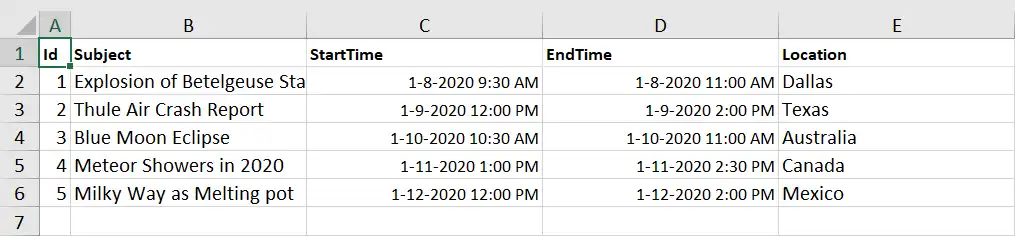
By default, Blazor Scheduler exports all default event fields mapped through the <ScheduleEventSettings> property. To limit the number of fields in the exported Excel file, you can export only the custom fields from the event data. To export only those custom fields, define the required Fields and pass them as an argument to the ExportToExcelAsync method, as shown in the following example. In the following code example, only the Id, Subject, StartTime, and EndTime fields are exported.
@using Syncfusion.Blazor.Schedule
@using Syncfusion.Blazor.Buttons

<SfButton Content="Excel Export" OnClick="OnExportToExcel"></SfButton>
<SfSchedule @ref="ScheduleRef" TValue="AppointmentData" Height="650px" @bind-SelectedDate="@CurrentDate">
    <ScheduleEventSettings DataSource="@DataSource"></ScheduleEventSettings>
    <ScheduleViews>
        <ScheduleView Option="View.Week"></ScheduleView>
    </ScheduleViews>
</SfSchedule>

@code{
    DateTime CurrentDate = new DateTime(2020, 1, 10);
    SfSchedule<AppointmentData> ScheduleRef;
    List<AppointmentData> DataSource = new List<AppointmentData>
    {
        new AppointmentData { Id = 1, Subject = "Explosion of Betelgeuse Star", Location = "Dallas",  StartTime = new DateTime(2020, 1, 8, 9, 30, 0), EndTime = new DateTime(2020, 1, 8, 11, 0, 0)  },
        new AppointmentData { Id = 2, Subject = "Thule Air Crash Report", Location = "Texas", StartTime = new DateTime(2020, 1, 9, 12, 0, 0), EndTime = new DateTime(2020, 1, 9, 14, 0, 0)  },
        new AppointmentData { Id = 3, Subject = "Blue Moon Eclipse", Location = "Australia", StartTime = new DateTime(2020, 1, 10, 10, 30, 0), EndTime = new DateTime(2020, 1, 10, 11, 0, 0)  },
        new AppointmentData { Id = 4, Subject = "Meteor Showers in 2020", Location = "Canada", StartTime = new DateTime(2020, 1, 11, 13, 0, 0), EndTime = new DateTime(2020, 1, 11, 14, 30, 0)  },
        new AppointmentData { Id = 5, Subject = "Milky Way as Melting pot", Location = "Mexico", StartTime = new DateTime(2020, 1, 12, 12, 0, 0), EndTime = new DateTime(2020, 1, 12, 14, 0, 0)  }
    };
    public class AppointmentData
    {
        public int Id { get; set; }
        public string Subject { get; set; }
        public string Location { get; set; }
        public DateTime StartTime { get; set; }
        public DateTime EndTime { get; set; }
    }
    public async Task OnExportToExcel()
    {
        ExportOptions Options = new ExportOptions() { ExportType = ExcelFormat.Xlsx, Fields = new string[] { "Id", "Subject", "StartTime", "EndTime" } };
        await ScheduleRef.ExportToExcelAsync(Options);
    }
}
Exporting individual occurrences of a recurring series
By default, Blazor Scheduler exports recurring events as a single record by exporting only the parent record to the Excel file. If you want to export each individual occurrence of a recurring series appointment as separate records in an Excel file, set the IncludeOccurrences option to true and pass it as an argument to the ExportToExcelAsync method. By default, the IncludeOccurrences option is false.
@using Syncfusion.Blazor.Schedule
@using Syncfusion.Blazor.Buttons

<SfButton Content="Excel Export" OnClick="OnExportToExcel"></SfButton>
<SfSchedule @ref="ScheduleRef" TValue="AppointmentData" Height="650px" @bind-SelectedDate="@CurrentDate">
    <ScheduleEventSettings DataSource="@DataSource"></ScheduleEventSettings>
    <ScheduleViews>
        <ScheduleView Option="View.Week"></ScheduleView>
    </ScheduleViews>
</SfSchedule>

@code{
    DateTime CurrentDate = new DateTime(2020, 1, 10);
    SfSchedule<AppointmentData> ScheduleRef;
    List<AppointmentData> DataSource = new List<AppointmentData>
    {
        new AppointmentData { Id = 1, Subject = "Explosion of Betelgeuse Star", Location = "Dallas",  StartTime = new DateTime(2020, 1, 8, 9, 30, 0), EndTime = new DateTime(2020, 1, 8, 11, 0, 0)  },
        new AppointmentData { Id = 2, Subject = "Thule Air Crash Report", Location = "Texas", StartTime = new DateTime(2020, 1, 9, 12, 0, 0), EndTime = new DateTime(2020, 1, 9, 14, 0, 0)  },
        new AppointmentData { Id = 3, Subject = "Blue Moon Eclipse", Location = "Australia", StartTime = new DateTime(2020, 1, 10, 10, 30, 0), EndTime = new DateTime(2020, 1, 10, 11, 0, 0)  },
        new AppointmentData { Id = 4, Subject = "Meteor Showers in 2020", Location = "Canada", StartTime = new DateTime(2020, 1, 11, 13, 0, 0), EndTime = new DateTime(2020, 1, 11, 14, 30, 0)  },
        new AppointmentData { Id = 5, Subject = "Milky Way as Melting pot", Location = "Mexico", StartTime = new DateTime(2020, 1, 12, 12, 0, 0), EndTime = new DateTime(2020, 1, 12, 14, 0, 0)  }
    };
    public class AppointmentData
    {
        public int Id { get; set; }
        public string Subject { get; set; }
        public string Location { get; set; }
        public DateTime StartTime { get; set; }
        public DateTime EndTime { get; set; }
    }
    public ExportOptions ExportValues = new ExportOptions { IncludeOccurrences = true };
    public async Task OnExportToExcel()
    {
       await ScheduleRef.ExportToExcelAsync(ExportValues);
    }
}
Exporting custom event data
By default, the entire event collection bound to the Blazor Scheduler is exported as an Excel file. To export only specific Blazor Scheduler events or a custom event collection, pass the custom data collection as a parameter to the ExportToExcelAsync method, as shown in the following example, by using the CustomData option.
Note: By default, the event data is taken from the Blazor Scheduler data source.
@using Syncfusion.Blazor.Schedule
@using Syncfusion.Blazor.Buttons

<SfButton Content="Excel Export" OnClick="OnExportToExcel"></SfButton>
<SfSchedule @ref="ScheduleRef" TValue="AppointmentData" Width="100%" Height="650px" @bind-SelectedDate="@CurrentDate">
    <ScheduleEventSettings DataSource="@DataSource"></ScheduleEventSettings>
    <ScheduleViews>
        <ScheduleView Option="View.Week"></ScheduleView>
    </ScheduleViews>
</SfSchedule>

@code{
    DateTime CurrentDate = new DateTime(2020, 1, 10);
    SfSchedule<AppointmentData> ScheduleRef;
    List<AppointmentData> DataSource = new List<AppointmentData>
    {
        new AppointmentData { Id = 1, Subject = "Explosion of Betelgeuse Star", Location = "Dallas",  StartTime = new DateTime(2020, 1, 8, 9, 30, 0), EndTime = new DateTime(2020, 1, 8, 11, 0, 0)  },
        new AppointmentData { Id = 2, Subject = "Thule Air Crash Report", Location = "Texas", StartTime = new DateTime(2020, 1, 9, 12, 0, 0), EndTime = new DateTime(2020, 1, 9, 14, 0, 0)  },
        new AppointmentData { Id = 3, Subject = "Blue Moon Eclipse", Location = "Australia", StartTime = new DateTime(2020, 1, 10, 10, 30, 0), EndTime = new DateTime(2020, 1, 10, 11, 0, 0)  },
        new AppointmentData { Id = 4, Subject = "Meteor Showers in 2020", Location = "Canada", StartTime = new DateTime(2020, 1, 11, 13, 0, 0), EndTime = new DateTime(2020, 1, 11, 14, 30, 0)  },
        new AppointmentData { Id = 5, Subject = "Milky Way as Melting pot", Location = "Mexico", StartTime = new DateTime(2020, 1, 12, 12, 0, 0), EndTime = new DateTime(2020, 1, 12, 14, 0, 0)  }
    };
    public ExportOptions ExportValues = new ExportOptions { CustomData = customData };
    static List<AppointmentData> customData = new List<AppointmentData>()
    {
        new AppointmentData
        {
            Id = 1,
            Subject = "Explosion of Betelgeuse Star",
            Location = "Space Centre USA",
            StartTime = new DateTime(2020, 1, 31, 9, 30, 0) ,
            EndTime = new DateTime(2020, 1, 31, 11, 0, 0)
        },
        new AppointmentData
        {
            Id = 2,
            Subject = "Thule Air Crash Report",
            Location = "Newyork City",
            StartTime = new DateTime(2020, 1, 31, 12, 0, 0),
            EndTime = new DateTime(2020, 1, 31, 11, 0, 0)
        }
    };
    public async Task OnExportToExcel()
    {
        await ScheduleRef.ExportToExcelAsync(ExportValues);
    }
    public class AppointmentData
    {
        public int Id { get; set; }
        public string Subject { get; set; }
        public string Location { get; set; }
        public DateTime StartTime { get; set; }
        public DateTime EndTime { get; set; }
        public string Description { get; set; }
        public bool IsAllDay { get; set; }
        public string RecurrenceRule { get; set; }
        public string RecurrenceException { get; set; }
        public Nullable<int> RecurrenceID { get; set; }
    }
}
Customizing the column header texts with custom fields exporting
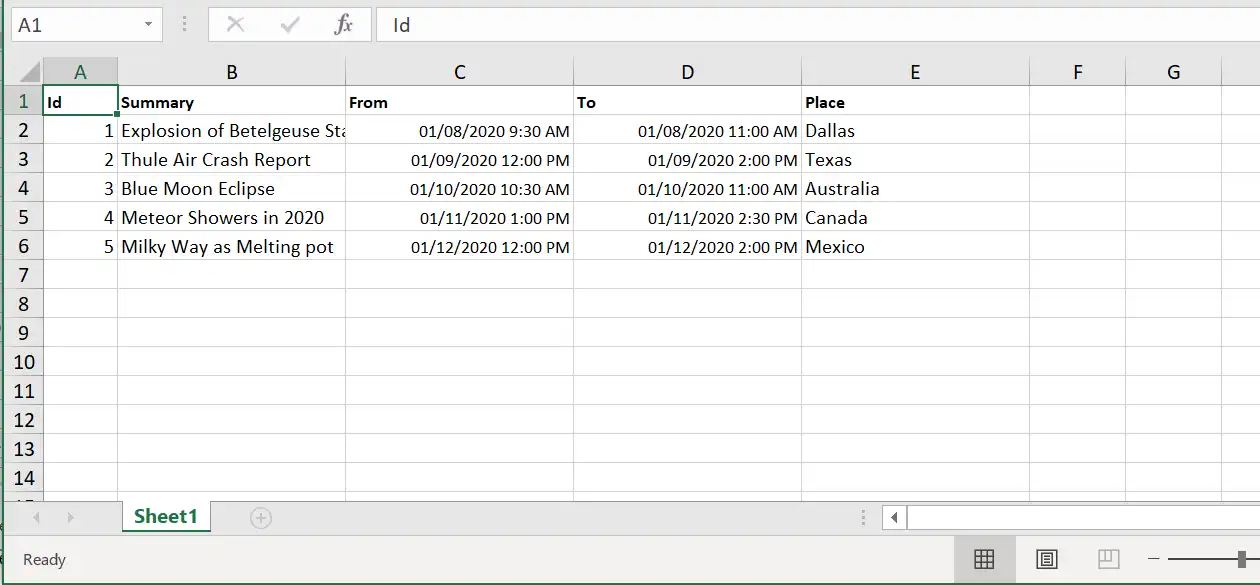
You can change the appointment field names in the column header during export by using the FieldsInfo option with the ExportFieldInfo class and pass it as an argument to the ExportToExcelAsync method, as shown in the following code example.
@using Syncfusion.Blazor.Schedule
@using Syncfusion.Blazor.Buttons

<SfButton Content="Excel Export" OnClick="OnExportToExcel"></SfButton>
<SfSchedule @ref="ScheduleRef" TValue="AppointmentData" Height="650px" @bind-SelectedDate="@CurrentDate">
    <ScheduleEventSettings DataSource="@DataSource"></ScheduleEventSettings>
    <ScheduleViews>
        <ScheduleView Option="View.Week"></ScheduleView>
    </ScheduleViews>
</SfSchedule>

@code{
    DateTime CurrentDate = new DateTime(2020, 1, 10);
    SfSchedule<AppointmentData> ScheduleRef;
    List<AppointmentData> DataSource = new List<AppointmentData>
    {
        new AppointmentData { Id = 1, Subject = "Explosion of Betelgeuse Star", Location = "Dallas",  StartTime = new DateTime(2020, 1, 8, 9, 30, 0), EndTime = new DateTime(2020, 1, 8, 11, 0, 0)  },
        new AppointmentData { Id = 2, Subject = "Thule Air Crash Report", Location = "Texas", StartTime = new DateTime(2020, 1, 9, 12, 0, 0), EndTime = new DateTime(2020, 1, 9, 14, 0, 0)  },
        new AppointmentData { Id = 3, Subject = "Blue Moon Eclipse", Location = "Australia", StartTime = new DateTime(2020, 1, 10, 10, 30, 0), EndTime = new DateTime(2020, 1, 10, 11, 0, 0)  },
        new AppointmentData { Id = 4, Subject = "Meteor Showers in 2020", Location = "Canada", StartTime = new DateTime(2020, 1, 11, 13, 0, 0), EndTime = new DateTime(2020, 1, 11, 14, 30, 0)  },
        new AppointmentData { Id = 5, Subject = "Milky Way as Melting pot", Location = "Mexico", StartTime = new DateTime(2020, 1, 12, 12, 0, 0), EndTime = new DateTime(2020, 1, 12, 14, 0, 0)  }
    };
    public async Task OnExportToExcel()
    {
        List<ExportFieldInfo> exportFields = new List<ExportFieldInfo>();
        exportFields.Add(new ExportFieldInfo { Name = "Id", Text = "Id" });
        exportFields.Add(new ExportFieldInfo { Name = "Subject", Text = "Summary" });
        exportFields.Add(new ExportFieldInfo { Name = "StartTime", Text = "From" });
        exportFields.Add(new ExportFieldInfo { Name = "EndTime", Text = "To" });
        exportFields.Add(new ExportFieldInfo { Name = "Location", Text = "Place" });
        ExportOptions options = new ExportOptions() { ExportType = ExcelFormat.Xlsx, FieldsInfo = exportFields };
        await ScheduleRef.ExportToExcelAsync(options);
    }
    public class AppointmentData
    {
        public int Id { get; set; }
        public string Subject { get; set; }
        public string Location { get; set; }
        public DateTime StartTime { get; set; }
        public DateTime EndTime { get; set; }
        public string Description { get; set; }
        public bool IsAllDay { get; set; }
        public string RecurrenceRule { get; set; }
        public string RecurrenceException { get; set; }
        public Nullable<int> RecurrenceID { get; set; }
    }
}
Export with custom file name
By default, Blazor Scheduler downloads the exported Excel file as Schedule.xlsx. You can also export the Excel file with a custom file name by defining the desired FileName and passing it as an argument to the ExportToExcelAsync method.
@using Syncfusion.Blazor.Schedule
@using Syncfusion.Blazor.Buttons

<SfButton Content="Excel Export" OnClick="OnExportToExcel"></SfButton>
<SfSchedule @ref="ScheduleRef" TValue="AppointmentData" Height="650px" @bind-SelectedDate="@CurrentDate">
    <ScheduleEventSettings DataSource="@DataSource"></ScheduleEventSettings>
    <ScheduleViews>
        <ScheduleView Option="View.Week"></ScheduleView>
    </ScheduleViews>
</SfSchedule>

@code{
    DateTime CurrentDate = new DateTime(2020, 1, 10);
    SfSchedule<AppointmentData> ScheduleRef;
    List<AppointmentData> DataSource = new List<AppointmentData>
    {
        new AppointmentData { Id = 1, Subject = "Explosion of Betelgeuse Star", Location = "Dallas",  StartTime = new DateTime(2020, 1, 8, 9, 30, 0), EndTime = new DateTime(2020, 1, 8, 11, 0, 0)  },
        new AppointmentData { Id = 2, Subject = "Thule Air Crash Report", Location = "Texas", StartTime = new DateTime(2020, 1, 9, 12, 0, 0), EndTime = new DateTime(2020, 1, 9, 14, 0, 0)  },
        new AppointmentData { Id = 3, Subject = "Blue Moon Eclipse", Location = "Australia", StartTime = new DateTime(2020, 1, 10, 10, 30, 0), EndTime = new DateTime(2020, 1, 10, 11, 0, 0)  },
        new AppointmentData { Id = 4, Subject = "Meteor Showers in 2020", Location = "Canada", StartTime = new DateTime(2020, 1, 11, 13, 0, 0), EndTime = new DateTime(2020, 1, 11, 14, 30, 0)  },
        new AppointmentData { Id = 5, Subject = "Milky Way as Melting pot", Location = "Mexico", StartTime = new DateTime(2020, 1, 12, 12, 0, 0), EndTime = new DateTime(2020, 1, 12, 14, 0, 0)  }
    };
    public class AppointmentData
    {
        public int Id { get; set; }
        public string Subject { get; set; }
        public string Location { get; set; }
        public DateTime StartTime { get; set; }
        public DateTime EndTime { get; set; }
        public string Description { get; set; }
        public bool IsAllDay { get; set; }
        public string RecurrenceRule { get; set; }
        public string RecurrenceException { get; set; }
        public Nullable<int> RecurrenceID { get; set; }
    }
    public ExportOptions ExportValues = new ExportOptions { FileName = "SchedulerData" };
    public async Task OnExportToExcel()
    {
        await ScheduleRef.ExportToExcelAsync(ExportValues);
    }
}
Excel file formats
By default, Blazor Scheduler exports event data to an Excel file in the .xlsx format. You can also export Blazor Scheduler data in either .xlsx or csv format by setting the ExportType option to csv or xlsx. By default, the ExportType is set to xlsx.
@using Syncfusion.Blazor.Schedule
@using Syncfusion.Blazor.Buttons

<SfButton Content="Excel Export" OnClick="OnExportToExcel"></SfButton>
<SfSchedule @ref="ScheduleRef" TValue="AppointmentData" Height="650px" @bind-SelectedDate="@CurrentDate">
    <ScheduleEventSettings DataSource="@DataSource"></ScheduleEventSettings>
    <ScheduleViews>
        <ScheduleView Option="View.Week"></ScheduleView>
    </ScheduleViews>
</SfSchedule>

@code{
    DateTime CurrentDate = new DateTime(2020, 1, 10);
    SfSchedule<AppointmentData> ScheduleRef;
    List<AppointmentData> DataSource = new List<AppointmentData>
    {
        new AppointmentData { Id = 1, Subject = "Explosion of Betelgeuse Star", Location = "Dallas",  StartTime = new DateTime(2020, 1, 8, 9, 30, 0), EndTime = new DateTime(2020, 1, 8, 11, 0, 0)  },
        new AppointmentData { Id = 2, Subject = "Thule Air Crash Report", Location = "Texas", StartTime = new DateTime(2020, 1, 9, 12, 0, 0), EndTime = new DateTime(2020, 1, 9, 14, 0, 0)  },
        new AppointmentData { Id = 3, Subject = "Blue Moon Eclipse", Location = "Australia", StartTime = new DateTime(2020, 1, 10, 10, 30, 0), EndTime = new DateTime(2020, 1, 10, 11, 0, 0)  },
        new AppointmentData { Id = 4, Subject = "Meteor Showers in 2020", Location = "Canada", StartTime = new DateTime(2020, 1, 11, 13, 0, 0), EndTime = new DateTime(2020, 1, 11, 14, 30, 0)  },
        new AppointmentData { Id = 5, Subject = "Milky Way as Melting pot", Location = "Mexico", StartTime = new DateTime(2020, 1, 12, 12, 0, 0), EndTime = new DateTime(2020, 1, 12, 14, 0, 0)  }
    };
    public class AppointmentData
    {
        public int Id { get; set; }
        public string Subject { get; set; }
        public string Location { get; set; }
        public DateTime StartTime { get; set; }
        public DateTime EndTime { get; set; }
        public string Description { get; set; }
        public bool IsAllDay { get; set; }
        public string RecurrenceRule { get; set; }
        public string RecurrenceException { get; set; }
        public Nullable<int> RecurrenceID { get; set; }
    }
    public ExportOptions ExportValues = new ExportOptions { ExportType = ExcelFormat.Csv };
    public async Task OnExportToExcel()
    {
        await ScheduleRef.ExportToExcelAsync(ExportValues);
    }
}
Export with specific date format
You can export Blazor Scheduler data with a specific date format by defining the DateFormat option, which accepts an MSDN date format string. In the following code example, the Blazor Scheduler appointments are exported in 24-hour date format.
@using Syncfusion.Blazor.Schedule
@using Syncfusion.Blazor.Buttons

<SfButton Content="Excel Export" OnClick="OnExportToExcel"></SfButton>
<SfSchedule @ref="ScheduleRef" TValue="AppointmentData" Height="650px" @bind-SelectedDate="@CurrentDate">
    <ScheduleEventSettings DataSource="@DataSource"></ScheduleEventSettings>
    <ScheduleViews>
        <ScheduleView Option="View.Week"></ScheduleView>
    </ScheduleViews>
</SfSchedule>

@code{
    DateTime CurrentDate = new DateTime(2020, 1, 10);
    SfSchedule<AppointmentData> ScheduleRef;
    List<AppointmentData> DataSource = new List<AppointmentData>
    {
        new AppointmentData { Id = 1, Subject = "Explosion of Betelgeuse Star", Location = "Dallas",  StartTime = new DateTime(2020, 1, 8, 9, 30, 0), EndTime = new DateTime(2020, 1, 8, 11, 0, 0)  },
        new AppointmentData { Id = 2, Subject = "Thule Air Crash Report", Location = "Texas", StartTime = new DateTime(2020, 1, 9, 12, 0, 0), EndTime = new DateTime(2020, 1, 9, 14, 0, 0)  },
        new AppointmentData { Id = 3, Subject = "Blue Moon Eclipse", Location = "Australia", StartTime = new DateTime(2020, 1, 10, 10, 30, 0), EndTime = new DateTime(2020, 1, 10, 11, 0, 0)  },
        new AppointmentData { Id = 4, Subject = "Meteor Showers in 2020", Location = "Canada", StartTime = new DateTime(2020, 1, 11, 13, 0, 0), EndTime = new DateTime(2020, 1, 11, 14, 30, 0)  },
        new AppointmentData { Id = 5, Subject = "Milky Way as Melting pot", Location = "Mexico", StartTime = new DateTime(2020, 1, 12, 12, 0, 0), EndTime = new DateTime(2020, 1, 12, 14, 0, 0)  }
    };
    public class AppointmentData
    {
        public int Id { get; set; }
        public string Subject { get; set; }
        public string Location { get; set; }
        public DateTime StartTime { get; set; }
        public DateTime EndTime { get; set; }
        public string Description { get; set; }
        public bool IsAllDay { get; set; }
        public string RecurrenceRule { get; set; }
        public string RecurrenceException { get; set; }
        public Nullable<int> RecurrenceID { get; set; }
    }
    public ExportOptions ExportValues = new ExportOptions { DateFormat = "MM/dd/yy H:mm:ss" };
    public async Task OnExportToExcel()
    {
        await ScheduleRef.ExportToExcelAsync(ExportValues);
    }
}
How to customize the excel sheet before exporting
Customizing an Excel sheet before export is straightforward with the ExcelExport API. This API gives you flexibility to tailor the exported data, format it to match specific needs, and include additional elements for better presentation.
With the ExcelExport API, you can:
-
Adjust the formatting: Apply specific styles such as font type, size, color, and cell formatting to make the output visually appealing and consistent with your requirements.
-
Customize headers and footers: Personalize the Excel sheet by modifying the header and footer content to give you more control over the exported document.
-
Cancel the export: The API supports cancellation of the export process by setting the
cancelproperty totrue. This lets you prevent export based on specific conditions and gives you full control over the Excel export workflow.
Here is an example that adds a custom header and footer to an Excel sheet before exporting by using the ExcelExport API:
@using Syncfusion.Blazor.Buttons
@using Syncfusion.XlsIO
@using System.Globalization
@using Syncfusion.ExcelExport

  < div class="col-lg-12" style = "padding-top:15px" >
    <SfButton Content="Export to Excel" OnClick="OnExportToExcel"></SfButton>
</div >
  <div class="col-lg-12 control-section">
    <SfSchedule @ref="ScheduleRef" TValue="ScheduleData.AppointmentData" Width="100%" Height="650px"
    @bind-SelectedDate="@CurrentDate">
    <ScheduleEventSettings DataSource="@EventDataSource"></ScheduleEventSettings>
    <ScheduleEvents TValue="ScheduleData.AppointmentData" ExcelExporting="OnExcelExporting"></ScheduleEvents>
    <ScheduleViews>
      <ScheduleView Option="View.Week"></ScheduleView>
    </ScheduleViews>
  </SfSchedule>
</div >

  @code {
    private DateTime CurrentDate { get; set; } = DateTime.Today;
  SfSchedule < ScheduleData.AppointmentData > ScheduleRef;
    private List < ScheduleData.AppointmentData > EventDataSource = new ScheduleData().GetExportingData();

    public List < ExportFieldInfo > exportFieldsGlobal = new List<ExportFieldInfo>();

    public async Task OnExportToExcel()
  {
    List < ExportFieldInfo > exportFields = new List<ExportFieldInfo>
    {
      new ExportFieldInfo { Name = "Id", Text = "Id" },
      new ExportFieldInfo { Name = "Subject", Text = "Summary" },
      new ExportFieldInfo { Name = "StartTime", Text = "Start Date" },
      new ExportFieldInfo { Name = "EndTime", Text = "End Date" },
      new ExportFieldInfo { Name = "Location", Text = "Location" }
    };

    exportFieldsGlobal = exportFields;

        ExportOptions options = new ExportOptions()
    {
      ExportType = ExcelFormat.Xlsx,
        FieldsInfo = exportFields
    };

    await ScheduleRef.ExportToExcelAsync(options);
  }
    private void OnExcelExporting(ExcelExportEventArgs args)
  {
    var worksheet = args.Worksheet;
    Row headerRow = worksheet.Rows.Add();
    var headerCell = headerRow.Cells.Add();
    headerCell.Index = 1;
    headerCell.Value = "Custom Header";
    headerCell.CellStyle.FontSize = 14;
    headerCell.CellStyle.Bold = true;
    worksheet.Rows.Insert(0, headerRow);
    worksheet.Rows.RemoveAt(worksheet.Rows.Count - 1);
    // Add a footer
    Row footerRow = worksheet.Rows.Add();
    var footerCell = footerRow.Cells.Add();
    footerCell.Index = 1;
    footerCell.Value = "Custom Footer";
    footerCell.CellStyle.FontSize = 12;
    footerCell.CellStyle.Italic = true;
    for (var i = 0; i < worksheet.Rows.Count; i++) {
    worksheet.Rows[i].Index = i + 1;
    }
  }
}
Exporting calendar events as ICS file
You can export Blazor Scheduler events to a calendar (.ics) file and open it in other default calendars such as Google Calendar or Outlook.
To get started quickly with exporting and importing calendar events in Scheduler, you can watch this video:
The following code example shows how Blazor Scheduler events are exported to a calendar (.ics) file by using the ExportToICalendarAsync public method.
@using Syncfusion.Blazor.Schedule
@using Syncfusion.Blazor.Buttons

<SfButton Content="Excel Export" OnClick="OnExportToIcs"></SfButton>
<SfSchedule @ref="ScheduleRef" TValue="AppointmentData" Height="650px" @bind-SelectedDate="@CurrentDate">
    <ScheduleEventSettings DataSource="@DataSource"></ScheduleEventSettings>
    <ScheduleViews>
        <ScheduleView Option="View.Week"></ScheduleView>
    </ScheduleViews>
</SfSchedule>

@code{
    DateTime CurrentDate = new DateTime(2020, 1, 10);
    SfSchedule<AppointmentData> ScheduleRef;
    List<AppointmentData> DataSource = new List<AppointmentData>
    {
        new AppointmentData { Id = 1, Subject = "Explosion of Betelgeuse Star", Location = "Dallas",  StartTime = new DateTime(2020, 1, 8, 9, 30, 0), EndTime = new DateTime(2020, 1, 8, 11, 0, 0)  },
        new AppointmentData { Id = 2, Subject = "Thule Air Crash Report", Location = "Texas", StartTime = new DateTime(2020, 1, 9, 12, 0, 0), EndTime = new DateTime(2020, 1, 9, 14, 0, 0)  },
        new AppointmentData { Id = 3, Subject = "Blue Moon Eclipse", Location = "Australia", StartTime = new DateTime(2020, 1, 10, 10, 30, 0), EndTime = new DateTime(2020, 1, 10, 11, 0, 0)  },
        new AppointmentData { Id = 4, Subject = "Meteor Showers in 2020", Location = "Canada", StartTime = new DateTime(2020, 1, 11, 13, 0, 0), EndTime = new DateTime(2020, 1, 11, 14, 30, 0)  },
        new AppointmentData { Id = 5, Subject = "Milky Way as Melting pot", Location = "Mexico", StartTime = new DateTime(2020, 1, 12, 12, 0, 0), EndTime = new DateTime(2020, 1, 12, 14, 0, 0)  }
    };
    public class AppointmentData
    {
        public int Id { get; set; }
        public string Subject { get; set; }
        public string Location { get; set; }
        public DateTime StartTime { get; set; }
        public DateTime EndTime { get; set; }
        public string Description { get; set; }
        public bool IsAllDay { get; set; }
        public string RecurrenceRule { get; set; }
        public string RecurrenceException { get; set; }
        public Nullable<int> RecurrenceID { get; set; }
    }
    public async Task OnExportToIcs()
    {
        await ScheduleRef.ExportToICalendarAsync();
    }
}
Exporting calendar with custom file name
By default, the calendar is exported with the file name Calendar.ics. To change the file name on export, pass a custom string value as FileName to the method argument so the file is downloaded with that name.
The following example downloads the iCal file with a name ScheduleEvents.ics.
@using Syncfusion.Blazor.Schedule
@using Syncfusion.Blazor.Buttons

<SfButton Content="Excel Export" OnClick="OnExportToIcs"></SfButton>
<SfSchedule @ref="ScheduleRef" TValue="AppointmentData" Height="650px" @bind-SelectedDate="@CurrentDate">
    <ScheduleEventSettings DataSource="@DataSource"></ScheduleEventSettings>
    <ScheduleViews>
        <ScheduleView Option="View.Week"></ScheduleView>
    </ScheduleViews>
</SfSchedule>

@code{
    DateTime CurrentDate = new DateTime(2020, 1, 10);
    SfSchedule<AppointmentData> ScheduleRef;
    List<AppointmentData> DataSource = new List<AppointmentData>
    {
        new AppointmentData { Id = 1, Subject = "Explosion of Betelgeuse Star", Location = "Dallas",  StartTime = new DateTime(2020, 1, 8, 9, 30, 0), EndTime = new DateTime(2020, 1, 8, 11, 0, 0)  },
        new AppointmentData { Id = 2, Subject = "Thule Air Crash Report", Location = "Texas", StartTime = new DateTime(2020, 1, 9, 12, 0, 0), EndTime = new DateTime(2020, 1, 9, 14, 0, 0)  },
        new AppointmentData { Id = 3, Subject = "Blue Moon Eclipse", Location = "Australia", StartTime = new DateTime(2020, 1, 10, 10, 30, 0), EndTime = new DateTime(2020, 1, 10, 11, 0, 0)  },
        new AppointmentData { Id = 4, Subject = "Meteor Showers in 2020", Location = "Canada", StartTime = new DateTime(2020, 1, 11, 13, 0, 0), EndTime = new DateTime(2020, 1, 11, 14, 30, 0)  },
        new AppointmentData { Id = 5, Subject = "Milky Way as Melting pot", Location = "Mexico", StartTime = new DateTime(2020, 1, 12, 12, 0, 0), EndTime = new DateTime(2020, 1, 12, 14, 0, 0)  }
    };
    public class AppointmentData
    {
        public int Id { get; set; }
        public string Subject { get; set; }
        public string Location { get; set; }
        public DateTime StartTime { get; set; }
        public DateTime EndTime { get; set; }
        public string Description { get; set; }
        public bool IsAllDay { get; set; }
        public string RecurrenceRule { get; set; }
        public string RecurrenceException { get; set; }
        public Nullable<int> RecurrenceID { get; set; }
    }
    public async Task OnExportToIcs()
    {
        await ScheduleRef.ExportToICalendarAsync("ScheduleEvents");
    }
}
Importing events from other calendars
Events from external calendars (ICS files) can be imported into Blazor Scheduler by using the ImportICalendarAsync method. In the following code example, events are imported from an ICS file into Blazor Scheduler with the help of Uploader. In the ImportICalendarAsync public method, the ICS file is passed as a string.
@using Syncfusion.Blazor.Schedule
@using Syncfusion.Blazor.Inputs
@using System.IO

<SfUploader AllowedExtensions=".ics" CssClass="calendar-import" Multiple="false">
    <UploaderButtons Browse="Choose File"></UploaderButtons>
    <UploaderEvents ValueChange="OnChange"></UploaderEvents>
</SfUploader>
<SfSchedule @ref="ScheduleRef" TValue="AppointmentData" Width="100%" Height="650px" @bind-SelectedDate="@CurrentDate">
    <ScheduleEventSettings DataSource="@DataSource"></ScheduleEventSettings>
    <ScheduleViews>
        <ScheduleView Option="View.Day"></ScheduleView>
        <ScheduleView Option="View.Week"></ScheduleView>
        <ScheduleView Option="View.WorkWeek"></ScheduleView>
        <ScheduleView Option="View.Month"></ScheduleView>
        <ScheduleView Option="View.Agenda"></ScheduleView>
    </ScheduleViews>
</SfSchedule>

@code{
    SfSchedule<AppointmentData> ScheduleRef;
    DateTime CurrentDate = new DateTime(2023, 1, 10);
    public async Task OnChange(UploadChangeEventArgs args)
    {
        foreach (var file in args.Files)
        {
            StreamReader reader = new StreamReader(file.File.OpenReadStream(long.MaxValue));
            string fileContent = await reader.ReadToEndAsync();
            await ScheduleRef.ImportICalendarAsync(fileContent);
        }
    }
    List<AppointmentData> DataSource = new List<AppointmentData>
    {
    new AppointmentData { Id = 1, Subject = "Explosion of Betelgeuse Star", Location = "Dallas",  StartTime = new DateTime(2023, 3, 10, 9, 30, 0), EndTime = new DateTime(2023, 3, 10, 11, 0, 0)  },
    new AppointmentData { Id = 2, Subject = "Thule Air Crash Report", Location = "Texas", StartTime = new DateTime(2023, 3, 13, 12, 0, 0), EndTime = new DateTime(2023, 3, 13, 14, 0, 0)  },
    new AppointmentData { Id = 3, Subject = "Blue Moon Eclipse", Location = "Australia", StartTime = new DateTime(2023, 3, 11, 10, 30, 0), EndTime = new DateTime(2023, 3, 11, 13, 0, 0)  },
    new AppointmentData { Id = 4, Subject = "Meteor Showers in 2020", Location = "Canada", StartTime = new DateTime(2023, 3, 9, 13, 0, 0), EndTime = new DateTime(2023, 3, 9, 14, 30, 0)  },
    new AppointmentData { Id = 5, Subject = "Milky Way as Melting pot", Location = "Mexico", StartTime = new DateTime(2023, 3, 12, 9, 0, 0), EndTime = new DateTime(2023, 3, 12, 10, 30, 0)  }
    };
    public class AppointmentData
    {
        public int Id { get; set; }
        public string Subject { get; set; }
        public string Location { get; set; }
        public DateTime StartTime { get; set; }
        public DateTime EndTime { get; set; }
        public string Description { get; set; }
        public bool IsAllDay { get; set; }
        public string RecurrenceRule { get; set; }
        public string RecurrenceException { get; set; }
        public Nullable<int> RecurrenceID { get; set; }
    }
}
<style>
    .calendar-import.e-upload {
        border: 0;
    }

    .calendar-import.e-upload .e-file-select-wrap {
        padding: 0
    }

    .calendar-import.e-upload .e-file-select-wrap .e-file-drop, .calendar-import .e-upload-files {
        display: none;
    }
</style>
How to print the Blazor Scheduler element
Scheduler allows you to print the Blazor Scheduler element by using the PrintAsync method. The print method works in two ways.
- Using Print method without options.
- Using a Print method with options.
Using PrintAsync method without options
You can print the Blazor Scheduler with the current view by using the PrintAsync method without passing the PrintOptions options. The following example shows how to print the Blazor Scheduler by using the PrintAsync method without passing the PrintOptions options.
@using Syncfusion.Blazor.Schedule
@using Syncfusion.Blazor.Buttons

<SfButton OnClick="OnPrintClick">Print</SfButton>

<SfSchedule @ref="ScheduleRef" TValue="AppointmentData" Width="100%" Height="650px" @bind-SelectedDate="@CurrentDate">
    <ScheduleEventSettings DataSource="@DataSource"></ScheduleEventSettings>
    <ScheduleViews>
        <ScheduleView Option="View.Day"></ScheduleView>
        <ScheduleView Option="View.Week"></ScheduleView>
        <ScheduleView Option="View.WorkWeek"></ScheduleView>
        <ScheduleView Option="View.Month"></ScheduleView>
        <ScheduleView Option="View.Agenda"></ScheduleView>
    </ScheduleViews>
</SfSchedule>

@code{
    SfSchedule<AppointmentData> ScheduleRef;
    DateTime CurrentDate = new DateTime(2020, 1, 10);
    public async void OnPrintClick()
    {
        await ScheduleRef.PrintAsync();
    }
    List<AppointmentData> DataSource = new List<AppointmentData>
    {
        new AppointmentData { Id = 1, Subject = "Explosion of Betelgeuse Star", Location = "Dallas",  StartTime = new DateTime(2020, 3, 10, 9, 30, 0), EndTime = new DateTime(2020, 3, 10, 11, 0, 0)  },
        new AppointmentData { Id = 2, Subject = "Thule Air Crash Report", Location = "Texas", StartTime = new DateTime(2020, 3, 13, 12, 0, 0), EndTime = new DateTime(2020, 3, 13, 14, 0, 0)  },
        new AppointmentData { Id = 3, Subject = "Blue Moon Eclipse", Location = "Australia", StartTime = new DateTime(2020, 3, 11, 10, 30, 0), EndTime = new DateTime(2020, 3, 11, 13, 0, 0)  },
        new AppointmentData { Id = 4, Subject = "Meteor Showers in 2020", Location = "Canada", StartTime = new DateTime(2020, 3, 9, 13, 0, 0), EndTime = new DateTime(2020, 3, 9, 14, 30, 0)  },
        new AppointmentData { Id = 5, Subject = "Milky Way as Melting pot", Location = "Mexico", StartTime = new DateTime(2020, 3, 12, 9, 0, 0), EndTime = new DateTime(2020, 3, 12, 10, 30, 0)  }
    };
    public class AppointmentData
    {
        public int Id { get; set; }
        public string Subject { get; set; }
        public string Location { get; set; }
        public DateTime StartTime { get; set; }
        public DateTime EndTime { get; set; }
        public string Description { get; set; }
        public bool IsAllDay { get; set; }
        public string RecurrenceRule { get; set; }
        public string RecurrenceException { get; set; }
        public Nullable<int> RecurrenceID { get; set; }
    }
}
Using a PrintAsync method with options
You can print the Blazor Scheduler with customized width and height by using the PrintAsync method and passing the PrintOptions height and width options. The following example shows how to print the Blazor Scheduler by passing the PrintOptions options.
@using Syncfusion.Blazor.Schedule
@using Syncfusion.Blazor.Buttons

<SfButton OnClick="OnPrintClick">Print</SfButton>

<SfSchedule @ref="ScheduleRef" TValue="AppointmentData" Width="100%" Height="650px" @bind-SelectedDate="@CurrentDate">
    <ScheduleEventSettings DataSource="@DataSource"></ScheduleEventSettings>
    <ScheduleViews>
        <ScheduleView Option="View.Day"></ScheduleView>
        <ScheduleView Option="View.Week"></ScheduleView>
        <ScheduleView Option="View.WorkWeek"></ScheduleView>
        <ScheduleView Option="View.Month"></ScheduleView>
        <ScheduleView Option="View.Agenda"></ScheduleView>
    </ScheduleViews>
</SfSchedule>

@code{
    SfSchedule<AppointmentData> ScheduleRef;
    DateTime CurrentDate = new DateTime(2020, 1, 10);
    PrintOptions Options = new PrintOptions() { Height = "auto", Width = "auto" };
    public async void OnPrintClick()
    {
        await ScheduleRef.PrintAsync(Options);
    }
    List<AppointmentData> DataSource = new List<AppointmentData>
    {
        new AppointmentData { Id = 1, Subject = "Explosion of Betelgeuse Star", Location = "Dallas",  StartTime = new DateTime(2020, 3, 10, 9, 30, 0), EndTime = new DateTime(2020, 3, 10, 11, 0, 0)  },
        new AppointmentData { Id = 2, Subject = "Thule Air Crash Report", Location = "Texas", StartTime = new DateTime(2020, 3, 13, 12, 0, 0), EndTime = new DateTime(2020, 3, 13, 14, 0, 0)  },
        new AppointmentData { Id = 3, Subject = "Blue Moon Eclipse", Location = "Australia", StartTime = new DateTime(2020, 3, 11, 10, 30, 0), EndTime = new DateTime(2020, 3, 11, 13, 0, 0)  },
        new AppointmentData { Id = 4, Subject = "Meteor Showers in 2020", Location = "Canada", StartTime = new DateTime(2020, 3, 9, 13, 0, 0), EndTime = new DateTime(2020, 3, 9, 14, 30, 0)  },
        new AppointmentData { Id = 5, Subject = "Milky Way as Melting pot", Location = "Mexico", StartTime = new DateTime(2020, 3, 12, 9, 0, 0), EndTime = new DateTime(2020, 3, 12, 10, 30, 0)  }
    };
    public class AppointmentData
    {
        public int Id { get; set; }
        public string Subject { get; set; }
        public string Location { get; set; }
        public DateTime StartTime { get; set; }
        public DateTime EndTime { get; set; }
        public string Description { get; set; }
        public bool IsAllDay { get; set; }
        public string RecurrenceRule { get; set; }
        public string RecurrenceException { get; set; }
        public Nullable<int> RecurrenceID { get; set; }
    }
}