Editor Window Customization in Blazor Scheduler
Scheduler uses popups and dialogs to display the required notifications, and it also includes an editor window with event fields that make appointment creation and editing easier. You can customize the editor window and its fields, and you can also apply validations to those fields.
Event editor
The editor window usually opens in the Blazor Scheduler when a cell or event is double-clicked. When a cell is double-clicked, the detailed editor window opens in “Add new” mode, whereas when an event is double-clicked, it opens in “Edit” mode.
On mobile devices, the detailed editor window can be opened in edit mode by clicking the edit icon in the popup that appears when an event is tapped once. You can also open it in add mode by tapping a cell, which shows a + indicator; tapping it again opens the editor window.
Note: You can also prevent the editor window from opening by rendering Blazor Scheduler in Readonly mode or by applying code customization within the OnPopupOpen event.
How to change the editor window header title and text of footer buttons
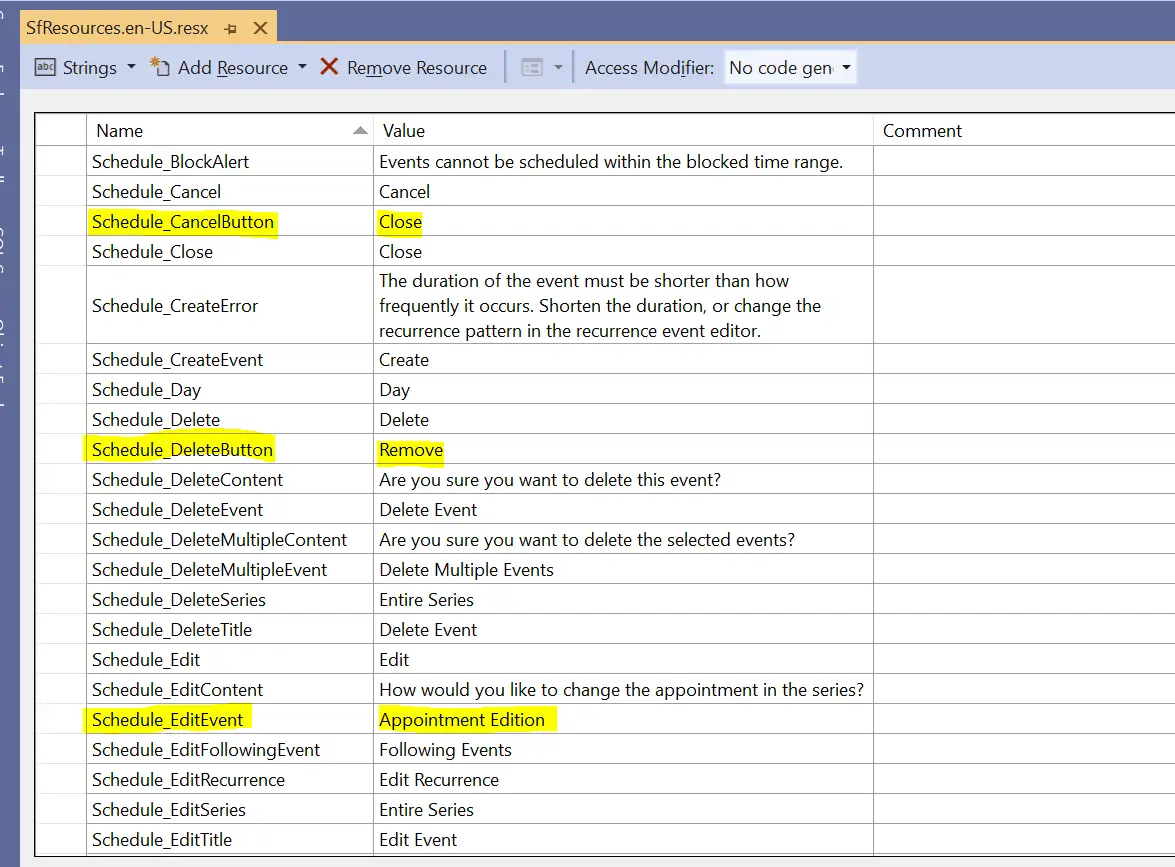
You can change the header title and the text of the buttons displayed in the footer of the editor window by updating the appropriate localized word collection in the resx file for your culture, available at Project root folder > Resources > SfResources-en-US.resx, as shown in the following image.
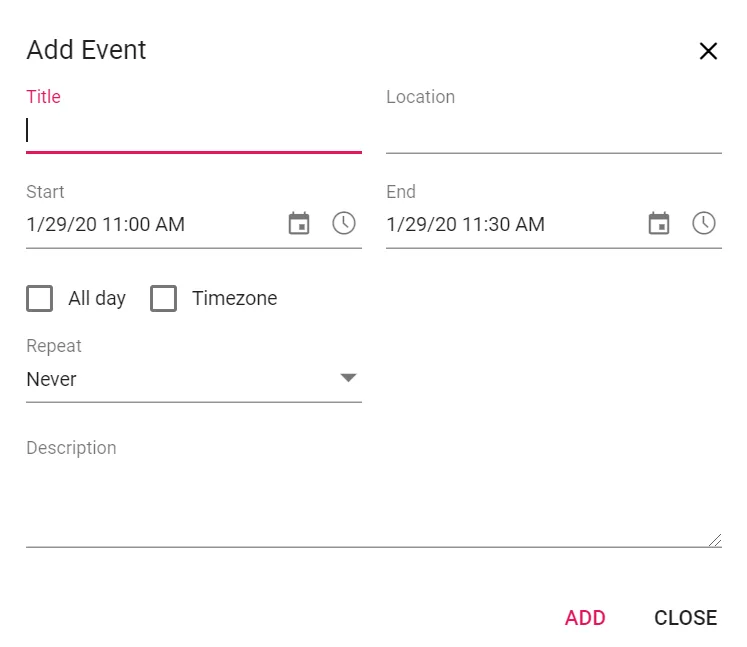
The editor window for creating a new event will appear as shown in the following image after changing the localized words.
How to change the label text of default editor fields
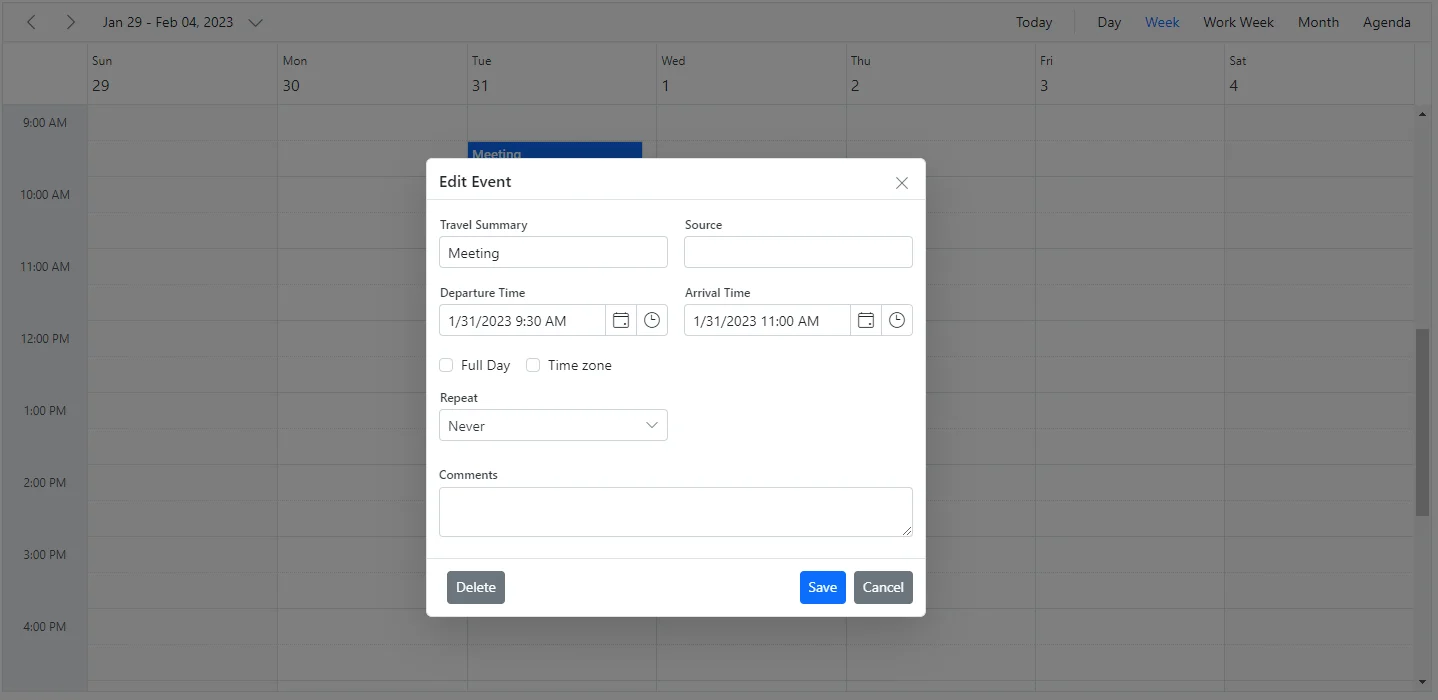
To change the default labels such as Title, Location, and other field names in the editor window, use the Title property available in the field options of ScheduleEventSettings.
@using Syncfusion.Blazor.Schedule

<SfSchedule TValue="AppointmentData" Height="550px" @bind-SelectedDate="@CurrentDate">
    <ScheduleEventSettings DataSource="@DataSource">
        <ScheduleField>
            <FieldSubject Title="Travel Summary"></FieldSubject>
            <FieldLocation Title="Source"></FieldLocation>
            <FieldDescription Title="Comments"></FieldDescription>
            <FieldIsAllDay Title="Full Day"></FieldIsAllDay>
            <FieldStartTime Title="Departure Time"></FieldStartTime>
            <FieldEndTime Title="Arrival Time"></FieldEndTime>
            <FieldStartTimezone Title="Origin"></FieldStartTimezone>
            <FieldEndTimezone Title="Destination"></FieldEndTimezone>
        </ScheduleField>
    </ScheduleEventSettings>
    <ScheduleViews>
        <ScheduleView Option="View.Day"></ScheduleView>
        <ScheduleView Option="View.Week"></ScheduleView>
        <ScheduleView Option="View.WorkWeek"></ScheduleView>
        <ScheduleView Option="View.Month"></ScheduleView>
        <ScheduleView Option="View.Agenda"></ScheduleView>
    </ScheduleViews>
</SfSchedule>

@code{
    DateTime CurrentDate = new DateTime(2023, 1, 31);
    List<AppointmentData> DataSource = new List<AppointmentData>
    {
        new AppointmentData { Id = 1, Subject = "Meeting", StartTime = new DateTime(2023, 1, 31, 9, 30, 0) , EndTime = new DateTime(2023, 1, 31, 11, 0, 0) }
    };
    public class AppointmentData
    {
        public int Id { get; set; }
        public string Subject { get; set; }
        public DateTime StartTime { get; set; }
        public DateTime EndTime { get; set; }
        public bool IsAllDay { get; set; }
        public string RecurrenceRule { get; set; }
        public Nullable<int> RecurrenceID { get; set; }
        public string RecurrenceException { get; set; }
    }
}
Field validation
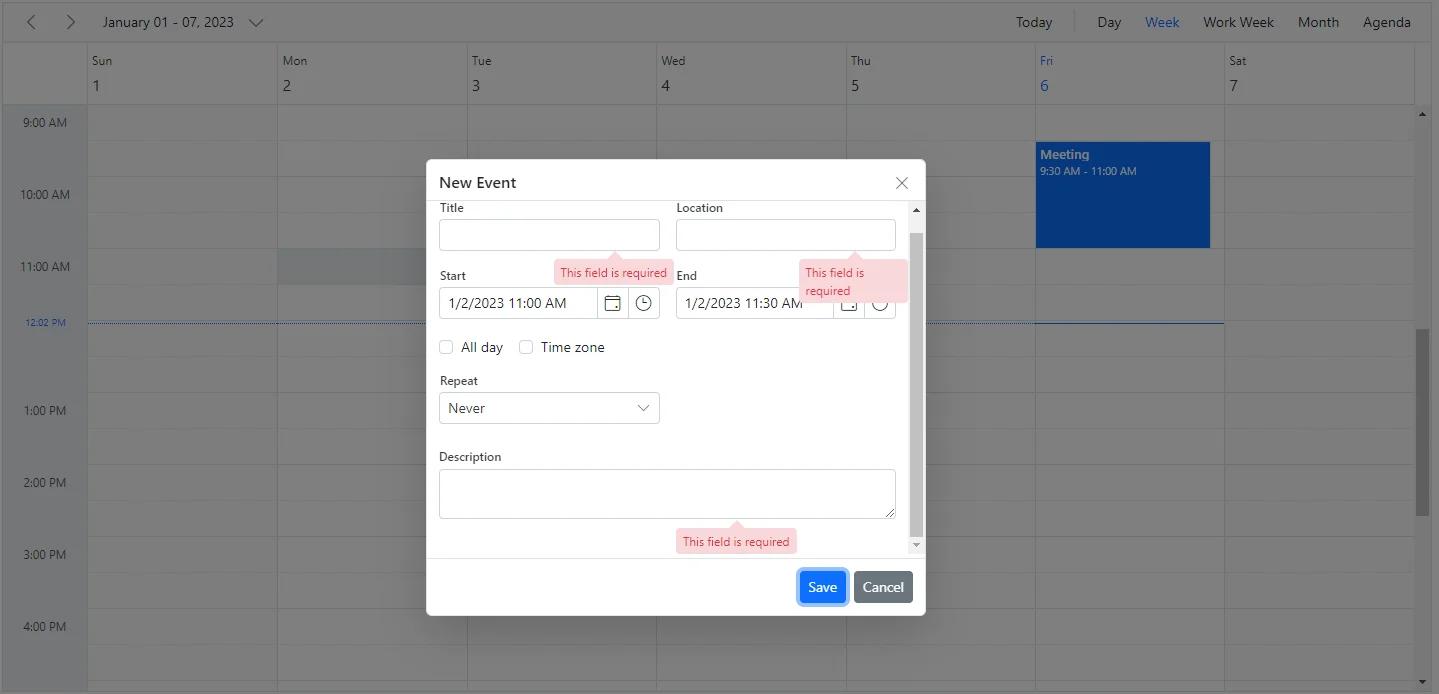
You can validate the required fields of the editor window before submitting it by adding the appropriate validation rules to each field. In the following code example, validation is applied to the Subject, Location, and Description fields.
@using Syncfusion.Blazor.Schedule

<SfSchedule TValue="AppointmentData" Height="550px" @bind-SelectedDate="@CurrentDate">
    <ScheduleEventSettings DataSource="@DataSource">
        <ScheduleField>
            <FieldSubject Name="Subject" Validation="@ValidationRules"></FieldSubject>
            <FieldLocation Name="Location" Validation="@LocationValidationRules"></FieldLocation>
            <FieldDescription Name="Description" Validation="@DescriptionValidationRules"></FieldDescription>
            <FieldStartTime Name="StartTime"></FieldStartTime>
            <FieldEndTime Name="EndTime"></FieldEndTime>
        </ScheduleField>
    </ScheduleEventSettings>
    <ScheduleViews>
        <ScheduleView Option="View.Day"></ScheduleView>
        <ScheduleView Option="View.Week"></ScheduleView>
        <ScheduleView Option="View.WorkWeek"></ScheduleView>
        <ScheduleView Option="View.Month"></ScheduleView>
        <ScheduleView Option="View.Agenda"></ScheduleView>
    </ScheduleViews>
</SfSchedule>

@code{
    DateTime CurrentDate = new DateTime(2023, 1, 6);
    static Dictionary<string, object> ValidationMessages = new Dictionary<string, object>() { { "regex", "Special character(s) not allowed in this field" } };
    ValidationRules ValidationRules = new ValidationRules { Required = true };
    ValidationRules LocationValidationRules = new ValidationRules { Required = true, RegexPattern = "^[a-zA-Z0-9- ]*$", Messages = ValidationMessages };
    ValidationRules DescriptionValidationRules = new ValidationRules { Required = true, MinLength = 5, MaxLength = 500 };
    List<AppointmentData> DataSource = new List<AppointmentData>
    {
        new AppointmentData { Id = 1, Subject = "Meeting", StartTime = new DateTime(2023, 1, 6, 9, 30, 0) , EndTime = new DateTime(2023, 1, 6, 11, 0, 0) }
    };

    public class AppointmentData
    {
        public int Id { get; set; }
        public string Subject { get; set; }
        public DateTime StartTime { get; set; }
        public DateTime EndTime { get; set; }
        public bool IsAllDay { get; set; }
        public string RecurrenceRule { get; set; }
        public string RecurrenceException { get; set; }
        public Nullable<int> RecurrenceID { get; set; }
    }
}
Customizing the default time duration in editor window
In the default event editor window, the start and end time duration are processed based on the Interval value set in the ScheduleTimeScale property. By default, the Interval value is 30, so the start and end time in the event editor differ by 30 minutes. You can change this duration by updating the Duration option within the OnPopupOpen event.
@using Syncfusion.Blazor.Schedule

<SfSchedule TValue="AppointmentData" Height="550px" @bind-SelectedDate="@CurrentDate">
    <ScheduleEvents TValue="AppointmentData" OnPopupOpen="@OnPopupOpen"></ScheduleEvents>
    <ScheduleEventSettings DataSource="@DataSource">
    </ScheduleEventSettings>
    <ScheduleViews>
        <ScheduleView Option="View.Day"></ScheduleView>
        <ScheduleView Option="View.Week"></ScheduleView>
        <ScheduleView Option="View.WorkWeek"></ScheduleView>
        <ScheduleView Option="View.Month"></ScheduleView>
        <ScheduleView Option="View.Agenda"></ScheduleView>
    </ScheduleViews>
</SfSchedule>

@code{
    DateTime CurrentDate = new DateTime(2020, 1, 31);
    public void OnPopupOpen(PopupOpenEventArgs<AppointmentData> args)
    {
        if (args.Type == PopupType.Editor)
        {
            args.Duration = 60;
        }
    }
    List<AppointmentData> DataSource = new List<AppointmentData>
    {
        new AppointmentData { Id = 1, Subject = "Meeting", StartTime = new DateTime(2020, 1, 31, 9, 30, 0) , EndTime = new DateTime(2020, 1, 31, 11, 0, 0) }
    };
    public class AppointmentData
    {
        public int Id { get; set; }
        public string Subject { get; set; }
        public DateTime StartTime { get; set; }
        public DateTime EndTime { get; set; }
        public bool IsAllDay { get; set; }
        public string RecurrenceRule { get; set; }
        public Nullable<int> RecurrenceID { get; set; }
        public string RecurrenceException { get; set; }
    }
}
How to prevent the display of editor and quick popups
You can prevent the editor and quick popup windows from appearing by setting the cancel option to true within the OnPopupOpen event.
@using Syncfusion.Blazor.Schedule

<SfSchedule TValue="AppointmentData" Height="550px" @bind-SelectedDate="@CurrentDate">
    <ScheduleEvents TValue="AppointmentData" OnPopupOpen="@OnPopupOpen"></ScheduleEvents>
    <ScheduleEventSettings DataSource="@DataSource">
    </ScheduleEventSettings>
    <ScheduleViews>
        <ScheduleView Option="View.Day"></ScheduleView>
        <ScheduleView Option="View.Week"></ScheduleView>
        <ScheduleView Option="View.WorkWeek"></ScheduleView>
        <ScheduleView Option="View.Month"></ScheduleView>
        <ScheduleView Option="View.Agenda"></ScheduleView>
    </ScheduleViews>
</SfSchedule>

@code{
    private DateTime CurrentDate = new DateTime(2020, 1, 31);
    public void OnPopupOpen(PopupOpenEventArgs<AppointmentData> args)
    {
        if (args.Type == PopupType.Editor || args.Type == PopupType.QuickInfo)
        {
            args.Cancel = true;
        }
    }
    List<AppointmentData> DataSource = new List<AppointmentData>
    {
        new AppointmentData { Id = 1, Subject = "Meeting", StartTime = new DateTime(2020, 1, 31, 9, 30, 0) , EndTime = new DateTime(2020, 1, 31, 11, 0, 0) }
    };
    public class AppointmentData
    {
        public int Id { get; set; }
        public string Subject { get; set; }
        public DateTime StartTime { get; set; }
        public DateTime EndTime { get; set; }
        public bool IsAllDay { get; set; }
        public string RecurrenceRule { get; set; }
        public Nullable<int> RecurrenceID { get; set; }
        public string RecurrenceException { get; set; }
    }
}
To prevent only specific Blazor Scheduler popups, check the popup type in the condition. The popup types that can be checked within the OnPopupOpen event are as follows.
| Type | Description |
|---|---|
Editor |
For Detailed editor window. |
QuickInfo |
For Quick popup which opens on cell click. |
EditEventInfo |
For Quick popup which opens on event click. |
ViewEventInfo |
For Quick popup which opens on responsive mode. |
EventContainer |
For more event indicator popup. |
RecurrenceAlert |
For edit recurrence event alert popup. |
DeleteAlert |
For delete confirmation popup. |
ValidationAlert |
For validation alert popup. |
RecurrenceValidationAlert |
For recurrence validation alert popup. |
How to open editor window manually
You can open the editor window manually for a specific time or for specific events by using the OpenEditorAsync method, which accepts TValue or CellClickEventArgs along with CurrentAction as parameters.
Here is the example to open the editor window on a single click.
Customizing event editor using template
The event editor window can be customized by using the EditorTemplate option. Each field defined in the template must use two-way binding for the Value property of the components used within the template to support CRUD actions.
To get started quickly with customizing the editor window by using a template, you can watch this video:
@using Syncfusion.Blazor.Schedule
@using Syncfusion.Blazor.Calendars
@using Syncfusion.Blazor.DropDowns
@using Syncfusion.Blazor.Inputs

<SfSchedule TValue="AppointmentData" Width="100%" Height="650px" @bind-SelectedDate="@CurrentDate">
    <ScheduleTemplates>
        <EditorTemplate>
            <table class="custom-event-editor" width="100%" cellpadding="5">
                <tbody>
                    <tr>
                        <td class="e-textlabel">Summary</td>
                        <td colspan="4">
                            <SfTextBox @bind-Value="@((context as AppointmentData).Subject)"></SfTextBox>
                        </td>
                    </tr>
                    <tr>
                        <td class="e-textlabel">Status</td>
                        <td colspan="4">
                            <SfDropDownList ID="EventType" DataSource="@StatusData" Placeholder="Choose status" @bind-Value="@((context as AppointmentData).EventType)">
                                <DropDownListFieldSettings Value="Id"></DropDownListFieldSettings>
                            </SfDropDownList>
                        </td>
                    </tr>
                    <tr>
                        <td class="e-textlabel">From</td>
                        <td colspan="4">
                            <SfDateTimePicker @bind-Value="@((context as AppointmentData).StartTime)"></SfDateTimePicker>
                        </td>
                    </tr>
                    <tr>
                        <td class="e-textlabel">To</td>
                        <td colspan="4">
                            <SfDateTimePicker @bind-Value="@((context as AppointmentData).EndTime)"></SfDateTimePicker>
                        </td>
                    </tr>
                    <tr>
                        <td class="e-textlabel">Reason</td>
                        <td colspan="4">
                            <SfTextBox Multiline="true" @bind-Value="@((context as AppointmentData).Description)"></SfTextBox>
                        </td>
                    </tr>
                </tbody>
            </table>
        </EditorTemplate>
    </ScheduleTemplates>
    <ScheduleEventSettings DataSource="@DataSource"></ScheduleEventSettings>
    <ScheduleViews>
        <ScheduleView Option="View.Day"></ScheduleView>
        <ScheduleView Option="View.Week"></ScheduleView>
        <ScheduleView Option="View.WorkWeek"></ScheduleView>
        <ScheduleView Option="View.Month"></ScheduleView>
        <ScheduleView Option="View.Agenda"></ScheduleView>
    </ScheduleViews>
</SfSchedule>

@code{
    DateTime CurrentDate = new DateTime(2020, 1, 31);
    public class DDFields
    {
        public string Id { get; set; }
        public string Text { get; set; }
    }
    List<DDFields> StatusData = new List<DDFields>() {
        new DDFields(){ Id= "New", Text= "New" },
        new DDFields(){ Id= "Requested", Text= "Requested" },
        new DDFields(){ Id= "Confirmed", Text= "Confirmed" },
    };

    List<AppointmentData> DataSource = new List<AppointmentData>
    {
    new AppointmentData { Id = 1, Subject = "Meeting", StartTime = new DateTime(2020, 1, 31, 9, 30, 0) , EndTime = new DateTime(2020, 1, 31, 11, 0, 0), EventType = "Confirmed" }
    };
    public class AppointmentData
    {
        public int Id { get; set; }
        public string Subject { get; set; }
        public DateTime StartTime { get; set; }
        public DateTime EndTime { get; set; }
        public string Description { get; set; }
        public string EventType { get; set; }
    }
}
How to customize header and footer using template
The editor window’s header and footer can be customized by using the EditorHeaderTemplate and EditorFooterTemplate options.
In this demo, the editor header is customized based on the appointment subject field by using the EditorHeaderTemplate. The EditorFooterTemplate is used to validate specific fields before saving or to cancel the action if the validation requirements are not met.
@using Syncfusion.Blazor.Schedule
@using Syncfusion.Blazor.Buttons
<SfSchedule TValue="AppointmentData" Height="650px" @ref="scheduleObj">
    <ScheduleEvents TValue="AppointmentData" OnPopupClose="OnPopupClose"></ScheduleEvents>
    <ScheduleTemplates>
        <EditorHeaderTemplate>
            @{
                var subject = (context as AppointmentData)?.Subject;
            }
            @if (string.IsNullOrEmpty(subject))
            {
                <div>Create New Event</div>
            }
            else
            {
                <div>@subject</div>
            }
        </EditorHeaderTemplate>
        <EditorFooterTemplate>
            <div id="event-footer">
                <div id="verify">
                    <SfCheckBox @bind-Checked="@isChecked" @onchange="@(() => isSaveButtonDisabled = !isChecked)">
                        <label htmlFor="check-box" id="text">Verified</label>
                    </SfCheckBox>
                </div><div id="right-button">
                    <SfButton IsPrimary="true" Disabled="@isSaveButtonDisabled" OnClick="@(() => FooterButtonClick(true))">Save</SfButton>
                    <SfButton IsPrimary="true" OnClick="@(() => FooterButtonClick(false))">Cancel</SfButton>
                </div>
            </div>
        </EditorFooterTemplate>
    </ScheduleTemplates>
    <ScheduleEventSettings DataSource="@DataSource"></ScheduleEventSettings>
</SfSchedule>

@code {
    SfSchedule<AppointmentData> scheduleObj;
    private bool isSaveClick = false;
    private bool isChecked = false;
    private bool isSaveButtonDisabled = true;
    List<AppointmentData> DataSource = new List<AppointmentData>
    {
        new AppointmentData
        {
            Id = 1,
            Subject = "Surgery - Andrew",
            StartTime = new DateTime(DateTime.Today.Year, DateTime.Today.Month, DateTime.Today.Day, 9, 0, 0),
            EndTime = new DateTime(DateTime.Today.Year, DateTime.Today.Month, DateTime.Today.Day, 10, 0, 0),
            IsAllDay = false
        },
        new AppointmentData
        {
            Id = 2,
            Subject = "Consulting - John",
            StartTime = new DateTime(DateTime.Today.Year, DateTime.Today.Month, DateTime.Today.Day, 10, 0, 0),
            EndTime = new DateTime(DateTime.Today.Year, DateTime.Today.Month, DateTime.Today.Day, 11, 30, 0),
            IsAllDay = false
        },
        new AppointmentData
        {
            Id = 3,
            Subject = "Therapy - Robert",
            StartTime = new DateTime(DateTime.Today.Year, DateTime.Today.Month, DateTime.Today.Day, 11, 30, 0),
            EndTime = new DateTime(DateTime.Today.Year, DateTime.Today.Month, DateTime.Today.Day, 12, 30, 0),
            IsAllDay = false
        },
        new AppointmentData
        {
            Id = 4,
            Subject = "Observation - Steven",
            StartTime = new DateTime(DateTime.Today.Year, DateTime.Today.Month, DateTime.Today.Day, 12, 30, 0),
            EndTime = new DateTime(DateTime.Today.Year, DateTime.Today.Month, DateTime.Today.Day, 13, 30, 0),
            IsAllDay = false
        }
    };
    public async Task OnPopupClose(PopupCloseEventArgs<AppointmentData> args)
    {
        if (args.Type == PopupType.Editor && args.Data != null && isSaveClick)
        {
            if (args.Data.Id != 0)
            {
                await scheduleObj.SaveEventAsync(args.Data);
            }
            else
            {
                args.Data.Id = await scheduleObj.GetMaxEventIdAsync<int>();
                await scheduleObj.AddEventAsync(args.Data);
            }

        }
    }
    private void FooterButtonClick(bool isSave)
    {
        isSaveClick = isSave;
        scheduleObj.CloseEditor();
    }

    public class AppointmentData
    {
        public int Id { get; set; }
        public string Subject { get; set; }
        public string Location { get; set; }
        public DateTime StartTime { get; set; }
        public DateTime EndTime { get; set; }
        public string Description { get; set; }
        public bool IsAllDay { get; set; }
        public string RecurrenceRule { get; set; }
        public string RecurrenceException { get; set; }
        public Nullable<int> RecurrenceID { get; set; }
    }
}
<style>
    #verify {
        position: fixed;
        padding: 0 20px;
    }

    #right-button {
        padding: 0 10px;
    }
</style>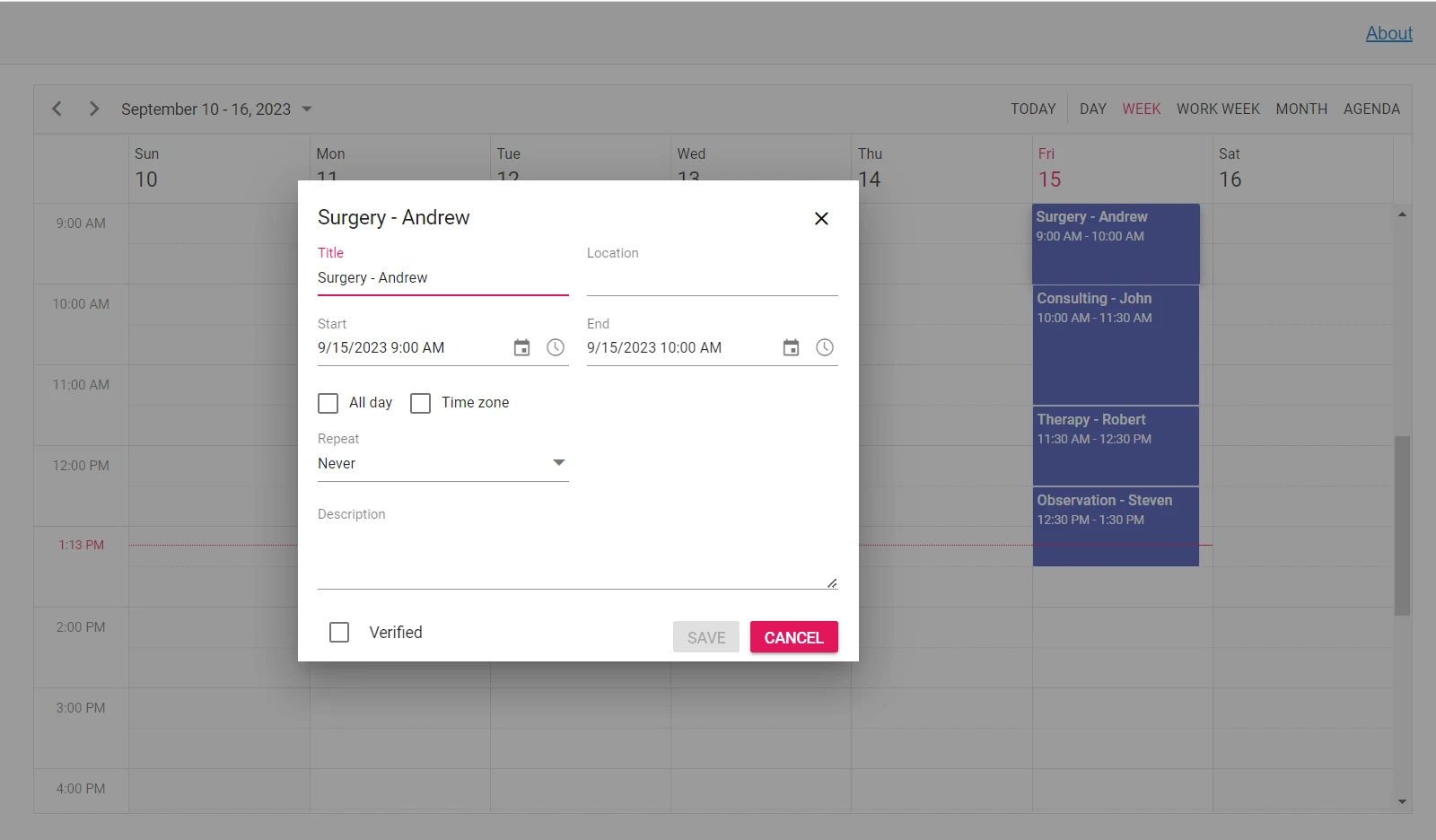
How to add resource options within editor template
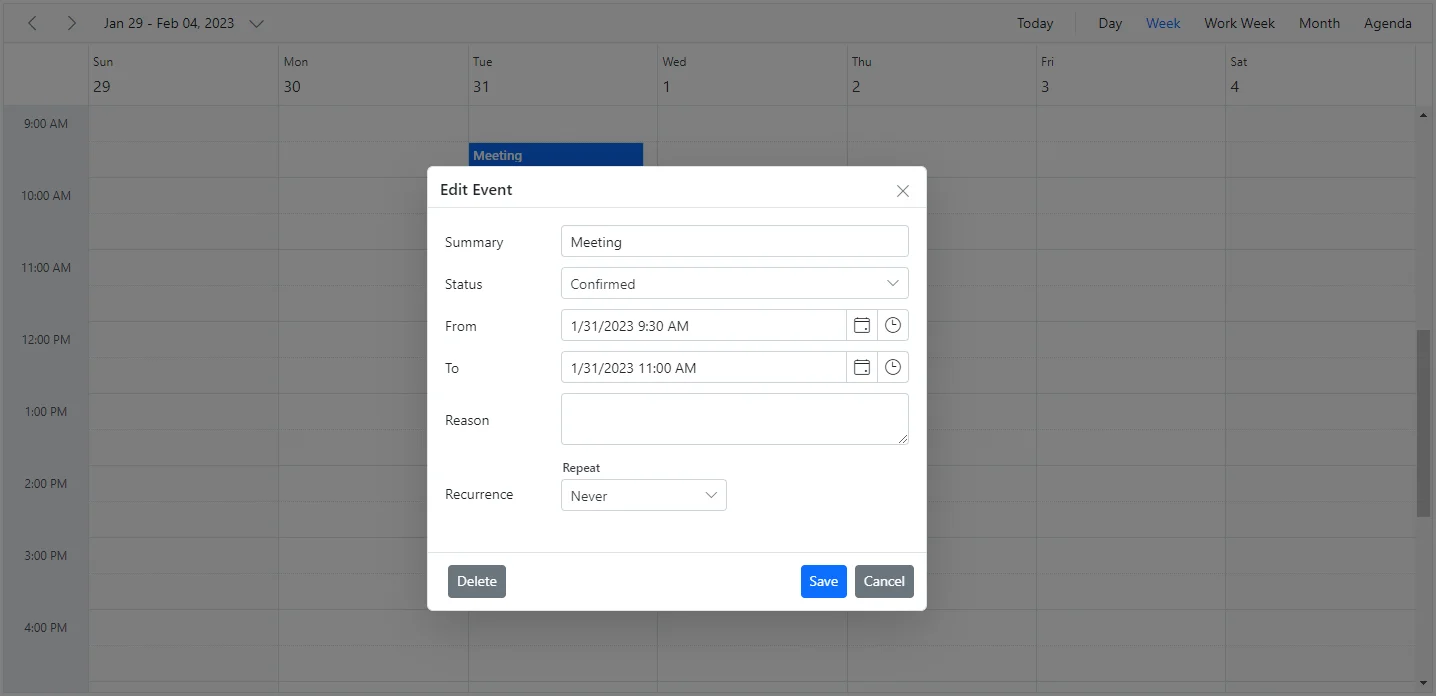
You can add the resource field within the editor template by using the following code example.
@using Syncfusion.Blazor.Schedule
@using Syncfusion.Blazor.Calendars
@using Syncfusion.Blazor.DropDowns
@using Syncfusion.Blazor.Inputs

<SfSchedule TValue="AppointmentData" Width="100%" Height="650px" @bind-SelectedDate="@CurrentDate">
    <ScheduleGroup Resources="@Resources"></ScheduleGroup>
    <ScheduleResources>
        <ScheduleResource TItem="ResourceData" TValue="int" DataSource="@OwnersData" Field="OwnerId" Title="Owner" Name="Owners" TextField="OwnerText" IdField="Id" ColorField="OwnerColor"></ScheduleResource>
    </ScheduleResources>
    <ScheduleTemplates>
        <EditorTemplate>
            <table class="custom-event-editor" width="100%" cellpadding="5">
                <tbody>
                    <tr>
                        <td class="e-textlabel">Summary</td>
                        <td colspan="4">
                            <SfTextBox @bind-Value="@((context as AppointmentData).Subject)"></SfTextBox>
                        </td>
                    </tr>
                    <tr>
                        <td class="e-textlabel">Status</td>
                        <td colspan="4">
                            <SfDropDownList TValue="int" TItem="ResourceData" ID="OwnerId" DataSource="@OwnersData" Placeholder="Choose owner" @bind-Value="@((context as AppointmentData).OwnerId)">
                                <DropDownListFieldSettings Text="OwnerText" Value="Id"></DropDownListFieldSettings>
                            </SfDropDownList>
                        </td>
                    </tr>
                    <tr>
                        <td class="e-textlabel">From</td>
                        <td colspan="4">
                            <SfDateTimePicker @bind-Value="@((context as AppointmentData).StartTime)"></SfDateTimePicker>
                        </td>
                    </tr>
                    <tr>
                        <td class="e-textlabel">To</td>
                        <td colspan="4">
                            <SfDateTimePicker @bind-Value="@((context as AppointmentData).EndTime)"></SfDateTimePicker>
                        </td>
                    </tr>
                    <tr>
                        <td class="e-textlabel">Reason</td>
                        <td colspan="4">
                            <SfTextBox Multiline="true" @bind-Value="@((context as AppointmentData).Description)"></SfTextBox>
                        </td>
                    </tr>
                </tbody>
            </table>
        </EditorTemplate>
    </ScheduleTemplates>
    <ScheduleEventSettings DataSource="@DataSource"></ScheduleEventSettings>
    <ScheduleViews>
        <ScheduleView Option="View.Day"></ScheduleView>
        <ScheduleView Option="View.Week"></ScheduleView>
        <ScheduleView Option="View.WorkWeek"></ScheduleView>
        <ScheduleView Option="View.Month"></ScheduleView>
        <ScheduleView Option="View.Agenda"></ScheduleView>
    </ScheduleViews>
</SfSchedule>

@code{
    DateTime CurrentDate = new DateTime(2023, 1, 31);
    public string[] Resources { get; set; } = { "Owners" };
    public List<ResourceData> OwnersData { get; set; } = new List<ResourceData>
    {
        new ResourceData { OwnerText = "Nancy", Id = 1, OwnerColor = "#ffaa00" },
        new ResourceData { OwnerText = "Steven", Id = 2, OwnerColor = "#f8a398" },
        new ResourceData { OwnerText = "Michael", Id = 3, OwnerColor = "#7499e1" }
    };
    List<AppointmentData> DataSource = new List<AppointmentData>
    {
        new AppointmentData { Id = 1, Subject = "Meeting", StartTime = new DateTime(2023, 1, 31, 9, 30, 0) , EndTime = new DateTime(2023, 1, 31, 11, 0, 0), OwnerId = 1 }
    };
    public class AppointmentData
    {
        public int Id { get; set; }
        public string Subject { get; set; }
        public DateTime StartTime { get; set; }
        public DateTime EndTime { get; set; }
        public string Description { get; set; }
        public int OwnerId { get; set; }
    }
    public class ResourceData
    {
        public int Id { get; set; }
        public string OwnerText { get; set; }
        public string OwnerColor { get; set; }
    }
}
Note: EditorTemplate is not applicable when AllowMutiple is set to true without enabling AllowGroupEdit. In that case, use a custom editor window.
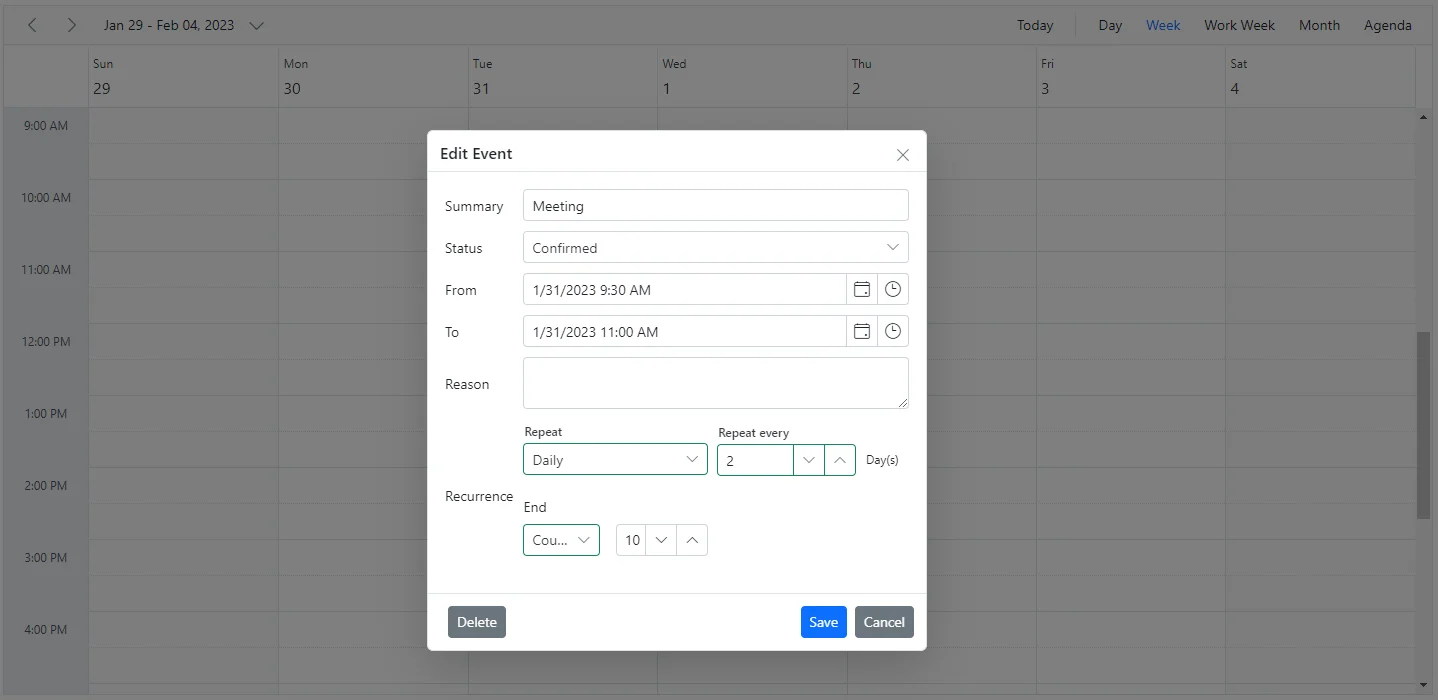
How to add recurrence options within editor template
@using Syncfusion.Blazor.Schedule
@using Syncfusion.Blazor.Calendars
@using Syncfusion.Blazor.DropDowns
@using Syncfusion.Blazor.Inputs

<SfSchedule TValue="AppointmentData" Width="100%" Height="650px" @bind-SelectedDate="@CurrentDate">
    <ScheduleTemplates>
        <EditorTemplate>
            <table class="custom-event-editor" width="100%" cellpadding="5">
                <tbody>
                    <tr>
                        <td class="e-textlabel">Summary</td>
                        <td colspan="4">
                            <SfTextBox @bind-Value="@((context as AppointmentData).Subject)"></SfTextBox>
                        </td>
                    </tr>
                    <tr>
                        <td class="e-textlabel">Status</td>
                        <td colspan="4">
                            <SfDropDownList ID="EventType" DataSource="@StatusData" Placeholder="Choose status" @bind-Value="@((context as AppointmentData).EventType)">
                                <DropDownListFieldSettings Value="Id"></DropDownListFieldSettings>
                            </SfDropDownList>
                        </td>
                    </tr>
                    <tr>
                        <td class="e-textlabel">From</td>
                        <td colspan="4">
                            <SfDateTimePicker @bind-Value="@((context as AppointmentData).StartTime)"></SfDateTimePicker>
                        </td>
                    </tr>
                    <tr>
                        <td class="e-textlabel">To</td>
                        <td colspan="4">
                            <SfDateTimePicker @bind-Value="@((context as AppointmentData).EndTime)"></SfDateTimePicker>
                        </td>
                    </tr>
                    <tr>
                        <td class="e-textlabel">Reason</td>
                        <td colspan="4">
                            <SfTextBox Multiline="true" @bind-Value="@((context as AppointmentData).Description)"></SfTextBox>
                        </td>
                    </tr>
                    <tr>
                        <td class="e-textlabel">Recurrence</td>
                        <td colspan="4">
                            <SfRecurrenceEditor @bind-Value="@((context as AppointmentData).RecurrenceRule)"></SfRecurrenceEditor>
                        </td>
                    </tr>
                </tbody>
            </table>
        </EditorTemplate>
    </ScheduleTemplates>
    <ScheduleEventSettings DataSource="@DataSource"></ScheduleEventSettings>
    <ScheduleViews>
        <ScheduleView Option="View.Day"></ScheduleView>
        <ScheduleView Option="View.Week"></ScheduleView>
        <ScheduleView Option="View.WorkWeek"></ScheduleView>
        <ScheduleView Option="View.Month"></ScheduleView>
        <ScheduleView Option="View.Agenda"></ScheduleView>
    </ScheduleViews>
</SfSchedule>

@code{
    private DateTime CurrentDate = new DateTime(2023, 1, 31);
    public class DDFields
    {
        public string Id { get; set; }
        public string Text { get; set; }
    }
    List<DDFields> StatusData = new List<DDFields>()
    {
        new DDFields(){ Id= "New", Text= "New" },
        new DDFields(){ Id= "Requested", Text= "Requested" },
        new DDFields(){ Id= "Confirmed", Text= "Confirmed" },
    };
    List<AppointmentData> DataSource = new List<AppointmentData>
    {
        new AppointmentData { Id = 1, Subject = "Meeting", StartTime = new DateTime(2023, 1, 31, 9, 30, 0) , EndTime = new DateTime(2023, 1, 31, 11, 0, 0), EventType = "Confirmed" }
    };
    public class AppointmentData
    {
        public int Id { get; set; }
        public string Subject { get; set; }
        public DateTime StartTime { get; set; }
        public DateTime EndTime { get; set; }
        public bool IsAllDay { get; set; }
        public string RecurrenceRule { get; set; }
        public Nullable<int> RecurrenceID { get; set; }
        public string RecurrenceException { get; set; }
        public string Description { get; set; }
        public string EventType { get; set; }
    }
}
Apply validations on editor template fields
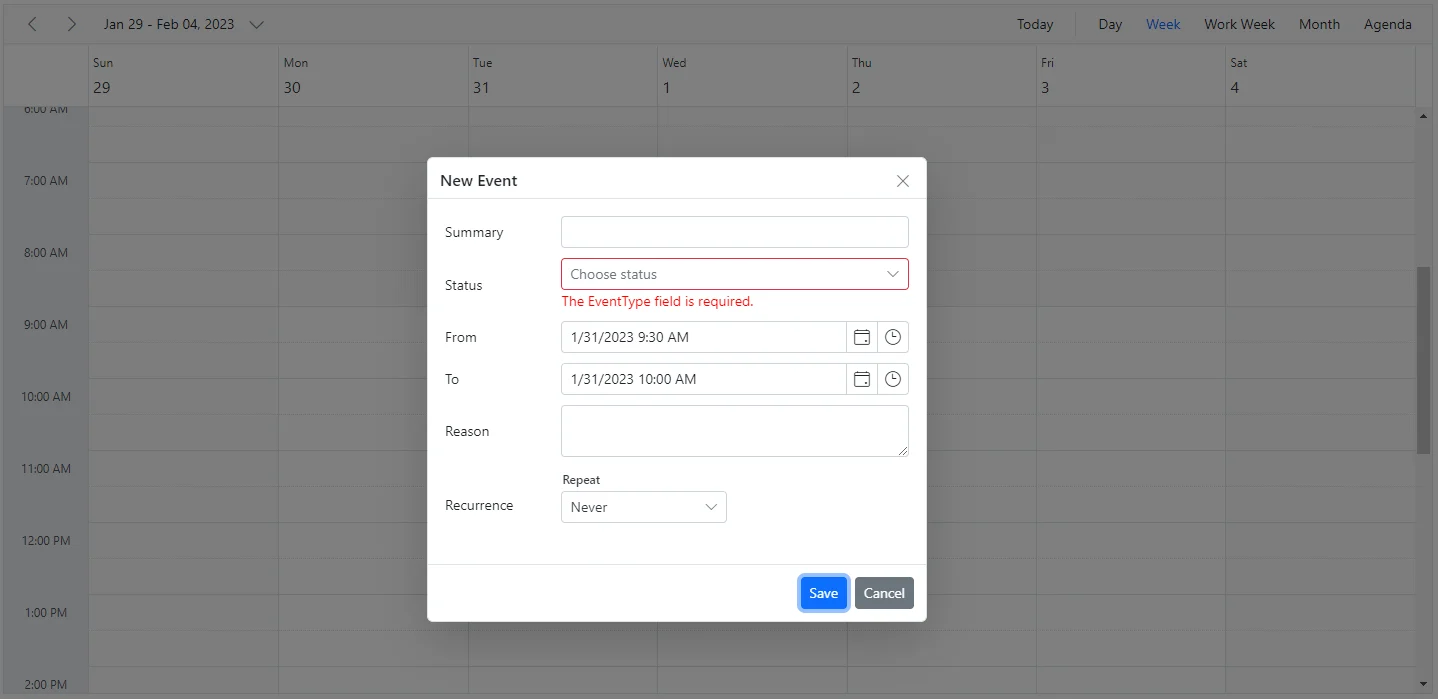
In the following code example, validation is added to the EventType field by importing the DataAnnotations namespace. The field is marked as Required, and its validation message is displayed by using the ValidationMessage tag.
@using Syncfusion.Blazor.Schedule
@using Syncfusion.Blazor.Calendars
@using Syncfusion.Blazor.DropDowns
@using Syncfusion.Blazor.Inputs
@using System.ComponentModel.DataAnnotations

<SfSchedule TValue="AppointmentData" Width="100%" Height="650px" @bind-SelectedDate="@CurrentDate">
    <ScheduleTemplates>
        <EditorTemplate>
            <table class="custom-event-editor" width="100%" cellpadding="5">
                <tbody>
                    <tr>
                        <td class="e-textlabel">Summary</td>
                        <td colspan="4">
                            <SfTextBox @bind-Value="@((context as AppointmentData).Subject)"></SfTextBox>
                        </td>
                    </tr>
                    <tr>
                        <td class="e-textlabel">Status</td>
                        <td colspan="4">
                            <SfDropDownList ID="EventType" DataSource="@StatusData" Placeholder="Choose status" @bind-Value="@((context as AppointmentData).EventType)">
                                <DropDownListFieldSettings Value="Id"></DropDownListFieldSettings>
                            </SfDropDownList>
                            <ValidationMessage For="()=>((context as AppointmentData).EventType)"/>
                        </td>
                    </tr>
                    <tr>
                        <td class="e-textlabel">From</td>
                        <td colspan="4">
                            <SfDateTimePicker @bind-Value="@((context as AppointmentData).StartTime)"></SfDateTimePicker>
                        </td>
                    </tr>
                    <tr>
                        <td class="e-textlabel">To</td>
                        <td colspan="4">
                            <SfDateTimePicker @bind-Value="@((context as AppointmentData).EndTime)"></SfDateTimePicker>
                        </td>
                    </tr>
                    <tr>
                        <td class="e-textlabel">Reason</td>
                        <td colspan="4">
                            <SfTextBox Multiline="true" @bind-Value="@((context as AppointmentData).Description)"></SfTextBox>
                        </td>
                    </tr>
                    <tr>
                        <td class="e-textlabel">Recurrence</td>
                        <td colspan="4">
                            <SfRecurrenceEditor @bind-Value="@((context as AppointmentData).RecurrenceRule)"></SfRecurrenceEditor>
                        </td>
                    </tr>
                </tbody>
            </table>
        </EditorTemplate>
    </ScheduleTemplates>
    <ScheduleEventSettings DataSource="@DataSource"></ScheduleEventSettings>
    <ScheduleViews>
        <ScheduleView Option="View.Day"></ScheduleView>
        <ScheduleView Option="View.Week"></ScheduleView>
        <ScheduleView Option="View.WorkWeek"></ScheduleView>
        <ScheduleView Option="View.Month"></ScheduleView>
        <ScheduleView Option="View.Agenda"></ScheduleView>
    </ScheduleViews>
</SfSchedule>

@code{
    private DateTime CurrentDate = new DateTime(2023, 1, 31);
    public class DDFields
    {
        public string Id { get; set; }
        public string Text { get; set; }
    }
    List<DDFields> StatusData = new List<DDFields>() {
        new DDFields(){ Id= "New", Text= "New" },
        new DDFields(){ Id= "Requested", Text= "Requested" },
        new DDFields(){ Id= "Confirmed", Text= "Confirmed" },
    };
    Dictionary<string, object> StartName = new Dictionary<string, object>()
    {
        {"data-name","StartTime"},
    };
    List<AppointmentData> DataSource = new List<AppointmentData>
    {
        new AppointmentData { Id = 1, Subject = "Meeting", StartTime = new DateTime(2023, 1, 31, 9, 30, 0) , EndTime = new DateTime(2023, 1, 31, 11, 0, 0), EventType = "Confirmed" }
    };
    public class AppointmentData
    {
        [Required]
        public string EventType { get; set; }
        public int Id { get; set; }
        public string Subject { get; set; }
        public DateTime StartTime { get; set; }
        public DateTime EndTime { get; set; }
        public bool IsAllDay { get; set; }
        public string RecurrenceRule { get; set; }
        public Nullable<int> RecurrenceID { get; set; }
        public string RecurrenceException { get; set; }
        public string Description { get; set; }
    }
}
Quick popups
The quick info popups open when a cell or appointment is single-clicked in desktop mode. When a cell is clicked, you can enter a subject and save it. When an event is clicked, a popup appears with an overview of the event details. You can also edit or delete those events by using the available options.
By default, these popups appear over cells and appointments in Scheduler. To disable this behavior, set the ShowQuickInfo property to false.
@using Syncfusion.Blazor.Schedule

<SfSchedule TValue="AppointmentData" Height="550px" @bind-SelectedDate="@CurrentDate" ShowQuickInfo="false">
    <ScheduleEventSettings DataSource="@DataSource">
    </ScheduleEventSettings>
    <ScheduleViews>
        <ScheduleView Option="View.Day"></ScheduleView>
        <ScheduleView Option="View.Week"></ScheduleView>
        <ScheduleView Option="View.WorkWeek"></ScheduleView>
        <ScheduleView Option="View.Month"></ScheduleView>
        <ScheduleView Option="View.Agenda"></ScheduleView>
    </ScheduleViews>
</SfSchedule>

@code{
    DateTime CurrentDate = new DateTime(2020, 1, 31);
    List<AppointmentData> DataSource = new List<AppointmentData>
    {
        new AppointmentData { Id = 1, Subject = "Meeting", StartTime = new DateTime(2020, 1, 31, 9, 30, 0) , EndTime = new DateTime(2020, 1, 31, 11, 0, 0) }
    };
    public class AppointmentData
    {
        public int Id { get; set; }
        public string Subject { get; set; }
        public DateTime StartTime { get; set; }
        public DateTime EndTime { get; set; }
        public bool IsAllDay { get; set; }
        public string RecurrenceRule { get; set; }
        public Nullable<int> RecurrenceID { get; set; }
        public string RecurrenceException { get; set; }
    }
}
Note: The quick popup that opens when cells are single-clicked is not available on mobile devices.
How to change the watermark text of quick popup subject
By default, the Add Title text is displayed in the subject field of the quick popup. To change the default watermark text, update the appropriate localized word collection in the resx file for your culture.
Customizing quick popups
The look and feel of the built-in quick popup window that opens when cells or appointments are single-clicked can be customized by using the ScheduleQuickInfoTemplates option of Scheduler. There are three sub-options available for customization:
- Header - Accepts the template design that customizes the header part of the quick popup.
- Content - Accepts the template design that customizes the content part of the quick popup.
- Footer - Accepts the template design that customizes the footer part of the quick popup.
The quick popup template can customize both the cell-click quick popup and the event-click quick popup, or only one of them, by using the TemplateType option. The default value is TemplateType.Both, and it also accepts TemplateType.Cell or TemplateType.Event.
To get started quickly with customizing the quick popup in Scheduler, you can watch this video:
Customizing quick popup on cell
The quick popup can be customized for cell clicks only by setting TemplateType.Cell for the TemplateType option in ScheduleQuickInfoTemplates.
@using Syncfusion.Blazor.Schedule
@using Syncfusion.Blazor.Inputs
@using Syncfusion.Blazor.Buttons
@using Syncfusion.Blazor.DropDowns
@using System.Globalization

<SfSchedule TValue="AppointmentData" @ref="SheduleRef" CssClass="quick-info" Width="100%" Height="650px" SelectedDate="@(new DateTime(2023, 1, 9))">
    <ScheduleQuickInfoTemplates TemplateType="TemplateType.Cell">
        <HeaderTemplate>
            <div class="quick-info-header">
                <div class="quick-info-header-content" style="align-items: center; color: #919191;">
                    <div class="quick-info-title">
                        Add Appointment
                    </div>
                    <div class="duration-text">@(GetEventDetails((context as AppointmentData)))</div>
                </div>
            </div>
        </HeaderTemplate>
        <ContentTemplate>
            <div class="e-cell-content">
                <div class="content-area">
                    <SfTextBox @ref="SubjectRef" Value="@((context as AppointmentData).Subject)" Placeholder="Title"></SfTextBox>
                </div>
                <div class="content-area">
                    <SfDropDownList @ref="EventTypeRef" TValue="int" TItem="RoomsData" Index="0" DataSource="@ResourceData" Placeholder="Choose Type">
                        <DropDownListFieldSettings Text="Name" Value="Id"></DropDownListFieldSettings>
                    </SfDropDownList>
                </div>
                <div class="content-area">
                    <SfTextBox @ref="DescriptionRef" Value="@((context as AppointmentData).Description)" Placeholder="Notes"></SfTextBox>
                </div>
            </div>
        </ContentTemplate>
        <FooterTemplate>
            <div class="cell-footer">
                <SfButton Content="More Details" OnClick="@(e => OnMoreDetailsClick(e, context as AppointmentData))"></SfButton>
                <SfButton Content="Add" IsPrimary="true" OnClick="@(e => OnAdd(e, context as AppointmentData))"></SfButton>
            </div>
        </FooterTemplate>
    </ScheduleQuickInfoTemplates>
    <ScheduleViews>
        <ScheduleView Option="View.Week"></ScheduleView>
    </ScheduleViews>
    <ScheduleResources>
        <ScheduleResource TValue="int" TItem="RoomsData" DataSource="@ResourceData" Field="RoomId" Title="Room Type" Name="MeetingRoom" TextField="Name" IdField="Id" ColorField="Color" AllowMultiple="false"></ScheduleResource>
    </ScheduleResources>
    <ScheduleEventSettings DataSource="@DataSource"></ScheduleEventSettings>
</SfSchedule>

@code{
    SfSchedule<AppointmentData> SheduleRef;
    SfDropDownList<int, RoomsData> EventTypeRef;
    SfTextBox SubjectRef;
    SfTextBox DescriptionRef;

    private string GetEventDetails(AppointmentData data)
    {
        return data.StartTime.ToString("dddd dd, MMMM yyyy", CultureInfo.InvariantCulture) + " (" + data.StartTime.ToString("hh:mm tt", CultureInfo.InvariantCulture) + "-" + data.EndTime.ToString("hh:mm tt", CultureInfo.InvariantCulture) + ")";
    }
    private async void OnMoreDetailsClick(MouseEventArgs args, AppointmentData data)
    {
        await SheduleRef.CloseQuickInfoPopupAsync();
        AppointmentData eventData = new AppointmentData
        {
            Id = new Random().Next(1000),
            Subject = SubjectRef.Value ?? "",
            StartTime = data.StartTime,
            EndTime = data.EndTime,
            Location = data.Location,
            Description = DescriptionRef.Value ?? "",
            IsAllDay = data.IsAllDay,
            RoomId = EventTypeRef.Value,
            RecurrenceException = data.RecurrenceException,
            RecurrenceID = data.RecurrenceID,
            RecurrenceRule = data.RecurrenceRule
        };
        await SheduleRef.OpenEditorAsync(eventData, CurrentAction.Add);
    }

    private async Task OnAdd(MouseEventArgs args, AppointmentData data)
    {
        await SheduleRef.CloseQuickInfoPopupAsync();
        AppointmentData cloneData = new AppointmentData
        {
            Id = new Random().Next(1000),
            Subject = SubjectRef.Value ?? "",
            Description = DescriptionRef.Value ?? "",
            StartTime = data.StartTime,
            EndTime = data.EndTime,
            RoomId = EventTypeRef.Value,
            Location = data.Location,
            IsAllDay = data.IsAllDay,
            RecurrenceException = data.RecurrenceException,
            RecurrenceID = data.RecurrenceID,
            RecurrenceRule = data.RecurrenceRule
        };
        await SheduleRef.AddEventAsync(cloneData);
    }
    public List<AppointmentData> DataSource = new List<AppointmentData>
    {
        new AppointmentData { Id = 1, Subject = "Board Meeting", Description = "Meeting to discuss business goal of 2023.", StartTime = new DateTime(2023, 1, 5, 9, 30, 0), EndTime = new DateTime(2023, 1, 5, 11, 0, 0), RoomId = 1},
        new AppointmentData { Id = 2, Subject = "Training session on JSP", Description = "Knowledge sharing on JSP topics.", StartTime = new DateTime(2023, 1, 7, 9, 30, 0), EndTime = new DateTime(2023, 1, 7, 11, 0, 0), RoomId = 2}
    };
    private List<RoomsData> ResourceData { get; set; } = new List<RoomsData> {
        new RoomsData { Name = "Jammy", Id = 1, Color = "#ea7a57", Capacity = 20, Type = "Conference" },
        new RoomsData { Name = "Tweety", Id = 2, Color = "#7fa900", Capacity = 7, Type = "Cabin" },
        new RoomsData { Name = "Nestle", Id = 3, Color = "#5978ee", Capacity = 5, Type = "Cabin" }
    };
    public class AppointmentData
    {
        public int Id { get; set; }
        public string Subject { get; set; }
        public string Location { get; set; }
        public string Description { get; set; }
        public DateTime StartTime { get; set; }
        public DateTime EndTime { get; set; }
        public Nullable<bool> IsAllDay { get; set; }
        public string RecurrenceRule { get; set; }
        public Nullable<int> RecurrenceID { get; set; }
        public string RecurrenceException { get; set; }
        public int RoomId { get; set; }
    }
    public class RoomsData
    {
        public string Name { get; set; }
        public int Id { get; set; }
        public int Capacity { get; set; }
        public string Color { get; set; }
        public string Type { get; set; }
    }
}
<style>
    /*HeaderStyles*/
    .quick-info-header {
        background-color: white;
        padding: 8px 18px;
    }

    .quick-info-header-content {
        justify-content: flex-end;
        display: flex;
        flex-direction: column;
        padding: 5px 10px 5px;
    }

    .quick-info-title {
        font-weight: 500;
        font-size: 16px;
        letter-spacing: 0.48px;
        height: 22px;
    }

    .duration-text {
        font-size: 11px;
        letter-spacing: 0.33px;
        height: 14px;
    }
    /*ContentStyles*/
    .content-area {
        padding: 10px;
        width: 100%;
    }

    .meeting-type-wrap, .meeting-subject-wrap, .notes-wrap {
        font-size: 11px;
        color: #666;
        letter-spacing: 0.33px;
        height: 24px;
        padding: 5px;
    }

    .quick-info .e-popup-content {
    }
    /*FooterStyles*/
    .cell-footer.e-btn {
        background-color: #ffffff;
        border-color: #878787;
        color: #878787;
    }

    .cell-footer {
        padding-top: 10px;
    }

    .e-quick-popup-wrapper .e-cell-popup .e-popup-content {
        padding: 0 14px;
    }
</style>
Customizing quick popup on event
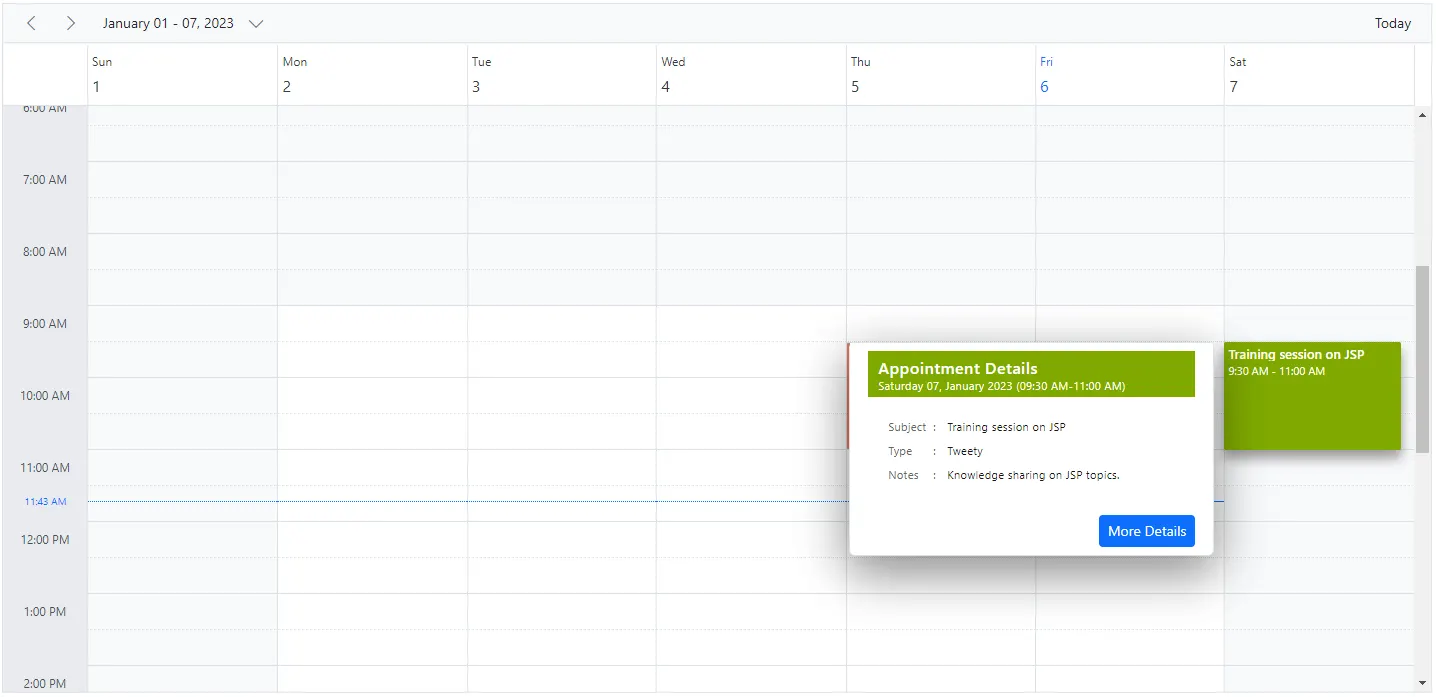
The quick popup can be customized for event clicks only by setting TemplateType.Event for the TemplateType option in ScheduleQuickInfoTemplates.
@using Syncfusion.Blazor.Schedule
@using Syncfusion.Blazor.Buttons
@using System.Globalization

<SfSchedule TValue="AppointmentData" @ref="SheduleRef" CssClass="quick-info" Width="100%" Height="650px" SelectedDate="@(new DateTime(2023, 1, 9))">
    <ScheduleQuickInfoTemplates TemplateType="TemplateType.Event">
        <HeaderTemplate>
            <div class="quick-info-header">
                <div class="quick-info-header-content" style="@("background:" + this.ResourceData.Where(item => item.Id.Equals((context as AppointmentData).RoomId)).FirstOrDefault().Color + "; color: #FFFFFF;")">
                    <div class="quick-info-title">
                        Appointment Details
                    </div>
                    <div class="duration-text">@(GetEventDetails((context as AppointmentData)))</div>
                </div>
            </div>
        </HeaderTemplate>
        <ContentTemplate>
            @{
                AppointmentData Data = context as AppointmentData;
                <div class="event-content">
                    <div class="meeting-type-wrap">
                        <label>Subject</label>:
                        <span>@(Data.Subject)</span>
                    </div>
                    <div class="meeting-subject-wrap">
                        <label>Type</label>:
                        <span>@((Data.RoomId != 0) ? ResourceData.Where(item => item.Id.Equals(Data.RoomId)).FirstOrDefault().Name : "")</span>
                    </div>
                    <div class="notes-wrap">
                        <label>Notes</label>:
                        <span>@(Data.Description)</span>
                    </div>
                </div>
            }
        </ContentTemplate>
        <FooterTemplate>
            <div class="event-footer">
                <SfButton IsPrimary="true" Content="More Details" OnClick="@(e => OnMoreDetailsClick(e, context as AppointmentData))"></SfButton>
            </div>
        </FooterTemplate>
    </ScheduleQuickInfoTemplates>
    <ScheduleViews>
        <ScheduleView Option="View.Week"></ScheduleView>
    </ScheduleViews>
    <ScheduleResources>
        <ScheduleResource TValue="int" TItem="RoomsData" DataSource="@ResourceData" Field="RoomId" Title="Room Type" Name="MeetingRoom" TextField="Name" IdField="Id" ColorField="Color" AllowMultiple="false"></ScheduleResource>
    </ScheduleResources>
    <ScheduleEventSettings DataSource="@DataSource"></ScheduleEventSettings>
</SfSchedule>

@code{
    SfSchedule<AppointmentData> SheduleRef;

    private string GetEventDetails(AppointmentData data)
    {
        return data.StartTime.ToString("dddd dd, MMMM yyyy", CultureInfo.InvariantCulture) + " (" + data.StartTime.ToString("hh:mm tt", CultureInfo.InvariantCulture) + "-" + data.EndTime.ToString("hh:mm tt", CultureInfo.InvariantCulture) + ")";
    }
    private async void OnMoreDetailsClick(MouseEventArgs args, AppointmentData data)
    {
        await SheduleRef.CloseQuickInfoPopupAsync();
        AppointmentData eventData = new AppointmentData
        {
            Id = data.Id,
            Subject = data.Subject,
            Location = data.Location,
            Description = data.Description,
            StartTime = data.StartTime,
            EndTime = data.EndTime,
            IsAllDay = data.IsAllDay,
            RoomId = data.RoomId,
            RecurrenceException = data.RecurrenceException,
            RecurrenceID = data.RecurrenceID,
            RecurrenceRule = data.RecurrenceRule
        };
        await SheduleRef.OpenEditorAsync(eventData, CurrentAction.Save);
    }
    public List<AppointmentData> DataSource = new List<AppointmentData>
    {
        new AppointmentData { Id = 1, Subject = "Board Meeting", Description = "Meeting to discuss business goal of 2023.", StartTime = new DateTime(2023, 1, 5, 9, 30, 0), EndTime = new DateTime(2023, 1, 5, 11, 0, 0), RoomId = 1},
        new AppointmentData { Id = 2, Subject = "Training session on JSP", Description = "Knowledge sharing on JSP topics.", StartTime = new DateTime(2023, 1, 7, 9, 30, 0), EndTime = new DateTime(2023, 1, 7, 11, 0, 0), RoomId = 2}
    };
    private List<RoomsData> ResourceData { get; set; } = new List<RoomsData> {
        new RoomsData { Name = "Jammy", Id = 1, Color = "#ea7a57", Capacity = 20, Type = "Conference" },
        new RoomsData { Name = "Tweety", Id = 2, Color = "#7fa900", Capacity = 7, Type = "Cabin" },
        new RoomsData { Name = "Nestle", Id = 3, Color = "#5978ee", Capacity = 5, Type = "Cabin" }
    };
    public class AppointmentData
    {
        public int Id { get; set; }
        public string Subject { get; set; }
        public string Location { get; set; }
        public string Description { get; set; }
        public DateTime StartTime { get; set; }
        public DateTime EndTime { get; set; }
        public Nullable<bool> IsAllDay { get; set; }
        public string RecurrenceRule { get; set; }
        public Nullable<int> RecurrenceID { get; set; }
        public string RecurrenceException { get; set; }
        public int RoomId { get; set; }
    }
    public class RoomsData
    {
        public string Name { get; set; }
        public int Id { get; set; }
        public int Capacity { get; set; }
        public string Color { get; set; }
        public string Type { get; set; }
    }
}
<style>
    /*HeaderStyles*/
    .quick-info-header {
        background-color: white;
        padding: 8px 18px;
    }

    .quick-info-header-content {
        justify-content: flex-end;
        display: flex;
        flex-direction: column;
        padding: 5px 10px 5px;
    }

    .quick-info-title {
        font-weight: 500;
        font-size: 16px;
        letter-spacing: 0.48px;
        height: 22px;
    }

    .duration-text {
        font-size: 11px;
        letter-spacing: 0.33px;
        height: 14px;
    }
    /*ContentStyles*/
    .content-area {
        padding: 10px;
        width: 100%;
    }

    .event-content {
        height: 90px;
        display: flex;
        flex-direction: column;
        justify-content: center;
        padding: 0 15px;
    }

    .meeting-type-wrap, .meeting-subject-wrap, .notes-wrap {
        font-size: 11px;
        color: #666;
        letter-spacing: 0.33px;
        height: 24px;
        padding: 5px;
    }

    .event-content div label {
        display: inline-block;
        min-width: 45px;
        color: #666;
    }

    .event-content div span {
        font-size: 11px;
        color: #151515;
        letter-spacing: 0.33px;
        line-height: 14px;
        padding-left: 8px;
    }

    .quick-info .e-popup-content {
    }
</style>
Customizing the different combinations for cell and event quick popups
The quick popup can customize both cell-click and event-click scenarios by using TemplateType.Both for the TemplateType option in ScheduleQuickInfoTemplates.
@using Syncfusion.Blazor.Schedule
@using Syncfusion.Blazor.Inputs
@using Syncfusion.Blazor.Buttons
@using Syncfusion.Blazor.DropDowns
@using System.Globalization

<SfSchedule TValue="AppointmentData" @ref="SheduleRef" CssClass="quick-info" Width="100%" Height="650px" SelectedDate="@(new DateTime(2023, 1, 9))">
    <ScheduleQuickInfoTemplates>
        <HeaderTemplate>
            <div class="quick-info-header">
                <div class="quick-info-header-content" style="@(GetHeaderStyles((context as AppointmentData)))">
                    <div class="quick-info-title">
                        @((context as AppointmentData).Id == default(int)? "Add Appointment" : "Appointment Details")
                    </div>
                    <div class="duration-text">@(GetEventDetails((context as AppointmentData)))</div>
                </div>
            </div>
        </HeaderTemplate>
        <ContentTemplate>
            @if ((context as AppointmentData).Id == default(int))
            {
                <div class="e-cell-content">
                    <div class="content-area">
                        <SfTextBox @ref="SubjectRef" Value="@((context as AppointmentData).Subject)" Placeholder="Title"></SfTextBox>
                    </div>
                    <div class="content-area">
                        <SfDropDownList @ref="EventTypeRef" TValue="int" TItem="RoomsData" Index="0" DataSource="@ResourceData" Placeholder="Choose Type">
                            <DropDownListFieldSettings Text="Name" Value="Id"></DropDownListFieldSettings>
                        </SfDropDownList>
                    </div>
                    <div class="content-area">
                        <SfTextBox @ref="DescriptionRef" Value="@((context as AppointmentData).Description)" Placeholder="Notes"></SfTextBox>
                    </div>
                </div>
            }
            else
            {
                AppointmentData Data = context as AppointmentData;
                <div class="event-content">
                    <div class="meeting-type-wrap">
                        <label>Subject</label>:
                        <span>@(Data.Subject)</span>
                    </div>
                    <div class="meeting-subject-wrap">
                        <label>Type</label>:
                        <span>@((Data.RoomId != 0) ? ResourceData.Where(item => item.Id.Equals(Data.RoomId)).FirstOrDefault().Name : "")</span>
                    </div>
                    <div class="notes-wrap">
                        <label>Notes</label>:
                        <span>@(Data.Description)</span>
                    </div>
                </div>
            }
        </ContentTemplate>
        <FooterTemplate>
            @if ((context as AppointmentData).Id == default(int))
            {
                <div class="cell-footer">
                    <SfButton Content="More Details" OnClick="@(e => OnMoreDetailsClick(e, (context as AppointmentData), false))"></SfButton>
                    <SfButton Content="Add" IsPrimary="true" OnClick="@(e => OnAdd(e, (context as AppointmentData)))"></SfButton>
                </div>
            }
            else
            {
                <div class="event-footer">
                    <SfButton IsPrimary="true" Content="More Details" OnClick="@(e => OnMoreDetailsClick(e, (context as AppointmentData), true))"></SfButton>
                </div>
            }
        </FooterTemplate>
    </ScheduleQuickInfoTemplates>
    <ScheduleViews>
        <ScheduleView Option="View.Day"></ScheduleView>
        <ScheduleView Option="View.Week"></ScheduleView>
        <ScheduleView Option="View.Month"></ScheduleView>
    </ScheduleViews>
    <ScheduleResources>
        <ScheduleResource TValue="int" TItem="RoomsData" DataSource="@ResourceData" Field="RoomId" Title="Room Type" Name="MeetingRoom" TextField="Name" IdField="Id" ColorField="Color" AllowMultiple="false"></ScheduleResource>
    </ScheduleResources>
    <ScheduleEventSettings DataSource="@DataSource"></ScheduleEventSettings>
</SfSchedule>

@code{
    SfSchedule<AppointmentData> SheduleRef;
    SfDropDownList<int, RoomsData> EventTypeRef;
    SfTextBox SubjectRef;
    SfTextBox DescriptionRef;

    private string GetEventDetails(AppointmentData data)
    {
        return data.StartTime.ToString("dddd dd, MMMM yyyy", CultureInfo.InvariantCulture) + " (" + data.StartTime.ToString("hh:mm tt", CultureInfo.InvariantCulture) + "-" + data.EndTime.ToString("hh:mm tt", CultureInfo.InvariantCulture) + ")";
    }
    private string GetHeaderStyles(AppointmentData data)
    {
        if (data.Id == default(int))
        {
            //CellClick Header Styles
            return "align-items: center ; color: #919191;";
        }
        else
        {
            //EventClick Header Styles
            return "background:" + this.ResourceData.Where(item => item.Id.Equals(data.RoomId)).FirstOrDefault().Color + "; color: #FFFFFF;";
        }
    }
    private async void OnMoreDetailsClick(MouseEventArgs args, AppointmentData data, bool isEventData)
    {
        await SheduleRef.CloseQuickInfoPopupAsync();
        if (isEventData == false)
        {
            AppointmentData eventData = new AppointmentData
            {
                Id = new Random().Next(1000),
                Subject = SubjectRef.Value ?? "",
                StartTime = data.StartTime,
                EndTime = data.EndTime,
                Location = data.Location,
                Description = DescriptionRef.Value ?? "",
                IsAllDay = data.IsAllDay,
                RoomId = EventTypeRef.Value,
                RecurrenceException = data.RecurrenceException,
                RecurrenceID = data.RecurrenceID,
                RecurrenceRule = data.RecurrenceRule
            };
            await SheduleRef.OpenEditorAsync(eventData, CurrentAction.Add);
        }
        else
        {
            AppointmentData eventData = new AppointmentData
            {
                Id = data.Id,
                Subject = data.Subject,
                Location = data.Location,
                Description = data.Description,
                StartTime = data.StartTime,
                EndTime = data.EndTime,
                IsAllDay = data.IsAllDay,
                RoomId = data.RoomId,
                RecurrenceException = data.RecurrenceException,
                RecurrenceID = data.RecurrenceID,
                RecurrenceRule = data.RecurrenceRule
            };
            await SheduleRef.OpenEditorAsync(eventData, CurrentAction.Save);
        }
    }

    private async Task OnAdd(MouseEventArgs args, AppointmentData data)
    {
        await SheduleRef.CloseQuickInfoPopupAsync();
        AppointmentData cloneData = new AppointmentData
        {
            Id = new Random().Next(1000),
            Subject = SubjectRef.Value ?? "",
            Description = DescriptionRef.Value ?? "",
            StartTime = data.StartTime,
            EndTime = data.EndTime,
            RoomId = EventTypeRef.Value,
            Location = data.Location,
            IsAllDay = data.IsAllDay,
            RecurrenceException = data.RecurrenceException,
            RecurrenceID = data.RecurrenceID,
            RecurrenceRule = data.RecurrenceRule
        };
        await SheduleRef.AddEventAsync(cloneData);
    }
    public List<AppointmentData> DataSource = new List<AppointmentData>
{
    new AppointmentData { Id = 1, Subject = "Board Meeting", Description = "Meeting to discuss business goal of 2023.", StartTime = new DateTime(2023, 1, 5, 9, 30, 0), EndTime = new DateTime(2023, 1, 5, 11, 0, 0), RoomId = 1},
    new AppointmentData { Id = 2, Subject = "Training session on JSP", Description = "Knowledge sharing on JSP topics.", StartTime = new DateTime(2023, 1, 7, 9, 30, 0), EndTime = new DateTime(2023, 1, 7, 11, 0, 0), RoomId = 2}
};
    private List<RoomsData> ResourceData { get; set; } = new List<RoomsData> {
    new RoomsData { Name = "Jammy", Id = 1, Color = "#ea7a57", Capacity = 20, Type = "Conference" },
    new RoomsData { Name = "Tweety", Id = 2, Color = "#7fa900", Capacity = 7, Type = "Cabin" },
    new RoomsData { Name = "Nestle", Id = 3, Color = "#5978ee", Capacity = 5, Type = "Cabin" }
};
    public class AppointmentData
    {
        public int Id { get; set; }
        public string Subject { get; set; }
        public string Location { get; set; }
        public string Description { get; set; }
        public DateTime StartTime { get; set; }
        public DateTime EndTime { get; set; }
        public Nullable<bool> IsAllDay { get; set; }
        public string RecurrenceRule { get; set; }
        public Nullable<int> RecurrenceID { get; set; }
        public string RecurrenceException { get; set; }
        public int RoomId { get; set; }
    }
    public class RoomsData
    {
        public string Name { get; set; }
        public int Id { get; set; }
        public int Capacity { get; set; }
        public string Color { get; set; }
        public string Type { get; set; }
    }
}
<style>
    /*HeaderStyles*/
    .quick-info-header {
        background-color: white;
        padding: 8px 18px;
    }

    .quick-info-header-content {
        justify-content: flex-end;
        display: flex;
        flex-direction: column;
        padding: 5px 10px 5px;
    }

    .quick-info-title {
        font-weight: 500;
        font-size: 16px;
        letter-spacing: 0.48px;
        height: 22px;
    }

    .duration-text {
        font-size: 11px;
        letter-spacing: 0.33px;
        height: 14px;
    }
    /*ContentStyles*/
    .content-area {
        padding: 10px;
        width: 100%;
    }

    .event-content {
        height: 90px;
        display: flex;
        flex-direction: column;
        justify-content: center;
        padding: 0 15px;
    }

    .meeting-type-wrap, .meeting-subject-wrap, .notes-wrap {
        font-size: 11px;
        color: #666;
        letter-spacing: 0.33px;
        height: 24px;
        padding: 5px;
    }

    .event-content div label {
        display: inline-block;
        min-width: 45px;
        color: #666;
    }

    .event-content div span {
        font-size: 11px;
        color: #151515;
        letter-spacing: 0.33px;
        line-height: 14px;
        padding-left: 8px;
    }

    .quick-info .e-popup-content {
    }
    /*FooterStyles*/
    .cell-footer.e-btn {
        background-color: #ffffff;
        border-color: #878787;
        color: #878787;
    }

    .cell-footer {
        padding-top: 10px;
    }

    .e-quick-popup-wrapper .e-cell-popup .e-popup-content {
        padding: 0 14px;
    }
</style>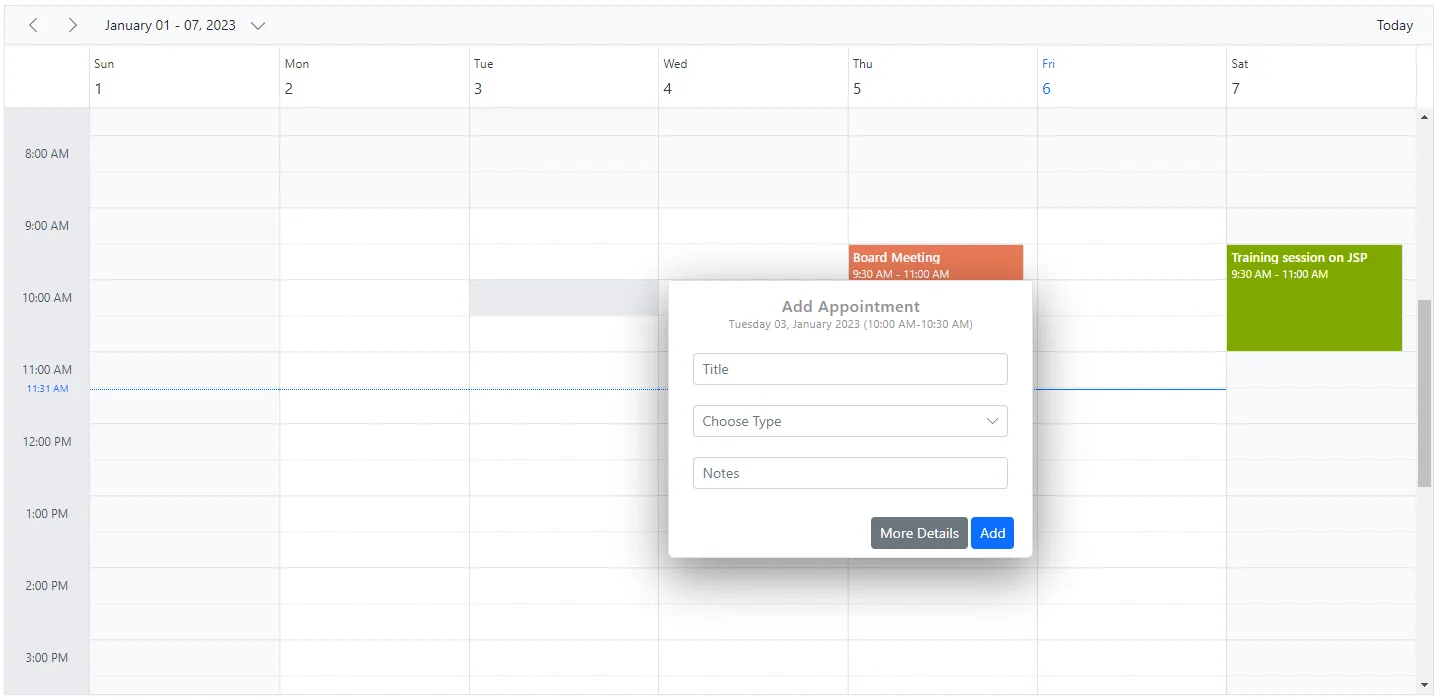
How to enable/disable quick popup on selection end
By default, the QuickInfoOnSelectionEnd property is set to false to prevent the quick popup from appearing at the end of multiple cell selection. Set this property to true to show the quick popup at selection end.
@using Syncfusion.Blazor.Schedule

<SfSchedule TValue="AppointmentData" Height="550px" QuickInfoOnSelectionEnd="true" @bind-SelectedDate="@CurrentDate">
    <ScheduleEventSettings DataSource="@DataSource"></ScheduleEventSettings>
    <ScheduleViews>
        <ScheduleView Option="View.Day"></ScheduleView>
        <ScheduleView Option="View.Week"></ScheduleView>
        <ScheduleView Option="View.WorkWeek"></ScheduleView>
        <ScheduleView Option="View.Month"></ScheduleView>
        <ScheduleView Option="View.Agenda"></ScheduleView>
    </ScheduleViews>
</SfSchedule>

@code{
    DateTime CurrentDate = new DateTime(2020, 2, 11);
    List<AppointmentData> DataSource = new List<AppointmentData>
    {
        new AppointmentData { Id = 1, Subject = "Paris", StartTime = new DateTime(2020, 2, 11, 10, 0, 0) , EndTime = new DateTime(2020, 2, 11, 12, 0, 0) },
        new AppointmentData { Id = 2, Subject = "Germany", StartTime = new DateTime(2020, 2, 13, 10, 0, 0) , EndTime = new DateTime(2020, 2, 13, 12, 0, 0) }
    };
    public class AppointmentData
    {
        public int Id { get; set; }
        public string Subject { get; set; }
        public string Location { get; set; }
        public DateTime StartTime { get; set; }
        public DateTime EndTime { get; set; }
        public string Description { get; set; }
        public bool IsAllDay { get; set; }
        public string RecurrenceRule { get; set; }
        public string RecurrenceException { get; set; }
        public Nullable<int> RecurrenceID { get; set; }
    }
}
How to enable/disable the multiple days selection
By default, the Blazor Scheduler allows users to select multiple days. You can prevent this behavior by setting the AllowMultiRowSelection property to false. Its default value is true.
@using Syncfusion.Blazor.Schedule

<SfSchedule TValue="AppointmentData" Height="550px" AllowMultiRowSelection="false" @bind-SelectedDate="@CurrentDate">
    <ScheduleEventSettings DataSource="@DataSource"></ScheduleEventSettings>
    <ScheduleViews>
        <ScheduleView Option="View.Day"></ScheduleView>
        <ScheduleView Option="View.Week"></ScheduleView>
        <ScheduleView Option="View.WorkWeek"></ScheduleView>
        <ScheduleView Option="View.Month"></ScheduleView>
        <ScheduleView Option="View.Agenda"></ScheduleView>
    </ScheduleViews>
</SfSchedule>

@code{
    DateTime CurrentDate = new DateTime(2020, 2, 11);
    List<AppointmentData> DataSource = new List<AppointmentData>
    {
        new AppointmentData { Id = 1, Subject = "Paris", StartTime = new DateTime(2020, 2, 11, 10, 0, 0) , EndTime = new DateTime(2020, 2, 11, 12, 0, 0) },
        new AppointmentData { Id = 2, Subject = "Germany", StartTime = new DateTime(2020, 2, 13, 10, 0, 0) , EndTime = new DateTime(2020, 2, 13, 12, 0, 0) }
    };
    public class AppointmentData
    {
        public int Id { get; set; }
        public string Subject { get; set; }
        public string Location { get; set; }
        public DateTime StartTime { get; set; }
        public DateTime EndTime { get; set; }
        public string Description { get; set; }
        public bool IsAllDay { get; set; }
        public string RecurrenceRule { get; set; }
        public string RecurrenceException { get; set; }
        public Nullable<int> RecurrenceID { get; set; }
    }
}
How to close quick info popup manually
You can close the quick info popup in Blazor Scheduler by using the CloseQuickInfoPopupAsync public method.
@using Syncfusion.Blazor.Schedule
@using Syncfusion.Blazor.Buttons

<SfButton Content="Close popup" OnClick="@(e => OnBtnClick())"></SfButton>
<SfSchedule TValue="AppointmentData" @ref="ScheduleObj" Width="100%" Height="750px" @bind-SelectedDate="@SelectedDate">
    <ScheduleEventSettings DataSource="@DataSource"></ScheduleEventSettings>
    <ScheduleViews>
        <ScheduleView Option="View.Day"></ScheduleView>
        <ScheduleView Option="View.Week"></ScheduleView>
        <ScheduleView Option="View.WorkWeek"></ScheduleView>
        <ScheduleView Option="View.Month"></ScheduleView>
        <ScheduleView Option="View.Agenda"></ScheduleView>
    </ScheduleViews>
</SfSchedule>

@code{

    SfSchedule<AppointmentData> ScheduleObj;
    private DateTime SelectedDate = new DateTime(2020, 4, 1);
    private async Task OnBtnClick()
    {
       await ScheduleObj.CloseQuickInfoPopupAsync();
    }
    List<AppointmentData> DataSource = new List<AppointmentData>
    {
        new AppointmentData { Id = 1, Subject = "Meeting", StartTime = new DateTime(2020, 4, 1, 9, 30, 0) , EndTime = new DateTime(2020, 4, 1, 11, 0, 0), EventType = "Confirmed" }
    };
    public class AppointmentData
    {

        public string EventType { get; set; }
        public int Id { get; set; }
        public string Subject { get; set; }
        public DateTime StartTime { get; set; }
        public DateTime EndTime { get; set; }
        public bool IsAllDay { get; set; }
        public string RecurrenceRule { get; set; }
        public Nullable<int> RecurrenceID { get; set; }
        public string RecurrenceException { get; set; }
        public string Description { get; set; }
    }
}
More events indicator and popup
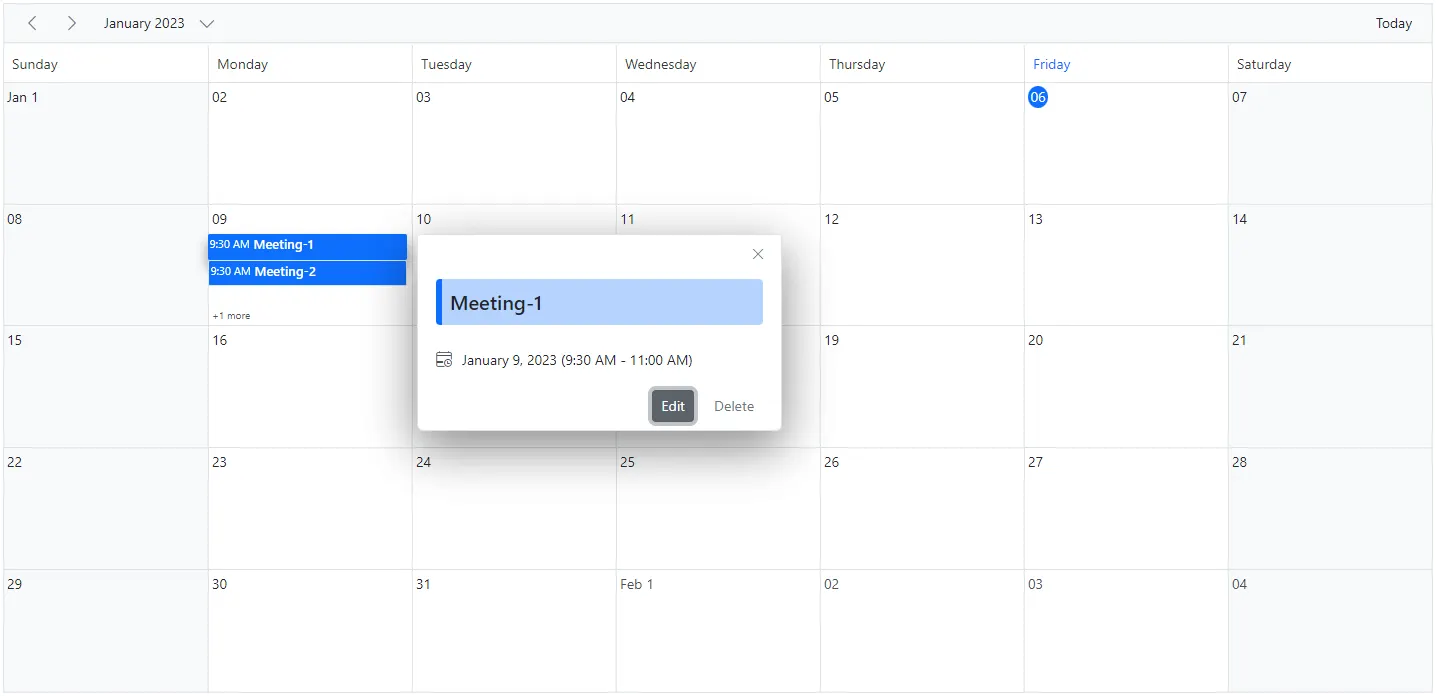
When the number of appointments in a particular time range exceeds the default cell height in month view and other timeline views, a + more text indicator appears at the bottom of those cells. This indicator shows that the cell contains additional appointments, and clicking it displays a popup with all appointments for that day.
Note: To disable the popup that shows hidden appointments when the text indicator is clicked, you can customize the logic within the OnPopupOpen event.
The same indicator appears in the all-day row in day, week, and work week views when the number of appointments in a cell exceeds three. Clicking the indicator here does not open a popup; instead, it expands or collapses the remaining appointments in the all-day row.
@using Syncfusion.Blazor.Schedule

<SfSchedule TValue="AppointmentData" Height="550px" @bind-SelectedDate="@CurrentDate">
    <ScheduleEvents TValue="AppointmentData" OnPopupOpen="OnPopupOpen"></ScheduleEvents>
    <ScheduleEventSettings DataSource="@DataSource">
    </ScheduleEventSettings>
    <ScheduleViews>
        <ScheduleView Option="View.Month" MaxEventsPerRow="2"></ScheduleView>
    </ScheduleViews>
</SfSchedule>

@code{
    DateTime CurrentDate = new DateTime(2023, 1, 9);
    public void OnPopupOpen(PopupOpenEventArgs<AppointmentData> args)
    {
        if (args.Type == PopupType.EventContainer)
        {
            args.Cancel = true;
        }
    }
    List<AppointmentData> DataSource = new List<AppointmentData>
    {
        new AppointmentData { Id = 1, Subject = "Meeting-1", StartTime = new DateTime(2023, 1, 9, 9, 30, 0) , EndTime = new DateTime(2023, 1, 9, 11, 0, 0) },
        new AppointmentData { Id = 2, Subject = "Meeting-2", StartTime = new DateTime(2023, 1, 9, 9, 30, 0) , EndTime = new DateTime(2023, 1, 9, 11, 0, 0) },
        new AppointmentData { Id = 3, Subject = "Meeting-3", StartTime = new DateTime(2023, 1, 9, 9, 30, 0) , EndTime = new DateTime(2023, 1, 9, 11, 0, 0) }
    };
    public class AppointmentData
    {
        public int Id { get; set; }
        public string Subject { get; set; }
        public DateTime StartTime { get; set; }
        public DateTime EndTime { get; set; }
        public bool IsAllDay { get; set; }
        public string RecurrenceRule { get; set; }
        public Nullable<int> RecurrenceID { get; set; }
        public string RecurrenceException { get; set; }
    }
}
How to prevent the display of popup when clicking on the more text indicator
You can prevent the popup window from appearing by setting the Cancel option to true within the MoreEventsClicked event.
@using Syncfusion.Blazor.Schedule

<SfSchedule TValue="AppointmentData" @ref="ScheduleObj" Width="100%" Height="750px" @bind-SelectedDate="@SelectedDate">
       <ScheduleEventSettings DataSource="@DataSource"></ScheduleEventSettings>
       <ScheduleViews>
           <ScheduleView Option="View.Month"></ScheduleView>
       </ScheduleViews>
    <ScheduleEvents TValue="AppointmentData" MoreEventsClicked="OnMoreEventsClicked"></ScheduleEvents>
</SfSchedule>

@code{

    SfSchedule<AppointmentData> ScheduleObj;

    private DateTime SelectedDate = new DateTime(2020, 1, 31);

    private void OnMoreEventsClicked(MoreEventsClickArgs args)
    {
        args.Cancel = true;
    }
    List<AppointmentData> DataSource = new List<AppointmentData>
    {
        new AppointmentData { Id = 1, Subject = "Meeting", StartTime = new DateTime(2020, 1, 15, 9, 30, 0) , EndTime = new DateTime(2020, 1, 15, 11, 0, 0), EventType = "Confirmed" },
        new AppointmentData { Id = 1, Subject = "Scrum Meeting", StartTime = new DateTime(2020, 1, 15, 10, 30, 0) , EndTime = new DateTime(2020, 1, 15, 11, 0, 0), EventType = "Confirmed" }
    };
    public class AppointmentData
    {

        public string EventType { get; set; }
        public int Id { get; set; }
        public string Subject { get; set; }
        public DateTime StartTime { get; set; }
        public DateTime EndTime { get; set; }
        public bool IsAllDay { get; set; }
        public string RecurrenceRule { get; set; }
        public Nullable<int> RecurrenceID { get; set; }
        public string RecurrenceException { get; set; }
        public string Description { get; set; }
    }
}