Data Binding in Blazor Scheduler
The Blazor Scheduler uses DataManager, which supports both RESTful data service binding and datasource collections to bind data to the Scheduler. The DataSource property of Blazor Scheduler can be assigned either with the instance of DataManager or list of datasource collection.
It supports the following kinds of data binding methods:
- List binding
- Remote data
Please take a moment to watch this video to learn about data binding in the Blazor Scheduler.
List binding
To bind list binding to the Scheduler, you can simply assign a list of datasource collections as IEnumerable object to the DataSource option of the Blazor Scheduler within the ScheduleEventSettings tag. The list data source can also be provided as an instance of the SfDataManager or by using SfDataManager component.
@using Syncfusion.Blazor.Schedule

<SfSchedule TValue="AppointmentData" Height="550px" SelectedDate="@(new DateTime(2020, 2, 12))">
    <ScheduleEventSettings DataSource="@DataSource"></ScheduleEventSettings>
</SfSchedule>

@code{
    List<AppointmentData> DataSource = new List<AppointmentData>
    {
        new AppointmentData { Id = 1, Subject = "Testing", StartTime = new DateTime(2020, 2, 13, 9, 30, 0) , EndTime = new DateTime(2020, 2, 13, 10, 30, 0)},
        new AppointmentData { Id = 2, Subject = "Conference", StartTime = new DateTime(2020, 2, 11, 10, 30, 0) , EndTime = new DateTime(2020, 2, 11, 12, 0, 0)},
        new AppointmentData { Id = 3, Subject = "Meeting", StartTime = new DateTime(2020, 2, 9, 9, 30, 0) , EndTime = new DateTime(2020, 2, 9, 11, 30, 0)},
        new AppointmentData { Id = 4, Subject = "Vacation", StartTime = new DateTime(2020, 2, 14, 11, 30, 0) , EndTime = new DateTime(2020, 2, 14, 13, 0, 0)}
    };
    public class AppointmentData
    {
        public int Id { get; set; }
        public string Subject { get; set; }
        public string Location { get; set; }
        public DateTime StartTime { get; set; }
        public DateTime EndTime { get; set; }
        public string Description { get; set; }
        public bool IsAllDay { get; set; }
        public string RecurrenceRule { get; set; }
        public string RecurrenceException { get; set; }
        public Nullable<int> RecurrenceID { get; set; }
    }
}
By default,
DataManagerusesBlazorAdaptorfor binding local data.
You can also bind different field names to the default event fields as well as include additional
custom fieldsto the event object collection which can be referred here.
ExpandoObject binding
The Blazor Scheduler is a generic component which is strongly bound to a model type, but there may be cases where the model type is unknown during compile or runtime. In these scenarios, you can use ExpandoObject binding to bind data to the Blazor Scheduler as a list of dynamic objects.
ExpandoObject implements the IDictionary<string, object> interface, which means you can add properties and values to the object like you would with a dictionary.ExpandoObject binding provides a flexible way to bind data to the Blazor Scheduler component without the need for a predefined class or data structure. This can be particularly useful in scenarios where you have data sources with varying structures, or when you need to bind to data sources that are not known at compile-time.
ExpandoObject can be bound to the DataSource option of the Blazor Scheduler within the ScheduleEventSettings component. Blazor Scheduler can also perform all kinds of supported data operations and editing in ExpandoObject.
To bind data to the Blazor Scheduler using ExpandoObject, you can create a list of ExpandoObjects and set it as the DataSource property of the Scheduler’s ScheduleEventSettings component.
@using System.Dynamic
@using Syncfusion.Blazor.Schedule
<SfSchedule TValue="ExpandoObject" @bind-SelectedDate="@CurrentDate" Width="100%" Height="550px">
    <ScheduleEventSettings DataSource="@EventsCollection" AllowEditFollowingEvents="true"></ScheduleEventSettings>
    <ScheduleViews>
        <ScheduleView Option="View.Day"></ScheduleView>
        <ScheduleView Option="View.Week"></ScheduleView>
        <ScheduleView Option="View.WorkWeek"></ScheduleView>
        <ScheduleView Option="View.Month"></ScheduleView>
        <ScheduleView Option="View.Agenda"></ScheduleView>
    </ScheduleViews>
</SfSchedule>
@code {
    DateTime CurrentDate = new DateTime(2021, 8, 10);
    public List<ExpandoObject> EventsCollection = new List<ExpandoObject>() { };
    protected override void OnInitialized()
    {
        DateTime scheduleStart = new DateTime(2021, 8, 8, 10, 0, 0);
        EventsCollection = Enumerable.Range(1, 5).Select((x) =>
        {
            scheduleStart = scheduleStart.AddDays(1);
            dynamic d = new ExpandoObject();
            d.Id = 1000 + x;
            d.Subject = (new string[] { "Project Discussion", "Work Flow Analysis", "Report", "Meeting", "Project Demo" })[new Random().Next(5)];
            d.StartTime = scheduleStart;
            d.EndTime = scheduleStart.AddHours(1);
            d.IsAllDay = false;
            d.RecurrenceRule = null;
            d.RecurrenceException = null;
            d.RecurrenceID = null;
            return d;
        }).Cast<ExpandoObject>().ToList<ExpandoObject>();
    }
}
DynamicObject Binding
DynamicObject binding is another approach for binding data to the Blazor Scheduler when the model type is unknown at compile time. In this approach, you use the dynamic keyword to define variables that can hold objects of any type, including those with dynamically added properties.
To bind data to the Blazor Scheduler using DynamicObject binding, you can create a list of dynamic objects and set it as the DataSource property of the Scheduler’s ScheduleEventSettings component. You can then use the Scheduler’s built-in data operations and editing features to work with the data.
DynamicObject implements the IDynamicMetaObjectProvider interface, which means you can override member access operations like GetMember and SetMember to provide your own custom logic.DynamicObject binding is that it allows you to create objects with dynamic behavior, which can be useful in scenarios where you need to work with objects whose behavior is not known at compile-time.
The
GetDynamicMemberNamesmethod of DynamicObject class must be overridden and return the property names to perform data operation and editing while using DynamicObject.
@using System.Dynamic
@using System.Text.Json
@using Syncfusion.Blazor.Schedule

<SfSchedule TValue="DynamicDictionary" @bind-SelectedDate="@CurrentDate" Width="100%" Height="550px">
    <ScheduleEventSettings DataSource="@EventsCollection"></ScheduleEventSettings>
    <ScheduleViews>
        <ScheduleView Option="View.Day"></ScheduleView>
        <ScheduleView Option="View.Week"></ScheduleView>
        <ScheduleView Option="View.WorkWeek"></ScheduleView>
        <ScheduleView Option="View.Month"></ScheduleView>
        <ScheduleView Option="View.Agenda"></ScheduleView>
    </ScheduleViews>
</SfSchedule>
@code {
    DateTime CurrentDate = new DateTime(2021, 8, 10);
    public List<DynamicDictionary> EventsCollection = new List<DynamicDictionary>() { };
    protected override void OnInitialized()
    {
        DateTime scheduleStart = new DateTime(2021, 8, 8, 10, 0, 0);
        EventsCollection = Enumerable.Range(1, 5).Select((x) =>
        {
            scheduleStart = scheduleStart.AddDays(1);
            dynamic d = new DynamicDictionary();
            d.Id = 1000 + x;
            d.Subject = (new string[] { "Project Discussion", "Work Flow Analysis", "Report", "Meeting", "Project Demo" })[new Random().Next(5)];
            d.StartTime = scheduleStart;
            d.EndTime = scheduleStart.AddHours(1);
            d.RecurrenceRule = null;
            d.RecurrenceException = null;
            d.RecurrenceID = null;
            return d;
        }).Cast<DynamicDictionary>().ToList<DynamicDictionary>();
    }
    public class DynamicDictionary : System.Dynamic.DynamicObject
    {
        Dictionary<string, object> dictionary = new Dictionary<string, object>();
        public override bool TryGetMember(GetMemberBinder binder, out object result)
        {
            string name = binder.Name;
            return dictionary.TryGetValue(name, out result);
        }
        public override bool TrySetMember(SetMemberBinder binder, object value)
        {
            dictionary[binder.Name] = value;
            return true;
        }
        public override System.Collections.Generic.IEnumerable<string> GetDynamicMemberNames()
        {
            return this.dictionary?.Keys;
        }
    }
}
ObservableCollection
This ObservableCollection (dynamic data collection) provides notifications when items are added, removed and moved. The implement INotifyCollectionChanged notifies when dynamic changes of add,remove, move and clear the collection. The implement INotifyPropertyChanged notifies when property value has changed in client side.
Here, AppointmentData class implements the interface of INotifyPropertyChanged and it raises the event when Subject property value was changed.
@using Syncfusion.Blazor.Schedule
@using Syncfusion.Blazor.Buttons
@using System.Collections.ObjectModel
@using System.ComponentModel

<SfButton @onclick="AddRecord">Add Data</SfButton>
<SfButton @onclick="UpdateRecord" Disabled="ObservableData.Count == 0">Update Data</SfButton>
<SfButton @onclick="DeleteRecord" Disabled="ObservableData.Count == 0">Delete Data</SfButton>

<SfSchedule TValue="AppointmentData" @bind-SelectedDate="@CurrentDate" Width="100%" Height="550px">
    <ScheduleEventSettings DataSource="@ObservableData"></ScheduleEventSettings>
    <ScheduleViews>
        <ScheduleView Option="View.Day"></ScheduleView>
        <ScheduleView Option="View.Week"></ScheduleView>
        <ScheduleView Option="View.WorkWeek"></ScheduleView>
        <ScheduleView Option="View.Month"></ScheduleView>
        <ScheduleView Option="View.Agenda"></ScheduleView>
    </ScheduleViews>
</SfSchedule>

@code{
    DateTime CurrentDate = new DateTime(2020, 3, 10);
    public ObservableCollection<AppointmentData> ObservableData { get; set; }
    List<AppointmentData> EventsCollection = new List<AppointmentData>();
    int uniqueid = 1;
    protected override void OnInitialized()
    {
        EventsCollection = Enumerable.Range(1, 4).Select(x => new AppointmentData()
        {
            Id = x,
            Subject = (new string[] { "Project Discussion", "Work Flow Analysis", "Report", "Meeting", "Project Demo" })[new Random().Next(5)],
            StartTime = new DateTime(2020, 3, 8 + x, 9, 0, 0),
            EndTime = new DateTime(2020, 3, 8 + x, 11, 0, 0)
        }).ToList();
        ObservableData = new ObservableCollection<AppointmentData>(EventsCollection);
    }
    public void AddRecord()
    {
        uniqueid++;
        ObservableData.Add(new AppointmentData() { Id = uniqueid, Subject = "Meeting", StartTime = new DateTime(2020, 3, 13, 9, 0, 0), EndTime = new DateTime(2020, 3, 13, 11, 0, 0) });
    }
    public void DeleteRecord()
    {
        if (ObservableData.Count != 0)
        {
            ObservableData.Remove(ObservableData.First());
        }
    }
    public void UpdateRecord()
    {
        if (ObservableData.Count != 0)
        {
            var data = ObservableData.First();
            data.Subject = "Event Updated";
        }
    }
    public class AppointmentData : INotifyPropertyChanged
    {
        public int Id { get; set; }
        private string subject { get; set; }
        public string Subject
        {
            get { return subject; }
            set
            {
                this.subject = value;
                NotifyPropertyChanged("Subject");
            }
        }
        public string Location { get; set; }
        public DateTime StartTime { get; set; }
        public DateTime EndTime { get; set; }
        public string Description { get; set; }
        public bool IsAllDay { get; set; }
        public string RecurrenceRule { get; set; }
        public string RecurrenceException { get; set; }
        public Nullable<int> RecurrenceID { get; set; }
        public string StartTimezone { get; set; }
        public string EndTimezone { get; set; }

        public event PropertyChangedEventHandler PropertyChanged;
        private void NotifyPropertyChanged(string propertyName)
        {
            PropertyChangedEventHandler handler = PropertyChanged;
            if (handler != null)
            {
                handler(this, new PropertyChangedEventArgs(propertyName));
            }
        }
    }
}
Custom binding
You can create your own CustomAdaptor by extending the built-in adaptors. The following example shows how to use a custom adaptor, bind data through a custom service, and perform CRUD operations for custom-bound data by using the DataAdaptor abstract class.
@using Syncfusion.Blazor
@using Syncfusion.Blazor.Schedule
@using Syncfusion.Blazor.Data

<SfSchedule TValue="AppointmentData" Width="100%" Height="650px" SelectedDate="@(new DateTime(2020, 1, 9))">
    <ScheduleResources>
        <ScheduleResource TItem="ResourceData" TValue="int" DataSource="@ProjectData" Field="ProjectId" Title="Choose Project" Name="Projects" TextField="Text" IdField="Id" ColorField="Color">
        </ScheduleResource>
    </ScheduleResources>
    <ScheduleEventSettings TValue="AppointmentData">
        <SfDataManager AdaptorInstance="@typeof(CustomAdaptor)" Adaptor="Adaptors.CustomAdaptor"></SfDataManager>
    </ScheduleEventSettings>
</SfSchedule>

@code {
    public class CustomAdaptor : DataAdaptor
    {
        List<AppointmentData> EventData = DataList();
        public async override Task<object> ReadAsync(DataManagerRequest dataManagerRequest, string key = null)
        {
            await Task.Delay(100); //To mimic asynchronous operation, we delayed this operation using Task.Delay
            return dataManagerRequest.RequiresCounts ? new DataResult() { Result = EventData, Count = EventData.Count() } : (object)EventData;
        }
        public async override Task<object> InsertAsync(DataManager dataManager, object data, string key)
        {
            await Task.Delay(100); //To mimic asynchronous operation, we delayed this operation using Task.Delay
            EventData.Insert(0, data as AppointmentData);
            return data;
        }
        public async override Task<object> UpdateAsync(DataManager dataManager, object data, string keyField, string key)
        {
            await Task.Delay(100); //To mimic asynchronous operation, we delayed this operation using Task.Delay
            var val = (data as AppointmentData);
            var appointment = EventData.Where((AppointmentData) => AppointmentData.Id == val.Id).FirstOrDefault();
            if (appointment != null)
            {
                appointment.Id = val.Id;
                appointment.Subject = val.Subject;
                appointment.StartTime = val.StartTime;
                appointment.EndTime = val.EndTime;
                appointment.Location = val.Location;
                appointment.Description = val.Description;
                appointment.IsAllDay = val.IsAllDay;
                appointment.ProjectId = val.ProjectId;
                appointment.RecurrenceException = val.RecurrenceException;
                appointment.RecurrenceID = val.RecurrenceID;
                appointment.RecurrenceRule = val.RecurrenceRule;
            }
            return data;
        }
        public async override Task<object> RemoveAsync(DataManager dataManager, object data, string keyField, string key) //triggers on appointment deletion through public method DeleteEvent
        {
            await Task.Delay(100); //To mimic asynchronous operation, we delayed this operation using Task.Delay
            int value = (int)data;
            EventData.Remove(EventData.Where((AppointmentData) => AppointmentData.Id == value).FirstOrDefault());
            return data;
        }
        public async override Task<object> BatchUpdateAsync(DataManager dataManager, object changedRecords, object addedRecords, object deletedRecords, string keyField, string key, int? dropIndex)
        {
            await Task.Delay(100); //To mimic asynchronous operation, we delayed this operation using Task.Delay
            object records = deletedRecords;
            List<AppointmentData> deleteData = deletedRecords as List<AppointmentData>;
            foreach (var data in deleteData)
            {
                EventData.Remove(EventData.Where((AppointmentData) => AppointmentData.Id == data.Id).FirstOrDefault());
            }
            List<AppointmentData> addData = addedRecords as List<AppointmentData>;
            foreach (var data in addData)
            {
                EventData.Insert(0, data as AppointmentData);
                records = addedRecords;
            }
            List<AppointmentData> updateData = changedRecords as List<AppointmentData>;
            foreach (var data in updateData)
            {
                var val = (data as AppointmentData);
                var appointment = EventData.Where((AppointmentData) => AppointmentData.Id == val.Id).FirstOrDefault();
                if (appointment != null)
                {
                    appointment.Id = val.Id;
                    appointment.Subject = val.Subject;
                    appointment.StartTime = val.StartTime;
                    appointment.EndTime = val.EndTime;
                    appointment.Location = val.Location;
                    appointment.Description = val.Description;
                    appointment.IsAllDay = val.IsAllDay;
                    appointment.ProjectId = val.ProjectId;
                    appointment.RecurrenceException = val.RecurrenceException;
                    appointment.RecurrenceID = val.RecurrenceID;
                    appointment.RecurrenceRule = val.RecurrenceRule;
                }
                records = changedRecords;
            }
            return records;
        }
    }
    private static List<AppointmentData> DataList()
    {
        List<AppointmentData> eventDatas = new List<AppointmentData>
        {
            new AppointmentData { Id = 1, Subject = "Meeting", StartTime = new DateTime(2020, 1, 5, 10, 0, 0) , EndTime = new DateTime(2020, 1, 5, 11, 0, 0), ProjectId = 1, RecurrenceRule = "FREQ=DAILY;INTERVAL=1;COUNT=5;"},
            new AppointmentData { Id = 2, Subject = "Project Discussion", StartTime = new DateTime(2020, 1, 6, 11, 30, 0) , EndTime = new DateTime(2020, 1, 6, 13, 0, 0), ProjectId = 2},
            new AppointmentData { Id = 3, Subject = "Work Flow Analysis", StartTime = new DateTime(2020, 1, 7, 12, 0, 0) , EndTime = new DateTime(2020, 1, 7, 13, 0, 0), ProjectId = 2, RecurrenceRule = "FREQ=DAILY;INTERVAL=1;COUNT=3;"},
            new AppointmentData { Id = 4, Subject = "Report", StartTime = new DateTime(2020, 1, 10, 11, 30, 0) , EndTime = new DateTime(2020, 1, 10, 13, 0, 0), ProjectId = 2}
        };
        return eventDatas;
    }
    List<ResourceData> ProjectData = ResourceList();
    private static List<ResourceData> ResourceList()
    {
        List<ResourceData> resourceDatas = new List<ResourceData>
        {
            new ResourceData { Text = "PROJECT 1", Id = 1, Color = "#cb6bb2" },
            new ResourceData { Text = "PROJECT 2", Id = 2, Color = "#56ca85" }
        };
        return resourceDatas;
    }
    public class AppointmentData
    {
        public int Id { get; set; }
        public string Subject { get; set; }
        public string Location { get; set; }
        public DateTime StartTime { get; set; }
        public DateTime EndTime { get; set; }
        public string Description { get; set; }
        public bool IsAllDay { get; set; }
        public string RecurrenceRule { get; set; }
        public string RecurrenceException { get; set; }
        public Nullable<int> RecurrenceID { get; set; }
        public int ProjectId { get; set; }
    }
    public class ResourceData
    {
        public int Id { get; set; }
        public string Text { get; set; }
        public string Color { get; set; }
    }
}
Note: You can find the complete procedures to perform CRUD actions with the Blazor Scheduler using CustomAdaptor here.
Remote data
Any type of remote data service can be bound to the Scheduler. To do so, provide the service URL to the Url option of SfDataManager within the ScheduleEventSettings tag.
Binding with OData services
OData (Open Data Protocol) is a widely used protocol for creating and consuming RESTful APIs over transport protocols such as HTTP and HTTPS. It provides a standardized way to create, retrieve, update, and delete data across platforms and devices.
You can retrieve data from an OData service by using SfDataManager. Refer to the following code example for remote data binding using an OData service.
@using Syncfusion.Blazor
@using Syncfusion.Blazor.Schedule
@using Syncfusion.Blazor.Data

<SfSchedule TValue="Restful_Crud.Models.EventData" Height="550px" SelectedDate="@(new DateTime(2020, 3, 11))">
    <ScheduleEventSettings TValue="Restful_Crud.Models.EventData" Query="@QueryData">
        <SfDataManager Url="http://localhost:25255/odata" Adaptor="Adaptors.ODataAdaptor"></SfDataManager>
    </ScheduleEventSettings>
</SfSchedule>

@code{
    public Query QueryData = new Query().From("EventDatas");
}
Binding with OData v4 services
ODataV4 is the latest version of the OData protocol. It offers advanced query options, data validation, and data shaping, and it uses JSON for lighter payloads.
Refer to the following code example to retrieve data from an ODataV4 service by using DataManager. To connect to ODataV4 service endpoints, use ODataV4Adaptor within DataManager.
@using Syncfusion.Blazor
@using Syncfusion.Blazor.Schedule
@using Syncfusion.Blazor.Data

<SfSchedule TValue="Restful_Crud.Models.EventData" Height="550px" SelectedDate="@(new DateTime(2020, 3, 11))">
    <ScheduleEventSettings TValue="Restful_Crud.Models.EventData" Query="@QueryData">
        <SfDataManager Url="http://localhost:25255/odata" Adaptor="Adaptors.ODataV4Adaptor"></SfDataManager>
    </ScheduleEventSettings>
</SfSchedule>

@code{
    public Query QueryData = new Query().From("EventDatas");
}
Note: You can find the working sample here.
Filter events using the built-in query
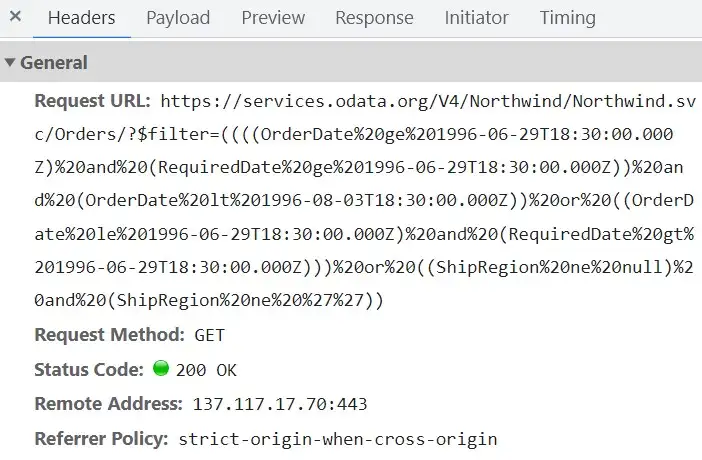
To enable server-side filtering based on predetermined conditions, set the IncludeFiltersInQuery property to true. This builds the filter query by using the start date, end date, and recurrence rule, which allows the request to be filtered accordingly.
This approach improves component performance by reducing the amount of data transferred to the client. As a result, responsiveness improves. However, longer query strings can affect the maximum URL length or server query string limits.
@using Syncfusion.Blazor
@using Syncfusion.Blazor.Data;
@using Syncfusion.Blazor.Schedule

<SfSchedule TValue="AppointmentData" Height="550px" @bind-SelectedDate="@currentDate">
    <ScheduleEventSettings TValue="AppointmentData" Query="@QueryData" IncludeFiltersInQuery="true">
        <ScheduleViews>
            <ScheduleView Option="View.Month"></ScheduleView>
        </ScheduleViews>
        <SfDataManager Url="https://services.odata.org/V4/Northwind/Northwind.svc/Orders/" Adaptor="Adaptors.ODataV4Adaptor">
        </SfDataManager>
        <ScheduleField Id="Id">
            <FieldSubject Name="ShipName"></FieldSubject>
            <FieldLocation Name="ShipCountry"></FieldLocation>
            <FieldDescription Name="ShipAddress"></FieldDescription>
            <FieldStartTime Name="OrderDate"></FieldStartTime>
            <FieldEndTime Name="RequiredDate"></FieldEndTime>
            <FieldRecurrenceRule Name="ShipRegion"></FieldRecurrenceRule>
        </ScheduleField>
    </ScheduleEventSettings>
</SfSchedule>

@code {

    DateTime currentDate = new DateTime(1996, 7, 9);
    public Query QueryData = new Query();

    public class AppointmentData
    {
        public int Id { get; set; }
        public string? ShipName { get; set; }
        public DateTime OrderDate { get; set; }
        public DateTime RequiredDate { get; set; }
        public string? ShipCountry { get; set; }
        public string? ShipAddress { get; set; }
        public string? ShipRegion { get; set; }
    }
}
The following image shows how parameters are passed using the ODataV4 filter.
Web API adaptor
You can bind Web API data to the Blazor Scheduler by using WebApiAdaptor. The following sample code shows how to bind remote services to the Blazor Scheduler component.
@using Syncfusion.Blazor
@using Syncfusion.Blazor.Data;
@using Syncfusion.Blazor.Schedule

<SfSchedule TValue="AppointmentData" Height="550px" @bind-SelectedDate="@currentDate" Readonly="true">
    <ScheduleEventSettings TValue="AppointmentData" >
        <ScheduleViews>
            <ScheduleView Option="View.Month"></ScheduleView>
        </ScheduleViews>
       <SfDataManager Url="https://blazor.syncfusion.com/services/production/api/schedule" Adaptor="Adaptors.WebApiAdaptor">
       </SfDataManager>
    </ScheduleEventSettings>
</SfSchedule>

@code {
    DateTime currentDate = new DateTime(2023, 1, 6);

    public class AppointmentData
    {
            public int Id { get; set; }
            public string Subject { get; set; }
            public string Location { get; set; }
            public string Description { get; set; }
            public DateTime StartTime { get; set; }
            public DateTime EndTime { get; set; }
            public Nullable<bool> IsAllDay { get; set; }
            public string CategoryColor { get; set; }
            public string RecurrenceRule { get; set; }
            public Nullable<int> RecurrenceID { get; set; }
            public Nullable<int> FollowingID { get; set; }
            public string RecurrenceException { get; set; }
            public string StartTimezone { get; set; }
            public string EndTimezone { get; set; }
    }
}
Url adaptor
You can use the UrlAdaptor of SfDataManager when binding a data source for remote data. During the initial load of Scheduler, data is fetched from remote data and bound to the Blazor Scheduler by using the Url property of SfDataManager.
CRUD operations in the Blazor Scheduler can be mapped to server-side controller actions by using the InsertUrl, RemoveUrl, UpdateUrl, and CrudUrl properties.
-
InsertUrl– Performs a single insert operation on the server side. -
UpdateUrl– Updates a single record on the server side. -
RemoveUrl– Removes a single record on the server side. -
CrudUrl– Performs bulk data operations on the server side.
The following sample code demonstrates binding data to the Blazor Scheduler component through the SfDataManager using UrlAdaptor.
@using Syncfusion.Blazor
@using Syncfusion.Blazor.Data;
@using Syncfusion.Blazor.Schedule
@using Url_Adaptor.Data
@using Url_Adaptor.Models
@using Url_Adaptor.Pages

<SfSchedule TValue="Event" Height="550px" @bind-SelectedDate="@currentDate" AllowMultiDrag="true">
    <ScheduleEventSettings TValue="Event">
        <SfDataManager Url="api/Default" UpdateUrl="/api/Default/Update" RemoveUrl="/api/Default/Delete" InsertUrl="/api/Default/Add" CrudUrl="/api/Default/Batch" Adaptor="Adaptors.UrlAdaptor">
        </SfDataManager>
    </ScheduleEventSettings>
    <ScheduleViews>
        <ScheduleView Option="View.Month"></ScheduleView>
    </ScheduleViews>
</SfSchedule>

@code {
    DateTime currentDate = new DateTime(2022, 12, 6);
}
The following server-side controller code handles the CRUD operations.
namespace Url_Adaptor.Controller
{
    [ApiController]
    public class DefaultController : ControllerBase
    {
        private readonly EventsContext dbContext;


        public DefaultController(EventsContext dbContext)
        {
            this.dbContext = dbContext;

            if (this.dbContext.Events.Count() == 0)
            {
                foreach (var b in DataSource.GetEvents())
                {
                    dbContext.Events.Add(b);
                }

                dbContext.SaveChanges();
            }
        }

        [HttpPost]
        [Route("api/[controller]")]
        public IActionResult Get()
        {
            var events = dbContext.Events.ToList();
            return Ok(events);
        }


        [HttpPost]
        [Route("api/Default/Add")]
        public void Add([FromBody] CRUDModel<Event> args)
        {
            dbContext.Events.Add(args.Value);
            dbContext.SaveChangesAsync();
        }

        [HttpPost]
        [Route("api/Default/Update")]
        public async Task Update(CRUDModel<Event> args)
        {
            var entity = await dbContext.Events.FindAsync(args.Value.Id);
            if (entity != null)
            {
                dbContext.Entry(entity).CurrentValues.SetValues(args.Value);
                await dbContext.SaveChangesAsync();
            }
        }

        [HttpPost]
        [Route("api/Default/Delete")]
        public async Task Delete(CRUDModel<Event> args)
        {
            var key = Convert.ToInt32(Convert.ToString(args.Key));
            var app = dbContext.Events.Find(key);
            if (app != null)
            {
                dbContext.Events.Remove(app);
                await dbContext.SaveChangesAsync();
            }
        }

        [HttpPost]
        [Route("api/Default/Batch")]
        public async Task Batch([FromBody] CRUDModel<Event> args)
        {
            if (args.Changed.Count > 0)
            {
                foreach (Event appointment in args.Changed)
                {
                    var entity = await dbContext.Events.FindAsync(appointment.Id);
                    if (entity != null)
                    {
                        dbContext.Entry(entity).CurrentValues.SetValues(appointment);
                    }
                }
            }
            if (args.Added.Count > 0)
            {
                foreach (Event appointment in args.Added)
                {
                    dbContext.Events.Add(appointment);

                }
            }
            if (args.Deleted.Count > 0)
            {
                foreach (Event appointment in args.Deleted)
                {
                    var app = dbContext.Events.Find(appointment.Id);
                    if (app != null)
                    {
                        dbContext.Events.Remove(app);
                    }
                }
            }
            await dbContext.SaveChangesAsync();
        }
    }
}
Sending additional parameters to the server
To send an additional custom parameter to the server-side post, use the AddParams method of Query. Assign this Query object with additional parameters to the Query property of Scheduler.
@using Syncfusion.Blazor
@using Syncfusion.Blazor.Schedule
@using Syncfusion.Blazor.Data

<SfSchedule TValue="Restful_Crud.Models.EventData" Height="550px" SelectedDate="@(new DateTime(2020, 3, 11))">
    <ScheduleEventSettings TValue="Restful_Crud.Models.EventData" Query="@QueryData">
        <SfDataManager Url="http://localhost:25255/odata" Adaptor="Adaptors.ODataV4Adaptor"></SfDataManager>
    </ScheduleEventSettings>
</SfSchedule>

@code{
    public Query QueryData = new Query().From("EventDatas").AddParams("Readonly", true);
}
The value passed to the additional parameter is shown in the following image.

Note: The parameters added by using the Query property will be sent with every data request made to the server during Blazor Scheduler actions.
Authorization and Authentication
It is common to configure authorization on the origin server to prevent anonymous access to data services. SfDataManager can consume data from protected remote services by using the proper bearer token. The access token can be used by SfDataManager in one of the following ways.
- By using the pre-configured HttpClient with the access token or authentication message handler, SfDataManager can access protected remote services. When registering your HttpClient, the registration should be done before calling
AddSyncfusionBlazor()method in Program.cs, so that SfDataManager will not create its own HttpClient and uses the already configured HttpClient. - Setting access token in the default header of the HttpClient by injecting it in the page. See here for adding default headers to HttpClient.
@inject HttpClient _httpClient

. . . .

@code {

    . . .

    protected override async Task OnInitializedAsync()
    {
        . . . .
        _httpClient.DefaultRequestHeaders.Add("Authorization", $"Bearer {tokenValue}");

        await base.OnInitializedAsync();
    }
}- Setting the access token in the Headers property of SfDataManager. See here for adding headers.
Getting the bearer token may vary with access token providers. More information on configuring HttpClient with authentication can be found on the official page here.
Setting custom headers
To add custom headers to the data request, use the Headers property of the SfDataManager.
The following sample code demonstrates how to add custom headers to the SfDataManager request.
@using Syncfusion.Blazor
@using Syncfusion.Blazor.Data;
@using Syncfusion.Blazor.Schedule

<SfSchedule TValue="AppointmentData" Height="550px" @bind-SelectedDate="@currentDate" Readonly="true">
    <ScheduleEventSettings TValue="AppointmentData">
        <ScheduleViews>
            <ScheduleView Option="View.Month"></ScheduleView>
        </ScheduleViews>
        <SfDataManager Headers=@HeaderData Url="https://blazor.syncfusion.com/services/production/api/schedule" Adaptor="Adaptors.WebApiAdaptor">
        </SfDataManager>
    </ScheduleEventSettings>
</SfSchedule>

@code {
    DateTime currentDate = new DateTime(2023, 1, 6);
    private IDictionary<string, string> HeaderData = new Dictionary<string, string>();

    public class AppointmentData
    {
        public int Id { get; set; }
        public string Subject { get; set; }
        public string Location { get; set; }
        public string Description { get; set; }
        public DateTime StartTime { get; set; }
        public DateTime EndTime { get; set; }
        public Nullable<bool> IsAllDay { get; set; }
        public string CategoryColor { get; set; }
        public string RecurrenceRule { get; set; }
        public Nullable<int> RecurrenceID { get; set; }
        public Nullable<int> FollowingID { get; set; }
        public string RecurrenceException { get; set; }
        public string StartTimezone { get; set; }
        public string EndTimezone { get; set; }
    }
}
Handling HTTP error
During server interaction from the Scheduler, server-side exceptions can occur. You can capture these error messages or exception details on the client by using the OnActionFailure event.
The argument passed to the OnActionFailure event contains the error details returned by the server.
The following sample code demonstrates how to notify the user when a server-side exception has occurred.
@using Syncfusion.Blazor
@using Syncfusion.Blazor.Data;
@using Syncfusion.Blazor.Schedule

<span class="error">@ErrorDetails</span>

<SfSchedule TValue="AppointmentData" Height="550px" @bind-SelectedDate="@currentDate" Readonly="true">
    <ScheduleEventSettings TValue="AppointmentData">
        <ScheduleEvents TValue="AppointmentData" OnActionFailure="@ActionFailure"></ScheduleEvents>
        <ScheduleViews>
            <ScheduleView Option="View.Month"></ScheduleView>
        </ScheduleViews>
        <SfDataManager Url="https://some.com/invalidUrl" Adaptor=" Adaptors.WebApiAdaptor">
        </SfDataManager>
    </ScheduleEventSettings>
</SfSchedule>

<style>
    .error {
        color: red;
    }
</style>

@code {
    DateTime currentDate = new DateTime(2023, 1, 6);
    public string ErrorDetails = "";

    public class AppointmentData
    {
        public int Id { get; set; }
        public string Subject { get; set; }
        public string Location { get; set; }
        public string Description { get; set; }
        public DateTime StartTime { get; set; }
        public DateTime EndTime { get; set; }
        public Nullable<bool> IsAllDay { get; set; }
        public string CategoryColor { get; set; }
        public string RecurrenceRule { get; set; }
        public Nullable<int> RecurrenceID { get; set; }
        public Nullable<int> FollowingID { get; set; }
        public string RecurrenceException { get; set; }
        public string StartTimezone { get; set; }
        public string EndTimezone { get; set; }
    }

    public void ActionFailure(ActionEventArgs<AppointmentData> args)
    {
        this.ErrorDetails = "Server exception: 404 Not found";
        StateHasChanged();
    }
}
Load on demand
Scheduler supports loading data on demand, which helps minimize the amount of data transmitted over the network, especially when working with large volumes of data. This can be achieved by filtering appointments on the server side based on the start date and end date.
        public async Task<List<AppointmentData>> Get(DateTime StartDate, DateTime EndDate)
        {
            return await _appointmentDataContext.AppointmentDatas.Where(evt => evt.StartTime >= StartDate && evt.EndTime <= EndDate).ToListAsync();
        }
The following code example describes the load-on-demand behavior by using a custom adaptor.
@using Syncfusion.Blazor.Schedule
@using Syncfusion.Blazor.Data
@using syncfusion_blazor_app.Data

<SfSchedule TValue="AppointmentData" Width="100%" Height="600px" @bind-SelectedDate="@SelectedDate">
    <ScheduleViews>
        <ScheduleView Option="View.Day"></ScheduleView>
        <ScheduleView Option="View.Week"></ScheduleView>
        <ScheduleView Option="View.WorkWeek"></ScheduleView>
        <ScheduleView Option="View.Month"></ScheduleView>
        <ScheduleView Option="View.Agenda"></ScheduleView>
    </ScheduleViews>
    <ScheduleEventSettings TValue="AppointmentData">
        <SfDataManager AdaptorInstance="@typeof(AppointmentDataAdaptor)" Adaptor="Adaptors.CustomAdaptor">
        </SfDataManager>
    </ScheduleEventSettings>
</SfSchedule>

@code {
    DateTime SelectedDate { get; set; } = new DateTime(2023, 5, 10);
}
using Syncfusion.Blazor;
using Syncfusion.Blazor.Data;
namespace syncfusion_blazor_app.Data {
public class AppointmentDataAdaptor : DataAdaptor {
private readonly AppointmentDataService _appService;
public AppointmentDataAdaptor(AppointmentDataService appService) {
_appService = appService;
}
List<AppointmentData>? EventData;
public override async Task<object> ReadAsync(DataManagerRequest dataManagerRequest, string key = null) {
System.Collections.Generic.IDictionary<string, object> Params = dataManagerRequest.Params;
DateTime start = (DateTime)Params["StartDate"];
DateTime end = (DateTime)Params["EndDate"];
EventData = await _appService.Get(start, end);
return dataManagerRequest.RequiresCounts ? new DataResult() { Result = EventData, Count = EventData.Count() } : EventData;
}
public async override Task<object> InsertAsync(DataManager dataManager, object data, string key) {
await _appService.Insert(data as AppointmentData);
return data;
}
public async override Task<object> UpdateAsync(DataManager dataManager, object data, string keyField, string key) {
await _appService.Update(data as AppointmentData);
return data;
}
public async override Task<object> RemoveAsync(DataManager dataManager, object data, string keyField, string key) //triggers on appointment deletion through public method DeleteEvent
{
var app = await _appService.GetByID((int)data);
await _appService.Delete(app);
return data;
}
public async override Task<object> BatchUpdateAsync(DataManager dataManager, object changedRecords, object addedRecords, object deletedRecords, string keyField, string key, int? dropIndex) {
object records = deletedRecords;
List<AppointmentData>? deleteData = deletedRecords as List<AppointmentData>;
if(deleteData != null) {
foreach (var data in deleteData) {
await _appService.Delete(data as AppointmentData);
}
}
List<AppointmentData>? addData = addedRecords as List<AppointmentData>;
if(addData != null) {
foreach (var data in addData) {
await _appService.Insert(data as AppointmentData);
records = addedRecords;
}
}
List<AppointmentData>? updateData = changedRecords as List<AppointmentData>;
if (updateData != null) {
foreach (var data in updateData) {
await _appService.Update(data as AppointmentData);
records = changedRecords;
}
}
return records;
}
}
}using System;
using System.Collections.Generic;
using System.Linq;
using System.Threading.Tasks;
using Syncfusion.Blazor;
using Microsoft.EntityFrameworkCore;
namespace syncfusion_blazor_app.Data
{
public class AppointmentDataService
{
private readonly AppointmentDataContext _appointmentDataContext;
public AppointmentDataService(AppointmentDataContext appDBContext)
{
_appointmentDataContext = appDBContext;
}
public async Task<List<AppointmentData>> Get(DateTime StartDate, DateTime EndDate)
{
return await _appointmentDataContext.AppointmentDatas.Where(evt => evt.StartTime >= StartDate && evt.EndTime <= EndDate).ToListAsync();
}
public async Task Insert(AppointmentData appointment)
{
var app = new AppointmentData();
app.Id = appointment.Id;
app.UserID = appointment.UserID;
app.Subject = appointment.Subject;
app.StartTime = appointment.StartTime;
app.EndTime = appointment.EndTime;
app.IsAllDay = appointment.IsAllDay;
app.Location = appointment.Location;
app.Description = appointment.Description;
app.RecurrenceRule = appointment.RecurrenceRule;
app.RecurrenceID = appointment.RecurrenceID;
app.RecurrenceException = appointment.RecurrenceException;
app.StartTimezone = appointment.StartTimezone;
app.EndTimezone = appointment.EndTimezone;
app.IsReadOnly = appointment.IsReadOnly;
await _appointmentDataContext.AppointmentDatas.AddAsync(app);
await _appointmentDataContext.SaveChangesAsync();
}
public async Task<AppointmentData> GetByID(int Id)
{
var app = await _appointmentDataContext.AppointmentDatas.FirstAsync(c => c.Id == Id);
return app;
}
public async Task Update(AppointmentData appointment)
{
var app = await _appointmentDataContext.AppointmentDatas.FirstAsync(c => c.Id == appointment.Id);
if (app != null)
{
app.UserID = appointment.UserID;
app.Subject = appointment.Subject;
app.StartTime = appointment.StartTime;
app.EndTime = appointment.EndTime;
app.IsAllDay = appointment.IsAllDay;
app.Location = appointment.Location;
app.Description = appointment.Description;
app.RecurrenceRule = appointment.RecurrenceRule;
app.RecurrenceID = appointment.RecurrenceID;
app.RecurrenceException = appointment.RecurrenceException;
app.StartTimezone = appointment.StartTimezone;
app.EndTimezone = appointment.EndTimezone;
app.IsReadOnly = appointment.IsReadOnly;
_appointmentDataContext.AppointmentDatas?.Update(app);
await _appointmentDataContext.SaveChangesAsync();
}
}
public async Task Delete(AppointmentData appointment)
{
var app = await _appointmentDataContext.AppointmentDatas.FirstAsync(c => c.Id == appointment.Id);
if (app != null)
{
_appointmentDataContext.AppointmentDatas?.Remove(app);
await _appointmentDataContext.SaveChangesAsync();
}
}
}
}You can download a complete working sample from GitHub.
SQL Server data binding(SQL Client)
The following examples demonstrate how to consume data from SQL Server by using Microsoft SqlClient and bind it to Blazor Scheduler. You can achieve this requirement by using Custom Adaptor.
Before implementation, add the required NuGet packages such as Microsoft.Data.SqlClient and Syncfusion.Blazor to your application. In the following sample, the custom adaptor can be created as a component. In the custom adaptor Read method, you can filter appointments by using DataManagerRequest.
Based on DataManagerRequest, you can build an SQL query string, execute the query, and retrieve the data from the database by using SqlDataAdapter. The Fill method of DataAdapter populates a DataSet with the results of the SelectCommand, and then the DataSet is converted into a list and returned as a Result and Count pair in the Read method to bind data to Scheduler.
@using Syncfusion.Blazor.Schedule
@using Syncfusion.Blazor.Data
@using syncfusion_blazor_app.Data
@using syncfusion_blazor_app.Shared

<SfSchedule TValue="AppointmentData" Width="100%" Height="600px" @bind-SelectedDate="@SelectedDate">
    <ScheduleViews>
        <ScheduleView Option="View.Day"></ScheduleView>
        <ScheduleView Option="View.Week"></ScheduleView>
        <ScheduleView Option="View.WorkWeek"></ScheduleView>
        <ScheduleView Option="View.Month"></ScheduleView>
        <ScheduleView Option="View.Agenda"></ScheduleView>
    </ScheduleViews>
    <ScheduleEventSettings TValue="AppointmentData">
        <SfDataManager Adaptor="Adaptors.CustomAdaptor">
            <CustomAdaptorComponent></CustomAdaptorComponent>
        </SfDataManager>
    </ScheduleEventSettings>
</SfSchedule>

@code {
    DateTime SelectedDate { get; set; } = new DateTime(2023, 5, 10);
}
@using Syncfusion.Blazor;
@using Syncfusion.Blazor.Data;
@using static syncfusion_blazor_app.Pages.Sql;
@using Microsoft.Data.SqlClient;
@using System.Data;
@using System.IO;
@using Microsoft.AspNetCore.Hosting;
@using System.Text.Json.Serialization;
@using syncfusion_blazor_app.Data;
@inject IHostingEnvironment _env
@inherits DataAdaptor<AppointmentData>
<CascadingValue Value="@this">
@ChildContent
</CascadingValue>
@code {
[Parameter]
[JsonIgnore]
public RenderFragment ChildContent { get; set; }
public static DataSet CreateCommand(string queryString, string connectionString)
{
using (SqlConnection connection = new SqlConnection(connectionString))
{
SqlDataAdapter adapter = new SqlDataAdapter(queryString, connection);
DataSet dt = new DataSet();
try
{
connection.Open();
adapter.Fill(dt); // Using sqlDataAdapter, we process the query string and fill the data into the dataset
}
catch (SqlException se)
{
Console.WriteLine(se.ToString());
}
finally
{
connection.Close();
}
return dt;
}
}
// Performs data Read operation
public override object Read(DataManagerRequest DataManagerReq, string Key = null)
{
string AppData = _env.ContentRootPath;
string DatabasePath = Path.Combine(AppData, "App_Data\\AppointmentDataDB.mdf");
var connectionString = "Data Source=(LocalDB)\\MSSQLLocalDB;AttachDbFilename=" + Directory.GetCurrentDirectory() + "\\AppData\\AppointmentDataDB.mdf;Integrated Security=True";
string QueryStr = "SELECT * FROM dbo.AppointmentDatas";
DataSet Data = CreateCommand(QueryStr, connectionString);
Appointment = Data.Tables[0].AsEnumerable().Select(r => new AppointmentData
{
Id = r.Field<int>("Id"),
Subject = r.Field<string>("Subject"),
StartTime = r.Field<DateTime>("StartTime"),
EndTime = r.Field<DateTime>("EndTime")
}).ToList(); // Here, we convert dataset into list
IEnumerable<AppointmentData> DataSource = Appointment;
SqlConnection Con = new SqlConnection(connectionString);
Con.Open();
SqlCommand Cmd = new SqlCommand("SELECT COUNT(*) FROM dbo.AppointmentDatas", Con);
Int32 Count = (Int32)Cmd.ExecuteScalar();
return DataManagerReq.RequiresCounts ? new DataResult() { Result = DataSource, Count = Count } : (object)DataSource;
}
}You can download a complete working sample from GitHub.
Performing CRUD using Entity Framework
Follow the steps below to consume data from Entity Framework in the Blazor Scheduler component.
To get started quickly with CRUD actions by using Entity Framework in Scheduler, you can watch this video:
Create DBContext class
The first step is to create a DBContext class called ScheduleDataContext to connect to a Microsoft SQL Server database.
using System;
using Microsoft.EntityFrameworkCore;
using Microsoft.EntityFrameworkCore.Metadata;

namespace Restful_Services.Models
{
    public partial class ScheduleDataContext : DbContext
    {
        public ScheduleDataContext()
        {
        }

        public ScheduleDataContext(DbContextOptions<ScheduleDataContext> options)
            : base(options)
        {
        }

        public virtual DbSet<EventData> EventData { get; set; }

        protected override void OnConfiguring(DbContextOptionsBuilder optionsBuilder)
        {
            if (!optionsBuilder.IsConfigured)
            {
                optionsBuilder.UseSqlServer("Data Source=(LocalDB)\\MSSQLLocalDB;AttachDbFilename=D:\\SchedulerCRUD\\Restful_Services\\App_Data\\ScheduleData.mdf;Integrated Security=True;MultipleActiveResultSets=True;Application Name=EntityFramework;Integrated Security=True");
            }
        }

        protected override void OnModelCreating(ModelBuilder modelBuilder)
        {
            modelBuilder.Entity<EventData>(entity =>
            {
                entity.Property(e => e.Id).ValueGeneratedNever();
                entity.Property(e => e.EndTime).HasColumnType("datetime");
                entity.Property(e => e.RecurrenceID).HasColumnName("RecurrenceID");
                entity.Property(e => e.StartTime).HasColumnType("datetime");
            });
            OnModelCreatingPartial(modelBuilder);
        }

        partial void OnModelCreatingPartial(ModelBuilder modelBuilder);
    }
}
Creating OData Controller
A OData Controller has to be created which allows Blazor Scheduler directly to consume data from the Entity Framework. The following code example shows how to perform CRUD operations using Entity Framework.
using System;
using System.Collections.Generic;
using System.Data;
using System.Data.Entity;
using System.Data.Entity.Infrastructure;
using System.Linq;
using System.Net;
using System.Net.Http;
using System.Web.Http;
using System.Web.ModelBinding;
using Microsoft.AspNet.OData;
using Restful_Services.Models;

namespace Restful_Services.Controllers
{
    public class ODataV4Controller : ODataController
    {
        private ScheduleDataContext db = new ScheduleDataContext();

        // GET: odata/ODataV4
        [EnableQuery]
        [AcceptVerbs("GET")]
        public IQueryable<EventData> GetODataV4()
        {
            return db.EventData;
        }

        // GET: odata/ODataV4(5)
        [EnableQuery]
        [AcceptVerbs("GET")]
        public IQueryable<EventData> GetODataV4(string StartDate, string EndDate)
        {
            DateTime start = DateTime.Parse(StartDate);
            DateTime end = DateTime.Parse(EndDate);
            return db.EventData.Where(evt => evt.StartTime >= start && evt.EndTime <= end);
        }

        // POST: odata/ODataV4
        [AcceptVerbs("POST", "OPTIONS")]
        public void Post([FromBody]EventData eventData)
        {
            if (ModelState.IsValid)
            {
                EventData insertData = new EventData();
                insertData.Id = (db.EventData.ToList().Count > 0 ? db.EventData.ToList().Max(p => p.Id) : 1) + 1;
                insertData.Subject = eventData.Subject;
                insertData.StartTime = Convert.ToDateTime(eventData.StartTime);
                insertData.EndTime = Convert.ToDateTime(eventData.EndTime);
                insertData.StartTimezone = eventData.StartTimezone;
                insertData.EndTimezone = eventData.EndTimezone;
                insertData.Location = eventData.Location;
                insertData.Description = eventData.Description;
                insertData.IsAllDay = eventData.IsAllDay;
                insertData.IsBlock = eventData.IsBlock;
                insertData.IsReadOnly = eventData.IsReadOnly;
                insertData.FollowingID = eventData.FollowingID;
                insertData.RecurrenceID = eventData.RecurrenceID;
                insertData.RecurrenceRule = eventData.RecurrenceRule;
                insertData.RecurrenceException = eventData.RecurrenceException;
                db.EventData.Add(insertData);
                db.SaveChanges();
            }
        }

        // PATCH: odata/ODataV4(5)
        [AcceptVerbs("PATCH", "MERGE", "OPTIONS")]
        public void Patch([FromBody]EventData eventData)
        {
            if (ModelState.IsValid)
            {
                EventData updateData = db.EventData.First(i => i.Id == Convert.ToInt32(eventData.Id));
                if (updateData != null)
                {
                    updateData.Subject = eventData.Subject;
                    updateData.StartTime = Convert.ToDateTime(eventData.StartTime);
                    updateData.EndTime = Convert.ToDateTime(eventData.EndTime);
                    updateData.StartTimezone = eventData.StartTimezone;
                    updateData.EndTimezone = eventData.EndTimezone;
                    updateData.Location = eventData.Location;
                    updateData.Description = eventData.Description;
                    updateData.IsAllDay = eventData.IsAllDay;
                    updateData.IsBlock = eventData.IsBlock;
                    updateData.IsReadOnly = eventData.IsReadOnly;
                    updateData.FollowingID = eventData.FollowingID;
                    updateData.RecurrenceID = eventData.RecurrenceID;
                    updateData.RecurrenceRule = eventData.RecurrenceRule;
                    updateData.RecurrenceException = eventData.RecurrenceException;
                    db.SaveChanges();
                }
            }
        }

        // DELETE: odata/ODataV4(5)
        [AcceptVerbs("DELETE", "OPTIONS")]
        public void Delete([FromODataUri]int key)
        {
            if (ModelState.IsValid)
            {
                EventData removeData = db.EventData.First(i => i.Id == key);
                if (removeData != null)
                {
                    db.EventData.Remove(removeData);
                    db.SaveChanges();
                }
            }
        }
    }
}
Configure Blazor Scheduler component using ODataV4Adaptor
Now, the Blazor Scheduler can be configured using the SfDataManager to interact with the created OData service and consume the data appropriately. To interact with OData, use ODataV4Adaptor.
@using Syncfusion.Blazor
@using Syncfusion.Blazor.Schedule
@using Syncfusion.Blazor.Data

<SfSchedule TValue="Restful_Services.Models.EventData" Height="550px" SelectedDate="@(new DateTime(2020, 04, 14))" >
    <ScheduleEventSettings TValue="Restful_Services.Models.EventData" Query="@QueryData" >
        <SfDataManager Url="http://localhost:9876/odata/" Adaptor="Adaptors.ODataV4Adaptor"></SfDataManager>
    </ScheduleEventSettings>
</SfSchedule>
@code {
    public Query QueryData = new Query().From("ODataV4");
}
You can find the working sample on Entity Framework here.
Configuring Blazor Scheduler with Google API service
We have assigned the dataSource that is retrieved from the Google services within the OnInitializedAsync method. And, the CRUD actions are performed within the ActionCompleted event.
We have to write our own service to connect retrieve the events from the Google calendar.
The runnable sample for the above code will be available here.