Google Calendar Integration in Angular Scheduler
This Angular Scheduler lets users manage their Google Calendar events directly within the Scheduler. Changes made in the Scheduler are synced to Google Calendar, and existing Google events are displayed in the Scheduler interface.
Prerequisites
- Node.js and Angular CLI: Must be installed on your local machine to create, manage, and run the Angular application.
- Google Account: Required to access the Google Cloud Console to enable APIs and generate OAuth 2.0 credentials.
High-level flow
- The Scheduler displays events using data from Google Calendar.
- The app uses Google Identity Services (GIS) to obtain short-lived access tokens.
- CRUD operations from the Scheduler are converted into Google Calendar API calls.
- After each successful operation, the app reloads events from Google.
Create Google Cloud credentials
Step 1: Set up Google Calendar API
- Open Google Cloud Console.
- Click the Project Dropdown > New Project.
- Name it (e.g., Scheduler-Integration) and click Create.
Step 2: Enable the Google Calendar API
- Navigate to APIs & Services → Library → search “Calendar” → Click Enable.
Step 3: Configure OAuth consent screen (External or Internal depending on your audience)
- Navigate to APIs & Services → OAuth consent screen → select External → Click Create.
- Provide the App name and Support email.
Step 4: Add Test Users
- Navigate to APIs & Services → Audience → add mail in Test User → click Save.
Step 5: Generate Credentials
- Navigate to APIs & Services → Credentials → Click Create Credentials → OAuth client ID.
- Set Application Type to Web application.
- Add
http://localhost:4200to Authorized JavaScript origins. - Note: Copy the generated Client ID for your Angular configuration.
Scaffold the Angular project and install packages
Create a new Angular application with the following commands.
ng new sf-scheduler-google --routing=false --style=css
cd sf-scheduler-google
npm install @syncfusion/ej2-angular-schedule
(If you use Yarn, replace npm install with yarn add.)
Add Google Identity script
The Google Identity Services (GIS) script enables OAuth authentication in your app.
Add the GIS script in the <head> section of the public/index.html file:
<script src="https://accounts.google.com/gsi/client" async defer></script>Add the Syncfusion CSS references
Styles make your Scheduler look professional. Add these imports at the top of src/styles.css:
/* You can add global styles to this file, and also import other style files */
@import '../node_modules/@syncfusion/ej2-base/styles/material3.css';
@import '../node_modules/@syncfusion/ej2-buttons/styles/material3.css';
@import '../node_modules/@syncfusion/ej2-calendars/styles/material3.css';
@import '../node_modules/@syncfusion/ej2-dropdowns/styles/material3.css';
@import '../node_modules/@syncfusion/ej2-inputs/styles/material3.css';
@import '../node_modules/@syncfusion/ej2-lists/styles/material3.css';
@import '../node_modules/@syncfusion/ej2-popups/styles/material3.css';
@import '../node_modules/@syncfusion/ej2-navigations/styles/material3.css';
@import '../node_modules/@syncfusion/ej2-angular-schedule/styles/material3.css';
Configuring the Syncfusion Angular Scheduler
-
Add the Syncfusion Angular Scheduler in
src/app.ts.This part adds the core Scheduler component with toolbar controls for signing in, reloading events, and signing out.
@Component({ standalone: true, selector: 'app-root', imports: [CommonModule, ScheduleModule], providers: [ DayService, WeekService, WorkWeekService, MonthService, AgendaService, ResizeService, DragAndDropService, GoogleCalendarService ], template: ` <div class="app-container"> <div class="header"> <h2>Google Calendar - Syncfusion Scheduler</h2> <div class="controls"> <button class="btn btn-signin" (click)="signIn()" *ngIf="!isSignedIn">Sign In with Google</button> <button class="btn btn-reload" (click)="loadEvents()" *ngIf="isSignedIn">Reload Events</button> <button class="btn btn-signout" (click)="signOut()" *ngIf="isSignedIn">Sign Out</button> </div> </div> <ejs-schedule #scheduleObj width="100%" height="650px" [allowDragAndDrop]="true" [allowResizing]="true" [showQuickInfo]="true" (actionComplete)="onActionComplete($event)" [eventSettings]="eventSettings" currentView="Week" [views]="scheduleViews" [selectedDate]="selectedDate"> </ejs-schedule> </div> `, }) - Configure your Google Calendar with the Syncfusion Scheduler using the API key, Client ID, and Calendar ID in the
src/app.tsfile.All credential values are case-sensitive. Paste the Google OAuth Client ID, API key, and Calendar ID exactly as issued.
export const CONFIG = { clientId: 'YOUR_CLIENT_ID', // Enter your client ID apiKey: 'YOUR_API_KEY', // Enter your API key calendarId: 'YOUR_CALENDAR_ID' // Enter your calendar ID }; -
Integrate Google Calendar
Integrate the Google Calendar with the Syncfusion Scheduler in the
src/app.tsfile by using the GoogleCalendarService class.The service handles OAuth token generation, fetching logged-in user info, and initializing the Google Identity Token Client.
import { Component, OnInit, Injectable, ViewChild } from '@angular/core'; import { CommonModule } from '@angular/common'; import { HttpClient, HttpHeaders } from '@angular/common/http'; import { BehaviorSubject, Observable } from 'rxjs'; import { ScheduleModule, DayService, WeekService, WorkWeekService, MonthService, AgendaService, ResizeService, DragAndDropService, ScheduleComponent } from '@syncfusion/ej2-angular-schedule'; @Injectable({ providedIn: 'root' }) export class GoogleCalendarService { private tokenClient: any = null; private accessToken: string | null = null; public signedIn$ = new BehaviorSubject<boolean>(false); public userEmail$ = new BehaviorSubject<string>(''); public lastGsiError$ = new BehaviorSubject<string | null>(null); private scope = 'https://www.googleapis.com/auth/calendar https://www.googleapis.com/auth/userinfo.email'; public calendarId: string = CONFIG.calendarId; constructor(private http: HttpClient) {} private initializeTokenClient() { const clientId = CONFIG.clientId; if (!clientId) return; try { this.tokenClient = (window as any).google.accounts.oauth2.initTokenClient({ client_id: clientId, scope: this.scope, callback: (response: any) => { if (response.error) { this.lastGsiError$.next(response.error_description || response.error); this.signedIn$.next(false); return; } this.accessToken = response.access_token; this.lastGsiError$.next(null); this.signedIn$.next(!!this.accessToken); this.getUserInfo(); } }); } catch {} } private ensureGsiReady(timeout = 10000): Promise<void> { return new Promise((resolve, reject) => { if ((window as any).google?.accounts?.oauth2) return resolve(); const interval = 200; let waited = 0; const h = setInterval(() => { if ((window as any).google?.accounts?.oauth2) { clearInterval(h); return resolve(); } waited += interval; if (waited >= timeout) { clearInterval(h); return reject(); } }, interval); }); } private getUserInfo() { if (!this.accessToken) return; this.http.get('https://www.googleapis.com/oauth2/v2/userinfo', { headers: new HttpHeaders({ Authorization: `Bearer ${this.accessToken}` }) }).subscribe({ next: (user: any) => this.userEmail$.next(user.email || ''), error: () => this.userEmail$.next('') }); } public signIn(prompt = 'consent') { this.ensureGsiReady().then(() => { if (!this.tokenClient) this.initializeTokenClient(); if (!this.tokenClient) return; this.tokenClient.requestAccessToken({ prompt }); }).catch(() => { this.signedIn$.next(false); }); } public async signOut(): Promise<void> { if (this.accessToken) { try { await fetch(`https://oauth2.googleapis.com/revoke?token=${this.accessToken}`, { method: 'POST' }); } catch {} } this.accessToken = null; this.signedIn$.next(false); this.userEmail$.next(''); } private authHeaders(): HttpHeaders { return new HttpHeaders({ Authorization: `Bearer ${this.accessToken}` }); } - Configure the CRUD operations with the Syncfusion Scheduler in the
src/app.tsfile in the GoogleCalendarService class.
To load events from Google Calendar into the Syncfusion Scheduler, the application uses the getEvents method from the GoogleCalendarService.
ts
    public getEvents(timeMin?: string, timeMax?: string, expandRecurring: boolean = true): Observable<any> {
        const params: any = {
          singleEvents: expandRecurring ? 'true' : 'false',
          orderBy: expandRecurring ? 'startTime' : undefined,
          maxResults: '2500'
        };
        if (timeMin) params.timeMin = timeMin;
        if (timeMax) params.timeMax = timeMax;
        const url = `https://www.googleapis.com/calendar/v3/calendars/${encodeURIComponent(this.calendarId)}/events`;
        return this.http.get(url, { headers: this.authHeaders(), params });
      }
To insert events between Google Calendar and Syncfusion Scheduler, the application uses the insertEvent method from the GoogleCalendarService.
ts
      public insertEvent(event: any): Observable<any> {
        const url = `https://www.googleapis.com/calendar/v3/calendars/${encodeURIComponent(this.calendarId)}/events`;
        return this.http.post(url, event, { headers: this.authHeaders() });
      }
To update events between Google Calendar and Syncfusion Scheduler, the application uses the updateEvent method from the GoogleCalendarService.
ts
      public updateEvent(eventId: string, event: any): Observable<any> {
        const url = `https://www.googleapis.com/calendar/v3/calendars/${encodeURIComponent(this.calendarId)}/events/${encodeURIComponent(eventId)}`;
        return this.http.patch(url, event, { headers: this.authHeaders() });
      }
To delete events between Google Calendar and Syncfusion Scheduler, the application uses the deleteEvent method from the GoogleCalendarService.
ts
      public deleteEvent(eventId: string): Observable<any> {
        const url = `https://www.googleapis.com/calendar/v3/calendars/${encodeURIComponent(this.calendarId)}/events/${encodeURIComponent(eventId)}`;
        return this.http.delete(url, { headers: this.authHeaders() });
      }
    }
- Load Google events into the Scheduler and sync all create/update/delete actions back to Google Calendar after user sign-in by using the App class.
Handle the all-day conversion between the Syncfusion Scheduler and Google Calendar.
```ts
export class App implements OnInit {
@ViewChild(‘scheduleObj’) public scheduleObj?: ScheduleComponent;public events: any[] = [];
public eventSettings: any = { dataSource: [], allowAdding: true, allowEditing: true, allowDeleting: true };
public isSignedIn = false;
public selectedDate: Date = new Date();
public scheduleViews: Array= [ { option: 'Day' }, { option: 'Week' }, { option: 'WorkWeek' }, { option: 'Month' } ]; constructor(private gcal: GoogleCalendarService) {}
ngOnInit(): void {
this.gcal.signedIn$.subscribe(signedIn => {
this.isSignedIn = signedIn;
if (signedIn) {
this.loadEvents();
} else {
this.events = [];
this.eventSettings = { …this.eventSettings, dataSource: [] };
}
});
}private parseDateOnly(dateStr: string): Date {
const [y, m, d] = dateStr.split(‘-‘).map(Number);
return new Date(y, m - 1, d);
}private toLocalDateString(d: Date): string {
return${d.getFullYear()}-${String(d.getMonth() + 1).padStart(2,'0')}-${String(d.getDate()).padStart(2,'0')};
}private addDays(d: Date, days: number): Date {
const nd = new Date(d.getFullYear(), d.getMonth(), d.getDate());
nd.setDate(nd.getDate() + days);
return nd;
}private mapEventFromGoogle(ge: any) {
const event: any = {
Id: ge.id,
Subject: ge.summary || ‘(no title)’,
Description: ge.description || ‘’,
IsAllDay: !!ge.start?.date,
_raw: ge
};if (ge.start?.date) { event.StartTime = this.parseDateOnly(ge.start.date); event.EndTime = this.parseDateOnly(ge.end?.date ?? ge.start.date); } else { event.StartTime = ge.start?.dateTime ? new Date(ge.start.dateTime) : null; event.EndTime = ge.end?.dateTime ? new Date(ge.end.dateTime) : null; } if (ge.recurrence && ge.recurrence.length > 0) { let rrule = ge.recurrence[0]; if (rrule.startsWith('RRULE:')) rrule = rrule.substring(6); event.RecurrenceRule = rrule; } if (ge.recurringEventId) event.RecurrenceID = ge.recurringEventId; return event; }private mapEventToGoogle(e: any) {
const googleEvent: any = {
summary: e.Subject || ‘(no title)’,
description: e.Description || ‘’
};if (e.IsAllDay) { const s = e.StartTime instanceof Date ? e.StartTime : new Date(e.StartTime); const en = e.EndTime instanceof Date ? e.EndTime : new Date(e.EndTime); const sLocal = new Date(s.getFullYear(), s.getMonth(), s.getDate()); let eLocal = new Date(en.getFullYear(), en.getMonth(), en.getDate()); if (eLocal <= sLocal) eLocal = this.addDays(sLocal, 1); googleEvent.start = { date: this.toLocalDateString(sLocal) }; googleEvent.end = { date: this.toLocalDateString(eLocal) }; } else { googleEvent.start = { dateTime: e.StartTime instanceof Date ? e.StartTime.toISOString() : e.StartTime, timeZone: 'UTC' }; googleEvent.end = { dateTime: e.EndTime instanceof Date ? e.EndTime.toISOString() : e.EndTime, timeZone: 'UTC' }; } if (e.RecurrenceRule) { let rrule = e.RecurrenceRule.startsWith('RRULE:') ? e.RecurrenceRule : 'RRULE:' + e.RecurrenceRule; googleEvent.recurrence = [rrule]; } return googleEvent; }public loadEvents() {
const now = new Date();
const timeMin = new Date(now.getFullYear() - 1, 0, 1).toISOString();
const timeMax = new Date(now.getFullYear() + 1, 11, 31).toISOString();this.gcal.getEvents(timeMin, timeMax).subscribe({ next: (res: any) => { const items = res.items || []; this.events = items.map((it: any) => this.mapEventFromGoogle(it)); this.eventSettings = { dataSource: this.events, allowAdding: true, allowEditing: true, allowDeleting: true }; setTimeout(() => this.scheduleObj?.refresh(), 100); }, error: () => {} }); }public signIn() { this.gcal.signIn(); }
public signOut() { this.gcal.signOut(); }
}
``` - Perform CRUD operations in the App class by using the onActionComplete method in
src/app.ts.
To insert the created events from the Syncfusion Scheduler to Google Calendar, the application uses the eventCreated request type.
```ts
public onActionComplete(args: any) {
if (args.requestType === ‘eventCreated’) {
const added = args.addedRecords || [];
for (const a of added) {
const body = this.mapEventToGoogle(a);
this.gcal.insertEvent(body).subscribe({
next: (created: any) => {
a.Id = created.id;
(a as any)._raw = created;
            const idx = this.events.findIndex(ev =>
              ev === a ||
              (ev.Subject === a.Subject &&
                +new Date(ev.StartTime) === +new Date(a.StartTime) &&
                +new Date(ev.EndTime) === +new Date(a.EndTime))
            );
            if (idx > -1) {
              this.events[idx].Id = created.id;
              this.events[idx]._raw = created;
              this.eventSettings = { ...this.eventSettings, dataSource: [...this.events] };
            }

            setTimeout(() => this.loadEvents(), 300);
          },
          error: () => setTimeout(() => this.loadEvents(), 500)
        });
      }
    }
```
To **update** the events from the **Syncfusion Scheduler** to **Google Calendar**, the application uses the **eventChanged** request type.
```ts
    if (args.requestType === 'eventChanged') {
      const changed = args.changedRecords || [];
      for (const c of changed) {
        if (!c.Id) continue;
        const body = this.mapEventToGoogle(c);
        this.gcal.updateEvent(c.Id, body).subscribe({
          next: () => {
            if (body.recurrence || c.RecurrenceRule) setTimeout(() => this.loadEvents(), 1000);
          },
          error: () => this.loadEvents()
        });
      }
    }
```
To **delete** the events from the **Syncfusion Scheduler** to **Google Calendar**, the application uses the **eventRemoved** request type.
```ts
    if (args.requestType === 'eventRemoved') {
      const removed =
        (Array.isArray(args.deletedRecords) && args.deletedRecords.length ? args.deletedRecords :
          (args.data ? (Array.isArray(args.data) ? args.data : [args.data]) : [])) as any[];

      for (const r of removed) {
        const eventId = r?.Id || r?._raw?.id;
        if (!eventId) continue;

        this.gcal.deleteEvent(eventId).subscribe({
          next: () => setTimeout(() => this.loadEvents(), 300),
          error: () => this.loadEvents()
        });
      }
    }
  }

```
Running the Application
ng serveOutput
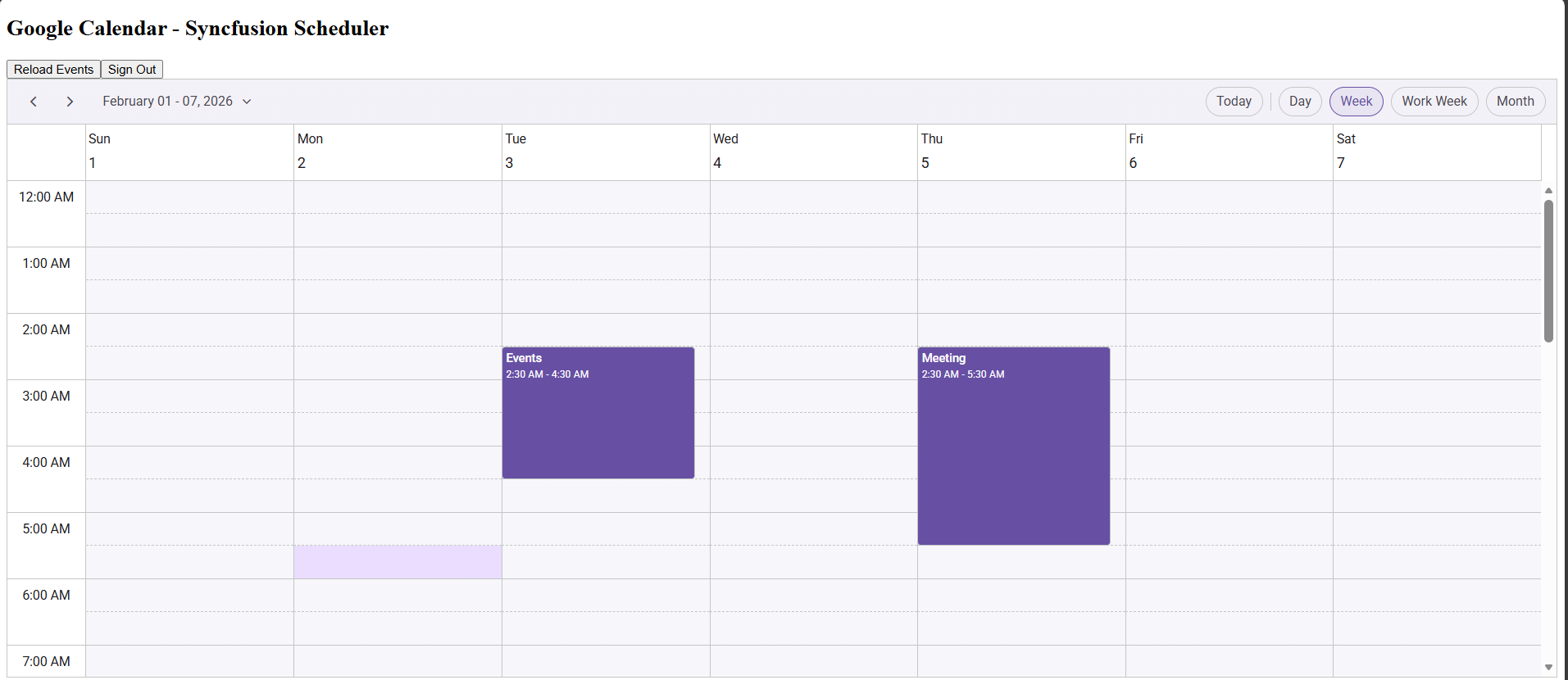
For additional help, see the Google Calendar Integration sample on GitHub
Testing and verification
- Use
ng serveto run locally:http://localhost:4200. - Verify OAuth consent and that
http://localhost:4200appears in Authorized JavaScript origins.
Troubleshooting
Google Sign-In button does not work
Problem:
- Clicking “Sign In with Google” does nothing.
- No popup appears.
Errors:
google is not defined
accounts.oauth2 is undefined
Solution:
Make sure this script exists inside index.html.
<script src="https://accounts.google.com/gsi/client" async defer></script>Make sure the application is running on the exact URL http://localhost:4200.
Origin mismatch error during sign-in
Problem:
- origin_mismatch
- Unauthorized origin
Solution:
Add the http://localhost:4200 URL to Authorized JavaScript origins in the Google Cloud Console.