Liquid Glass Support in .NET MAUI Switch
24 Jul 20262 minutes to read
Prerequisites
Before using the SfSwitch, Install the Syncfusion.Maui.Buttons and Syncfusion.Maui.Core NuGet packages in your .NET MAUI project. The Syncfusion.Maui.Core package is required for the SfGlassEffectView container used to host the Liquid Glass Effect.
For a step-by-step setup, refer to the Getting Started documentation.
NOTE
- The Liquid Glass Effect is supported only on .NET 10 targeting macOS 26 or higher and iOS 26 or higher.
- It is not supported on Android or Windows.
Overview
The Liquid Glass Effect introduces a modern, translucent design with adaptive color tinting and light refraction, creating a sleek, glass-like user experience that remains readable on top of any background. This section explains how to enable and customize the effect in the SfSwitch control.
Apply the liquid glass effect
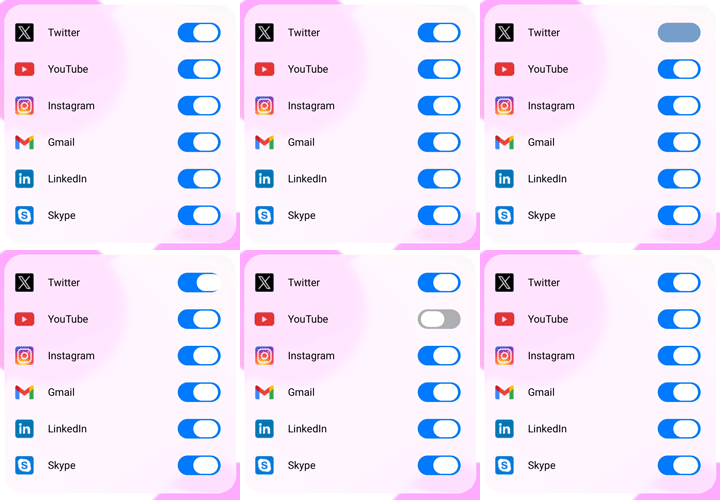
The SfSwitch control renders a glass (also called acrylic or glass morphism) effect on the track and thumb when the EnableLiquidGlassEffect property is set to true. The effect is visible against vibrant images or colorful backgrounds and updates on user interaction.
-
EnableLiquidGlassEffect: A
boolproperty that enables the Liquid Glass effect on the Switch. The default value isfalse.
<Grid>
    <!-- Background to make the glass effect visible while pressing the switch -->
    <Image Source="wallpaper.jpg" Aspect="AspectFill" />
    <syncfusion:SfSwitch x:Name="sfSwitch"
                         EnableLiquidGlassEffect="True" />
</Grid>
SfSwitch sfSwitch = new SfSwitch
{
EnableLiquidGlassEffect = true
};
this.Content = sfSwitch;Behavior
- The glass effect is applied during rendering and on every user interaction.
- The effect is most visible when the Switch is placed over visually rich content such as images, gradients, or color blocks.
- The Liquid Glass effect can be combined with the SwitchSettings properties, and the AllowIndeterminateState property.
Tips
- Use an image with sufficient detail so that the glass effect is noticeable. A solid color background will hide the effect.
- Keep background file sizes reasonable to avoid affecting the app’s memory usage on mobile devices.
- Verify the effect on a physical iOS or macOS device, since the simulator may render glass effects differently.
The following GIF demonstrates the Liquid Glass effect on the Switch.