How to Apply CSS Style in .NET MAUI Markdown Viewer
18 Nov 20188 minutes to read
The .NET MAUI Markdown Viewer control comes with a set of built-in default styles that ensure markdown content is rendered cleanly and consistently across platforms. However, in many real-world applications, developers may need to override these defaults to match their app’s branding, improve readability, or create a custom visual experience.
This guide explains how to override the default styles using the MarkdownStyleSettings class and the CssStyleRules property.
Prerequisites
Before using the SfMarkdownViewer, ensure the following NuGet package is installed in your .NET MAUI project:
Syncfusion.Maui.MarkdownViewer
For a step-by-step setup, refer to the Getting Started documentation.
What You Can Style with CSS
- Headings (
h1-h6), paragraphs (p), and inline text emphasis. - Images displayed in markdown content.
- Tables, including rows, headers, and striped rows.
- Code blocks (
pre,code) and blockquotes (blockquote). - Hyperlinks and both unordered and ordered lists.
- Scrollbar appearance (WebKit/Blink-based platforms only - Windows and Android).
Defining Styles
The following XAML example defines a CSS resource in ContentPage.Resources.
<ContentPage.Resources>
    <ResourceDictionary>
        <x:String x:Key="BaseCustomStyle">
            body {
                background: #F5F7FA;
                font-family: 'Segoe UI', sans-serif;
                font-size: 16px;
                color: #2E2E2E;
                line-height: 1.7;
            }

            h1 {
                font-weight: 700;
                font-size: 30px;
                line-height: 38px;
                letter-spacing: 0.5px;
                color: #1E3A8A;
                margin-bottom: 16px;
            }

            h2 {
                font-weight: 600;
                font-size: 24px;
                line-height: 32px;
                letter-spacing: 0.4px;
                color: #3B5BAA;
                margin-top: 24px;
                margin-bottom: 12px;
            }

            h3 {
                font-weight: 500;
                font-size: 20px;
                line-height: 28px;
                letter-spacing: 0.3px;
                color: #6C83C1;
                margin-top: 20px;
                margin-bottom: 10px;
            }
        </x:String>
    </ResourceDictionary>
</ContentPage.Resources>
Apply the defined CSS style to the Markdown Viewer using the CssStyleRules property, as shown in the XAML code below:
<markdown:SfMarkdownViewer Source="{Binding MarkdownContent}">
    <markdown:SfMarkdownViewer.Settings>
        <markdown:MarkdownStyleSettings CssStyleRules="{StaticResource BaseCustomStyle}" />
    </markdown:SfMarkdownViewer.Settings>
</markdown:SfMarkdownViewer>
The output below reflects the styled appearance of the markdown content.
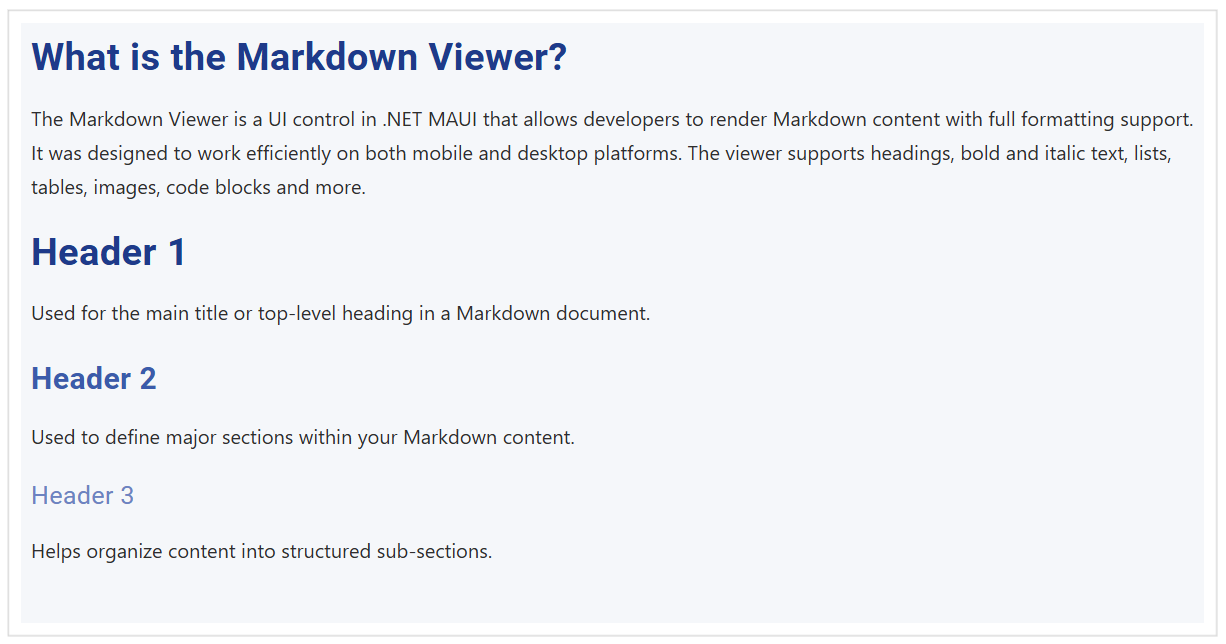
By defining custom styles, you can transform SfMarkdownViewer into a fully branded and polished content surface that fits seamlessly into your app’s design system.
Apply CSS styles only when necessary as they will override the properties of individual Markdown elements such as H1FontSize, H1Color, BodyTextColor, TableHeaderFontSize, etc., defined in the MarkdownStyleSettings class.
Define Styles for Images
Images are a vital part of markdown content, providing visual context and detail. SfMarkdownViewer allows you to override the appearance of images through CSS, enabling custom sizing, borders, or even special effects. The image selector targets only images embedded in the markdown content.
Add the following rule to your CssStyleRules string (XAML or C#) to apply a rounded border and subtle shadow to all rendered images:
<x:String x:Key="ImageCustomStyle">
    img {
        border-radius: 12px;
        border: 8px solid #e0e3ea;
        max-width: 95%;
        box-shadow: 0 4px 16px rgba(31,45,61,0.75);
        margin: 16px 16px;
    }
</x:String>
Adjust the margin or max-width to fit the layout of your application.

Define Styles for Tables
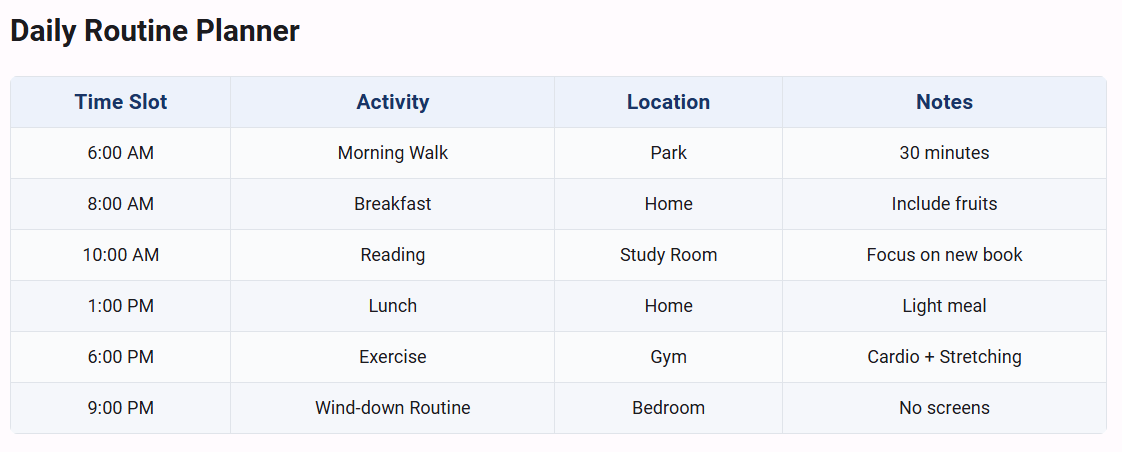
Tables are commonly used to present data and comparisons. While basic table styling (such as header font size, text color, and table background) can be set using properties of the MarkdownStyleSettings class (see the Customize Appearance documentation), you can take your table designs further by using custom CSS through the CssStyleRules property.
This enables effects such as striped rows, rounded corners, advanced padding, and borders for maximum brand consistency:
<x:String x:Key="TableCustomStyle">
    table {
        background: #FAFBFC;
        border-collapse: collapse;
        margin: 16px 0;
        width: 100%;
        border-radius: 6px;
        overflow: hidden;
    }
    th, td {
        border: 1px solid #E0E4EA;
        padding: 10px 16px;
        text-align: left;
    }
    th {
        background: #EDF2FB;
        color: #193466;
        font-size: 17px;
        font-weight: 600;
    }
    tr:nth-child(even) {
        background: #F5F7FB;
    }
</x:String>
CSS styles provide much finer control over table appearance than the standard style properties. For thorough details on property-based styling, including TableHeaderFontSize and TableHeaderTextColor, refer to the Customize Appearance documentation page. When both CSS and style properties are specified, CSS takes precedence.
Define Styles for the Scrollbar
Scrollbars are crucial for navigating through long markdown documents, especially on desktop platforms or when embedding the control in a constrained space. SfMarkdownViewer enables you to customize the scrollbar appearance using CSS:
-
Scrollbar visibility: You can show or hide the scrollbar by targeting the
::-webkit-scrollbarselector. - Scrollbar color: Make the scrollbar match your branding or fade it as needed.
Example CSS for a modern, visible scrollbar:
<x:String x:Key="ScrollbarCustomStyle">
    ::-webkit-scrollbar {
        width: 10px;
        background: #eeeeee;
    }
    ::-webkit-scrollbar-thumb {
        background: #3B82F6;
        border-radius: 8px;
        border: 2px solid #1E293B;
    }
    ::-webkit-scrollbar-thumb:hover {
        background: #2563EB;
    }
</x:String>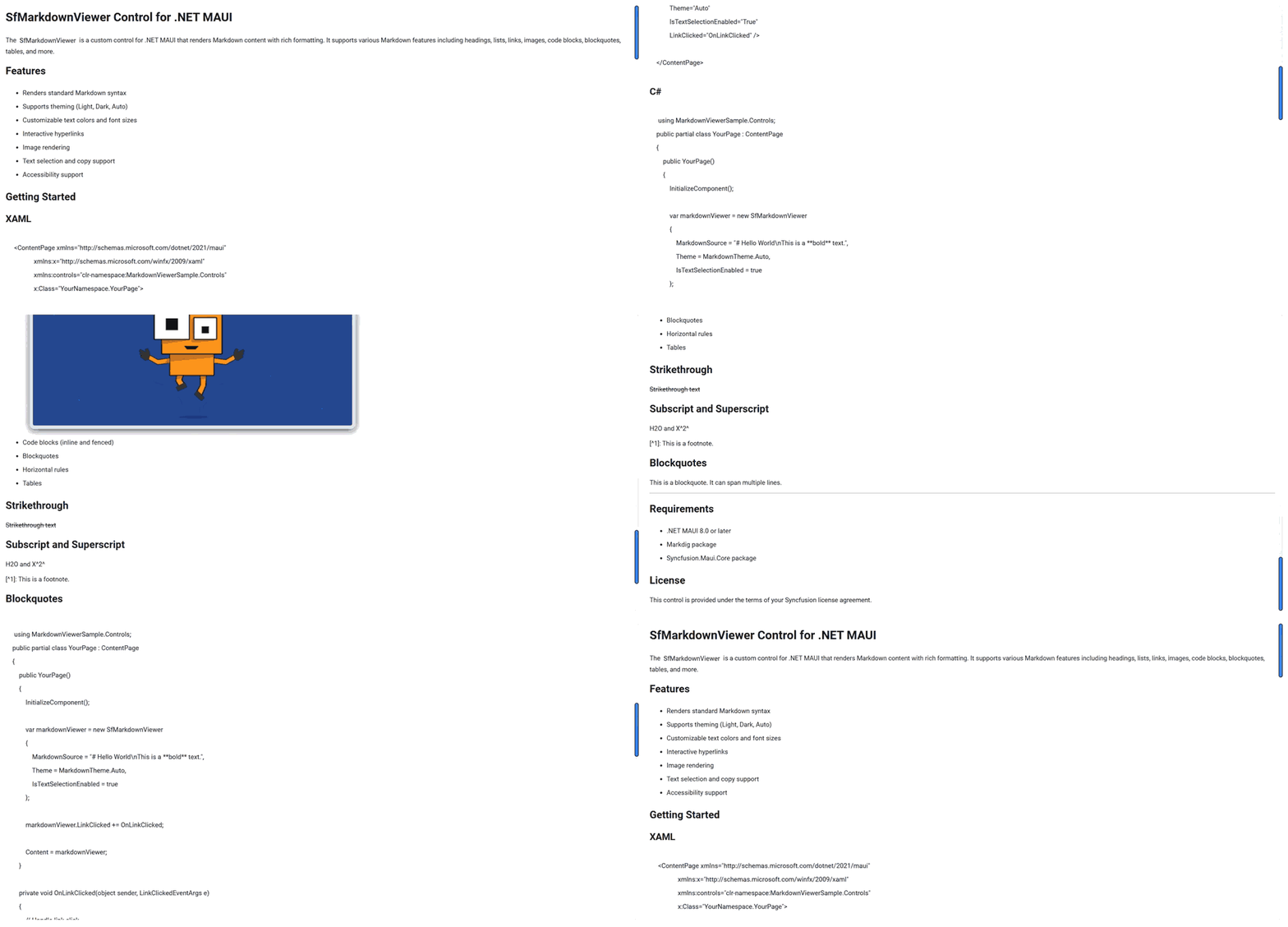
You can further hide the scrollbar by setting display: none; in the ::-webkit-scrollbar selector or by setting its width to 0, or match its color and thickness to seamlessly blend with your application’s UI. Custom scrollbar styling will be effective on supported platforms (typically Windows and Android). Always verify cross-platform appearance for best results.
With tailored scrollbar, table, image, and body styles, SfMarkdownViewer delivers beautiful, readable, and fully brand-aligned markdown content in your .NET MAUI applications.