Customize Appearance in .NET MAUI Markdown Viewer
18 Nov 20186 minutes to read
The .NET MAUI Markdown Viewer control in .NET MAUI provides a powerful styling system through the MarkdownStyleSettings class. This allows developers to customize the visual presentation of markdown content with precision and flexibility.
Prerequisites
Before using the SfMarkdownViewer, ensure the following NuGet package is installed in your .NET MAUI project:
Syncfusion.Maui.MarkdownViewer
For a step-by-step setup, refer to the Getting Started documentation.
Key Features
- Granular styling: Customize font sizes and colors for headings, body text, and tables.
- Custom CSS support: Apply advanced styling using raw CSS rules.
- Two-layer styling system: Merge base styles with custom CSS for full control.
- Reset functionality: Revert all styles to default with a single method call.
Use Cases
- Matching markdown content appearance with your app’s theme.
- Improving readability with tailored font sizes and spacing.
- Highlighting specific markdown elements like tables or code blocks.
- Applying branding styles using custom CSS.
Customization with MarkdownStyleSettings
The appearance of headings, body content, and tables in SfMarkdownViewer can be customized using the properties of the MarkdownStyleSettings class, which are listed below.
- H1FontSize, H2FontSize, H3FontSize – Gets or sets the font size for H1, H2, and H3 heading elements respectively.
- H1Color, H2Color, H3Color – Gets or sets the text color for H1, H2, and H3 heading elements respectively.
- BodyFontSize – Gets or sets the font size for regular paragraph text.
- BodyTextColor – Gets or sets the text color for body content.
- TableHeaderFontSize, TableDataFontSize – Gets or sets the font size for table headers and table content respectively.
- TableHeaderTextColor, TableDataTextColor – Gets or sets the text color for table headers and table content respectively.
- TableBackground – Gets or sets the background color for the entire table area.
- CssStyleRules – Gets or sets raw CSS styles to override or extend default markdown rendering behavior.
Apply style settings
The following example shows how to apply style settings to the Settings property of Markdown Viewer.
The Source property of SfMarkdownViewer can be bound to a string property in the ViewModel using Source=”{Binding MarkdownContent}”, where MarkdownContent contains the markdown text to render.
<markdown:SfMarkdownViewer Source="{Binding MarkdownContent}">
    <markdown:SfMarkdownViewer.Settings>
        <markdown:MarkdownStyleSettings H1FontSize="32px"
                                        H1Color="#8352FB"
                                        H2Color="#9971FB"
                                        H3Color="#A98AF7"
                                        BodyFontSize="16px"
                                        BodyTextColor="#2C3E50"
                                        TableBackground="#FFE2ED"
                                        TableHeaderTextColor="HotPink" />
    </markdown:SfMarkdownViewer.Settings>
</markdown:SfMarkdownViewer>
var markDownViewModel = new MarkDownViewModel();
BindingContext = markDownViewModel;
SfMarkdownViewer markdownViewer = new SfMarkdownViewer();
markdownViewer.Source = markDownViewModel.MarkdownContent;
markdownViewer.Settings = new MarkdownStyleSettings()
{
H1FontSize = "32px",
H1Color = "#8352FB",
H2Color = "#9971FB",
H3Color = "#A98AF7",
BodyFontSize = "16px",
BodyTextColor = "#2C3E50",
TableBackground = "#FFE2ED",
TableHeaderTextColor = "HotPink"
};
Content = markdownViewer;public class MarkDownViewModel : INotifyPropertyChanged
{
public string MarkdownContent{ get; set; }
public MarkDownViewModel()
{
MarkdownContent = """
# What is the Markdown Viewer?
The Markdown Viewer is a UI control in .NET MAUI that allows developers to render Markdown content with full formatting support.
# Header 1
Used for the main title or top-level heading in a Markdown document.
## Header 2
Used to define major sections within your Markdown content.
### Table
| | Column 1 | Column 2 | Column 3 |
|--------------|----------|----------|----------|
| Row 1 | Content | Content | Content |
| Row 2 | Content | Content | Content |
| Row 3 | Content | Content | Content |
""";
}
}The following output shows how these style settings enhance the appearance of rendered markdown content:
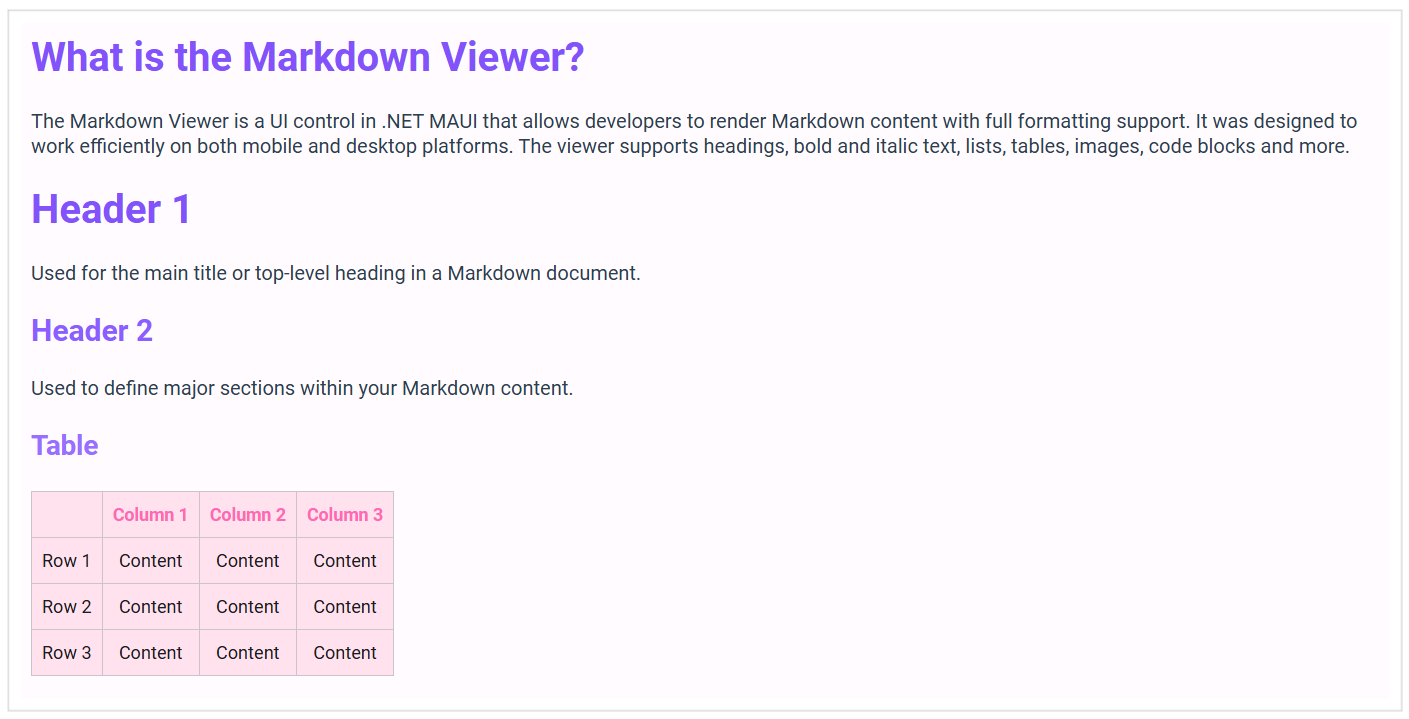
With MarkdownStyleSettings, you gain full control over how Markdown content looks in your .NET MAUI app, whether you’re building a documentation viewer, a note-taking app, or a styled content portal.
Always specify the font size with the “px” unit (e.g., H1FontSize=”32px”) to ensure consistent rendering across all platforms.