Connectors in .NET MAUI Diagram
18 Nov 201810 minutes to read
Connectors establish relationships between nodes and define the flow of information within a diagram. They are commonly used in flowcharts, workflow diagrams, process diagrams, organizational charts, and network diagrams.
A connector can connect nodes, ports, or specific points within the diagram surface.
Prerequisites
Refer to the Getting started page to create a project, install the package, and register the handler. Connector examples assume that the Nodes and Connectors collections have been assigned to an SfDiagram instance.
Create Connector
A connector is created using the Connector class and added to the SfDiagram.Connectors collection.
using Syncfusion.Maui.Diagram;

Connector connector = new Connector
{
    Id = "connector",
    SourcePoint = new Point(100, 100),
    TargetPoint = new Point(400,400),
};

diagram.Connectors.Add(connector);
Connector properties
| Property | Description |
|---|---|
| Id | Unique identifier for the connector. |
| SourceID | ID of the source node, source port’s parent node, or used together with SourcePoint. |
| TargetID | ID of the target node, target port’s parent node, or used together with TargetPoint. |
| SourcePortID | ID of the source port. Requires the matching port on the source node. |
| TargetPortID | ID of the target port. Requires the matching port on the target node. |
| SourcePoint | Starting point when the connector is not attached to a node. |
| TargetPoint | Ending point when the connector is not attached to a node. |
| Type | Routing algorithm, set through ConnectorSegmentType. |
| Style | Visual style for the connector line. |
| Annotations | Collection of PathAnnotation labels. |
| SourceDecorator | Decorator shown at the start of the connector. |
| TargetDecorator | Decorator shown at the end of the connector. |
Note:
DiagramPointis not implemented in the current release. Verify the supported point type for connector endpoint coordinates before usingSourcePointandTargetPoint.
Create connection between nodes
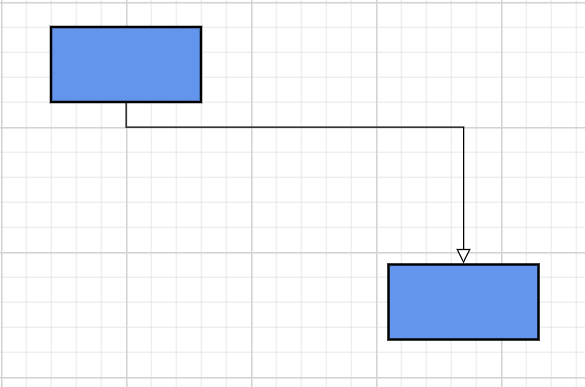
The connector can be created between nodes to display the relationship between them. The SourceID and TargetID properties allows you to represent the nodes to be connected.
Connector connector = new Connector
{
    Id = "connector1",
    SourceID = "node1",
    TargetID = "node2"
};
Connector types
The Diagram control supports two routing styles configured through ConnectorSegmentType. The diagram supports two types.
- Straight
- Orthogonal
Straight connector
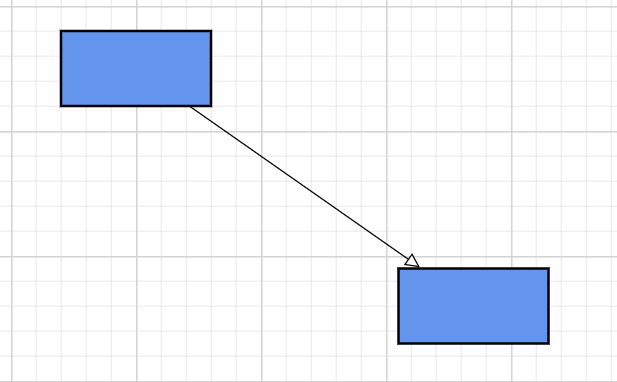
A straight connector establishes the shortest direct path between two points.
Connector connector = new Connector
{
    Id = "connector1",
    SourceID = "node1",
    TargetID = "node2",
    Type = ConnectorSegmentType.Straight
};
Use straight connectors for process diagrams, network diagrams, and entity-relationship diagrams.
Orthogonal connector
An orthogonal connector creates right-angle segments between the source and target points.
Connector connector = new Connector
{
    Id = "connector1",
    SourceID = "node1",
    TargetID = "node2",
    Type = ConnectorSegmentType.Orthogonal
};
Use orthogonal connectors for flowcharts, workflow designers, and business-process diagrams.
Connect using ports
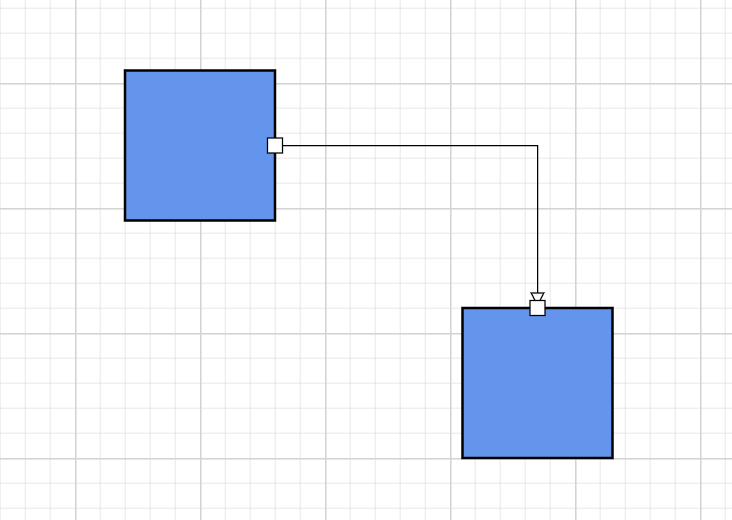
Ports define explicit connection points on a node. Using ports instead of node-to-node connections keeps connector routing predictable, which is especially useful for workflow designers, flowcharts, and process diagrams. The connection between any specific point of source and target nodes can be achieved with ports.
var connector = new Connector
{
    Id = "connector1",
    SourceID = "node1",
    SourcePortID = "RightPort",
    TargetID = "node2",
    TargetPortID = "LeftPort"
};
Connector endpoint points
When a connector is not attached to a node, use SourcePoint and TargetPoint to specify the line endpoints.
Note:
DiagramPointis not implemented in the current release. Use the point type documented for your package version.
Connector connector = new Connector
{
    Id = "connector",
    SourcePoint = new Point(100, 200),
    TargetPoint = new Point(400,500),
};

diagram.Connectors.Add(connector);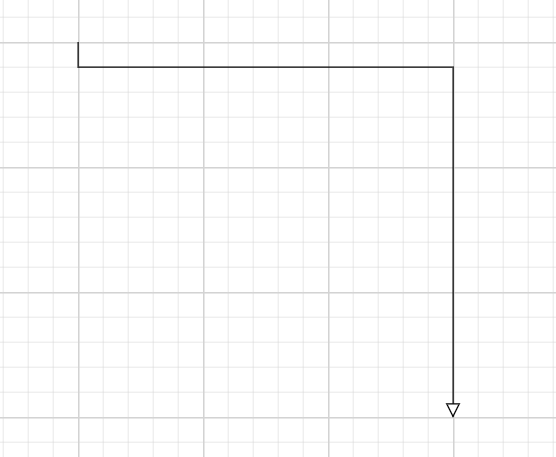
Style connectors
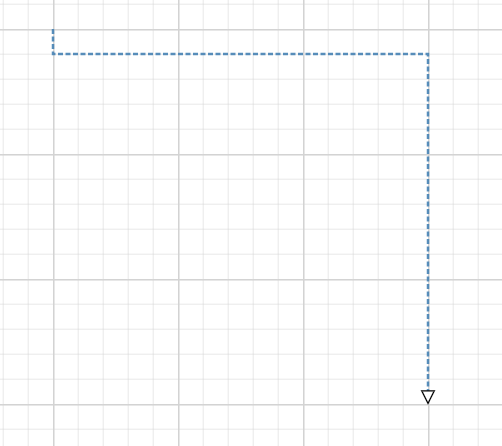
Use the Style property to customize a connector’s appearance like StrokeColor, StrokeWidth, opacity, and StrokeDashArray. The conceptual styling properties are listed below.
| Property | Description |
|---|---|
StrokeColor |
Line color. |
StrokeWidth |
Line thickness. |
Opacity |
Line transparency from 0 to 1. |
StrokeDashArray |
Dash pattern. The accepted value format depends on the package version. |
Connector connector = new Connector
{
    Id = "connector",
    SourcePoint = new Point(100, 200),
    TargetPoint = new Point(400,500),
};

connector.Style = new ShapeStyle
{
    StrokeColor = Colors.SteelBlue,
    StrokeWidth = 2,
    Opacity = 0.9,
    StrokeDashArray = "4,2"
};
Connector decorators
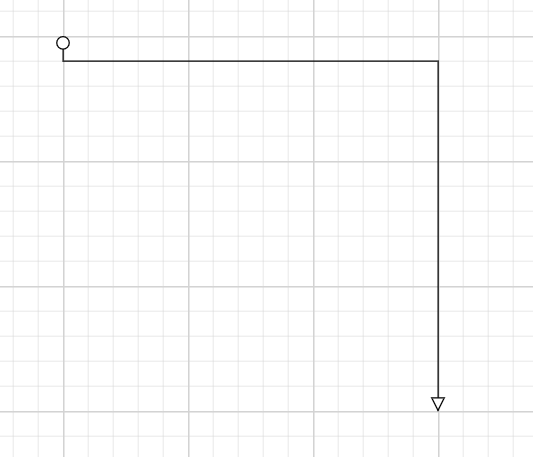
Decorators indicate direction and are commonly displayed at the source or target end of a connector. The source and target points of a connector can be decorated with some customizable shapes like arrows, circles, diamond, or any path. You can decorate the connection end points using the SourceDecorator and TargetDecorator properties of connector. They are configured through DecoratorSettings, which supports Shape, Width, Height, and Style.
Connector connector = new Connector
{
    Id = "connector",
    SourcePoint = new Point(100, 200),
    TargetPoint = new Point(400,500),
};

connector.TargetDecorator = new DecoratorSettings
{
    Shape = DecoratorShape.Arrow
};

connector.SourceDecorator = new DecoratorSettings
{
    Shape = DecoratorShape.Circle
};
Supported decorator shapes
The Diagram control supports the following decorator shapes through the DecoratorShapes enumeration.
| Enumerator | Description |
|---|---|
Arrow |
Filled arrowhead. |
OpenArrow |
Open arrowhead. |
Diamond |
Diamond endpoint (commonly used in UML aggregation). |
Circle |
Circular endpoint. |
Square |
Square endpoint. |
Fletch |
Fletch-style arrowhead. |
OpenFletch |
Open fletch endpoint. |
IndentedArrow |
Indented arrowhead. |
OutdentedArrow |
Outdented arrowhead. |
DoubleArrow |
Double arrowhead. |
None |
Removes the decorator. |
Connector annotations
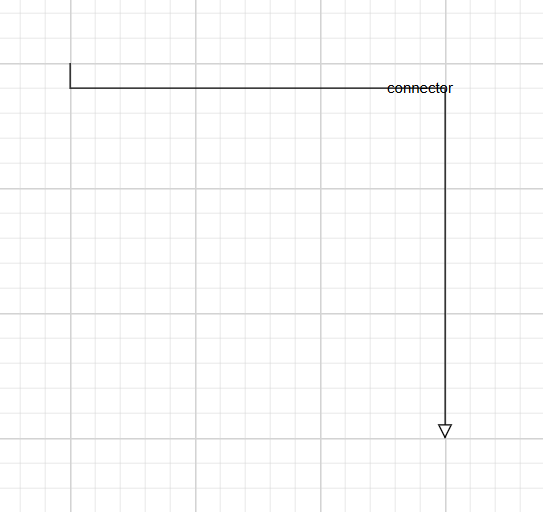
Annotation is used to textually represent an object with a string that can be edited at run time. Annotations display text along a connector through the PathAnnotation class. Connector labels describe the relationship between connected nodes. They help visualize decision branches, transitions, and conditions.
connector.Annotations.Add(
    new PathAnnotation
    {
        Content = "Approved"
    });
Multiple Annotations
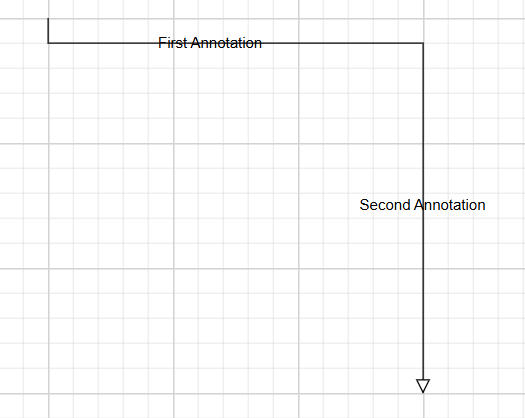
Multiple labels can be displayed on the same connector:
connector.Annotations.Add(
    new PathAnnotation
    {
        Content = "First Annotation",
        Offset = 0.25,
    });

connector.Annotations.Add(
    new PathAnnotation
    {
        Content = "Second Annotation",
        Offset = 0.75,
    });
Note:
DiagramPointis not implemented in the current release. Confirm whether offset coordinates use the supported point type before using this property.
Best practices
- Assign meaningful, unique IDs to every connector.
- Use orthogonal connectors in business workflows and flowcharts.
- Use a target decorator (such as
Arrow) to indicate flow direction. - Use connector annotations to label decision outcomes.
- Use ports for precise and predictable connections.
- Apply consistent connector styling across the diagram.