AI Data Cleaning and Preprocessing in .NET MAUI Cartesian Chart
18 Nov 20188 minutes to read
Raw datasets often contain missing values, outliers, or noise that can distort visualizations and analysis. This is common in web traffic data, which may have gaps or spikes. Before visualizing such data, it’s essential to clean it.
This guide shows how to use Azure OpenAI to clean and preprocessing e-commerce website traffic data, then visualize the results using Syncfusion .NET MAUI Cartesian Chart.
Prerequisite: Ensure that the required NuGet package is installed, the necessary namespaces are imported, and the SfCartesianChart control is properly configured in your application. For detailed setup and configuration instructions, refer to the Getting Started guide.
Integrating Azure OpenAI for cleaning and preprocessing the data
Before proceeding, ensure that Azure OpenAI is configured and integrated with your .NET MAUI application. Refer to the Azure OpenAI integration prerequisites and complete the required setup steps.
public async Task<ObservableCollection<DataPreprocessingModel>> GetResultsFromAI(ObservableCollection<DataPreprocessingModel> rawData)
{
    ObservableCollection<DataPreprocessingModel> collection = new ObservableCollection<DataPreprocessingModel>();

    var prompt = $"Clean the following e-commerce website traffic data, resolve outliers and fill missing values:\n{string.Join("\n", rawData.Select(d => $"{d.DateTime:yyyy-MM-dd-HH-m-ss}: {d.Visitors}"))} and the output cleaned data should be in the yyyy-MM-dd-HH-m-ss:Value, not required explanations";

    ChatHistory = string.Empty;
    ChatHistory = ChatHistory + prompt;

    try
    {
        //throw new NotImplementedException("");
        if (IsCredentialValid && Client != null)
        {
            var response = await Client.CompleteAsync(ChatHistory);
            return GetCleanedData(response.ToString(), collection);
        }
    }
    catch (Exception)
    {
        return await Task.FromResult(GetDummyData(collection));
    }

    return await Task.FromResult(GetDummyData(collection));
}
1. Implement the Syncfusion .NET MAUI Cartesian Chart to display data.
Define classes to represent your website traffic data and manage both raw and cleaned datasets. This structure allows you to easily bind both raw and cleaned data to your chart.
// Data model.
public class WebsiteTrafficData
{
    public DateTime DateTime { get; set; }
    public double Visitors { get; set; }
}

public class ViewModel : INotifyPropertyChanged
{
    public ObservableCollection<WebsiteTrafficData> RawData { get; set; }

    private ObservableCollection<WebsiteTrafficData> cleanData;
    public ObservableCollection<WebsiteTrafficData> CleanedData
    {
       get { return cleanData; }
       set
       {
           cleanData = value;
           PropertyChanged?.Invoke(this, new PropertyChangedEventArgs("CleanedData"));
       }
    }

    public ViewModel()
    {
        IsBusy = false;
        RawData = new ObservableCollection<WebsiteTrafficData>()
        {
           new WebsiteTrafficData{ DateTime = new DateTime(2024, 07, 01, 00, 00, 00), Visitors = 150 },
           new WebsiteTrafficData{ DateTime = new DateTime(2024, 07, 01, 01, 00, 00), Visitors = 160 },
           new WebsiteTrafficData{ DateTime = new DateTime(2024, 07, 01, 02, 00, 00), Visitors = 155 },
           new WebsiteTrafficData{ DateTime = new DateTime(2024, 07, 01, 03, 00, 00), Visitors = double.NaN },

           // Missing data
           new WebsiteTrafficData{ DateTime = new DateTime(2024, 07, 01, 04, 00, 00), Visitors = 170 },

           // Some more data.
           //code omitted for brevity
        };

        CleanedData = new ObservableCollection<WebsiteTrafficData>();
    }
}
2. Display Data Using Syncfusion Cartesian Chart
Bind your ViewModel to the chart and display raw data and cleaned data.
To visualize website traffic data, use two line series to show data for before and after AI data cleaning.
<chart:SfCartesianChart Grid.Row="0" x:Name="Chart" Margin="5" PaletteBrushes="{Binding PaletteBrushes}">

    <chart:SfCartesianChart.Title>
        <StackLayout Orientation="Vertical">
            <Label Text="E-Commerce Website Traffic Data" FontSize="18" FontAttributes="Bold" HorizontalTextAlignment="Center" />
            <Label Text="AI-powered data cleaning and preprocessing every hour, tracking hourly website visitors" LineBreakMode="WordWrap" HorizontalTextAlignment="Center" FontSize="14"/>
        </StackLayout>
    </chart:SfCartesianChart.Title>

    <chart:SfCartesianChart.XAxes>
        <chart:DateTimeAxis ShowMajorGridLines="False" EdgeLabelsDrawingMode="Shift">
            <chart:DateTimeAxis.LabelStyle>
                <chart:ChartAxisLabelStyle LabelFormat="hh tt"/>
            </chart:DateTimeAxis.LabelStyle>
        </chart:DateTimeAxis>
    </chart:SfCartesianChart.XAxes>

    <chart:SfCartesianChart.YAxes>
        <chart:NumericalAxis ShowMajorGridLines="False" Minimum="140" Interval="30" Maximum="320">
        </chart:NumericalAxis>
    </chart:SfCartesianChart.YAxes>

    <chart:LineSeries x:Name="CleanedDataSeries" ItemsSource="{Binding CleanedData}" XBindingPath="DateTime"
                            YBindingPath="Visitors" StrokeWidth="2"/>

    <chart:LineSeries x:Name="RawDataSeries" ItemsSource="{Binding RawData}" XBindingPath="DateTime"
                            YBindingPath="Visitors" StrokeWidth="2"/>

</chart:SfCartesianChart>
3. Trigger the AI Service for Data Cleaning
After your application loads, call the Azure OpenAI service to clean the raw data and update your chart with the results.
// At application start.
Task.Run(async () =>
{
    var service = new AzureOpenAIService("YOUR_Azure_AI_Key");
    CleanedData = await service.GetCleanedData(RawData);
});
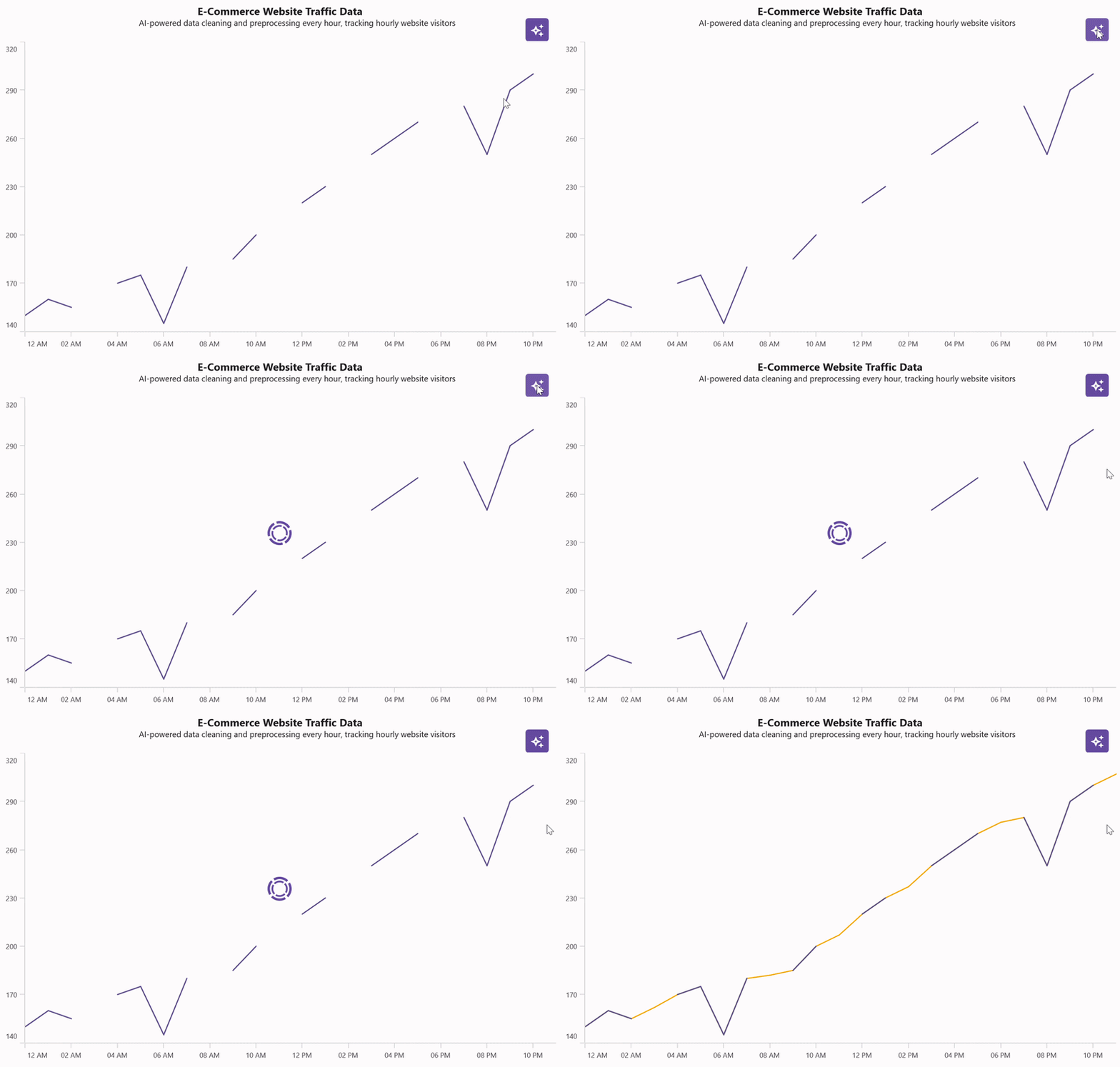
Now that your chart is set up with the cleaned data, you’ll see a smooth and accurate representation of your website traffic trends, free from anomalies and gaps.
You can also provide a button or menu option for users to trigger data cleaning on demand, allowing them to refresh the chart with newly cleaned data whenever needed.
The following image demonstrates the output of the above AI Powered data cleaning and preprocessing .NET MAUI Cartesian Chart.
For more information, please visit the GitHub Sample