Liquid Glass Effect in .NET MAUI Backdrop Page (SfBackdropPage)
24 Dec 20257 minutes to read
The Liquid Glass Effect introduces a modern, translucent design with adaptive color tinting and light refraction, creating a sleek, glass like user experience that remains clear and accessible. This section explains how to enable and customize the effect in .NET MAUI Backdrop Page’s Front or Back layer.
Apply liquid glass effect
Follow these steps to enable and configure the Liquid Glass Effect in the Front or Back Layer:
Step 1: Enable the liquid glass effect on Front or Back Layer
Set the EnableLiquidGlassEffect property to true in the SfBackdropPage control’s Front or Back Layer to apply the Liquid Glass Effect.
Step 2: Customize the background
To achieve a glass like background in the Front or Back Layer, set the Background property to Transparent. The background will then be treated as a tinted color, ensuring a consistent glass effect across the controls.
The following code snippet demonstrates how to apply the Liquid Glass Effect to the Front or Back layer of the SfBackdropPage control:
<backdrop:SfBackdropPage xmlns="http://schemas.microsoft.com/dotnet/2021/maui"
                         xmlns:x="http://schemas.microsoft.com/winfx/2009/xaml"
                         x:Class="AcrylicBackdropPage"
                         xmlns:backdrop="clr-namespace:Syncfusion.Maui.Backdrop;assembly=Syncfusion.Maui.Backdrop">
    <!-- Back Layer -->
    <backdrop:SfBackdropPage.BackLayer>
        <backdrop:BackdropBackLayer>
            <Grid>
                <Grid.Background>
                    <LinearGradientBrush StartPoint="0,0"
                                         EndPoint="0,1">
                        <GradientStop Color="#0F4C75"
                                      Offset="0.0"/>
                        <GradientStop Color="#3282B8"
                                      Offset="0.5"/>
                        <GradientStop Color="#1B262C"
                                      Offset="1.0"/>
                    </LinearGradientBrush>
                </Grid.Background>
                <Grid.RowDefinitions>
                    <RowDefinition Height="Auto"/>
                </Grid.RowDefinitions>
                <ListView Background="Transparent">
                    <ListView.ItemsSource>
                        <x:Array Type="{x:Type x:String}">
                            <x:String>Appetizers</x:String>
                            <x:String>Soups</x:String>
                            <x:String>Desserts</x:String>
                            <x:String>Salads</x:String>
                        </x:Array>
                    </ListView.ItemsSource>
                </ListView>
            </Grid>
        </backdrop:BackdropBackLayer>
    </backdrop:SfBackdropPage.BackLayer>
    <!-- Front Layer -->
    <backdrop:SfBackdropPage.FrontLayer>
        <backdrop:BackdropFrontLayer EnableLiquidGlassEffect="True"/>
    </backdrop:SfBackdropPage.FrontLayer>
</backdrop:SfBackdropPage>this.BackLayer = new BackdropBackLayer()
{
Content = new Grid()
{
Background = new LinearGradientBrush()
{
StartPoint = new Point(0, 0),
EndPoint = new Point(0, 1),
GradientStops =
{
new GradientStop { Color = Color.FromArgb("#0F4C75"), Offset = 0.0f },
new GradientStop { Color = Color.FromArgb("#3282B8"), Offset = 0.5f },
new GradientStop { Color = Color.FromArgb("#1B262C"), Offset = 1.0f }
}
},
RowDefinitions =
{
new RowDefinition () { Height = GridLength.Auto}
},
Children =
{
new ListView()
{
ItemsSource = new string[] { "Appetizers", "Soups", "Desserts" ,"Salads"}
}
}
}
};
this.FrontLayer = new BackdropFrontLayer();
this.FrontLayer.EnableLiquidGlassEffect = true;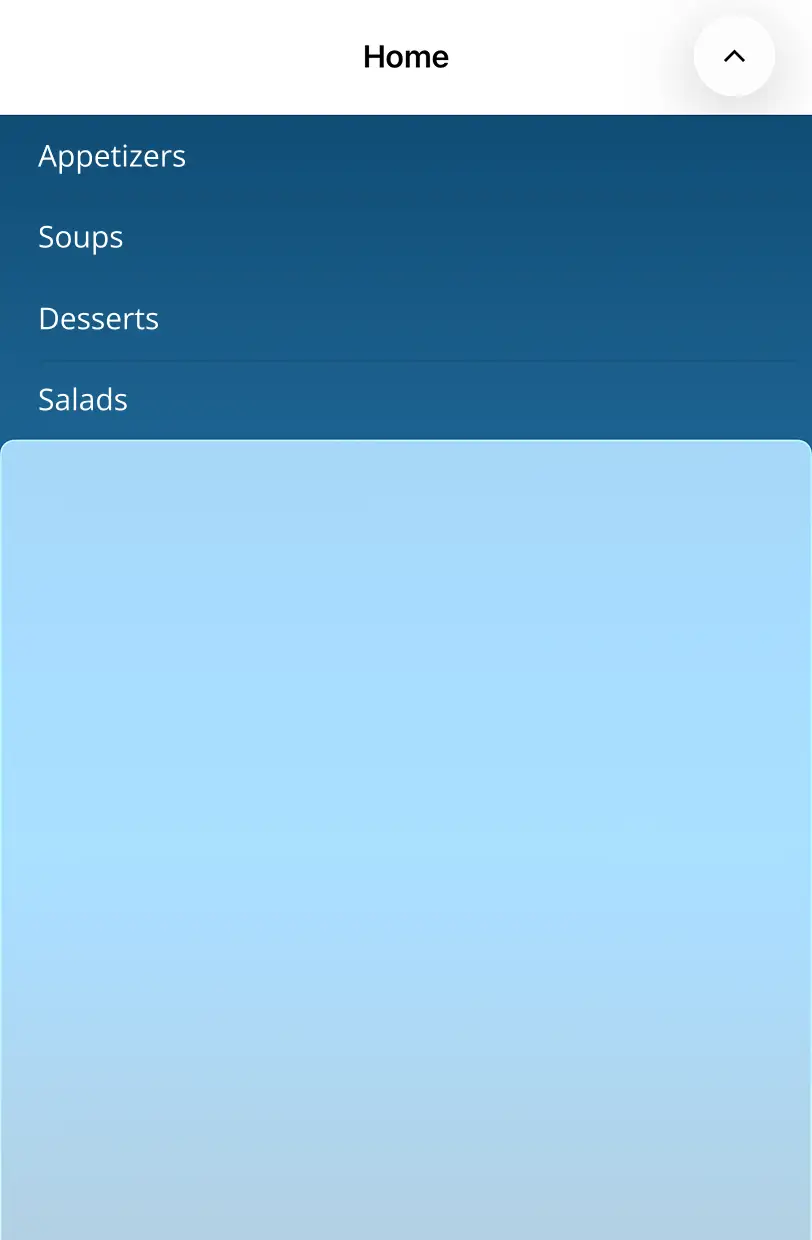
NOTE
- Supported on
macOS 26 or higherandiOS 26 or higher.- This feature is available only in
.NET 10.