Getting Started with Vue Data Grid Component in Quasar Framework
A step-by-step guide for setting up a Quasar project and integrating the Vue Data Grid component using the Composition API.
The Quasar Framework is a Vue.js-based open-source framework that empowers developers to create high-performance and responsive applications across various platforms, such as web, mobile, and desktop.
Prerequisites
- Vue supported version >=
2.6+. - Required Node.js version >=
16+.
Setup the Quasar project
To initiate the creation of a new Quasar project, use the following commands:
npm init quasarThis command prompts additional configurations. The following steps are outlined in the images below:
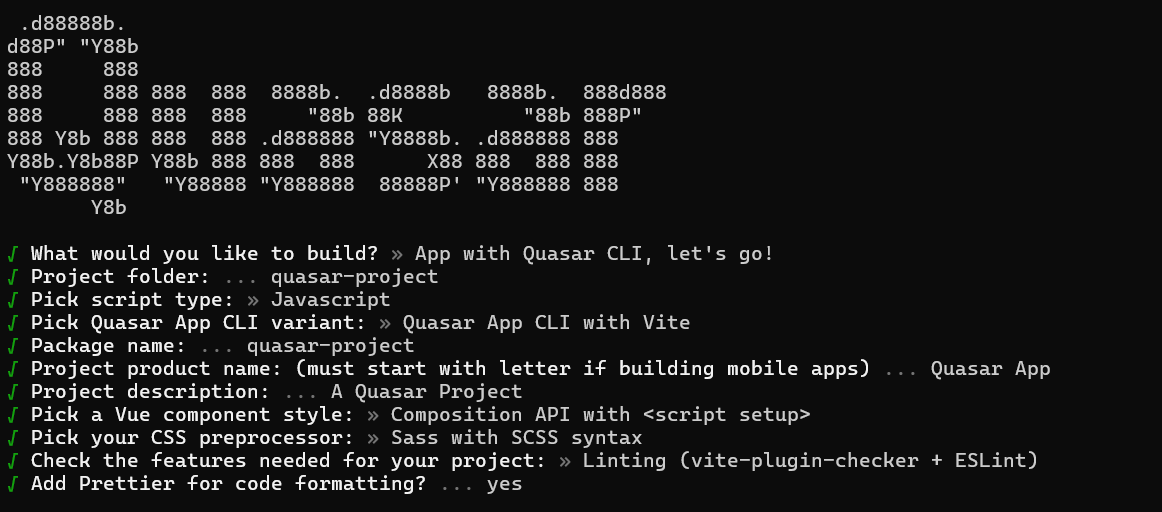
This generates the necessary files and prompts for project dependency installation. Responding with “yes” proceeds with npm install, as shown in the image below:

Navigate to the project directory:
cd quasar-projectThe quasar-project is now ready to run with default settings. Next, the Vue Data Grid component is added to the project.
Add Vue Data Grids package
To install the Grids package, use the following command:
npm install @syncfusion/ej2-vue-grids --saveAdding CSS reference
Themes for Syncfusion® Data Grid components can be applied using CSS files provided through npm theme packages. For available themes, refer to the Themes documentation.
Install the Material 3 theme package using the following command:
npm install @syncfusion/ej2-material3-theme --saveThen add the following CSS reference to the src/App.vue file:
<style>
    @import "../node_modules/@syncfusion/ej2-material3-theme/styles/grid/index.css";
</style>
Adding DataGrid component
The DataGrid code should be added in the src/App.vue file.
<template>
  <ejs-grid :dataSource='data' :width="1000">
    <e-columns>
      <e-column field='OrderID' textAlign="Center"></e-column>
      <e-column field='CustomerID' textAlign="Center"></e-column>
      <e-column field='EmployeeID' textAlign="Center"></e-column>
      <e-column field='Freight' format="C2" textAlign="Center"></e-column>
      <e-column field='ShipCountry' textAlign="Center"></e-column>
    </e-columns>
  </ejs-grid>
</template>

<script setup>
import { GridComponent as EjsGrid, ColumnsDirective as EColumns, ColumnDirective as EColumn } from '@syncfusion/ej2-vue-grids';
const data = [
  {
    OrderID: 10248, CustomerID: 'VINET', EmployeeID: 5, ShipCountry: 'France', Freight: 32.38
  },
  {
    OrderID: 10249, CustomerID: 'TOMSP', EmployeeID: 6, ShipCountry: 'Germany', Freight: 11.61
  },
  {
    OrderID: 10250, CustomerID: 'HANAR', EmployeeID: 4, ShipCountry: 'Brazil', Freight: 65.83
  }
];
</script>

<style>
@import "../node_modules/@syncfusion/ej2-base/styles/material3.css";
@import "../node_modules/@syncfusion/ej2-buttons/styles/material3.css";
@import "../node_modules/@syncfusion/ej2-calendars/styles/material3.css";
@import "../node_modules/@syncfusion/ej2-dropdowns/styles/material3.css";
@import "../node_modules/@syncfusion/ej2-inputs/styles/material3.css";
@import "../node_modules/@syncfusion/ej2-navigations/styles/material3.css";
@import "../node_modules/@syncfusion/ej2-popups/styles/material3.css";
@import "../node_modules/@syncfusion/ej2-splitbuttons/styles/material3.css";
@import "../node_modules/@syncfusion/ej2-vue-grids/styles/material3.css";
</style>
Run the application
npm run devThe output will appear as follows:
