Master Details View in Maui DataGrid (SfDataGrid)
The SfDataGrid supports displaying hierarchical data using the Master-Details View, allowing you to represent parent-child relationships in a structured format. This feature enables the nesting of multiple levels of related data within the grid.
Key Features
- Display hierarchical data in a structured format using nested tables.
- Expand or collapse DetailsViewDataGrid using an expander in a row or programmatically.
- Support for unlimited nesting levels with relational data.
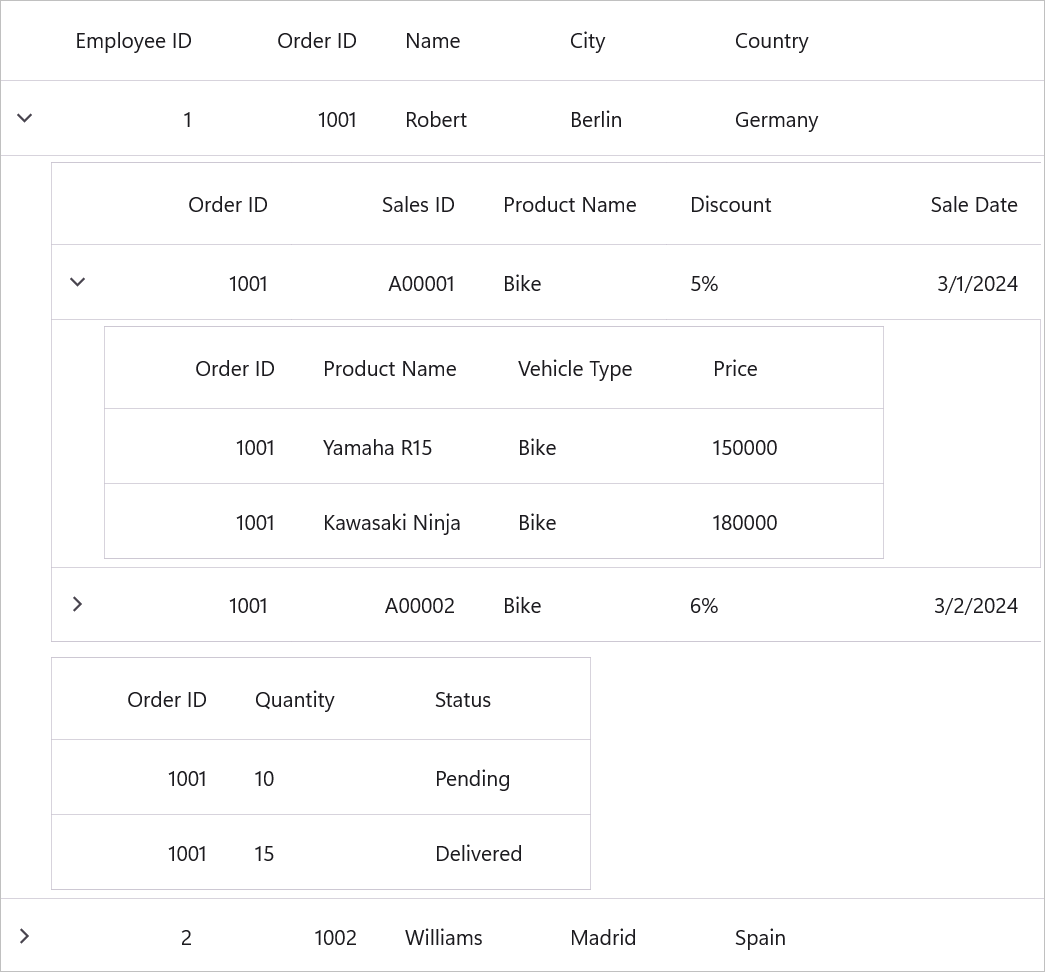
Generating Master-Details View from IEnumerable
The Master-Details View can be generated using properties of type IEnumerable in the underlying data model.
Steps to Generate Master-Details View for IEnumerable Properties
- Create a Data Model with Relations
- Define properties of type
IEnumerable(such as ObservableCollection) to establish hierarchical relationships.
- Define properties of type
- Define Relations in the
SfDataGrid-
Auto-Generating Relations: The
SfDataGridautomatically detects relationships based on IEnumerable properties. - Manually Defining Relations: Explicitly specify the relationships to customize the hierarchy.
-
Auto-Generating Relations: The
1. Creating a Data Model with Relations
Define an Employee class with Sales and Orders properties, which use ObservableCollection to establish relations. These properties allow nesting of related data within the SfDataGrid.
public class SalesInfo
{
    public int OrderID { get; set; }
    public string SalesID { get; set; }
    public string ProductName { get; set; }
}

public class OrderInfo
{
    public int OrderID { get; set; }
    public int Quantity { get; set; }
}

public class Employee
{
    public string EmployeeID { get; set; }
    public string Name { get; set; }
    public string City { get; set; }
    public string Country { get; set; }

    // Establishing hierarchical relations
    public ObservableCollection<SalesInfo> Sales { get; set; }
    public ObservableCollection<OrderInfo> Orders { get; set; }

}
Create a ViewModel class with Employees property and it is initialized with several data objects in the constructor. Similarly, the Sales and Orders property are also initialized.
public class ViewModel
{
    private ObservableCollection<Employee> _employees;

    public ObservableCollection<Employee> Employees
    {
        get { return _employees; }
        set { _employees = value; }
    }

    // Collections for Sales and Orders
    private ObservableCollection<OrderInfo> Orders = new ObservableCollection<OrderInfo>();
    private ObservableCollection<SalesInfo> Sales = new ObservableCollection<SalesInfo>();

    public ViewModel()
    {
        GenerateOrders();
        GenerateSales();
        _employees = GetEmployeesDetails();
    }

    public ObservableCollection<Employee> GetEmployeesDetails()
    {
        var employees = new ObservableCollection<Employee>
        {
            new Employee() { EmployeeID = "1", Name = "John Doe", City = "Berlin", Country = "Germany", Orders = GetOrders("1001"), Sales = GetSales("1001") },
            new Employee() { EmployeeID = "2", Name = "Jane Smith", City = "Mexico D.F.", Country = "Mexico", Orders = GetOrders("1002"), Sales = GetSales("1002") },
            new Employee() { EmployeeID = "3", Name = "Michael Brown", City = "London", Country = "UK", Orders = GetOrders("1003"), Sales = GetSales("1003") },
            new Employee() { EmployeeID = "4", Name = "Emily Johnson", City = "Paris", Country = "France", Orders = GetOrders("1004"), Sales = GetSales("1004") },
            new Employee() { EmployeeID = "5", Name = "David Williams", City = "Mannheim", Country = "Germany", Orders = GetOrders("1005"), Sales = GetSales("1005") }
        };
        return employees;
    }

    public void GenerateOrders()
    {
        Orders.Add(new OrderInfo() { OrderID = "1001", Quantity = 10, Status = "Shipped" });
        Orders.Add(new OrderInfo() { OrderID = "1002", Quantity = 20, Status = "Processing" });
        Orders.Add(new OrderInfo() { OrderID = "1003", Quantity = 50, Status = "Delivered" });
        Orders.Add(new OrderInfo() { OrderID = "1004", Quantity = 70, Status = "Pending" });
        Orders.Add(new OrderInfo() { OrderID = "1005", Quantity = 20, Status = "Cancelled" });
    }

    private ObservableCollection<OrderInfo> GetOrders(string orderID)
    {
        return new ObservableCollection<OrderInfo>(Orders.Where(o => o.OrderID == orderID));
    }

    public void GenerateSales()
    {
        Sales.Add(new SalesInfo() { OrderID = "1001", SalesID = "A00001", ProductName = "Bike1", Discount = 5.0m, SaleDate = DateTime.Now });
        Sales.Add(new SalesInfo() { OrderID = "1002", SalesID = "A00002", ProductName = "Car1", Discount = 10.0m, SaleDate = DateTime.Now.AddDays(-1) });
        Sales.Add(new SalesInfo() { OrderID = "1003", SalesID = "A00003", ProductName = "Cycle", Discount = 15.0m, SaleDate = DateTime.Now.AddDays(-2) });
        Sales.Add(new SalesInfo() { OrderID = "1004", SalesID = "A00004", ProductName = "Auto", Discount = 20.0m, SaleDate = DateTime.Now.AddDays(-3) });
    }

    private ObservableCollection<SalesInfo> GetSales(string orderID)
    {
        return new ObservableCollection<SalesInfo>(Sales.Where(s => s.OrderID == orderID));
    }
}
2. Defining Relations
Auto-Generating Relations vs Manual Definitions
Auto-Generating Relations - Best for:
- Quick prototyping and rapid development
- When you want to display all IEnumerable properties as nested grids
- When minimal customization is needed
Manual Definitions - Best for:
- Fine-grained control over which relations to display
- Custom column definitions for each nested grid
- Performance optimization (display only necessary relations)
- Complex customization scenarios
Auto-Generating Relations
SfDataGrid automatically generates master-details relationships for properties of type IEnumerable in the underlying data object. This can be enabled by setting the SfDataGrid.AutoGenerateRelations property to true.
Bind the collection created in the previous step to SfDataGrid.ItemsSource and set the SfDataGrid.AutoGenerateRelations to true.
<syncfusion:SfDataGrid x:Name="dataGrid"
                        AutoGenerateRelations="True"
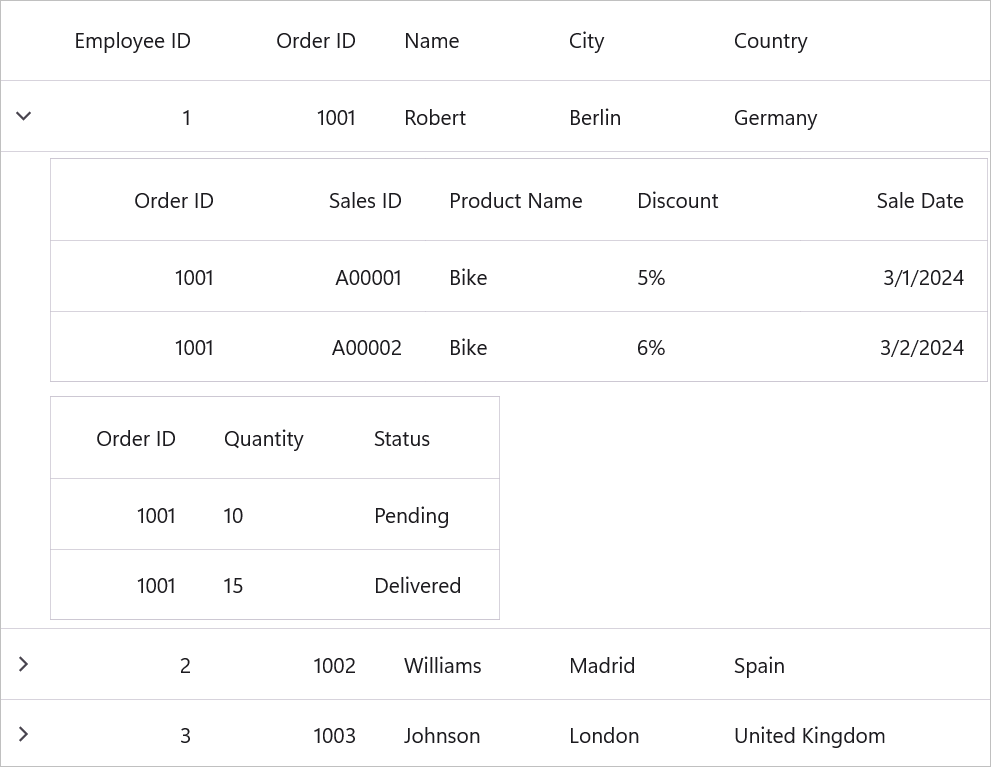
ItemsSource="{Binding Employees}" />dataGrid.AutoGenerateRelations = True;When relations are auto-generated, you can handle the SfDataGrid.AutoGeneratingRelations event to modify or cancel DataGridViewDefinition before adding it to SfDataGrid.DetailsViewDefinition.
Here, two relations are created from Sales and Orders collection property.
Manually Defining Relations
You can manually define the Master-Details View relation in SfDataGrid using DetailsViewDefinition when AutoGenerateRelations is set to false. This approach provides greater control over the Master-Details structure and allows you to customize each relation separately.
To establish the relation:
- Create a DataGridViewDefinition.
- Set the RelationalColumn property to the name of the
IEnumerabletype property in the data object. - Add the DataGridViewDefinition to SfDataGrid.DetailsViewDefinition.
<syncfusion:SfDataGrid x:Name="dataGrid"
                AutoGenerateRelations="False"
                ItemsSource="{Binding Employees}">
    <syncfusion:SfDataGrid.DetailsViewDefinition>
        <!--  FirstLevelNestedGrid1 is created here for Sales  -->
        <syncfusion:DataGridViewDefinition RelationalColumn="Sales">
            <syncfusion:DataGridViewDefinition.DataGrid>
                <syncfusion:SfDataGrid x:Name="FirstLevelNestedGrid1" />
                </syncfusion:DataGridViewDefinition.DataGrid>
                </syncfusion:DataGridViewDefinition>
                <!--  FirstLevelNestedGrid2 is created here for Orders  -->
                <syncfusion:DataGridViewDefinition RelationalColumn="Orders">
                    <syncfusion:DataGridViewDefinition.DataGrid>
                        <syncfusion:SfDataGrid x:Name="FirstLevelNestedGrid2" />
                        </syncfusion:DataGridViewDefinition.DataGrid>
                        </syncfusion:DataGridViewDefinition>
    </syncfusion:SfDataGrid.DetailsViewDefinition>
</syncfusion:SfDataGrid>dataGrid.AutoGenerateRelations = false;
var gridViewDefinition1 = new DataGridViewDefinition();
gridViewDefinition1.RelationalColumn = "Sales";
gridViewDefinition1.DataGrid = new SfDataGrid();
var gridViewDefinition2 = new DataGridViewDefinition();
gridViewDefinition2.RelationalColumn = "Orders";
gridViewDefinition2.DataGrid = new SfDataGrid();
dataGrid.DetailsViewDefinition.Add(gridViewDefinition1);
dataGrid.DetailsViewDefinition.Add(gridViewDefinition2);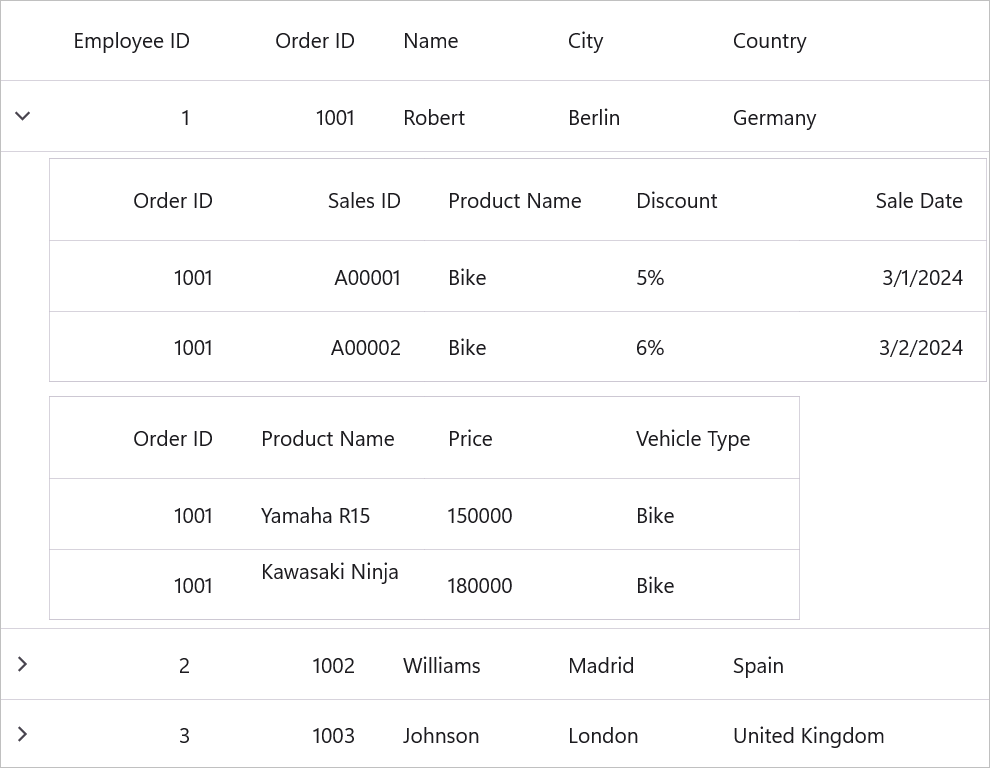
Multi-Level Nesting
You can define relations for first level nested grids by adding relations to the ViewDefinition.DataGrid of the first level nested grid. This allows you to create a deeper hierarchy with multiple nesting levels.
<syncfusion:SfDataGrid  x:Name="dataGrid"
                        AutoGenerateRelations="False"
                        ItemsSource="{Binding Employees}">
    <syncfusion:SfDataGrid.DetailsViewDefinition>
        <!--  FirstLevelNestedGrid is created here  -->
        <syncfusion:DataGridViewDefinition RelationalColumn="Orders">
            <syncfusion:DataGridViewDefinition.DataGrid>
                <syncfusion:SfDataGrid  x:Name="FirstLevelNestedGrid"
                                        AutoGenerateRelations="False">
                    <!--  SecondLevelNestedGrid is created here  -->
                    <syncfusion:SfDataGrid.DetailsViewDefinition>
                        <syncfusion:DataGridViewDefinition RelationalColumn="Products">
                            <syncfusion:DataGridViewDefinition.DataGrid>
                                <syncfusion:SfDataGrid  x:Name="SecondLevelNestedGrid"/>
                            </syncfusion:DataGridViewDefinition.DataGrid>
                        </syncfusion:DataGridViewDefinition>
                    </syncfusion:SfDataGrid.DetailsViewDefinition>
                </syncfusion:SfDataGrid>
            </syncfusion:DataGridViewDefinition.DataGrid>
        </syncfusion:DataGridViewDefinition>
    </syncfusion:SfDataGrid.DetailsViewDefinition>
</syncfusion:SfDataGrid>dataGrid.AutoGenerateRelations = false;
// DataGridViewDefinition for parent DataGrid
var gridViewDefinition1 = new DataGridViewDefinition();
gridViewDefinition1.RelationalColumn = "Sales";
var firstLevelNestedGrid = new SfDataGrid();
firstLevelNestedGrid.AutoGenerateRelations = false;
// DataGridViewDefinition for FirstLevelNestedGrid
var gridViewDefinition = new DataGridViewDefinition();
gridViewDefinition.RelationalColumn = "Products";
gridViewDefinition.DataGrid = new SfDataGrid();
firstLevelNestedGrid.DetailsViewDefinition.Add(gridViewDefinition);
gridViewDefinition1.DataGrid = firstLevelNestedGrid;
dataGrid.DetailsViewDefinition.Add(gridViewDefinition1);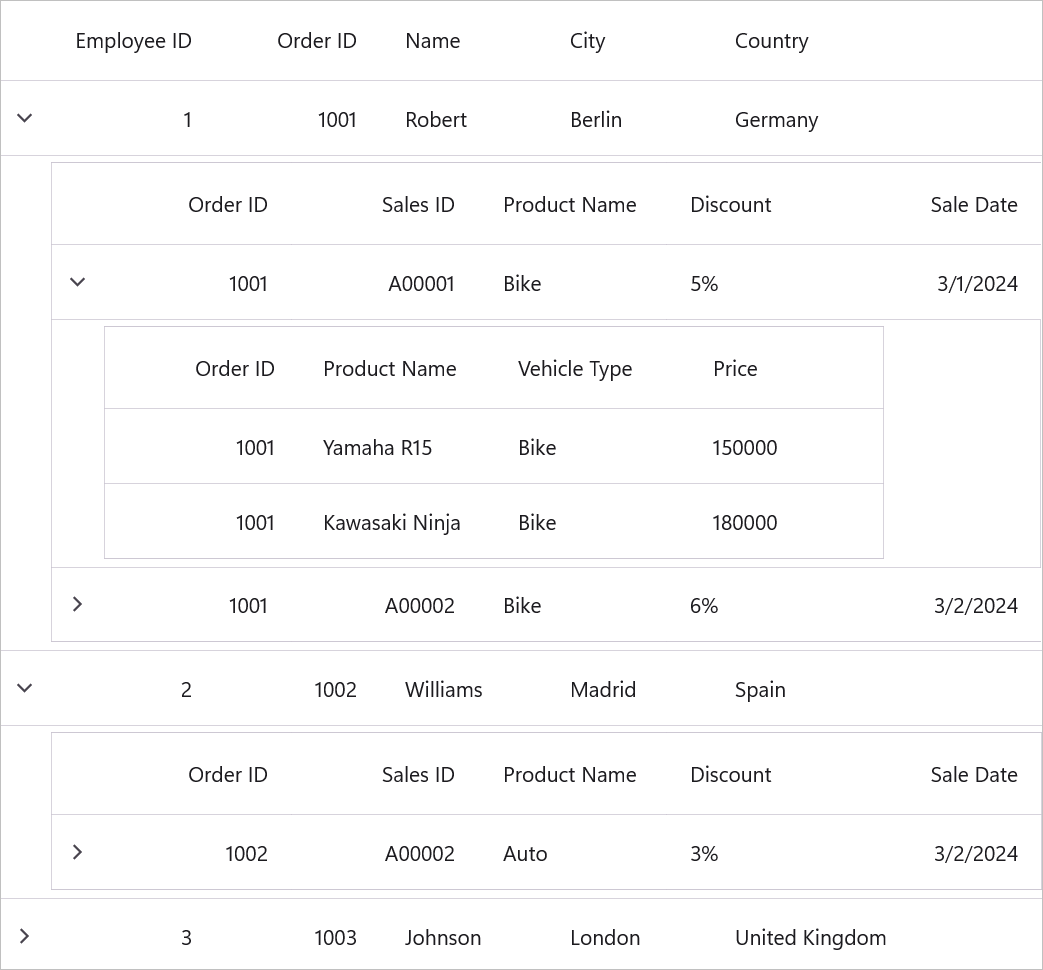
Generating Master-Details View from DataTable
A Master-Details View can be created using DataTable when a DataRelation is established between two tables in the underlying DataSet.
Steps to Generate Master-Details Relations for DataTable
-
Create DataTables with Relations
Define multipleDataTableobjects inside a DataSet and establish relationships between them usingDataRelation. -
Defining Relations
There are two ways to define relations between DataTable objects in SfDataGrid:- Auto-Generating Relations
- Manually Defining Relations
Each method allows SfDataGrid to create hierarchical views, where the child table’s data is displayed based on the parent table’s selection.
NOTE
To
manually Defining relations, follow the same procedure used forIEnumerable.
1. Creating a DataTable with Relations
To establish a Master-Details relationship in SfDataGrid, define a DataTable with a DataRelation in a DataSet. The parent table represents the main data, and the child table contains related details linked through a common key.
Steps to Implement the DataTable with Relations
- Create a
ViewModelclass with an Orders property of typeDataTable. - Define two
DataTableobjects (parent and child). - Add them to a
DataSetand establish a relation using the Order ID column. - Bind the parent table to
SfDataGrid.ItemsSource, and enable AutoGenerateRelations.
using System.Data;

public class DataViewModel
{
    public DataTable Orders { get; set; }

    public DataViewModel()
    {
        var parentTable = GetParentDataTable();
        var childTable = GetChildDataTable();

        DataSet dataSet = new DataSet();
        dataSet.Tables.Add(parentTable);
        dataSet.Tables.Add(childTable);

        // Define DataRelation between Parent and Child tables using Order ID
        dataSet.Relations.Add(new DataRelation("Parent_Child",
            dataSet.Tables[0].Columns["ID"],
            dataSet.Tables[1].Columns["ID"]));

        // Assign parent table as the main data source
        Orders = dataSet.Tables[0];
    }

    private DataTable GetParentDataTable()
    {
        DataTable table = new DataTable();
        table.Columns.Add("ID", typeof(int));
        table.Columns.Add("Name", typeof(string));
        table.Columns.Add("Q1", typeof(float));
        table.Columns.Add("Q2", typeof(float));
        table.Columns.Add("Q3", typeof(float));

        table.Rows.Add(1001, "Belgim", 872.81, 978.89, 685.90);
        table.Rows.Add(1002, "Oliver", 978.76, 458.21, 675.99);
        table.Rows.Add(1003, "Bernald", 548.31, 234.32, 423.44);
        table.Rows.Add(1004, "James", 123.31, 6543.12, 978.31);

        return table;
    }

    private DataTable GetChildDataTable()
    {
        DataTable table = new DataTable();
        table.Columns.Add("ID", typeof(int));
        table.Columns.Add("Name", typeof(string));
        table.Columns.Add("City", typeof(string));
        table.Columns.Add("Quantity", typeof(int));
        table.Columns.Add("UnitPrice", typeof(int));

        table.Rows.Add(1001, "Belgim", "California", 10, 50);
        table.Rows.Add(1001, "Belgim", "Colorado", 20, 35);
        table.Rows.Add(1001, "Belgim", "Alaska", 50, 65);
        table.Rows.Add(1001, "Belgim", "Roraima", 10, 40);

        table.Rows.Add(1002, "Oliver", "California", 32, 40);
        table.Rows.Add(1002, "Oliver", "Alaska", 24, 35);
        table.Rows.Add(1002, "Oliver", "Roraima", 98, 50);
        table.Rows.Add(1002, "Oliver", "Colorado", 78, 65);

        table.Rows.Add(1003, "Bernald", "California", 89, 35);
        table.Rows.Add(1003, "Bernald", "Alaska", 10, 65);
        table.Rows.Add(1003, "Bernald", "Colorado", 20, 50);
        table.Rows.Add(1003, "Bernald", "Roraima", 30, 40);

        table.Rows.Add(1004, "James", "Colorado", 22, 50);
        table.Rows.Add(1004, "James", "Roraima", 53, 40);
        table.Rows.Add(1004, "James", "California", 65, 65);
        table.Rows.Add(1004, "James", "Alaska", 25, 35);

        return table;
    }
}
2. Defining Relations
Auto-Generating Relations
In SfDataGrid, we can automatically generate Master-Details relationships using AutoGenerateRelations. This allows SfDataGrid to detect and create hierarchical views based on DataSet relationships.
<syncfusion:SfDataGrid  x:Name="dataGrid"
                        AutoGenerateRelations="True"
ItemsSource="{Binding Orders}" />dataGrid.AutoGenerateRelations = true;Here, Master-Details View relation is auto generated based on the Orders relation.
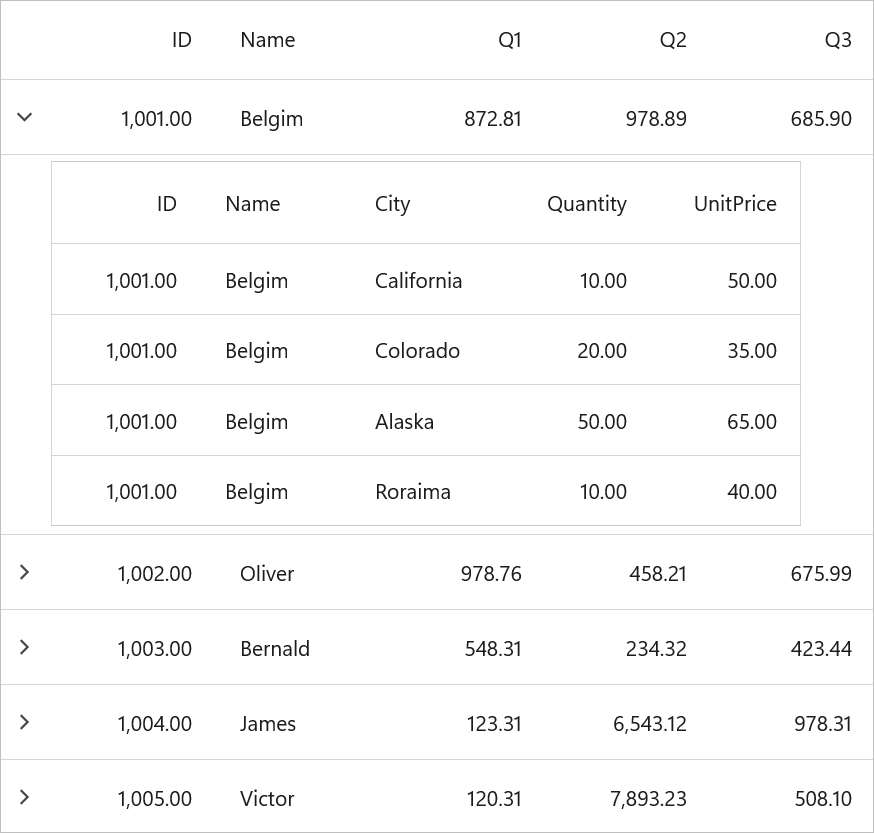
Manually Defining Relations
We can manually define the Master-Details View relation in SfDataGrid using DetailsViewDefinition when AutoGenerateRelations is set to false.
XAML Configuration
<syncfusion:SfDataGrid x:Name="dataGrid"
                       AutoGenerateRelations="False"
                       ItemsSource="{Binding Orders}">
    <syncfusion:SfDataGrid.DetailsViewDefinition>
        <syncfusion:DataGridViewDefinition RelationalColumn="Parent_Child">
            <syncfusion:DataGridViewDefinition.DataGrid>
                <syncfusion:SfDataGrid x:Name="firstInnerGrid"/>
            </syncfusion:DataGridViewDefinition.DataGrid>
        </syncfusion:DataGridViewDefinition>
    </syncfusion:SfDataGrid.DetailsViewDefinition>
</syncfusion:SfDataGrid>
NOTE
The relation name must be unique and must not match any column name or collection name in the
DataTable(this applies only when using DataTable relations).
When defining aRelationalColumnin XAML, use the exact case-sensitive keyword. For example:
<syncfusion:DataGridViewDefinition RelationalColumn="Parent_Child" />
Defining columns for DetailsViewDataGrid
The ViewDefinition.DataGrid’s columns can be generated either automatically or manually like parent SfDataGrid. You can refer here to know more about columns.
Auto-generating columns
We can automatically generate columns for ViewDefinition.DataGrid by setting the AutoGenerateColumnsMode to any value other than None.
<syncfusion:SfDataGrid x:Name="dataGrid"
              AutoGenerateRelations="False"
              ItemsSource="{Binding Orders}">
      <syncfusion:SfDataGrid.DetailsViewDefinition>
          <syncfusion:DataGridViewDefinition RelationalColumn="ProductDetails">
              <syncfusion:DataGridViewDefinition.DataGrid>
                  <syncfusion:SfDataGrid x:Name="FirstLevelNestedGrid"
									     AutoGenerateColumnsMode ="Reset"/>
              </syncfusion:DataGridViewDefinition.DataGrid>
          </syncfusion:DataGridViewDefinition>
      </syncfusion:SfDataGrid.DetailsViewDefinition>
  </syncfusion:SfDataGrid>
Manually defining columns
We can directly define the columns to ViewDefinition.DataGrid when SfDataGrid.AutoGenerateColumnsMode property to None. When relation is manually defined, you can define the columns directly to ViewDefinition.DataGrid in XAML or C#, by adding desired column to the SfDataGrid.Columns collection.
<syncfusion:SfDataGrid x:Name="dataGrid"
                       AutoGenerateRelations="False"
                       ItemsSource="{Binding Orders}">
    <syncfusion:SfDataGrid.DetailsViewDefinition>
        <syncfusion:DataGridViewDefinition RelationalColumn="ProductDetails">
            <syncfusion:DataGridViewDefinition.DataGrid>
                <syncfusion:SfDataGrid x:Name="FirstLevelNestedGrid"
                                        AutoGenerateColumnsMode="None">
                    <syncfusion:SfDataGrid.Columns>
                        <syncfusion:DataGridTextColumn MappingName="OrderID" />
                        <syncfusion:DataGridTextColumn MappingName="ProductName" />
                    </syncfusion:SfDataGrid.Columns>
                </syncfusion:SfDataGrid>
            </syncfusion:DataGridViewDefinition.DataGrid>
        </syncfusion:DataGridViewDefinition>
    </syncfusion:SfDataGrid.DetailsViewDefinition>
</syncfusion:SfDataGrid>
When relation is auto generated, you can define the ViewDefinition.DataGrid’s columns manually through the SfDataGrid.AutoGeneratingRelations event handler.
this.dataGrid.AutoGeneratingRelations += DataGrid_AutoGeneratingRelations;

void DataGrid_AutoGeneratingRelations(object? sender, DataGridAutoGeneratingRelationsArgs e)
 {
     e.DataGridViewDefinition.DataGrid.AutoGenerateColumnsMode = AutoGenerateColumnsMode.None;
     e.DataGridViewDefinition.DataGrid.Columns.Add(new DataGridTextColumn() { MappingName = "OrderID" });
     e.DataGridViewDefinition.DataGrid.Columns.Add(new DataGridTextColumn() { MappingName = "ProductName" });
 }
Selection
DetailsViewDataGrid allows you to select rows or cells based on the SelectionUnit property in its parent DataGrid.
Getting the selected DetailsViewDataGrid
We can get the currently selected DetailsViewDataGrid by using the SelectedDetailsViewDataGrid property of parent DataGrid.
var detailsViewDataGrid = this.dataGrid.SelectedDetailsViewDataGrid;For accessing nested level SelectedDetailsViewGrid,
var detailsViewDataGrid = this.dataGrid.SelectedDetailsViewDataGrid.SelectedDetailsViewDataGrid;Getting the DetailsViewDataGrid
You can retrieve a specific DetailsViewDataGrid based on the row index using the GetDetailsViewGrid helper method. The rowIndex parameter represents the index of the data row in the parent grid.
// Get the DetailsViewDataGrid for the third row (index 2)
var detailsViewDataGrid = this.dataGrid.GetDetailsViewGrid(2);
Getting the SelectedRow, SelectedRows and SelectedIndex of DetailsViewDataGrid
We can access the selected record or records and selected record index of DetailsViewDataGrid by using SelectedRow, SelectedRows, SelectedIndex properties directly.
var detailsViewDataGrid = this.dataGrid.GetDetailsViewGrid(2);
int selectedIndex = detailsViewDataGrid.SelectedIndex;
var selectedRow = detailsViewDataGrid.SelectedRow;
var selectedRows = detailsViewDataGrid.SelectedRows;
We can access DetailsViewDataGrid's SelectedRow, SelectedRows, SelectedIndex properties by using parent dataGrid’s SelectedDetailsViewDataGrid property also.
int selectedIndex = this.dataGrid.SelectedDetailsViewDataGrid.SelectedIndex;
var selectedRow = this.dataGrid.SelectedDetailsViewDataGrid.SelectedRow;
var selectedRows = this.dataGrid.SelectedDetailsViewDataGrid.SelectedRows;
Appearance customization
The visual appearance of DetailsViewDataGrid can be customized like parent DataGrid through DetailsViewDefaultStyle in SfDataGrid.
We can customize the header appearance of DetailsViewDataGrid , through HeaderRowBackground property of DetailsViewDefaultStyle.
<syncfusion:SfDataGrid x:Name="dataGrid"
            AutoGenerateRelations="False"
            ItemsSource="{Binding Employees}">
     <syncfusion:SfDataGrid.DetailsViewDefinition>
         <syncfusion:DataGridViewDefinition RelationalColumn="Sales">
             <syncfusion:DataGridViewDefinition.DataGrid>
                 <syncfusion:SfDataGrid x:Name="FirstLevelNestedGrid" >
                     <syncfusion:SfDataGrid.Columns>
                         <syncfusion:DataGridTextColumn MappingName="OrderID" />
                         <syncfusion:DataGridTextColumn MappingName="ProductName" />
                     </syncfusion:SfDataGrid.Columns>
                 </syncfusion:SfDataGrid>
             </syncfusion:DataGridViewDefinition.DataGrid>
         </syncfusion:DataGridViewDefinition>
     </syncfusion:SfDataGrid.DetailsViewDefinition>
     <syncfusion:SfDataGrid.DetailsViewDefaultStyle>
         <syncfusion:DataGridStyle HeaderRowBackground="#2596be"/>
     </syncfusion:SfDataGrid.DetailsViewDefaultStyle>
 </syncfusion:SfDataGrid>
Hiding header row of Master-Details View
We can hide the header row of DetailsViewDataGrid by setting HeaderRowHeight property.
<syncfusion:SfDataGrid  x:Name="dataGrid"
                        AutoGenerateRelations="False"
                        ItemsSource="{Binding Employees}">
    <syncfusion:SfDataGrid.DetailsViewDefinition>
        <syncfusion:DataGridViewDefinition RelationalColumn="Sales">
            <syncfusion:DataGridViewDefinition.DataGrid>
                <syncfusion:SfDataGrid  x:Name="FirstLevelNestedGrid"
                                        HeaderRowHeight="0" />
            </syncfusion:DataGridViewDefinition.DataGrid>
        </syncfusion:DataGridViewDefinition>
    </syncfusion:SfDataGrid.DetailsViewDefinition>
</syncfusion:SfDataGrid>FirstLevelNestedGrid.HeaderRowHeight = 0;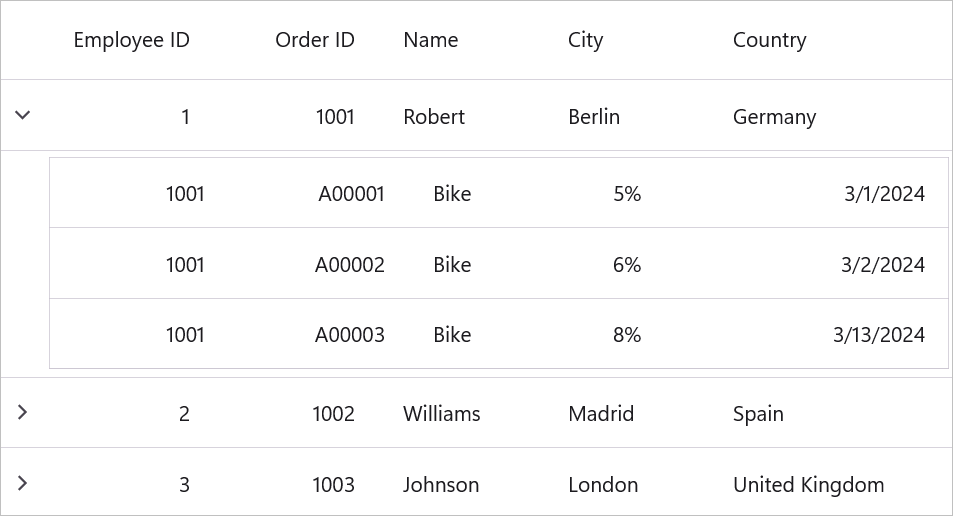
Customizing padding of the DetailsViewDataGrid
The padding of DetailsViewDataGrid can be customized through the DetailsViewPadding property and it will be set to its corresponding parent SfDataGrid.
<syncfusion:SfDataGrid  x:Name="dataGrid"
                        AutoGenerateRelations="True"
                        DetailsViewPadding="15"
ItemsSource="{Binding Employees}" />this.dataGrid.DetailsViewPadding = new Thickness(15);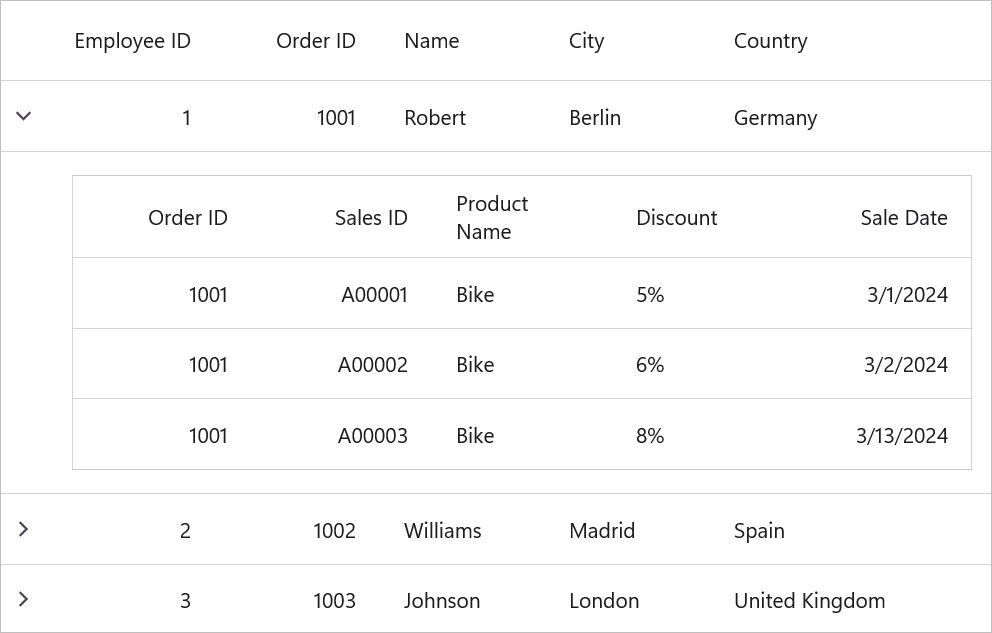
Customize ExpanderColumn width
We can customize the width of ExpanderColumn in SfDataGrid by using ExpanderColumnWidth property as like below.
<Syncfusion:SfDataGrid x:Name="dataGrid"
                       ExpanderColumnWidth="50"
ItemsSource="{Binding OrderInfoCollection }">this.dataGrid.ExpanderColumnWidth = 50;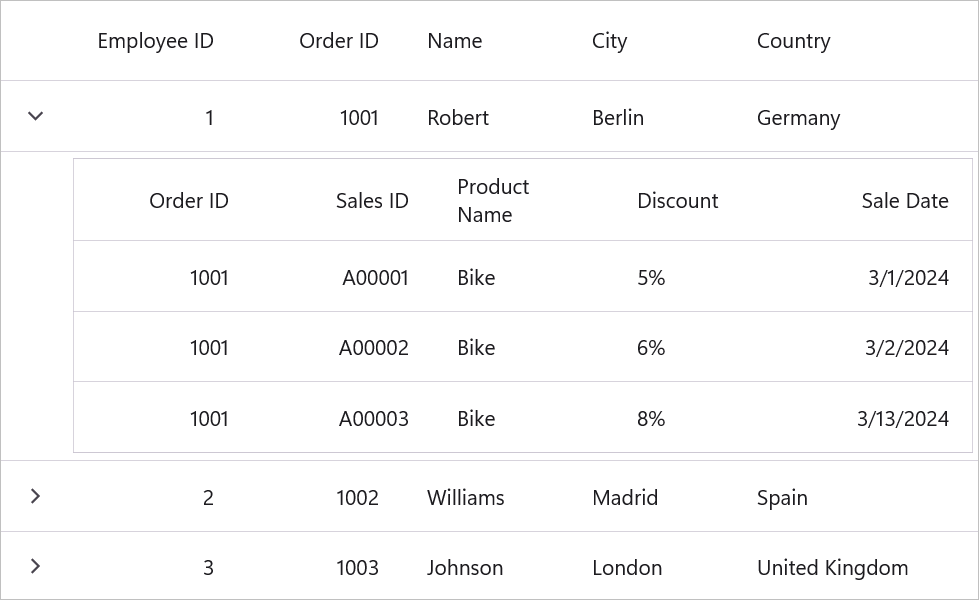
Expanding and collapsing the DetailsViewDataGrid programmatically
SfDataGrid allows you to expand or collapse the DetailsViewDataGrid programmatically in different ways.
Expand or collapse all the DetailsViewDataGrid
We can expand or collapse all the DetailsViewDataGrid programmatically by using ExpandAllDetailsView and CollapseAllDetailsView methods.
this.dataGrid.ExpandAllDetailsView();
this.dataGrid.CollapseAllDetailsView();
Expand DetailsViewDataGrid based on level
We can expand all the DetailsViewDataGrid programmatically based on level using ExpandAllDetailsView method.
this.dataGrid.ExpandAllDetailsView(2);Here, all the DetailsViewDataGrids up to second level will be expanded.
Expand or collapse Details View based on record index
We can expand or collapse DetailsViewDataGrid based on the record index by using ExpandDetailsViewAt and CollapseDetailsViewAt methods.
this.dataGrid.ExpandDetailsViewAt(0);
this.dataGrid.CollapseDetailsViewAt(0);
Hide Empty Grid Definitions
By default, the expander will be visible for all the data rows in parent DataGrid even if its RelationalColumn property has an empty collection or null.
Setting the HideEmptyDataGridViewDefinition property to true will hide the expander from the view when the respective RelationalColumn property contains an empty collection or null.
<syncfusion:SfDataGrid x:Name="dataGrid"
                        AutoGenerateRelations="False"
                        ItemsSource="{Binding Employees}"
                        HideEmptyDataGridViewDefinition="True">
</syncfusion:SfDataGrid>dataGrid.HideEmptyDataGridViewDefinition = true;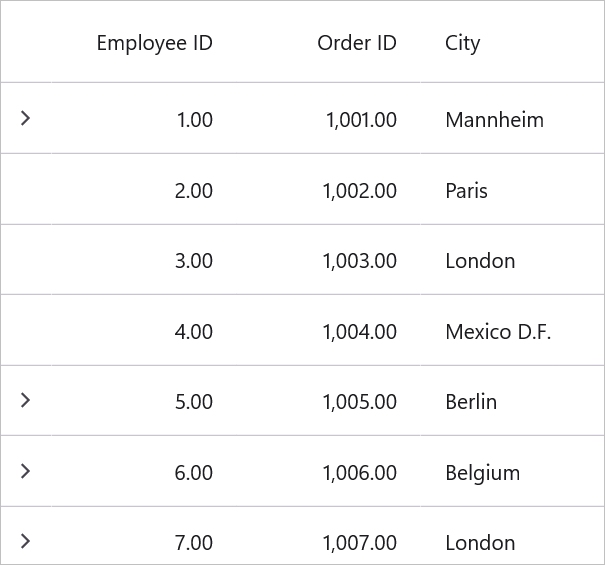
Hide Indent Cells in Details view
By default the indent cell of details view SfDataGrid is always displayed. You can hide the indent cell by setting ShowDetailsViewIndentCell property to false for the corresponding parent DataGrid. The default value of ShowDetailsViewIndentCell property is true.
<syncfusion:SfDataGrid x:Name="dataGrid"
                        AutoGenerateRelations="False"
                        ItemsSource="{Binding Employees}"
                        ShowDetailsViewIndentCell="False">
</syncfusion:SfDataGrid>dataGrid.ShowDetailsViewIndentCell = false;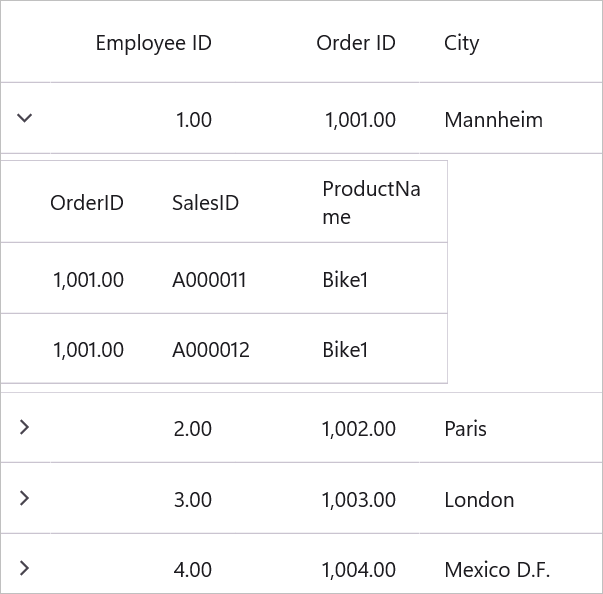
Handling Events
DetailsViewLoading
The DetailsViewLoading event is triggered when the DetailsViewDataGrid is loaded into the view.
this.dataGrid.DetailsViewLoading += DataGrid_DetailsViewLoading;

private void DataGrid_DetailsViewLoading(object? sender, DataGridDetailsViewLoadingEventArgs e)
{

}
DetailsViewUnloading
The DetailsViewUnLoading event occurs when the DetailsViewDataGrid is removed from the view.
this.dataGrid.DetailsViewUnloading += DataGrid_DetailsViewUnloading;

 private void DataGrid_DetailsViewUnloading(object? sender, DataGridDetailsViewUnloadingEventArgs e)
 {

 }
DetailsViewExpanding
The DetailsViewExpanding event is raised when the DetailsViewDataGrid is being expanded by using an expander.
this.dataGrid.DetailsViewExpanding += DataGrid_DetailsViewExpanding;

private void DataGrid_DetailsViewExpanding(object? sender, DataGridDetailsViewExpandingEventArgs e)
{

}
DetailsViewExpanded
The DetailsViewExpanded event is raised after the DetailsViewDataGrid is expanded by using an expander.
this.dataGrid.DetailsViewExpanded += DataGrid_DetailsViewExpanded;

private void DataGrid_DetailsViewExpanded(object? sender, DataGridDetailsViewExpandedEventArgs e)
{

}
DetailsViewCollapsing
The DetailsViewCollapsing event is raised when the DetailsViewDataGrid is being collapsed from the view by using an expander.
this.dataGrid.DetailsViewCollapsing += DataGrid_DetailsViewCollapsing;

 private void DataGrid_DetailsViewCollapsing(object? sender, DataGridDetailsViewCollapsingEventArgs e)
 {

 }
DetailsViewCollapsed
The DetailsViewCollapsed event is raised after the DetailsViewDataGrid is collapsed by using an expander.
this.dataGrid.DetailsViewCollapsed += DataGrid_DetailsViewCollapsed;

private void DataGrid_DetailsViewCollapsed(object? sender, DataGridDetailsViewCollapsedEventArgs e)
{

}
Cancel expanding or collapsing operations through events
We can cancel expanding operation while expanding the DetailsViewDataGrid by using GridDetailsViewExpandingEventArgs.Cancel property in the DetailsViewExpanding event handler.
this.dataGrid.DetailsViewExpanding += DataGrid_DetailsViewExpanding;

private void DataGrid_DetailsViewExpanding(object? sender, DataGridDetailsViewExpandingEventArgs e)
{
   if ((e.Record as OrderInfo).OrderID == 1002)
      e.Cancel = true;
}
Similarly, the collapsing operation can be canceled through the DataGridDetailsViewCollapsingEventArgs.Cancel property in the DetailsViewCollapsing event handler.
this.dataGrid.DetailsViewCollapsing += DataGrid_DetailsViewCollapsing;

private void DataGrid_DetailsViewCollapsing(object? sender, DataGridDetailsViewCollapsingEventArgs e)
{
   if ((e.Record as OrderInfo).OrderID == 1002)
      e.Cancel = true;
}
Master-Details View Limitations
The Master-Details View in SfDataGrid has certain limitations that should be considered while using this feature:
-
No virtualization support: Virtualization is not supported for the
DetailsViewDataGridon Android, iOS, and macOS platforms. This means all rows and columns are loaded immediately, which may cause noticeable delays when displaying large datasets. To mitigate this, limit the number of rows in nested grids or use pagination if possible. -
Column auto-generation:
DetailsViewDataGriddoes not supportAutoGenerateColumnsMode.ResetAll. UseResetorNoneinstead. - No data virtualization: Master-Details View does not support virtual scrolling for large datasets.
- No Freeze Panes: Freezing columns or rows is not supported in nested grids.
- No Auto Row Height: Automatic row height adjustment is not supported for details view grids.
-
Limited interaction features:
DetailsViewDataGriddoes not support Swiping, Column Drag and Drop, Row Drag and Drop, or Pull to Refresh gestures. -
Inherited properties: The
SelectionMode,SelectionUnit,NavigationMode, andDetailsViewPaddingproperties are inherited from the parent grid. Both parent and nested grids must use the same values for these properties.