Validation in JavaScript Grid control
Validation is a crucial aspect of data integrity in any application. The JavaScript Grid control in Syncfusion® provides built-in support for easy and effective data validation. This feature ensures that the data entered or modified adheres to predefined rules, preventing errors and guaranteeing the accuracy of the displayed information.
Column validation
Column validation allows you to validate the edited or added row data before saving it. This feature is particularly useful when you need to enforce specific rules or constraints on individual columns to ensure data integrity. By applying validation rules to columns, you can display error messages for invalid fields and prevent the saving of erroneous data. This feature leverages the Form Validator control to perform the validation. You can define validation rules using the columns.validationRules property to specify the criteria for validating column values.
The following code example demonstrates how to define a validation rule for grid column:
Custom validation
The Custom validation feature is used to define and enforce your own validation rules for specific columns in the Grid. This is achieved by leveraging the utilizing the Form Validator custom rules, you can enforce your desired validation logic and display error messages for invalid fields.
In the below demo, custom validation applied for CustomerID column.
Custom validation based on dropdown change
The Custom validation feature in the Grid allows you to apply validation rules and messages to a column based on the value of another column in edit mode. This feature is particularly useful when you need to enforce specific validation criteria that depend on the selection made in a dropdown column.
In the following sample, dropdownlist edit type is used for the Role and Salary columns. Here, you can apply the custom validation in the Salary column based on the value selected in the Role column.
Custom validation for numeric column
Custom validation for a numeric column Grid is useful when you want to enforce specific validation rules on numeric values in a column. This allows you to define your own validation logic and display custom error messages when the you enters invalid data.
In the following example, custom validation functions, namely customFn and customFn1, are defined to check the entered numeric value against your validation criteria. Then, the grid column is configured with the appropriate validation settings using the freightRules object, specifying the custom validation functions along with corresponding error messages. Additionally, the change event of the numeric column is bound to the validate method of the form element through the edit params. This enables you to trigger validation and display error messages whenever the you modifies the value in the NumericTextBox.
Dynamically add or remove validation rules from the form
You can dynamically add or remove validation rules from input elements within a form. This feature is particularly useful when you need to adjust the validation rules based on different scenarios or dynamically changing data.
To add validation rules dynamically to an input element, you can use the addRules method. This method enables you to add validation rules to the corresponding input element based on the name attribute.
The following example to demonstrates how to dynamically add or remove a required validation rule for an input field based on a CheckBox selection:
To remove an existing validation rule from an input element, you can use the removeRules method.
Change the position of validation error message
By default, the validation error message in Grid is displayed below the input field. However, you have an option to customize its position and display it in a different location. This feature is particularly useful when you want to align the error message according to your application’s design and layout.
To change the position of the validation error message in Grid, you can utilize the customPlacement event of the form validator. This event allows you to define a custom logic to position the error message at the desired location.
Here’s an example that demonstrates how to change the position of the validation error message to the top of the input field:
Show custom error message while performing CRUD actions
While performing CRUD actions in the Syncfusion JavaScript Grid, errors may occur due to various reasons such as validation failures, network issues, or server-side exceptions. Handling these errors effectively is essential for providing meaningful error messages when an operation fails.
To achieve this, you can use the actionFailure event. This event is triggered when an action (like update, delete, or insert) fails, allowing you to retrieve the error message from the server response and display it in the UI.
The following sample demonstrates how to retrieve and display error messages in the Syncfusion JavaScript Grid:
The following screenshot illustrates how to retrieve and display error messages when CRUD operations fail:
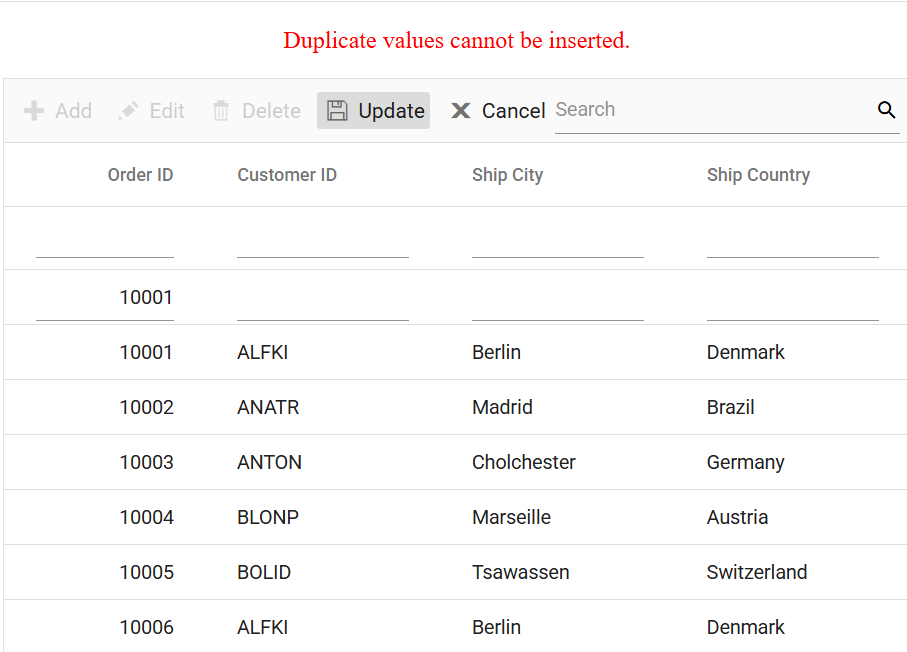
Prevent adding duplicate rows with custom validation
The Syncfusion JavaScript Grid allows you to enforce constraints to prevent duplicate rows by customizing the validation logic within the Grid setup. This ensures data integrity by restricting duplicate entries in the OrderID column.
To prevent adding duplicate rows in the Grid, follow these steps:
-
Implement Custom Validation: Define the
orderIdCustomValidationfunction to check whether the entered OrderID already exists in the dataSource. This allows editing an existing row without triggering a duplicate error. -
Add Dynamic Validation Rules: Create the
orderIDRulesobject to enforce unique OrderID values. Dynamically add this rule to the form during the save action. -
Handle Validation in the actionBegin event: In the
actionBeginevent, check if the requestType is save. Apply the validation rule before saving and cancel the actionargs.cancel = trueif the validation fails.
For server-side validation to prevent adding duplicate rows, you can refer to the detailed guidance provided in our knowledge base. If you want to display the Grid’s validation tooltip instead of the alert used in our knowledge base, you can call the grid.editModule.formObj.validate() method in the Ajax/Fetch success function to display the Grid’s tooltip validation for the server side.