Remote data in JavaScript Grid control
In JavaScript Grid component, binding remote data is a fundamental aspect that enhances the efficiency of data interaction. This process involves assigning the service data, represented as an instance of DataManager, to the dataSource property of the JavaScript Grid component. By doing so, you enable seamless interaction with a remote data source, and this is achieved by specifying the endpoint URL where the data is hosted.
Additionally, leverage the power for data retrieval and operations, enhancing event handling, asynchronous programming, and concurrent value management in JavaScript applications.
Custom binding
The custom binding feature in the JavaScript Grid enables you to manage your own custom API for handling data processing externally and then binding the resulting data to the Grid. This allows you to implement your own custom data logic to your application’s requirements. When using custom binding, the Grid expects the result of the custom logic to be an object with properties result and count. The result property should contain the data to be displayed in the Grid, while the count property indicates the total number of records in the dataset for your application. To utilize custom binding, you can handle the DataManager. The DataManager integrates seamlessly with the JavaScript Grid to manage custom data processing and binding.
The Syncfusion® Grid component offers a range of powerful features for handling grid actions such as paging, grouping, sorting and filtering. These actions trigger the dataStateChange event. The feature for CRUD action such as Create, Read, Update, Delete operations. This action trigger the dataSourceChanged event. This event provides you with the opportunity to manage and manipulate data according to the individual’s interactions.
Using the dataStateChange event
The dataStateChange event is triggered whenever you perform actions that modify the state of the grid’s data, such as changing pages, applying sorting, or grouping. This event provides detailed information about the action performed and the current state of the grid, including parameters like page number, sorting details, and filtering criteria.
To implement the dataStateChange event, follow these steps:
-
Subscribe to the event: In your component code, subscribe to the
dataStateChangeevent using the appropriate event handler function. This function will be executed whenever you interact with the grid. -
Handle data state: Inside the event handler function, you can access the event arguments to determine the individual actions and intentions. The action property of the event arguments indicates the type of action performed (e.g., paging, sorting, grouping).
The
dataStateChangeevent will not be triggered during the initial rendering.
Creating an API service
To configure a server with JavaScript Grid, you need to follow the below steps:
Handling filtering operation
When filtering operation is performed in the grid, the dataStateChange event is triggered, providing access to the following referenced arguments within the event.
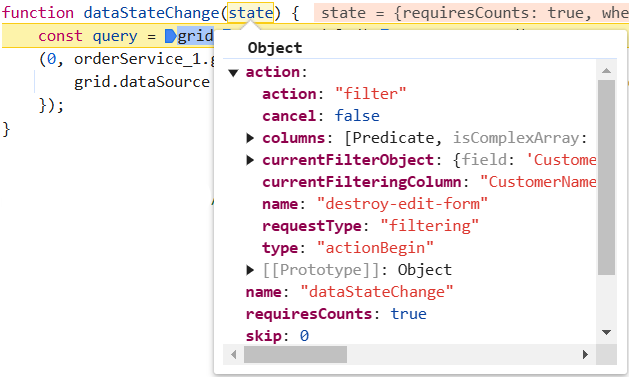
You can change the new grid data state of filter action as follows:
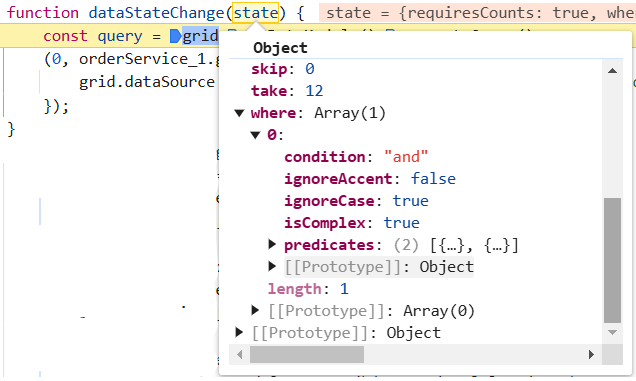
When filtering multiple values, you can get the predicates as arguments in the dataStateChange event. You can create your predicate execution based on the predicates values.
Handling searching operation
When performing a search operation in the grid, the dataStateChange event is triggered, allowing access to the following referenced arguments within the event
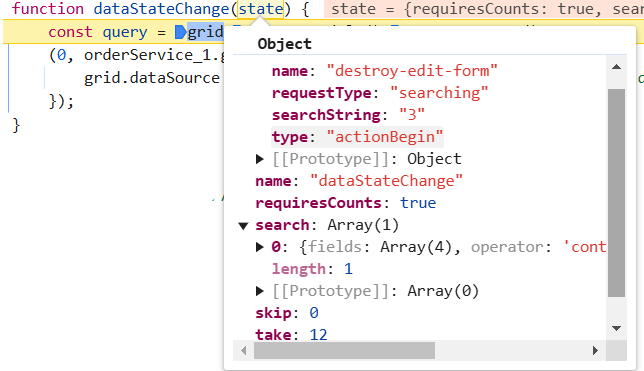
You can change the new grid data state of search action as follows:
Handling sorting operation
When sorting operation is performed in the grid, the dataStateChange event is triggered, and within this event, you can access the following referenced arguments.
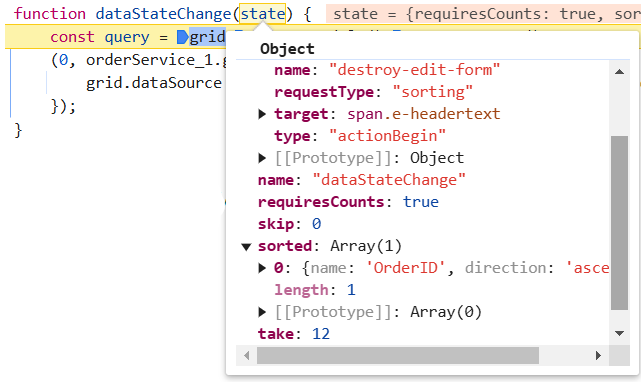
When performing multi-column sorting, you can get the below referred arguments in the dataStateChange event.
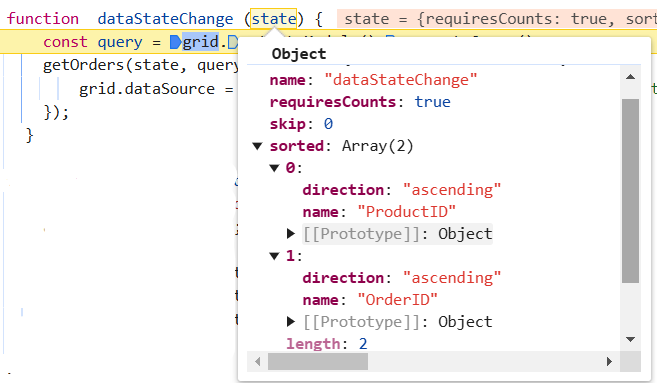
You can change the new grid data state of sort action as follows:
Handling paging operation
When paging operation is performed in the grid, the dataStateChange event is triggered, and within this event, you can access the following referenced arguments.
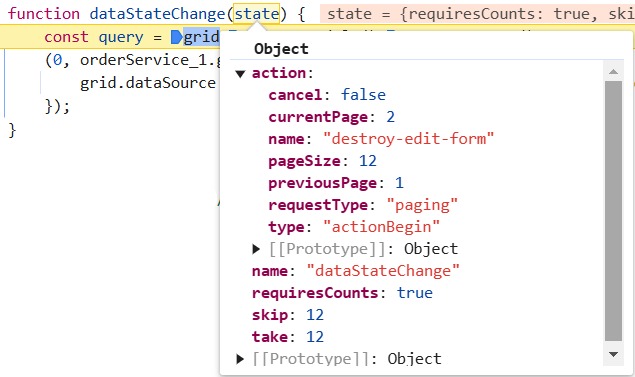
You can change the new grid data state of page action as follows:
Handling grouping operation
When grouping operation is performed in the grid, the dataStateChange event is triggered, providing access to the following referenced arguments within the event.
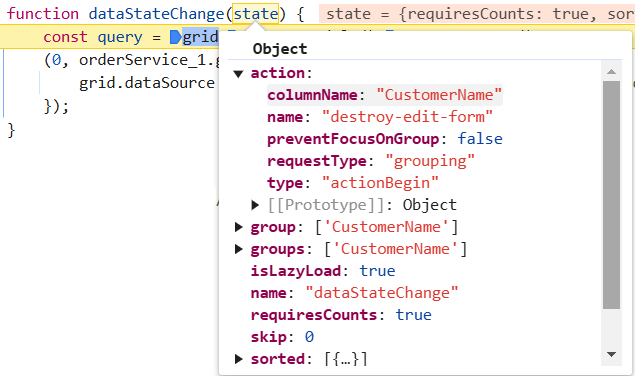
You can change the new grid data state of group action as follows:
- In order to utilize group actions, it is necessary to manage the sorting query within your service.
Lazy load grouping
In JavaScript, lazy loading refers to the technique of loading data dynamically when they are needed, instead of loading everything upfront. Lazy load grouping allows you to load and display grouped data efficiently by fetching only the required data on demand.
To enable this feature, you need to set the groupSettings.enableLazyLoading property to true. Also, you need to manage the state based on the initial grid action as follows.
Based on the initial state, you can get the arguments as shown below
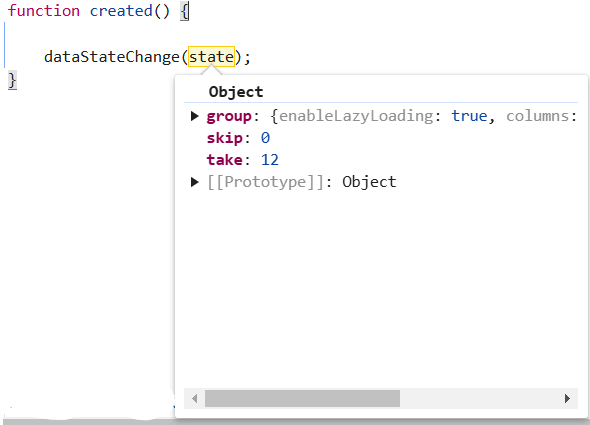
You can change the grid state as follows:
Further information can be accessed in the respective documentation for lazy load grouping.
Handling CRUD operations
The Grid component provides powerful options for dynamically inserting, deleting, and updating records, enabling you to modify data directly within the grid. This feature is useful when you want to perform CRUD (Create, Read, Update, Delete) operations seamlessly.
Integrating CRUD Operations
To implement CRUD operations using Syncfusion® Grid, follow these steps:
-
Configure grid settings: Set up the necessary grid settings, such as editing, adding, and deleting records. Define the toolbar options to facilitate your interactions.
-
Handle data state changes: Utilize the dataStateChange event to respond to changes in the grid’s data state. This event is triggered whenever you interact with the grid, such as paging or sorting.
-
Execute CRUD operations: Within the event handler for dataSourceChanged, implement logic to handle various CRUD actions based on the action or requestType property of the event arguments.
-
Call endEdit method: After performing CRUD operations (adding, editing, or deleting), call the endEdit method to signal the completion of the operation and update the grid accordingly.
Insert operation
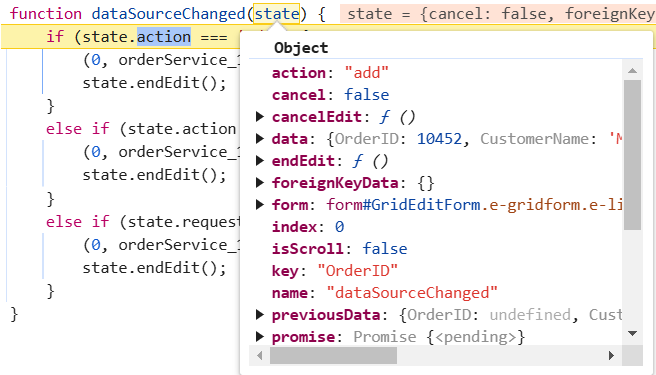
When an insert operation is performed in the grid, the dataSourceChanged event will be triggered, allowing access to the following referenced arguments within the event.
Edit operation
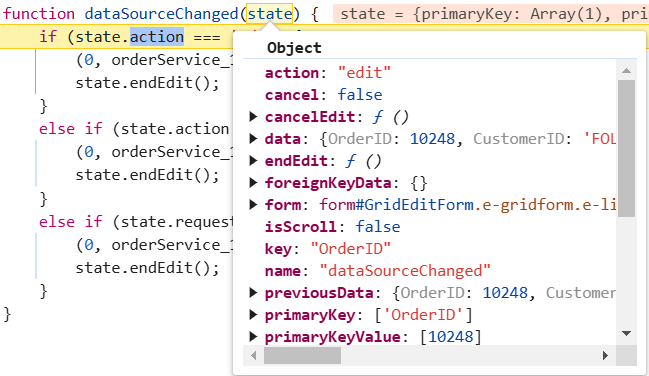
When an edit operation is performed in the grid, the dataSourceChanged event will be triggered, providing access to the following referenced arguments within the event.
Delete operation
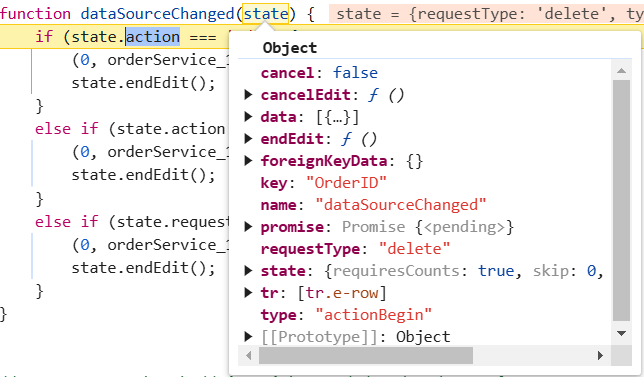
When a delete operation is performed in the grid, the dataSourceChanged event will be triggered, allowing access to the following referenced arguments within the event.
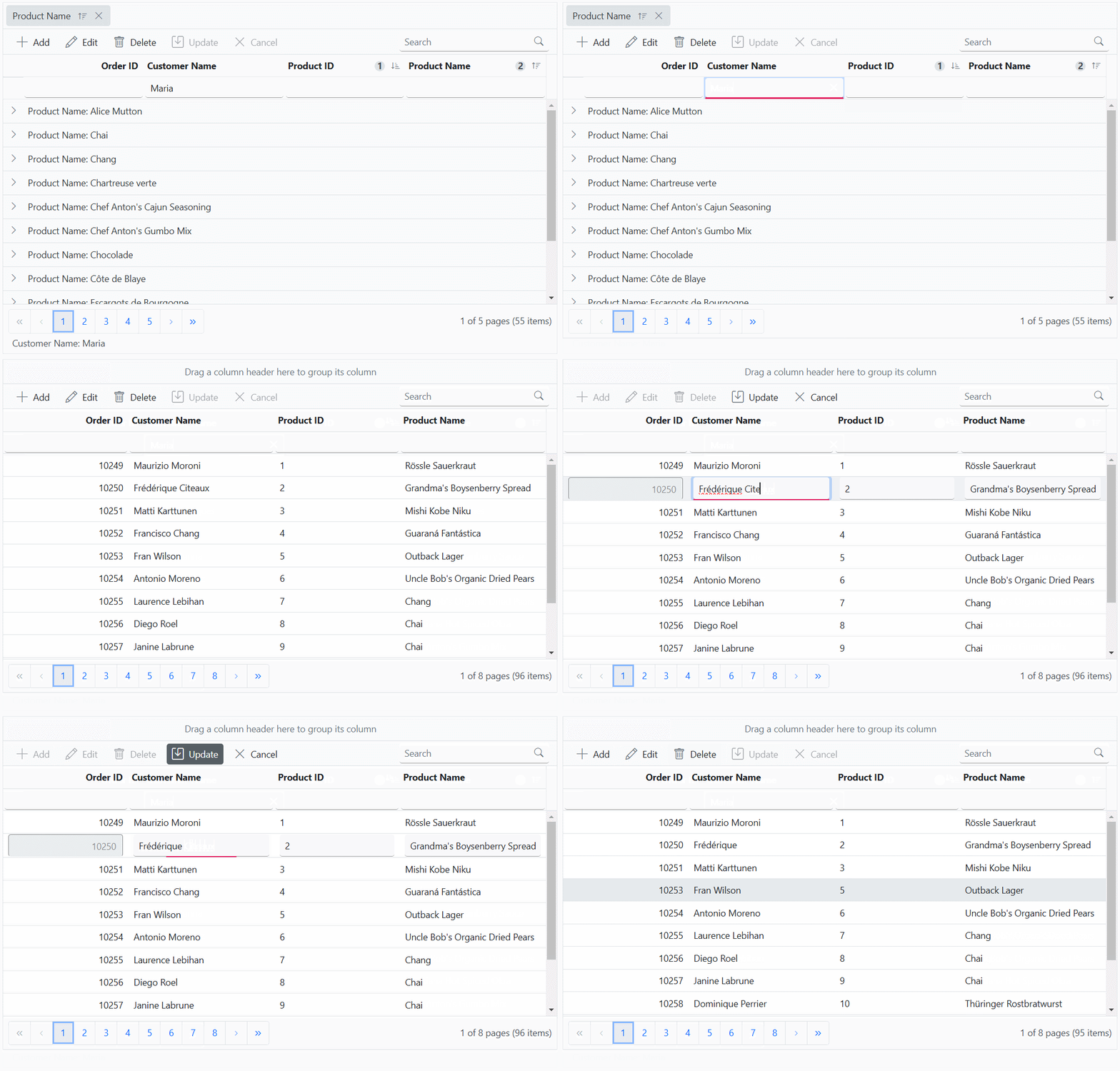
The following example demonstrates how to bind custom data to handle grid actions and CRUD operation.
The following screenshot represents the grid action with custom binding
- While working with grid edit operation, defining the isPrimaryKey property of column is a mandatory step. In case the primary key column is not defined, the edit or delete action will take place on the first row of the grid.
- Need to maintain the same instance for all grid actions.
Export all records in client side
Export all records is especially beneficial when dealing with large datasets that need to be exported for offline analysis or sharing.
By default, the Syncfusion® Grid component exports only the records on the current page. However, the JavaScript Grid component allows you to export all records, including those from multiple pages, by configuring the pdfExportProperties and excelExportProperties.
To export all records, including those from multiple pages, configure the pdfExportProperties.dataSource for PDF exporting and excelExportProperties.dataSource for Excel exporting within the toolbarClick event handler. Inside this event, set the dataSource property of pdfExportProperties and excelExportProperties for PDF and Excel exporting to include all records.
Excel Exporting
To export the complete Grid data to Excel document, utilize the excelExportProperties.dataSource when initiating the Excel export. Use the following code snippet to export all records within the Grid:
PDF Exporting
To export the complete Grid data to PDF document, utilize the pdfExportProperties.dataSource when initiating the PDF export. Use the following code snippet to export all records within the Grid:
For further customization on Grid export, refer to the respective documentation for PDF exporting and Excel exporting
The following code example shows how to export all records in client side:
Sending additional parameters to the server
The Syncfusion® Grid component allows you to include custom parameters in data requests. This feature is particularly useful when you need to provide additional information to the server enhanced processing.
By utilizing the query property of the grid along with the addParams method of the Query class, you can easily incorporate custom parameters into data requests for every grid action.
To enable custom parameters in data requests for the grid component, follow these steps:
1. Bind the Query Object to the Grid: Assign the initialized query object to the query property of the Syncfusion® Grid component.
2. Initialize the Query Object: Create a new instance of the Query class and use the addParams method to add the custom parameters.
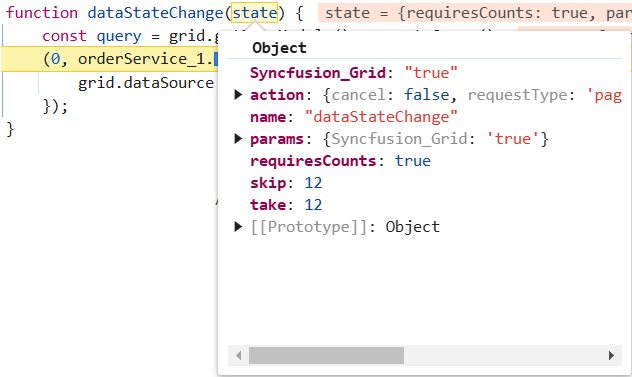
3. Handle Data State Changes: If you need to dynamically update the data based on interactions, implement the dataStateChange event handler to execute the query with the updated state.
4. Execute Data Request: In the service, execute the data request by combining the custom parameters with other query parameters such as paging and sorting.
The following example demonstrates how to send additional parameters to the server.
Offline mode
On remote data binding, all grid actions such as paging, sorting, editing, grouping, filtering, etc, will be processed on server-side. To avoid post back for every action, set the grid to load all data on initialization and make the actions process in client-side. To enable this behavior, use the offline property of DataManager.
Fetch result from the DataManager query using external button
By default, JavaScript Grid automatically binds a remote data source using the DataManager. However, in some scenarios, you may need to fetch data dynamically from the server using a query triggered by an external button. This approach allows greater control over when and how data is loaded into the Grid.
To achieve this, you can use the executeQuery method of DataManager with a Query object. This method allows you to run a custom query and retrieve results dynamically.
The following example demonstrates how to fetch data from the server when an external button is clicked and display a status message indicating the data fetch status: