Local data in JavaScript Grid control
The Syncfusion® Grid offers a straight forward way to bind local data, such as arrays or JSON objects, to the grid control. This feature allows you to display and manipulate data within the grid without the need for external server calls, making it particularly useful for scenarios where you’re working with static or locally stored data.
To achieve this, you can assign a JavaScript object array to the dataSource property. Additionally, you have an option to provide the local data source using an instance of the DataManager.
The following example demonstrates how to utilize the local data binding feature in the JavaScript Grid control:
Data binding with SignalR
The Syncfusion® Grid provides support for real-time data binding using SignalR, allowing you to update the grid automatically as data changes on the server-side. This feature is particularly useful for applications requiring live updates and synchronization across multiple clients.
To achieve real-time data binding with SignalR in your JavaScript Grid, follow the steps below:
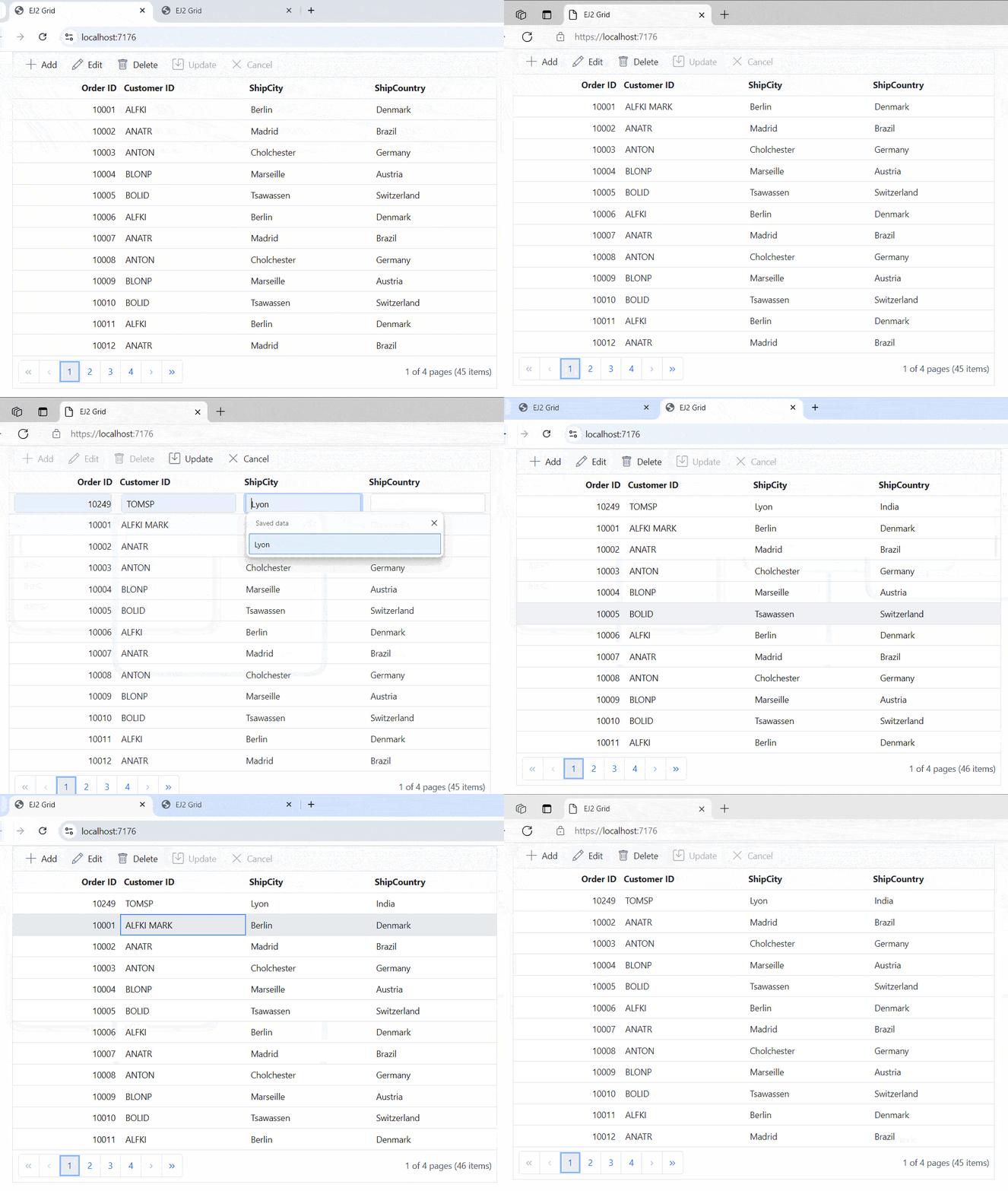
The following screenshot represents the addition, editing, and deletion operations performed, reflecting changes across all client sides.
- In an API service project, add
Syncfusion.EJ2.AspNet.Coreby opening the NuGet package manager in Visual Studio (Tools → NuGet Package Manager → Manage NuGet Packages for Solution), search and install it.
- To access DataManagerRequest and QueryableOperation, import
Syncfusion.EJ2.BaseinGridController.csfile.
Binding data from excel file
To bind data from an Excel file to a Syncfusion® Grid control, including the xlsx library via a script tag in an HTML page
<script type="text/javascript" src="https://unpkg.com/[email protected]/dist/xlsx.full.min.js"></script>To import excel data in to grid, you can follow these steps:
- Import excel file using Uploader control.
- Parse the excel file data using XLSX library.
- Bind the JSON to the grid control.
Binding data and performing CRUD actions via Fetch request
The Syncfusion® Grid provides a seamless way to bind data from external sources using Fetch requests, facilitating CRUD (Create, Read, Update, Delete) operations with data retrieved from a server. This feature is particularly valuable for sending data to a server for database updates and asynchronously retrieving data without refreshing the entire web page.
To achieve data binding and perform CRUD actions using Fetch requests in the Syncfusion® Grid, follow these steps:
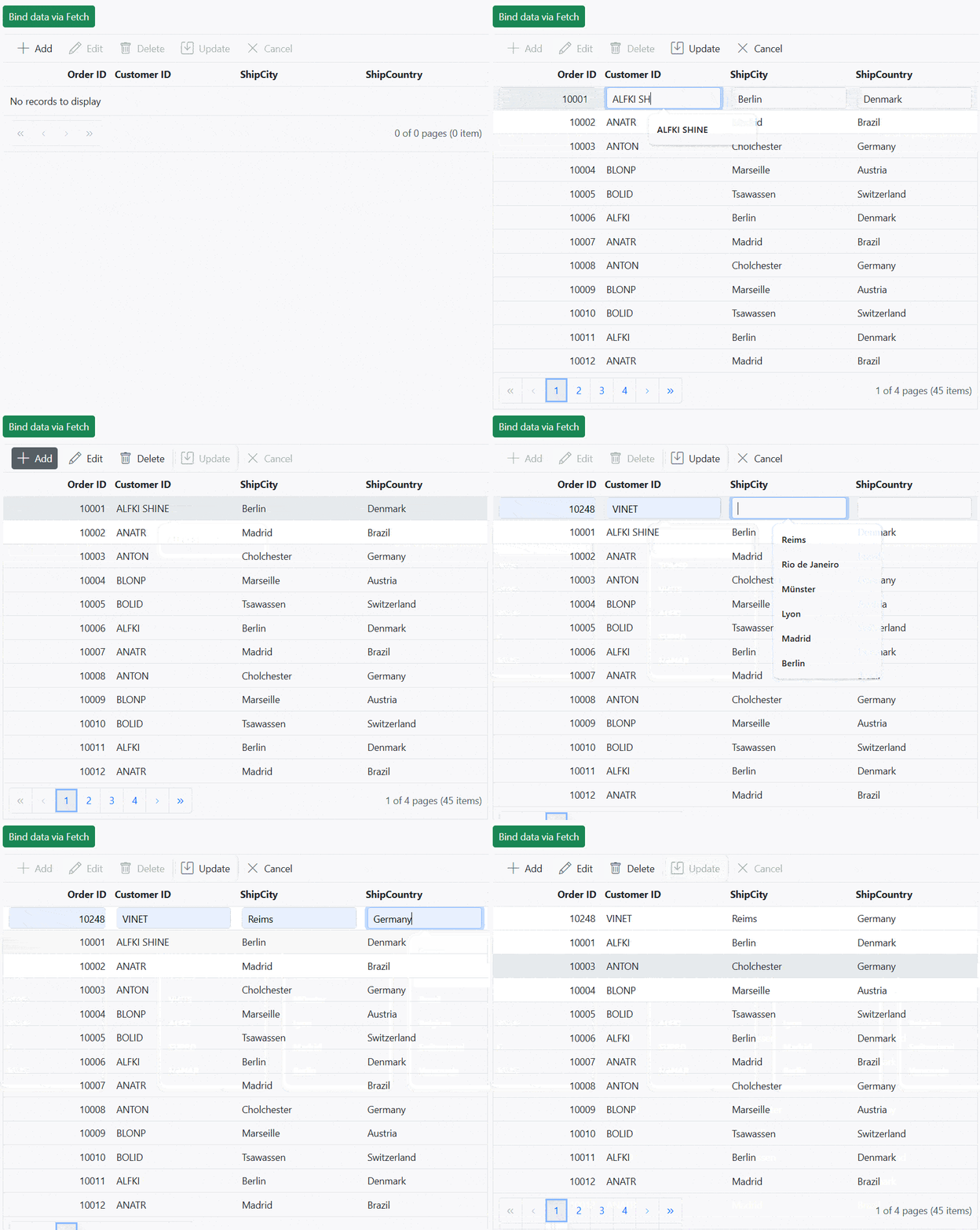
The following screenshot represents loading data when the button is clicked and CRUD operations are performed:
Display the loading indicator with local data.
The Syncfusion® Grid allows you to display a loading indicator while loading local data. This feature is useful when there is a delay in loading data from a local source, and you want to inform the you that the data is being fetched.
To display the loading indicator with local data, you need to set the showSpinner property to true. This property controls the visibility of the loading indicator.
The following example demonstrates how to display the loading indicator in the Syncfusion® Grid using the load and created events:
Binding data and performing CRUD actions via AJAX request
The Syncfusion® Grid provides a seamless way to bind data from external sources using AJAX requests, facilitating CRUD (Create, Read, Update, Delete) operations with data retrieved from a server. This feature is particularly valuable for sending data to a server for database updates and asynchronously retrieving data without refreshing the entire web page
To achieve data binding and perform CRUD actions using Ajax requests in the Syncfusion® Grid, follow these steps:
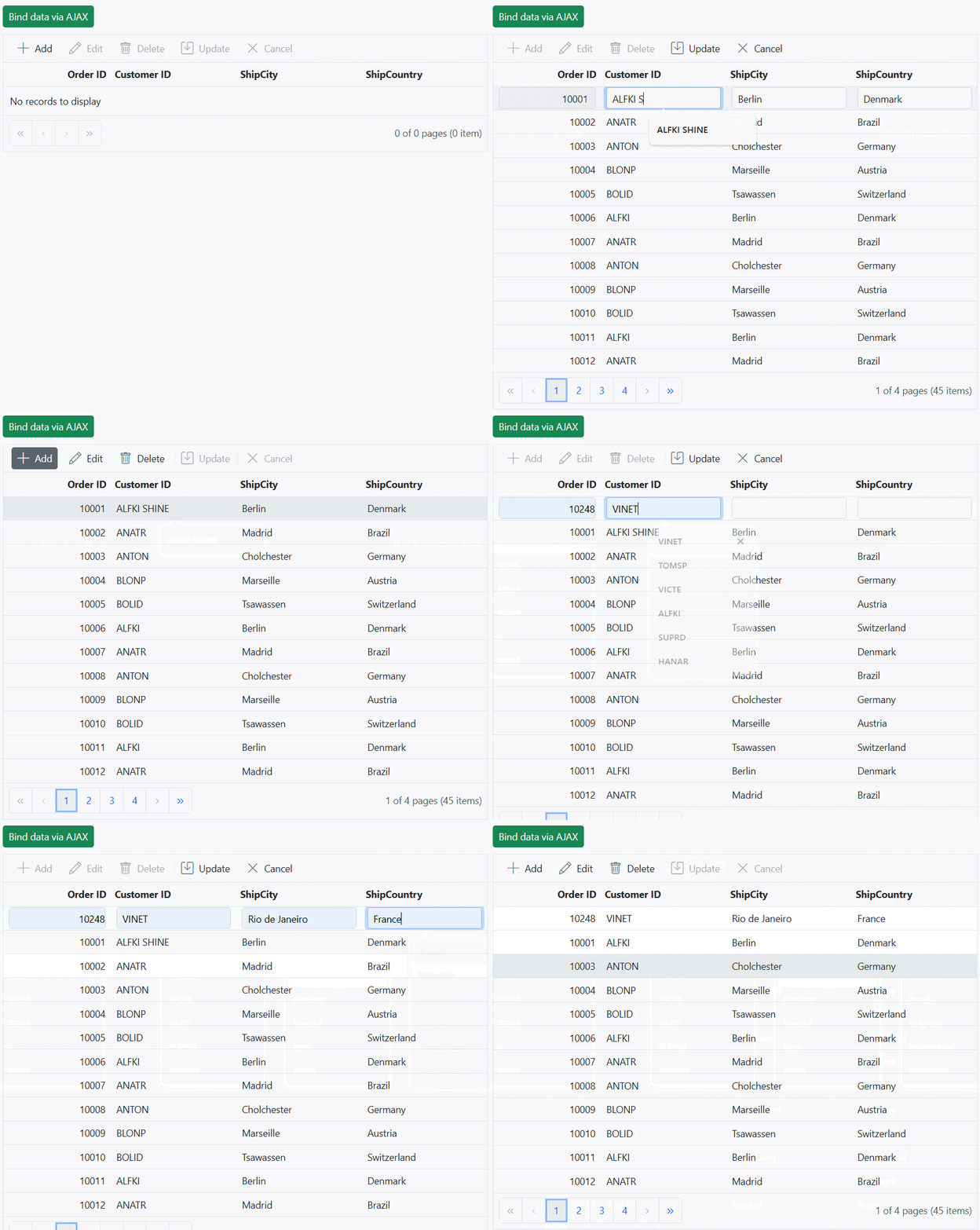
The following screenshot represents loading data when the button is clicked and CRUD operations are performed:
Display the loading indicator using AJAX.
The Syncfusion® Grid allows you to display a loading indicator while loading data using AJAX. This feature is useful when there is a delay in loading data from data , and you want to inform the you that the data is being fetched. This is particularly beneficial when working with large datasets or under conditions of slower internet connections.
To display the loading indicator with local data, you need to set the showSpinner property to true. This property controls the visibility of the loading indicator.
The following example demonstrates how to display the loading indicator in the Syncfusion® Grid using the load and created events:
Managing spinner visibility during data loading
Showing a spinner during data loading in the JavaScript Grid enhances the experience by providing a visual indication of the loading progress. This feature helps to understand that data is being fetched or processed.
To show or hide a spinner during data loading in the grid, you can utilize the showSpinner and hideSpinner methods provided by the Grid control.
The following example demonstrates how to show and hide the spinner during data loading using external buttons in a grid:
Immutable mode
Immutable mode in the Syncfusion® Grid is designed to optimize re-rendering performance by utilizing the object reference and deep compare concept. This mode ensures that when performing Grid actions, only the modified or newly added rows are re-rendered, preventing unnecessary re-rendering of unchanged rows.
To enable this feature, you need to set the enableImmutableMode property as true.
If immutable mode is enabled, when the datasource changes, only newly added rows are regenerated or reused. Consequently, the grid’s queryCellInfo and rowDataBound events trigger only for newly generated rows, not for existing rows.
If immutable mode is not enabled, both newly added rows and existing rows are regenerated or reused when the datasource changes. As a result, the rowDataBound and queryCellInfo events trigger for both newly added and existing rows.
This feature uses the primary key value for data comparison. So, you need to provide the isPrimaryKey column.
The following example demonstrates how to enable immutable mode in an JavaScript control. When add, delete, or update actions are performed, existing rows are not regenerated or reused, ensuring efficient rendering of only the modified or newly added rows:
Limitations
The following features are not supported in the immutable mode:
- Frozen rows and columns
- Grouping
- Row Template
- Detail Template
- Hierarchy Grid
- Scrolling
- Virtual scroll
- Infinite scroll
- Column reorder
- Rows, column spanning
- PDF export, Excel export, Print
- Column Resize
- Drag and drop
- Column template
- Column chooser
- Clipboard
- AutoFit
- Filtering