Connecting SQL Server data to Syncfusion JavaScript Grid using Entity Framework
This section describes how to connect and retrieve data from a Microsoft SQL Server database using Entity Framework and bind it to the Syncfusion JavaScript Grid.
Microsoft SQL Server database can be bound to the Grid using Entity Framework in different ways (i.e.) using dataSource property, custom adaptor and remote data binding using various adaptors. In this documentation, two approaches will be examined to connect a Microsoft SQL Server database to a Grid using Entity Framework. Both the approaches have capability to handle data and CRUD operations with built-in methods as well as can be customized as per your own.
Entity Framework
Entity Framework is an open-source ORM framework for .NET applications supported by Microsoft. It enables developers to work with data using objects of domain specific classes without focusing on the underlying database tables and columns where this data is stored. With the Entity Framework, developers can work at a higher level of abstraction when they deal with data, and can create and maintain data-oriented applications with less code compared with traditional applications.
1. Using UrlAdaptor
The UrlAdaptor serves as the base adaptor for facilitating communication between remote data services and an UI component. It enables the remote binding of data to the Syncfusion JavaScript Grid by connecting to an existing pre-configured API service linked to the Microsoft SQL Server databaset5uf5. While the Grid supports various adaptors to fulfill this requirement, including Web API, ODataV4, UrlAdaptor, and GraphQL, the UrlAdaptor is particularly useful for the scenarios where a custom API service with unique logic for handling data and CRUD operations is in place. This approach allows for custom handling of data and CRUD operations, and the resultant data returned in the result and count format for display in the Grid.
2. Using CustomAdaptor
The CustomAdaptor serves as a mediator between the UI component and the database for data binding. While the data source from the database can be directly bound to the Syncfusion JavaScript Grid locally using the dataSource property, the CustomAdaptor approach is preferred as it allows for customization of both data operations and CRUD operations according to specific requirements. In this approach, for every action in the Grid, a corresponding request with action details is sent to the CustomAdaptor. The Grid provides predefined methods to perform data operations such as searching, filtering, sorting, aggregation, paging and grouping. Alternatively, your own custom methods can be employed to execute operations and return the data in the result and count format for displaying in the Grid. Additionally, for CRUD operations, predefined methods can be overridden to provide custom functionality. Further details on this can be found in the latter part of the documentation.
Binding data using Entity Framework from Microsoft SQL Server via an API service.
This section describes step by step process how to use Entity Framework to retrieve data from a Microsoft SQL Server using an API service and bind it to the Syncfusion JavaScript Grid.
Connecting Syncfusion JavaScript Grid to an API service
To integrate Syncfusion JavaScript Grid into your JavaScript and ASP.NET Core project using Visual Studio, follow the below steps:
Replace https://localhost:xxxx/api/Grid with the actual URL of your API endpoint that provides the data in a consumable format (e.g., JSON).
- The Syncfusion JavaScript Grid provides built-in support for handling various data operations such as searching, sorting, filtering, aggregate and paging on the server-side. These operations can be handled using methods such as
PerformSearching,PerformFiltering,PerformSorting,PerformTakeandPerformSkipavailable in the Syncfusion.EJ2.AspNet.Core package. Let’s explore how to manage these data operations using theUrlAdaptor.- In an API service project, add
Syncfusion.EJ2.AspNet.Coreby opening the NuGet package manager in Visual Studio (Tools → NuGet Package Manager → Manage NuGet Packages for Solution), search and install it.- To access
DataManagerRequestandQueryableOperation, importSyncfusion.EJ2.BaseinGridController.csfile.
Handling searching operation
To handle searching operation, ensure that your API endpoint supports custom searching criteria. Implement the searching logic on the server-side using the PerformSearching method from the QueryableOperation class. This allows the custom data source to undergo searching based on the criteria specified in the incoming DataManagerRequest object.
/// <summary>
/// Processes the DataManager request to perform searching operation.
/// </summary>
/// <param name="DataManagerRequest">Contains the details of the data operation requested.</param>
/// <returns>Returns a JSON object with the searched data along with the total record count.</returns>
[HttpPost]
[Route("api/[controller]")]
public object Post([FromBody] DataManagerRequest DataManagerRequest)
{
  // Retrieve data from the data source (e.g., database).
  IQueryable<Orders> DataSource = GetOrderData().AsQueryable();

  // Initialize QueryableOperation instance.
  QueryableOperation queryableOperation = new QueryableOperation();

  // Handling searching operation.
  if (DataManagerRequest.Search != null && DataManagerRequest.Search.Count > 0)
  {
    DataSource = queryableOperation.PerformSearching(DataSource, DataManagerRequest.Search);
    // Add custom logic here if needed and remove above method.
  }

  // Get the total count of records.
  int totalRecordsCount = DataSource.Count();

  // Return data based on the request.
  return new { result = DataSource, count = totalRecordsCount };
}
Handling filtering operation
To handle filtering operation, ensure that your API endpoint supports custom filtering criteria. Implement the filtering logic on the server-side using the PerformFiltering method from the QueryableOperation class. This allows the custom data source to undergo filtering based on the criteria specified in the incoming DataManagerRequest object.
/// <summary>
/// Processes the DataManager request to perform filtering operation.
/// </summary>
/// <param name="DataManagerRequest">Contains the details of the data operation requested.</param>
/// <returns>Returns a JSON object with the filtered data along with the total record count.</returns>
[HttpPost]
[Route("api/[controller]")]
public object Post([FromBody] DataManagerRequest DataManagerRequest)
{
  // Retrieve data from the data source (e.g., database).
  IQueryable<Orders> DataSource = GetOrderData().AsQueryable();

  // Initialize QueryableOperation instance.
  QueryableOperation queryableOperation = new QueryableOperation();

  // Handling filtering operation.
  if (DataManagerRequest.Where != null && DataManagerRequest.Where.Count > 0)
  {
    foreach (WhereFilter condition in DataManagerRequest.Where)
    {
      foreach (WhereFilter predicate in condition.predicates)
      {
        DataSource = queryableOperation.PerformFiltering(DataSource, DataManagerRequest.Where, predicate.Operator);
        // Add custom logic here if needed and remove above method.
      }
    }
  }

  // Get the total count of records.
  int totalRecordsCount = DataSource.Count();

  // Return data based on the request.
  return new { result = DataSource, count = totalRecordsCount };
}
Handling sorting operation
To handle sorting operation, ensure that your API endpoint supports custom sorting criteria. Implement the sorting logic on the server-side using the PerformSorting method from the QueryableOperation class. This allows the custom data source to undergo sorting based on the criteria specified in the incoming DataManagerRequest object.
/// <summary>
/// Processes the DataManager request to perform sorting operation.
/// </summary>
/// <param name="DataManagerRequest">Contains the details of the data operation requested.</param>
/// <returns>Returns a JSON object with the sorted data along with the total record count.</returns>
[HttpPost]
[Route("api/[controller]")]
public object Post([FromBody] DataManagerRequest DataManagerRequest)
{
  // Retrieve data from the data source (e.g., database).
  IQueryable<Orders> DataSource = GetOrderData().AsQueryable();

  // Initialize QueryableOperation instance.
  QueryableOperation queryableOperation = new QueryableOperation();

  // Handling sorting operation.
  if (DataManagerRequest.Sorted != null && DataManagerRequest.Sorted.Count > 0)
  {
    DataSource = queryableOperation.PerformSorting(DataSource, DataManagerRequest.Sorted);
    // Add custom logic here if needed and remove above method.
  }

  // Get the total count of records.
  int totalRecordsCount = DataSource.Count();

  // Return data based on the request.
  return new { result = DataSource, count = totalRecordsCount };
}
Handling paging operation
To handle paging operation, ensure that your API endpoint supports custom paging criteria. Implement the paging logic on the server-side using the PerformTake and PerformSkipmethod from the QueryableOperation class. This allows the custom data source to undergo paging based on the criteria specified in the incoming DataManagerRequest object.
/// <summary>
/// Processes the DataManager request to perform paging operation.
/// </summary>
/// <param name="DataManagerRequest">Contains the details of the data operation requested.</param>
/// <returns>Returns a JSON object with the paginated data along with the total record count.</returns>
[HttpPost]
[Route("api/[controller]")]
public object Post([FromBody] DataManagerRequest DataManagerRequest)
{
  // Retrieve data from the data source (e.g., database).
  IQueryable<Orders> DataSource = GetOrderData().AsQueryable();

  // Initialize QueryableOperation instance.
  QueryableOperation queryableOperation = new QueryableOperation();

  // Get the total count of records.
  int totalRecordsCount = DataSource.Count();

  // Handling paging operation.
  if (DataManagerRequest.Skip != 0)
  {
    DataSource = queryableOperation.PerformSkip(DataSource, DataManagerRequest.Skip);
    // Add custom logic here if needed and remove above method.
  }
  if (DataManagerRequest.Take != 0)
  {
    DataSource = queryableOperation.PerformTake(DataSource, DataManagerRequest.Take);
    // Add custom logic here if needed and remove above method.
  }

  // Return data based on the request.
  return new { result = DataSource, count = totalRecordsCount };
}
Handling CRUD operations
The Syncfusion JavaScript Grid seamlessly integrates CRUD (Create, Read, Update, and Delete) operations with server-side controller actions through specific properties: insertUrl, removeUrl, updateUrl and batchUrl. These properties enable the Grid to communicate with the data service for every Grid action, facilitating server-side operations.
CRUD Operations Mapping
CRUD operations within the Grid can be mapped to server-side controller actions using specific properties:
- insertUrl: Specifies the URL for inserting new data.
- removeUrl: Specifies the URL for removing existing data.
- updateUrl: Specifies the URL for updating existing data.
- batchUrl: Specifies the URL for batch editing.
To enable editing in Grid, refer to the editing documentation. In the below example, the inline edit mode is enabled and toolbar property is configured to display toolbar items for editing purposes.
- Normal/Inline editing is the default edit mode for the Grid. To enable CRUD operations, ensure that the isPrimaryKey property is set to true for a specific Grid column, ensuring that its value is unique.
- If database has an auto generated column, ensure to define isIdentity property of Grid column to disable them during adding or editing operations.
Insert Operation:
To insert a new row, simply click the Add toolbar button. The new record edit form will be displayed as shown below. Upon clicking the Update toolbar button, the record will be inserted into the Orders table by calling the following POST method of an API. Utilizing Entity Framework simplifies database tasks by managing database connections and queries through object-oriented programming, making it easier to work with databases in C# code, as shown in the following code snippet.
/// <summary>
/// Inserts a new data item into the data collection.
/// </summary>
/// <param name="value">It contains the new record detail which is need to be inserted.</param>
/// <returns>Returns void.</returns>
[HttpPost]
[Route("api/[controller]/Insert")]
public void Insert([FromBody] CRUDModel<Orders> value)
{
  using (OrderDbContext Context = new OrderDbContext(ConnectionString))
  {
    // Add the provided order to the orders DbSet.
    Context.Orders.Add(value.value);

    // Save changes to the database.
    Context.SaveChanges();
  }

  // Add custom logic here if needed and remove above method.
}

// Create a class that inherits from DbContext(Entity Framework Core).
public class OrderDbContext : DbContext
{
  // Declare a private variable to store the connection string.
  private readonly string _ConnectionString;

  // Define a constructor that accepts a connection string.
  public OrderDbContext(string ConnectionString)
  {
    // Store the provided connection string.
    _ConnectionString = ConnectionString;
  }

  // Override the onConfiguring method to tell EF Core to use SQL server.
  protected override void OnConfiguring(DbContextOptionsBuilder optionsBuilder)
  {
    // Use the connection string to configure the database connection.
    optionsBuilder.UseSqlServer(_ConnectionString);
  }

  // Define a DbSet to represent the orders table in the database.
  public DbSet<Orders> Orders { get; set; }
}

public class CRUDModel<T> where T : class
{
  public string? action { get; set; }
  public string? keyColumn { get; set; }
  public object? key { get; set; }
  public T? value { get; set; }
  public List<T>? added { get; set; }
  public List<T>? changed { get; set; }
  public List<T>? deleted { get; set; }
  public IDictionary<string, object>? @params { get; set; }
}
Update Operation:
To edit a row, first select desired row and click the Edit toolbar button. The edit form will be displayed and proceed to modify any column value as per your requirement. Clicking the Update toolbar button will update the edit record in the Orders table by involving the following Post method of an API. Utilizing Entity Framework simplifies database tasks by managing database connections and queries through object-oriented programming, making it easier to work with databases in C# code, as shown in the following code snippet.
/// <summary>
/// Update a existing data item from the data collection.
/// </summary>
/// <param name="value">It contains the updated record detail which is need to be updated.</param>
/// <returns>Returns void.</returns>
[HttpPost]
[Route("api/[controller]/Update")]
public void Update([FromBody] CRUDModel<Orders> value)
{
  using (OrderDbContext Context = new OrderDbContext(ConnectionString))
  {
    Orders existingOrder = Context.Orders.Find(value.value.OrderID);
    if (existingOrder != null)
    {
      // Update the existing order with the new values.
      Context.Entry(existingOrder).CurrentValues.SetValues(value.value);

      // Save changes to the database.
      Context.SaveChanges();
    }
  }

  // Add custom logic here if needed and remove above method.
}

// Create a class that inherits from DbContext(Entity Framework Core).
public class OrderDbContext : DbContext
{
  // Declare a private variable to store the connection string.
  private readonly string _ConnectionString;

  // Define a constructor that accepts a connection string.
  public OrderDbContext(string ConnectionString)
  {
    // Store the provided connection string.
    _ConnectionString = ConnectionString;
  }

  // Override the onConfiguring method to tell EF Core to use SQL server.
  protected override void OnConfiguring(DbContextOptionsBuilder optionsBuilder)
  {
    // Use the connection string to configure the database connection.
    optionsBuilder.UseSqlServer(_ConnectionString);
  }

  // Define a DbSet to represent the orders table in the database.
  public DbSet<Orders> Orders { get; set; }
}

public class CRUDModel<T> where T : class
{
  public string? action { get; set; }
  public string? keyColumn { get; set; }
  public object? key { get; set; }
  public T? value { get; set; }
  public List<T>? added { get; set; }
  public List<T>? changed { get; set; }
  public List<T>? deleted { get; set; }
  public IDictionary<string, object>? @params { get; set; }
}
Delete Operation:
To delete a row, simply select the desired row and click the Delete toolbar button. This action will trigger a DELETE request to an API, containing the primary key value of the selected record. As a result corresponding record will be removed from the Orders table. Utilizing Entity Framework simplifies database tasks by managing database connections and queries through object-oriented programming, making it easier to work with databases in C# code, as shown in the following code snippet.
/// <summary>
/// Remove a specific data item from the data collection.
/// </summary>
/// <param name="value">It contains the specific record detail which is need to be removed.</param>
/// <return>Returns void.</return>
[HttpPost]
[Route("api/[controller]/Remove")]
public void Remove([FromBody] CRUDModel<Orders> value)
{
  int OrderId = Convert.ToInt32(value.key.ToString());
  using (OrderDbContext Context = new OrderDbContext(ConnectionString))
  {
    Orders Order = Context.Orders.Find(OrderId);
    if (Order != null)
    {
      // Remove the order from the orders DbSet.
      Context.Orders.Remove(Order);

      // Save changes to the database.
      Context.SaveChanges();
    }
  }

  // Add custom logic here if needed and remove above method.
}

// Create a class that inherits from DbContext(Entity Framework Core).
public class OrderDbContext : DbContext
{
  // Declare a private variable to store the connection string.
  private readonly string _ConnectionString;

  // Define a constructor that accepts a connection string.
  public OrderDbContext(string ConnectionString)
  {
    // Store the provided connection string.
    _ConnectionString = ConnectionString;
  }

  // Override the onConfiguring method to tell EF Core to use SQL server.
  protected override void OnConfiguring(DbContextOptionsBuilder optionsBuilder)
  {
    // Use the connection string to configure the database connection.
    optionsBuilder.UseSqlServer(_ConnectionString);
  }

  // Define a DbSet to represent the orders table in the database.
  public DbSet<Orders> Orders { get; set; }
}

public class CRUDModel<T> where T : class
{
  public string? action { get; set; }
  public string? keyColumn { get; set; }
  public object? key { get; set; }
  public T? value { get; set; }
  public List<T>? added { get; set; }
  public List<T>? changed { get; set; }
  public List<T>? deleted { get; set; }
  public IDictionary<string, object>? @params { get; set; }
}
Batch Operation:
To perform batch operation, define the edit mode as Batch and specify the batchUrl property in the DataManager. Use the Add toolbar button to insert new row in batch editing mode. To edit a cell, double-click the desired cell and update the value as required. To delete a record, simply select the record and press the Delete toolbar button. Now, all CRUD operations will be executed in batch editing mode. Clicking the Update toolbar button will update the newly added, edited, or deleted records from the Orders table using a single API POST request.
/// <summary>
/// Batch update (Insert, Update, and Delete) a collection of data items from the data collection.
/// </summary>
/// <param name="value">The set of information along with details about the CRUD actions to be executed from the database.</param>
/// <returns>Returns void.</returns>
[HttpPost]
[Route("api/[controller]/BatchUpdate")]
public IActionResult BatchUpdate([FromBody] CRUDModel<Orders> value)
{
  using (OrderDbContext Context = new OrderDbContext(ConnectionString))
  {
    if (value.changed != null && value.changed.Count > 0)
    {
      foreach (Orders Record in (IEnumerable<Orders>)value.changed)
      {
        // Update the changed records.
        Context.Orders.UpdateRange(Record);
      }
    }

    if (value.added != null && value.added.Count > 0)
    {
      foreach (Orders Record in (IEnumerable<Orders>)value.added)
      {
        foreach (Orders order in value.added)
        {
          // This ensures EF does not try to insert OrderID.
          order.OrderID = default;
        }
        // Add new records.
        Context.Orders.AddRange(value.added);
      }
    }

    if (value.deleted != null && value.deleted.Count > 0)
    {
      foreach (Orders Record in (IEnumerable<Orders>)value.deleted)
      {
        // Find and delete the records.
        Orders ExistingOrder = Context.Orders.Find(Record.OrderID);
        if (ExistingOrder != null)
        {
          Context.Orders.Remove(ExistingOrder);
        }
      }
    }

    // Save changes to the database.
    Context.SaveChanges();
  }
  return new JsonResult(value);
}

// Create a class that inherits from DbContext(Entity Framework Core).
public class OrderDbContext : DbContext
{
  // Declare a private variable to store the connection string.
  private readonly string _ConnectionString;

  // Define a constructor that accepts a connection string.
  public OrderDbContext(string ConnectionString)
  {
    // Store the provided connection string.
    _ConnectionString = ConnectionString;
  }

  // Override the onConfiguring method to tell EF Core to use SQL server.
  protected override void OnConfiguring(DbContextOptionsBuilder optionsBuilder)
  {
    // Use the connection string to configure the database connection.
    optionsBuilder.UseSqlServer(_ConnectionString);
  }

  // Define a DbSet to represent the orders table in the database.
  public DbSet<Orders> Orders { get; set; }
}

public class CRUDModel<T> where T : class
{
  public string? action { get; set; }
  public string? keyColumn { get; set; }
  public object? key { get; set; }
  public T? value { get; set; }
  public List<T>? added { get; set; }
  public List<T>? changed { get; set; }
  public List<T>? deleted { get; set; }
  public IDictionary<string, object>? @params { get; set; }
}
When you run the application, the resultant Syncfusion JavaScript Grid will look like this
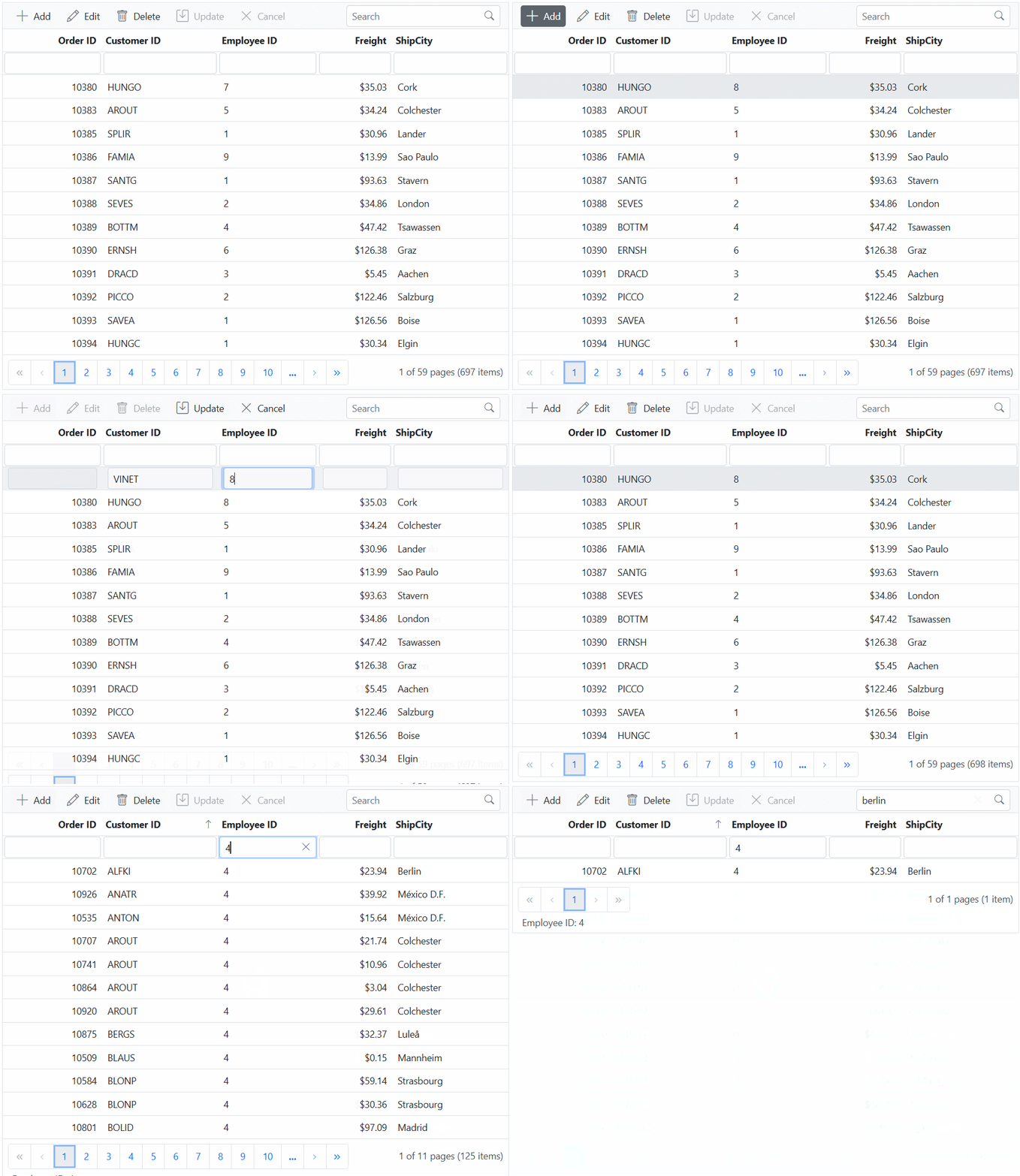
Binding data from Microsoft SQL Server using Entity Framework with CustomAdaptor
This section describes step by step process how to use Entity Framework to retrieve data from a Microsoft SQL Server using CustomAdaptor and bind it to the Syncfusion JavaScript Grid.
1. To create a simple Grid, the procedure is explained in the above-mentioned topic on Connecting Syncfusion JavaScript Grid to an API service
2. To use Entity Framework and access the Microsoft SQL Server database in your application, we need to install the Microsoft.EntityFrameworkCore and Microsoft.EntityFrameworkCore.SqlServer NuGet packages. To add Microsoft.EntityFrameworkCore and Microsoft.EntityFrameworkCore.SqlServer in the app, open the NuGet package manager in Visual Studio (Tools → NuGet Package Manager → Manage NuGet Packages for Solution), search and install it.
3. If you intend to inject your own service into the CustomAdaptor and utilize it, you can achieve this as follows:
- Create a
CustomAdaptorthat extends theUrlAdaptorclass. - Override the
processResponsemethod to process server responses.
4. Within the processResponse method of CustomAdaptor, fetch data by calling the GetOrderData method.
-
In this GetOrderData method, a connection is established to Microsoft SQL Server using OrderDbContext. This class extends DbContext and is configured to connect to a SQL Server database using the provided connection string. It includes a DbSet<Orders> property, enabling interaction with the Orders table in the database. The method retrieves all orders from the database asynchronously and returns them as a list of
Ordersobjects. -
Finally, return the response as a result and count pair object in the
processResponsemethod to bind the data to the Grid.
using Microsoft.AspNetCore.Mvc;
using System.Collections.Generic;
using System.ComponentModel.DataAnnotations;
using System.Data;
using Syncfusion.EJ2.Base;
using Microsoft.EntityFrameworkCore;
using Microsoft.EntityFrameworkCore.Metadata.Internal;

namespace Grid_EntityFramework.Server.Controllers
{
  [ApiController]
  public class GridController : ControllerBase
  {
    string ConnectionString = @"<Enter a valid connection string>";

    /// <summary>
    /// Processes the DataManager request to perform searching, filtering, sorting, and paging operations.
    /// </summary>
    /// <param name="DataManagerRequest">Contains the details of the data operation requested.</param>
    /// <returns>Returns a JSON object with the filtered, sorted, and paginated data along with the total record count.</returns>
    [HttpPost]
    [Route("api/[controller]")]
    public object Post([FromBody] DataManagerRequest DataManagerRequest)
    {
      // Retrieve data from the data source (e.g., database).
      IQueryable<Orders> DataSource = GetOrderData().AsQueryable();

      // Get the total count of records.
      int totalRecordsCount = DataSource.Count();

      // Return data based on the request.
      return new { result = DataSource, count = totalRecordsCount };
    }

    /// <summary>
    /// Retrieves the order data from the database.
    /// </summary>
    /// <returns>Returns a list of orders fetched from the database.</returns>
    [HttpGet]
    [Route("api/[controller]")]
    public List<Orders> GetOrderData()
    {
      using (OrderDbContext Context = new OrderDbContext(ConnectionString))
      {
        // Retrieve orders from the orders DbSet and convert to list asynchronously.
        List<Orders> orders = Context.Orders.ToList();
        return orders;
      }
    }

    // Create a class that inherits from DbContext(Entity Framework Core).
    public class OrderDbContext : DbContext
    {
      // Declare a private variable to store the connection string.
      private readonly string _ConnectionString;

      // Define a constructor that accepts a connection string.
      public OrderDbContext(string ConnectionString)
      {
        // Store the provided connection string.
        _ConnectionString = ConnectionString;
      }

      // Override the onConfiguring method to tell EF Core to use SQL server.
      protected override void OnConfiguring(DbContextOptionsBuilder optionsBuilder)
      {
        // Use the connection string to configure the database connection.
        optionsBuilder.UseSqlServer(_ConnectionString);
      }

      // Define a DbSet to represent the orders table in the database.
      public DbSet<Orders> Orders { get; set; }
    }

    public class Orders
    {
      [Key]
      public int? OrderID { get; set; }
      public string? CustomerID { get; set; }
      public int? EmployeeID { get; set; }
      public decimal Freight { get; set; }
      public string? ShipCity { get; set; }
    }
  }
}
- The
DataManagerRequestencompasses details about the Grid actions such as searching, filtering, sorting, aggregate, paging and grouping.
Handling searching operation
When utilizing the CustomAdaptor in JavaScript, managing the searching operation involves overriding the processResponse method of the UrlAdaptor class.
In the code example below, searching a custom data source can be accomplished by employing the built-in PerformSearching method of the QueryableOperation class. Alternatively, you can implement your own method for searching operation and bind the resultant data to the Syncfusion JavaScript Grid.
/// <summary>
/// Processes the DataManager request to perform searching operation.
/// </summary>
/// <param name="DataManagerRequest">Contains the details of the data operation requested.</param>
/// <returns>Returns a JSON object with the searched data along with the total record count.</returns>
[HttpPost]
[Route("api/[controller]")]
public object Post([FromBody] DataManagerRequest DataManagerRequest)
{
  // Retrieve data from the data source (e.g., database).
  IQueryable<Orders> DataSource = GetOrderData().AsQueryable();

  // Initialize QueryableOperation instance.
  QueryableOperation queryableOperation = new QueryableOperation();

  // Handling searching operation.
  if (DataManagerRequest.Search != null && DataManagerRequest.Search.Count > 0)
  {
    DataSource = queryableOperation.PerformSearching(DataSource, DataManagerRequest.Search);
    // Add custom logic here if needed and remove above method.
  }

  // Get the total count of records.
  int totalRecordsCount = DataSource.Count();

  // Return data based on the request.
  return new { result = DataSource, count = totalRecordsCount };
}
Handling filtering operation
When utilizing the CustomAdaptor in JavaScript, managing the filtering operation involves overriding the processResponse method of the UrlAdaptor class.
In the code example below, filtering a custom data source can be achieved by utilizing the built-in PerformFiltering method of the QueryableOperation class. Alternatively, you can implement your own method for filtering operation and bind the resulting data to the Syncfusion JavaScript Grid.
/// <summary>
/// Processes the DataManager request to perform filtering operation.
/// </summary>
/// <param name="DataManagerRequest">Contains the details of the data operation requested.</param>
/// <returns>Returns a JSON object with the filtered data along with the total record count.</returns>
[HttpPost]
[Route("api/[controller]")]
public object Post([FromBody] DataManagerRequest DataManagerRequest)
{
  // Retrieve data from the data source (e.g., database).
  IQueryable<Orders> DataSource = GetOrderData().AsQueryable();

  // Initialize QueryableOperation instance.
  QueryableOperation queryableOperation = new QueryableOperation();

  // Handling filtering operation.
  if (DataManagerRequest.Where != null && DataManagerRequest.Where.Count > 0)
  {
    foreach (WhereFilter condition in DataManagerRequest.Where)
    {
      foreach (WhereFilter predicate in condition.predicates)
      {
        DataSource = queryableOperation.PerformFiltering(DataSource, DataManagerRequest.Where, predicate.Operator);
        // Add custom logic here if needed and remove above method.
      }
    }
  }

  // Get the total count of records.
  int totalRecordsCount = DataSource.Count();

  // Return data based on the request.
  return new { result = DataSource, count = totalRecordsCount };
}
Handling sorting operation
When utilizing the CustomAdaptor in JavaScript, managing the sorting operation involves overriding the processResponse method of the UrlAdaptor class.
In the code example below, sorting a custom data source can be accomplished by employing the built-in PerformSorting method of the QueryableOperation class. Alternatively, you can implement your own method for sorting operation and bind the resulting data to the Syncfusion JavaScript Grid.
/// <summary>
/// Processes the DataManager request to perform sorting operation.
/// </summary>
/// <param name="DataManagerRequest">Contains the details of the data operation requested.</param>
/// <returns>Returns a JSON object with the sorted data along with the total record count.</returns>
[HttpPost]
[Route("api/[controller]")]
public object Post([FromBody] DataManagerRequest DataManagerRequest)
{
  // Retrieve data from the data source (e.g., database).
  IQueryable<Orders> DataSource = GetOrderData().AsQueryable();

  // Initialize QueryableOperation instance.
  QueryableOperation queryableOperation = new QueryableOperation();

  // Handling sorting operation.
  if (DataManagerRequest.Sorted != null && DataManagerRequest.Sorted.Count > 0)
  {
    DataSource = queryableOperation.PerformSorting(DataSource, DataManagerRequest.Sorted);
    // Add custom logic here if needed and remove above method.
  }

  // Get the total count of records.
  int totalRecordsCount = DataSource.Count();

  // Return data based on the request.
  return new { result = DataSource, count = totalRecordsCount };
}
Handling paging operation
When utilizing the CustomAdaptor in JavaScript, managing the paging operation involves overriding the processResponse method of the UrlAdaptor class.
In the code example below, paging a custom data source can be achieved by utilizing the built-in PerformTake and PerformSkip method of the QueryableOperation class. Alternatively, you can use your own method for paging operation and bind the resulting data to the Syncfusion JavaScript Grid.
/// <summary>
/// Processes the DataManager request to perform paging operation.
/// </summary>
/// <param name="DataManagerRequest">Contains the details of the data operation requested.</param>
/// <returns>Returns a JSON object with the paginated data along with the total record count.</returns>
[HttpPost]
[Route("api/[controller]")]
public object Post([FromBody] DataManagerRequest DataManagerRequest)
{
  // Retrieve data from the data source (e.g., database).
  IQueryable<Orders> DataSource = GetOrderData().AsQueryable();

  // Initialize QueryableOperation instance.
  QueryableOperation queryableOperation = new QueryableOperation();

  // Get the total count of records.
  int totalRecordsCount = DataSource.Count();

  // Handling paging operation.
  if (DataManagerRequest.Skip != 0)
  {
    DataSource = queryableOperation.PerformSkip(DataSource, DataManagerRequest.Skip);
    // Add custom logic here if needed and remove above method.
  }
  if (DataManagerRequest.Take != 0)
  {
    DataSource = queryableOperation.PerformTake(DataSource, DataManagerRequest.Take);
    // Add custom logic here if needed and remove above method.
  }

  // Return data based on the request.
  return new { result = DataSource, count = totalRecordsCount };
}
Handling CRUD operations
To enable editing in the Syncfusion JavaScript Grid, utilize the editSettings property. The Grid offers multiple edit modes including the Inline/Normal, Dialog and Batch editing. For more details, refer to the Grid editing documentation.
In this scenario, the inline edit mode and toolbar property configured to display toolbar items for editing purpose.
- Normal/Inline editing is the default edit mode for the Grid. To enable CRUD operations, ensure that the isPrimaryKey property is set to true for a specific Grid column, ensuring that its value is unique.
- If database has an auto generated column, ensure to define isIdentity property of Grid column to disable them during adding or editing operations.
The CRUD operations can be performed and customized on our own by overriding the following CRUD methods of the UrlAdaptor
- insert
- remove
- update
- batchRequest
Let’s see how to perform CRUD operation using Entity Framework in Microsoft SQL Server data with Syncfusion JavaScript Grid.
Insert Operation:
To execute the insert operation, you will need to override the insert method of the CustomAdaptor. Then, integrate the following code snippet into the CustomAdaptor class. The below code snippet demonstrated how to handle the insertion of new records within the insert method of CustomAdaptor. Modify the logic within this method according to the requirements of your application. Utilizing Entity Framework simplifies database tasks by managing database connections and queries through object-oriented programming, making it easier to work with databases in C# code, as shown in the following code snippet.
/// <summary>
/// Inserts a new data item into the data collection.
/// </summary>
/// <param name="value">It contains the new record detail which is need to be inserted.</param>
/// <returns>Returns void.</returns>
[HttpPost]
[Route("api/[controller]/Insert")]
public void Insert([FromBody] CRUDModel<Orders> value)
{
  using (OrderDbContext Context = new OrderDbContext(ConnectionString))
  {
    // Add the provided order to the orders DbSet.
    Context.Orders.Add(value.value);

    // Save changes to the database.
    Context.SaveChanges();
  }

  // Add custom logic here if needed and remove above method.
}

// Create a class that inherits from DbContext(Entity Framework Core).
public class OrderDbContext : DbContext
{
  // Declare a private variable to store the connection string.
  private readonly string _ConnectionString;

  // Define a constructor that accepts a connection string.
  public OrderDbContext(string ConnectionString)
  {
    // Store the provided connection string.
    _ConnectionString = ConnectionString;
  }

  // Override the onConfiguring method to tell EF Core to use SQL server.
  protected override void OnConfiguring(DbContextOptionsBuilder optionsBuilder)
  {
    // Use the connection string to configure the database connection.
    optionsBuilder.UseSqlServer(_ConnectionString);
  }

  // Define a DbSet to represent the orders table in the database.
  public DbSet<Orders> Orders { get; set; }
}

public class CRUDModel<T> where T : class
{
  public string? action { get; set; }
  public string? keyColumn { get; set; }
  public object? key { get; set; }
  public T? value { get; set; }
  public List<T>? added { get; set; }
  public List<T>? changed { get; set; }
  public List<T>? deleted { get; set; }
  public IDictionary<string, object>? @params { get; set; }
}
Update Operation:
To execute the update operation, override the update method of the CustomAdaptor. Then, integrate the following code snippet into the CustomAdaptor class. The below code snippet demonstrated how to handle the updating of existing records within the update method of the CustomAdaptor. Modify the logic within this method according to the requirements of your application. Utilizing Entity Framework simplifies database tasks by managing database connections and queries through object-oriented programming, making it easier to work with databases in C# code, as shown in the following code snippet.
/// <summary>
/// Update a existing data item from the data collection.
/// </summary>
/// <param name="value">It contains the updated record detail which is need to be updated.</param>
/// <returns>Returns void.</returns>
[HttpPost]
[Route("api/[controller]/Update")]
public void Update([FromBody] CRUDModel<Orders> value)
{
  using (OrderDbContext Context = new OrderDbContext(ConnectionString))
  {
    Orders existingOrder = Context.Orders.Find(value.value.OrderID);
    if (existingOrder != null)
    {
      // Update the existing order with the new values.
      Context.Entry(existingOrder).CurrentValues.SetValues(value.value);

      // Save changes to the database.
      Context.SaveChanges();
    }
  }

  // Add custom logic here if needed and remove above method.
}

// Create a class that inherits from DbContext(Entity Framework Core).
public class OrderDbContext : DbContext
{
  // Declare a private variable to store the connection string.
  private readonly string _ConnectionString;

  // Define a constructor that accepts a connection string.
  public OrderDbContext(string ConnectionString)
  {
    // Store the provided connection string.
    _ConnectionString = ConnectionString;
  }

  // Override the onConfiguring method to tell EF Core to use SQL server.
  protected override void OnConfiguring(DbContextOptionsBuilder optionsBuilder)
  {
    // Use the connection string to configure the database connection.
    optionsBuilder.UseSqlServer(_ConnectionString);
  }

  // Define a DbSet to represent the orders table in the database.
  public DbSet<Orders> Orders { get; set; }
}

public class CRUDModel<T> where T : class
{
  public string? action { get; set; }
  public string? keyColumn { get; set; }
  public object? key { get; set; }
  public T? value { get; set; }
  public List<T>? added { get; set; }
  public List<T>? changed { get; set; }
  public List<T>? deleted { get; set; }
  public IDictionary<string, object>? @params { get; set; }
}
Delete Operation:
To perform the delete operation, you need to override the remove method of the CustomAdaptor. Below is the code snippet that you can add to CustomAdaptor class. The below code snippet demonstrated how to handle the deletion of existing records within the remove method of CustomAdaptor. Modify the logic within this method according to the requirements of your application. Utilizing Entity Framework simplifies database tasks by managing database connections and queries through object-oriented programming, making it easier to work with databases in C# code, as shown in the following code snippet.
/// <summary>
/// Remove a specific data item from the data collection.
/// </summary>
/// <param name="value">It contains the specific record detail which is need to be removed.</param>
/// <return>Returns void.</return>
[HttpPost]
[Route("api/[controller]/Remove")]
public void Remove([FromBody] CRUDModel<Orders> value)
{
  int OrderId = Convert.ToInt32(value.key.ToString());
  using (OrderDbContext Context = new OrderDbContext(ConnectionString))
  {
    Orders Order = Context.Orders.Find(OrderId);
    if (Order != null)
    {
      // Remove the order from the orders DbSet.
      Context.Orders.Remove(Order);

      // Save changes to the database.
      Context.SaveChanges();
    }
  }

  // Add custom logic here if needed and remove above method.
}

// Create a class that inherits from DbContext(Entity Framework Core).
public class OrderDbContext : DbContext
{
  // Declare a private variable to store the connection string.
  private readonly string _ConnectionString;

  // Define a constructor that accepts a connection string.
  public OrderDbContext(string ConnectionString)
  {
    // Store the provided connection string.
    _ConnectionString = ConnectionString;
  }

  // Override the onConfiguring method to tell EF Core to use SQL server.
  protected override void OnConfiguring(DbContextOptionsBuilder optionsBuilder)
  {
    // Use the connection string to configure the database connection.
    optionsBuilder.UseSqlServer(_ConnectionString);
  }

  // Define a DbSet to represent the orders table in the database.
  public DbSet<Orders> Orders { get; set; }
}

public class CRUDModel<T> where T : class
{
  public string? action { get; set; }
  public string? keyColumn { get; set; }
  public object? key { get; set; }
  public T? value { get; set; }
  public List<T>? added { get; set; }
  public List<T>? changed { get; set; }
  public List<T>? deleted { get; set; }
  public IDictionary<string, object>? @params { get; set; }
}
Batch Operation:
To perform the batch operation, override the batchRequest method of the CustomAdaptor and add the following code in the CustomAdaptor. The below code snippet demonstrated how to handle the batch update request within the batchRequest method of CustomAdaptor. Modify the logic within this method according to the requirements of your application.
/// <summary>
/// Batch update (Insert, Update, and Delete) a collection of data items from the data collection.
/// </summary>
/// <param name="value">The set of information along with details about the CRUD actions to be executed from the database.</param>
/// <returns>Returns void.</returns>
[HttpPost]
[Route("api/[controller]/BatchUpdate")]
public IActionResult BatchUpdate([FromBody] CRUDModel<Orders> value)
{
  using (OrderDbContext Context = new OrderDbContext(ConnectionString))
  {
    if (value.changed != null && value.changed.Count > 0)
    {
      foreach (Orders Record in (IEnumerable<Orders>)value.changed)
      {
        // Update the changed records.
        Context.Orders.UpdateRange(Record);
      }
    }

    if (value.added != null && value.added.Count > 0)
    {
      foreach (Orders Record in (IEnumerable<Orders>)value.added)
      {
        foreach (Orders order in value.added)
        {
          // This ensures EF does not try to insert OrderID.
          order.OrderID = default;
        }
        // Add new records.
        Context.Orders.AddRange(value.added);
      }
    }

    if (value.deleted != null && value.deleted.Count > 0)
    {
      foreach (Orders Record in (IEnumerable<Orders>)value.deleted)
      {
        // Find and delete the records.
        Orders ExistingOrder = Context.Orders.Find(Record.OrderID);
        if (ExistingOrder != null)
        {
          Context.Orders.Remove(ExistingOrder);
        }
      }
    }

    // Save changes to the database.
    Context.SaveChanges();
  }
  return new JsonResult(value);
}

// Create a class that inherits from DbContext(Entity Framework Core).
public class OrderDbContext : DbContext
{
  // Declare a private variable to store the connection string.
  private readonly string _ConnectionString;

  // Define a constructor that accepts a connection string.
  public OrderDbContext(string ConnectionString)
  {
    // Store the provided connection string.
    _ConnectionString = ConnectionString;
  }

  // Override the onConfiguring method to tell EF Core to use SQL server.
  protected override void OnConfiguring(DbContextOptionsBuilder optionsBuilder)
  {
    // Use the connection string to configure the database connection.
    optionsBuilder.UseSqlServer(_ConnectionString);
  }

  // Define a DbSet to represent the orders table in the database.
  public DbSet<Orders> Orders { get; set; }
}

public class CRUDModel<T> where T : class
{
  public string? action { get; set; }
  public string? keyColumn { get; set; }
  public object? key { get; set; }
  public T? value { get; set; }
  public List<T>? added { get; set; }
  public List<T>? changed { get; set; }
  public List<T>? deleted { get; set; }
  public IDictionary<string, object>? @params { get; set; }
}