Filtering customization in Blazor TreeGrid
The appearance of filtering elements in the Blazor TreeGrid can be customized using CSS. Styling options are available for different parts of the filtering interface:
- Filter bar cell and input elements: Used to enter filter values directly in the header row.
- Input focus styles: Visual highlight applied when the filter input field is focused.
- Clear and filter icons: Icons for clearing filter values and indicating active filters in column headers.
- Filter dialog content and footer: Sections of the filter popup used for entering filter criteria and confirming actions.
- Input fields and buttons within the filter dialog: Controls used to specify filter values and apply or cancel filtering.
- Excel-style number filter visuals: Menu-style interface for selecting numeric filter conditions in Excel-like filtering mode.
Customize the filter bar cell element
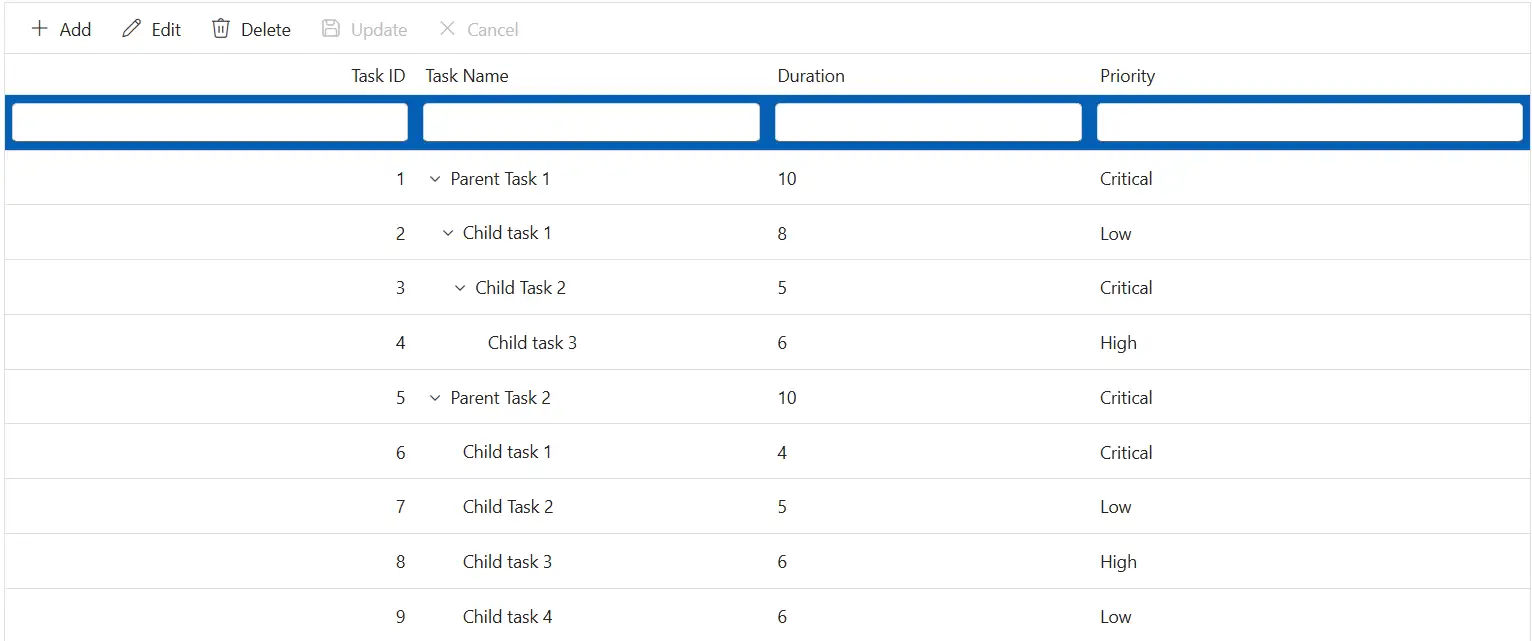
The .e-filterbarcell class styles the filter bar cells in the header row. Use CSS to adjust its appearance:
.e-treegrid .e-filterbarcell {
    background-color: #045fb4;
}
Properties like background-color, padding, and border can be changed to visually distinguish the filter row from header cells.
Customize the filter bar input element
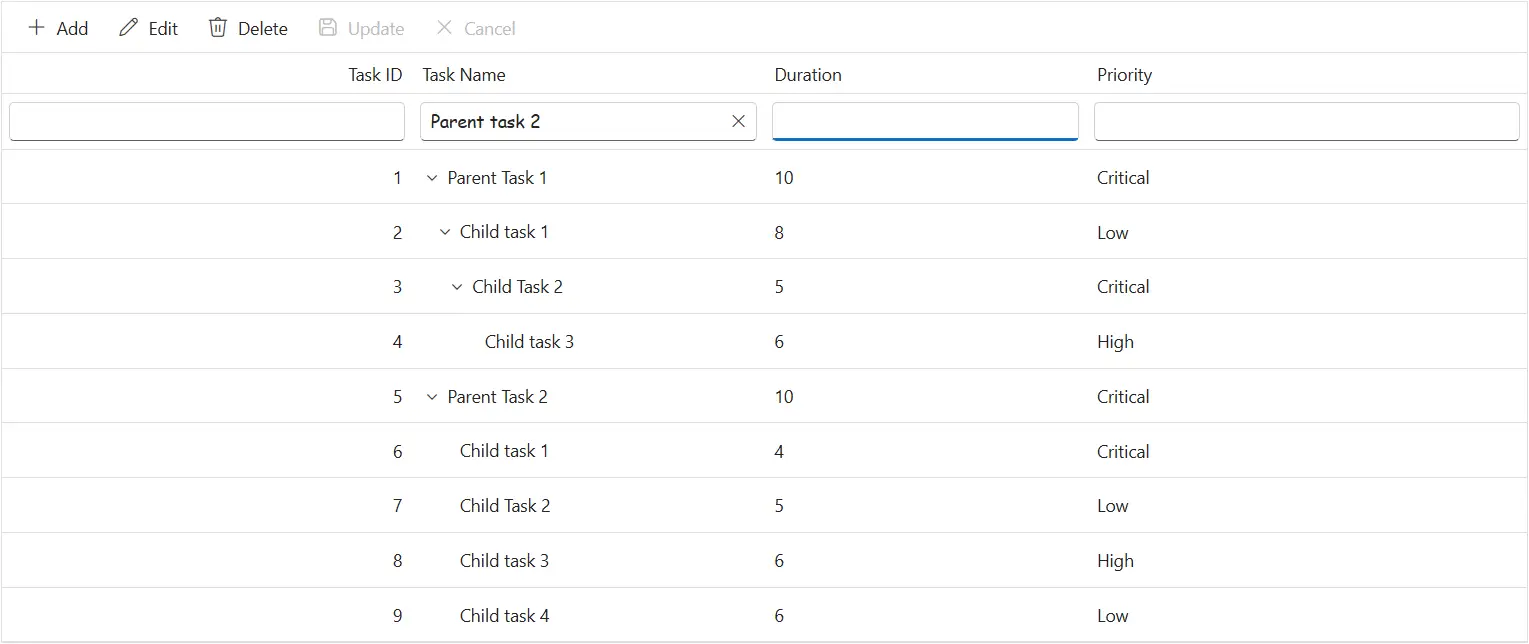
The .e-input class inside .e-filterbarcell styles the input field in the filter bar. Apply CSS to modify its look:
.e-treegrid .e-filterbarcell .e-input-group input.e-input {
    font-family: cursive;
}
Adjust properties such as font-family, font-size, and border can be adjusted to improve readability and match the TreeGrid design.
Customize the input focus
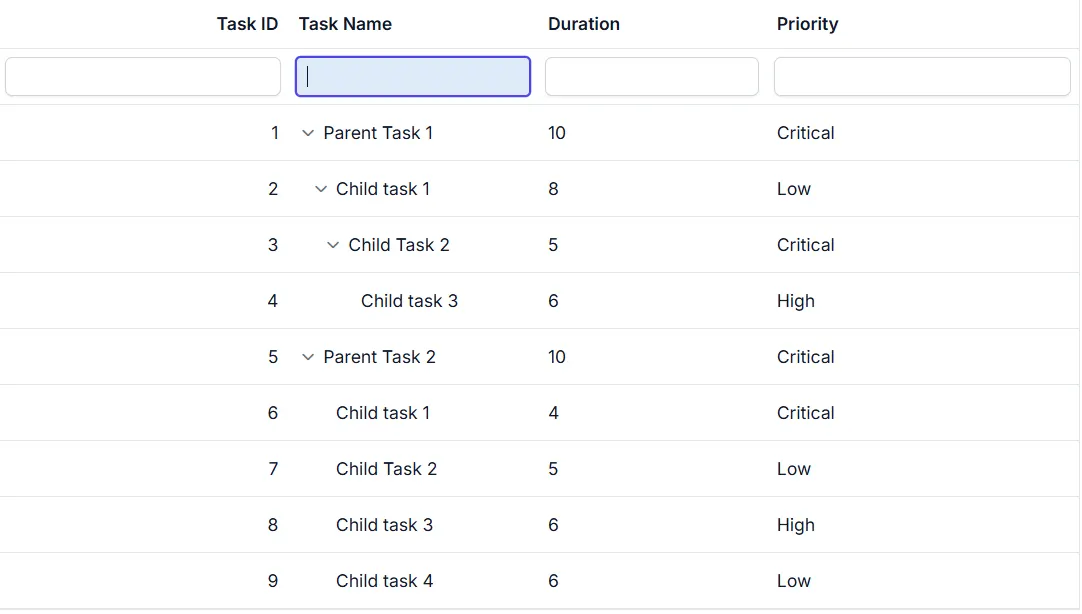
The .e-input-focus class styles the filter bar input group when focused. Apply CSS to change its appearance:
.e-treegrid .e-filterbarcell .e-input-group.e-input-focus {
    background-color: #deecf9;
}
Change properties like background-color and border to enhance focus visibility and support keyboard navigation.
Customize the filter bar input clear icon
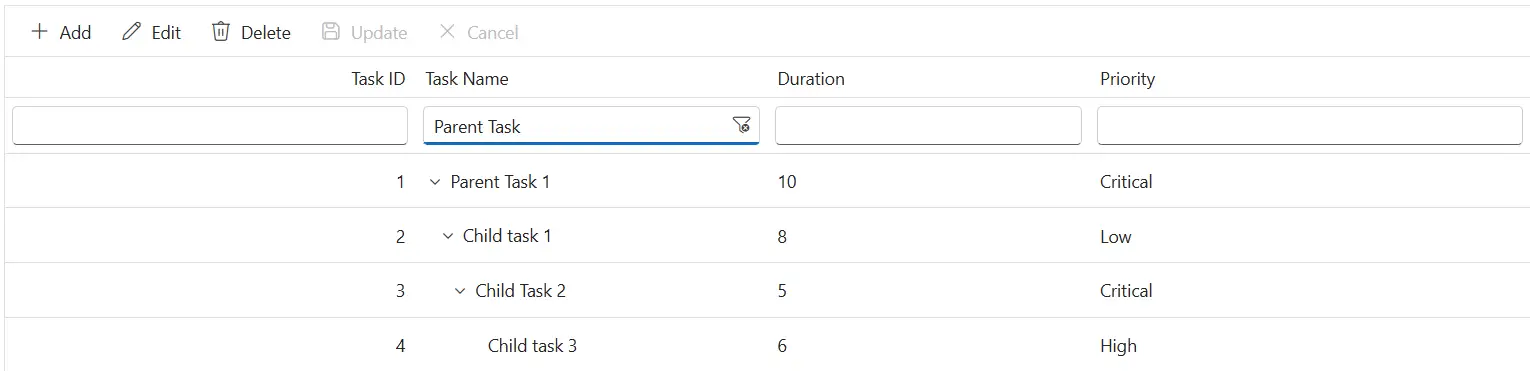
The .e-clear-icon::before class defines the clear icon in the filter bar input. Apply CSS to change its appearance:
.e-treegrid .e-filterbarcell .e-input-group .e-clear-icon::before {
    content: '\e72c';
}
The content property can be updated to use a different glyph from the icon set.
@using Syncfusion.Blazor.TreeGrid

<SfTreeGrid DataSource="@TreeGridData"
        IdMapping="TaskId"
        ParentIdMapping="ParentId"
        TreeColumnIndex="1"
        AllowFiltering="true"
        AllowPaging="true">
    <TreeGridPageSettings PageSize="8"></TreeGridPageSettings>
    <TreeGridColumns>
        <TreeGridColumn Field=@nameof(TreeData.BusinessObject.TaskId) HeaderText="Task ID" TextAlign="Syncfusion.Blazor.Grids.TextAlign.Right" Width="140"></TreeGridColumn>
        <TreeGridColumn Field=@nameof(TreeData.BusinessObject.TaskName) HeaderText="Task Name" Width="120"></TreeGridColumn>
        <TreeGridColumn Field=@nameof(TreeData.BusinessObject.Duration) HeaderText="Duration" TextAlign="Syncfusion.Blazor.Grids.TextAlign.Right" Width="120"></TreeGridColumn>
        <TreeGridColumn Field=@nameof(TreeData.BusinessObject.Progress) HeaderText="Progress" Width="100"></TreeGridColumn>
    </TreeGridColumns>
</SfTreeGrid>

<style>
    .e-treegrid .e-filterbarcell {
        background-color: #045fb4;
        color: #ffffff;
    }

    .e-treegrid .e-filterbarcell .e-input-group input.e-input {
        font-family: cursive;
    }

    .e-treegrid .e-filterbarcell .e-input-group.e-input-focus {
        background-color: #deecf9;
    }

    .e-treegrid .e-filterbarcell .e-input-group .e-clear-icon::before {
        font-family: 'e-icons' !important;
        font-weight: normal;
        content: '\e72c';
    }

    /* Optional: highlight the focused filter cell for keyboard users */
    .e-treegrid .e-filterbarcell:focus-visible {
        outline: 2px solid #005a9e;
        outline-offset: -2px;
    }
</style>

@code {
    private List<TreeData.BusinessObject> TreeGridData { get; set; }

    protected override void OnInitialized()
    {
        TreeGridData = TreeData.GetSelfDataSource().ToList();
    }
}
namespace TreeGridComponent.Data
{
public class TreeData
{
public class BusinessObject
{
public int TaskId { get; set; }
public string TaskName { get; set; }
public int? Duration { get; set; }
public int? Progress { get; set; }
public string Priority { get; set; }
public int? ParentId { get; set; }
}
internal static List<BusinessObject> GetSelfDataSource()
{
List<BusinessObject> BusinessObjectCollection = new List<BusinessObject>();
BusinessObjectCollection.Add(new BusinessObject() { TaskId = 1, TaskName = "Parent Task 1", Duration = 10, Progress = 70, Priority = "Critical", ParentId = null });
BusinessObjectCollection.Add(new BusinessObject() { TaskId = 2, TaskName = "Child task 1", Duration = 8, Progress = 80, Priority = "Low", ParentId = 1 });
BusinessObjectCollection.Add(new BusinessObject() { TaskId = 3, TaskName = "Child Task 2", Duration = 5, Progress = 65, Priority = "Critical", ParentId = 2 });
BusinessObjectCollection.Add(new BusinessObject() { TaskId = 4, TaskName = "Child task 3", Duration = 6, Progress = 77, Priority = "High", ParentId = 3 });
BusinessObjectCollection.Add(new BusinessObject() { TaskId = 5, TaskName = "Parent Task 2", Duration = 10, Progress = 70, Priority = "Critical", ParentId = null });
BusinessObjectCollection.Add(new BusinessObject() { TaskId = 6, TaskName = "Child task 1", Duration = 4, Progress = 80, Priority = "Critical", ParentId = 5 });
BusinessObjectCollection.Add(new BusinessObject() { TaskId = 7, TaskName = "Child Task 2", Duration = 5, Progress = 65, Priority = "Low", ParentId = 5 });
BusinessObjectCollection.Add(new BusinessObject() { TaskId = 8, TaskName = "Child task 3", Duration = 6, Progress = 77, Priority = "High", ParentId = 5 });
BusinessObjectCollection.Add(new BusinessObject() { TaskId = 9, TaskName = "Child task 4", Duration = 6, Progress = 77, Priority = "Low", ParentId = 5 });
return BusinessObjectCollection;
}
}
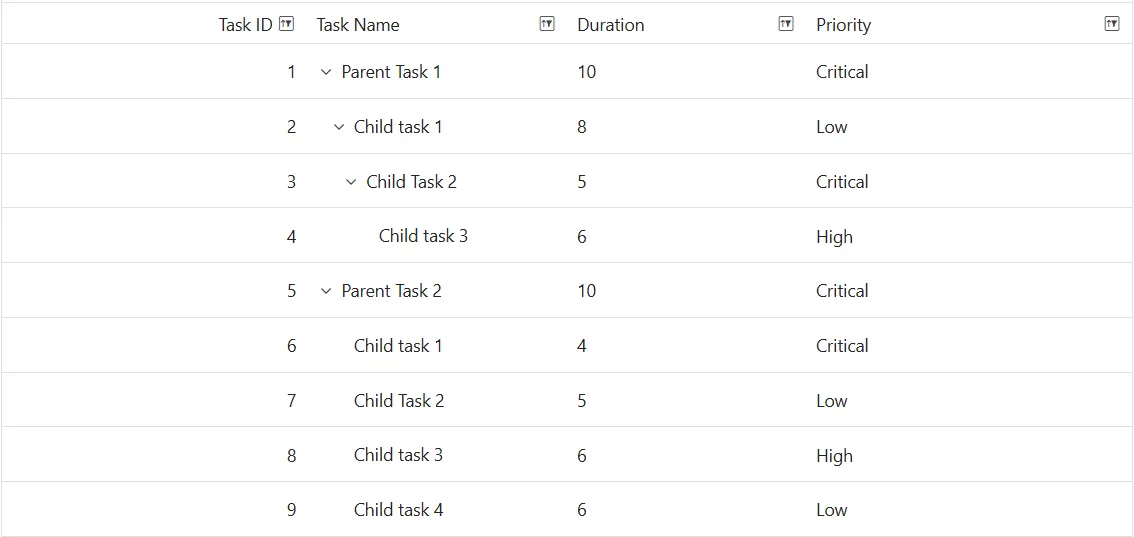
}Customize the filtering icon in the header
The .e-icon-filter::before class styles the filter icon in column headers. Apply CSS to modify its look:
.e-treegrid .e-icon-filter::before {
    content: '\e81e';
}
Update the content value to match the desired icon glyph.
Customize the filter dialog content
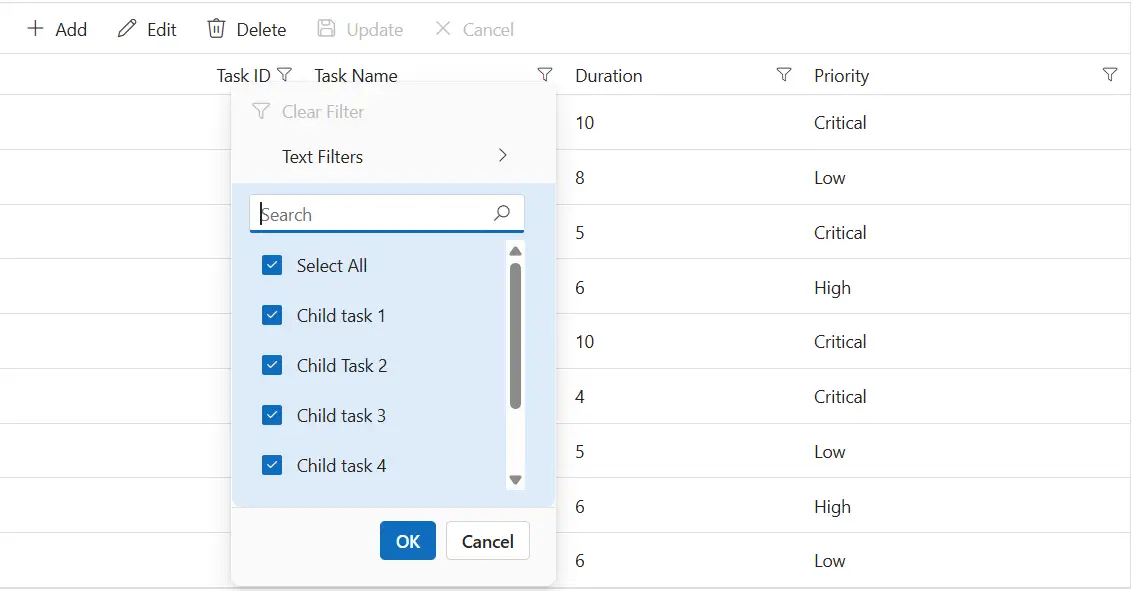
The .e-filter-popup .e-dlg-content class styles the content area of the filter dialog. Apply CSS to change its appearance:
.e-treegrid .e-filter-popup .e-dlg-content {
    background-color: #deecf9;
}
Modify properties such as background-color, padding, and border to match the application theme.
Customize the filter dialog footer
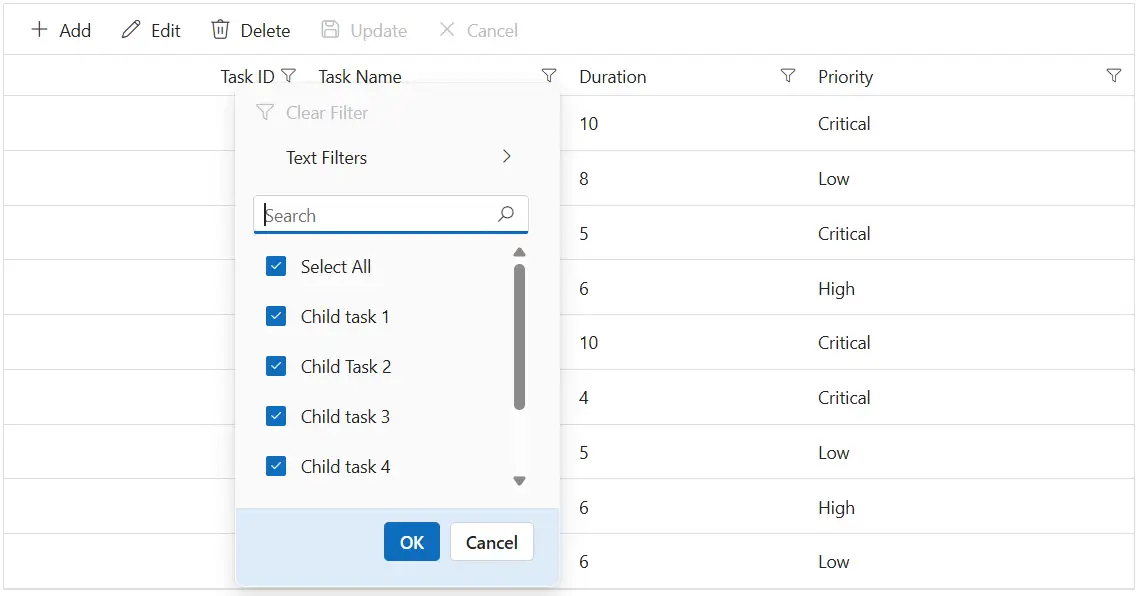
The .e-filter-popup .e-footer-content class styles the footer section of the filter dialog. Apply CSS to adjust its appearance:
.e-treegrid .e-filter-popup .e-footer-content {
    background-color: #deecf9;
}
Properties like background-color, text-align, and border can be changed to align with the layout design.
Customize the filter dialog input field
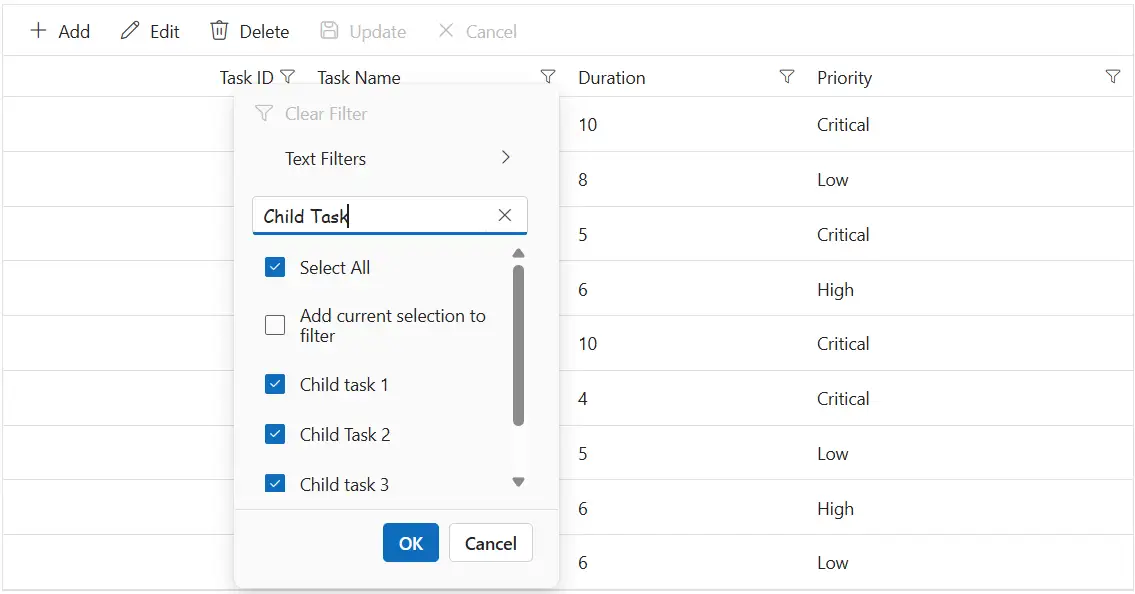
The .e-input class inside .e-filter-popup targets input fields in the filter dialog. Use CSS to adjust its appearance:
.e-treegrid .e-filter-popup .e-input-group input.e-input {
    font-family: cursive;
}
Adjust properties such as font-family, color, and border to improve clarity and consistency.
Customize the filter dialog button element
The .e-filter-popup .e-btn class styles buttons inside the filter dialog. Apply CSS to modify their appearance:
.e-treegrid .e-filter-popup .e-btn {
    font-family: cursive;
}
Change properties like font-family, background-color, and border to match the design.
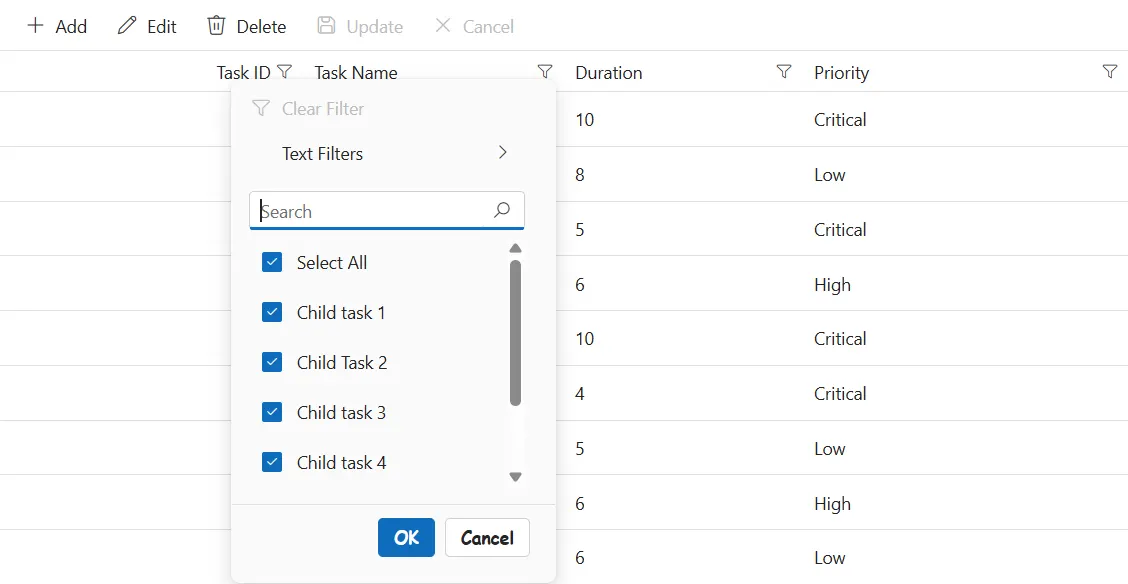
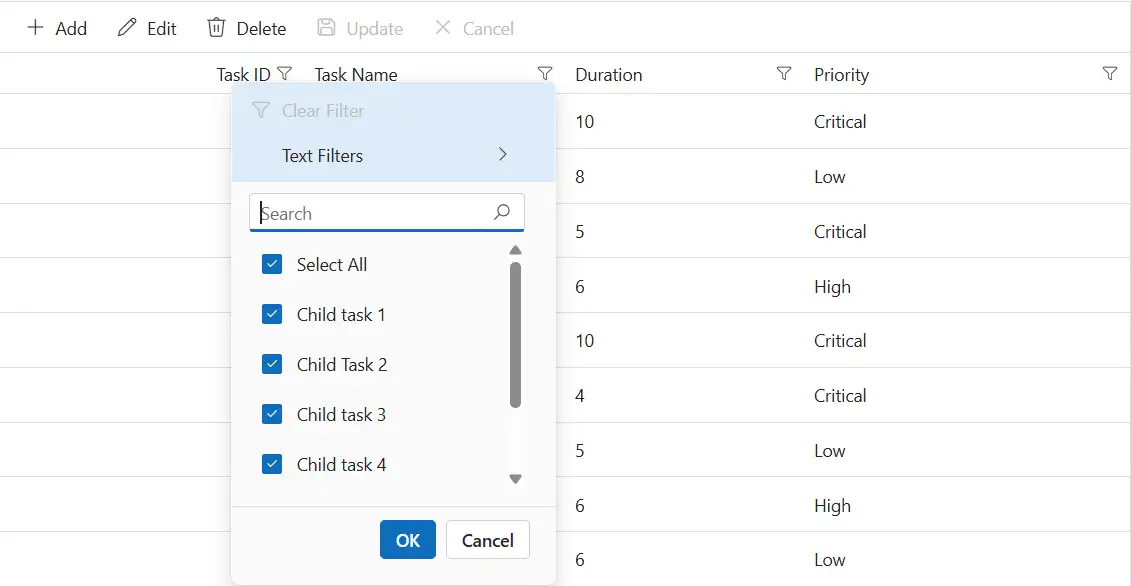
Customize the Excel-style filter menu
The .e-contextmenu-container ul class inside .e-filter-popup styles the filter list in the Excel-style filter dialog. Apply CSS to change its appearance:
.e-treegrid .e-filter-popup .e-contextmenu-container ul {
    background-color: #deecf9;
}
Properties such as background-color, color, and text-align can be adjusted to match the required design.
@using Syncfusion.Blazor.TreeGrid

<SfTreeGrid DataSource="@TreeGridData"
        IdMapping="TaskId"
        ParentIdMapping="ParentId"
        TreeColumnIndex="1"
        AllowFiltering="true"
        AllowPaging="true">
    <TreeGridPageSettings PageSize="8"></TreeGridPageSettings>
    <TreeGridFilterSettings Type="FilterType.Menu"></TreeGridFilterSettings>
    <TreeGridColumns>
        <TreeGridColumn Field=@nameof(TreeData.BusinessObject.TaskId) HeaderText="Task ID" TextAlign="Syncfusion.Blazor.Grids.TextAlign.Right" Width="140"></TreeGridColumn>
        <TreeGridColumn Field=@nameof(TreeData.BusinessObject.TaskName) HeaderText="Task Name" Width="120"></TreeGridColumn>
        <TreeGridColumn Field=@nameof(TreeData.BusinessObject.Duration) HeaderText="Duration" TextAlign="Syncfusion.Blazor.Grids.TextAlign.Right" Width="120"></TreeGridColumn>
        <TreeGridColumn Field=@nameof(TreeData.BusinessObject.Progress) HeaderText="Progress" Width="100"></TreeGridColumn>
    </TreeGridColumns>
</SfTreeGrid>

<style>
    .e-treegrid .e-icon-filter::before {
        font-family: 'e-icons' !important;
        font-weight: normal;
        content: '\e81e';
    }

    .e-treegrid .e-filter-popup .e-dlg-content,
    .e-treegrid .e-filter-popup .e-footer-content,
    .e-treegrid .e-filter-popup .e-contextmenu-container ul {
        background-color: #deecf9;
    }

    .e-treegrid .e-filter-popup .e-input-group input.e-input,
    .e-treegrid .e-filter-popup .e-btn {
        font-family: cursive;
    }

    /* Optional: focus outline inside the filter dialog for keyboard users */
    .e-treegrid .e-filter-popup .e-input-group input.e-input:focus-visible,
    .e-treegrid .e-filter-popup .e-btn:focus-visible {
        outline: 2px solid #005a9e;
        outline-offset: 2px;
    }
</style>

@code {
    private List<TreeData.BusinessObject> TreeGridData { get; set; }

    protected override void OnInitialized()
    {
        TreeGridData = TreeData.GetSelfDataSource().ToList();
    }
}
namespace TreeGridComponent.Data
{
public class TreeData
{
public class BusinessObject
{
public int TaskId { get; set; }
public string TaskName { get; set; }
public int? Duration { get; set; }
public int? Progress { get; set; }
public string Priority { get; set; }
public int? ParentId { get; set; }
}
internal static List<BusinessObject> GetSelfDataSource()
{
List<BusinessObject> BusinessObjectCollection = new List<BusinessObject>();
BusinessObjectCollection.Add(new BusinessObject() { TaskId = 1, TaskName = "Parent Task 1", Duration = 10, Progress = 70, Priority = "Critical", ParentId = null });
BusinessObjectCollection.Add(new BusinessObject() { TaskId = 2, TaskName = "Child task 1", Duration = 8, Progress = 80, Priority = "Low", ParentId = 1 });
BusinessObjectCollection.Add(new BusinessObject() { TaskId = 3, TaskName = "Child Task 2", Duration = 5, Progress = 65, Priority = "Critical", ParentId = 2 });
BusinessObjectCollection.Add(new BusinessObject() { TaskId = 4, TaskName = "Child task 3", Duration = 6, Progress = 77, Priority = "High", ParentId = 3 });
BusinessObjectCollection.Add(new BusinessObject() { TaskId = 5, TaskName = "Parent Task 2", Duration = 10, Progress = 70, Priority = "Critical", ParentId = null });
BusinessObjectCollection.Add(new BusinessObject() { TaskId = 6, TaskName = "Child task 1", Duration = 4, Progress = 80, Priority = "Critical", ParentId = 5 });
BusinessObjectCollection.Add(new BusinessObject() { TaskId = 7, TaskName = "Child Task 2", Duration = 5, Progress = 65, Priority = "Low", ParentId = 5 });
BusinessObjectCollection.Add(new BusinessObject() { TaskId = 8, TaskName = "Child task 3", Duration = 6, Progress = 77, Priority = "High", ParentId = 5 });
BusinessObjectCollection.Add(new BusinessObject() { TaskId = 9, TaskName = "Child task 4", Duration = 6, Progress = 77, Priority = "Low", ParentId = 5 });
return BusinessObjectCollection;
}
}
}