Expand and collapse icon customization in Blazor TreeGrid
The appearance of expand and collapse icons in the Blazor TreeGrid can be customized using CSS. Styling options are available for different aspects of the expand/collapse interface:
- Expand/collapse icon element: The icon used to indicate expand or collapse state.
- Icon size and color: Properties to modify icon dimensions and visual appearance.
Customize the expand/collapse icon element
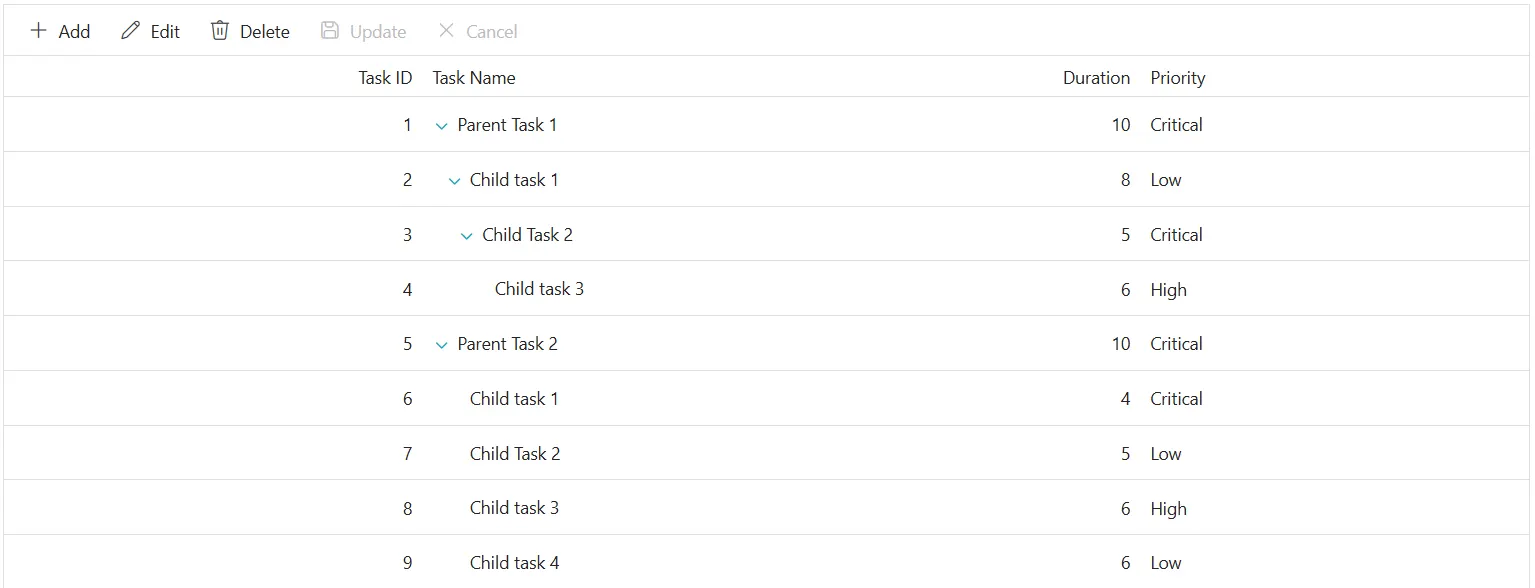
The .e-icons class combined with .e-treegridexpand or .e-treegridcollapse class styles the expand and collapse icons in the Blazor TreeGrid. Apply CSS to customize the icon appearance:
.e-treegrid .e-icons.e-treegridexpand::before,
.e-treegrid .e-icons.e-treegridcollapse::before {
    color: #1ea8bd;
    font-size: 18px;
}
Properties such as color, font-size, width, and height can be adjusted to match the TreeGrid design. Ensure that custom icons remain clearly visible and maintain adequate contrast for accessibility.
Change the expand and collapse icon
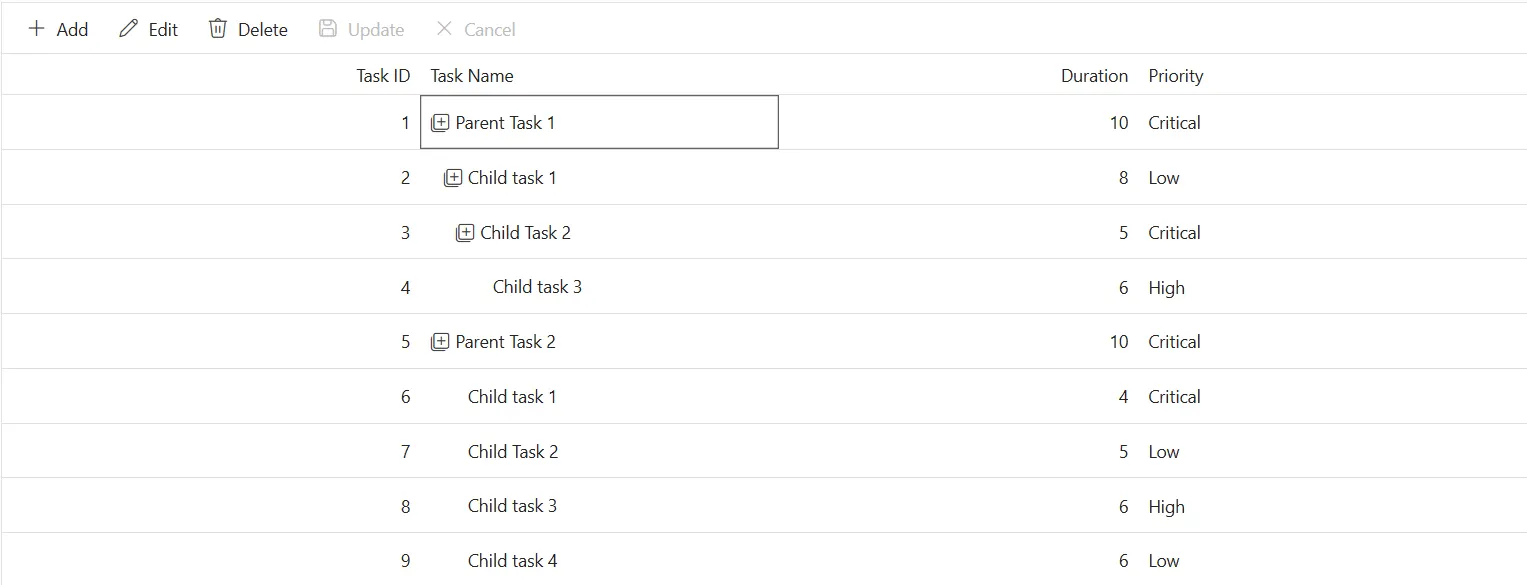
The expand and collapse icons can be customized by changing the icon glyph using the ::before pseudo-element content property:
.e-treegrid .e-icons.e-treegridexpand::before {
    content: '\e7c9';
}

.e-treegrid .e-icons.e-treegridcollapse::before {
    content: '\e80f';
}
Modify the content value to use different glyphs from the icon font. Confirm that the appropriate icon font family is available so glyphs render correctly. Refer to the Blazor icons documentation to choose glyphs for your theme.

Customize the expand/collapse icon on hover
Apply hover styles to expand/collapse icons for better user interaction:
.e-treegrid .e-icons.e-treegridexpand:hover::before,
.e-treegrid .e-icons.e-treegridcollapse:hover::before {
    color: #ff6b6b;
    font-weight: bold;
}
This allows users to see visual feedback when interacting with expand/collapse controls.
@using Syncfusion.Blazor.TreeGrid;

<SfTreeGrid DataSource="@TreeGridData" IdMapping="TaskId" ParentIdMapping="ParentId" TreeColumnIndex="1" Toolbar="@(new List<string>() { "Add", "Edit", "Delete", "Update", "Cancel" })">
    <TreeGridEditSettings AllowAdding="true" AllowEditing="true" AllowDeleting="true"  Mode="Syncfusion.Blazor.TreeGrid.EditMode.Row"></TreeGridEditSettings>
    <TreeGridColumns>
        <TreeGridColumn Field=@nameof(TreeData.BusinessObject.TaskId) HeaderText="Task ID" IsPrimaryKey="true" TextAlign="Syncfusion.Blazor.Grids.TextAlign.Right" Width="140"></TreeGridColumn>
        <TreeGridColumn Field=@nameof(TreeData.BusinessObject.TaskName) HeaderText="Task Name" Width="120"></TreeGridColumn>
        <TreeGridColumn Field=@nameof(TreeData.BusinessObject.Duration) HeaderText="Duration" TextAlign="Syncfusion.Blazor.Grids.TextAlign.Right" Width="120"></TreeGridColumn>
        <TreeGridColumn Field=@nameof(TreeData.BusinessObject.Priority) HeaderText="Priority" Width="130"></TreeGridColumn>
    </TreeGridColumns>
</SfTreeGrid>

<style>
    .e-treegrid .e-icons.e-treegridexpand::before,
    .e-treegrid .e-icons.e-treegridcollapse::before {
        color: #1ea8bd;
        font-size: 18px;
    }

    .e-treegrid .e-icons.e-treegridexpand::before {
        content: '\e7c9';
    }

    .e-treegrid .e-icons.e-treegridcollapse::before {
        content: '\e80f';
    }

    .e-treegrid .e-icons.e-treegridexpand:hover::before,
    .e-treegrid .e-icons.e-treegridcollapse:hover::before {
        color: #ff6b6b;
    }
</style>

@code {
    private List<TreeData.BusinessObject> TreeGridData { get; set; }
    protected override void OnInitialized()
    {
        TreeGridData = TreeData.GetSelfDataSource().ToList();
    }
    public class TreeData
    {
        public class BusinessObject
        {
            public int TaskId { get; set; }
            public string TaskName { get; set; }
            public int? Duration { get; set; }
            public int? Progress { get; set; }
            public string Priority { get; set; }
            public int? ParentId { get; set; }
        }

        internal static List<BusinessObject> GetSelfDataSource()
        {
            List<BusinessObject> BusinessObjectCollection = new List<BusinessObject>();
            BusinessObjectCollection.Add(new BusinessObject() { TaskId = 1, TaskName = "Parent Task 1", Duration = 10, Progress = 70, Priority = "Critical", ParentId = null });
            BusinessObjectCollection.Add(new BusinessObject() { TaskId = 2, TaskName = "Child task 1", Duration = 8, Progress = 80, Priority = "Low", ParentId = 1 });
            BusinessObjectCollection.Add(new BusinessObject() { TaskId = 3, TaskName = "Child Task 2", Duration = 5, Progress = 65, Priority = "Critical", ParentId = 2 });
            BusinessObjectCollection.Add(new BusinessObject() { TaskId = 4, TaskName = "Child task 3", Duration = 6, Progress = 77, Priority = "High", ParentId = 3 });
            BusinessObjectCollection.Add(new BusinessObject() { TaskId = 5, TaskName = "Parent Task 2", Duration = 10, Progress = 70, Priority = "Critical", ParentId = null });
            BusinessObjectCollection.Add(new BusinessObject() { TaskId = 6, TaskName = "Child task 1", Duration = 4, Progress = 80, Priority = "Critical", ParentId = 5 });
            BusinessObjectCollection.Add(new BusinessObject() { TaskId = 7, TaskName = "Child Task 2", Duration = 5, Progress = 65, Priority = "Low", ParentId = 5 });
            BusinessObjectCollection.Add(new BusinessObject() { TaskId = 8, TaskName = "Child task 3", Duration = 6, Progress = 77, Priority = "High", ParentId = 5 });
            BusinessObjectCollection.Add(new BusinessObject() { TaskId = 9, TaskName = "Child task 4", Duration = 6, Progress = 77, Priority = "Low", ParentId = 5 });
            return BusinessObjectCollection;
        }
    }
}