Exporting grid with templates in ASP.NET MVC Grid control
The grid offers the option to export the column, detail, and caption templates to a PDF document. The template contains images, hyperlinks, and customized text.
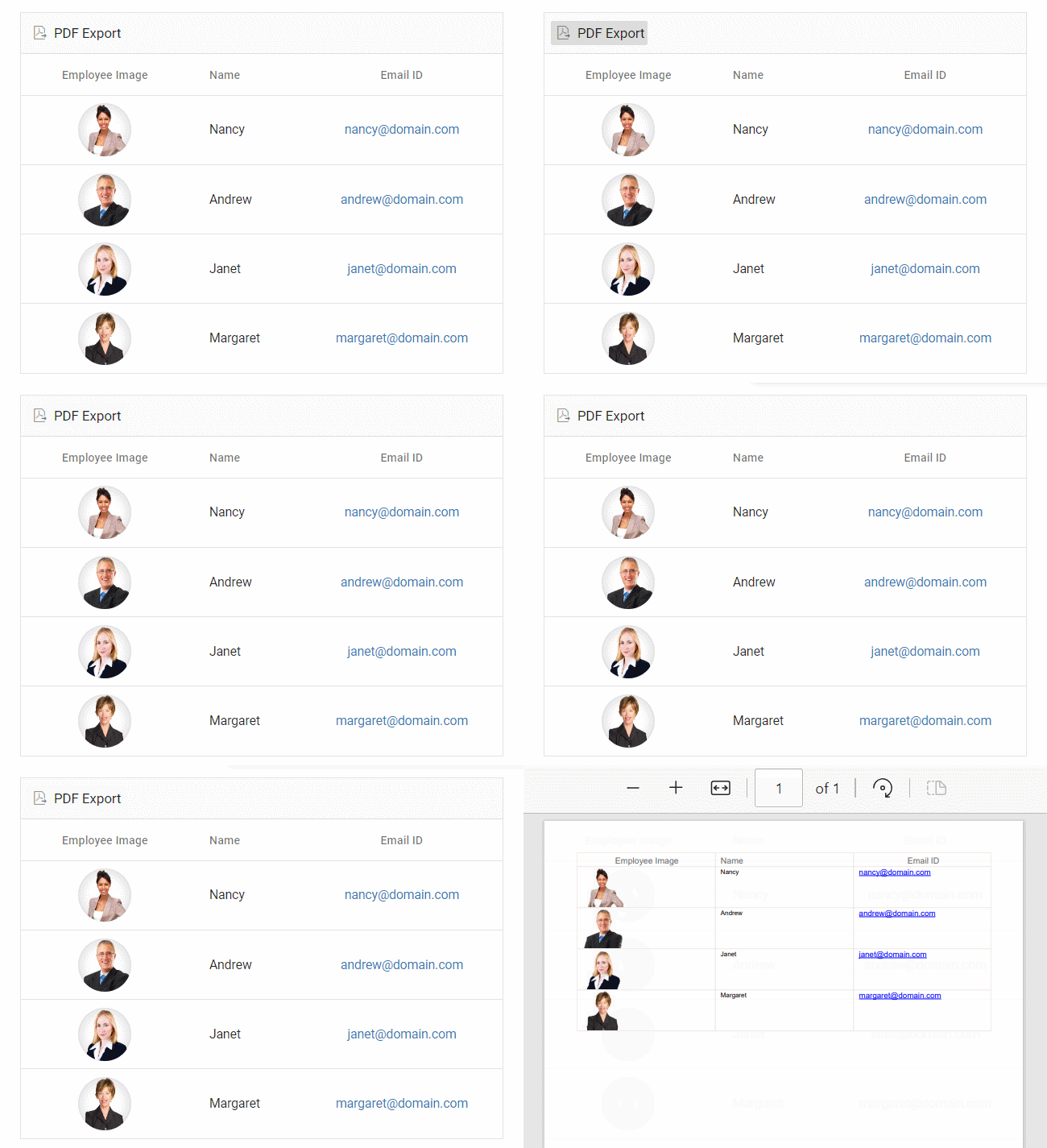
Exporting with column template
The PDF export functionality allows you to export Grid columns that include images, hyperlinks, and custom text to a PDF document.
In the following sample, the hyperlinks and images are exported to PDF using Hyperlink and Image properties in the PdfQueryCellInfo event.
PDF Export supports base64 string to export the images.
@Html.EJS().Grid("Grid").DataSource((IEnumerable<object>)ViewBag.dataSource).AllowPdfExport().ToolbarClick("toolbarClick").PdfQueryCellInfo("pdfQueryCellInfo").Columns(col =>
    {
       col.HeaderText("Employee Image").TextAlign(Syncfusion.EJ2.Grids.TextAlign.Center).Template("#imageTemplate").Width("150").Add();
       col.Field("EmployeeID").HeaderText("Employee ID").Width("125").TextAlign(Syncfusion.EJ2.Grids.TextAlign.Right).Add();
       col.Field("FirstName").HeaderText("Name").Width("125").Add();
       col.Field("EmailID").HeaderText("Email ID").Template("#mailTemplate").Width("170").Add();

    }).Toolbar(new List<string>() { "PdfExport" }).Render()

<style type="text/css" class="cssStyles">
    .image img {
        border-radius: 50px;
        box-shadow: inset 0 0 1px #e0e0e0, inset 0 0 14px rgba(0,0,0,0.2);
        height: 55px;
        width: 55px;
    }
</style>

<script type="text/x-template" id="imageTemplate">
    <div class="image">
        <img src="data:image/jpeg;base64,${EmployeeImage}" alt="${EmployeeID}" />
    </div>
</script>
<script type="text/x-template" id="mailTemplate">
    <div class="link">
        <a href="mailto:${EmailID}">${EmailID}</a>
    </div>
</script>

<script>
    function toolbarClick(args) {
        if (args['item'].id === 'Grid_pdfexport') {
            this.pdfExport();
        }
    }

    function pdfQueryCellInfo(args) {
        if (args.column.headerText === 'Employee Image') {
            args.image = {
                base64: args.data.EmployeeImage,
                height: 50,
                width: 50,
            };
        }
        if (args.column.headerText === 'Email ID') {
            args.hyperLink = {
                target: 'mailto:' + args.data.EmailID,
                displayText: args.data.EmailID,
            };
        }
    }
</script>
public IActionResult Index()
{
var Order = OrderDetails.GetAllRecords();
ViewBag.DataSource = Order;
return View();
}
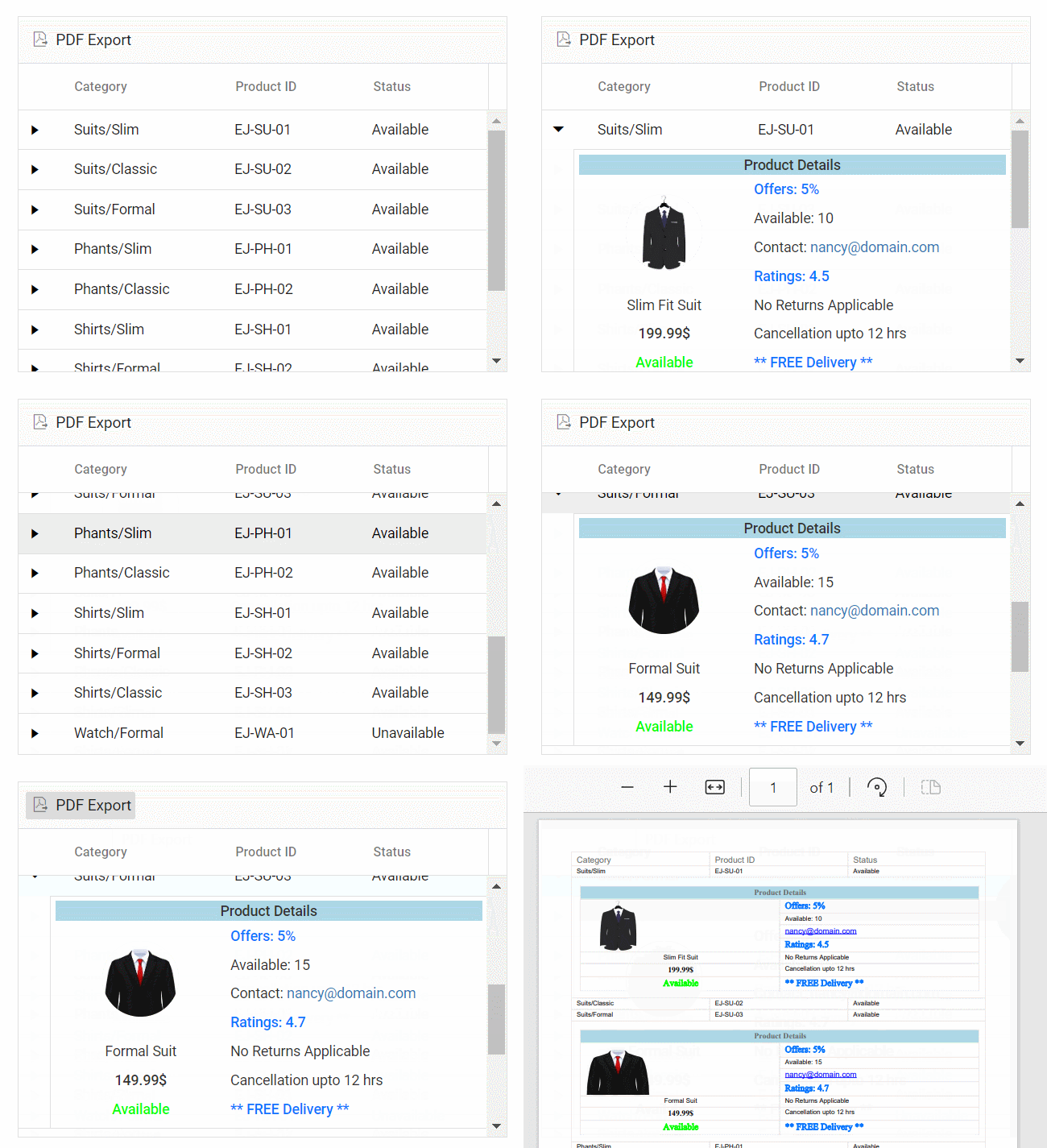
Exporting with detail template
By default, the grid will export the parent grid with expanded detail rows alone. Change the exporting option by using the PdfExportProperties.HierarchyExportMode property. The available options are:
| Mode | Behavior |
|---|---|
| Expanded | Exports the parent grid with expanded detail rows. |
| All | Exports the parent grid with all the detail rows. |
| None | Exports the parent grid alone. |
The detail rows in the exported PDF can be customized or formatted using the ExportDetailTemplate event. In this event, the detail rows of the PDF document are formatted in accordance with their parent row details.
In the following sample, the detail row content is formatted by specifying the ColumnCount, ColumnHeader, and Rowsproperties using its ParentRow details. This allows for the creation of detail rows in the PDF document. Additionally, custom styles can be applied to specific cells using the Style property.
If
ColumnCountis not provided, the columns in the detail row of the PDF grid will be generated based on the count of theColumnHeader/Rowsfirst row’sCells.
When usingRowSpan, it is essential to provide the cell’sIndexfor proper functionality.
@Html.EJS().Grid("Grid").DataSource((IEnumerable<object>)ViewBag.dataSource).DetailTemplate("#detailtemplate").AllowPdfExport().ToolbarClick("toolbarClick").ExportDetailTemplate("exportDetailTemplate").Columns(col =>
    {
       col.Field("Category").HeaderText("Category").Width("140").Add();
       col.Field("ProductID").HeaderText("Product ID").Width("120").Add();
       col.Field("Status").HeaderText("Status").Width("120").Add();
    }).Toolbar(new List<string>() { "PdfExport" }).Render()

<style type="text/css" class="cssStyles">
    .detailtable td {
        font-size: 13px;
        padding: 4px;
        max-width: 0;
        overflow: hidden;
        text-overflow: ellipsis;
        white-space: nowrap;
    }

    .photo {
        width: 100px;
        height: 100px;
        border-radius: 50px;
        box-shadow: inset 0 0 1px #e0e0e0, inset 0 0 14px rgba(0, 0, 0, 0.2);
    }

    .Unavailable {
        color: #FF0000;
    }

    .Available {
        color: #00FF00;
    }
</style>

<script type="text/x-template" id="detailtemplate">
    <table class="detailtable" width="100%">
        <colgroup>
            <col width="40%" />
            <col width="60%" />
        </colgroup>
        <thead>
            <tr>
                <th colspan="2" style="font-weight: 500;text-align: center;background-color: #ADD8E6;">
                    Product Details
                </th>
            </tr>
        </thead>
        <tbody>
            <tr>
                <td rowspan="4" style="text-align: center;">
                    <img class='photo' src="data:image/jpeg;base64,${ProductImg}" alt="${EmployeeID}" />
                </td>
                <td>
                    <span style="font-weight: 500;color: #0a76ff;">Offers: ${Offers} </span>
                </td>
            </tr>
            <tr>
                <td>
                    <span>Available: ${Available} </span>
                </td>
            </tr>
            <tr>
                <td>
                    <span class="link">
                        Contact: <a href="mailto:${Contact}">${Contact}</a>
                    </span>
                </td>
            </tr>
            <tr>
                <td>
                    <span style="font-weight: 500;color: #0a76ff;"> Ratings: ${Ratings}</span>
                </td>
            </tr>
            <tr>
                <td style="text-align: center;">
                    <span> ${productDesc}</span>
                </td>
                <td>
                    <span>${ReturnPolicy}</span>
                </td>
            </tr>
            <tr>
                <td style="text-align: center;">
                    <span style="font-weight: 500;"> ${Cost}</span>
                </td>
                <td>
                    <span>${Cancellation}</span>
                </td>
            </tr>
            <tr>
                <td style="text-align: center;">
                    <span class="${Status}" style="font-weight: 500;"> ${Status}</span>
                </td>
                <td>
                    <span style="font-weight: 500;color: #0a76ff;">${Delivery}</span>
                </td>
            </tr>
        </tbody>
    </table>
</script>

<script>
    function toolbarClick(args) {
        if (args['item'].id === 'Grid_pdfexport') {
            this.pdfExport({
                hierarchyExportMode: "Expanded"
            });
        }
    }

    function exportDetailTemplate(args) {
        args.value = {
            columnCount: 2,
            columnHeader: [
                {
                    cells: [{
                        index: 0, colSpan: 2, value: 'Product Details',
                        style: { backColor: '#ADD8E6', pdfTextAlignment: 'Center', bold: true }
                    }]
                }
            ],
            rows: [
                {
                    cells: [
                        {
                            index: 0, rowSpan: 4, image: { base64: args.parentRow.data['ProductImg'], width: 80 }
                        },
                        {
                            index: 1, value: "Offers: " + args.parentRow.data['Offers'],
                            style: { fontColor: '#0A76FF', fontSize: 15 }
                        },
                    ]
                },
                {
                    cells: [
                        {
                            index: 1, value: 'Available: ' + args.parentRow.data['Available']
                        }]
                },
                {
                    cells: [
                        {
                            index: 1, value: 'Contact: ',
                            hyperLink: {
                                target: 'mailto:' + args.parentRow.data['Contact'],
                                displayText: args.parentRow.data['Contact']
                            }
                        }]
                },
                {
                    cells: [
                        {
                            index: 1, value: 'Ratings: ' + args.parentRow.data['Ratings'],
                            style: { fontColor: '#0A76FF', fontSize: 15 }
                        }
                    ]
                },
                {
                    cells: [
                        {
                            index: 0, value: args.parentRow.data['productDesc'],
                            style: { pdfTextAlignment: 'Center' }
                        },
                        { index: 1, value: args.parentRow.data['ReturnPolicy'] }
                    ]
                },
                {
                    cells: [
                        {
                            index: 0, value: args.parentRow.data['Cost'],
                            style: { bold: true, pdfTextAlignment: 'Center' }
                        },
                        { index: 1, value: args.parentRow.data['Cancellation'] }
                    ]
                },
                {
                    cells: [
                        {
                            index: 0, value: args.parentRow.data['Status'],
                            style: {
                                fontColor: args.parentRow.data['Status'] === 'Available' ? '#00FF00' : '#FF0000',
                                pdfTextAlignment: 'Center', fontSize: 15
                            }
                        },
                        {
                            index: 1, value: args.parentRow.data['Delivery'],
                            style: { fontColor: '#0A76FF', fontSize: 15 }
                        }
                    ]
                }
            ],
        };
    }
</script>
public IActionResult Index()
{
var Order = OrderDetails.GetAllRecords();
ViewBag.DataSource = Order;
return View();
}
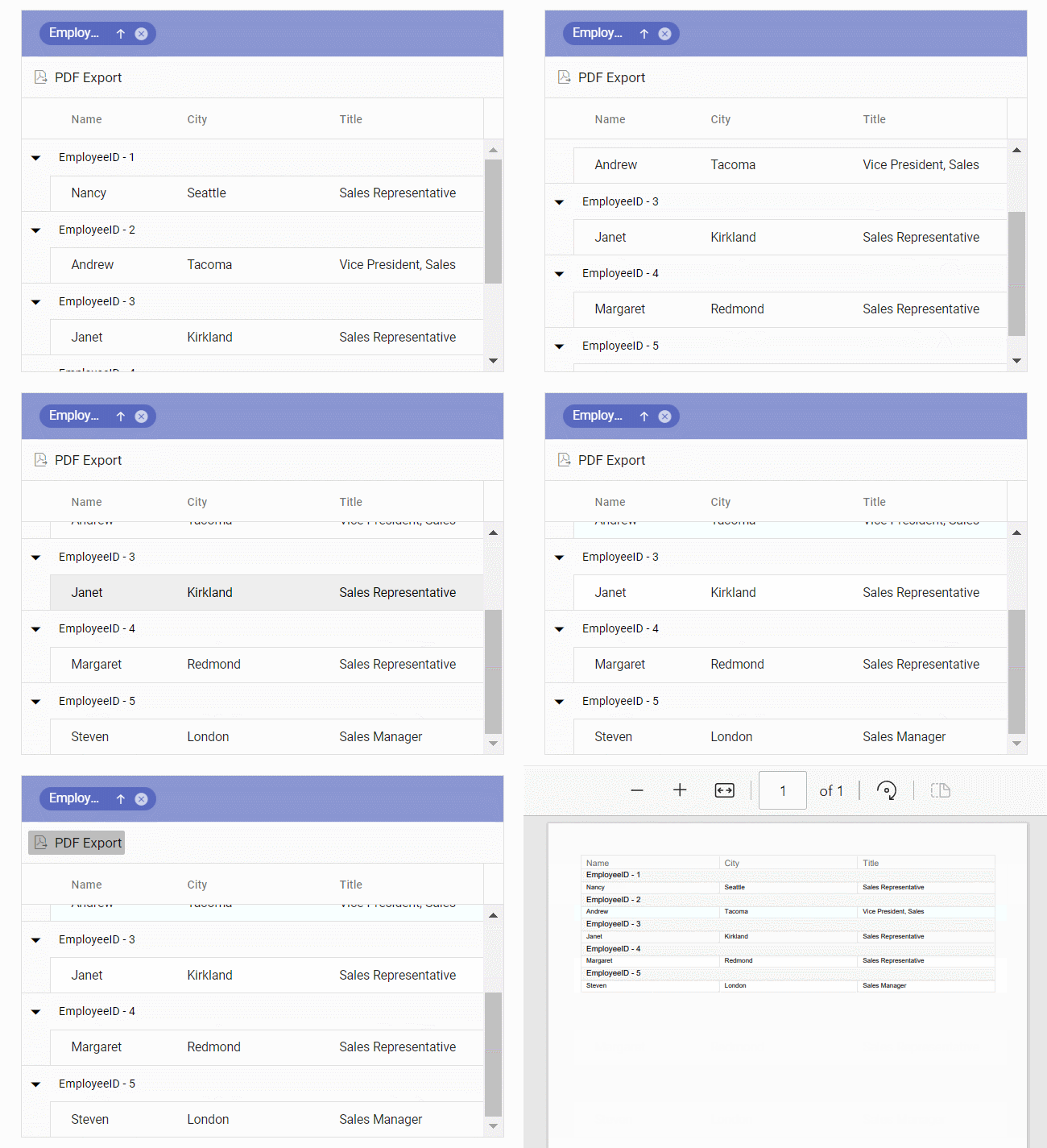
Exporting with caption template
The PDF export feature enables exporting of Grid with a caption template to an PDF document.
In the following sample, the customized caption text is exported to PDF using CaptionTextproperty in the ExportGroupCaption event.
@Html.EJS().Grid("Grid").DataSource((IEnumerable<object>)ViewBag.DataSource).AllowPdfExport().ToolbarClick("toolbarClick").ExportGroupCaption("exportGroupCaption").Columns(col =>
    {
       col.Field("EmployeeID").HeaderText("Employee ID").Width("120").TextAlign(Syncfusion.EJ2.Grids.TextAlign.Right).Add();
       col.Field("FirstName").HeaderText("Name").Width("120").Add();
       col.Field("City").HeaderText("City").Add();
       col.Field("Title").HeaderText("Title").Width("170").Add();

    }).Toolbar(new List<string>() { "PdfExport" }).AllowGrouping().GroupSettings(group => { group.Columns(new string[] { "EmployeeID" }).CaptionTemplate("#captiontemplate"); }).Render()

<script type="text/x-template" id="captiontemplate">
    ${field} - ${key}
</script>

<script>
    function toolbarClick(args) {
        if (args['item'].id === 'Grid_pdfexport') {
            this.pdfExport();
        }
    }

    function exportGroupCaption(args) {
        args.captionText = args.data.field + ' - ' + args.data.key;
    }
</script>
public IActionResult Index()
{
var Order = OrderDetails.GetAllRecords();
ViewBag.DataSource = Order;
return View();
}