FastAPI Backend Integration in Angular Data Grid
FastAPI is a modern, high‑performance Python web framework for building RESTful APIs with automatic OpenAPI documentation and robust validation. In a REST architecture, the server exposes resource‑oriented endpoints and relies on standard HTTP verbs while the client exchanges well structured JSON payloads. FastAPI combines asynchronous I/O, type hints, and Pydantic validation to produce low‑latency APIs that Angular applications can call reliably. This design is particularly effective for the Angular Data Grid because every grid action translates to a predictable JSON contract that the backend can process consistently and efficiently.
Prerequisites
| Software / Package | Recommended version | Purpose |
|---|---|---|
| Python | 3.11+ | Backend runtime |
| FastAPI | Latest | REST API framework |
| Uvicorn | Latest | ASGI server |
| Node.js | 20.x LTS or later | Angular tooling and runtime |
| npm | 10.x+ | Package manager |
Key topics
| # | Topics | Link |
|---|---|---|
| 1 | Configure a FastAPI REST backend that implements the Syncfusion® DataManager POST contract | View |
| 2 | Implement server‑side data operations—including paging, sorting, searching, filtering | View |
| 3 | Add full CRUD support with insert, update, and delete operations persisted on the server | View |
| 4 | Integrate the Syncfusion® Angular Grid with the backend using DataManager and the UrlAdaptor | View |
| 5 | Run the FastAPI and Angular applications locally for development | View |
| 6 | Explore a complete working sample available on GitHub | View |
Setting up the FastAPI backend
The FastAPI backend serves as the central data service for the Angular Grid. It receives every grid action through a single transport contract, performs validation and server‑side processing, and returns compact JSON responses that the Grid can render immediately.
Step 1: Create the FastAPI server and install required packages
The first step establishes a dedicated Python workspace and installs the minimal runtime dependencies required to host a FastAPI application during development.
Instructions:
-
Create a new server workspace and activate an isolated virtual environment so that the backend dependencies do not interfere with other projects on the machine.
mkdir server cd server python -m venv .venv # Windows .venv\Scripts\activate # macOS/Linux # source .venv/bin/activate -
Install FastAPI and Uvicorn to provide the project with a high-performance web framework and an ASGI server optimized for local development with hot reload.
pip install fastapi uvicorn
Explanations:
- This step creates a clean Python environment that keeps backend dependencies isolated from global packages and other projects.
- FastAPI provides an expressive routing model, automatic documentation, and strong request validation that reduces boilerplate code.
- Uvicorn supplies an efficient ASGI server that starts quickly and supports code reload for rapid feedback while building the API.
- Installing these packages up front ensures that later steps can focus entirely on features rather than environment setup.
The backend workspace has been successfully initialized, and the core runtime is now prepared for subsequent configuration steps.
Step 2: Create sample data source
This step initializes the application with a dataset. Create a new file named (server/products_data.json) and paste the following JSON. This file will be used by the API to load and persist product data:
[
  {
    "id": 1,
    "productName": "Ergonomic Serum",
    "category": "Beauty",
    "sku": "BEAU-00001",
    "price": 4394.23,
    "stock": 78,
    "status": "Active"
  },
  {
    "id": 2,
    "productName": "Portable Shampoo",
    "category": "Beauty",
    "sku": "BEAU-00002",
    "price": 8199.38,
    "stock": 103,
    "status": "Active"
  }
  . . .
  . . .
  . . .
]
Why this step matters:
- The JSON file defines a realistic product data model, mirroring common attributes and enabling practical client interactions.
- Local file persistence provides a lightweight alternative to a database, while supporting API contract validation and Grid feature testing.
- Numeric identifiers and typed fields ensure predictable server‑side comparisons and projections.
- The file serves as the single source of truth for the in‑memory store, keeping the example simple, reproducible, and easy to extend.
- The sample dataset is available and the API can load it immediately when the application starts.
Step 3: Configure application entry
The application entry point configures cross‑origin concerns and registers the products router, ensuring that the API exposes a cohesive surface under a predictable path.
Open the existing (server/main.py) file and add the following code to enable CORS and mount the products routes:
from fastapi import FastAPI
from fastapi.middleware.cors import CORSMiddleware

# Import from routers folder
from routers.products import router as products_router

app = FastAPI(title="Products API")

app.add_middleware(
    CORSMiddleware,
    allow_origins=["*"],
    allow_credentials=True,
    allow_methods=["*"],
    allow_headers=["*"],
)

# Register router
app.include_router(
    products_router,
    prefix="/products",
    tags=["products"]
)
- CORS configuration → All origins are permitted during development, ensuring the local Angular app can communicate without preflight issues.
- Router registration → The “products” router is mounted under the “/products” prefix, ensuring the API endpoints remain organized and easy to navigate.
The application starts successfully and serves product endpoints under the configured “/products” prefix.
Step 4: Create the router
The router centralizes data loading, read pipelines for grid operations, and mutation handlers, which results in a single cohesive endpoint that the DataManager can call.
- Navigate to the project’s routers/ directory and create a new file named products.py. This file is used to centralize product data loading, define API paths, and expose metadata for helper modules and persistence.
- Inside (server/routers/), create a new folder named (services/data_actions/) to implement data actions. Within this folder, add the following new files:
- search.py - executes search actions.
- sort.py - executes sorting actions.
- page.py - executes paging actions.
- filter.py - executes filtering actions.
- select.py - executes column selection actions.
- Inside (server/routers/), create a new folder named (services/crud_actions/) to implement data actions. Within this folder, add the following new files:
- insert.py - executes insert actions.
- update.py - executes update actions.
- remove.py - executes remove actions.
-
Add the following code example to configure routing in the (routers/products.py) file. This router centralizes product data loading, defines API paths, and exposes metadata for helper modules and persistence
from fastapi import APIRouter, HTTPException from fastapi.responses import JSONResponse from typing import Any, Dict, List import json import os from pathlib import Path # Import the data action files in feature wise from .services.data_actions.search import apply_search from .services.data_actions.filter import apply_where from .services.data_actions.sort import apply_sorting from .services.data_actions.select import apply_select from .services.data_actions.page import apply_paging from .services.crud_actions.insert import handle_insert from .services.crud_actions.update import handle_update from .services.crud_actions.remove import handle_remove router = APIRouter() DATA_FILE = Path(__file__).resolve().parent.parent / 'products_data.json' # Define field types FIELDS_META = { 'id': 'int', 'productName': 'str', 'category': 'str', 'sku': 'str', 'price': 'float', 'stock': 'int', 'status': 'str', } -
Add the “_load_products()” and “save_products()” functions to load products from disk and persist changes, ensuring the API maintains an in‑memory store backed by a durable file.
def _load_products() -> List[Dict[str, Any]]: """Load products from disk.""" if os.path.exists(DATA_FILE): try: with open(DATA_FILE, 'r', encoding='utf-8') as f: return json.load(f) except Exception: return [] return [] PRODUCTS: List[Dict[str, Any]] = _load_products() def save_products() -> None: """Persist products to disk.""" try: with open(DATA_FILE, 'w', encoding='utf-8') as f: json.dump(PRODUCTS, f, indent=2) except Exception: pass -
Define a helper that detects when the incoming payload is a Syncfusion® DataManager READ request. This allows the handler to branch cleanly between read and mutation logic without ambiguity.
DM_READ_KEYS = {'requiresCounts', 'skip', 'take', 'sorted', 'where', 'search', 'select'} def is_dm_read(payload: Dict[str, Any]) -> bool: """Detect a Syncfusion DataManager READ payload.""" return any(k in payload for k in DM_READ_KEYS) -
Implement a
GETguard and a unifiedPOSThandler so that the endpoint accepts onlyUrlAdaptorHTTP POST calls, routing them through the appropriate pipeline for either read or CRUD operations.@router.get('/') def list_products_get(): """Reject GET to enforce POST-only transport.""" raise HTTPException(status_code=405, detail='GET not supported; use POST with UrlAdaptor payload to /products/') @router.post('/') def list_or_crud(payload: Dict[str, Any]): """Route DataManager READ or CRUD actions based on the POST body.""" if is_dm_read(payload): skip = int(payload.get('skip', 0) or 0) take = int(payload.get('take', 12) or 12) requires_counts = bool(payload.get('requiresCounts', False)) items = PRODUCTS[:] # Search handler items = apply_search(items, payload) # Filter handler items = apply_where(items, payload.get('where')) total_count = len(items) # Sort handler items = apply_sorting(items, payload.get('sorted')) select_fields = payload.get('select') if select_fields is not None: # Select handler data, count = apply_select(items, select_fields, skip, take) return JSONResponse({'result': data, 'count': count} if requires_counts else data) # Page handler data = apply_paging(items, skip, take) return JSONResponse({'result': data, 'count': total_count} if requires_counts else data) action = payload.get('action') if action == 'insert': # Insert handler return handle_insert(payload, PRODUCTS, save_products, FIELDS_META) if action == 'update': # Update handler return handle_update(payload, PRODUCTS, save_products) if action == 'remove': # Remove handler return handle_remove(payload, PRODUCTS, save_products) return JSONResponse(payload)
Explanations:
- The router consolidates read and mutation flows into a single endpoint, which is exactly what the UrlAdaptor expects to communicate with a REST backend.
- The handler executes a clear sequence for reads that applies searching, filtering, sorting, projection, and paging in an intuitive order.
- The CRUD branch delegates to focused helpers that update the in‑memory list and then persist the change to disk.
- The design keeps the controller thin while allowing the data operation modules to remain reusable and independently testable.
- The explicit
GETguard protects the endpoint from unsupported transports so that all interactions pass through the singlePOSTcontract.
The handlers in the “data_actions” and “crud_actions” modules are explained in detail in the integration section below.
Overview of DataManager parameters utilized in Grid operations:
| Parameters | Description |
|---|---|
requiresCounts |
When this value is true the response must include a total count for the current query. |
skip |
This value specifies the number of records that should be skipped from the beginning of the dataset. |
take |
This value instructs the server to return only the specified number of records after the skipped segment. |
sorted |
This array contains one or more sort descriptors that specify field names and directions. |
where |
This structure expresses simple or grouped filter predicates with an optional condition value of and or or. |
search |
This structure carries search terms, fields, and operators for server‑side textual matching. |
select |
This array specifies a projection of fields and enables distinct operations before paging. |
action |
For mutation requests this value indicates insert, update, or remove so the server can route the operation. |
Perform server-side data operations
At this stage, the server configuration for the dataset, application, and routing is complete. The following sections describe applying server‑side data operations within the application.
As part of the earlier backend configuration, all data action function files were imported into the router and defined in (routers/products.py) file.
. . .
# Import the data action files by feature
from .services.data_actions.search import apply_search
from .services.data_actions.filter import apply_where
from .services.data_actions.sort import apply_sorting
from .services.data_actions.select import apply_select
from .services.data_actions.page import apply_paging

from .services.crud_actions.insert import handle_insert
from .services.crud_actions.update import handle_update
from .services.crud_actions.remove import handle_remove
. . .
. . .
Next, insert the following code into the step-by-step process of creating the existing file feature-wise.
Step 1: Paging
The paging function slices the dataset based on skip and take values to return the requested page segment.
Open the file (server/routers/services/data_actions/page.py) and add the following code, which demonstrates handling paging actions on the server based on the Grid request.
from typing import Any, Dict, List

def apply_paging(items: List[Dict[str, Any]], skip: int, take: int) -> List[Dict[str, Any]]:
    """Slice items for paging."""
    return items[skip: skip + take]
Step 2: Sorting
The sorting function orders the dataset by the specified field and direction using sort descriptors.
Open the file (server/routers/services/data_actions/sort.py) and include following code demonstrates handling the sorting action inside the server based on the Grid request.
from typing import Any, Dict, List
from .filter import json_or_value, coerce_value_for_field

def apply_sorting(items: List[Dict[str, Any]], sort_descriptors: Any) -> List[Dict[str, Any]]:
    """Apply DataManager sorting descriptors."""
    sd = json_or_value(sort_descriptors)
    if not isinstance(sd, list) or not sd:
        return items

    out = items[:]
    for desc in reversed(sd):
        if not isinstance(desc, dict):
            continue
        field = desc.get('name') or desc.get('field')
        direction = (desc.get('direction') or 'ascending').strip().lower()
        out.sort(key=lambda x: coerce_value_for_field(field, x.get(field)), reverse=(direction == 'descending'))
    return out
Step 3: Searching
The searching function filters the dataset by applying search blocks across the provided fields with the requested operator.
Open the file (server/routers/services/data_actions/search.py) and include following code demonstrates handling the searching action inside the server based on the Grid request:
from typing import Any, Dict, List
from .filter import json_or_value, normalize_operator, to_bool, compare

def apply_search(items: List[Dict[str, Any]], payload: Dict[str, Any]) -> List[Dict[str, Any]]:
    """Apply DataManager search blocks."""
    search_blocks = payload.get('search')
    if not search_blocks:
        return items

    sb = json_or_value(search_blocks)
    if isinstance(sb, dict):
        sb = [sb]
    if not isinstance(sb, list) or not sb:
        return items

    filtered = items
    for block in sb:
        fields = block.get('fields') or ([] if not block.get('field') else [block.get('field')])
        operator_name = normalize_operator(block.get('operator') or 'contains')
        search_term = block.get('key') or block.get('searchKey')
        ignore_case = to_bool(block.get('ignoreCase'), True)
        if not fields or search_term is None:
            continue

        def block_match(it: Dict[str, Any]) -> bool:
            return any(compare(f, operator_name, it.get(f), search_term, ignore_case) for f in fields)

        filtered = [it for it in filtered if block_match(it)]

    return filtered
Step 4: Filtering
The filtering module interprets DataManager predicates (simple and complex), normalizes operators, coerces field types, and evaluates conditions to return only records that satisfy the specified criteria.
Open the file (server/routers/services/data_actions/filter.py) and include following code demonstrates handling the filtering action inside the server based on the Grid request.
The following code block provides filter helpers and operator normalization.
from typing import Any, Callable, Dict, List, Optional, Tuple
import json

FIELDS_META: Dict[str, str] = {
    'id': 'int', 'productName': 'str', 'category': 'str', 'sku': 'str',
    'price': 'float', 'stock': 'int', 'status': 'str',
}

def to_bool(value: Any, default: bool = False) -> bool:
    if isinstance(value, bool):
        return value
    if isinstance(value, str):
        return value.strip().lower() in ('true', '1', 'yes', 'y')
    if isinstance(value, (int, float)):
        return bool(value)
    return default

def json_or_value(maybe_json: Any) -> Any:
    if isinstance(maybe_json, str):
        try:
            return json.loads(maybe_json)
        except Exception:
            return maybe_json
    return maybe_json

def normalize_operator(raw_operator: Optional[str]) -> str:
    if not raw_operator:
        return ''
    name = raw_operator.strip().lower()
    return {
        'equal': 'equal', '==': 'equal', 'eq': 'equal',
        'notequal': 'notequal', '!=': 'notequal', 'ne': 'notequal',
        'greaterthan': 'gt', 'gt': 'gt', '>': 'gt',
        'greaterthanorequal': 'gte', 'ge': 'gte', '>=': 'gte',
        'lessthan': 'lt', 'lt': 'lt', '<': 'lt',
        'lessthanorequal': 'lte', 'le': 'lte', '<=': 'lte',
        'contains': 'contains', 'startswith': 'startswith', 'endswith': 'endswith', 'like': 'like',
        'doesnotcontain': 'notcontains', 'notcontains': 'notcontains',
        'doesnotstartwith': 'notstartswith', 'doesnotendwith': 'notendswith',
        'in': 'in', 'notin': 'notin', 'between': 'between',
        'isnull': 'isnull', 'isnotnull': 'isnotnull', 'notnull': 'isnotnull',
        'isempty': 'isempty', 'isnotempty': 'isnotempty',
    }.get(name, name)

def coerce_value_for_field(field_name: str, raw_value: Any) -> Any:
    if raw_value is None:
        return None
    t = FIELDS_META.get(field_name)
    try:
        if t == 'int':
            return int(raw_value)
        if t == 'float':
            return float(raw_value)
        if t == 'str' or t is None:
            return str(raw_value)
    except Exception:
        return raw_value
    return raw_value
This code block implements all filtering operators, including default ones and special operators such as in, not in, isnull, etc.
from typing import Any, Dict, List, Tuple

def _like_pattern_to_match(op_value: Any) -> Tuple[str, Any]:
    if not isinstance(op_value, str):
        return 'exact', op_value
    raw = op_value
    starts = raw.startswith('%')
    ends = raw.endswith('%')
    inner = raw.strip('%')
    if starts and ends:
        return 'contains', inner
    if ends and not starts:
        return 'startswith', inner
    if starts and not ends:
        return 'endswith', inner
    if '%' in raw:
        return 'contains', raw.replace('%', '')
    return 'exact', raw

def compare(field: str, operator_name: str, left: Any, right: Any, ignore_case: bool) -> bool:
    left_c = coerce_value_for_field(field, left)
    if isinstance(right, (list, tuple)):
        right_c = [coerce_value_for_field(field, v) for v in right]
    else:
        right_c = coerce_value_for_field(field, right)

    if isinstance(left_c, str) and isinstance(right_c, str) and ignore_case:
        left_c = left_c.lower(); right_c = right_c.lower()

    if operator_name == 'equal':   return left_c == right_c
    if operator_name == 'notequal': return left_c != right_c
    if operator_name == 'gt':      return left_c > right_c
    if operator_name == 'gte':     return left_c >= right_c
    if operator_name == 'lt':      return left_c < right_c
    if operator_name == 'lte':     return left_c <= right_c

    if operator_name == 'contains':    return str(right_c) in str(left_c)
    if operator_name == 'startswith':  return str(left_c).startswith(str(right_c))
    if operator_name == 'endswith':    return str(left_c).endswith(str(right_c))
    if operator_name == 'like':
        kind, core = _like_pattern_to_match(right)
        if kind == 'contains':    return str(core).lower() in str(left).lower() if ignore_case else str(core) in str(left)
        if kind == 'startswith':  return str(left).lower().startswith(str(core).lower()) if ignore_case else str(left).startswith(str(core))
        if kind == 'endswith':    return str(left).lower().endswith(str(core).lower()) if ignore_case else str(left).endswith(str(core))
        return str(left).lower() == str(core).lower() if ignore_case else str(left) == str(core)

    if operator_name == 'notcontains':  return str(right_c) not in str(left_c)
    if operator_name == 'notstartswith': return not str(left_c).startswith(str(right_c))
    if operator_name == 'notendswith':   return not str(left_c).endswith(str(right_c))

    if operator_name == 'in':     return left_c in (right_c or [])
    if operator_name == 'notin':  return left_c not in (right_c or [])

    if operator_name == 'between':
        if isinstance(right_c, list) and len(right_c) == 2:
            lo, hi = right_c[0], right_c[1]
            return lo <= left_c <= hi
        return True

    if operator_name == 'isnull':     return left is None
    if operator_name == 'isnotnull':  return left is not None
    if operator_name == 'isempty':    return isinstance(left, str) and left == ''
    if operator_name == 'isnotempty': return isinstance(left, str) and left != ''

    return True

def _eval_leaf(item: Dict[str, Any], predicate: Dict[str, Any]) -> bool:
    field_name = predicate.get('field')
    operator_name = normalize_operator(predicate.get('operator'))
    raw_value = predicate.get('value', None)
    ignore_case = to_bool(predicate.get('ignoreCase'), True)
    if not field_name:
        return True
    return compare(field_name, operator_name, item.get(field_name), raw_value, ignore_case)
This code block builds predicates to handle combinations of multiple value filters applied to the same column as well as to other columns.
from typing import Any, Callable, Dict, List

def build_where(where_clause: Any) -> Callable[[Dict[str, Any]], bool]:
    wc = json_or_value(where_clause)
    if wc is None:
        return lambda it: True

    if isinstance(wc, list):
        funcs = [build_where(p) for p in wc]
        return lambda it: all(f(it) for f in funcs)

    if isinstance(wc, dict):
        if wc.get('isComplex'):
            cond = (wc.get('condition') or 'and').strip().lower()
            preds = wc.get('predicates') or []
            funcs = [build_where(p) for p in preds]
            if cond == 'or':
                return lambda it: any(f(it) for f in funcs) if funcs else (lambda it: True)
            return lambda it: all(f(it) for f in funcs)
        return lambda it: _eval_leaf(it, wc)

    return lambda it: True

def apply_where(items: List[Dict[str, Any]], where_clause: Any) -> List[Dict[str, Any]]:
    if where_clause is None:
        return items
    predicate_fn = build_where(where_clause)
    return [it for it in items if predicate_fn(it)]
Step 5: Selecting specific column
The selection routine projects specified fields, applies distinct semantics, and returns the paged subset together with the total distinct count.
Open the file (server/routers/services/data_actions/select.py) and include following code demonstrates handling the selecting action inside the server based on the Grid request.
from typing import Any, Dict, List, Tuple

from .filter import json_or_value

def apply_select(items: List[Dict[str, Any]], select_fields: Any, skip: int, take: int) -> Tuple[List[Dict[str, Any]], int]:
    """Project fields, apply distinct, and page."""
    fields = json_or_value(select_fields)
    if not isinstance(fields, list) or not fields:
        return items[skip: skip + take], len(items)

    proj = [{f: it.get(f) for f in fields} for it in items]

    seen = set()
    distinct_rows: List[Dict[str, Any]] = []
    for row in proj:
        key = tuple(row.get(f) for f in fields)
        if key not in seen:
            seen.add(key)
            distinct_rows.append(row)

    total = len(distinct_rows)
    return distinct_rows[skip: skip + take], total
Perform server-side CRUD operations
This section focuses on the server-side CRUD implementation of create, update and delete actions triggered from the Grid.
Step 1: Insert
The insert handler creates a new record with a generated key, initializes missing fields, appends the record to the collection, and persists the updated dataset.
Open the file (server/routers/services/crud_actions/insert.py) and include following code demonstrates handling the insert operation inside the server based on the Grid request.
from typing import Any, Callable, Dict, List
from fastapi.responses import JSONResponse

def handle_insert(payload: Dict[str, Any], products: List[Dict[str, Any]], save_products: Callable[[], None], fields_meta: Dict[str, str]) -> JSONResponse:
    """Insert a record and persist it."""
    record = payload.get('value') or payload
    new_id = max([o.get('id', 0) for o in products] or [0]) + 1
    record['id'] = new_id

    for k in fields_meta.keys():
        if k not in record and k != 'id':
            record[k] = None

    products.append(record)
    save_products()
    return JSONResponse(record)
Step 2: Update
The update handler locates the target record by key, merges incoming changes while preserving the key, writes the result back to the collection, and persists the modification.
Open the file (server/routers/services/crud_actions/update.py) and include following code demonstrates handling the update operation inside the server based on the Grid request.
from typing import Any, Callable, Dict, List
from fastapi import HTTPException
from fastapi.responses import JSONResponse

def handle_update(payload: Dict[str, Any], products: List[Dict[str, Any]], save_products: Callable[[], None]) -> JSONResponse:
    """Update a record by key and persist it."""
    key = payload.get('key') or payload.get('id') or (payload.get('value') or {}).get('id')
    record = payload.get('value') or payload

    if key is None:
        raise HTTPException(status_code=400, detail='Missing key for update')

    for i, o in enumerate(products):
        if o.get('id') == key:
            updated = {**o, **record, 'id': key}
            products[i] = updated
            save_products()
            return JSONResponse(updated)

    raise HTTPException(status_code=404, detail=f'Record {key} not found')
Step 2: Delete
The delete handler resolves the key from the payload, removes the matching record from the collection, and persists the dataset after deletion.
Open the file (server/routers/services/crud_actions/remove.py) and include following code demonstrates handling the delete operation inside the server based on the Grid request.
from typing import Any, Callable, Dict, List
from fastapi import HTTPException
from fastapi.responses import JSONResponse

def handle_remove(payload: Dict[str, Any], products: List[Dict[str, Any]], save_products: Callable[[], None]) -> JSONResponse:
    """Remove a record by key and persist it."""
    key = payload.get('key') or payload.get('id') or payload.get('record_id')

    if key is None:
        raise HTTPException(status_code=400, detail='Missing key for delete')

    for i, o in enumerate(products):
        if o.get('id') == key:
            deleted = products.pop(i)
            save_products()
            return JSONResponse(deleted)

    raise HTTPException(status_code=404, detail=f'Record {key} not found')
At this point, the server configuration supports all Grid data operations, including paging, sorting, searching, filtering, and CRUD actions such as insert, update, and delete. The next section covers the integration of the Syncfusion Angular Grid with the configured server.
Integrating Syncfusion Angular Grid with FastAPI
This section demonstrates binding the Angular Data Grid to a FastAPI endpoint using the DataManager and the UrlAdaptor. The DataManager standardizes the way the Grid serializes its actions into a request body, and the UrlAdaptor formats the transport to align with a RESTful endpoint that accepts POST requests for both reads and mutations.
DataManager is a data layer that sends all Grid actions (read, sort, filter, search, paging, CRUD) to the backend. It standardizes the way components communicate with remote services and handles query serialization.
Before configuring the Grid component, confirm that the Angular application has been created and the required Syncfusion® packages are installed.
Step 1: Create Angular application and install dependencies
This step creates a modern Angular and TypeScript application using Angular CLI and adds the Syncfusion® packages that provide the Grid component and the data transport layer.
Open the Visual Studio Code terminal or Windows Command Prompt, then run the following commands to scaffold the application and install the required packages. This ensures the project is ready to render the Grid and connect to the backend.
npm install -g @angular/cli
ng new client --standalone --style css --routing=false
cd client
npm install
After completing the initial setup, install the Syncfusion® Grid and DataManager packages using the following command.
npm install @syncfusion/ej2-angular-grids @syncfusion/ej2-data --saveThe client application is now prepared to reference the Grid component and the data layer.
Step 2: Include Syncfusion styles
Once the dependencies are installed, the required CSS files are made available in the (../node_modules/@syncfusion) package directory, These styles must be referenced globally so the Grid renders with its complete visual system.
Open (client/src/index.css) file and import the “Bootstrap 5.3” theme along with the dependent Syncfusion® styles:
@import '../node_modules/@syncfusion/ej2-base/styles/bootstrap5.3.css';
@import '../node_modules/@syncfusion/ej2-buttons/styles/bootstrap5.3.css';
@import '../node_modules/@syncfusion/ej2-calendars/styles/bootstrap5.3.css';
@import '../node_modules/@syncfusion/ej2-dropdowns/styles/bootstrap5.3.css';
@import '../node_modules/@syncfusion/ej2-inputs/styles/bootstrap5.3.css';
@import '../node_modules/@syncfusion/ej2-navigations/styles/bootstrap5.3.css';
@import '../node_modules/@syncfusion/ej2-popups/styles/bootstrap5.3.css';
@import '../node_modules/@syncfusion/ej2-splitbuttons/styles/bootstrap5.3.css';
@import '../node_modules/@syncfusion/ej2-notifications/styles/bootstrap5.3.css';
@import '../node_modules/@syncfusion/ej2-angular-grids/styles/bootstrap5.3.css';
For this project, the “Bootstrap v5.3” theme is used. A different theme can be selected or the existing theme can be customized based on project requirements. Refer to the Syncfusion® Angular Components Appearance documentation to learn more about theming and customization options.
Step 3: Configure the Grid and DataManager
This step renders the Grid and binds it to a DataManager instance. The DataManager uses the UrlAdaptor transport to post every Grid action to the FastAPI endpoint.
Open (client/src/app/app.component.html) file and render the Grid with paging, sorting, searching, editing, and filtering enabled. Configure it with a DataManager that points to the FastAPI products endpoint, ensuring all operations post to a single URL.
<!-- client/src/app/app.component.html -->
<ejs-grid
  id="ProductsGrid"
  [dataSource]="data"
  [allowPaging]="true"
  [allowSorting]="true"
  [allowFiltering]="true"
  [filterSettings]="filterSettings"
  [editSettings]="editSettings"
  [toolbar]="toolbar"
  [pageSettings]="pageSettings"
  [enableHover]="true"
  [rowHeight]="40">

  <e-columns>
    <e-column field="id" headerText="ID" [isPrimaryKey]="true" textAlign="Right" [width]="90" [visible]="false"></e-column>
    <e-column field="sku" headerText="SKU" [width]="160"></e-column>
    <e-column field="productName" headerText="Product" [width]="240"></e-column>
    <e-column field="category" headerText="Category" [width]="170" editType="dropdownedit"></e-column>
    <e-column field="price" headerText="Price" textAlign="Right" [width]="140" editType="numericedit" format="C2"></e-column>
    <e-column field="stock" headerText="Stock" textAlign="Right" [width]="120" editType="numericedit"></e-column>
    <e-column field="status" headerText="Status" textAlign="Center" [width]="150" editType="dropdownedit"></e-column>
  </e-columns>
</ejs-grid>
In the (client/src/app/app.component.ts) register necessary Grid modules and services, define DataManager and settings.
// client/src/app/app.component.ts
import { Component } from '@angular/core';
import { CommonModule } from '@angular/common';
import { GridModule, PageService, SortService, FilterService, EditService, ToolbarService } from '@syncfusion/ej2-angular-grids';
import { DataManager, UrlAdaptor } from '@syncfusion/ej2-data';
import { FilterSettingsModel, EditSettingsModel, PageSettingsModel, ToolbarItems } from '@syncfusion/ej2-grids';

@Component({
  selector: 'app-root',
  standalone: true,
  imports: [CommonModule, GridModule],
  providers: [PageService, SortService, FilterService, EditService, ToolbarService],
  templateUrl: './app.component.html',
  styleUrls: ['./app.component.css']
})
export class AppComponent {
  public API_BASE = 'http://localhost:8000';

  public data: DataManager = new DataManager({
    url: `${this.API_BASE}/products/`,
    adaptor: new UrlAdaptor(),
    crossDomain: true,
  });

  public editSettings: EditSettingsModel = {
    allowAdding: true,
    allowEditing: true,
    allowDeleting: true,
    showDeleteConfirmDialog: true,
    newRowPosition: 'Top',
  };

  public toolbar: ToolbarItems[] | string[] = ['Add', 'Edit', 'Delete', 'Update', 'Cancel', 'Search'];

  public pageSettings: PageSettingsModel = { pageSize: 12, pageSizes: [12, 25, 50, 100] };
  public filterSettings: FilterSettingsModel = { type: 'Excel' };
}
Explanations:
- The DataManager converts Grid actions—such as paging, filtering, sorting, searching, and editing—into a single POST request directed to the “/products” endpoint.
- The injected services enable features like Page, Sort, Filter, Edit, and Toolbar on the client, while the server performs the corresponding operations.
- A primary key is enabled for the “ID” column to support CRUD operations, and this configuration is mandatory.
The Grid client is now ready, and every interaction flows seamlessly to the FastAPI backend. Next, begin writing the server code to handle the data operations.
Step 4: Enable paging feature
The paging feature allows efficient loading of large data sets through on‑demand loading. Paging in the Grid is enabled by setting the allowPaging property to true.
<ejs-grid
  [dataSource]="data"
  [allowPaging]="true">
  <!-- Include columns here -->
</ejs-grid>
Then injecting the PageService module into the providers property.
import { GridModule, PageService } from '@syncfusion/ej2-angular-grids';

@Component({
  selector: 'app-root',
  standalone: true,
  templateUrl: './app.component.html',
  styleUrls: ['./app.component.css'],
  imports: [GridModule],
  providers: [PageService]
})
export class AppComponent {
    public pageSettings: PageSettingsModel = { pageSize: 10 };

    // Other configurations
}
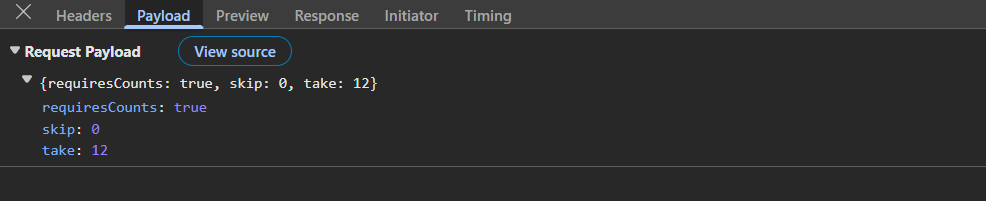
Paging details included in request payload:
The image illustrates the paging details (skip and take) included in the server request payload.
Step 5: Enable sorting feature
The sorting feature in the Grid allows records to be organized in ascending or descending order based on one or more columns. Sorting is enabled by setting the allowSorting property to true.
<ejs-grid
  [dataSource]="data"
  [allowSorting]="true">
  <!-- Include columns here -->
</ejs-grid>
Then injecting the SortService module into the providers property.
import { GridModule, SortService } from '@syncfusion/ej2-angular-grids';

@Component({
  selector: 'app-root',
  standalone: true,
  templateUrl: './app.component.html',
  styleUrls: ['./app.component.css'],
  imports: [GridModule],
  providers: [SortService]
})
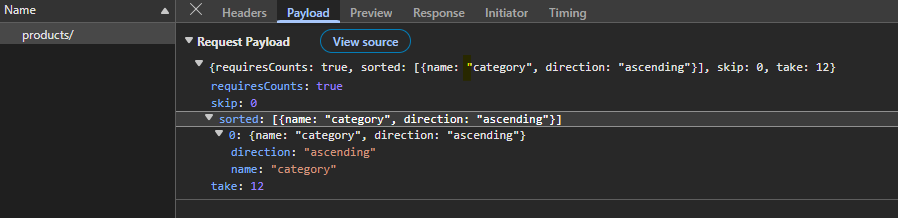
Sorting details included in request payload:
The image below shows the values passed to the sorted parameter.
Step 6: Enable searching feature
Enhancing the search functionality involves integrating a search text box directly into the grid’s toolbar. This allows entering search criteria conveniently within the grid interface. To add the search item to the grid’s toolbar, use the toolbar property and add Search item.
<ejs-grid [toolbar]="['Search']"/></ejs-grid>Then injecting the ToolbarService module into the providers property.
import { ToolbarService } from '@syncfusion/ej2-angular-grids'

@Component({
  providers: [ToolbarService],
})
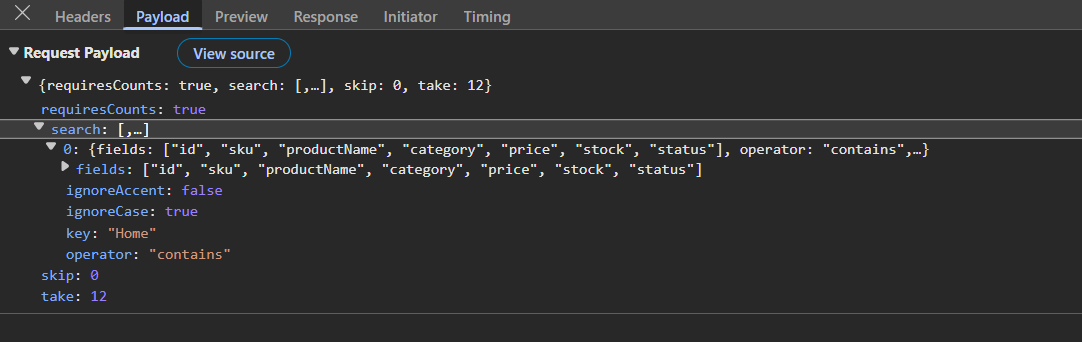
Searching details included in request payload:
The image below displays the search parameter values.
Step 7: Enable filtering feature
The Grid supports filtering through a menu interface that restricts data based on column values. Filtering is enabled by setting the allowFiltering property to true.
<ejs-grid
  [dataSource]="data"
  [allowFiltering]="true"
  [filterSettings]="{ type: 'Excel' }">
  <!-- Include columns here -->
</ejs-grid>
Then injecting the FilterService module into the providers property.
import { GridModule, FilterService } from '@syncfusion/ej2-angular-grids';

@Component({
  selector: 'app-root',
  standalone: true,
  templateUrl: './app.component.html',
  styleUrls: ['./app.component.css'],
  imports: [GridModule],
  providers: [FilterService]
})
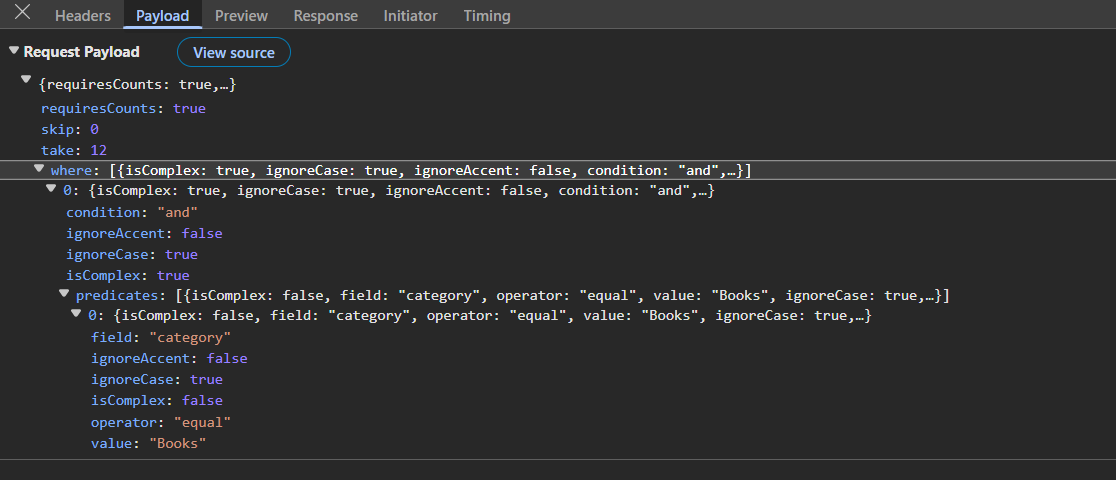
Filtering details included in request payload:
The image illustrates the serialized where condition passed from the DataManager.
Step 8: Enable CRUD operations
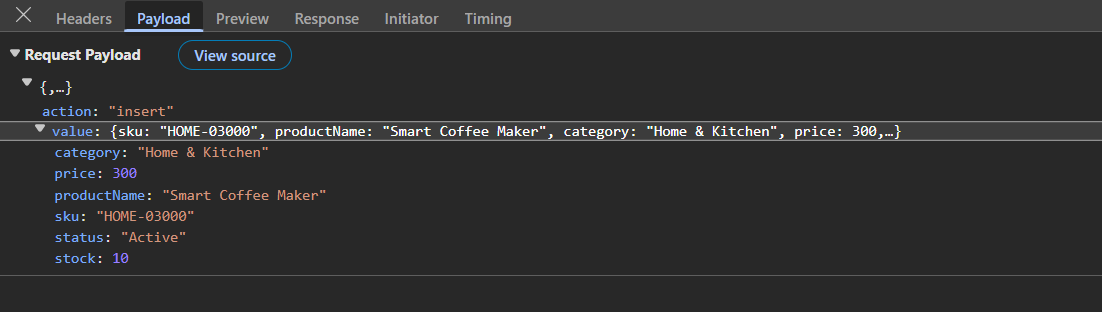
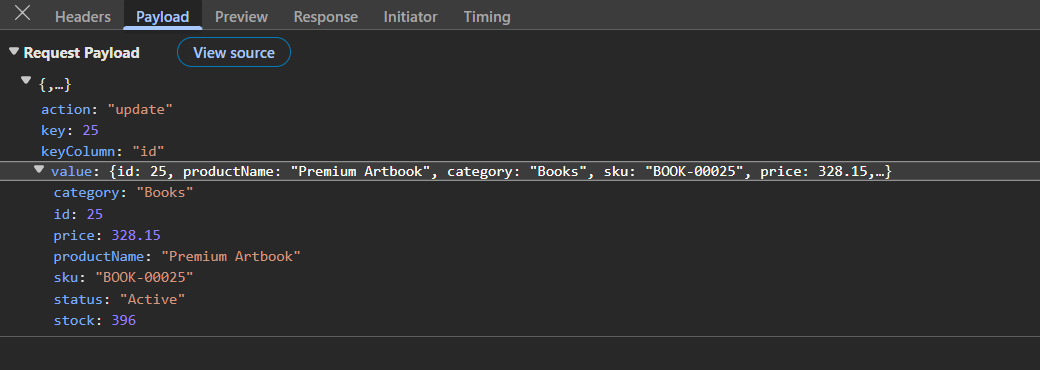
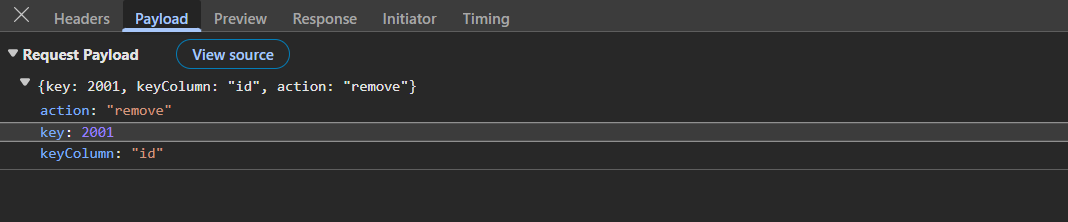
CRUD operations allow adding new products, modifying existing records, and removing items that are no longer relevant. The DataManager posts a specific action for each operation so that the server can route the request to the appropriate handler.
Editing operations in the Grid are enabled through configuring the editSettings properties (allowEditing, allowAdding, and allowDeleting) to true in the app.component.html.
<ejs-grid
    [dataSource]="data"
    [editSettings]="{ allowEditing: true, allowAdding: true, allowDeleting: true, mode: 'Normal' }"
    [toolbar]="['Add', 'Edit', 'Delete', 'Update', 'Cancel']">
    <!-- Include columns here -->
</ejs-grid>
Then inject the EditService in the app.component.ts.
import { GridModule, EditService, ToolbarService } from '@syncfusion/ej2-angular-grids';

@Component({
  selector: 'app-root',
  standalone: true,
  templateUrl: './app.component.html',
  styleUrls: ['./app.component.css'],
  imports: [GridModule],
  providers: [EditService, ToolbarService]
})
Insert details included in request payload:
The image illustrates the added record passed from the DataManager.
Update details included in request payload:
The image illustrates the edited record passed from the DataManager.
Remove details included in request payload:
The image illustrates the deleted record key passed from the DataManager.
Running the application
Open the terminal in Visual Studio Code or Command Prompt.
Run the following command to start the backend server:
cd server
uvicorn main:app --reload --port 8000
The server is now running at http://localhost:8000/.
Execute the below commands to run the client application:
cd client
ng serve
Open the URL shown in the terminal which is typically http://localhost:4200/.
Complete sample repository
For a complete working implementation of this example, refer to the following GitHub repository.
The application demonstrates a complete product management workflow with a Angular Data Grid connected to a Python FastAPI REST backend through a single, predictable transport.