Sorting in TypeScript Gantt Chart Control
18 Nov 20184 minutes to read
The Syncfusion® TypeScript Gantt Chart control provides sorting functionality to arrange task data in ascending or descending order based on column values.
To enable sorting, set the allowSorting property to true. You can configure sorting behavior using the sortSettings property.
Sorting is applied by clicking a column header. For multi-column sorting, hold the CTRL key while selecting additional headers. To remove sorting from a specific column in a multi-sorted view, hold the SHIFT key and click the column header. For details on keyboard interactions, refer to the selection keyboard interaction documentation.
To enable sorting functionality, inject the Sort module into the Gantt control.
- The Gantt columns are sorted in the ascending order. If you click the already sorted column, the sort direction toggles.
- To disable sorting for a particular column, set the columns.allowSorting property to false.
Initial sorting
You can apply sorting during the initial render of the Syncfusion TypeScript Gantt Chart control by configuring the sortSettings.columns property. Each column should be defined with a specific field and direction, ensuring that the Gantt loads with the desired sort order applied to the specified columns.
The following code example shows how to add sorted columns during Gantt initialization, with field set to TaskID and direction to Descending, and another with field as TaskName and direction as Ascending.
Sort columns externally
You can externally sort columns, remove a specific sort, or clear all sorting in the Syncfusion® TypeScript Gantt Chart control using button clicks.
Add sort columns
You can externally sort a column in the Syncfusion® TypeScript Gantt Chart control using the sortColumn method with parameters for column name, sort direction, and multi-sort configuration.
Remove sort columns
You can externally remove sorting from a specific column in the Syncfusion® TypeScript Gantt Chart control using the removeSortColumn method by passing the column name.
Clear sorting
You can clear all sorted columns in the Syncfusion® TypeScript Gantt Chart control using the clearSorting method to reset the Gantt Chart to its unsorted state.
Customize sort icon
You can customize the sort icons in the Syncfusion® TypeScript Gantt Chart control by overriding the .e-icon-ascending and .e-icon-descending CSS classes using the content property, as shown below:
.e-gantt .e-icon-ascending::before {
    content: '\e7aa';
}

.e-gantt .e-icon-descending::before {
    content: '\e71f';
}
Custom sorting
You can customize the default sort behavior for a column in the Syncfusion® TypeScript Gantt Chart control by assigning a column.sortComparer function to define custom sorting logic.
The sorting process includes the following steps:
- Ascending → Descending → Clear Sorting (resets to original data source order).
- Child records are sorted within their respective parent groups.
- Null values in child records appear at the bottom of each parent group, not across the entire Gantt Chart dataset.
Display null values always at bottom
You can customize the sorting behavior in the Syncfusion® TypeScript Gantt Chart control to make null values consistently appear at the bottom, regardless of sort direction, by defining a column-level column.sortComparer function. By default, null values are placed at the bottom when sorting in ascending order and at the top when sorting in descending order. Applying a custom sortComparer helps override this default logic and is particularly useful when working with datasets where null entries should be visually separated from valid data.
The example below demonstrates how to display null values at the bottom of the Gantt Chart while sorting the TaskName column in both ascending and descending order.
Sorting custom columns
You can sort custom columns of various types such as string or numeric in the Syncfusion® TypeScript Gantt Chart control by adding them to the column collection. Initial sorting can be configured using the sortSettings property, or sorting can be triggered dynamically through external actions such as a button click.
The following code snippet demonstrates how to sort the CustomColumn using an external button.
Prevent sorting on specific columns
You can prevent sorting on specific columns in the Syncfusion® TypeScript Gantt Chart control by handling the actionBegin or actionComplete events. Alternatively, you can disable sorting for a column by setting its allowSorting property to false in the column configuration.
The following sample demonstrates how to prevent sorting for the TaskID and StartDate columns.
Disable clear sort
By default, clicking a column header switches the sort order between ascending, descending, and unsorted. To restrict this to only ascending and descending, set sortSettings.allowUnsort to false. This ensures sorting remains active without reverting to an unsorted state.
Touch interaction
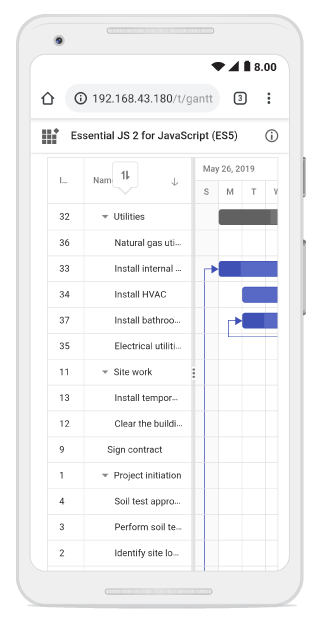
To perform a tap action on a column header in the Syncfusion® TypeScript Gantt Chart control, the sorting operation is triggered for the selected column. A popup appears when multi-column sorting is enabled. To sort multiple columns, tap the popup and then tap the desired column headers. The following screenshot shows Gantt touch sorting.