Comments in React PDF Viewer
14 Aug 202623 minutes to read
The PDF Viewer lets you add, edit, reply to, set status for, and delete comments on the following annotation types:
- Shape annotation
- Stamp annotation
- Sticky note annotation
- Measurement annotation
- Text markup annotation
- Free text annotation
- Ink annotation
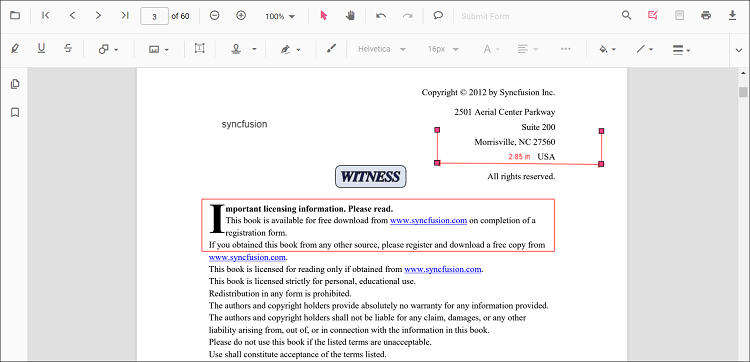
Add a comment to an annotation (UI)
Use the Comments panel to manage annotation comments, replies, and status.
Open the Comments panel
Open the panel in any of these ways:
-
Annotation toolbar
- Click Edit Annotation in the toolbar to show the secondary toolbar.
- Click Comment Panel to open the panel.
-
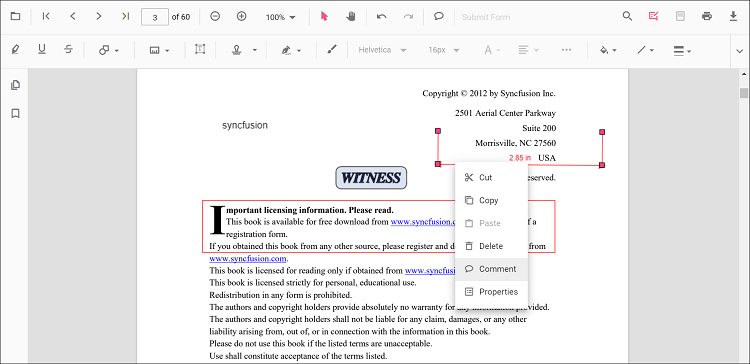
Context menu
- Select an annotation and right‑click it.
- Choose Comment from the context menu.
-
Double‑click
- Select the annotation and double‑click it to open the panel.
If the panel is already open, selecting an annotation highlights its thread so you can view or add comments.
Add comments and replies
- Select the annotation in the PDF.
- The corresponding thread is highlighted in the Comments panel.
- Add comments and any number of replies in the panel.
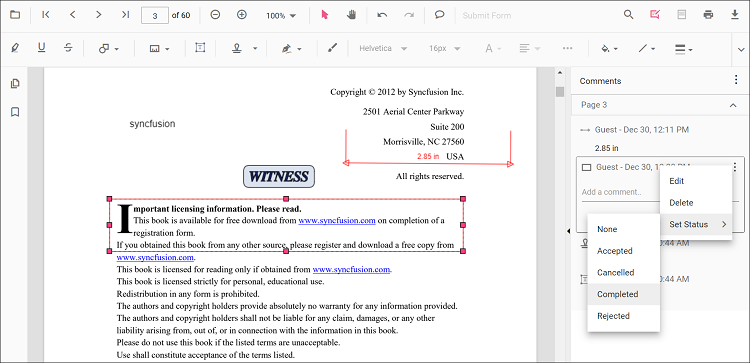
Set comment or reply status
- Select a comment in the panel.
- Click More options on the comment or reply container.
- Choose Set Status, then pick a status.
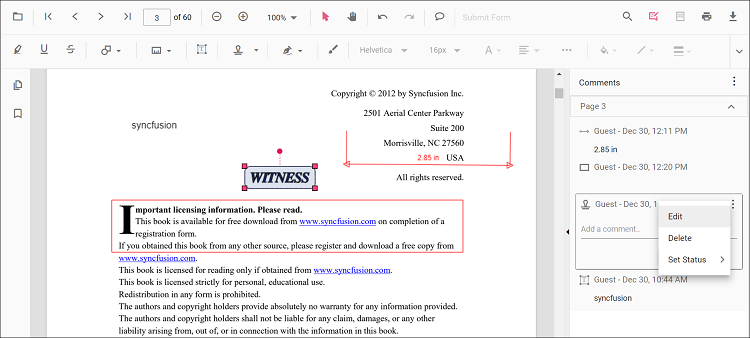
Edit comments and replies
You can edit comments in two ways:
-
Context menu
- Select the comment in the panel and click More options.
- Choose Edit to switch to an editable text box.
-
Mouse double‑click
- Double‑click the comment or reply to edit its content.
Delete comments or replies
- Select the comment in the panel.
- Click More options → Delete.
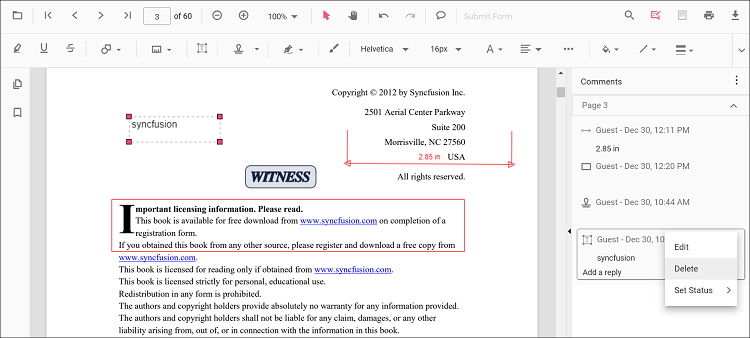
Deleting the root comment from the Comments panel also deletes the associated annotation.
Add comments to the annotation programmatically
Add comments and replies programmatically
Comments can be added to the PDF document programmatically using the editAnnotation property.
The following example shows how to add comments and reply in response to a button click.
import * as React from 'react';
import * as ReactDOM from 'react-dom/client';
import {
  PdfViewerComponent,
  Inject,
  Toolbar,
  Magnification,
  Navigation,
  Annotation,
  LinkAnnotation,
  ThumbnailView,
  BookmarkView,
  TextSelection,
  TextSearch,
  FormFields,
  FormDesigner,
  PageOrganizer
} from '@syncfusion/ej2-react-pdfviewer';

function App() {
  const addComment = () => {
    const viewer = (document.getElementById('container')?.ej2_instances || [])[0];
    if (!viewer) return;
    const annot = viewer.annotationCollection?.[0];
    if (annot) {
      annot.commentType = 'add';
      annot.note = 'New Comment';
      viewer.annotation.editAnnotation(annot);
      console.log(viewer.annotationCollection?.[0]);
    }
  };

  const addReply = () => {
    const viewer = (document.getElementById('container')?.ej2_instances || [])[0];
    if (!viewer) return;
    const annot = viewer.annotationCollection?.[0];
    if (annot) {
      annot.commentType = 'add';
      annot.replyComment = ['Reply Comment'];
      viewer.annotation.editAnnotation(annot);
      console.log(viewer.annotationCollection?.[0]);
    }
  };

  return (
    <div>
      <div style={{ display: 'flex', gap: 8, marginBottom: 12 }}>
        <button id="addComment" onClick={addComment}>Add Comments</button>
        <button id="addReply" onClick={addReply}>Add Reply</button>
      </div>
      <PdfViewerComponent
        id="container"
        documentPath="https://cdn.syncfusion.com/content/pdf/pdf-succinctly.pdf"
        resourceUrl="https://cdn.syncfusion.com/ej2/31.2.2/dist/ej2-pdfviewer-lib"
        style={{ height: '650px' }}
      >
        <Inject services={[
          Toolbar,
          Magnification,
          Navigation,
          Annotation,
          LinkAnnotation,
          ThumbnailView,
          BookmarkView,
          TextSelection,
          TextSearch,
          FormFields,
          FormDesigner,
          PageOrganizer
        ]} />
      </PdfViewerComponent>
    </div>
  );
}

ReactDOM.createRoot(document.getElementById('sample')).render(<App />);
import * as React from 'react';
import * as ReactDOM from 'react-dom/client';
import {
PdfViewerComponent,
Inject,
Toolbar,
Magnification,
Navigation,
Annotation,
LinkAnnotation,
ThumbnailView,
BookmarkView,
TextSelection,
TextSearch,
FormFields,
FormDesigner,
PageOrganizer
} from '@syncfusion/ej2-react-pdfviewer';
function App() {
const addComment = () => {
const viewer = (document.getElementById('container')?.ej2_instances || [])[0];
if (!viewer) return;
const annot = viewer.annotationCollection?.[0];
if (annot) {
annot.commentType = 'add';
annot.note = 'New Comment';
viewer.annotation.editAnnotation(annot);
console.log(viewer.annotationCollection?.[0]);
}
};
const addReply = () => {
const viewer = (document.getElementById('container')?.ej2_instances || [])[0];
if (!viewer) return;
const annot = viewer.annotationCollection?.[0];
if (annot) {
annot.commentType = 'add';
annot.replyComment = ['Reply Comment'];
viewer.annotation.editAnnotation(annot);
console.log(viewer.annotationCollection?.[0]);
}
};
return (
<div>
<div style={{ display: 'flex', gap: 8, marginBottom: 12 }}>
<button id="addComment" onClick={addComment}>Add Comments</button>
<button id="addReply" onClick={addReply}>Add Reply</button>
</div>
<PdfViewerComponent
id="container"
documentPath="https://cdn.syncfusion.com/content/pdf/pdf-succinctly.pdf"
// serviceUrl="YOUR_SERVICE_URL"
style={{ height: '650px' }}
>
<Inject services={[
Toolbar,
Magnification,
Navigation,
Annotation,
LinkAnnotation,
ThumbnailView,
BookmarkView,
TextSelection,
TextSearch,
FormFields,
FormDesigner,
PageOrganizer
]} />
</PdfViewerComponent>
</div>
);
}
ReactDOM.createRoot(document.getElementById('sample')).render(<App />);Edit comments and replies programmatically
Comments can be edited in the PDF document programmatically using the editAnnotation property.
The following example shows how to edit comments and reply in response to a button click.
import * as React from 'react';
import * as ReactDOM from 'react-dom/client';
import {
  PdfViewerComponent,
  Inject,
  Toolbar,
  Magnification,
  Navigation,
  Annotation,
  LinkAnnotation,
  ThumbnailView,
  BookmarkView,
  TextSelection,
  TextSearch,
  FormFields,
  FormDesigner,
  PageOrganizer
} from '@syncfusion/ej2-react-pdfviewer';

function App() {
  const editComment = () => {
    const viewer = (document.getElementById('container')?.ej2_instances || [])[0];
    if (!viewer) return;
    const annot = viewer.annotationCollection?.[0];
    if (annot) {
      annot.commentType = 'edit';
      annot.note = 'Edited Comment';
      viewer.annotation.editAnnotation(annot);
      console.log(viewer.annotationCollection?.[0]);
    }
  };

  const editReply = () => {
    const viewer = (document.getElementById('container')?.ej2_instances || [])[0];
    if (!viewer) return;
    const annot = viewer.annotationCollection?.[0];
    if (annot) {
      annot.commentType = 'edit';
      annot.replyComment = ['Edited Reply Comment'];
      viewer.annotation.editAnnotation(annot);
      console.log(viewer.annotationCollection?.[0]);
    }
  };

  return (
    <div>
      <div style={{ display: 'flex', gap: 8, marginBottom: 12 }}>
        <button id="editComment" onClick={editComment}>Edit Comments</button>
        <button id="editReply" onClick={editReply}>Edit Reply</button>
      </div>
      <PdfViewerComponent
        id="container"
        documentPath="https://cdn.syncfusion.com/content/pdf/pdf-succinctly.pdf"
        resourceUrl="https://cdn.syncfusion.com/ej2/31.2.2/dist/ej2-pdfviewer-lib"
        style={{ height: '650px' }}
      >
        <Inject services={[
          Toolbar,
          Magnification,
          Navigation,
          Annotation,
          LinkAnnotation,
          ThumbnailView,
          BookmarkView,
          TextSelection,
          TextSearch,
          FormFields,
          FormDesigner,
          PageOrganizer
        ]} />
      </PdfViewerComponent>
    </div>
  );
}

ReactDOM.createRoot(document.getElementById('sample')).render(<App />);
import * as React from 'react';
import * as ReactDOM from 'react-dom/client';
import {
PdfViewerComponent,
Inject,
Toolbar,
Magnification,
Navigation,
Annotation,
LinkAnnotation,
ThumbnailView,
BookmarkView,
TextSelection,
TextSearch,
FormFields,
FormDesigner,
PageOrganizer
} from '@syncfusion/ej2-react-pdfviewer';
function App() {
const editComment = () => {
const viewer = (document.getElementById('container')?.ej2_instances || [])[0];
if (!viewer) return;
const annot = viewer.annotationCollection?.[0];
if (annot) {
annot.commentType = 'edit';
annot.note = 'Edited Comment';
viewer.annotation.editAnnotation(annot);
console.log(viewer.annotationCollection?.[0]);
}
};
const editReply = () => {
const viewer = (document.getElementById('container')?.ej2_instances || [])[0];
if (!viewer) return;
const annot = viewer.annotationCollection?.[0];
if (annot) {
annot.commentType = 'edit';
annot.replyComment = ['Edited Reply Comment'];
viewer.annotation.editAnnotation(annot);
console.log(viewer.annotationCollection?.[0]);
}
};
return (
<div>
<div style={{ display: 'flex', gap: 8, marginBottom: 12 }}>
<button id="editComment" onClick={editComment}>Edit Comments</button>
<button id="editReply" onClick={editReply}>Edit Reply</button>
</div>
<PdfViewerComponent
id="container"
documentPath="https://cdn.syncfusion.com/content/pdf/pdf-succinctly.pdf"
// serviceUrl="YOUR_SERVICE_URL"
style={{ height: '650px' }}
>
<Inject services={[
Toolbar,
Magnification,
Navigation,
Annotation,
LinkAnnotation,
ThumbnailView,
BookmarkView,
TextSelection,
TextSearch,
FormFields,
FormDesigner,
PageOrganizer
]} />
</PdfViewerComponent>
</div>
);
}
ReactDOM.createRoot(document.getElementById('sample')).render(<App />);Read comments added by users
Comments added to the PDF document can be read using the annotation’s comments property.
The following example logs comments in response to a button click.
import * as React from 'react';
import * as ReactDOM from 'react-dom/client';
import {
  PdfViewerComponent,
  Inject,
  Toolbar,
  Magnification,
  Navigation,
  Annotation,
  LinkAnnotation,
  ThumbnailView,
  BookmarkView,
  TextSelection,
  TextSearch,
  FormFields,
  FormDesigner,
  PageOrganizer
} from '@syncfusion/ej2-react-pdfviewer';

function App() {
  const checkComments = () => {
    const viewer = (document.getElementById('container')?.ej2_instances || [])[0];
    if (!viewer) return;

    const annotationCollections = viewer.annotationCollection || [];
    for (let x = 0; x < annotationCollections.length; x++) {
      console.log('annotation Id : ' + annotationCollections[x].annotationId);
      const comments = annotationCollections[x].comments || [];
      for (let y = 0; y < comments.length; y++) {
        const comment = comments[y];
        console.log('comment[' + y + '] : ' + comment.note);
      }
      const note = annotationCollections[x].note;
      console.log('note : ' + note);
    }
  };

  return (
    <div>
      <div style={{ marginBottom: 12 }}>
        <button id="checkComments" onClick={checkComments}>Check the Comments</button>
      </div>
      <PdfViewerComponent
        id="container"
        documentPath="https://cdn.syncfusion.com/content/pdf/pdf-succinctly.pdf"
        resourceUrl="https://cdn.syncfusion.com/ej2/31.2.2/dist/ej2-pdfviewer-lib"
        style={{ height: '650px' }}
      >
        <Inject services={[
          Toolbar,
          Magnification,
          Navigation,
          Annotation,
          LinkAnnotation,
          ThumbnailView,
          BookmarkView,
          TextSelection,
          TextSearch,
          FormFields,
          FormDesigner,
          PageOrganizer
        ]} />
      </PdfViewerComponent>
    </div>
  );
}

ReactDOM.createRoot(document.getElementById('sample')).render(<App />);
Annotation and Review Workflow Patterns
The PDF Viewer supports review workflows by combining annotations, comments, and threaded replies. These capabilities help reviewers mark content, discuss changes, and navigate feedback efficiently during document review cycles.
Understanding Review Workflows
Annotations act as visual markers during review—such as highlights, shapes, stamps, or sticky notes, while comments provide a communication space attached to each annotation. Multiple reviewers can participate in these annotation threads, making the review process more organized and traceable.
During a review cycle, users typically:
- Add annotations to indicate a change, highlight text, or mark an issue.
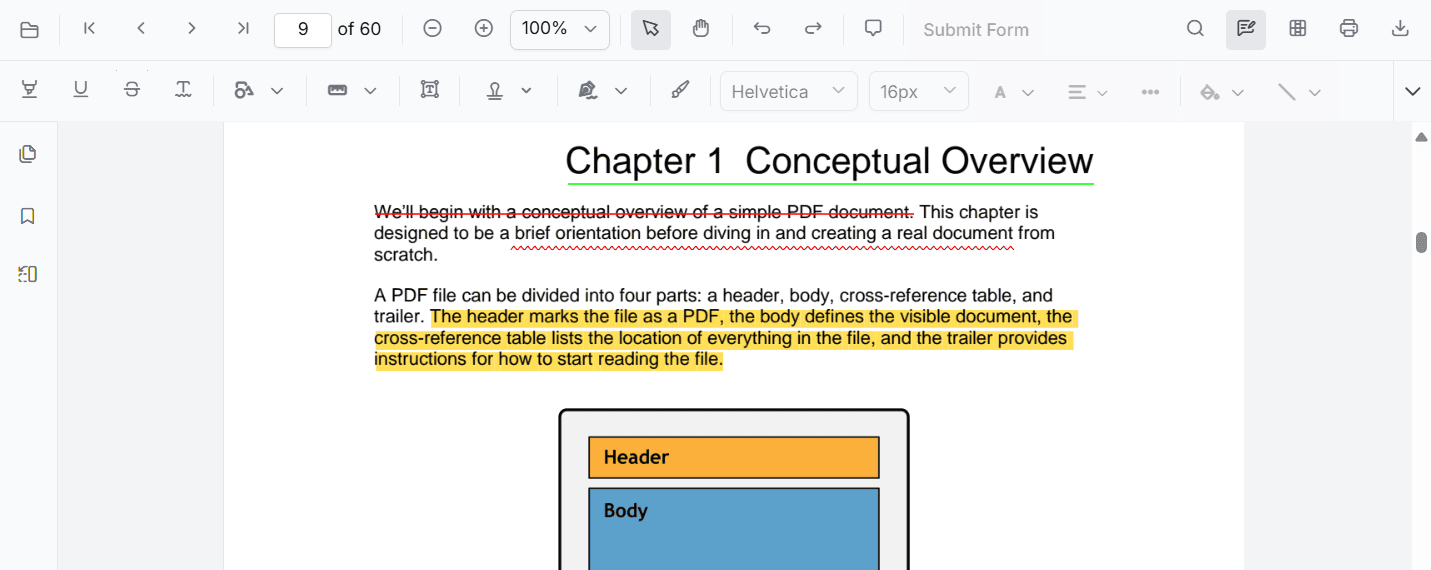
- Use comments to explain the purpose of the annotation.
- Reply to comments to maintain a review discussion thread.
- Navigate between comments and related annotations for clarity.
- Finalize review by addressing or resolving each thread.
Using Comments in Review Workflows
Comments are a key part of review workflows. They allow reviewers to communicate directly on annotations without altering the underlying PDF content.
Key behaviors in review workflows:
- Comments allow multiple reviewers to discuss changes directly on annotations.
- Replies help maintain a threaded discussion during review.
- Selecting a comment highlights the related annotation, improving navigation.
- Comments can be combined with Sticky Notes, Highlights, Shapes, Stamps, and other annotation types.
Why Review Workflow Patterns Matter
Review workflows help teams:
- Centralize feedback inside the PDF document itself.
- Maintain a clear discussion history on each annotation.
- Avoid duplicated or conflicting feedback.
- Navigate long documents quickly using comment threads.
- Improve clarity when multiple reviewers participate.
These review patterns are especially useful in content editing, design review, legal documentation, product validation, and quality control workflows.