Annotations in Mobile View in React PDF Viewer
14 Aug 20262 minutes to read
This article describes how to use annotation tools in the React PDF Viewer on touch-enabled devices. It covers enabling the annotation toolbar; adding sticky notes, text markups, shapes, measurements, stamps, signatures, and ink; adjusting annotation properties before and after placement; using comments; and removing annotations.
Open the annotation toolbar
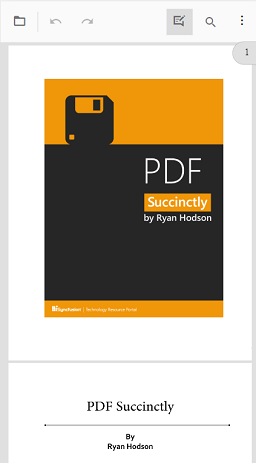
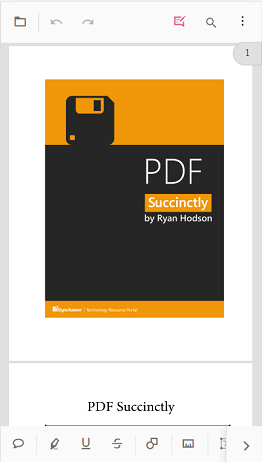
Step 1: Select the Edit Annotation icon on the main toolbar to enable the annotation toolbar.
Step 2: The annotation toolbar appears below the main toolbar and displays tools optimized for touch interaction.
Add sticky note annotations
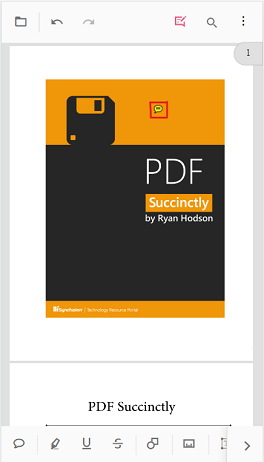
Step 1: Select the Sticky Notes icon to activate the sticky note tool, then tap the desired location on the page to place a note.
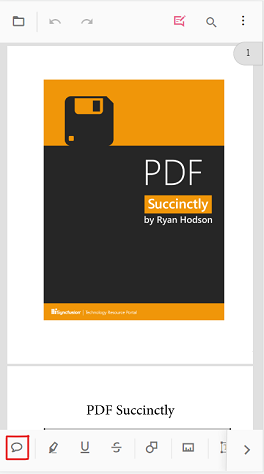
Step 2: A sticky note annotation is added at the selected location; opening the note allows viewing or editing its content.
Add text markup annotations
Step 1: Select a text markup icon, highlight the desired text, then confirm the selection to apply the markup.
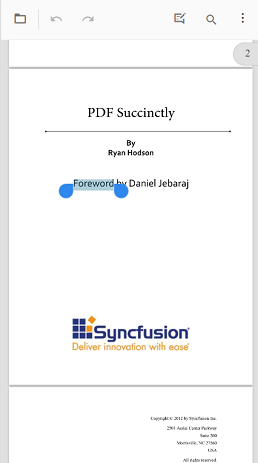
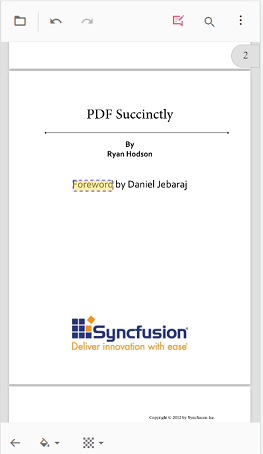
Step 2: The text markup annotation is applied to the highlighted text.
Add shape and measurement annotations
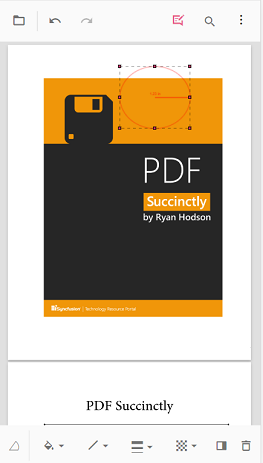
Step 1: Select the Shape or Measure icon to open the corresponding toolbar.
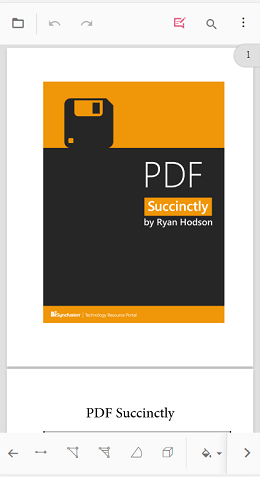
Step 2: Choose a shape or measurement type and draw it on the page.
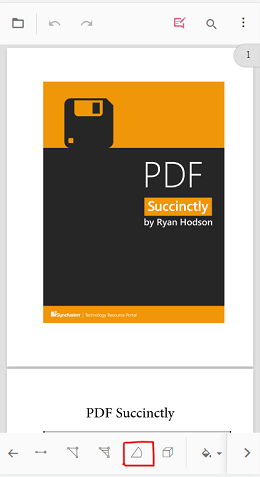
Step 3: The annotation is rendered on the PDF page.
Add stamp annotations
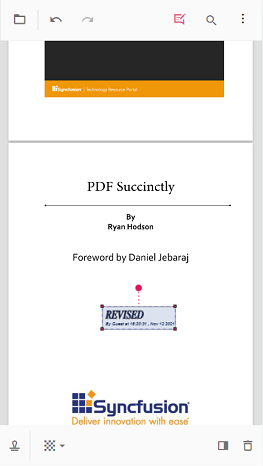
Step 1: Select the Stamp icon and choose a stamp type from the menu.
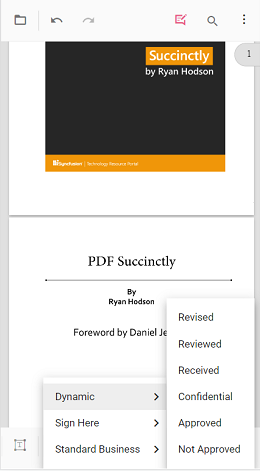
Step 2: Tap the page to place the chosen stamp annotation.
Add signature annotations
Step 1: Select the Signature icon to open the signature canvas. Draw the signature, choose Create, then tap the viewer to place it.
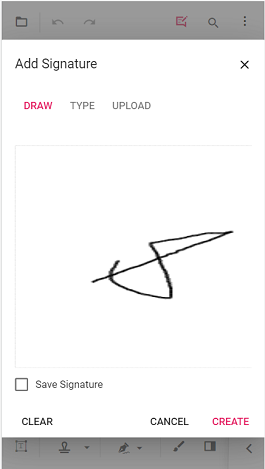
Step 2: The signature annotation is added to the page.
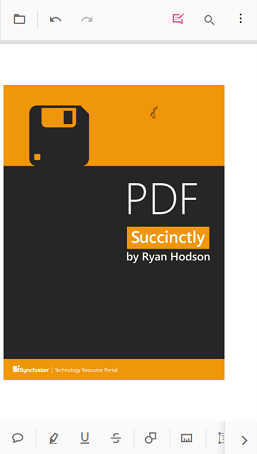
Add ink annotations
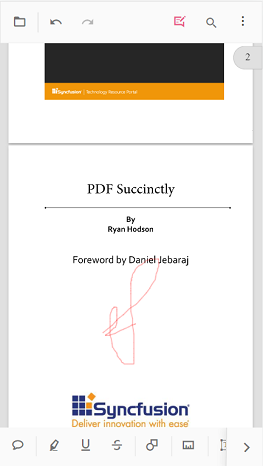
Step 1: Select the Ink tool and draw directly on the page.
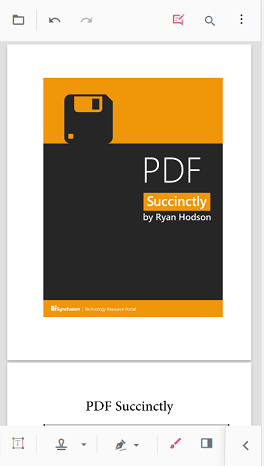
Step 2: The ink annotation is rendered on the page.
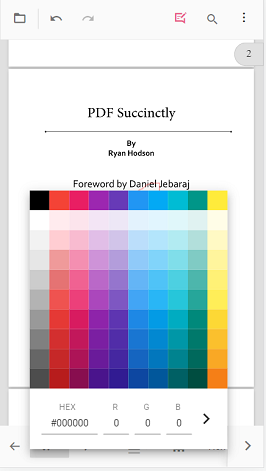
Change annotation properties (before adding)
Step 1: Adjust annotation properties before placement as required.
Step 2: Open the property toolbar for the annotation icon, set the desired properties, and then place the annotation on the page.
Change annotation properties (after adding)
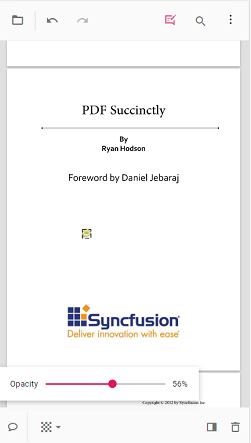
Step 1: Modify annotation properties after placement when necessary.
Step 2: Select the annotation to display the property toolbar, then update the properties as needed.
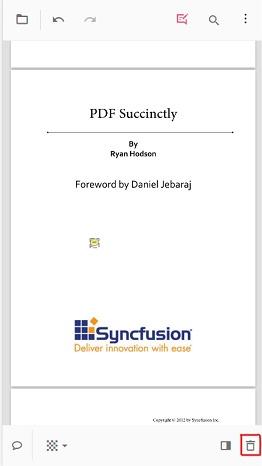
Delete annotations
Step 1: Select the annotation to display the property toolbar, then choose the Delete icon to remove the annotation.
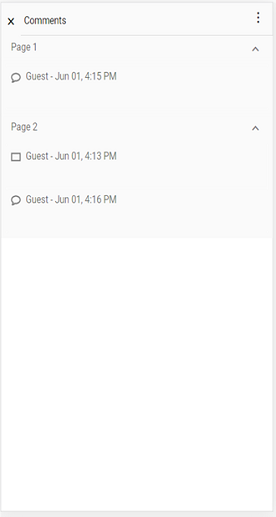
Open the comment panel
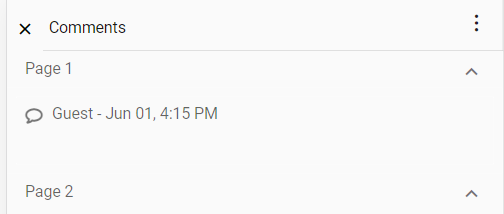
Step 1: Open the comment panel from the property toolbar or the annotation toolbar.
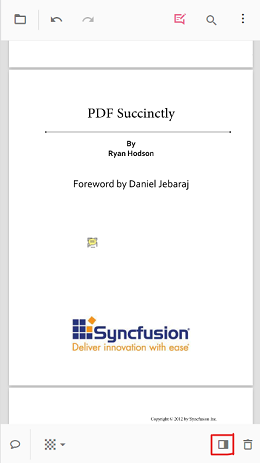
Step 2: The comment panel is displayed.
Close the comment panel
Step 1: Use the Close button to dismiss the comment panel.