Programmatic Support for Organize Pages in JavaScript (ES6) PDF Viewer
14 Aug 20268 minutes to read
The Syncfusion JavaScript (ES6) PdfViewer control provides APIs to add, update, delete, and apply redaction annotations programmatically. You can also redact entire pages, configure default properties, and work with the redaction property panel.
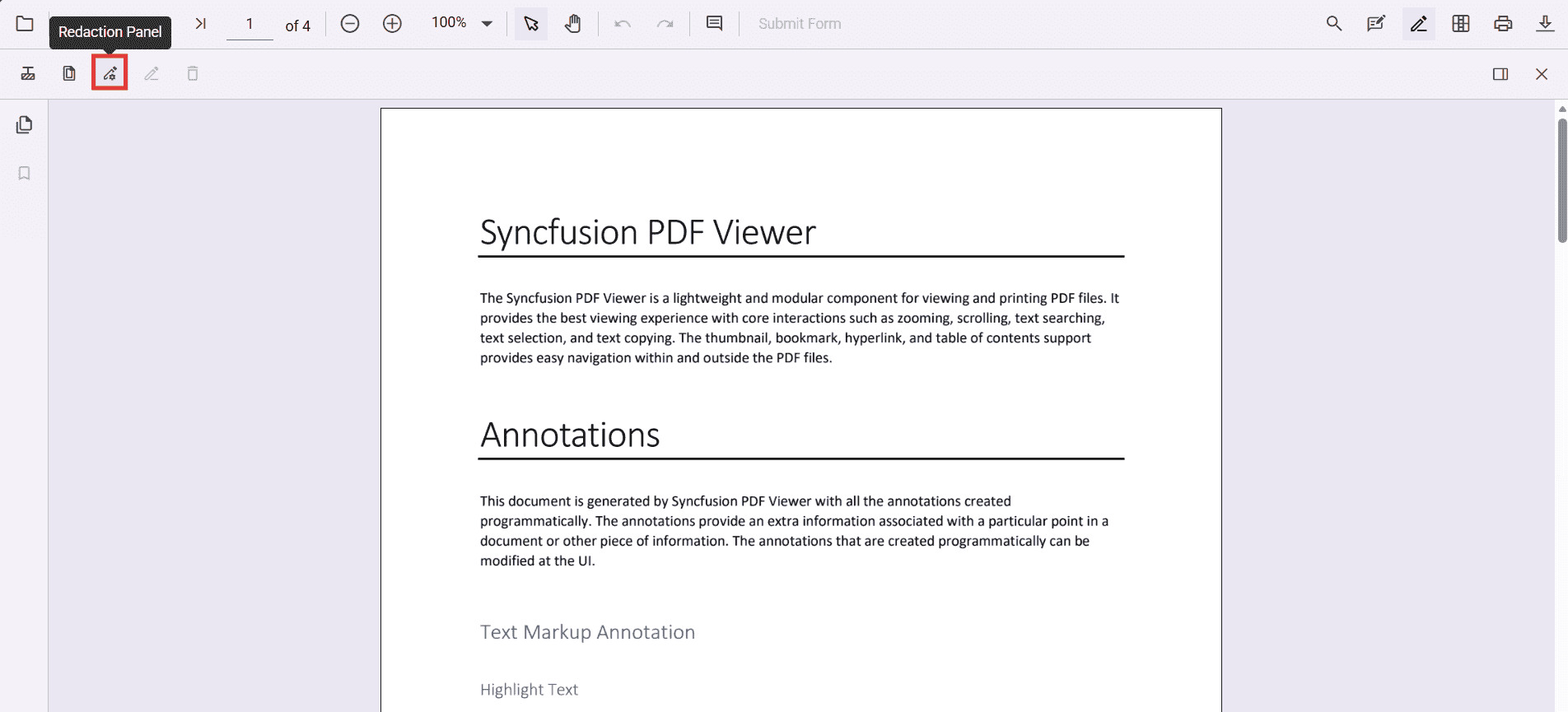
Enable the redaction toolbar
To enable the redaction toolbar, configure the toolbarSettings.toolbarItems property of the PdfViewer instance to include the RedactionEditTool.
The following example shows how to enable the redaction toolbar:
import { PdfViewer, Toolbar, Magnification, Navigation, LinkAnnotation, ThumbnailView, BookmarkView, TextSelection, TextSearch, Print, Annotation, FormFields, FormDesigner } from '@syncfusion/ej2-pdfviewer';

PdfViewer.Inject(Toolbar, Magnification, Navigation, LinkAnnotation, ThumbnailView, BookmarkView, TextSelection, TextSearch, Print, Annotation, FormFields, FormDesigner);

let viewer: PdfViewer = new PdfViewer({
    documentPath: 'https://cdn.syncfusion.com/content/pdf/pdf-succinctly.pdf',
    resourceUrl: "https://cdn.syncfusion.com/ej2/31.2.2/dist/ej2-pdfviewer-lib",
    toolbarSettings: {
        toolbarItems: [
            'OpenOption',
            'UndoRedoTool',
            'PageNavigationTool',
            'MagnificationTool',
            'PanTool',
            'SelectionTool',
            'CommentTool',
            'SubmitForm',
            'AnnotationEditTool',
            'RedactionEditTool',   // Enables Redaction toolbar
            'FormDesignerEditTool',
            'SearchOption',
            'PrintOption',
            'DownloadOption'
        ]
    }
});

viewer.appendTo('#pdfViewer');
Add redaction annotations programmatically
You can add redaction annotations to a PDF document using the addAnnotation method of the annotation module.
<button id="addRedactAnnot">Add Redaction Annotation</button>document.getElementById('addRedactAnnot').addEventListener('click', () => {
viewer.annotation.addAnnotation("Redaction", {
bound: { x: 200, y: 480, width: 150, height: 75 },
pageNumber: 1,
markerFillColor: '#0000FF',
markerBorderColor: 'white',
fillColor: 'red',
overlayText: 'Confidential',
fontColor: 'yellow',
fontFamily: 'Times New Roman',
fontSize: 8,
beforeRedactionsApplied: false
});
});You can listen to the annotationAdd event to track when annotations are added:
viewer.annotationAdd = (args) => {
    console.log('Annotation added:', args);
};
Delete redaction annotations programmatically
Redaction annotations can be removed using the deleteAnnotationById method or by selecting and deleting them through code.
<button id="deleteAnnotationbyId">Delete Annotation By Id</button>// Delete annotation by id
document.getElementById('deleteAnnotationbyId').addEventListener('click', () => {
viewer.annotationModule.deleteAnnotationById(
viewer.annotationCollection[0].annotationId
);
});Alternatively, you can remove annotations by selecting them in the UI and pressing the Delete key.
Update redaction annotation properties programmatically
You can update properties of an existing redaction annotation using the editAnnotation API. For example, to change overlay text or fill color:
<button id="editRedactAnnotation">Edit Redact Annotation</button>let editRedactAnnotation = document.getElementById('editRedactAnnotation');
if (editRedactAnnotation) {
editRedactAnnotation.addEventListener('click', function () {
if (viewer) {
for (let i = 0; i < viewer.annotationCollection.length; i++) {
if (viewer.annotationCollection[i].subject === "Redaction") {
viewer.annotationCollection[i].overlayText= 'EditedAnnotation',
viewer.annotationCollection[i].markerFillColor= '#22FF00',
viewer.annotationCollection[i].markerBorderColor= '#000000',
viewer.annotationCollection[i].isRepeat= true,
viewer.annotationCollection[i].fillColor= '#F8F8F8',
viewer.annotationCollection[i].fontColor= '#333333',
viewer.annotationCollection[i].fontSize= 14,
viewer.annotationCollection[i].fontFamily= 'Symbol',
viewer.annotationCollection[i].textAlign= 'Right',
viewer.annotationCollection[i].beforeRedactionsApplied= false
viewer.annotation.editAnnotation(viewer.annotationCollection[i]);
}
}
}
});
}Add page redactions programmatically
Entire pages can be marked for redaction using the addPageRedactions method:
<button id="addPageRedactions">Add Page Redaction</button>document.getElementById('addPageRedactions').addEventListener('click', () => {
viewer.annotation.addPageRedactions([1, 3, 5, 7]); // Redacts pages 1, 3, 5, and 7
});Apply redaction programmatically
Once annotations are added, you can permanently apply them to the document using the redact method:
<button id="redact">Apply Redaction</button>document.getElementById('redact').addEventListener('click', () => {
viewer.annotation.redact();
});Applying redaction is irreversible. Before calling
redact(), save or export a backup copy of the document; the original content cannot be recovered.
Configure default redaction annotation properties
You can configure default properties for redaction annotations (such as fill color, overlay text, and font) when adding them programmatically:
viewer.redactionSettings= {
        overlayText: 'Confidential',
        markerFillColor: '#FF0000',
        markerBorderColor: '#000000',
        isRepeat: false,
        fillColor: '#F8F8F8',
        fontColor: '#333333',
        fontSize: 14,
        fontFamily: 'Symbol',
        textAlign: 'Right'
};Redaction property panel
The redaction property panel allows users to update annotation properties through the UI. Programmatically, you can invoke the property panel by selecting an annotation and calling the relevant APIs. Properties such as overlay text, font style, and fill color can be updated directly in the panel.