Style form fields in TypeScript PDF Viewer
9 Jan 202619 minutes to read
The PDF Viewer component allows users to style and customize the appearance of PDF form fields using the Form Designer UI and programmatically. User can also set the default settings applied when fields are added from the Form Designer toolbar.
Supported field types:
Textbox
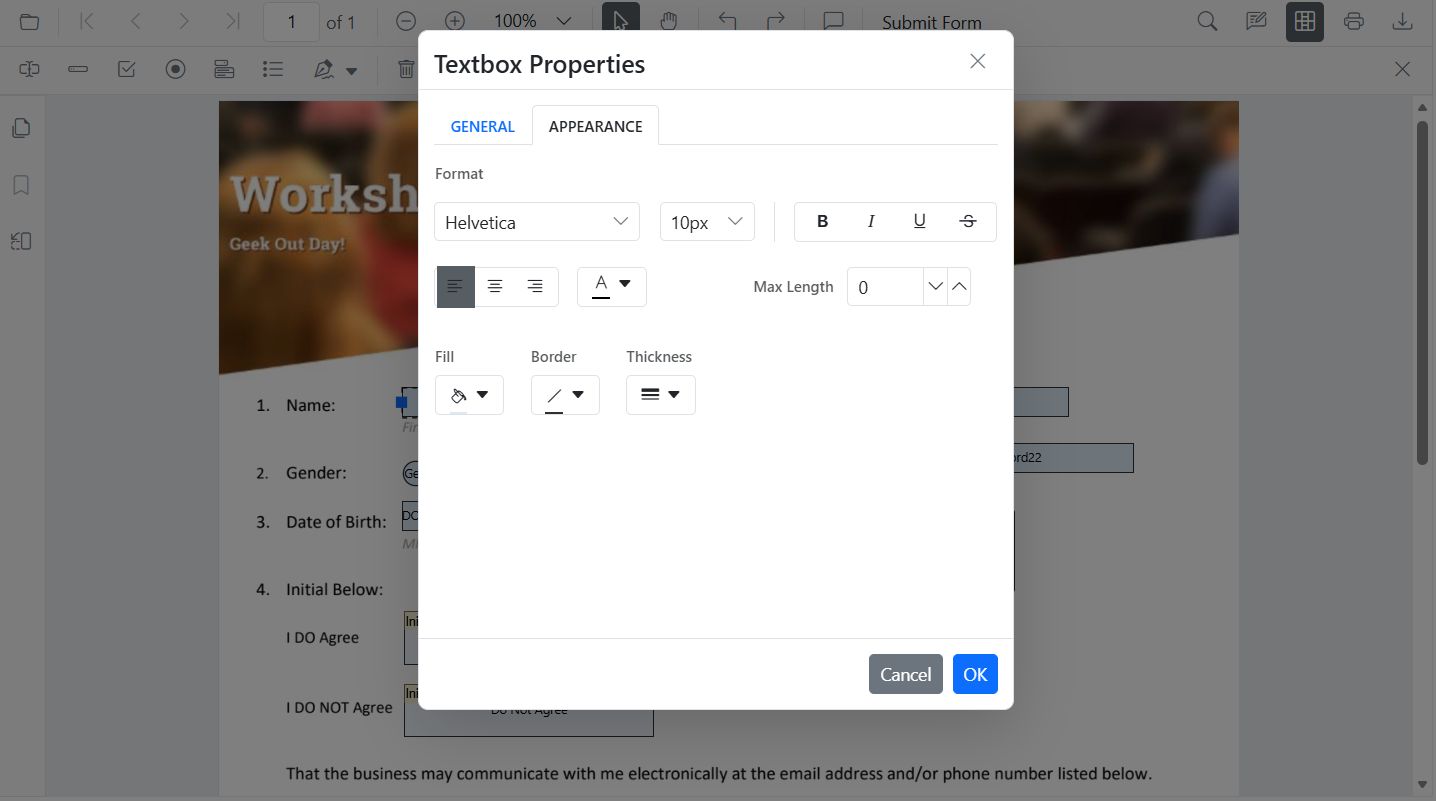
Style Textbox
Use the Properties panel to adjust the value, font family/size/style, text color, border and background colors, border thickness, text alignment, and maximum length.
Style Textbox programmatically
Use updateFormField to modify a textbox’s appearance and behavior on a button click. The example below finds the field by name (or falls back to the first field) and updates value, typography, colors, alignment, and border thickness.
<button id="updateTextboxStyle">Update Textbox Style</button>import { PdfViewer, Toolbar, Magnification, Navigation, Annotation, LinkAnnotation, ThumbnailView, BookmarkView, TextSelection, TextSearch, FormFields, FormDesigner, FontStyle, TextFieldSettings } from '@syncfusion/ej2-pdfviewer';
PdfViewer.Inject(Toolbar, Magnification, Navigation, Annotation, LinkAnnotation, ThumbnailView, BookmarkView, TextSelection, TextSearch, FormFields, FormDesigner);
const pdfviewer: PdfViewer = new PdfViewer();
pdfviewer.documentPath = 'https://cdn.syncfusion.com/content/pdf/form-designer.pdf';
pdfviewer.resourceUrl = 'https://cdn.syncfusion.com/ej2/31.1.23/dist/ej2-pdfviewer-lib';
pdfviewer.appendTo('#PdfViewer');
// Update textbox styling on button click
(document.getElementById('updateTextboxStyle') as HTMLButtonElement)?.addEventListener('click', () => {
// Retrieve form fields collection
const fields = pdfviewer.retrieveFormFields();
// Find the textbox field by name
const tb = fields.find((f: any) => f.name === 'First Name') || fields[0];
if (tb) {
// Update textbox field styling
pdfviewer.formDesignerModule.updateFormField(tb, {
value: 'John',
fontFamily: 'Courier',
fontSize: 12,
fontStyle: FontStyle.None,
color: 'black',
borderColor: 'black',
backgroundColor: 'white',
alignment: 'Left',
thickness: 2
} as TextFieldSettings);
}
});Default Textbox settings
The PDF Viewer exposes a default settings APIs for form fields. Use the TextFieldSettings to pre configure TextBox properties applied when adding fields from the Form Designer toolbar.
// Apply as defaults for Textbox added from toolbar
pdfviewer.textFieldSettings = {
  name: 'Textbox',
  isReadOnly: false,
  visibility: 'visible',
  isRequired: false,
  isPrint: true,
  tooltip: 'Textbox',
  thickness: 4,
  value: 'Textbox',
  fontFamily: 'Courier',
  fontSize: 10,
  fontStyle: 'None',
  color: 'black',
  borderColor: 'black',
  backgroundColor: 'White',
  alignment: 'Left',
  maxLength: 0,
  isMultiline: false
};
Password
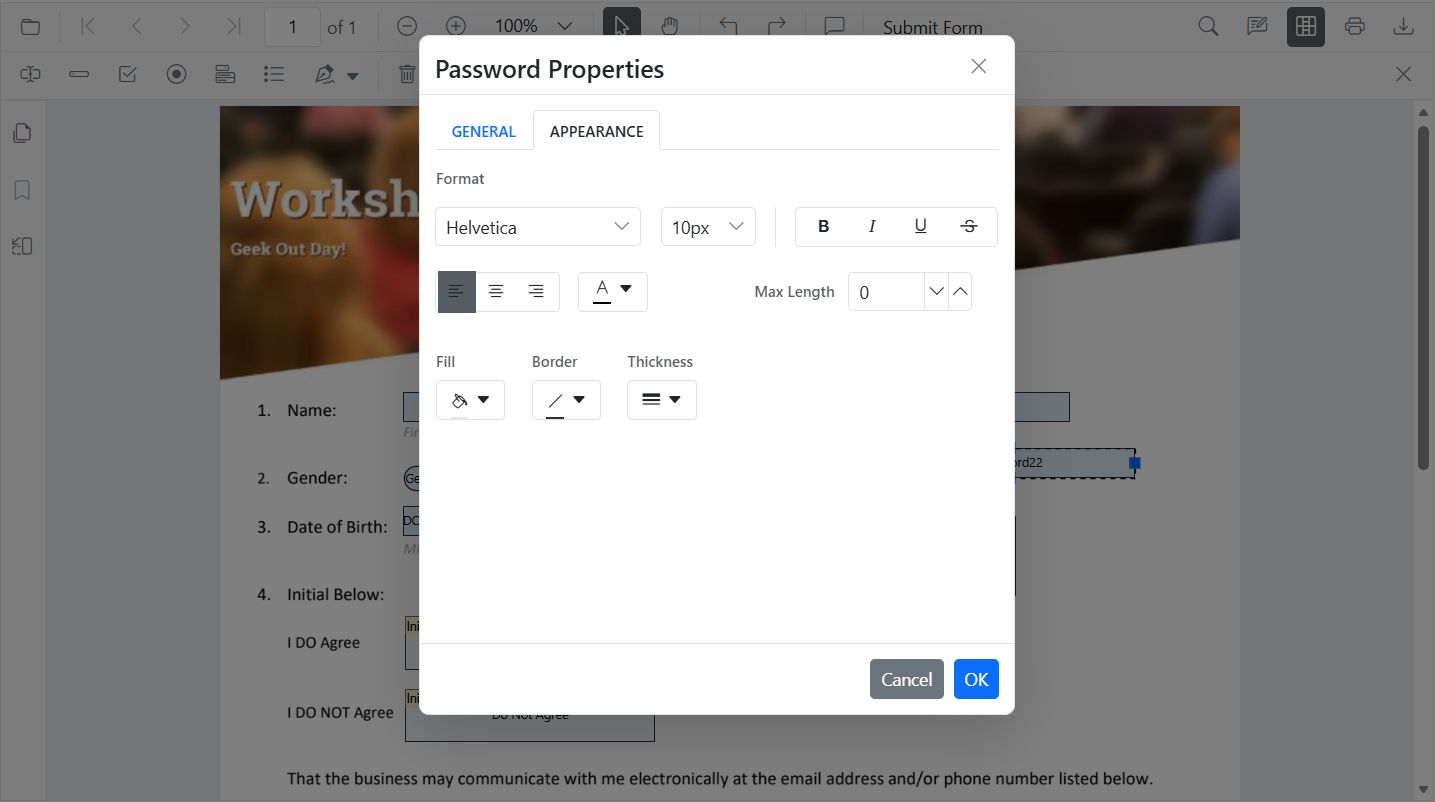
Style Password
Use the Properties panel to configure the tooltip, font family and size, masked text color, border and background colors, text alignment, maximum length, and border thickness.
Style Password programmatically
import { PdfViewer, Toolbar, Magnification, Navigation, Annotation, LinkAnnotation, ThumbnailView, BookmarkView, TextSelection, TextSearch, FormFields, FormDesigner, PasswordFieldSettings } from '@syncfusion/ej2-pdfviewer';

PdfViewer.Inject(Toolbar, Magnification, Navigation, Annotation, LinkAnnotation, ThumbnailView, BookmarkView, TextSelection, TextSearch, FormFields, FormDesigner);

const pdfviewer: PdfViewer = new PdfViewer();
pdfviewer.documentPath = 'https://cdn.syncfusion.com/content/pdf/form-designer.pdf';
pdfviewer.resourceUrl = 'https://cdn.syncfusion.com/ej2/31.1.23/dist/ej2-pdfviewer-lib';
pdfviewer.appendTo('#PdfViewer');

// Retrieve form fields collection and find the password field by name
const pw = pdfviewer.formFieldCollections.find((f: any) => f.name === 'Password');
if (pw) {
  // Update password field styling
  pdfviewer.formDesignerModule.updateFormField(pw, {
    tooltip: 'Enter password',
    fontFamily: 'Courier',
    fontSize: 10,
    color: 'black',
    borderColor: 'black',
    backgroundColor: 'white',
    alignment: 'Left',
    maxLength: 20,
    thickness: 1
  } as PasswordFieldSettings);
}
Default Password settings
The PDF Viewer exposes default settings APIs for form fields. Use the PasswordFieldSettings to pre configure Password properties applied when adding fields from the Form Designer toolbar.
pdfviewer.passwordFieldSettings = {
  name: 'Password',
  isReadOnly: false,
  visibility: 'visible',
  isRequired: false,
  isPrint: true,
  tooltip: 'Password',
  thickness: 4,
  value: 'Password',
  fontFamily: 'Courier',
  fontSize: 10,
  fontStyle: 'None',
  color: 'black',
  borderColor: 'black',
  backgroundColor: 'white',
  alignment: 'Left',
  maxLength: 0
};
CheckBox
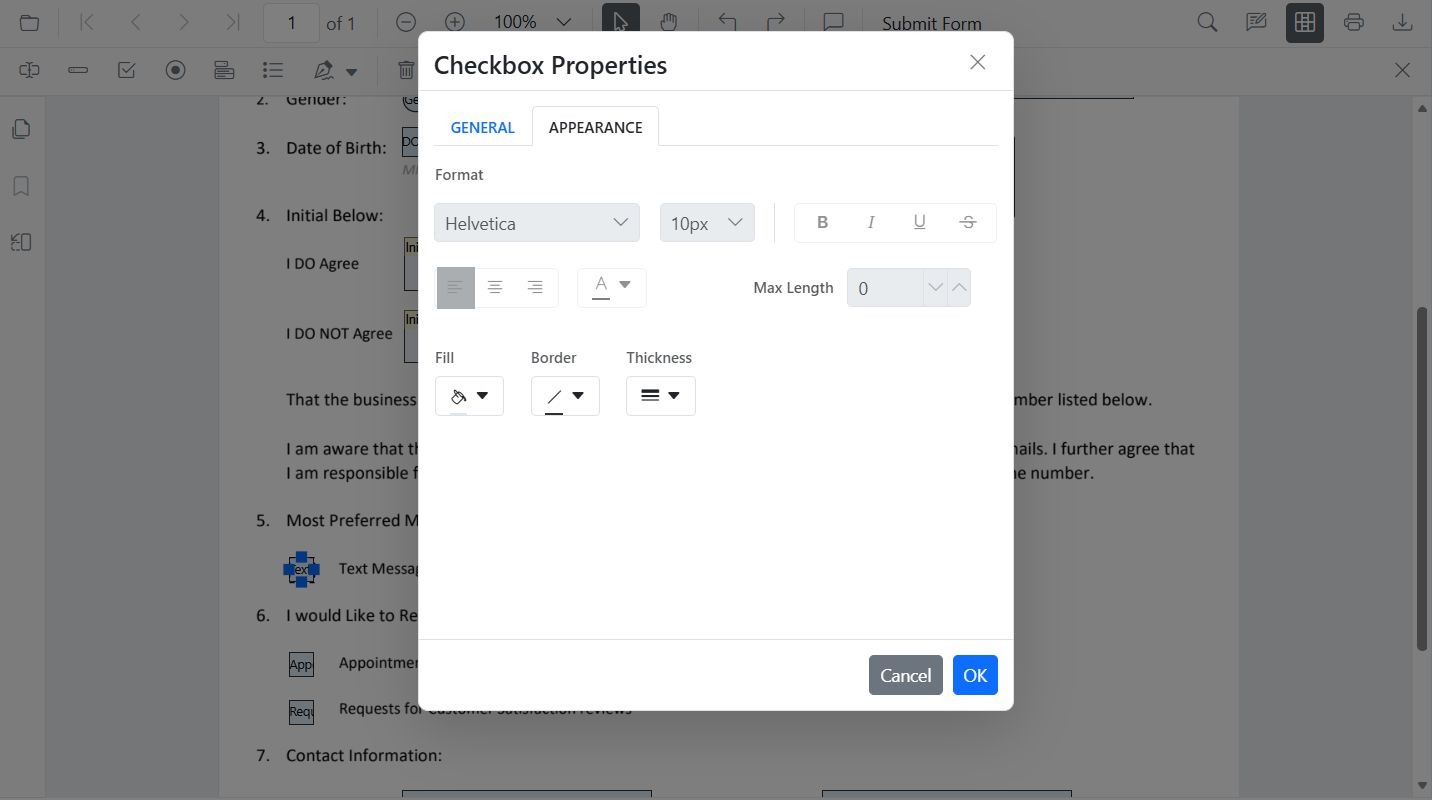
Style CheckBox
Use the Properties panel to toggle the checked state and customize border and background colors, and border thickness.
Style CheckBox programmatically
import { PdfViewer, Toolbar, Magnification, Navigation, Annotation, LinkAnnotation, ThumbnailView, BookmarkView, TextSelection, TextSearch, FormFields, FormDesigner, CheckBoxFieldSettings } from '@syncfusion/ej2-pdfviewer';

PdfViewer.Inject(Toolbar, Magnification, Navigation, Annotation, LinkAnnotation, ThumbnailView, BookmarkView, TextSelection, TextSearch, FormFields, FormDesigner);

const pdfviewer: PdfViewer = new PdfViewer();
pdfviewer.documentPath = 'https://cdn.syncfusion.com/content/pdf/form-designer.pdf';
pdfviewer.resourceUrl = 'https://cdn.syncfusion.com/ej2/31.1.23/dist/ej2-pdfviewer-lib';
pdfviewer.appendTo('#PdfViewer');

// Retrieve form fields collection and find the checkbox field by name
const cb = pdfviewer.formFieldCollections.find((f: any) => f.name === 'Subscribe');
if (cb) {
  // Update checkbox field styling
  pdfviewer.formDesignerModule.updateFormField(cb, {
    isChecked: true,
    backgroundColor: 'white',
    borderColor: 'black',
    thickness: 2,
    tooltip: 'Subscribe'
  } as CheckBoxFieldSettings);
}
Default CheckBox settings
The PDF Viewer exposes default settings APIs for form fields. Use the CheckBoxFieldSettings to pre configure CheckBox properties applied when adding fields from the Form Designer toolbar.
pdfviewer.checkBoxFieldSettings = {
  name: 'CheckBox',
  isReadOnly: false,
  visibility: 'visible',
  isRequired: false,
  isPrint: true,
  tooltip: 'CheckBox',
  thickness: 4,
  isChecked: true,
  backgroundColor: 'white',
  borderColor: 'black'
};
RadioButton
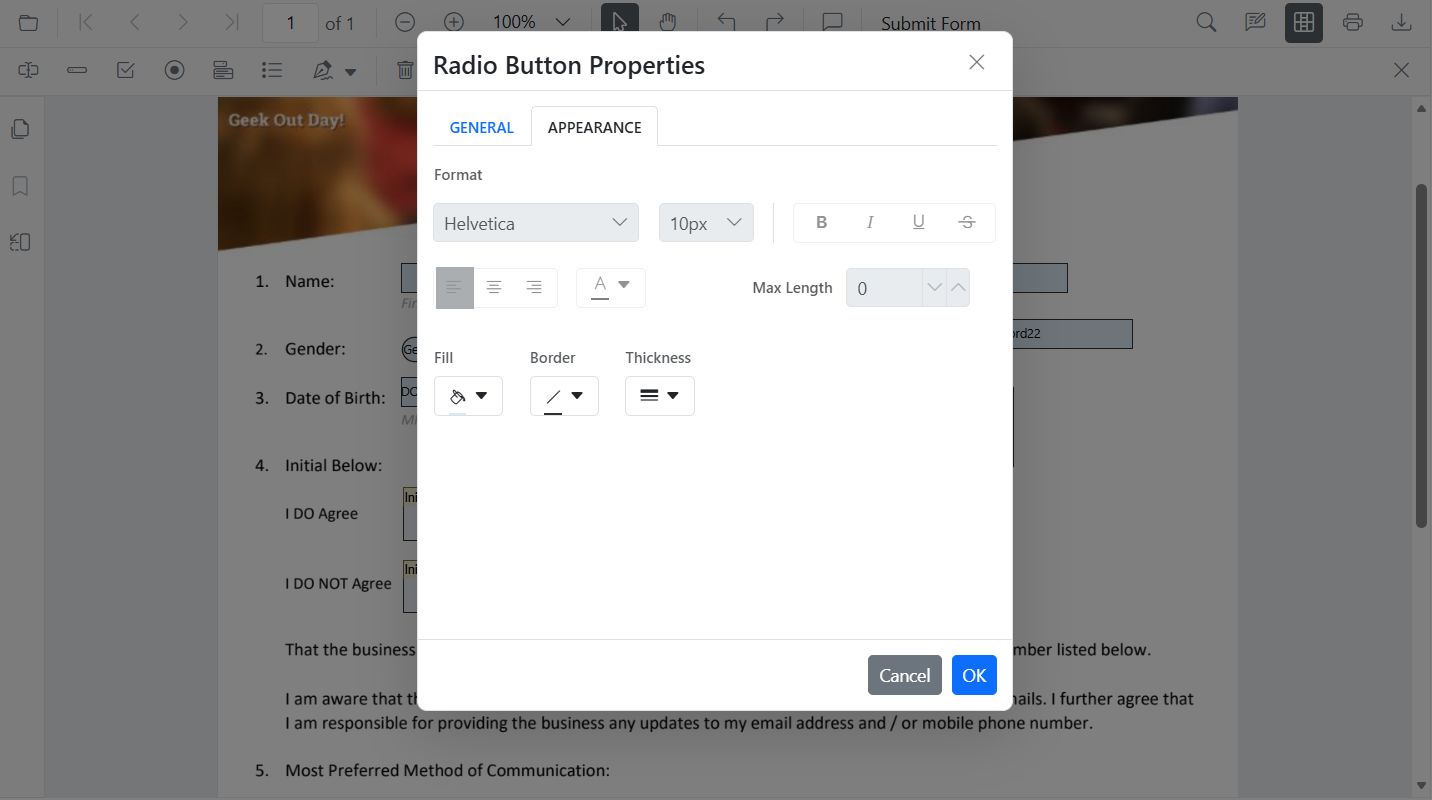
Style RadioButton
Use the Properties panel to set the selected state, border and background colors, and border thickness. Radio buttons with the same name are grouped automatically.
Style RadioButton programmatically
import { PdfViewer, Toolbar, Magnification, Navigation, Annotation, LinkAnnotation, ThumbnailView, BookmarkView, TextSelection, TextSearch, FormFields, FormDesigner, RadioButtonFieldSettings } from '@syncfusion/ej2-pdfviewer';

PdfViewer.Inject(Toolbar, Magnification, Navigation, Annotation, LinkAnnotation, ThumbnailView, BookmarkView, TextSelection, TextSearch, FormFields, FormDesigner);

const pdfviewer: PdfViewer = new PdfViewer();
pdfviewer.documentPath = 'https://cdn.syncfusion.com/content/pdf/form-designer.pdf';
pdfviewer.resourceUrl = 'https://cdn.syncfusion.com/ej2/31.1.23/dist/ej2-pdfviewer-lib';
pdfviewer.appendTo('#PdfViewer');

// Retrieve all radio buttons by group name
const radios = pdfviewer.formFieldCollections.filter((f: any) => f.name === 'Gender');
if (radios.length > 1) {
  // Deselect first option
  pdfviewer.formDesignerModule.updateFormField(radios[0], { isSelected: false } as RadioButtonFieldSettings);
  // Select second option and style
  pdfviewer.formDesignerModule.updateFormField(radios[1], { isSelected: true, thickness: 2, borderColor: 'black' } as RadioButtonFieldSettings);
}
Default RadioButton settings
The PDF Viewer exposes default settings APIs for form fields. Use the RadioButtonFieldSettings to pre configure RadioButton properties applied when adding fields from the Form Designer toolbar.
pdfviewer.radioButtonFieldSettings = {
  name: 'RadioButton',
  isReadOnly: false,
  visibility: 'visible',
  isRequired: false,
  isPrint: true,
  tooltip: 'RadioButton',
  thickness: 4,
  isSelected: true,
  backgroundColor: 'white',
  borderColor: 'black',
  value: 'RadioButton'
};
ListBox
Style ListBox
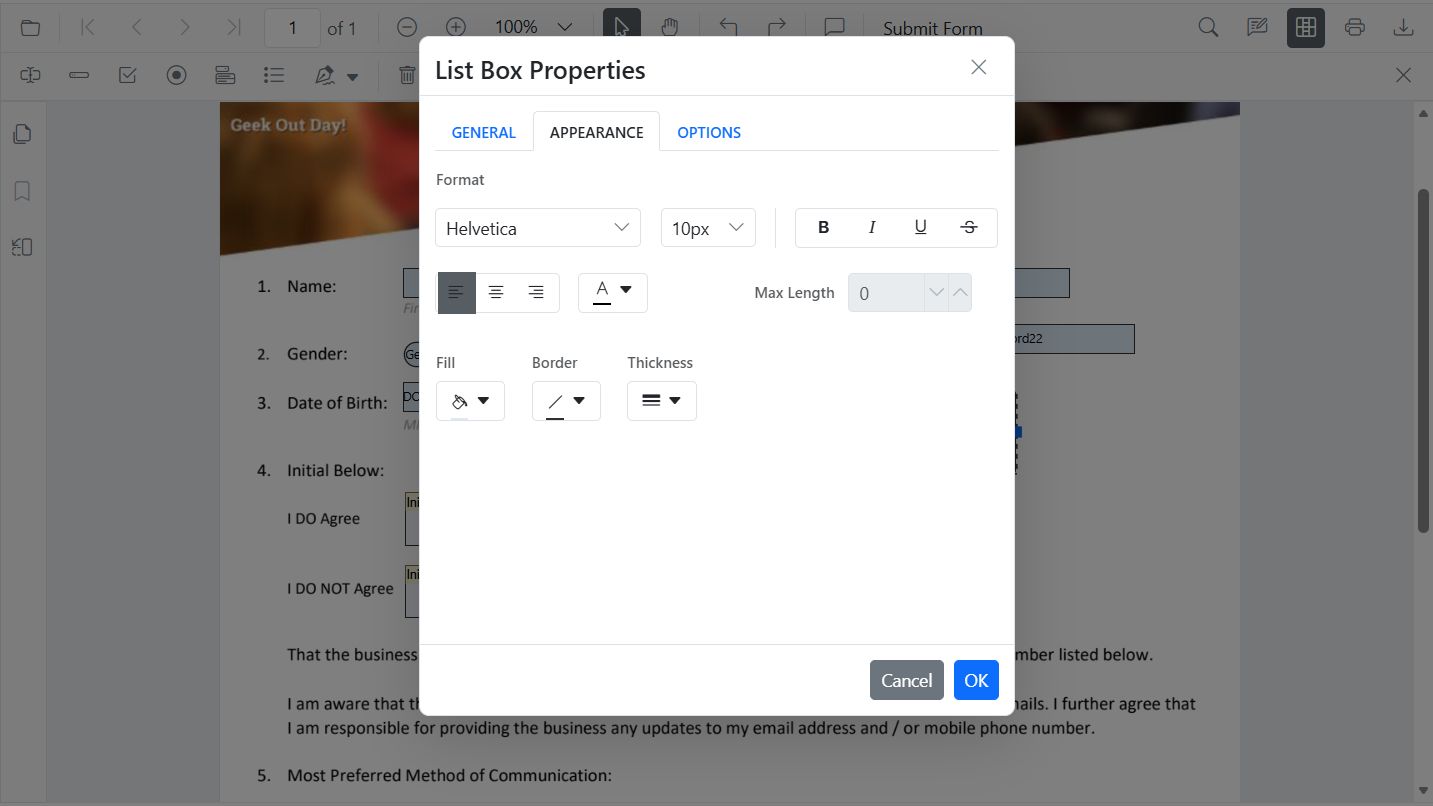
Use the Properties panel to add or remove items, set the selected value, and adjust typography and colors.
Style ListBox programmatically
import { PdfViewer, Toolbar, Magnification, Navigation, Annotation, LinkAnnotation, ThumbnailView, BookmarkView, TextSelection, TextSearch, FormFields, FormDesigner, TextFieldSettings } from '@syncfusion/ej2-pdfviewer';

PdfViewer.Inject(Toolbar, Magnification, Navigation, Annotation, LinkAnnotation, ThumbnailView, BookmarkView, TextSelection, TextSearch, FormFields, FormDesigner);

const pdfviewer: PdfViewer = new PdfViewer();
pdfviewer.documentPath = 'https://cdn.syncfusion.com/content/pdf/form-designer.pdf';
pdfviewer.resourceUrl = 'https://cdn.syncfusion.com/ej2/31.1.23/dist/ej2-pdfviewer-lib';
pdfviewer.appendTo('#PdfViewer');

// Retrieve form fields collection and find the list box field by name
const lb = pdfviewer.formFieldCollections.find((f: any) => f.name === 'States');
if (lb) {
  // Update list box items, value, and styling
  pdfviewer.formDesignerModule.updateFormField(lb, {
    options: [
      { itemName: 'Item 1', itemValue: 'item1' },
      { itemName: 'Item 2', itemValue: 'item2' },
      { itemName: 'Item 3', itemValue: 'item3' }
    ],
    value: 'item2',
    fontFamily: 'Courier',
    fontSize: 10,
    color: 'black',
    borderColor: 'black',
    backgroundColor: 'white'
  } as unknown as TextFieldSettings);
}
Default ListBox settings
The PDF Viewer exposes default settings APIs for form fields. Use the listBoxFieldSettings to pre configure ListBox properties applied when adding fields from the Form Designer toolbar.
const customOptions = [
  { itemName: 'item1', itemValue: 'item1' },
  { itemName: 'item2', itemValue: 'item2' },
  { itemName: 'item3', itemValue: 'item3' }
];

pdfviewer.listBoxFieldSettings = {
  name: 'ListBox',
  isReadOnly: false,
  visibility: 'visible',
  isRequired: false,
  isPrint: true,
  tooltip: 'ListBox',
  thickness: 4,
  value: 'ListBox',
  fontFamily: 'Courier',
  fontSize: 10,
  fontStyle: 'None',
  color: 'black',
  borderColor: 'black',
  backgroundColor: 'White',
  alignment: 'Left',
  options: customOptions
};
DropDown
Style DropDown
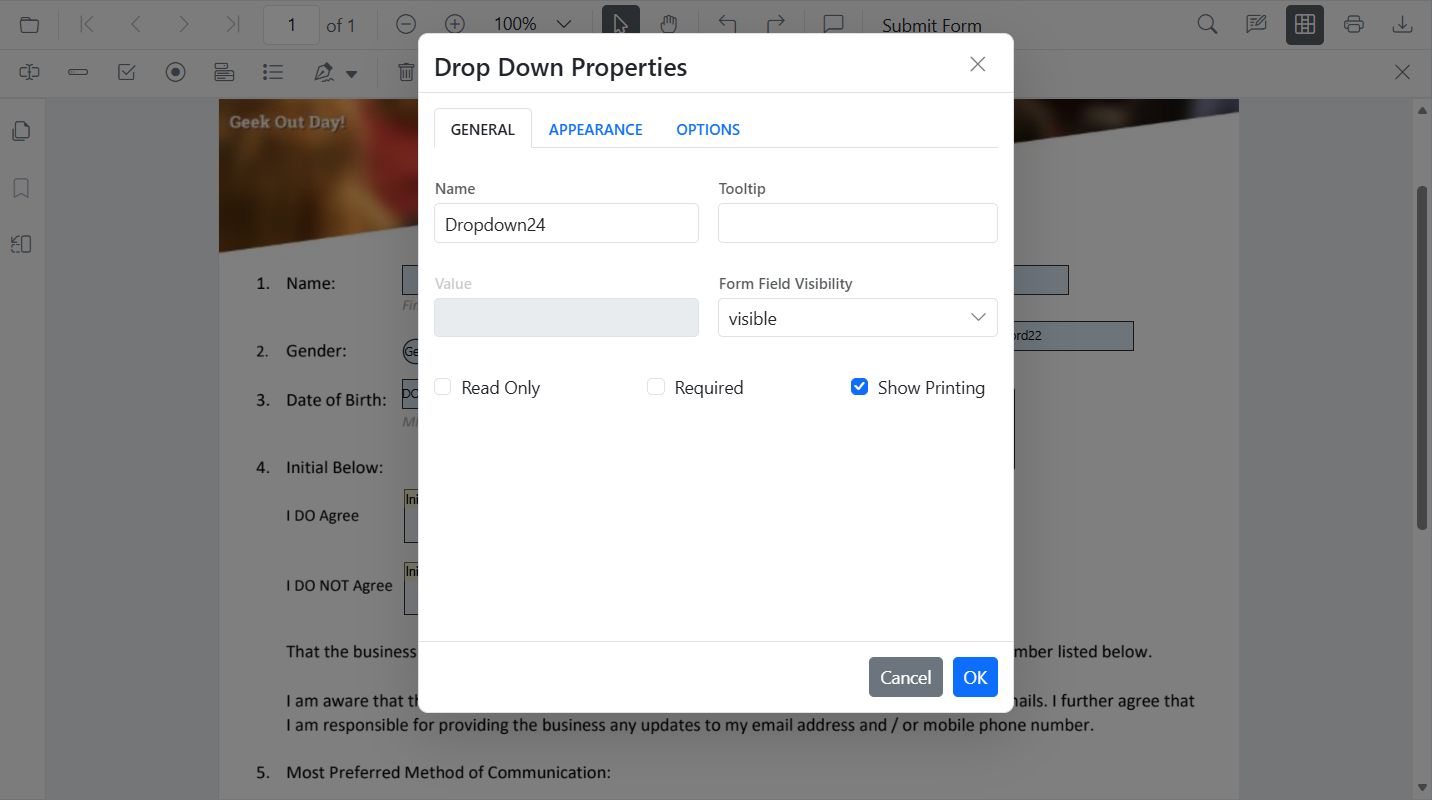
Use the Properties panel to add or remove items, set the default value, and adjust typography and colors.
Style DropDown programmatically
import { PdfViewer, Toolbar, Magnification, Navigation, Annotation, LinkAnnotation, ThumbnailView, BookmarkView, TextSelection, TextSearch, FormFields, FormDesigner, DropdownFieldSettings } from '@syncfusion/ej2-pdfviewer';

PdfViewer.Inject(Toolbar, Magnification, Navigation, Annotation, LinkAnnotation, ThumbnailView, BookmarkView, TextSelection, TextSearch, FormFields, FormDesigner);

const pdfviewer: PdfViewer = new PdfViewer();
pdfviewer.documentPath = 'https://cdn.syncfusion.com/content/pdf/form-designer.pdf';
pdfviewer.resourceUrl = 'https://cdn.syncfusion.com/ej2/31.1.23/dist/ej2-pdfviewer-lib';
pdfviewer.appendTo('#PdfViewer');

// Retrieve form fields collection and find the dropdown field by name
const dd = pdfviewer.formFieldCollections.find((f: any) => f.name === 'Country');
if (dd) {
  // Update dropdown items, value, and styling
  pdfviewer.formDesignerModule.updateFormField(dd, {
    options: [
      { itemName: 'USA', itemValue: 'US' },
      { itemName: 'Canada', itemValue: 'CA' },
      { itemName: 'Mexico', itemValue: 'MX' }
    ],
    value: 'US',
    fontFamily: 'Courier',
    fontSize: 10,
    color: 'black',
    borderColor: 'black',
    backgroundColor: 'white'
  } as DropdownFieldSettings);
}
Default DropDown settings
The PDF Viewer exposes default settings APIs for form fields. DropDown uses DropDownFieldSettings to pre configure properties applied when adding fields from the Form Designer toolbar.
const ddOptions = [
  { itemName: 'item1', itemValue: 'item1' },
  { itemName: 'item2', itemValue: 'item2' },
  { itemName: 'item3', itemValue: 'item3' }
];

// DropDown uses listBoxFieldSettings for defaults
pdfviewer.DropdownFieldSettings = {
  name: 'DropDown',
  isReadOnly: false,
  visibility: 'visible',
  isRequired: false,
  isPrint: true,
  tooltip: 'DropDown',
  thickness: 4,
  value: 'DropDown',
  fontFamily: 'Courier',
  fontSize: 10,
  fontStyle: 'None',
  color: 'black',
  borderColor: 'black',
  backgroundColor: 'White',
  alignment: 'Left',
  options: ddOptions
};
Signature field
Style Signature field
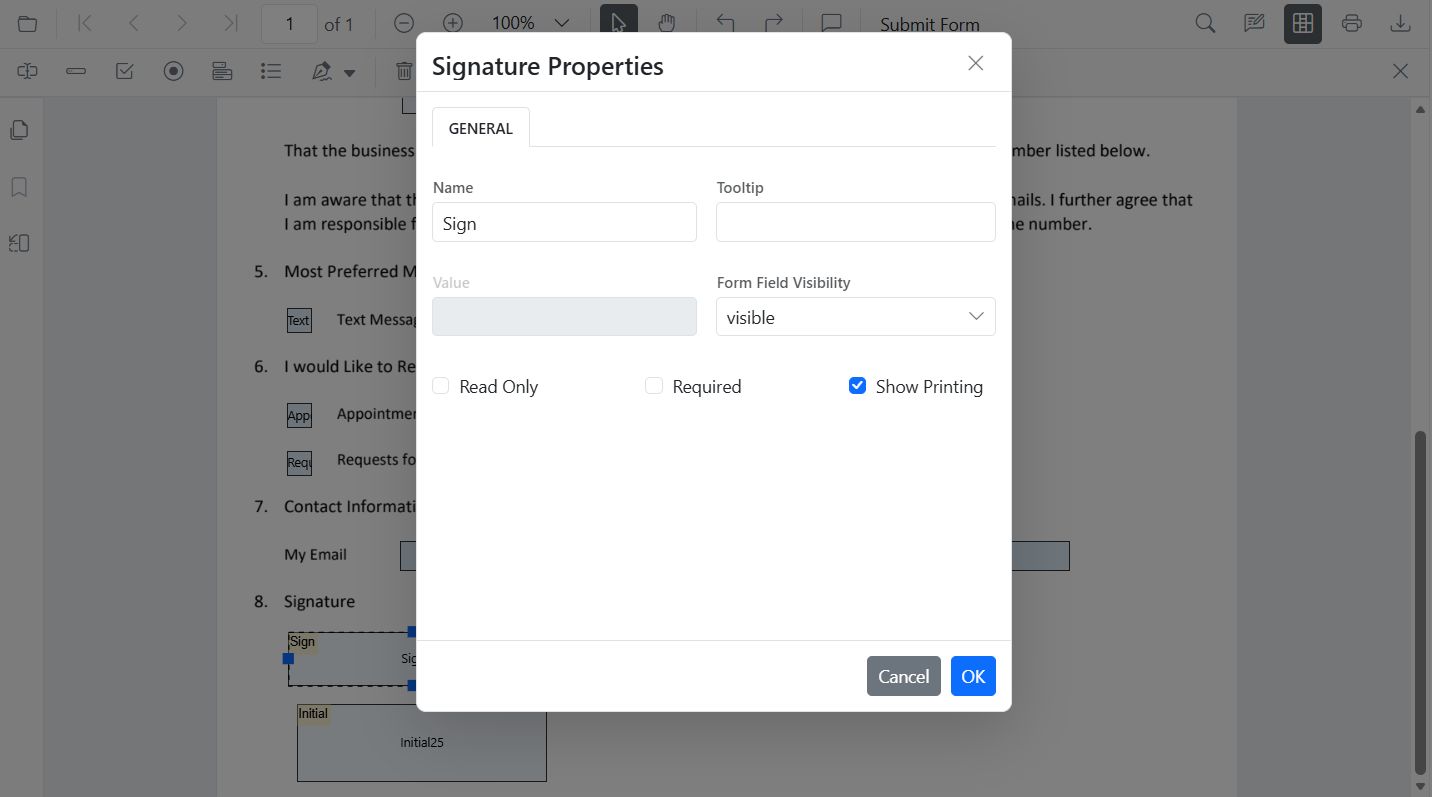
Use the Properties panel to configure the tooltip, indicator text, dialog display modes, border thickness, required setting, and colors.
Style Signature field programmatically
import { PdfViewer, Toolbar, Magnification, Navigation, Annotation, LinkAnnotation, ThumbnailView, BookmarkView, TextSelection, TextSearch, FormFields, FormDesigner, SignatureFieldSettings } from '@syncfusion/ej2-pdfviewer';

PdfViewer.Inject(Toolbar, Magnification, Navigation, Annotation, LinkAnnotation, ThumbnailView, BookmarkView, TextSelection, TextSearch, FormFields, FormDesigner);

const pdfviewer: PdfViewer = new PdfViewer();
pdfviewer.documentPath = 'https://cdn.syncfusion.com/content/pdf/form-designer.pdf';
pdfviewer.resourceUrl = 'https://cdn.syncfusion.com/ej2/31.1.23/dist/ej2-pdfviewer-lib';
pdfviewer.appendTo('#PdfViewer');

// Retrieve form fields collection and find the signature field by name
const sig = pdfviewer.formFieldCollections.find((f: any) => f.name === 'Sign');
if (sig) {
  // Update signature field settings
  pdfviewer.formDesignerModule.updateFormField(sig, {
    tooltip: 'Please sign here',
    thickness: 3,
    isRequired: true,
    isPrint: true,
    backgroundColor: 'white',
    borderColor: 'black'
  } as unknown as SignatureFieldSettings);
}
Default Signature field settings
The PDF Viewer exposes default settings APIs for form fields. Use the SignatureFieldSettings to pre configure Signature properties applied when adding fields from the Form Designer toolbar.
pdfviewer.signatureFieldSettings = {
  name: 'Signature',
  isReadOnly: false,
  visibility: 'visible',
  isRequired: false,
  isPrint: true,
  tooltip: 'Signature',
  thickness: 4,
  signatureDialogSettings: {
    displayMode: DisplayMode.Draw | DisplayMode.Upload | DisplayMode.Text,
    hideSaveSignature: false
  },
  signatureIndicatorSettings: {
    opacity: 1,
    backgroundColor: '#237ba2',
    height: 50,
    fontSize: 15,
    text: 'Signature Field',
    color: 'white'
  }
};
Initial field
Style Initial field
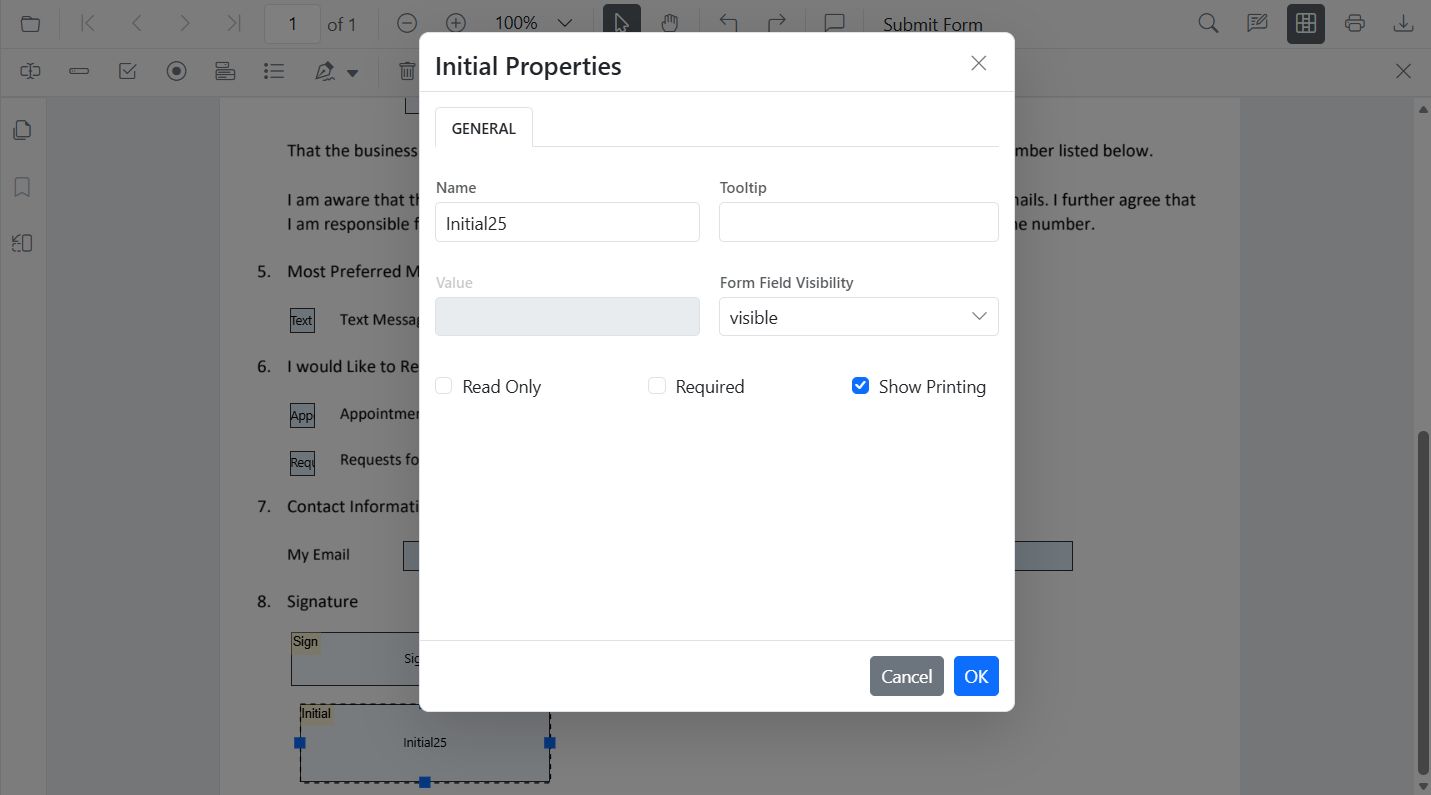
Use the Properties panel to configure the tooltip, indicator text, dialog display modes, border thickness, and colors.
Style Initial field programmatically
import { PdfViewer, Toolbar, Magnification, Navigation, Annotation, LinkAnnotation, ThumbnailView, BookmarkView, TextSelection, TextSearch, FormFields, FormDesigner, InitialFieldSettings } from '@syncfusion/ej2-pdfviewer';

PdfViewer.Inject(Toolbar, Magnification, Navigation, Annotation, LinkAnnotation, ThumbnailView, BookmarkView, TextSelection, TextSearch, FormFields, FormDesigner);

const pdfviewer: PdfViewer = new PdfViewer();
pdfviewer.documentPath = 'https://cdn.syncfusion.com/content/pdf/form-designer.pdf';
pdfviewer.resourceUrl = 'https://cdn.syncfusion.com/ej2/31.1.23/dist/ej2-pdfviewer-lib';
pdfviewer.appendTo('#PdfViewer');

// Retrieve form fields collection and find the initial field by name
const init = pdfviewer.formFieldCollections.find((f: any) => f.name === 'Initial');
if (init) {
  // Update initial field settings
  pdfviewer.formDesignerModule.updateFormField(init, {
    tooltip: 'Add your initials',
    thickness: 2,
    isRequired: true,
    isPrint: true,
    backgroundColor: 'white',
    borderColor: 'black'
  } as unknown as InitialFieldSettings);
}
Default Initial field settings
The PDF Viewer exposes default settings APIs for form fields. Use the InitialFieldSettings to pre configure Initial properties applied when adding fields from the Form Designer toolbar.
pdfviewer.initialFieldSettings = {
  name: 'Initial',
  isReadOnly: false,
  visibility: 'visible',
  isRequired: false,
  isPrint: true,
  tooltip: 'Initial',
  thickness: 4,
  initialIndicatorSettings: {
    opacity: 1,
    backgroundColor: '#237ba2',
    height: 50,
    fontSize: 15,
    text: 'Initial Field',
    color: 'white'
  },
  initialDialogSettings: {
    displayMode: DisplayMode.Draw | DisplayMode.Upload | DisplayMode.Text,
    hideSaveSignature: false
  }
};